How Do I Hide WordPress from Browser Extensions?

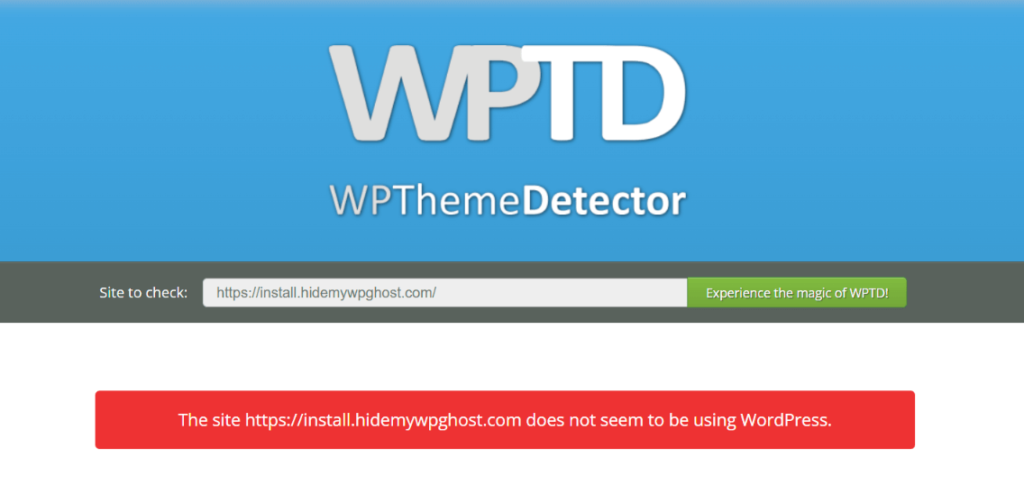
You cannot fully block a browser extension like Wappalyzer or WhatRuns because the extension runs inside the visitor’s browser, not on your site. What you can do is remove the WordPress fingerprints the extension looks for. WP Ghost hides the default paths, strips version tags and generator metas, renames wp- class names, and blocks known detector crawlers. With those layers active, extensions receive a page that has nothing identifying it as WordPress.

Why You Cannot “Block” a Browser Extension

A browser extension runs on the visitor’s machine, inside their browser. Your server sees only a normal HTTP request and returns the same HTML, CSS, and JavaScript it would return to any other visitor. Whatever the browser receives, the extension can inspect. That means detection tools like Wappalyzer, WhatRuns, and BuiltWith Profiler work on clues your site voluntarily puts in the page source: file paths, class names, meta tags, and network requests. You cannot reach into the visitor’s browser and switch the extension off, but you can change what your site sends, so there is nothing useful for the extension to read.

What Browser Extensions Actually Read

Technology detector extensions scan four things on every page they visit. The HTML source, looking for patterns like wp-content, wp-includes, or the WordPress generator meta tag. The URLs of loaded CSS and JavaScript files, looking for plugin names or theme paths. Network requests, looking for WordPress endpoints like wp-json or admin-ajax.php. And HTML class names, looking for the wp-block-, wp-image-, and similar prefixes WordPress adds automatically. Remove those signals and the extension has nothing to match against.

Default WordPress vs WP Ghost: What Extensions See

Signal in Page SourceDefault WordPressWith WP Ghost
/wp-content/ and /wp-includes/ pathsExposed in every script URLRenamed and hidden
Generator meta tagWordPress X.X visibleRemoved
?ver= version stringsRevealed on CSS and JSStripped
wp- class names in HTMLEverywhere in outputReplaced via Text Mapping
readme.html and license.txtPublicly readableReturn 404
Detector extension resultWordPress identified instantlyUnknown or wrong CMS

How to Hide Your Site from Browser Extension Detectors

Step 1. Activate Safe Mode or Ghost Mode

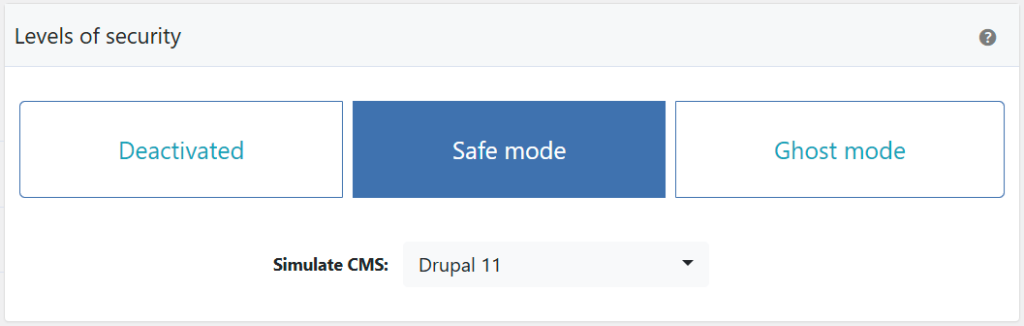
Go to WP Ghost > Change Paths > Level of Security and pick Safe Mode for a balanced setup or Ghost Mode for maximum hiding. This sets the baseline for everything else by changing the default WordPress paths in one click. For a walkthrough, see the 3-minute Safe Mode setup.

Step 2. Hide WordPress Common Paths and Files

Inside WP Ghost > Change Paths > WP Core Security, enable Hide WordPress Common Paths so old URLs like /wp-content/ and /wp-includes/ return 404 to logged-out visitors. Then enable Hide WordPress Common Files so readme.html, license.txt, and wp-config.php stop responding. See the full Hide WordPress Common Paths and Files guide for details.

Step 3. Remove Source Code Clues in Tweaks

Open WP Ghost > Tweaks and switch on the hiding options that strip WordPress signals from the HTML: Hide WordPress Version, Hide Generator Meta, Hide HTML Comments, Hide DNS Prefetch, Hide IDs from Meta Tags, Hide Emoji Icons, and Disable Embed Scripts. Each option removes a different signal, and together they clear out almost every WordPress fingerprint from the source.

Step 4. Use Text Mapping to Rename wp- Classes

Many extensions look for HTML class names like wp-block-group or wp-image. Even if your paths are perfectly hidden, these class names give the CMS away. Go to WP Ghost > Mapping and use Text Mapping to replace the wp- prefix with something generic. For hiding Gutenberg-specific classes, see Hide Gutenberg Classes.

Step 5. Use URL Mapping for Plugin Asset Names

Some plugins include their name in asset URLs (for example /woocommerce.min.js or /elementor.css). These are gold for extensions. Use URL Mapping to rename them. Combined with plugin name hiding, this removes the last layer of plugin fingerprints.

Step 6. Block Theme Detector Crawlers at the Firewall

Browser extensions themselves are client-side, but many of them ping their own servers to cross-check results, and those servers also run crawlers that scan your site. Enable Block Theme Detectors Crawlers in WP Ghost > Firewall to block known detector bots before they reach WordPress. The full approach is covered in Hide from WordPress Theme Detectors.

Why You Still See Detection While Logged In

This is the single most common reason people think WP Ghost is not working. When you test your own site with Wappalyzer or WhatRuns while logged into wp-admin, WordPress adds clear logged-in signals the extension cannot miss: the admin bar at the top, admin AJAX scripts, admin cookies, and backend assets. On top of that, WP Ghost deliberately keeps full hiding off in the admin context, because masking admin scripts would break the editor and the dashboard. So the extension sees WordPress, caches that result, and may continue to show it for weeks even after you fix everything on the public side.

The fix is simple: do not install detection extensions in the same browser profile you use for wp-admin. Test in an incognito window while logged out, or use a completely separate browser profile with no WordPress session. Even better, test from a different device entirely, like a phone or tablet that has never logged into the site. For more verification methods, see the Website Security Check guide.

Why This Matters for Hack Prevention

Browser extensions are not the real threat, bots are. But extensions and automated bots look at the exact same signals. If your site passes a clean Wappalyzer test from an incognito window, it also passes the quick fingerprint scans that bots run before they decide whether to attack. That is why hiding from detectors and hack prevention are the same problem solved at the same time. WP Ghost includes 115+ free features and 150+ premium features designed to strip those fingerprints across paths, files, HTML, classes, and assets.

Frequently Asked Questions

Can any plugin fully block Wappalyzer or WhatRuns?

No plugin can disable a browser extension, and any plugin claiming otherwise is misleading you. What a plugin can do, and what WP Ghost does, is remove the WordPress signals extensions look for so the detection fails for lack of evidence.

Why does Wappalyzer still show WordPress after I configured WP Ghost?

Three common reasons. You are testing while logged into wp-admin, so admin signals give the CMS away. The extension has cached the old result, try incognito or a clean profile. Or your cache plugin is still serving old HTML with the original paths, clear the cache and enable Change Paths in Cached Files.

Should I test with BuiltWith or IsItWP?

No. BuiltWith and IsItWP cache CMS detection results for months. Even a completely hidden site can keep showing as WordPress in their database long after the fingerprints are gone. Use real-time detectors like wpthemedetector.com, whatwpthemeisthat.com, and whatcms.org instead.

What about the CMS Simulator feature?

For even stronger misdirection, WP Ghost can simulate Drupal or Joomla so detectors report a different CMS entirely. This is an advanced feature and not required for basic hiding, but it is useful if you want detectors to return a wrong answer instead of “unknown”.

Does WP Ghost modify WordPress core files?

No. WP Ghost never touches, moves, or renames any file or folder on your server. All fingerprint hiding is done through URL rewrite rules, WordPress filters, and output buffering. Deactivating the plugin restores every original path, class, and meta tag instantly, which means testing it on a production site carries zero risk of permanent changes.
Can We Use WP Ghost to Hide the Plugins and Theme We Are Using?

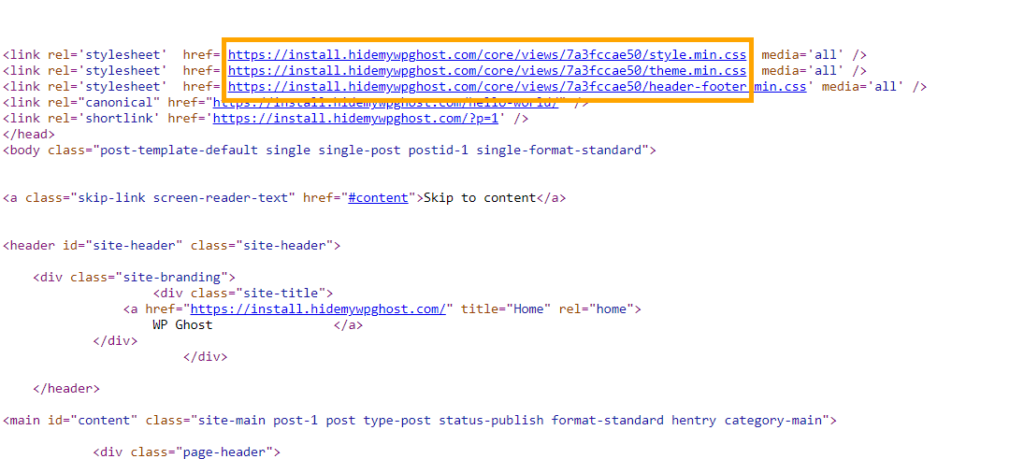
Yes, WP Ghost can hide both the plugins and the theme your WordPress site uses. Plugin and theme directory names appear in every CSS, JavaScript, and image URL on your page source, and vulnerability scanners read them to build an exploit plan. WP Ghost replaces plugin and theme directory names with random codes, renames the /plugins/ and /themes/ paths, blocks the original URLs with 404 responses, and renames style.css so detectors cannot read its header. After setup, scanners cannot enumerate your plugin stack or identify your theme.

Why Plugin and Theme Names Are a Security Risk

Plugins cause 96% of WordPress vulnerabilities. Every plugin you install creates a directory inside /wp-content/plugins/ with its exact name, and that name leaks into every asset URL your site loads. If you use Contact Form 7, your source shows /wp-content/plugins/contact-form-7/. If you use Elementor, it shows /wp-content/plugins/elementor/. WPScan, Wappalyzer, and similar scanners read those directory names, cross-reference them against public vulnerability databases, and launch the matching exploit within seconds. The same logic applies to your theme: the /wp-content/themes/astra/ path tells any bot exactly which theme and version you are running.

How WP Ghost Hides Plugins and Themes

WP Ghost assigns custom names and paths to your plugins and themes, effectively masking their real identities. Scanners hit the default locations and get 404 responses; the actual assets load through the new paths, which contain no recognizable plugin or theme names.

WP Ghost custom plugin and theme paths replacing default WordPress directory names

Default WordPress vs WP Ghost: What Scanners See

Signal in Page SourceDefault WordPressWith WP Ghost
Plugin directory names/wp-content/plugins/elementor//assets/p3x9k/
Theme directory name/wp-content/themes/astra//layouts/t7k2m/
Deactivated plugins exposedYes, still browsableRenamed or blocked
/wp-content/plugins/ URLResponds normallyReturns 404 to visitors
style.css readableYes, full theme header exposedRenamed, header unreachable
Vulnerability scanner resultPlugins and theme enumeratedZero detections

How to Hide Plugins and Themes with WP Ghost

Step 1. Activate Safe Mode or Ghost Mode

Open WP Ghost > Change Paths > Level of Security and select Safe Mode for a balanced setup or Ghost Mode for maximum hiding. This sets the baseline that plugin and theme protection builds on. For a walkthrough, see the 3-minute Safe Mode setup.

Step 2. Change the Plugins Path and Hide Plugin Names

Go to WP Ghost > Change Paths > Plugins Security. Enter a custom name in the Custom Plugins Path field to replace the /plugins/ keyword. Switch on Hide Plugin Names to replace each plugin’s directory with a random code. Switch on Hide All the Plugins to rename deactivated plugins too, since deactivated plugins are still exploitable. Finally, switch on Hide WordPress Old Plugins Path to return 404 on requests to the original URL. Full details are in the Change Plugins Path tutorial.

Step 3. Change the Themes Path and Hide Theme Names

Go to WP Ghost > Change Paths > Themes Security. Enter a custom name in the Custom Themes Path field, switch on Hide Theme Names and Hide All the Themes, then switch on Hide WordPress Old Themes Path. Set a Custom Theme Style Name to rename style.css, which blocks detectors that read the theme header. Full setup is in the Change Themes Path tutorial.

Step 4. Hide WordPress Common Paths

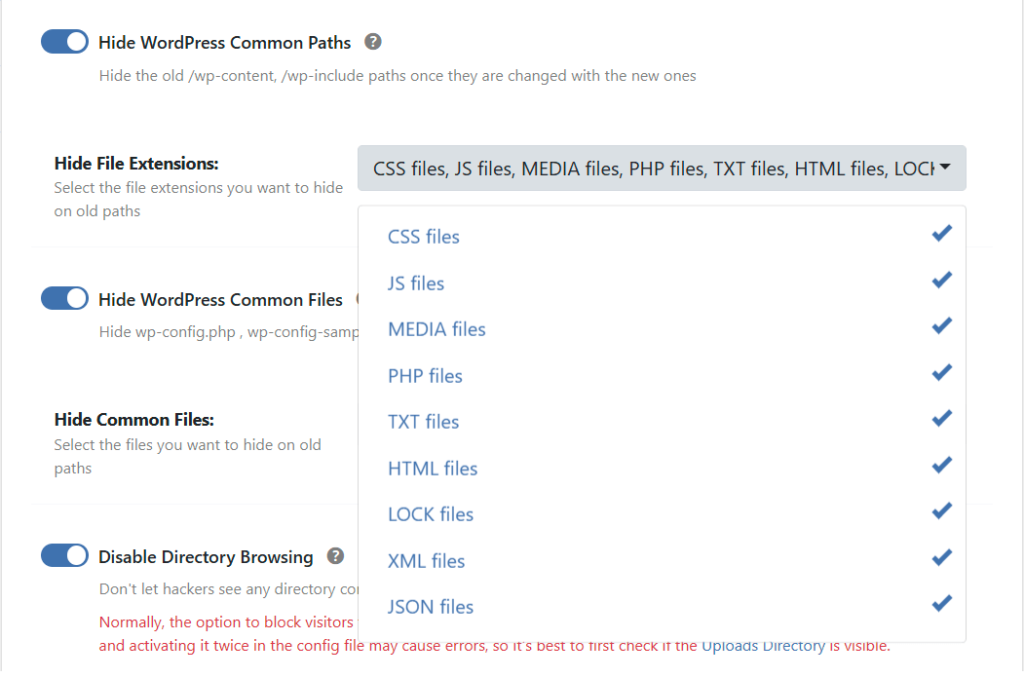
Plugins and themes live inside /wp-content/, so hiding that parent directory adds another layer. Go to WP Ghost > Change Paths > WP Core Security and switch on Hide WordPress Common Paths. This returns 404 for requests to the default WordPress directories. Click Save.

WP Ghost Hide WordPress Common Paths option blocking default plugin and theme directories

Full options are in the Hide WordPress Common Paths and Files guide.

Step 5. Hide Plugin Class Names (Advanced)

Some plugins leak their identity through HTML class names, not just file paths. Classes like woocommerce-product-gallery or elementor-widget-container appear throughout your markup and betray the plugin even when paths are hidden. For sites where maximum concealment matters, use Text Mapping for WooCommerce and Elementor to replace those class names in HTML, CSS, and JavaScript output.

Step 6. Verify with the Security Check

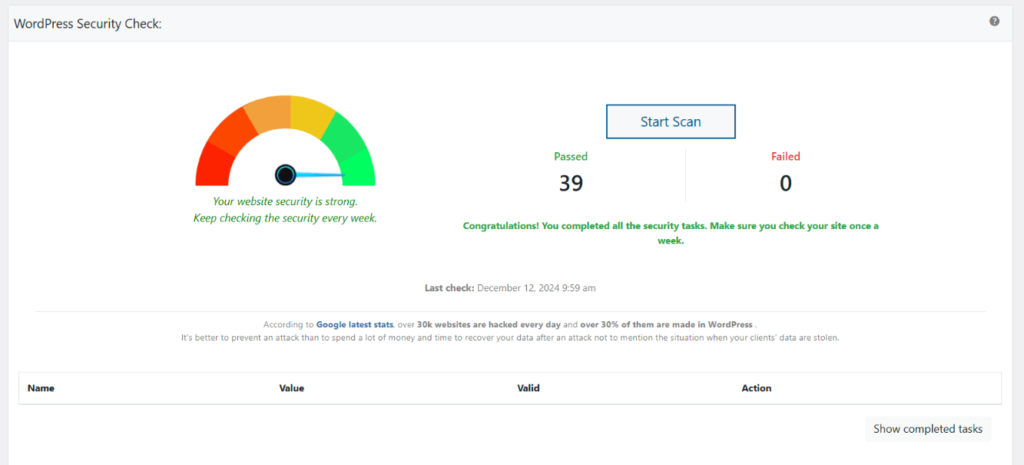
Go to WP Ghost > Security Check and click Start Scan. The plugin runs through its checklist and flags anything still leaking plugin or theme names. You can also verify manually: open the site in an incognito window, view source, and search for a known plugin name like “elementor” or “woocommerce”. If nothing appears, the configuration is working. See the Website Security Check guide for the full verification process.

Why Hiding Plugins and Themes Matters

Knowing which plugins and themes you run tells attackers more than which exploits to try. It reveals your site’s purpose, your form handling, your security setup, and your page builder. A site running WooCommerce and LearnDash is an online course store. A site running Contact Form 7 and Gravity Forms has specific form endpoints to target. That intelligence shapes every subsequent attack decision. Hide the plugin and theme names, and automated attackers are working blind, which is exactly the hack prevention outcome WP Ghost is designed to deliver. Plugin and theme hiding is part of the 115+ free features and 150+ premium features that remove WordPress fingerprints across your entire site.

Frequently Asked Questions

Will hiding plugins break their functionality?

No. WP Ghost creates virtual paths through server rewrite rules. Plugin files stay in /wp-content/plugins/ where WordPress expects them, and the plugin loads through the new URL. Contact forms submit, page builders render, WooCommerce carts update, SEO plugins generate sitemaps, everything works normally.

Does this work with WooCommerce and Elementor?

Yes. Path and name hiding is fully compatible with WooCommerce, Elementor, Divi, Gutenberg, and every major plugin. For deeper WooCommerce and Elementor concealment (class names, not just paths), use the Hide Plugins Like WooCommerce and Elementor tutorial.

Why should I hide deactivated plugins?

Because deactivated plugins are still exploitable. Their PHP files remain on the server and are accessible through the default path even when the plugin is not active. If a deactivated plugin has a known vulnerability, attackers can target its files directly. Enabling Hide All the Plugins renames both active and deactivated directories. Even better: delete any plugins you do not actively use.

Does hiding plugins and themes affect SEO?

No. Path changes affect asset URLs only, CSS, JavaScript, and images loaded by plugins and themes. Your public page URLs, posts, sitemaps, and canonical tags stay the same. Search engines do not index or rank based on plugin or theme file paths.

Can I assign custom names instead of random codes?

Yes. The Advanced Options panel in Plugins Security and Themes Security lets you assign specific names to each plugin or theme individually. This is useful for developers who want readable source code, though random codes offer the strongest protection.

Does WP Ghost modify WordPress core files?

No. WP Ghost never touches, moves, or renames any file or folder on your server. Plugin files stay in /wp-content/plugins/ and theme files stay in /wp-content/themes/ exactly where WordPress expects them. All path changes use server rewrite rules and WordPress filters. Deactivating WP Ghost restores all original paths instantly.

Same Login Path with Multiple Security Plugins?

No, you should not use the same custom login path in two security plugins. Each plugin that offers a custom login URL needs its own unique path. When two plugins fight over the same URL, you get redirect loops, broken login pages, and worst of all, the conflict can leak your real login path to bots scanning the redirect chain.

Why Two Plugins on the Same Login Path Is a Bad Idea

When two security plugins try to own the same custom login URL, they compete for control. Each one writes its own rewrite rules in .htaccess and applies its own redirect logic. You cannot predict which one fires first, and that unpredictability is the problem. One plugin may redirect the request before the other processes it. Both may inject CSS into the login page, so you end up with broken styling. Sometimes the whole page gets stuck in a redirect loop and becomes completely inaccessible.

The conflict itself is a security risk. If one plugin redirects to /wp-login.php before the other hides it, bots watching the redirect chain can see your real login path in the response headers. That defeats the entire point of changing the login URL. You thought you hid the door, but the plugins are arguing so loudly that the bot hears the address anyway.

Default vs Secured Setup

SetupResult
Two plugins, same login pathRedirect loops, broken styling, real login path leaks to bots
Two plugins, different login pathsBoth work independently, no conflict
One plugin handling the login path, the other disabled for this featureCleanest setup, faster performance, zero conflict risk

The Recommended Setup

The cleanest approach is to let one plugin own the login path and disable that feature in the other. WP Ghost is the recommended choice because it handles the login path change at the server rewrite level, which is faster and more thorough than PHP-level redirects. Go to WP Ghost > Change Paths > Login Security, set your custom login path, and disable the custom login feature in the second plugin.

If you really need two different login entry points, for example one styled login for clients and one hidden login for admins, give each plugin a completely different URL. Set WP Ghost to /my-secret-login and the other plugin, like Wordfence or Solid Security, to /team-access. Then make sure WP Ghost hides the default /wp-login.php and /login paths so bots cannot find the original door either.

A Practical Example

Here is WP Ghost and Wordfence running side by side without stepping on each other. WP Ghost handles the custom login path at /my-secret-login with the default WordPress paths hidden. Wordfence uses its own styled login at /team-access. Both plugins operate independently because nothing overlaps. Bots scanning /wp-login.php or /login hit a 404 and move on to an easier target.

The LoginPress Exception

LoginPress is the one exception to the rule. You can use the same custom login path for WP Ghost and LoginPress without a conflict, because LoginPress is not a security plugin. It does not write rewrite rules. It does not add redirect logic. It only applies visual customization to the login page, so there is nothing for WP Ghost to fight with. This lets you have a branded, styled login page that sits behind a hidden URL. If you prefer a built-in option, WP Ghost also includes its own Login Page Design feature, so you may not need a separate styling plugin at all.

Why Path Security Matters Here

Most WordPress attacks are not genius hackers picking locks. They are bots running through lists of default URLs and trying common passwords. The moment they find /wp-login.php or /wp-admin, your site enters their queue. Changing and hiding the login path is one of the highest-value hack prevention moves you can make. But that move only works if it is done cleanly. Two plugins arguing over the same login URL is worse than having no custom path at all, because the conflict itself tells the bot where to look. Pick one plugin, configure it well, and let the other focus on what it does best.

Frequently Asked Questions

What happens if I accidentally set the same login path in two security plugins?

You will usually hit one of three problems: a redirect loop that blocks access, a broken login page with mismatched styles, or a complete lockout from the dashboard. If this happens, follow the emergency disable method to regain access, then set a unique path in each plugin and re-enable the features one at a time.

Which plugin should handle the custom login path?

WP Ghost. It handles the login path change at the server rewrite level, which is both faster and more thorough than PHP-level redirects other plugins use. Disable the custom login feature in the other plugin and let WP Ghost own the URL. For plugin-specific setup, see WP Ghost with Wordfence, WP Ghost with Solid Security, or the full compatible plugins list.

Can I use LoginPress with WP Ghost on the same login path?

Yes, this is the only safe case. LoginPress is a styling plugin, not a security plugin. It does not touch rewrite rules or redirect logic, so it cannot conflict with WP Ghost’s path security. You can point both at the same custom login URL. If you want to skip the extra plugin, WP Ghost has its own Login Page Design feature that covers the same ground.

Should I also hide the default /wp-login.php path?

Yes, always. Setting a custom login path without hiding the original is doing half the job. Bots still find the default URL because it is the first thing they check. Go to WP Ghost > Change Paths > Login Security and enable the option to return a 404 for /wp-login.php and /login. See the change and hide wp-login path tutorial for the full walkthrough.

Can WP Ghost run alongside Wordfence, Solid Security, or Sucuri?

Yes, and it works well. WP Ghost is a hack prevention plugin focused on reducing your attack surface, while Wordfence, Solid Security, and Sucuri are malware scanners and monitoring tools. The rule is simple: do not duplicate features. Let WP Ghost handle path security, firewall, 2FA, and brute force protection. Let the other plugin handle malware scanning and file monitoring. See the compatibility list for tested setups.

Does WP Ghost modify WordPress core files?

No. WP Ghost uses server-level rewrite rules and WordPress filters to change and hide paths. No core files are touched. Deactivating WP Ghost restores every original path instantly.

How Do I Install Security Plugins in WordPress? (Guide)

WordPress doesn’t ship with built-in hack prevention, so installing a security plugin is one of the first things you should do after launching a site. This guide walks you through the complete process, from searching the plugin directory to configuring your first security scan, and explains why a hack-prevention plugin like WP Ghost should be at the top of your list.

Install Security Plugins in WordPress

Why You Need a Security Plugin on Every WordPress Site

WordPress powers over 40% of the web, and that popularity makes it the number-one target for automated bots. These bots scan thousands of sites per hour looking for default paths like /wp-admin, /wp-login.php, and /wp-includes. If those paths exist exactly where WordPress puts them, you’re giving attackers a roadmap to your site.

A security plugin adds the protection WordPress doesn’t include out of the box: firewalls, brute force limits, login path changes, security headers, and more. The best approach is hack prevention, stopping attacks before they reach your plugins, themes, and core files, rather than cleaning up malware after a breach.

How to Install a Security Plugin in WordPress

Step 1 – Log In to Your WordPress Dashboard

Open your browser and go to your site’s admin area. By default that’s yourdomain.com/wp-admin. Enter your administrator username and password to log in. If you’ve already changed your login path with a security plugin, use that custom URL instead.

Step 2 – Go to Plugins > Add New Plugin

In the left sidebar of your dashboard, click Plugins, then click Add New Plugin at the top of the page. This opens the WordPress plugin directory where you can search for and install any free plugin.

Step 3 – Search for Your Security Plugin

Type the name of the plugin you want in the search bar. For example, search for “WP Ghost” to find the hack-prevention plugin, or search keywords like “WordPress security” or “hide wp-login” to browse related options. WordPress displays matching results instantly.

Step 4 – Install and Activate

Click the Install Now button next to the plugin you want. WordPress downloads and installs the files automatically. Once the install finishes, the button changes to Activate. Click it. The plugin is now live on your site, but you still need to configure its settings.

Step 5 – Configure Security Settings

Every security plugin has its own settings panel. Most add a new menu item in the WordPress sidebar after activation. For WP Ghost, you’ll find the settings under WP Ghost in the left menu, with sections for Change Paths, Firewall, Brute Force, 2FA Login, Tweaks, and more.

Take time to go through each section. At minimum, you should enable a firewall, set up brute force protection, and change your default login path. If your plugin offers a security check or scan feature, run it immediately to see where your site stands.

Step 6 – Keep the Plugin Updated

Security plugins receive frequent updates to patch new vulnerabilities and add protection against emerging threats. Check your Plugins page regularly for update notifications, or enable auto-updates for your security plugin so you’re always running the latest version.

What to Look for in a WordPress Security Plugin

Not all security plugins work the same way. Some focus on malware scanning (detecting problems after they happen), while others focus on hack prevention (stopping attacks before they succeed). The strongest security setup combines both approaches, but if you have to pick a priority, prevention wins every time.

Here’s what a solid hack-prevention plugin should include: a web application firewall (like the 7G or 8G firewall in WP Ghost), brute force protection with login attempt limits, the ability to change and hide default WordPress paths, security headers to block clickjacking and XSS attacks, and two-factor authentication. WP Ghost includes all of these in its free version, with 115+ features available at no cost.

Alternative Method – Upload a Plugin ZIP File

If you downloaded a plugin as a .zip file (common for premium plugins like WP Ghost Premium), you can install it manually. Go to Plugins > Add New Plugin, click Upload Plugin at the top, choose your .zip file, and click Install Now. After the upload completes, click Activate.

Security Plugins Work Best as Part of a Stack

Installing a security plugin is a critical step, but it’s not the only one. A strong WordPress security strategy also includes strong, unique passwords for every admin account, two-factor authentication on all user logins, regular backups stored off-site, keeping WordPress core, themes, and plugins updated, and secure hosting with server-level protection.

WP Ghost is designed to work alongside other security tools. You can run it together with Wordfence, Solid Security, Sucuri, or your hosting’s built-in firewall. WP Ghost handles the prevention layer, hiding your WordPress fingerprint from bots and blocking attacks before they reach vulnerable code, while other tools handle scanning and monitoring.

Frequently Asked Questions

Do I really need a security plugin if my host provides security?

Yes. Hosting security typically covers server-level protection like DDoS mitigation and network firewalls. A WordPress security plugin protects at the application level, hiding paths, blocking brute force attacks, adding login 2FA, and enforcing security headers. The two layers complement each other.

Can I install more than one security plugin at the same time?

Yes, as long as you avoid feature overlap. For example, don’t enable two different firewalls or two brute force limiters on the same path. WP Ghost is compatible with most security plugins because it focuses on path security and hack prevention rather than malware scanning.

Will a security plugin slow down my website?

A well-built security plugin adds minimal overhead. WP Ghost actually reduces server load by blocking malicious bot traffic before it reaches your PHP files. Bots that can’t find your login page or admin path simply get a 404 and move on, saving your server from processing thousands of junk requests.

What is the best free security plugin for WordPress?

It depends on what you need. If your priority is hack prevention and reducing your attack surface, WP Ghost Free is a strong choice. It includes 115+ features: path security, 7G/8G firewall, brute force protection, 2FA (including passkeys), security headers, and login customization, all at no cost. For malware scanning, tools like Wordfence or Sucuri are popular. Many site owners run WP Ghost alongside a scanner for layered protection.

How do I know which security features to enable after installing?

Run your plugin’s security check first. In WP Ghost, go to WP Ghost > Security Check > Start Scan. The scan identifies weak spots and gives you a security score. Use the recommended settings or “Fix it” buttons to address each issue. You can also follow the WP Ghost best practice guide for a proven configuration.

Does WP Ghost modify WordPress core files?

No. WP Ghost uses server rewrite rules and WordPress filters to change paths and block threats. It never modifies, moves, or renames any core WordPress files. If you deactivate the plugin, everything reverts to the original WordPress defaults automatically.

Do I Really Need a Security Plugin for WordPress?

Yes. WordPress powers over 40% of the web, which makes it the number one target for automated bot attacks. A security plugin adds layers of protection that WordPress does not include by default, from firewall rules and brute force protection to path security and two-factor authentication. Without one, your site relies entirely on strong passwords and timely updates, and that is rarely enough.

Why WordPress Needs Extra Protection

WordPress out of the box is a well-built CMS, but it was designed for publishing, not for security. Every WordPress installation uses the same default paths: /wp-admin, /wp-login.php, /wp-content/plugins/, /xmlrpc.php, /wp-json/. Attackers know this. Their bots scan millions of sites per day, probing these exact paths to confirm that a site runs WordPress and to identify which plugins and themes are installed. Once a bot confirms the CMS and fingerprints your plugins, it checks public vulnerability databases for known exploits. If your plugin has a security flaw, even one you haven’t patched yet, the bot attacks automatically.

This is not a theoretical risk. The vast majority of WordPress hacks are not carried out by skilled hackers sitting at a keyboard. They are executed by automated scripts that run 24/7, targeting any site that looks like a standard WordPress installation. If your site’s “doors” are in the default locations, bots will find them.

What a Security Plugin Actually Does

A good WordPress security plugin adds multiple defense layers that WordPress does not provide on its own. The specific features depend on the plugin, but the most effective ones cover these areas:

Hack prevention through path security. This is the most impactful layer. Instead of waiting for an attack and then reacting, a hack-prevention plugin changes the default WordPress paths so bots cannot find them. If a bot scans for /wp-login.php and gets a 404 error, it moves on to the next target. No login page found means no brute force attack, no credential stuffing, no exploit attempt. WP Ghost takes this approach, changing and hiding over 30 WordPress paths including the admin, login, plugins, themes, uploads, and REST API.

Firewall protection. A web application firewall filters incoming requests and blocks malicious patterns before they reach your WordPress core. This stops SQL injection, cross-site scripting (XSS), and other common injection attacks at the server level. WP Ghost includes both 7G and 8G firewall rules as a free feature.

Brute force protection. Even with a hidden login path, you want rate limiting and CAPTCHA on your login, registration, lost password, and comment forms. A security plugin limits the number of failed attempts from a single IP and can block repeat offenders automatically.

Two-factor authentication. Passwords alone are not enough. 2FA adds a second verification step, whether that is a code from an authenticator app, an email code, or a passkey using Face ID, Touch ID, or a hardware key. This blocks credential stuffing attacks even if your password is compromised.

Security headers. Headers like Strict-Transport-Security, Content-Security-Policy, X-Frame-Options, and X-XSS-Protection tell browsers how to handle your content securely. They prevent clickjacking, cross-site scripting, and content sniffing. WordPress does not set these by default.

Prevention vs. Cleanup: The Key Difference

Most security plugins focus on reactive security: they scan for malware, alert you after something goes wrong, and help you clean up the damage. That approach has its place, but by the time a scanner finds malware on your site, the hack already happened. Google may have flagged your site, your hosting provider may have suspended your account, and your visitors may have been redirected to spam pages.

A hack-prevention plugin like WP Ghost works the other way around. It reduces your attack surface before bots even get a chance to probe your site. Think of it this way: reactive security is like a doctor who treats you after you get sick. Proactive hack prevention is the immune system that stops you from getting sick in the first place. Ideally, you want both, but if you have to pick a priority, prevention beats cleanup every time.

Can You Skip the Security Plugin If You Have Good Hosting?

Managed WordPress hosts like WP Engine, Kinsta, and SiteGround include server-level firewalls, DDoS protection, and automatic backups. That is valuable, but it does not replace a WordPress security plugin. Hosting firewalls protect the server. A WordPress security plugin protects your application. Hosting does not change your login path, hide your plugin names, add 2FA to your login form, or block bots from fingerprinting your CMS. These are application-level protections that only a WordPress plugin can provide. The best security setup uses hosting protection and a plugin together, each handling a different layer.

What WP Ghost Covers

WP Ghost is a hack-prevention plugin with 115+ free features and 150+ premium features. The free version includes path security for all major WordPress paths, 7G and 8G firewall rules, brute force protection with Math reCAPTCHA and Google reCAPTCHA, two-factor authentication (code, email, and passkey), security headers, text and URL mapping, and over 65 hardening options. The premium version adds the Security Threats Log, User Events Log, country blocking, file permission management, SALT regeneration, and priority support. You can see the full comparison on the Free vs Premium page.

Frequently Asked Questions

Is WordPress secure without a security plugin?

WordPress core is actively maintained and patched, but it does not include a firewall, path security, brute force protection, 2FA, or security headers out of the box. These are the features that stop the most common attacks. Without a security plugin, you depend entirely on strong passwords, fast updates, and your hosting provider’s server-level protection, which leaves significant gaps at the application level.

Will a security plugin slow down my site?

It depends on the plugin. Scan-heavy plugins that check every file on every page load can add overhead. WP Ghost takes a different approach: it uses lightweight rewrite rules and server-level filtering, which actually reduces server load by blocking malicious traffic before it reaches WordPress. Most users see no measurable performance difference, and some report faster load times because bot traffic is eliminated. See the WP Ghost Tutorial for setup details.

Can I use WP Ghost with another security plugin?

Yes. WP Ghost is designed to work alongside other security plugins like Wordfence, Solid Security, Sucuri, and WP Cerber. The recommended approach is to let WP Ghost handle path security and the firewall, while the other plugin handles malware scanning or activity monitoring. Avoid enabling the same feature (like custom login paths) in both plugins. See the compatible plugins list for specific guides.

What is the difference between a security plugin and a backup plugin?

A security plugin prevents attacks and reduces your attack surface. A backup plugin creates copies of your site so you can restore it if something goes wrong. They serve completely different purposes and you should use both. A security plugin reduces the chance of needing a backup, but a backup ensures you can recover from scenarios that no security plugin can prevent, like accidental deletions or hosting failures.

Does WP Ghost modify WordPress core files?

No. WP Ghost uses rewrite rules, WordPress filters, and output buffering to apply all its security features at runtime. No WordPress core files, plugin files, or theme files are modified. Deactivating WP Ghost restores all original paths and settings instantly.

How Do I Block WP Content in WordPress? (WP Ghost Guide)

WordPress Common Paths to return a 404 on the original URL. WP Ghost handles both from a single settings page, and nothing on your site breaks because all files are served through the new path automatically.

Why Should You Block Access to the wp-content Directory?

The /wp-content/ directory is the heart of every WordPress installation. It contains your themes, plugins, and uploaded media. Every bot, scanner, and theme detector on the internet knows exactly where to find it, because WordPress puts it in the same place on every site.

When attackers can access /wp-content/, they can enumerate your plugins by probing /wp-content/plugins/plugin-name/readme.txt, identify your theme from /wp-content/themes/theme-name/style.css, and find your exact versions from those files. With that information, they look up known vulnerabilities and launch targeted exploits. Blocking access to wp-content removes this entire attack vector.

How Do I Change the wp-content Path with WP Ghost?

The first step is to give your wp-content directory a custom URL so your site’s assets load from a path that doesn’t reveal WordPress.

Go to WP Ghost > Change Paths > WP Core Security. Find the Custom wp-content Path field. A predefined random name is already filled in. You can keep it or enter your own. Avoid names that obviously relate to content, like “assets”, “files”, or “resources”. Choose something random that doesn’t hint at what’s inside. Click Save to apply.

After saving, every URL that previously referenced /wp-content/ now uses your custom path. Images, CSS, JS, fonts, everything updates automatically. Check your page source in a private browser window and search for “wp-content”. If the path change is working, you won’t find any instances.

Change core paths

For a full walkthrough, see the change wp-content path tutorial.

How Do I Hide the Old wp-content Path So Bots Get a 404?

Changing the path creates a new URL, but the original /wp-content/ path might still respond if someone types it directly. You need to block access to the old path so bots and scanners hit a dead end.

Still in WP Ghost > Change Paths > WP Core Security, switch on Hide WordPress Common Paths. This blocks direct access to the old /wp-content/, /wp-includes/, and other default WordPress directories. Anyone or any bot that tries to access the original path gets a 404 error instead.

You can also choose which file extensions to block from the old paths. The key ones are PHP (blocks direct access to vulnerable plugin files), JS (hides JavaScript files that reveal plugin structure), and TXT (hides readme.txt files that expose plugin versions). Select the extensions you want to protect and click Save.

How Do I Verify That wp-content Is Actually Blocked?

After saving your settings, run a quick verification. Go to WP Ghost > Security Check and click Start Scan. The plugin checks whether the wp-content path has been changed and the old path is hidden. If everything is working, the security task is marked as complete.

You can also verify manually. Open a private browser window and try accessing your old wp-content path directly, for example yourdomain.com/wp-content/. You should see a 404 error page. Then view your page source and search for “wp-content”. If neither test reveals the default path, your site is properly protected.

For complete details on the security scanner, see the Security Check tutorial.

What Else Can I Hide Along with wp-content?

Blocking wp-content is a great start, but for full protection you should also change and hide the wp-includes path, change individual plugin names and paths, change your theme names and paths, and change the uploads path. When all of these are customized together, vulnerability scanners and theme detectors come up completely empty. WP Ghost can do all of this from the same WP Ghost > Change Paths page.

For a recommended configuration that covers all paths, check the best practice guide.

Frequently Asked Questions

Will blocking wp-content break my images, CSS, or JavaScript?

No. WP Ghost doesn’t delete or move any files. It creates a new URL path using server rewrite rules. Your images, stylesheets, and scripts are served through the new custom path. Only the old default path is blocked. Clear your cache after saving so cached pages pick up the new URLs.

Do I need to change the path before hiding it?

Yes. The most effective approach is to do both. Change the wp-content path first so your site uses new URLs, then hide the old path so it returns a 404. If you only hide without changing, some internal references may still point to the old path, which could cause broken assets.

Does hiding wp-content affect logged-in admin users?

No. WP Ghost only blocks access for non-logged-in visitors and bots. Logged-in administrators can still access all paths normally. The 404 responses only apply to anonymous requests, which is exactly what bot traffic looks like.

Does this work with WooCommerce?

Yes. WP Ghost is fully compatible with WooCommerce. Product images, cart functionality, checkout pages, and customer accounts all work normally through the custom paths. WooCommerce files are served through the new path just like everything else.

Will this affect my SEO or sitemaps?

No. The files being hidden (wp-content directory structure, readme.txt, license.txt) are not indexed by search engines and aren’t part of your sitemap. Your public pages, posts, images, and media all continue working through the custom paths. Search engines follow the new URLs just like visitors do.

Does WP Ghost modify WordPress core files?

No. WP Ghost uses server rewrite rules and WordPress filters to create virtual paths. No files are physically moved, renamed, or modified. The actual wp-content folder stays exactly where WordPress put it. Deactivating WP Ghost restores all default paths instantly.

The process is user-friendly and is managed from within the plugin’s settings, providing a straightforward way to enhance the security of your WordPress installation.

What Is the WP Ghost Security Plugin for WordPress?

WP Ghost (formerly Hide My WP Ghost) is a hack-prevention WordPress security plugin that reduces your site’s attack surface by changing and hiding default WordPress paths, blocking bot traffic with 7G/8G firewall rules, enforcing security headers, enabling two-factor authentication including passkeys, and protecting against brute force attacks. It focuses on preventing hacks before they happen rather than cleaning up after a breach.

How WP Ghost Protects Your Site

Every WordPress installation uses the same predictable paths: /wp-admin, /wp-login.php, /wp-content/plugins/, /wp-json/, and /xmlrpc.php. Automated bots scan millions of sites per day, looking for exactly these paths to confirm a target runs WordPress and to fingerprint installed plugins and themes. Once a bot knows your CMS and your plugins, it checks vulnerability databases and attacks automatically.

WP Ghost breaks this cycle at the first step. It changes all those default paths to custom URLs that bots don’t expect. If a bot probes /wp-login.php and gets a 404 error, it cannot launch a brute force attack. If it scans for /wp-content/plugins/contact-form-7/ and finds nothing, it cannot target that plugin’s vulnerabilities. The bot moves on to an easier target. That is what hack prevention means: you don’t just react to attacks, you make them impossible to start.

Core Security Features

Path security. WP Ghost changes and hides over 30 WordPress paths including the admin, login, register, lost password, logout, activation, admin-ajax.php, wp-includes, wp-content, uploads, plugins (including individual plugin names), themes (including individual theme names), REST API, and author paths. Bots scanning for standard WordPress structure find nothing recognizable.

7G and 8G Firewall. Server-level firewall rules filter incoming requests and block SQL injection, cross-site scripting (XSS), file inclusion exploits, directory traversal, and other malicious patterns before they reach WordPress core. This runs at the rewrite layer, so malicious requests are stopped with minimal server overhead.

Brute force protection. Rate limiting on login, registration, lost password, comments, and WooCommerce login forms. Supports Math reCAPTCHA, Google reCAPTCHA V2, and Google reCAPTCHA V3. Custom attempt limits, timeout settings, and automatic IP blocking for repeat offenders.

Two-factor authentication. 2FA by code (authenticator apps), email, and passkey. Passkey support includes Face ID, Touch ID, Windows Hello, and hardware security keys. Passkeys eliminate phishing risks and credential theft entirely.

Security headers. Strict-Transport-Security, Content-Security-Policy, X-XSS-Protection, X-Content-Type-Options, and X-Frame-Options. These tell browsers how to handle your content securely and prevent clickjacking, content sniffing, and cross-site scripting.

Additional protections. Disable REST API, XML-RPC, embed scripts, directory browsing, right-click, inspect element, and view source. Hide WordPress version, generator meta, RSD header, style IDs, HTML comments, and common files like wp-config.php and readme.html. Text mapping, URL mapping, and CDN mapping for complete fingerprint removal.

Works Alongside Other Security Plugins

WP Ghost is designed to complement, not replace, other security tools. It works alongside Wordfence, Solid Security, Sucuri, WP Cerber, BBQ Firewall, and many others. The recommended approach is to let WP Ghost handle path security and the firewall while the other plugin handles malware scanning or advanced activity monitoring. WP Ghost also works with all major caching plugins, WooCommerce, and page builders like Elementor. See the full compatible plugins list and compatible themes list.

Free vs Premium

WP Ghost Free includes 115+ features: path security for all core paths, 7G and 8G firewall, brute force protection, 2FA with code, email, and passkey support, security headers, text and URL mapping, temporary logins, magic link login, and 115+ hardening options. WP Ghost Premium adds the Security Threats Log, User Events Log, country blocking, file permission management, database prefix changes, SALT regeneration, and priority support. For a full breakdown, see the Free vs Premium comparison.

Getting Started

Install WP Ghost from the WordPress plugin directory or upload it through Plugins > Add New in your dashboard. After activation, go to WP Ghost > Change Paths and load one of the four security presets: Minimal, Safe Mode + Compatibility, Safe Mode + Full Protection, or Ghost Mode + Full Protection. The Safe Mode + Compatibility preset is recommended for most sites. Customize your login path, clear your cache, and run the Security Check to verify everything works. The entire setup takes under five minutes. See the WP Ghost Tutorial for a complete walkthrough.

Frequently Asked Questions

Is WP Ghost the same as Hide My WP Ghost?

Yes. The plugin was renamed from “Hide My WP Ghost” to “WP Ghost” to reflect its expanded focus beyond path hiding. It now covers firewall protection, 2FA, brute force protection, security headers, and more. The plugin slug and all settings remain the same. If you had Hide My WP Ghost installed, the update to WP Ghost is automatic with no configuration changes needed.

Is WP Ghost just about hiding WordPress?

No. While path security is the foundation, WP Ghost is a full hack-prevention suite. It includes a 7G/8G firewall, brute force protection on five form types, 2FA with passkey support, security headers, country blocking (Premium), IP block automation, and security logging. Hiding WordPress paths is one layer of a multi-layer defense strategy.

Will WP Ghost slow down my site?

No. WP Ghost uses lightweight rewrite rules and server-level filtering. It does not perform heavy file scans or database checks on every page load. By blocking bot traffic before it reaches WordPress, WP Ghost can actually reduce your server load. Most users report no measurable performance difference after activation.

Does WP Ghost work with WooCommerce?

Yes. WP Ghost is fully compatible with WooCommerce. Product pages, cart, checkout, and customer login all work normally with path security enabled. Brute force protection also covers WooCommerce login forms.

Does WP Ghost modify WordPress core files?

No. WP Ghost uses rewrite rules, WordPress filters, and output buffering to apply all security features at runtime. No WordPress core files, plugin files, or theme files are modified. Deactivating WP Ghost restores all original paths and settings instantly.

What Is the Best Plugin for Cloaking WordPress?

WP Ghost is the most complete WordPress cloaking plugin available. It hides your WordPress identity by changing all default paths (admin, login, plugins, themes, uploads, REST API), removing CMS fingerprints from the HTML source, and even simulating a different CMS like Drupal or Joomla. The result: bots and theme detectors cannot identify your site as WordPress, which eliminates the most common attack vector.

What Does “Cloaking WordPress” Actually Mean?

In WordPress security, cloaking means hiding or disguising the signals that tell bots, theme detectors, and attackers that your site runs on WordPress. Every default WordPress installation leaves a trail of recognizable fingerprints: the /wp-admin and /wp-login.php paths, plugin and theme directory names inside /wp-content/, the WordPress generator meta tag in the HTML head, version numbers on CSS and JS files, and REST API endpoints at /wp-json/.

Bots scan for these signals to confirm a target runs WordPress. Once confirmed, they check vulnerability databases for known exploits in your specific plugins and themes, then attack automatically. Cloaking removes or replaces all of these signals so bots find nothing to confirm and nothing to target. It is not about making your site invisible to visitors or search engines. It is about making your site invisible to the automated scripts that carry out 99% of WordPress attacks.

How WP Ghost Cloaks Your WordPress Site

WP Ghost uses a multi-layer approach to WordPress cloaking. Each layer removes a different category of fingerprints.

WP Ghost Banner

Path security. WP Ghost changes over 30 default WordPress paths to custom URLs. The admin path, login page, plugins directory, themes directory, uploads folder, wp-includes, REST API, author paths, admin-ajax.php, and more all get renamed. Bots probing /wp-login.php get a 404. Scanners looking for /wp-content/plugins/woocommerce/ find nothing. Individual plugin and theme names can be replaced with random codes so even the new paths reveal nothing about your technology stack.

Fingerprint removal. WP Ghost strips the WordPress generator meta tag, version numbers from CSS and JS files, RSD headers, DNS prefetch hints, HTML comments, style IDs, and meta IDs from your page source. These are the secondary signals that theme detectors like BuiltWith, Wappalyzer, IsItWP, and WhatCMS use to identify WordPress when paths alone are not enough.

CMS simulation. WP Ghost can go beyond removing WordPress signals by actively injecting fake Drupal or Joomla fingerprints into your HTML. Theme detectors scanning your site don’t just fail to detect WordPress, they confidently report a completely different CMS. You can select Drupal or Joomla from the built-in presets or add a custom generator name using a filter. See the CMS Simulator tutorial for details.

Additional protection layers. Cloaking is WP Ghost’s foundation, but the plugin goes well beyond it. It includes 7G and 8G firewall rules, brute force protection with reCAPTCHA, two-factor authentication (code, email, and passkeys), security headers, country blocking (Premium), and IP block automation. These layers handle anything that gets past the cloaking, like targeted manual attacks or zero-day exploits.

How to Set Up WordPress Cloaking with WP Ghost

Install WP Ghost from the WordPress plugin directory or upload it through Plugins > Add New. After activation, go to WP Ghost > Change Paths and select a security level. Safe Mode changes the most critical paths with tested compatibility settings. Ghost Mode changes all paths for maximum cloaking. Both options can be loaded as one-click presets that configure everything automatically. Customize your login path, clear your cache, and run the Security Check at WP Ghost > Security Check to verify your site is fully cloaked. The setup takes under five minutes. For a full walkthrough, see the WP Ghost Tutorial.

To verify the cloaking works, check your site with a theme detector like IsItWP, BuiltWith, or Wappalyzer. If they cannot detect WordPress, your cloaking is working.

Frequently Asked Questions

Is WordPress cloaking the same as “security through obscurity”?

No. WP Ghost uses path security, not obscurity. Obscurity means relying on secrecy as your only defense. WP Ghost changes the actual attack surface: paths that bots probe return 404 errors, the firewall blocks injection attempts, brute force protection limits login attempts, and 2FA secures authentication. Path changes are one layer of a multi-layer defense strategy.

Will cloaking affect my SEO or site functionality?

No. WP Ghost changes asset paths (CSS, JS, images) and admin paths, not your public page URLs. Your posts, pages, sitemaps, canonical URLs, and media files continue working normally. Search engines index your content through the same URLs as before. WP Ghost also updates paths in sitemaps and robots.txt automatically so there are no broken references.

Can theme detectors still identify my site after cloaking?

When properly configured with Ghost Mode and all fingerprint removal options enabled, WP Ghost hides your site from all major theme detectors including BuiltWith, Wappalyzer, IsItWP, WhatCMS, and WPThemeDetector. Activating the CMS Simulator makes detectors report Drupal or Joomla instead of WordPress. For a detailed guide, see the Hide from WordPress Theme Detectors tutorial.

Does WP Ghost cloak the site from my visitors too?

No. Your visitors see and use your site normally. Pages load, forms submit, images display, and WooCommerce carts work exactly the same. The cloaking only affects what bots and scanners see when they probe for WordPress fingerprints. Logged-in administrators can still access all admin features through the custom paths.

Is WP Ghost lightweight enough for shared hosting?

Yes. WP Ghost uses rewrite rules and server-level filtering rather than heavy file scans. It does not run database checks or file scans on every page load. By blocking bot traffic before it reaches WordPress, WP Ghost can actually reduce your server load compared to running without it.

Does WP Ghost modify WordPress core files?

No. WP Ghost uses rewrite rules, WordPress filters, and output buffering to cloak your site at runtime. No WordPress core files, plugin files, or theme files are modified. Deactivating WP Ghost restores all original paths and fingerprints instantly.

How Do I Hide the WordPress Version?

WordPress adds version numbers to every CSS file, JavaScript file, image URL, and the meta generator tag in your HTML. That means your page source contains a detailed map of exactly which software versions you’re running. WP Ghost strips all of these with two toggles, and this guide shows you how to do it in under a minute.

Where Does WordPress Expose Version Numbers?

WordPress reveals your version in multiple places throughout every page on your site. The most visible one is the <meta name="generator" content="WordPress 6.7.1" /> tag in your HTML head. But that’s not the only place.

Every enqueued CSS and JavaScript file gets a ?ver= parameter appended to its URL. Your page source ends up showing entries like style.css?ver=6.7.1, woocommerce.css?ver=9.5.1, and elementor.min.js?ver=3.25.0. Those parameters don’t just reveal the WordPress core version, they expose the exact version of every plugin and theme on your site. Attackers cross-reference these version numbers against vulnerability databases to find known exploits without needing to scan anything.

Why Should You Hide WordPress Version Numbers?

Version numbers give attackers a shortcut. Instead of probing your site to find vulnerabilities, they read your source code, see that you’re running a specific plugin version, look it up in the WPScan vulnerability database, and launch a targeted exploit. Removing version numbers forces attackers to guess, which automated bots aren’t designed to do.

The generator meta tag is also the primary signal that tools like Wappalyzer, BuiltWith, and other CMS detectors use to confirm WordPress. Even if you’ve changed all your paths, this one tag can override everything. Removing it is essential for a complete hack prevention setup.

How Do I Hide the WordPress Version with WP Ghost?

WP Ghost provides two features that work together: stripping version numbers from the frontend, and replacing them with a random cache-busting number to prevent browser caching issues.

Step 1 – Hide Version from Images, CSS, and JS

Go to WP Ghost > Tweaks > Hide Options. Switch on Hide Version from Images, CSS, and JS. Click Save.

WP Ghost Hide Version WordPress Toggle option

After saving, every ?ver= parameter is stripped from all CSS, JavaScript, and image URLs in your page source. The <meta name="generator"> tag is also removed from the HTML head. Where your source previously showed style.css?ver=6.7.1, it now shows just style.css. No version parameter, no version information.

Step 2 – Enable Random Static Number

Removing version parameters entirely can cause a caching problem. Browsers use the ?ver= parameter to know when a file has changed. Without it, browsers may keep serving old cached CSS and JavaScript after you update a plugin or theme, leading to broken layouts.

The fix: go to WP Ghost > Tweaks > Hide Options and switch on Random Static Number. This replaces the real version number with a random identifier (for example, style.css?rnd=37342). Browsers see a unique parameter and fetch the latest file, but the number reveals nothing about your software versions.

Enable both features together. “Hide Version” removes the real version numbers. “Random Static Number” replaces them with a non-informative identifier that keeps browser caching working correctly.

How Do I Verify That Version Numbers Are Actually Hidden?

After saving, clear all caches (your WordPress caching plugin, CDN, and browser cache). Then open your site in a private browser window and view the page source. Search for ?ver= and generator. If the features are working correctly, you won’t find any real version numbers or generator meta tags.

You can also run WP Ghost > Security Check > Start Scan to confirm the version-hiding task is marked as complete.

Security Check Completed

For the full version-hiding tutorial with screenshots and troubleshooting, see the Hide WordPress Version guide.

What Else Should I Hide Along with Version Numbers?

Version numbers are just one piece of the WordPress fingerprint. For a thorough cleanup, you should also hide IDs from META tags to remove plugin and theme identifiers from element IDs, change and hide plugin paths so directory names don’t reveal your plugin stack, and change and hide theme paths so your theme name doesn’t appear in the source. Together with version hiding, these features make your WordPress installation extremely difficult to identify.

For a comprehensive guide to removing every detection signal, see the hide from theme detectors tutorial.

Frequently Asked Questions

Does this also remove the meta generator tag?

Yes. The “Hide Version from Images, CSS, and JS” feature removes the <meta name="generator"> tag from your HTML head, along with version parameters on all enqueued stylesheets, scripts, and images. Plugin generator tags (like the ones WooCommerce and Yoast add) are removed too.

Does this hide plugin and theme versions, not just the WordPress core version?

Yes. WP Ghost strips the ?ver= parameter from all enqueued assets, not just WordPress core files. That includes every plugin stylesheet, every plugin script, and your theme’s CSS and JavaScript files. All version numbers are removed in one action.

Will my CSS or layout break after hiding versions?

It can, if you don’t also enable Random Static Number. Without any version parameter, browsers may keep serving old cached files after plugin updates. The Random Static Number feature replaces real versions with a random identifier, keeping cache-busting functional. Enable both features together and clear all caches after saving.

Does hiding version numbers affect SEO?

No. Search engines don’t use version parameters or generator meta tags for ranking. Removing them has zero impact on indexing, crawling, or search visibility. Your content, sitemaps, and canonical URLs remain unchanged.

Does this work with WooCommerce?

Yes. WooCommerce’s CSS and JavaScript files have their version parameters stripped like all other assets. WP Ghost is fully compatible with WooCommerce.

Does WP Ghost modify WordPress core files?

No. WP Ghost strips version parameters from the HTML output at runtime through WordPress filters. The actual CSS, JavaScript, and PHP files on disk are untouched. Disabling the features restores all original version parameters instantly.

How Do I Hide the Theme Name in WordPress?

You can hide the WordPress theme name using WP Ghost. The plugin replaces your real theme directory name with a random code in the page source, renames the style.css file that theme detectors read, and blocks access to the original /wp-content/themes/ path. After setup, tools like BuiltWith, Wappalyzer, and WhatWPThemeIsThat cannot identify which theme you are using.

Why Your Theme Name Is a Security Risk

Your active theme’s directory name appears in every CSS and JavaScript reference in your page source. A path like /wp-content/themes/astra/style.css tells anyone (and any bot) exactly which theme you are running. Theme detectors read this path, then cross-reference the theme name and version against public vulnerability databases. If your theme version has a known security flaw, the automated exploit follows within seconds.

On top of that, every WordPress theme includes a style.css file with a standardized header that contains the theme name, version number, author URL, and description. This is a complete fingerprint that any scanner can read with a single request. Hiding the theme name means removing all of these signals from your site.

Default WordPress vs WP Ghost: What Theme Detectors See

SignalDefault WordPressWith WP Ghost
Theme path in source/wp-content/themes/astra//layouts/t7k2m/
style.css filenamestyle.css (readable header)main.css (no standard header path)
/wp-content/themes/ URLReturns theme filesReturns 404 to non-logged users
Inactive themes exposedYes, browsableHidden with random names
Detector resultTheme identified instantlyUnknown or wrong CMS

How to Hide the Theme Name with WP Ghost

WP Ghost offers six layers of theme protection. For complete theme hiding, enable them all. Start by activating Safe Mode or Ghost Mode at WP Ghost > Change Paths > Level of Security, then configure the theme-specific options.

Select the Safe Mode in WP Ghost

Change the themes path. Go to WP Ghost > Change Paths > Themes Security. Enter a custom name in the Custom Themes Path field. This replaces the /themes/ keyword in your URLs, so /wp-content/themes/astra/ becomes something like /wp-content/layouts/astra/. This alone breaks every scanner that looks for the /themes/ pattern. Click Save.

Switch On Hide Theme Name in WP Ghost

Hide theme names. In the same Themes Security section, switch on Hide Theme Names. This replaces your active theme’s directory name with a randomly generated code. Instead of /layouts/astra/, the path becomes /layouts/t7k2m/. No one can identify your theme from the page source. Click Save.

Hide all themes. Switch on Hide All the Themes to also rename inactive theme directories. Inactive themes still sit on your server and can be exploited if they have known vulnerabilities. This option protects them too.

Hide the old themes path. Switch on Hide WordPress Old Themes Path. This returns a 404 error for any request to the original /wp-content/themes/ URL, blocking bots that probe the default location.

Rename style.css. Enter a custom name in the Custom Theme Style Name field (like “main.css”). Keep the .css extension. This breaks theme detectors that specifically request style.css to read the theme header.

After saving, clear all cache and run the Security Check at WP Ghost > Security Check to verify the theme name is fully hidden. You can also check manually by viewing your page source and searching for your theme name. If it does not appear anywhere, theme hiding is working. For a complete walkthrough, see the Change Themes Path with WP Ghost tutorial.

Why Hiding the Theme Name Matters

Most WordPress attacks are automated. Bots scan millions of sites per day looking for known vulnerable theme versions. The scanning process is simple: read the page source, extract the theme path, match it against a vulnerability database, and fire the matching exploit. If your theme and version stay invisible, your site falls out of the target list entirely. That is the core of hack prevention: remove the signals attackers use to qualify their targets.

This is one of the 115+ free features in WP Ghost that work together to strip WordPress fingerprints from your public site. Combined with plugin hiding, version removal, and firewall protection, the theme hiding feature cuts automated attack traffic dramatically.

Verify with Theme Detectors

After configuring WP Ghost, test your site with theme detectors like BuiltWith, Wappalyzer, IsItWP, or WhatWPThemeIsThat. If they cannot identify your theme (or report a different CMS entirely if you have the CMS Simulator enabled), the hiding is working correctly. For a complete guide to defeating all major detectors, see Hide from WordPress Theme Detectors.

Frequently Asked Questions

Will hiding the theme name break my site’s design?

No. WP Ghost creates virtual paths through URL rewrite rules. Your theme files stay in their original location on the server. CSS, JavaScript, images, and template files all load normally through the new URLs. Your visitors see no difference at all.

Does this work with child themes?

Yes. WP Ghost detects and hides both parent and child theme names. The Advanced Options panel lets you assign custom names to each theme individually if needed.

Should I also hide the plugins path?

Yes. Themes and plugins are both inside /wp-content/. If you hide the theme name but leave plugin paths at their defaults, scanners can still confirm your site runs WordPress. For complete path security, also change the plugins path and change the wp-content path.

Will hiding the theme name affect SEO?

No. Theme path changes affect asset URLs (CSS, JS, images), not your public page URLs. Search engines don’t index or rank based on your theme file paths. Your posts, pages, sitemaps, and canonical URLs remain unchanged.

What if my cache plugin still shows the old theme path?

Clear the cache after saving WP Ghost settings. If paths still appear, enable Change Paths in Cached Files inside WP Ghost to rewrite the path references stored by your cache plugin. See the Change Paths in Cached Files guide for plugin-specific notes.

Does WP Ghost modify WordPress core files?

No. WP Ghost never touches, moves, or renames any file or folder on your server. Theme files stay in /wp-content/themes/ exactly where WordPress expects them. All path changes use server rewrite rules and WordPress filters. Deactivating WP Ghost restores all original paths instantly.

How Do I Hide My WordPress Site from the Public?

To hide your WordPress site from the public while you build it, combine four layers: a maintenance mode or coming-soon plugin to block visitors from seeing the unfinished site, the built-in Discourage Search Engines setting to prevent indexing, WP Ghost to hide WordPress paths and protect the login, and IP whitelisting so only your team can reach the backend. Together these steps keep the site invisible to visitors, search engines, and hacker bots during development.

Why Hiding a WordPress Site During Development Matters

A half-built WordPress site is a prime target. Default usernames, test passwords, missing SSL, and theme demos full of known patterns make development sites easy for bots to spot and exploit. On top of that, if search engines index a draft version of your pages, the wrong URLs and thin content can stick around for weeks after launch. Hiding the site properly solves both problems at once: visitors see a placeholder, search engines skip the draft, and bots cannot even find WordPress on the domain.

Default WordPress vs a Properly Hidden Dev Site

ExposureDefault WordPressHidden Dev Site
Visitors see unfinished pagesYesNo, placeholder shown
Google can index the siteYesNo, noindex active
wp-login.php exposed to botsYesNo, custom hidden path
WordPress visible to detectorsYesNo, CMS fingerprints hidden
Admin accessible from any IPYesNo, team IPs only

How to Hide a WordPress Site from the Public

Step 1. Install a Maintenance Mode or Coming Soon Plugin

Install a maintenance or coming-soon plugin from the WordPress repository (WP Maintenance Mode and CMP Coming Soon are both compatible with WP Ghost). Activate it so any non-logged-in visitor sees a placeholder page while you work on the real site. This is the fastest way to hide unfinished content, and many of these plugins let you collect emails so you can notify subscribers the day you launch.

WordPress maintenance mode plugin hiding a site from public visitors

Step 2. Enable Noindex in WordPress Reading Settings

Open your dashboard and go to Settings > Reading. Check Discourage search engines from indexing this site and save. WordPress will add a noindex meta tag to every page and update robots.txt to ask crawlers to stay away. Remember to uncheck this option on launch day, otherwise you will block your live site from Google too.

WordPress Reading settings with Discourage search engines from indexing this site checkbox enabled

Step 3. Install WP Ghost to Hide WordPress Fingerprints

Maintenance mode hides the content, but bots do not care about your placeholder page. They scan for WordPress paths like /wp-admin, /wp-login.php, /wp-content/plugins/, and /wp-includes/ regardless of what is on the homepage. Install WP Ghost and activate Safe Mode or Ghost Mode under WP Ghost > Change Paths > Level of Security. This hides the default WordPress paths, renames the login URL, and strips WordPress identifiers from the HTML source so scanners and theme detectors cannot confirm the CMS. For a step-by-step setup, see the 3-minute Safe Mode setup.

Step 4. Whitelist Your Team’s IP Addresses

If your team works from fixed IPs (office, VPN, or static home connections), whitelist them so security rules never lock anyone out. Go to WP Ghost > Firewall > Whitelist, add each IP, and pick a whitelist level. For developers who need full access without restrictions, “Allow Everything” gives the smoothest experience. For details on all three whitelist levels and path-based whitelisting, see the Whitelist IPs and Paths guide.

Step 5. Turn On Brute Force Protection and 2FA

Even during development, the login form is exposed the moment the site goes online. Enable brute force protection at WP Ghost > Brute Force with Math reCAPTCHA or Google reCAPTCHA, and turn on WP Ghost > 2FA Login so each login needs a code, email, or passkey. Full walkthroughs are in the Brute Force Protection and Two-Factor Authentication tutorials.

Step 6. Keep Regular Backups

Development means experiments, plugin installs, and theme changes that sometimes break things. Use a backup plugin like UpdraftPlus or BackupGuard to snapshot the site daily. If a plugin update breaks the layout or a new configuration misfires, you can restore the last working version in minutes. Backups are a separate layer from WP Ghost, which focuses on prevention rather than recovery, but the two work well together.

Why This Combination Works

Maintenance mode hides the visual content. Noindex keeps search engines out. WP Ghost hides the WordPress platform itself, so bots scanning for /wp-login.php, /wp-admin, or known theme and plugin paths find nothing to exploit. With 115+ free features and 150+ premium features, WP Ghost covers the hack-prevention side, while the maintenance plugin and backup tools cover visibility and recovery. Each layer does a different job, and together they give a private site that is also bot-resistant.

Frequently Asked Questions

Is the Discourage Search Engines setting enough on its own?

No. It only adds a noindex tag and asks crawlers to stay away. Well-behaved search engines respect it, but hacker bots and scrapers ignore noindex entirely. You still need a maintenance plugin for visitors and WP Ghost for bot protection.

Can I preview the real site while maintenance mode is on?

Yes. Most maintenance plugins show the placeholder to logged-out visitors only, so you and your team see the real site while anyone else sees the “coming soon” page. Combined with WP Ghost’s whitelist, this gives the cleanest development workflow.

Should I block entire countries during development?

If your attack logs show traffic from specific regions, yes. WP Ghost Premium includes Geo Security and country blocking, which rejects requests before they reach WordPress. For a site that is not public yet, blocking high-risk countries cuts bot load and saves server resources.

What do I unturn off before going live?

Uncheck Discourage search engines from indexing this site in Settings > Reading, deactivate or disable the maintenance plugin, and double-check your sitemap is reachable. Keep WP Ghost, brute force protection, and 2FA active, they are just as important after launch as before.

Will visitors see errors if I change WordPress paths during development?

No. WP Ghost uses server rewrite rules and WordPress filters, so the front end keeps working even after paths are hidden. If you run into an issue, the emergency disable guide shows how to roll back in under a minute.

Does WP Ghost modify WordPress core files?

No. WP Ghost never touches, moves, or renames any file or folder on your server. All path changes use server rewrite rules and WordPress filters. Deactivating WP Ghost restores all original paths instantly, which means you can add it to a development site without worrying about breaking anything permanently.

How Do I Set Up Two-Factor Authentication in WordPress?

To set up two-factor authentication in WordPress with WP Ghost, enable the 2FA feature in WP Ghost > Overview > Features, pick one of three methods in WP Ghost > 2FA Login > Settings (authenticator app code, email code, or passkey), then register it for each user from their profile. The whole process takes under three minutes and 2FA is included free in every version of WP Ghost. After setup, a stolen password alone is not enough to log in, the attacker also needs your phone, your inbox, or your biometric device.

Why WordPress Needs 2FA

Passwords alone are not enough. Brute force login attacks surged 130% in 2024, and automated credential stuffing uses passwords leaked from other breaches to try WordPress logins at scale. Even a strong, unique password can show up in a data leak you never hear about. Two-factor authentication closes that gap: the attacker would need your password and your second factor at the same time. A leaked password becomes useless, and WordPress brute force attacks stop cold at the second step.

The Three 2FA Methods in WP Ghost

MethodHow It WorksBest For
2FA CodeRotating 6-digit code from an authenticator app (Google Authenticator, Authy, Microsoft Authenticator, LastPass)Most users, works offline, no email dependency
Email CodeOne-time code sent to the user’s registered email on every loginUsers without a smartphone, simple setup
PasskeyFace ID, Touch ID, Windows Hello, fingerprint, or hardware key confirms identityPhishing-resistant, fastest login, highest security

How to Set Up Two-Factor Authentication

Step 1. Activate the 2FA Feature

Open your WordPress dashboard, go to WP Ghost > Overview > Features, and switch on 2FA. Click Start Feature Setup to jump to the configuration screen. You can also go straight to WP Ghost > 2FA Login > Settings if you prefer.

Step 2. Choose Your 2FA Method

Inside WP Ghost > 2FA Login > Settings, pick one method for everyone, or enable User Choice for 2FA so each person selects their preferred method from their profile. Click Save.

Step 3. Configure Shared Settings

Set your Max Failed Attempts, Ban Duration, and Lockout Message. These apply to all 2FA methods and determine what happens when someone enters the wrong code too many times. Reasonable defaults: 5 attempts, 3600 seconds (1 hour) ban.

Step 4a. Set Up 2FA Code (Authenticator App)

Select 2FA Code in Settings and click Save. Each user then clicks Add Two-Factor Authentication in their profile, scans the QR code with their authenticator app, and enters the generated 6-digit code to verify. For apps that do not support QR scanning, the text key shown in Step 2 can be typed in manually. After verification, generate and download backup codes, these save you if you lose your phone.

WP Ghost 2FA Code setting with authenticator app QR code for WordPress login

Step 4b. Set Up Email Code

Select Email Code in Settings and click Save. Each user clicks Add Two-Factor Authentication in their profile and enters the email address where codes should arrive. A one-time code is sent on every login attempt. Important: this method depends on your site sending emails reliably. Install an SMTP plugin like WP Mail SMTP or FluentSMTP, otherwise codes may end up in spam or never arrive. Generate backup codes as a safety net.

WP Ghost 2FA Email Code setting with email address field for WordPress login verification

Step 4c. Set Up Passkey (Recommended)

Select Passkey in Settings and click Save. Each user clicks Add Two-Factor Authentication in their profile, then Add Passkey. The browser prompts for Face ID, Touch ID, Windows Hello, a fingerprint, or a hardware key, and the passkey is registered in seconds. Register a passkey on each device you use (laptop and phone, for example) so a lost device never locks you out. For the full rationale behind passkeys, see the Passkey 2FA introduction.

Step 5. Test the Login

Log out and log in again from an incognito window. After your password, WordPress prompts for the second factor. Enter the code from your app, the code from your email, or confirm the passkey on your device. If the login succeeds, 2FA is working. If something goes wrong, the emergency disable guide shows how to recover access in under a minute.

Why Passkey Is the Strongest Option

Authenticator codes and email codes can still be phished, a fake login page captures both your password and your one-time code in real time, and the attacker forwards them to the real site. Passkeys are immune to this. The cryptographic challenge is bound to the exact domain, so your device refuses to authenticate against a look-alike phishing page even if it is pixel-perfect. The passkey never leaves your device, so there is nothing to intercept. If you can pick one method and stick with it, pick Passkey. It is the fastest, the most secure, and it is free in every version of WP Ghost.

Why 2FA Matters for Hack Prevention

WP Ghost’s hack prevention strategy works in layers. The path security and firewall stop bots from reaching the login at all. Brute force protection stops password guessing at the form. 2FA is the final gate: even if a password is stolen through phishing, a data breach, or keylogging malware, the attacker cannot log in without the second factor. 2FA is one of the 115+ free features in WP Ghost, alongside magic link login, temporary logins, and passkey support, all working together to protect WordPress logins from every angle.

Frequently Asked Questions

Is 2FA free in WP Ghost?

Yes. All three methods (2FA Code, Email Code, Passkey) are included in the free version of WP Ghost. You do not need Premium to add two-factor authentication to your WordPress login.

Which authenticator app should I use?

Any TOTP-compatible app works: Google Authenticator, Authy, Microsoft Authenticator, LastPass Authenticator, 1Password, Bitwarden. The QR code WP Ghost generates is a standard TOTP code that every authenticator app reads the same way. For step-by-step mobile app setup, see the dedicated guide.

What are backup codes?

Backup codes are one-time recovery codes generated during 2FA setup. If you lose your phone, your email access, or your passkey device, a backup code logs you in. Each code works only once. Store them in a password manager or print them and keep them somewhere safe.

My authenticator code is rejected. What is wrong?

Almost always a clock sync issue. Authenticator codes are time-based and change every 30 seconds, so if your phone’s clock is off by more than 30 seconds the code will fail. Turn on automatic time sync on your phone. For more fixes, see the troubleshooting guide.

My 2FA email is not arriving. How do I fix it?

Your site cannot send emails reliably. Install an SMTP plugin (WP Mail SMTP, FluentSMTP, or Easy WP SMTP) and connect it to a transactional email service like SendGrid, Mailgun, or Amazon SES. Check the spam folder too. The not receiving 2FA email tutorial walks through the full fix.

Does 2FA work with WooCommerce?

Yes. WP Ghost’s 2FA protects the WordPress login form, which WooCommerce uses by default. Customer logins, admin logins, and staff logins all get the second-factor prompt after entering the password.

Does WP Ghost modify WordPress core files?

No. 2FA is added through WordPress hooks, filters, and the WebAuthn JavaScript API (for passkeys). No core files are moved, renamed, or edited. Disabling 2FA in WP Ghost removes the second-factor prompt instantly.

Why Does IsItWP Still Show WordPress After WP Ghost?

IsItWP and similar detectors (BuiltWith, W3Techs) cache their CMS detection results for up to 30 days, sometimes longer. Once they identify your site as WordPress, they stop checking it fresh and keep returning the cached answer, even after you have configured WP Ghost to hide every WordPress fingerprint. To verify that your hiding is actually working, use real-time detectors like WPThemeDetector, WhatWPThemeIsThat, or WhatCMS, which rescan your site on every request. A blank page with no content will also return “WordPress” on IsItWP if your site was detected before, which is the clearest proof the result is cached.

Why IsItWP Still Shows WordPress After You Hide Everything

IsItWP is a service that offers WordPress-related tools and resources. One of its features is CMS detection: you enter a URL, and it tells you whether the site runs WordPress and which theme and plugins it uses. The catch is that IsItWP does not scan your site fresh each time. The first time it detects WordPress, it stores the result in its own cache and serves that cached answer to every subsequent lookup for roughly 30 days. Run IsItWP right after installing WP Ghost and you will almost certainly see the old WordPress detection, not the result that reflects your current configuration.

IsItWP theme detector showing cached WordPress detection result for a hidden site

How to Prove the Result Is Cached

Here is the test that removes all doubt. Replace your homepage with a blank index.html containing no WordPress code at all, no wp-content paths, no WordPress classes, nothing. Then run IsItWP on the same URL. It will still report “Powered by WordPress” and even show the themes and plugins it thinks you are using. That is not a detection, it is a memory. The service is returning a 30-day-old answer because the entry has not expired yet. BuiltWith behaves the same way, and in some cases caches for several months. This is why WP Ghost’s own verification workflow explicitly recommends skipping these tools for testing.

Cached vs Real-Time Detectors

DetectorCaches Results?Useful for Testing?
IsItWP.comYes, up to 30 daysNo, results are stale
BuiltWith.comYes, often monthsNo, caches long-term
W3TechsYes, long-termNo, caches long-term
WPThemeDetector.comNo, real-time scanYes, recommended
WhatWPThemeIsThat.comNo, real-time scanYes, recommended
WhatCMS.orgNo, real-time scanYes, recommended
MyCodelessWebsite.comNo, real-time scanYes, recommended

How to Verify WP Ghost Is Working Correctly

Step 1. Run the Internal Security Check

Before testing with any external detector, verify your configuration internally. Go to WP Ghost > Security Check and click Start Scan. WP Ghost runs through its security tasks and reports which checks pass. If all path-related checks are green and no /wp-content/ references appear in your page source, your configuration is correct, regardless of what a cached detector says. See the Website Security Check guide for details.

Step 2. View Source in an Incognito Window

Open your site in a private browser window (logged out), right-click, and select View Source. Press Ctrl+F (or Cmd+F on Mac) and search for wp-. If no WordPress paths, class names, or meta tags appear, your site is hidden from any scanner that reads the source honestly. This manual test is the ground truth.

Step 3. Test with Real-Time Detectors

Use detectors that rescan your site on every request. These give accurate, uncached results:

WPThemeDetector at wpthemedetector.com, WhatWPThemeIsThat at whatwpthemeisthat.com, WhatCMS at whatcms.org, and MyCodelessWebsite at mycodelesswebsite.com. Each one performs a fresh HTTP request to your domain and parses the response live. If these detectors cannot identify WordPress on your site, WP Ghost is doing its job.

Step 4. Use a Clean Browser Profile

Never test with browser extensions while logged into wp-admin. Extensions like Wappalyzer and WhatRuns detect WordPress through admin-only signals and cache the result in their own database. Use a separate browser profile or a different device (phone, tablet) for detection testing. The browser extension detectors FAQ covers this in depth.

How to Clear IsItWP’s Cache

IsItWP does not offer a public cache-clearing feature. Your options are to wait out the cache period (usually 30 days), contact their support, or simply move on to a real-time detector, which is what everyone else in the WP Ghost community does. For BuiltWith specifically, there is a removal request form at builtwith.com/removals that can clear their database entry, but most sites just ignore BuiltWith for testing and rely on fresh detectors instead.

Why This Matters for Hack Prevention

A cached “WordPress detected” result on IsItWP does not mean bots can find WordPress on your site. Hacker bots do not query IsItWP, they scan your server directly. What matters is whether your actual HTML, paths, and responses expose WordPress to a live request. If the real-time detectors and your source code show no WordPress fingerprints, your hack prevention is working as designed. The 115+ free features and 150+ premium features in WP Ghost strip those signals from live responses, which is exactly what bots see when they probe your site. A stale cache on a third-party service has no effect on your security posture.

Frequently Asked Questions

Does a cached IsItWP result mean my site is still vulnerable?

No. Bots do not use IsItWP to find WordPress sites to attack, they scan your server directly by probing known WordPress paths. The real test is whether your live HTML and paths expose WordPress. If incognito source view and real-time detectors show nothing, you are protected.

How long does IsItWP keep a site cached?

Roughly 30 days, based on testing. BuiltWith holds CMS detections longer, often months. W3Techs also caches long-term. There is no officially published cache duration, so treat anything you see from these services as potentially outdated.

Can I force IsItWP to rescan my site?

No, IsItWP does not expose a rescan option. Contacting their support sometimes works, but the faster route is to simply use WPThemeDetector, WhatWPThemeIsThat, or WhatCMS instead. These scan fresh every time.

What if a real-time detector still shows WordPress after I configured WP Ghost?

Three things to check. Are you testing while logged out in an incognito window? View source and search for wp-, if anything still appears, your cache plugin or a hardcoded theme reference is leaking the old paths, try enabling Change Paths in Cached Files. Did you activate Safe Mode or Ghost Mode? The full diagnostic walkthrough is in the Hide from WordPress Theme Detectors guide.

Should I worry about BuiltWith keeping my site in their database?

Only if you care about appearing in their marketing data sets. BuiltWith sells historical technology data, not real-time vulnerability information, so bots do not consult BuiltWith before attacking. If you want the record removed anyway, use the removal form at builtwith.com/removals.

Does WP Ghost modify WordPress core files?

No. WP Ghost never touches, moves, or renames any file or folder on your server. All fingerprint hiding uses URL rewrite rules, WordPress filters, and output buffering. Deactivating the plugin restores every original path and identifier instantly, which is what a real-time detector would see if you turned WP Ghost off.

How do I hide my WordPress site?

Hiding your WordPress site means stripping every clue that tells visitors and bots you are running WordPress. That includes the login URL, the wp-admin path, the version number, the theme and plugin names, the class prefixes in your HTML, and the default file paths like /wp-content/ and /wp-includes/. WP Ghost does all of this from one dashboard, no code editing, no .htaccess surgery.

Why Hide Your WordPress Site?

WordPress powers over 43% of the web, which makes it the single biggest target for automated attacks. Almost every hack you hear about starts the same way: a bot scans millions of domains looking for /wp-login.php, /wp-admin, and default plugin paths. If your site responds at those URLs, you enter the queue. Hiding WordPress breaks that pattern. The bot moves on, looking for an easier target.

Beyond hack prevention, hiding WordPress gives you a few other wins: privacy from competitors snooping your tech stack, protection for vulnerable plugins while you wait on a patch, and a cleaner source code that does not shout “I am a standard WordPress install” to every visitor.

Default WordPress vs a Site Hidden with WP Ghost

SignalDefault WordPressHidden with WP Ghost
Login URL/wp-login.phpCustom path, default returns 404
Admin URL/wp-adminCustom path, default returns 404
Content directory/wp-content/Renamed and hidden
Plugin paths/wp-content/plugins/Renamed or randomized
Theme paths/wp-content/themes/Renamed or randomized
WordPress versionVisible in meta generatorRemoved
Readme and license filesPublicly accessible404 error
HTML class nameswp-block, wp-imageReplaced with custom values
XML-RPC endpointOpen by defaultDisabled or blocked

The Six Methods That Actually Hide WordPress

1. Change the Default Login URL

Your login page is the front door to everything. Out of the box, every WordPress site uses /wp-login.php and bots hammer it with brute force attempts all day. Change it to something only you know and the entire category of login attacks stops working. In WP Ghost, go to Change Paths > Login Security, set your custom URL, and enable the option to return 404 on the default path. See the change and hide wp-login path guide for the walkthrough.

2. Hide the WordPress Version

WordPress injects a <meta name="generator"> tag into every page showing your exact version. Bots use that version number to match your site against known vulnerability databases. Hide it under WP Ghost > Tweaks > Hide Options by enabling Hide WordPress Generator META Tags. While you are there, also enable Hide Version from Images, CSS and JS to strip the ?ver= query strings that leak version info through asset URLs.

3. Rename Theme and Plugin Paths

If an attacker can see you are running a specific theme at version X.Y and plugin Z at version A.B, they can pull up the matching exploits in seconds. Rename the /wp-content/plugins/ and /wp-content/themes/ paths in WP Ghost > Change Paths > WP Core Security, and even change individual plugin folder names to generic values. Bots can no longer fingerprint what you run, so they cannot pick the right exploit.

4. Protect the wp-admin Directory

The admin dashboard is the prize. Change /wp-admin to a custom path under Change Paths > Admin URL and enable Hide WordPress Common Paths so the default returns a 404. Add 2FA on top under WP Ghost > 2FA Login (code, email, or passkey) and brute force protection on the login form. That is three overlapping layers, any one of which would stop most automated attacks alone.

5. Disable Directory Browsing

Directory browsing is what happens when a server lists folder contents because there is no index file. An attacker hitting /wp-content/uploads/2024/ should not see every file inside. WP Ghost blocks this automatically when you enable Hide WordPress Common Paths, which forces a 404 on any direct directory access from unauthenticated visitors.

6. Clean the HTML and Block Detector Crawlers

This is what separates a partial hide from a complete one. Under Tweaks > Hide Options, enable Hide HTML Comments, Hide Emoji Icons, Hide WLW Manifest Scripts, and Hide DNS Prefetch META Tags. Then go to Firewall > Header Security and switch on Block Theme Detectors Crawlers to stop tools like BuiltWith, IsItWP, and Wappalyzer from scanning you in the first place. For the full nine-step checklist, follow the Hide from WordPress Theme Detectors guide.

How to Verify Your Site Is Actually Hidden

Configuring the options is only half the job. You need to confirm the site looks hidden from the outside. Go to WP Ghost > Security Check and run the scan. The plugin runs dozens of path checks and flags anything still leaking. After that, open your site in an incognito window (always logged out) and test with real-time detectors like WPThemeDetector, WhatWPThemeIsThat, or WhatCMS. Skip IsItWP and BuiltWith for testing, they cache results for up to 30 days and will still show WordPress from an old scan. The full verification process is covered in the Website Security Check tutorial.

Why Hiding Is Prevention, Not Obscurity

Skeptics sometimes argue that hiding WordPress is just security through obscurity. That misses how automated attacks actually work. Bots do not manually investigate your site, they run scripts that check default paths and move on when nothing responds. Every WordPress path you hide, every version number you strip, every class name you rename is one more check that fails and one more script that skips your site. This is path security: reduce the predictable surface, and the majority of attacks, which depend on predictability, simply never reach you. Real-world WP Ghost deployments consistently see a drop of around 99% in attack traffic after a full configuration. That is not obscurity, that is hack prevention.

Frequently Asked Questions

Can I completely hide a WordPress site without breaking it?

Yes, if you use a plugin designed for it. WP Ghost changes paths through server rewrite rules and WordPress filters, so the underlying functionality keeps working. You just see custom URLs where the defaults used to be. If something does break, Safe Mode and Ghost Mode let you pick a compatibility level that matches your hosting and theme setup, and the emergency disable option restores everything instantly.

Will hiding my WordPress site affect SEO?

No. Google indexes your content by URL, not by CMS fingerprint. Public pages, sitemaps, and robots.txt continue to work normally. WP Ghost only hides internal paths like /wp-admin and /wp-content, which search engines never need to access anyway. Existing images and PDFs stay accessible at their old URLs too, so previously indexed assets keep working.

Can I hide WordPress without editing code or .htaccess manually?

Yes, that is the whole point of WP Ghost. Every option is a toggle in the dashboard. Behind the scenes, WP Ghost writes the rewrite rules for you. On Nginx hosts, it generates a hidemywp.conf file that your server admin or WP Ghost itself can include. Nothing in WordPress core gets modified.

What if I do not want to hide everything, just the login page?

That is a perfectly valid starting point. Changing the login URL and enabling brute force protection already blocks the majority of automated login attacks. You can layer on theme detection hiding and HTML cleanup later if you want to go further. WP Ghost’s Security Presets under the Overview dashboard let you pick a protection level (Default, Safe Mode, Ghost Mode) that matches how much you want to hide.

Does hiding WordPress stop all hacker attacks?

It stops the vast majority, not all. Bot-driven attacks that rely on default paths simply cannot find your site anymore. Targeted attacks from a human attacker who really wants into your specific site are a different problem, and that is why WP Ghost pairs path security with firewall rules (7G and 8G), 2FA, brute force protection, and security headers. The goal is layers: reduce the attack surface, then harden what remains.

Does WP Ghost modify WordPress core files?

No. WP Ghost uses server-level rewrite rules and WordPress filters to hide paths and clean the HTML output. No core files are touched. Deactivating WP Ghost restores every original WordPress default instantly.

Can We Use WP Ghost to Hide Our Plugins and Theme?

Yes, WP Ghost hides both plugins and themes on your WordPress site. Plugin and theme directory names appear in every script, stylesheet, and image URL your site loads, and that is how vulnerability scanners identify which plugins and themes you run. WP Ghost assigns custom names and paths to each one, returns 404 on the default locations, and strips the WordPress fingerprints from your HTML so scanners cannot enumerate your stack. The result: bots cannot match your site against known plugin or theme vulnerabilities, and automated exploits have nothing to target.

What WP Ghost Hides

Plugin and theme hiding covers the full chain that scanners use to identify your WordPress stack. The /plugins/ and /themes/ keywords disappear from your URLs, replaced with custom paths you choose. Each plugin directory (contact-form-7, elementor, woocommerce) is renamed to a random code so nothing readable remains in the page source. Inactive plugins and themes are renamed too, because deactivated files are still exploitable if they have known vulnerabilities. The original /wp-content/plugins/ and /wp-content/themes/ URLs return 404 to any visitor who probes them. Finally, style.css is renamed so theme detectors cannot read its standardized header.

Why This Matters

Plugins cause 96% of WordPress vulnerabilities. WPScan, Wappalyzer, BuiltWith, and every bot built on the same logic read your page source, extract the plugin and theme directory names, then cross-reference them against public vulnerability databases. If you are running a version with a known flaw, the matching exploit follows within seconds. Hide the names, and the whole scanning-and-matching chain breaks at step one. Scanners report zero detected plugins, and your site falls out of the target list entirely. This is the core of hack prevention in WP Ghost, which includes 115+ free features and 150+ premium features working together to remove WordPress fingerprints across paths, files, HTML, classes, and asset URLs.

Quick Setup

Go to WP Ghost > Change Paths > Level of Security and activate Safe Mode or Ghost Mode. Then open WP Ghost > Change Paths > Plugins Security and switch on Hide Plugin Names, Hide All the Plugins, and Hide WordPress Old Plugins Path. Do the same under Themes Security: enable Hide Theme Names, Hide All the Themes, Hide WordPress Old Themes Path, and set a custom name for style.css. Finally, go to WP Ghost > Change Paths > WP Core Security and switch on Hide WordPress Common Paths and Hide WordPress Common Files to return 404 on the default WordPress URLs.

For the full step-by-step walkthrough with comparison tables and advanced options, see the detailed plugin and theme hiding guide. For the underlying tutorials, see Change Plugins Path, Change Themes Path, and Hide WordPress Common Paths and Files.

Frequently Asked Questions

Will my plugins keep working after hiding them?

Yes. WP Ghost creates virtual paths through server rewrite rules. The actual plugin files stay in /wp-content/plugins/ where WordPress expects them, and each plugin loads normally through its new URL. Contact forms submit, page builders render, and WooCommerce carts update exactly as before.

Does this work with WooCommerce, Elementor, and Divi?

Yes. Plugin and theme hiding is fully compatible with every major WordPress plugin and theme. For deeper concealment on WooCommerce and Elementor (hiding their class names from HTML, not just their paths), see the WooCommerce and Elementor class hiding tutorial.

Is plugin and theme hiding free?

Yes. The core plugin and theme hiding features are part of WP Ghost’s 115+ free features. Premium adds extended options like file extension hiding, advanced logs, country blocking, and vulnerability management, but the path and name hiding itself is in every version of the plugin.

Does WP Ghost modify WordPress core files?

No. WP Ghost never touches, moves, or renames any file or folder on your server. Plugin files stay in /wp-content/plugins/ and theme files stay in /wp-content/themes/ exactly where WordPress expects them. All path changes use server rewrite rules and WordPress filters. Deactivating WP Ghost restores all original paths instantly.

Is My Website Loading Slower With WP Ghost?

No, WP Ghost does not slow down your website. Path changes execute in about 0.05 seconds, they happen server-side through rewrite rules, and cached pages are served exactly as fast as before. In most setups, WP Ghost actually makes your site faster by stripping unused WordPress scripts, blocking bot traffic at the firewall level, and removing useless meta tags from your HTML.

The Common Worry About Security Plugins and Speed

Most security plugins earn their bad performance reputation honestly. Tools that scan every file, inspect every request in real time, and load heavy rule engines on the frontend can absolutely drag your site down. WP Ghost is a different category. It is a hack prevention plugin, not a malware scanner, so it works by making bots miss your site entirely instead of inspecting traffic after the fact. That architectural difference is why it barely registers on page load metrics.

How WP Ghost Stays Fast

The heavy lifting happens at the server level through rewrite rules written to your .htaccess file on Apache or a hidemywp.conf include on Nginx. Your web server handles those rules natively, before WordPress even loads. That means redirecting /wp-admin to your custom path costs essentially nothing, it is the same amount of work your server already does for pretty permalinks. The PHP-side work, mapping paths and cleaning HTML output, measures around 0.05 seconds per request.

For cached pages, the speed question is even simpler. Cache plugins like WP Rocket, LiteSpeed Cache, and Autoptimize generate static HTML files. WP Ghost only processes the page once, when the cache is built. After that, every visitor gets the pre-rendered static file with zero WP Ghost overhead. The “is it slower” question never even reaches the plugin.

With vs Without WP Ghost: What Actually Changes on Page Load

MetricWithout WP GhostWith WP Ghost
Path rewritesHandled by WordPress permalinksHandled by server rewrite rules (about 0.05s)
Cached page deliveryStatic HTML served directlyStatic HTML served directly, same speed
Bot traffic loadHits WordPress, consumes PHP and DB resourcesBlocked at firewall before WordPress loads
Emoji scriptsLoaded by defaultCan be disabled for faster frontend
WLW Manifest, embed scriptsLoaded by defaultCan be disabled
DNS prefetch to s.w.orgAdded by WordPressCan be removed
Query strings on assets (?ver=)Always presentCan be stripped for better caching

How WP Ghost Can Actually Make Your Site Faster

Here is the part that surprises most users. A fully configured WP Ghost install almost always improves Core Web Vitals, not hurts them. There are four reasons for this:

Bot traffic blocked at the firewall. Before WP Ghost, every bot scanning /wp-login.php, /xmlrpc.php, or plugin vulnerability paths spins up a WordPress PHP process and hits your database. On busy sites, that can be the majority of your server load. The 7G and 8G Firewall rules block these requests at the server level, before WordPress boots. Your legitimate visitors get the resources back.

Unused WordPress scripts disabled. Under WP Ghost > Tweaks > Disable Options, you can turn off the emoji script, embed scripts, WLW Manifest, and DNS prefetch to s.w.org. These load on every page by default but most sites do not need them. Stripping them reduces the HTML size and eliminates a handful of HTTP requests.

Cleaner HTML output. Hide Options removes the WordPress generator meta tag, style IDs, META IDs, HTML comments, and the ?ver= query strings from CSS and JS files. Less HTML means faster rendering, and removing query strings means browsers and CDNs cache assets more aggressively.

XML-RPC and REST API locked down. If you do not use xmlrpc.php (and most modern sites do not), disabling it under WP Ghost > Tweaks > Disable Options cuts off a popular amplification vector that brute force attacks use to hammer your server. Same logic applies to restricting the REST API. Less abuse traffic, more headroom for real visitors.

Cache Plugin Compatibility

WP Ghost is fully compatible with every major cache plugin, and in many cases it automatically detects them and sets up the right URL mappings for you. Specific setup guides are available for WP Rocket, LiteSpeed Cache, Autoptimize, Hummingbird, and Breeze.

The one option you always want to enable when running a cache plugin is Change Paths in Cache Files under WP Ghost > Tweaks. This tells WP Ghost to rewrite your custom paths inside the cached HTML files too, so your hidden paths stay hidden even after the page is served from cache. If you notice your cache plugin is not minifying CSS or JS correctly, the cache minification troubleshooting guide walks through the three common fixes.

How to Measure the Impact Yourself

If you want hard numbers instead of taking my word for it, run before and after tests. Benchmark your site with PageSpeed Insights, GTmetrix, or WebPageTest before installing WP Ghost. Then install, run through the best practice setup, and test again. Most sites see either a tiny improvement or no measurable change. What you will also notice, especially on sites that get hammered by bots, is that your server response time (TTFB) gets more consistent because the firewall is catching the junk traffic before WordPress has to deal with it.

Frequently Asked Questions

Does WP Ghost slow down the WordPress admin dashboard?

No. The admin dashboard uses the same rewrite layer as the frontend, so the overhead is the same 0.05 seconds per request. If you ever want to keep the frontend optimized but minimize any admin processing, you can switch off Change Paths for Logged Users under Tweaks. That applies custom paths only to visitors and keeps the admin running on pure WordPress defaults.

Does WP Ghost work with WP Rocket, LiteSpeed Cache, or Autoptimize?

Yes, all of them. WP Ghost automatically detects popular cache plugins and creates the URL mappings needed so your custom paths appear correctly in the cached files. Just enable Change Paths in Cache Files under WP Ghost > Tweaks, then clear your cache. There are dedicated setup guides for each major cache plugin in the compatibility section.

Can WP Ghost make my WordPress site faster?

Yes, in several ways. The firewall blocks bot traffic before WordPress loads, which frees up PHP workers and database connections for real visitors. Disable Options strips the emoji script, embed scripts, and WLW Manifest that most sites do not use. Hide Options removes unnecessary meta tags and query strings. On high-traffic sites, these gains can be significant because every blocked bot request is a WordPress bootstrap you did not have to pay for.

Does WP Ghost affect TTFB or Core Web Vitals?

The impact on TTFB is typically too small to measure, often under 50ms on a well-configured host. Core Web Vitals, which depend on rendering and layout shift, are not affected at all because WP Ghost does not change how your theme renders. If anything, the cleaner HTML output from Hide Options can slightly improve LCP on content-heavy pages.

Why is my site slower after installing WP Ghost?

If you notice a slowdown, it usually comes down to a cache that has not been rebuilt yet. Cached pages still contain the old WordPress paths until they regenerate, and the mismatch can trigger extra processing. Clear your cache (and CDN cache if you use one), then retest. If the issue persists, check the cache plugins not minifying guide and the theme not loading correctly troubleshooting steps.

Does WP Ghost modify WordPress core files?

No. WP Ghost uses server-level rewrite rules and WordPress filters. No core files are modified. Deactivating WP Ghost restores every original path and default instantly, with no leftover performance cost.

How Do I Remove the Language Switcher from WordPress Login?

Yes, you can remove the language switcher from the WordPress login screen with WP Ghost in under ten seconds. Go to WP Ghost > Change Paths > Login Security and switch on Hide Language Switcher, then click Save. The language dropdown that WordPress 5.9 and later shows on the login page disappears immediately, no code edits, no functions.php changes, no theme modifications.

What the Language Switcher Is and Why It Appears

Since WordPress 5.9, the login page shows a language dropdown whenever your site has more than one language installed, either from Settings > General or through a multilingual plugin like WPML or Polylang. It lets a user pick which language they want the login screen in. Useful on paper, but for most sites it adds noise, exposes an extra WordPress fingerprint on the login page, and is not needed once users know which language to log in with. That is why WP Ghost gives you a one-click toggle to remove it.

How to Hide the Language Switcher

Open your WordPress dashboard and go to WP Ghost > Change Paths > Login Security. Scroll to the Hide Language Switcher option and switch it on. Click Save. Refresh your login page in an incognito window to confirm the dropdown is gone. That is the whole process.

WP Ghost Hide Language Switcher toggle in Login Security settings removing the WordPress 5.9 login page dropdown

Why Removing It Helps Your Security

Every element on a default WordPress login page is a fingerprint. The language switcher in particular is unique to WordPress 5.9 and later, and it tells anyone viewing the source which version range your site is running. Removing it is a small change, but it fits into the wider hack prevention strategy WP Ghost is built around: reduce the signals attackers use to qualify your site, hide what WordPress shows by default, and leave the login page as clean and anonymous as possible. Combined with a custom login path and brute force protection, a clean login screen cuts automated attack traffic dramatically.

What Else You Can Clean Up on the Login Page

While you are in Login Security, this is a good moment to handle the bigger login page tasks. Change and hide the wp-login path so bots cannot even find the login form. Switch on brute force protection so the login itself is rate-limited. Enable 2FA so a stolen password cannot grant access. And if you want the login screen to look different from WordPress default, see the login page design customization guide or the Clean Login feature.

Frequently Asked Questions

Will hiding the language switcher affect multilingual users?

No. The switcher on the login page only changes the language of the login screen interface, not your site’s content. Registered users still see the admin dashboard in their preferred language based on their user profile setting. Front-end language switching handled by WPML, Polylang, or your multilingual plugin is completely unaffected.

Can I set a default login language instead of hiding the switcher?

Yes. WordPress uses the site language set in Settings > General as the default login page language. Set that to the language you want the login screen to display in, then hide the switcher with WP Ghost so users cannot change it.

Does this work with WPML and Polylang?

Yes. WP Ghost is fully compatible with WPML, Polylang, and WooCommerce Multilingual. The Hide Language Switcher toggle removes the switcher regardless of which multilingual plugin is generating it.

Can I hide it on WooCommerce My Account login instead?

The Hide Language Switcher option targets the standard WordPress login page at wp-login.php. WooCommerce’s My Account login form is a different page rendered by the WooCommerce shortcode, and its language behavior is controlled by WooCommerce and your multilingual plugin. WP Ghost’s brute force protection still applies to the WooCommerce login form.

Is this feature free?

Yes. Hide Language Switcher is one of the 115+ free features in WP Ghost. You do not need Premium to remove the login-page language dropdown.

Does WP Ghost modify WordPress core files?

No. WP Ghost never touches, moves, or renames any file or folder on your server. The Hide Language Switcher toggle uses a WordPress filter to suppress the switcher output, nothing more. Deactivating WP Ghost brings the dropdown back instantly.

Why Can’t I Login to WordPress via /wp-admin/?

This is expected behavior when WP Ghost’s path security is active. The default /wp-admin/ and /wp-login.php URLs are intentionally hidden to block bot attacks, so visiting them returns a 404 or redirects to the homepage. To log in, use the custom login path you set during WP Ghost setup (for example, yourdomain.com/my-login). If you have lost or forgotten your custom path, or cannot access it, WP Ghost includes recovery options: the SAFE URL parameter to bypass path security temporarily, the HMW_DISABLE constant in wp-config.php, and an FTP folder rename to fully deactivate the plugin.

Why /wp-admin/ Redirects to the Homepage

WP Ghost’s Hide “wp-admin” option is active by default when you activate Safe Mode or Ghost Mode. When enabled, requests to /wp-admin/ return a 404 or redirect to the homepage instead of forwarding to the login page. This is exactly what you want from a security perspective, bots scanning for WordPress sites check /wp-admin/ first, and when they get no response, they move on to easier targets.

WP Ghost Admin Security panel showing the Hide wp-admin option enabled, which blocks bots from accessing the default WordPress admin path

Option 1. Use Your Custom Login Path (Correct Way)

If you set a custom login path during WP Ghost setup, use that path instead of /wp-admin/. For example, if your custom path is my-login, visit yourdomain.com/my-login. This is how WP Ghost is designed to work, /wp-admin/ is hidden from bots, and your custom path becomes the secure entry point that only you and your team know.

Common places to find your custom login path:

WP Ghost setup text file. When you activated Safe Mode or Ghost Mode, WP Ghost prompted you to download a text file containing your custom paths and the SAFE URL. Check your downloads folder for a file named something like wp-ghost-paths.txt.

Welcome email. On activation, WP Ghost sends an email to the site administrator listing the configured paths.

WP Ghost Dashboard. If your site is connected to the WP Ghost Dashboard (cloud), the paths and SAFE URL are saved there.

See Change and Hide Login Path for the full feature overview.

Option 2. Allow /wp-admin/ to Redirect to Login

If you want the default WordPress behavior where /wp-admin/ redirects non-logged-in users to the login page, disable the Hide option:

1. Go to WP Ghost > Change Paths > Admin Security. 2. Switch off Hide “wp-admin”. 3. Click Save.

WP Ghost Admin Security panel showing the Hide wp-admin option switched off to restore default wp-admin redirect to the login page

With Hide “wp-admin” off, accessing /wp-admin/ redirects non-logged-in users to your custom login page. The admin path itself is still changed to your custom name, so bots scanning for /wp-admin/ are redirected rather than finding the admin dashboard directly, you just get the convenience of the default redirect behavior.

Option 3. Cannot Access the Dashboard at All

If you cannot log in through any path, cannot find your custom URL, or something else is broken, WP Ghost has three layered recovery options.

Recovery 1. The SAFE URL Parameter

When you activated Safe Mode or Ghost Mode, WP Ghost generated a SAFE URL parameter for emergency access. Append this parameter to any admin URL to bypass WP Ghost’s path security for one session. The SAFE URL is stored in the text file you downloaded during setup and in the welcome email.

Format: yourdomain.com/wp-login.php?your-safe-parameter

Recovery 2. The HMW_DISABLE Constant

If the SAFE URL does not work or you cannot find it, disable WP Ghost entirely through wp-config.php via FTP:

1. Connect to your site via FTP or your host’s File Manager. 2. Open wp-config.php in the site root. 3. Add this line anywhere above the “/* That’s all, stop editing! */” comment:

define( 'HMW_DISABLE', true );

4. Save the file. WP Ghost is now fully disabled, and /wp-admin/ and /wp-login.php work with default WordPress behavior. 5. Log in, remove the line from wp-config.php to re-enable WP Ghost.

Recovery 3. Rename the Plugin Folder

If the constant does not work, rename the WP Ghost plugin folder via FTP. WordPress treats this as a missing plugin and automatically deactivates it:

1. Via FTP, navigate to /wp-content/plugins/ (or your custom plugins path if already configured). 2. Rename hide-my-wp to hide-my-wp-disabled or similar. 3. Visit your default WordPress admin URL, yourdomain.com/wp-admin/, which now works again. 4. Log in, optionally rename the folder back to reactivate.

Full recovery documentation in How to Disable WP Ghost in Case of an Error.

Prevent Future Lockouts

Three quick practices reduce the chance of locking yourself out again:

Save your custom paths somewhere persistent. Store the WP Ghost setup text file in a password manager, cloud drive, or team documentation. Do not rely on finding it in your downloads folder six months later.

Whitelist your admin IP. If you work from a stable IP address, add it to WP Ghost’s whitelist so you never get caught by brute force rules during your own work. See Whitelist IPs and Paths.

Enable 2FA with passkeys. Passkeys (Face ID, Touch ID, Windows Hello) provide fast login without remembering passwords, and eliminate the phishing and brute force risks that often cause users to get locked out chasing failed login attempts. See Two-Factor Authentication and Passkey 2FA.

Frequently Asked Questions

Why would I want /wp-admin/ hidden in the first place?

Because /wp-admin/ is the most-scanned URL on WordPress sites. Hacker bots send thousands of requests per minute to default WordPress paths looking for admin dashboards to brute force. When /wp-admin/ returns a 404, your site drops out of the bot target list entirely, no more brute force attempts, no more admin probing, no more background attack traffic.

I lost my custom login URL. How do I recover it?

Check three places in order: your downloads folder for the WP Ghost setup text file (usually named with “paths” or “ghost” in the filename), the welcome email WP Ghost sent on activation, and your WP Ghost Dashboard if the site is connected. If all three fail, use the HMW_DISABLE constant or FTP folder rename to regain access, then check your custom path in WP Ghost > Change Paths and save it properly this time.

Is it safer to leave /wp-admin/ hidden or redirect?

Hiding is safer because it gives zero signal that WordPress exists. Redirecting still reveals the site runs WordPress, because the redirect URL pattern is recognizable. For maximum security, keep Hide “wp-admin” active and remember your custom login path. For convenience (and slightly lower security), allow the redirect.

Does the SAFE URL expire or stop working?

The SAFE URL stays valid as long as WP Ghost is active with the same configuration. If you regenerate paths or reinstall WP Ghost, a new SAFE URL is created. Always keep the latest SAFE URL saved somewhere you can access without logging into WordPress (password manager, email, cloud document).

Does hiding /wp-admin/ affect WordPress functionality?

No. Once you are logged in, all admin functionality works exactly as before. Themes, plugins, WooCommerce, settings, all accessible through your custom admin path. Only the public-facing URL changes, the WordPress admin functionality is unaffected.

Does WP Ghost modify WordPress core files?

No. WP Ghost works through server rewrite rules (.htaccess on Apache, hidemywp.conf on Nginx) and WordPress hooks. The /wp-admin/ block and custom login path are handled by rewrite rules, not file modifications. Deactivating WP Ghost through any of the recovery methods restores the default /wp-admin/ and /wp-login.php behavior instantly.

How To Disable XML-RPC in WordPress?

To disable XML-RPC in WordPress with WP Ghost: log into your dashboard, go to WP Ghost > Change Paths > API Security, switch on Disable XML-RPC Access, and click Save. That single toggle blocks /xmlrpc.php, kills the system.multicall brute force amplification attack, and stops your site from being used in pingback DDoS campaigns. No code editing, no .htaccess work.

The Four-Step Toggle

  1. Log into your WordPress dashboard.
  2. Go to WP Ghost > Change Paths > API Security.
  3. Switch on Disable XML-RPC Access. This blocks /xmlrpc.php and prevents brute force amplification, pingback DDoS, and username enumeration through the legacy API.
  4. Click Save.
WP Ghost API Security tab showing the Disable XML-RPC Access toggle

Note: one of the security levels (Safe Mode or Ghost Mode) needs to be active for the XML-RPC toggle to apply. Set that first under WP Ghost > Change Paths > Level of Security if you have not already.

What XML-RPC Actually Is (And Why It Is Still There)

XML-RPC is the old way WordPress talked to the outside world, years before the REST API existed. It runs through a single file, xmlrpc.php, sitting in your site root at yourdomain.com/xmlrpc.php. In its day, it handled mobile publishing, pingbacks, trackbacks, and third-party integrations. Modern WordPress does all of that through the REST API (/wp-json/) instead, and the REST API is better in every way: proper authentication, namespacing, rate limiting hooks, the works.

The problem is that xmlrpc.php is still active on every default WordPress install. It was never removed for backward compatibility. And unlike the REST API, it has almost no built-in security controls. No rate limiting. No CAPTCHA. No login attempt tracking. It is a wide-open door that most security plugins do not even monitor.

Default WordPress vs XML-RPC Disabled

Attack VectorDefault WordPressWith XML-RPC Disabled
Brute force via system.multicallUp to 1,999 password guesses per request404 response, attack fails
Pingback DDoS amplificationYour site weaponized against otherspingback.ping method gone
Username enumeration via wp.getUsersBlogsConfirms valid usernamesNo response
WordPress CMS fingerprinting“XML-RPC server accepts POST requests only”404 error, no signal
Server resource drain from failed attemptsEach attempt triggers DB queryBlocked before WordPress loads

Why XML-RPC Is the Quiet Favorite of Attackers

The headline risk is an obscure method called system.multicall. It was designed to let apps bundle multiple commands into one request for efficiency. Attackers use it differently. Instead of hitting /wp-login.php 500 times and tripping every brute force protector on your site, they send one HTTP request to xmlrpc.php containing 500 username/password guesses. Public exploit tools push this up to 1,999 attempts per request. Your rate limiter sees one request. The attacker gets 1,999 tries.

On top of that, the pingback.ping method lets attackers weaponize your site in DDoS campaigns. They send fake pingback requests to thousands of WordPress sites, all pointing at one target URL. Every site dutifully makes a request to the target. Congratulations, you just attacked someone without knowing it. Disabling XML-RPC removes the pingback method entirely and takes you out of that ecosystem.

There is also a smaller but real issue: XML-RPC is a WordPress fingerprint. A responsive xmlrpc.php file is how scanners like WPScan confirm you are running WordPress. Even the default error response (“XML-RPC server accepts POST requests only”) tells bots everything they need. Return a 404 instead and that signal is gone.

Does Anything Break When You Disable XML-RPC?

For the vast majority of sites, nothing breaks. The WordPress block editor uses the REST API. Theme and plugin updates use the REST API. The current WordPress mobile app uses the REST API for almost everything. WooCommerce uses the REST API. Gravity Forms, Elementor, WPForms, all REST API. Disabling xmlrpc.php is invisible to normal day-to-day usage.

The one notable exception is Jetpack, which still uses XML-RPC for some of its communication with WordPress.com servers. If you run Jetpack and need those features, either whitelist the Jetpack IP ranges in your .htaccess (covered in the full XML-RPC tutorial) or check if Jetpack’s newer versions have migrated your specific features to the REST API. Other edge cases: really old remote publishing tools, legacy multisite management dashboards, or the WordPress mobile app from several years ago. Update those first, then disable XML-RPC.

Verify It Actually Worked

After saving, confirm the block is active. The easy way: open an incognito window and visit yourdomain.com/xmlrpc.php. If you see a 404 instead of the “XML-RPC server accepts POST requests only” message, you are protected. The thorough way: go to WP Ghost > Security Check, click Start Scan, and let the plugin confirm XML-RPC is blocked along with dozens of other security checks. Full walkthrough in the Website Security Check guide.

Frequently Asked Questions

Should I disable XML-RPC on my WordPress site?

Yes, unless you actively use Jetpack features that require it or an older integration that has not migrated to the REST API. For every other site, disabling XML-RPC closes one of the most exploited doors in WordPress with zero functional downside. It is a one-click win.

What is system.multicall and why does it matter?

It is a legitimate XML-RPC method that lets apps send multiple commands in one request for efficiency. Attackers abuse it to bundle hundreds or thousands of login attempts into a single HTTP request, bypassing login rate limiters that count requests, not attempts. One request, up to 1,999 password guesses. This is the single biggest reason to disable XML-RPC.

Will disabling XML-RPC break Jetpack?

It can, depending on which Jetpack features you use. Some Jetpack modules still rely on XML-RPC for communication with WordPress.com servers. The workaround is to keep xmlrpc.php blocked for everyone except Jetpack’s IP ranges. See the full XML-RPC tutorial for the .htaccess snippet that whitelists Jetpack only.

What is the difference between XML-RPC and the REST API?

Both are ways for external apps to talk to WordPress. XML-RPC is the legacy protocol: one file (xmlrpc.php), XML-encoded requests, almost no security controls. The REST API is modern: URL-based endpoints at /wp-json/, JSON data, proper authentication and permissions. The REST API has replaced XML-RPC for every modern use case. For full API lockdown, also change the REST API path in the same API Security tab.

Does disabling XML-RPC affect WooCommerce?

No. WooCommerce uses the REST API, not XML-RPC. Disabling xmlrpc.php has zero impact on cart, checkout, product pages, customer accounts, or any WooCommerce feature. WP Ghost is fully compatible with WooCommerce.

Will the WordPress mobile app still work?

The current WordPress mobile app uses the REST API for almost everything. Older versions relied on XML-RPC. Update your app to the latest version before disabling XML-RPC and you will not notice a change.

Does WP Ghost delete the xmlrpc.php file?

No. WP Ghost never modifies, moves, or deletes any file. The xmlrpc.php file stays on your server. WP Ghost blocks access to it through URL rewrite rules so requests return a 404. Deactivating WP Ghost restores access instantly.

Does WP Ghost modify WordPress core files?

No. WP Ghost uses server-level rewrite rules and WordPress filters. No core files are touched. Deactivating WP Ghost restores every original path and default instantly, including XML-RPC access.

How Do I Protect My WordPress Website from Hackers?

To protect your WordPress website from hackers, use a layered approach: secure hosting as the foundation, WP Ghost for proactive hack prevention, 2FA on every admin login, strong unique passwords, regular plugin and theme updates, and daily backups. WP Ghost handles the prevention layer by changing WordPress paths so bots cannot find your site, blocking malicious requests with the 8G firewall, and stopping brute force at the login. Each layer covers a different risk, and together they neutralize 99% of automated WordPress attacks.

Why WordPress Is the Most Targeted CMS

WordPress powers over 43% of all websites on the internet. That scale makes it the most attractive target for automated attacks, not because WordPress core is insecure, but because the ecosystem of plugins and themes is huge and varies wildly in quality. Plugins cause 96% of WordPress vulnerabilities. A single outdated plugin with a known SQL injection flaw is enough for a bot to compromise your site, and bots scan millions of sites per day looking for exactly that. The real question is not “is WordPress safe”, it is “can bots find a reason to attack your site”. Remove the reasons, and automated attacks move on to easier targets.

The Five Layers of WordPress Protection

LayerWhat It ProtectsTool
Secure hostingServer-level firewalls, isolation, SSLManaged WordPress host (WP Engine, Kinsta, Cloudways)
Hack preventionBot reconnaissance, brute force, injectionWP Ghost
AuthenticationStolen or leaked passwords2FA (WP Ghost, free)
UpdatesKnown vulnerabilities in plugins/themesAuto-updates in WordPress admin
BackupsRecovery from any incidentUpdraftPlus, BackupGuard, host backups

How to Protect Your Website From Hackers

Step 1. Choose Secure Hosting

Hosting is the foundation. A secure host provides server-level firewalls, malware scanning, automatic security patches, SSL certificates, and process isolation between accounts on shared servers. WordPress-dedicated hosts like WP Engine, Kinsta, Cloudways, and SiteGround ship with managed security baked in. Pick a plan that includes daily backups, because recovering from an incident is much faster when yesterday’s clean copy is one click away.

Step 2. Install WP Ghost for Proactive Hack Prevention

Install WP Ghost and activate Safe Mode or Ghost Mode under WP Ghost > Change Paths > Level of Security. This changes every default WordPress path, /wp-login.php, /wp-admin, /wp-content, /wp-includes, /plugins, /themes, so bots scanning for standard WordPress structure find nothing. For the three-minute setup, see the Safe Mode setup guide.

Step 3. Turn On the Firewall and Brute Force Protection

Enable the 7G and 8G firewall rules in WP Ghost > Firewall to block SQL injection, cross-site scripting, file inclusion, and directory traversal attempts at the request level. Switch on Brute Force Protection at WP Ghost > Brute Force with Math reCAPTCHA or Google reCAPTCHA so automated password guessing is rate-limited and blocked. Full details in Firewall Security and Brute Force Protection.

Step 4. Enable Two-Factor Authentication

A leaked or phished password is not enough to get into your site if 2FA is active. Go to WP Ghost > 2FA Login and pick one of three free methods: authenticator app code (Google Authenticator, Authy), email code, or passkey (Face ID, Touch ID, Windows Hello). Passkey is the most phishing-resistant. Generate backup codes during setup so you are never locked out. The full walkthrough is in the Two-Factor Authentication guide.

Step 5. Use Strong Passwords and Unique Usernames

Never use “admin”, “administrator”, or your domain name as a username. Never reuse a password from another site. Use a password manager (1Password, Bitwarden, Dashlane) to generate and store unique 16-character passwords for every account. Combined with brute force protection and 2FA, strong credentials remove the cheapest attack vector bots have.

Step 6. Keep WordPress, Plugins, and Themes Updated

Updates close actual security holes. An outdated plugin with a known vulnerability is the most common entry point for attacks. Enable automatic updates for minor releases, review major updates before applying, and remove any plugin or theme you do not actively use, even deactivated plugins can be exploited if their files sit on the server. WP Ghost’s Hide All the Plugins option renames inactive plugin directories as an extra layer, but deletion is still best.

Step 7. Schedule Regular Backups

No security setup is 100% guaranteed. Regular backups mean that if a hack, a failed update, or a configuration error takes your site down, you can restore a clean copy quickly. Use UpdraftPlus, BackupGuard, or your host’s backup service, and store at least one copy offsite (cloud storage or a local drive) in case the server itself is compromised.

Step 8. Run a Security Check

After configuring everything, go to WP Ghost > Security Check and click Start Scan. The scan runs through security tasks and reports your score out of 100. Anything flagged can be fixed with one click. See the Website Security Check guide for what each task tests.

Why Prevention Beats Cleanup

Traditional security plugins are reactive: they scan your site for malware and try to clean it after an attack has already landed. That is useful, but it is also the equivalent of calling a doctor once you are sick. Proactive hack prevention works like an immune system, it stops the infection from happening in the first place by removing the signals bots look for. WP Ghost neutralizes 90% of automated bot reconnaissance at the source by changing WordPress paths, hiding plugin and theme names, and blocking detector crawlers. Combined with the 8G firewall and IP automation, it delivers a standalone, foundational defense that is statistically sufficient to protect 99% of WordPress sites from the automated threats of 2026.

That is why WP Ghost is positioned as a hack prevention plugin, not a malware scanner. It includes 115+ free features and 150+ premium features covering path security, firewall, brute force, 2FA, security headers, threat logs, geo blocking, and more. It also works alongside Wordfence, Sucuri, Solid Security, and similar plugins, you do not have to choose between them.

Frequently Asked Questions

Are most WordPress attacks from human hackers or bots?

Bots, by a massive margin. Human hackers only target specific high-value sites manually. For the other 99% of WordPress sites, the threat is automated botnets scanning millions of domains per day for known vulnerabilities. Hack prevention is designed around stopping bots, which is why path security and firewall rules are so effective.

Is WP Ghost enough on its own, or do I need another security plugin?

WP Ghost is enough for the prevention layer and handles the most common attack vectors on its own. If you also want malware scanning and post-incident detection, pair it with Wordfence, Sucuri, or Solid Security. They handle detection while WP Ghost handles prevention, the two do not conflict.

Does WP Ghost work with WooCommerce?

Yes. WP Ghost is fully compatible with WooCommerce. Cart, checkout, product pages, customer accounts, and the My Account login all work normally with every protection feature enabled. Brute force protection and 2FA also cover the WooCommerce login form.

How do I know if my site has already been hacked?

Common signs: unexpected admin users appearing in your user list, strange redirects when visiting your site, unusual outbound traffic in your hosting logs, warning pages in Google search results (“this site may be hacked”), or your hosting provider notifying you of malicious activity. If you suspect a compromise, install a scanner like Wordfence or Sucuri, scan for malware, restore from a clean backup, and then harden with WP Ghost so the same attack vector cannot be used again.

How much does hack prevention cost?

The prevention layer itself is free. WP Ghost Free includes path security, 7G/8G firewall, brute force protection, 2FA (including passkey), security headers, and the rest of the 115+ free features. Premium adds advanced logs, geo blocking, extended file extension security, and priority support.

Does WP Ghost modify WordPress core files?

No. WP Ghost never touches, moves, or renames any file or folder on your server. All protection features work through URL rewrite rules, WordPress hooks, filters, and output buffering. Deactivating WP Ghost restores every default path and behavior instantly.

Does WP Ghost Work With WP Umbrella?

Yes, WP Ghost works with WP Umbrella. Because WP Umbrella connects through your login page and the REST API, you need two small compatibility tweaks: switch off the “Hide login” option in WP Ghost, and set the same custom REST API path in both WP Ghost and WP Umbrella. Once that is done, WP Umbrella can manage your site remotely while WP Ghost keeps your login URL and WordPress paths hidden from bots.

Why WP Umbrella Needs This Configuration

WP Umbrella is a remote WordPress management tool for agencies and freelancers, letting you update plugins, run backups, monitor uptime, and handle security across many sites from one dashboard. The way it connects is through two channels: the standard login (so it can trigger admin actions) and the REST API (so it can send commands and pull status data). WP Ghost, by default, hides both the login page and the REST API to block bot traffic. When both plugins are active without coordination, WP Umbrella cannot reach your site because the endpoints it expects are no longer there. The fix is telling WP Ghost where to leave a door open for WP Umbrella, while keeping the door closed for everyone else.

The Three-Step Setup

Step 1: Switch Off “Hide login”

Go to WP Ghost > Change Paths > Login Security and switch off the Hide “login” option. This does not remove your custom login path, it just keeps the /login alias reachable so WP Umbrella’s connection requests still work. Your custom login URL stays private, and /wp-login.php can still return a 404 through the “Hide wp-login.php” option.

WP Ghost Login Security settings with Hide login option switched off for WP Umbrella compatibility

Step 2: Match the REST API Path in Both Plugins

WP Ghost lets you rename the default /wp-json/ REST API path to something custom under WP Ghost > Change Paths > API Security. If you have done that, WP Umbrella needs to know the new path or its requests will hit 404s.

WP Ghost Change Paths API Security REST API custom path field
WP Ghost > Change Paths > API Security

Copy whatever value you set in WP Ghost and paste it into WP Umbrella’s site settings. In your WP Umbrella dashboard at app.wp-umbrella.com, open your site, go to Settings, and update the REST API path to match.

WP Umbrella dashboard Sites Settings showing custom REST API path configuration
app.wp-umbrella.com (Sites > Settings)

Step 3: Save and Clear Your Cache

Save your WP Ghost settings, save the site settings in WP Umbrella, then clear your WordPress cache (WP Rocket, LiteSpeed, Autoptimize, or whichever plugin you use) and any CDN cache. Cached pages can contain the old REST API path and cause intermittent connection errors until they regenerate. A fresh cache guarantees the new path is served to WP Umbrella immediately.

Default WordPress vs WP Ghost + WP Umbrella

EndpointDefault WordPressWP Ghost + WP Umbrella Configured
Login page/wp-login.php (public)Custom path, /wp-login.php returns 404, /login alias reachable for WP Umbrella
REST API/wp-json/ (public)Custom path matched on both sides
Bot-facing surfaceFully exposedHidden from everyone except WP Umbrella
WP Umbrella backups, updates, monitoringWorksWorks

Why This Pairing Makes Sense

If you run WP Umbrella, you are probably managing multiple client sites, and every one of those sites is a potential entry point. Bots scan default WordPress paths automatically. If even one of your managed sites has an outdated plugin with a known exploit and the login page sitting at /wp-login.php, it is a matter of time. WP Ghost handles the first half of that equation by hiding the login, the wp-admin URL, the plugin and theme paths, and the REST API. WP Umbrella handles the second half by keeping everything updated and backed up. Neither plugin replaces the other, they cover different risks. Together they cover both the “stop bots from finding you” side and the “stay patched and recoverable” side of WordPress security.

Troubleshooting

WP Umbrella shows the site as disconnected. Check that you copied the REST API path exactly, including leading or trailing slashes. Also verify that “Hide login” is switched off in WP Ghost. Then clear both the WordPress cache and any CDN cache.

Connection works sometimes but not always. Usually a cache issue. The REST API path inside cached HTML may still point to /wp-json/. Enable Change Paths in Cache Files under WP Ghost > Tweaks, then purge the cache.

Backups or updates fail through WP Umbrella. WP Ghost’s firewall may be flagging WP Umbrella’s IPs as unusual traffic. Add WP Umbrella’s server IPs to WP Ghost > Firewall > Whitelists so the firewall recognizes them as trusted. WP Umbrella publishes its IP list in their documentation.

If you get locked out completely, use the emergency disable method to regain access, then reconfigure from a clean state.

Frequently Asked Questions

Is WP Ghost compatible with WP Umbrella?

Yes, with two small settings on the WP Ghost side: switch off “Hide login” under Change Paths > Login Security, and match the REST API path in both plugins. That is it. Once configured, WP Umbrella connects normally and all its features (updates, backups, uptime monitoring, client reports) work as expected.

Do I have to keep my login page public for WP Umbrella to work?

No. Your custom login URL stays hidden. The “Hide login” option only controls the /login alias that WP Umbrella uses to establish connection. You can still enable “Hide wp-login.php” so the default WordPress URL returns a 404, and your custom path stays known only to you.

Can I change the REST API path and still use WP Umbrella?

Yes, as long as you use the same path in both plugins. Set it in WP Ghost > Change Paths > API Security first, then copy the value into your WP Umbrella site settings. Clear the cache after saving on both sides.

Does WP Umbrella work in Safe Mode and Ghost Mode?

Yes, in both modes. Ghost Mode is more aggressive and hides more paths, but the two compatibility steps (Hide login off + matching REST API path) apply the same way. If you see intermittent issues in Ghost Mode, also whitelist WP Umbrella’s IPs in the firewall.

Does this work with similar tools like ManageWP or MainWP?

Yes. WP Ghost is compatible with all major WordPress management dashboards. For ManageWP specifically, see the dedicated WP Ghost and ManageWP setup guide, which requires setting WP Ghost’s Plugin Loading Hook to “Load As Must Use Plugin” for the best compatibility. MainWP follows the same pattern.

Does WP Ghost modify WordPress core files?

No. WP Ghost uses server-level rewrite rules and WordPress filters. No core files are touched. Deactivating WP Ghost restores every original path and default instantly, which also restores the default WP Umbrella connection if you ever need to roll back.

How Can I Change The Paths In Admin Dashboard?

By default, WP Ghost only applies custom paths on the frontend for non-logged-in visitors and bots, the admin dashboard keeps the original WordPress paths. This is deliberate: it protects your site from scanners while keeping full compatibility with page builders, admin tools, and plugins that rely on default paths. To also apply custom paths inside the admin backend, add define('HMW_ALWAYS_CHANGE_PATHS', true); to your wp-config.php file, then go to WP Ghost > Change Paths and click Save. This is an advanced option: back up your site first and verify everything works after enabling, because some plugins and themes may break if they depend on default WordPress admin paths.

Who Should Use This Option (And Who Shouldn’t)

Before you enable admin-backend path changes, understand what it actually does and whether you need it. This is not a security-level decision, it is a compatibility decision. WP Ghost’s default behavior (frontend-only path changes for non-logged-in users) already blocks the automated bots and scanners that target WordPress sites. Admin-backend path changes add an extra layer of CMS concealment from logged-in administrators, which matters only in specific scenarios.

ScenarioShould You Enable Admin Path Changes?
Standard WordPress site, no unusual compliance requirementsNo. Defaults protect you from all automated attacks.
You use Elementor, Divi, WPBakery, Beaver Builder, or BrizyNo. Page builders rely on default paths for live editing.
You have page builder conflicts or suspect compatibility issuesNo. Admin path changes will likely make them worse.
High-security membership site where even authenticated users shouldn’t see WordPress pathsYes, with caution, back up first and test thoroughly.
You want maximum CMS concealment regardless of authentication statusYes, but be prepared to troubleshoot.
You’re an agency hiding WordPress from client dashboardsMaybe. Test on staging first.

For most sites, the default configuration is correct. The frontend is what bots scan, and the frontend is already protected. Admin-side path changes solve a narrow problem that only some sites have.

Before You Enable This Option

Admin path changes interact with more WordPress internals than frontend changes do. Take these precautions first:

  • Create a full backup of your site. Both files and database. If anything breaks, you can restore quickly without data loss.
  • Test on a staging site first if possible. Most hosts (SiteGround, WP Engine, Kinsta, Cloudways, etc.) offer one-click staging. Enable the option there and verify page builders, settings screens, and third-party plugins still work.
  • Know how to reach your wp-config.php file. You will need FTP, SFTP, SSH, or your hosting File Manager to add the constant. If the admin dashboard breaks after enabling, you also need to be able to revert via file access.
  • Be ready to troubleshoot. Plugins that hardcode default paths (some older plugins, some custom-developed ones) may break. Identify which plugins your site depends on most and plan to test them.

How to Change Paths in the Admin Dashboard

  1. Use an FTP client (like FileZilla, Cyberduck, or WinSCP) or your hosting control panel’s File Manager to access your site’s files.
  2. Open the wp-config.php file in the root directory of your WordPress installation (the same folder containing /wp-admin/, /wp-content/, and /wp-includes/).
  3. Insert the following line of code anywhere before the line that says /* That's all, stop editing! Happy publishing. */:
define('HMW_ALWAYS_CHANGE_PATHS', true);
  1. Save the changes and upload the file back to the server (if using FTP).
  2. Return to your WordPress admin dashboard and go to WP Ghost > Change Paths.
  3. Click the Save button to apply the changes.
  4. Test thoroughly: navigate through the admin dashboard, open the Plugins screen, try editing a post, visit your settings screens. Verify nothing breaks.

For additional context and alternative configurations, see the Change Paths in Admin Dashboard guide.

Related Option: Change Paths for Logged Users (Frontend)

There’s a separate option you may actually want first, especially for WooCommerce stores and membership sites: Change Paths for Logged Users. This applies custom paths on the frontend for logged-in users (customers viewing products, members browsing content), not inside the admin dashboard.

OptionWhere It AppliesWho Sees Custom Paths
Default (nothing enabled)Frontend onlyNon-logged-in visitors and bots
Change Paths for Logged UsersFrontend onlyNon-logged-in visitors + logged-in users (customers, members)
HMW_ALWAYS_CHANGE_PATHS constantFrontend + admin backendEveryone including administrators

To enable frontend path changes for logged-in users (without touching the admin backend), go to WP Ghost > Tweaks > Change Options and switch on Change Paths for Logged Users. Full guide at Change Paths for Logged Users. This is usually a better first step than admin-backend changes.

Troubleshooting After Enabling

If the admin dashboard breaks or a plugin stops working after enabling admin path changes:

Clear all caches. WordPress caching plugin, CDN cache, server cache, and your browser’s cache. Cached admin pages may reference old path URLs until refreshed.

Check your page builder. If you use Elementor, Divi, WPBakery, Beaver Builder, or Brizy and something breaks in the editor, this constant is the most likely cause. Remove the define('HMW_ALWAYS_CHANGE_PATHS', true); line from wp-config.php to revert.

Resave permalinks. Go to Settings > Permalinks and click Save Changes (no need to modify anything) to refresh rewrite rules.

Revert via wp-config.php. If you can’t access the admin at all, open wp-config.php via FTP and delete the line you added. Refresh the admin, it should work again.

Emergency disable. If WP Ghost itself is the problem, see the emergency disable guide or rename the plugin folder via FTP to deactivate it instantly.

Frequently Asked Questions

How can I change the paths in the admin dashboard?

Add define('HMW_ALWAYS_CHANGE_PATHS', true); to your wp-config.php file (before the “That’s all, stop editing” line), save the file, then go to WP Ghost > Change Paths in the WordPress admin and click Save. Back up your site first and test thoroughly, since some plugins and page builders may not be compatible with admin-side path changes.

Why are admin paths not changed by default?

Because the admin dashboard is only accessed by logged-in administrators, not by bots or scanners. The automated attacks that WP Ghost blocks are all aimed at the frontend (where bots probe for /wp-login.php, /wp-content/plugins/, plugin readmes, etc.). Keeping original paths in the admin keeps maximum compatibility with page builders, WordPress core, and plugins, while frontend path changes already provide the full security benefit.

Will this break my page builder?

Very likely, yes. Page builders like Elementor, Divi, WPBakery, Beaver Builder, and Brizy rely on default WordPress paths during editing and preview. Admin path changes can break their live preview, drag-and-drop editing, and template rendering. If you use any page builder, do not enable this option, or test carefully on a staging site first.

Do I actually need this for good security?

For the vast majority of sites, no. WP Ghost’s default configuration (frontend-only path changes for non-logged-in visitors) already blocks all automated attacks. Bots never log in, so they always see your custom paths. Admin-side changes only add concealment from logged-in users who view their own page source, which is rarely a real threat.

How do I undo this if something breaks?

Open wp-config.php via FTP or File Manager and delete the line define('HMW_ALWAYS_CHANGE_PATHS', true);. Save the file. The admin dashboard returns to using default WordPress paths immediately. No data is lost, your WP Ghost settings and site configuration are preserved.

Is there a less risky alternative?

Yes. If your goal is to change paths for logged-in users (customers, members) rather than administrators working in the backend, use WP Ghost > Tweaks > Change Options > Change Paths for Logged Users. This extends frontend path changes to authenticated users without touching the admin dashboard. It’s a much safer option that covers most membership-site and e-commerce use cases.

Does WP Ghost modify WordPress core files?

No. Even with admin path changes enabled via the HMW_ALWAYS_CHANGE_PATHS constant, WP Ghost still uses URL rewrite rules and WordPress filters. No files are moved, renamed, or modified. Removing the constant from wp-config.php restores default admin paths instantly.

How To Remove WP Ghost Rules From WordPress .htaccess Block?

To move WP Ghost’s rewrite rules out of the # BEGIN WordPress block in .htaccess, go to WP Ghost > Advanced > Compatibility and switch off Add Rewrites in WordPress Rules Section, then click Save. WP Ghost will place its rules in its own # BEGIN HMWP_RULES block above the WordPress section, which is the default behavior. You can also set define('HMW_RULES_IN_WP_RULES', false); in your wp-config.php to force the same thing.

Why This Setting Exists

WP Ghost can write its rewrite rules in one of two places inside your .htaccess file. Either inside the # BEGIN WordPress block (mixed in with the core permalink rules), or in its own separate # BEGIN HMWP_RULES block above the WordPress section. Which one is better depends on what else is editing your .htaccess.

The setting you are looking for is called Add Rewrites in WordPress Rules Section. Switch it on and WP Ghost’s rules go inside the WordPress block. Switch it off and they go in their own block. Most sites run fine with it switched off (separate block), which is also the default. You only turn it on when another plugin keeps removing WP Ghost’s rules.

The Three Steps

  1. Go to WP Ghost > Advanced > Compatibility.
  2. Switch off Add Rewrites in WordPress Rules Section.
  3. Click Save.

WP Ghost rewrites the file with its rules in a separate block above the WordPress section, leaving the # BEGIN WordPress and # END WordPress block untouched.

The wp-config.php Alternative

If you would rather enforce this through code, or you want to keep the setting locked even if someone toggles the dashboard option, add a constant to your wp-config.php. Open the file and add this line above the /* That's all, stop editing! */ comment:

define( 'HMW_RULES_IN_WP_RULES', false );

Save the file. WP Ghost will ignore the dashboard toggle and always keep its rules outside the WordPress section. Set it to true to force the opposite behavior. For the full list of constants you can use, see the WP Ghost constants in wp-config.php guide.

What the .htaccess File Looks Like Before and After

With the setting switched off (default), your .htaccess looks clean and separated:

# BEGIN HMWP_RULES
<IfModule mod_rewrite.c>
RewriteEngine On
RewriteBase /
RewriteRule ^([_0-9a-zA-Z-]+/)?ajax$ /wp-admin/admin-ajax.php [QSA,L]
RewriteRule ^([_0-9a-zA-Z-]+/)?custom-admin/(.*) /wp-admin/$2 [QSA,L]
</IfModule>
# END HMWP_RULES

# BEGIN WordPress
<IfModule mod_rewrite.c>
RewriteEngine On
RewriteBase /
RewriteRule ^index\.php$ - [L]
RewriteCond %{REQUEST_FILENAME} !-f
RewriteCond %{REQUEST_FILENAME} !-d
RewriteRule . /index.php [L]
</IfModule>
# END WordPress

With the setting switched on, WP Ghost’s rules are moved inside the # BEGIN WordPress block instead. Both are valid, they just serve different compatibility needs.

When to Use the “On” Setting Instead

You only want WP Ghost’s rules inside the WordPress block when you see a specific pattern: WP Ghost rules keep disappearing from .htaccess. That happens when another plugin cleans up custom rules outside the WordPress section, or when a hosting panel regenerates .htaccess during updates and only preserves the WordPress block. Enabling the option protects the rules by putting them inside that protected section.

If nothing is removing your rules, leave the option off. Keeping WP Ghost’s rules in their own HMWP_RULES block is cleaner, easier to debug, and less likely to cause rule-order conflicts with other plugins that write to the WordPress block. For a deeper look, see the full Rewrites Rules Location guide.

When Does This Apply?

Server TypeUses .htaccess?Does this option apply?
ApacheYesYes
LiteSpeedYes (same as Apache)Yes
NginxNo, uses hidemywp.confNo
IIS / WindowsNo, uses web.configNo

If you are on Nginx, see the Nginx setup guide. The HMW_RULES_IN_WP_RULES constant has no effect on Nginx because Nginx does not use .htaccess.

Frequently Asked Questions

Where does WP Ghost put its rewrite rules by default?

By default, WP Ghost writes its rules in a separate # BEGIN HMWP_RULES block placed above the # BEGIN WordPress section. Apache processes the rules from top to bottom, so WP Ghost’s path rules fire first and the WordPress permalink rules fire afterward. This is the recommended setup for most sites.

Will this break my custom permalinks?

No. The WordPress permalink rules stay exactly where they are, inside the # BEGIN WordPress block. Moving WP Ghost’s rules out of that block actually keeps the WordPress section cleaner and reduces the chance of rule-order issues. If permalinks ever stop working, re-save them under Settings > Permalinks to regenerate the rules.

What is HMW_RULES_IN_WP_RULES and when should I use it?

It is a WordPress constant you can set in wp-config.php to force WP Ghost’s rule placement, bypassing the dashboard setting. Set it to false to always keep the rules in a separate block, or true to always put them inside the WordPress block. Useful for staging environments, deployment scripts, or when you want to lock the setting so it cannot be accidentally changed from the UI.

Does this affect Nginx or IIS servers?

No. This setting only applies to Apache and LiteSpeed, which use .htaccess. Nginx uses a hidemywp.conf include file, and IIS uses web.config. The rule placement option and the HMW_RULES_IN_WP_RULES constant have no effect on those servers.

Another plugin keeps wiping WP Ghost’s rules. What should I do?

Turn the option on (Add Rewrites in WordPress Rules Section) so WP Ghost’s rules move inside the # BEGIN WordPress block, which most plugins leave alone. If the rules still get wiped, the other plugin is rewriting the entire file. Identify the culprit (usually a recently installed security or optimization plugin), configure it to preserve custom rules, or re-save WP Ghost settings after the other plugin runs. Full troubleshooting in the Rewrites Rules Location guide.

What happens to my .htaccess if I deactivate WP Ghost?

WP Ghost automatically removes all its rewrite rules on deactivation, regardless of where they were placed. The # BEGIN HMWP_RULES block disappears, the WordPress block stays untouched, and your site returns to its default configuration. No manual cleanup needed.

Does WP Ghost modify WordPress core files?

No. WP Ghost only writes to .htaccess (Apache and LiteSpeed) or hidemywp.conf (Nginx), which are server configuration files, not WordPress core files. All WP Ghost logic runs through WordPress filters and server rewrite rules. Deactivating WP Ghost restores every default path instantly.

Why The New Admin Path Is Redirected To Front Page?

Your custom admin path redirects to the homepage because the Hide the New Admin Path option is active in WP Ghost. This is intended behavior: the custom admin URL only opens for already-authenticated users. If you are not logged in, WP Ghost redirects you to the front page so bots cannot find the admin area by guessing the path. To reach the dashboard, log in through your custom login URL first, then the admin path works normally.

WP Ghost Admin Security showing the Hide the New Admin Path option enabled

Why This Redirect Is a Feature, Not a Bug

The whole point of changing /wp-admin to a custom path is to hide the admin area from bots scanning for default WordPress endpoints. But a custom path alone is only half the defense. If the custom URL still responds with a login form to anyone who types it in, the moment someone leaks it or a scanner guesses it, your admin area is exposed again. Hide the New Admin Path closes that gap by redirecting every non-authenticated visitor to the homepage, which looks exactly like hitting a normal page. There is no clue that the URL has special meaning.

This creates a two-step authentication flow. Step one: log in through your custom login path. Step two: the custom admin path now works because you have a valid session. Bots that guess the admin URL see a homepage and move on. You see your dashboard.

Default WordPress vs WP Ghost with Hide Admin Path

ScenarioDefault WordPressWP Ghost with Hide New Admin Path
Bot visits /wp-adminGets the login formGets the homepage, sees nothing
Bot guesses your custom admin URLN/A (no custom path)Gets the homepage, sees nothing
You visit the custom admin URL logged outN/AHomepage (by design)
You visit the custom admin URL logged inN/ADashboard loads normally
How you log in/wp-login.phpThrough your custom login path first

The Right Way to Use It: Log In First

This is the intended workflow when Hide the New Admin Path is active. Open your custom login URL (for example yourdomain.com/my-login), enter your credentials, and you are taken straight to the dashboard. After that first login, bookmarking or visiting the custom admin path works as expected because the session cookie is in place. If the path stops working later, you probably just got logged out, head back to the custom login URL and log in again.

If You Want the Admin Path to Redirect to Login Instead

Some users prefer the classic WordPress behavior where hitting /wp-admin redirects to the login page if you are not authenticated. You can keep your custom admin path and get that behavior by switching off Hide the New Admin Path:

  1. Go to WP Ghost > Change Paths > Admin Security.
  2. Switch off Hide the New Admin Path.
  3. Click Save.
WP Ghost Admin Security showing the Hide the New Admin Path option switched off for login redirect

With the option off, the custom admin path redirects non-authenticated visitors to your login page instead of the homepage. After logging in, you get to the dashboard automatically. You lose a small amount of stealth (the URL now behaves like a recognizable login entry point), but many workflows are simpler this way. If you leave this off, make sure your login URL is changed to a custom path and that brute force protection is active.

Still Redirecting to the Homepage After Logging In?

If you logged in through the custom login URL but the custom admin path still sends you to the homepage, that is a different problem: no valid browser session exists for the custom admin path yet. This usually happens after changing the admin path or on servers with unusual session handling. The fix is simple: log out of WordPress entirely, then log back in through the custom login URL. That triggers WP Ghost to create sessions for both the default and custom admin paths. Full details in the admin path redirects when logged in troubleshooting guide.

If You Cannot Log In At All

If neither the custom admin path nor the custom login URL works, use the Safe URL parameter to temporarily bypass WP Ghost and regain dashboard access. From there you can review your path settings and re-save them. If Safe URL does not help either, follow the emergency disable guide to deactivate WP Ghost via FTP, get back in, and reconfigure from a clean state.

Frequently Asked Questions

Why does my custom wp-admin redirect to the homepage?

Because Hide the New Admin Path is active. WP Ghost sends non-authenticated visitors to the homepage so bots cannot use the custom URL to find your admin area. Log in through your custom login path first, then the admin URL will open your dashboard.

Is this the same as locking me out?

No. You have not been locked out, the admin URL just behaves differently when you are logged out. You can always reach the dashboard by logging in through your custom login URL (for example yourdomain.com/my-login). That is the intended entry point. The custom admin path is a shortcut for authenticated sessions, not a login form.

Should I keep Hide the New Admin Path enabled?

Yes, for maximum security. It is the recommended setting and adds an extra layer on top of the custom admin URL. If you prefer convenience over that extra layer, turn it off and the admin path will redirect to login instead. Both setups are still far safer than default WordPress because your actual admin and login URLs are custom.

Can bots still find my admin area with this option on?

Not through URL scanning. Even if a bot types in the exact custom admin URL, it gets the homepage with no hint that the URL has special meaning. Combined with a custom login path, a hidden /wp-admin, and brute force protection, you reduce the automated attack surface to near zero.

What is the difference between this FAQ and the “redirects when logged in” one?

Different problems with similar symptoms. This FAQ covers the expected redirect to the homepage when you are not logged in, which is normal behavior. The other guide covers the case where you are logged in but the custom admin path still redirects, which is a session issue and requires a log out and log back in to fix.

Does this option work on all server types?

Yes, on Apache, LiteSpeed, and Nginx. Some Nginx servers (like WP Engine) can have quirks with custom admin paths due to how they handle internal URL rewriting. If you run into session issues specifically on Nginx, consider using the default /wp-admin path and enabling Hide wp-admin instead. See the Nginx setup guide for details.

Does WP Ghost modify WordPress core files?

No. WP Ghost uses server-level rewrite rules and WordPress filters to handle the admin path redirect. No core files are modified. Deactivating WP Ghost restores the default /wp-admin behavior instantly.

Is WP Ghost Compatible with BuddyBoss?

Yes, WP Ghost is fully compatible with BuddyBoss. The BuddyBoss platform (plugin and theme) works seamlessly alongside WP Ghost’s path security, firewall, and brute force protection, which means social networking, community, and membership features keep working exactly as expected. The one setting to leave alone is the REST API path: BuddyBoss relies heavily on the WordPress REST API, especially for app integrations, so keep wp-json at its default. The BuddyBoss App itself has not been formally tested by our team, if you use it, test your specific setup before going live.

What Works Out of the Box

BuddyBoss is one of the most popular community-and-membership platforms for WordPress, and WP Ghost is built to work with it without extra configuration. Social profiles, activity feeds, groups, private messaging, forums, course pages, and membership gating all load normally when you have WP Ghost active in Safe Mode or Ghost Mode. Path security changes the backend URLs without affecting the front-end user experience, so BuddyBoss members see no difference at all.

BuddyBoss Setup Guide for WP Ghost

Step 1. Keep the REST API Path at Default

This is the single most important setting for BuddyBoss compatibility. BuddyBoss uses the WordPress REST API (/wp-json/) for profile updates, activity feed loading, messaging, and the BuddyBoss App connection. If you change or hide the REST API path, those features can fail silently or throw connection errors. Go to WP Ghost > Change Paths > API Security and leave the Custom REST API Path empty. For the full explanation of REST API path behavior, see the Change REST API Path guide.

Step 2. Keep the Author Path at Default

BuddyBoss uses the /author/ path for custom profile pages. If you change the author path in WP Ghost > Change Paths > User Security, member profile URLs may break. Leave the author path at default, and keep the Hide Author ID URL and Hide User Enumeration options enabled instead, they block the most critical enumeration methods without touching the profile slug.

Step 3. Safe Mode or Ghost Mode Is Fine

Either security level works with BuddyBoss. Safe Mode is the balanced default and is recommended for most community sites. Ghost Mode applies stronger path hiding but is still compatible with BuddyBoss’s core features. Activate your chosen level under WP Ghost > Change Paths > Level of Security and click Save.

Step 4. Turn On Firewall and Brute Force Protection

BuddyBoss login and registration forms, including the BuddyBoss App authentication endpoints, benefit from WP Ghost’s brute force protection. Go to WP Ghost > Brute Force and enable protection with Math reCAPTCHA or Google reCAPTCHA. Enable the 7G and 8G firewall in WP Ghost > Firewall to block SQL injection and XSS at the request level.

Step 5. Test the BuddyBoss App Separately

The BuddyBoss website framework is tested and confirmed compatible. The BuddyBoss App (the mobile app that ships alongside the platform) has not been formally tested by our team because configurations vary widely between deployments. If you use the BuddyBoss App, set up WP Ghost in a staging environment first, verify that login, activity feed sync, messaging, and push notifications all work through the app, then replicate the settings on production.

Settings to Avoid with BuddyBoss

SettingSafe with BuddyBoss?Why
Change REST API PathNo, leave defaultBuddyBoss App and community features depend on /wp-json/
Change Author PathNo, leave defaultBuddyBoss uses /author/ for profile pages
Disable REST APINoBreaks app sync, profile updates, activity feed
Change wp-admin PathYesOnly affects admin access, not community features
Change wp-login PathYesBuddyBoss App uses its own auth endpoint via REST API
Hide Plugin NamesYesPaths are rewritten, features work through new URLs
Firewall and Brute ForceYes, recommendedAdds protection to login and registration forms
2FAYes, recommendedWorks on WordPress login, does not affect BuddyBoss front-end

Why Hack Prevention Matters for Community Sites

Community and membership sites are high-value targets. They store user accounts, personal profiles, private messages, and sometimes payment data. A single exploited plugin can expose hundreds or thousands of members’ information. WP Ghost’s hack prevention layer, 115+ free features including path security, 8G firewall, brute force protection, and 2FA, removes the signals bots use to find your site as a WordPress target in the first place. Combined with BuddyBoss’s own user management and your hosting’s server-level protection, you get a three-layer defense that neutralizes the automated attacks BuddyBoss community sites typically face.

Frequently Asked Questions

Does WP Ghost work with the BuddyBoss Theme specifically?

Yes. The BuddyBoss Theme is on the WP Ghost compatibility themes list, and all BuddyBoss Theme features (front-end profiles, group pages, course templates, messaging UI) render correctly with WP Ghost active.

Will the BuddyBoss App sync break if I enable WP Ghost?

Only if you change or hide the REST API path. As long as /wp-json/ is reachable at its default location, the BuddyBoss App connects, authenticates, and syncs activity just as it would without WP Ghost. Test in staging first if you want absolute certainty.

Can I still hide wp-json from scanners while keeping BuddyBoss working?

Not safely on a BuddyBoss site. The REST API path needs to stay reachable. Instead, rely on WP Ghost’s firewall rules and brute force protection to block abusive REST API probing, rather than hiding the endpoint itself. The firewall drops malicious requests before they hit WordPress.

Does WP Ghost work with BuddyBoss plus WooCommerce plus LearnDash?

Yes. Many BuddyBoss deployments combine WooCommerce (for membership payments) and LearnDash (for courses), and WP Ghost is compatible with all three together. The full stack keeps working with Safe Mode or Ghost Mode active, as long as the REST API path stays at default.

What if something breaks after enabling WP Ghost?

Use the emergency disable guide to roll back in under a minute. You can also disable WP Ghost by adding a constant in wp-config.php if you have lost admin access. Once the site is back, re-enable WP Ghost one feature at a time and identify which setting conflicts with your BuddyBoss setup.

Does WP Ghost modify WordPress core files?

No. WP Ghost never touches, moves, or renames any file or folder on your server. BuddyBoss files, WordPress core files, and plugin files all stay exactly where they are. Protection works through server rewrite rules and WordPress filters, and deactivating WP Ghost restores every default path instantly.

Do You Support WP Ghost on Client Sites I Manage?

If you install WP Ghost on a client’s site, you are our customer, not your client. Support is included as long as your subscription is active, and it covers every site connected to your account. We answer your questions, diagnose your issues, and help you configure the plugin for any site under your license. We do not provide support directly to your end clients. For agencies who want to keep their clients inside a branded experience, the Whitelabel Option lets you replace WP Ghost branding with your own and route help links to your own knowledge base or ours, your choice.

How Agency Support Works

The WP Ghost support model is simple: one subscription, one customer, many sites. Whether you install WP Ghost on your own personal sites, on a client’s site, or across a portfolio of 50 client websites, the person who owns the subscription is the only one who can open a support ticket. This is standard practice in the WordPress plugin industry and keeps support quality high, our team is answering technical questions from someone who understands their own setup, not fielding routine WordPress questions from end users.

For agencies, this works well in practice. Most client-site issues are configuration questions you can solve yourself with the knowledge base, and the rare cases that need our team are faster to resolve when they go through one technical contact (you) rather than a chain of relayed messages from a non-technical end user.

Who Gets Support: At a Glance

Who Contacts SupportCovered?Recommended Route
You (account owner)Yes, full supportOpen a support ticket directly
Your team member with dashboard accessYes, via your accountContact support from your shared login
Your client directlyNoPoint them to the Knowledge Base, or handle via Whitelabel
Multiple client sites under one licenseYes, you request on their behalfMention the affected site in your ticket

The Whitelabel Option for Agencies

If your clients ever open the WP Ghost settings on their own site (for example through their WordPress admin), you may not want them to see WP Ghost branding. The Whitelabel Option solves this by letting you:

Rename the plugin to anything you want, so “WP Ghost” becomes “YourAgency Security” or whatever matches your brand. Replace the plugin logo with your own. Route all help links to a custom knowledge base URL, so your clients see your documentation instead of ours. Manage all your clients’ licenses from one central WP Ghost Dashboard without your clients ever seeing our branding. And deactivate a client’s license instantly if they stop working with you, by removing their site from your connected sites list.

If you leave the Whitelabel link settings at default, your clients still see our Knowledge Base, which is also a valid choice, it saves you the effort of maintaining documentation, and our knowledge base is extensive (every plugin feature, every compatibility scenario, every troubleshooting step).

Practical Workflow for Agencies

1. Configure Once, Deploy Many

Configure WP Ghost with your preferred security settings (Safe Mode or Ghost Mode, firewall rules, brute force limits, 2FA, path security), export the configuration, and apply it to every new client site. The Best Practice guide walks through the recommended setup.

2. Use the WP Ghost Dashboard for License Management

The WP Ghost Dashboard gives you one central view of all connected client sites. Categorize them by client or project, monitor security status across the portfolio, and deactivate individual site licenses without touching the client’s server.

3. When a Client Issue Comes Up, You Open the Ticket

If your client reports a problem, check the knowledge base first (most issues are documented). If you still need help, open a support ticket from your account, describe the issue, and mention which client site is affected. Our team responds to you directly, and you relay the fix to your client.

Frequently Asked Questions

Does my subscription cover support for all my client sites?

Yes. One active subscription covers support for every site connected to your account, up to the site limit of your plan. The coverage is on you as the customer, not on each individual site. See Does support cover all the websites for specifics.

Can I give my client a login to my WP Ghost account?

You can share your login if you choose, but we recommend against it. A shared login means the client can cancel your subscription, access your other clients’ sites, or change settings you rely on. The cleaner approach is to handle support yourself and use the Whitelabel Option to keep the plugin branded as your own service.

What happens if my client needs urgent help and I am unavailable?

Point them to the WP Ghost Knowledge Base and specifically to the emergency disable guide. These cover 95% of urgent situations (lost login access, path changes causing errors) with step-by-step recovery instructions.

Can I deactivate a site’s license if a client stops working with me?

Yes. Go to your WP Ghost Dashboard, open Connected Sites, and remove the client’s site from the list. The plugin on their end will prompt them to reconnect, and without your license they will not be able to. Full steps are in Disconnect a Website from WP Ghost Dashboard.

Will my client be asked to enter a token or license key?

Not if you use the Whitelabel Option. The Whitelabel setup automatically connects the plugin to your account, so your clients never see a token prompt or license field. See Will clients be asked to add a token for the details.

What if I sell a client site, does the license transfer?

The license stays with your WP Ghost account, not the site. If the new owner wants their own license, they buy their own subscription. If you want to transfer the account itself, the email address on the WP Ghost account can be updated. Full options are in the license transfer FAQ.

Does WP Ghost modify WordPress core files?

No. WP Ghost never touches, moves, or renames any file or folder on your clients’ servers. All protection works through URL rewrite rules, WordPress filters, and output buffering. Deactivating WP Ghost on any site restores every default path instantly, which makes it safe to deploy on client sites without worrying about permanent changes.

Does WP Ghost Come With a License Transfer System?

WP Ghost does not have a built-in license transfer system, but you can still pass your license on when you sell a website. The workaround is simple: change the email address on your WP Ghost account to the new owner’s email, and they inherit the active subscription, license, and all connected sites. For full control they will want their own account eventually, but for a clean handover at the moment of sale, updating the email on the existing account does the job.

The Typical Scenario

You are selling a website (or flipping a portfolio of client sites) and WP Ghost Premium is installed. The new owner wants their security to keep working on day one, not have to buy a fresh license, install the plugin from scratch, and reconfigure everything. That is the question this FAQ answers: how does the license travel with the site?

Option 1: Transfer the Entire Account by Changing the Email

This is the recommended approach when you are selling your only website or your entire business. Log into your WP Ghost Dashboard at account.hidemywpghost.com, update the email address on the account to the buyer’s email, and hand them the new login credentials. Everything moves with the account: the active subscription, all connected sites, license keys, payment history, and the Paddle billing setup. From that point on, the buyer manages the account and you step away.

One thing to keep in mind: the email change transfers the whole account, not just one license. If you have multiple sites on the same account and you are only selling one of them, this is not the right option.

Option 2: Disconnect the Site and Let the Buyer Use Their Own License

Use this option when you are selling a single site out of a portfolio, or when the buyer already has their own WP Ghost account. The process takes about two minutes:

  1. Log into your WP Ghost Dashboard and go to Connected Websites.
  2. Find the site you are selling and click Delete to remove the license from that site. This frees up the slot on your account.
  3. The buyer installs WP Ghost on the site, enters their own Activation Token from their account, and the plugin reconnects under their license.

Full walkthrough in the disconnect a website and activate on a new website tutorials. Note that when you disconnect the site, its paths revert to WordPress defaults until the buyer reactivates WP Ghost with their own license, so coordinate the timing with them to avoid a security gap.

Which Option Should You Use?

SituationBest Option
Selling your only websiteChange account email to buyer
Selling your whole business or agencyChange account email to buyer
Selling one site from a portfolioDisconnect and let buyer activate their own
Buyer already owns a WP Ghost licenseDisconnect and let buyer activate their own
Client handoff where you keep billing controlKeep the account, give them temporary access

What Happens to the Subscription Billing

WP Ghost subscriptions renew annually through Paddle. If you change the account email to the new owner, the next renewal will charge whichever payment method is on file, so the buyer should update the payment details in their Paddle subscription settings before the next billing cycle. The update payment details guide walks through that step.

If you prefer to cancel the subscription before the sale and let the buyer start fresh, the plugin keeps working on the site for the remainder of the paid period and continues functioning after expiration at the last version installed. It just stops receiving updates and support. See the cancel subscription guide for details.

Frequently Asked Questions

Can I transfer my WP Ghost license to someone else?

Not through a built-in license transfer system, but yes in practice. If you are transferring the whole business, change the account email to the buyer’s address and they inherit everything. If you are selling just one site, disconnect it from your dashboard and let the buyer activate with their own license.

How do I change the email on my WP Ghost account?

Log into your WP Ghost Dashboard at account.hidemywpghost.com, open your profile settings, and update the email address. The new email becomes the login identity for the account, so share it with the buyer along with the password (and have them change the password right after).

Will my license still work on the site after I change the email?

Yes. Connected websites are tied to the account, not the email address. Changing the email updates the login credentials and billing contact, but the license and all connected sites stay active without interruption.

What if I need to move just one site to a different account?

Disconnect the site from your WP Ghost Dashboard, which removes the license from that site and frees a slot on your account. The new owner then installs WP Ghost on their end, enters their own Activation Token, and the site connects to their account with their license.

Does the site lose its WP Ghost settings during a transfer?

No, if you transfer via email change. All configurations, custom paths, firewall rules, and 2FA setups remain intact because the plugin stays connected to the same account.

If you disconnect the site and reconnect under a different account, the site reverts to WordPress default paths during the gap. Use the backup and restore feature to save your WP Ghost configuration first, then reload it on the new account to get the same setup back in place quickly.

Can I get a refund instead of transferring the license?

If you are within 30 days of your initial purchase, yes. WP Ghost offers a full refund within 30 calendar days of purchase, and renewal refunds within 24 hours of the renewal payment. See the payment refund policy for details.

Does WP Ghost modify WordPress core files?

No. WP Ghost uses server-level rewrite rules and WordPress filters. No core files are modified. Deactivating WP Ghost during or after a license transfer restores every original path instantly, which makes ownership handovers clean and reversible.

Does Support Cover All Sites WP Ghost Is Installed On?

Yes. As long as your WP Ghost subscription is active, premium support covers every website connected to your account, no matter how many sites you run within your plan’s limit. The one limitation is that we support you directly, not your clients. If you run an agency and install WP Ghost on client sites, we still handle your tickets, just not theirs. Typical response time is 24 to 48 hours on business days.

What “Covers All Your Websites” Actually Means

Support is tied to your WP Ghost account, not to individual site licenses. If you have a Ghost 5 plan, every one of your five connected sites gets the same level of support. Same for a single-site license, a 10-site agency plan, or anything in between. When you open a ticket, you can reference any connected site and our team can help.

There is no “per-site” support credit system, no tiered support based on the number of sites, and no extra cost for help with a specific site. One active subscription covers all of them equally.

The Agency Caveat: We Support You, Not Your Clients

If you install WP Ghost on client sites as part of your services, the relationship is between us and you. You are our customer. Your client is not. When your client has a question, they should come to you. When you have a question (on their behalf or your own), you come to us. This keeps the support channel clean and lets us move fast on your tickets without having to verify third-party identities for every conversation.

Two tools make this setup work better for agencies. First, the Whitelabel option lets you rebrand the plugin inside the WordPress admin so your clients see your agency, not WP Ghost. Second, our Knowledge Base is public, so you can point clients to specific articles if they need self-service help. If you want to keep your branding consistent, Whitelabel also lets you hide the link to our Knowledge Base and replace it with your own help page.

What Support Covers and Does Not Cover

QuestionCovered?
WP Ghost feature configuration and setupYes
Plugin or theme conflict troubleshootingYes
Server compatibility (Apache, Nginx, LiteSpeed, IIS)Yes
Path change and recovery issuesYes
License and subscription questionsYes
Any WP Ghost feature across all connected sitesYes
Your agency’s clients contacting us directlyNo, only you as the account holder
General WordPress help unrelated to WP GhostNo, outside our scope
Custom development or code customizationNo, not included in support
Help after the subscription expiresNo, active subscription required

Response Times and Priority

We aim to reply within 24 to 48 hours on business days. Most tickets get answered faster than that, especially for straightforward configuration questions where the fix is a specific setting or a known plugin conflict. Tickets involving custom server setups or unusual hosting environments can take longer because we often need to reproduce the behavior before recommending a fix.

Two things help you get faster answers: include the URL of the affected site, a screenshot or short description of the issue, and confirm the active security level (Safe Mode or Ghost Mode). With those three details up front, we usually skip the back-and-forth and go straight to the solution.

What Happens If Your Subscription Expires

The plugin keeps working on your site at the last installed version, so your security coverage does not suddenly drop. What you lose when a subscription expires is access to new feature updates, security patches, and our direct support. If you are running a production site, we strongly recommend keeping the subscription active so you receive new firewall rules, compatibility updates, and threat signatures as they ship. See the cancel subscription guide for what happens in detail.

Frequently Asked Questions

Do all my WP Ghost sites get the same level of support?

Yes. Support is tied to your account, not to individual sites. Every site connected to your active subscription gets the same premium support. A single-site license and a 10-site agency plan receive the same response quality and speed for the sites they cover.

Can my agency’s clients contact WP Ghost support directly?

No. Our support goes to you, the account holder. Your clients should come to you first, and you can escalate to us if needed. This is a standard agency-reseller model and it keeps support fast because we always know who we are talking to. For client-facing help, use the Whitelabel option and point them to our Knowledge Base as self-service.

How fast does WP Ghost support respond?

Typically within 24 to 48 hours on business days. Simple configuration questions are often answered the same day. Complex server or hosting-specific tickets may take longer because we sometimes need to reproduce the issue. Providing the site URL, active security level, and a clear description speeds things up.

What is not included in WP Ghost support?

General WordPress help unrelated to WP Ghost, custom development, code customization, and third-party plugin support beyond compatibility troubleshooting. We also do not support sites where the subscription has expired. For the supported scope, we help with feature setup, plugin conflicts, server compatibility, and any WP Ghost-related issue on your connected sites.

Do I lose support if my subscription expires?

Yes. An active subscription is required for support, updates, and new features. The plugin itself keeps working on your site at the last installed version, so your site does not become insecure overnight, but you stop receiving new patches, threat updates, and direct help from our team.

Can I get support for installing WP Ghost on a custom server?

Yes. We support setup on Apache, Nginx, LiteSpeed, IIS, and major managed hosts including WP Engine, Kinsta, Flywheel, SiteGround, RunCloud, Cloud Panel, aaPanel, GoDaddy, and others. Before opening a ticket, check the hosting and server types reference in case your setup is documented there.

Does WP Ghost modify WordPress core files?

No. WP Ghost uses server-level rewrite rules and WordPress filters. No core files are touched. Deactivating WP Ghost restores every original path and default instantly, so even if you need to roll back a configuration during a support ticket, there is no risk to your WordPress installation.

Can I Remove a Connected Site from My WP Ghost Plan?

Yes, you can remove a connected site from your WP Ghost account at any time and use that slot for a different website. The site limit on your plan is a cap on simultaneous active installs, not on the total number of sites you can ever use WP Ghost on. Remove a site from your WP Ghost Dashboard, and the slot frees up immediately for the next installation. If you need unlimited sites, the Ghost ALL plan removes the cap entirely.

How Site Limits Actually Work

When you buy a plan with a limited number of websites, the number refers to active installs at the same time, not a lifetime quota. A Ghost 5 plan lets you run WP Ghost on up to 5 sites simultaneously. If one of those sites no longer needs the plugin (you stopped managing it, sold it, or simply don’t need security on it anymore), remove it from your account and the 5th slot becomes available for a new site right away. There is no penalty, no waiting period, and no limit on how many times you can swap sites in and out.

How to Remove a Connected Site

Step 1. Log In to the WP Ghost Dashboard

Open the WP Ghost Dashboard and sign in with the email address linked to your subscription.

Step 2. Open Connected Sites

Go to the Connected Sites section. You will see every website currently using a slot under your license. Each entry shows the site URL, connection status, and an edit option.

Step 3. Block or Disconnect the Site

Find the website you want to remove, click the edit icon, set Block Website to Yes, and click Submit. The slot frees up instantly and you can connect a new site immediately. Full walkthrough with screenshots is in Disconnect a Website from WP Ghost Dashboard.

What Happens to the Removed Site

Removing a site from your dashboard does not touch the site itself. WordPress keeps running normally, the admin keeps working, and the WP Ghost plugin stays installed. The only change is that the plugin loses access to premium features tied to your license, and the next time someone opens the WP Ghost settings on that site they will see a prompt to reconnect with an activation token. If you want the site to keep using WP Ghost’s free features, do nothing, the free version runs indefinitely after disconnection. If you want to completely remove the plugin, deactivate and delete it from the site’s WordPress Plugins page.

WP Ghost Plans at a Glance

PlanSimultaneous SitesBest For
Ghost 11 sitePersonal blog or single business site
Ghost 5Up to 5 sitesFreelancers, small portfolios
Ghost ALLUnlimited sitesAgencies and developers managing many sites

For up-to-date pricing and plan details, see the WP Ghost pricing page.

Frequently Asked Questions

Is there a limit on how many times I can swap sites?

No. You can remove and add sites as often as you need. The plan only limits how many sites are connected at once, not how many you have used over time.

Will removing a site delete its WP Ghost settings?

No. The site’s settings and configuration stay exactly as they were. This is deliberate, it prevents any sudden changes that could cause errors. The site just stops syncing with your WP Ghost account. If the new owner wants to reactivate premium features, they connect their own license.

Do I need to log in to the client’s WordPress to disconnect a site?

No. The WP Ghost Dashboard lets you disconnect any connected site remotely. This is especially useful for agencies, if a client stops working with you, remove their site from the dashboard without needing access to their WordPress admin.

What if I need more than 5 sites but less than unlimited?

Check the pricing page for current plan tiers. For most users managing a growing portfolio, the Ghost ALL plan is the simplest option, pay once and never worry about the site cap.

Can I see which sites are using my license right now?

Yes. The Connected Sites section in the WP Ghost Dashboard lists every site currently occupying a slot, so you can spot which site to remove if you need to free up capacity. You can also categorize sites with tags to keep a tidy view of your portfolio.

Does WP Ghost modify WordPress core files?

No. WP Ghost never touches, moves, or renames any file or folder on your server. All protection works through URL rewrite rules and WordPress filters. Removing a site from your license or deactivating the plugin restores every default path instantly, with no leftover changes.

Will There Be Issues With My Site If I Stop Using WP Ghost?

No, stopping WP Ghost is safe and completely reversible. Every setting WP Ghost applies is handled through rewrite rules and WordPress filters, so the moment you deactivate or delete the plugin, all your custom paths revert to WordPress defaults and your site looks exactly like it did before you installed it. The only edge case is SEO: if Google indexed your custom image or asset paths, you may want to add a small redirect snippet to avoid temporary 404s while the index refreshes.

Why WP Ghost Is Safe to Remove

WP Ghost never modifies, moves, or deletes any WordPress core file, theme file, or plugin file. It works by writing rewrite rules to your .htaccess (on Apache and LiteSpeed) or a hidemywp.conf file (on Nginx), and by filtering WordPress output at runtime. When you deactivate the plugin, those rewrite rules are removed automatically. When you delete it, the rules go with it. Your actual files, folders, database, and content all stay untouched. The custom paths you set up simply stop resolving, and the default WordPress URLs take over immediately.

This “no lock-in” design is intentional. You should be able to try WP Ghost, configure it aggressively, and roll back with zero effort if something does not work for your stack. That is also why WP Ghost includes both a Safe URL rollback and an emergency FTP disable method, so you always have a way back in even if you misconfigured something and locked yourself out.

What Happens When You Deactivate or Delete WP Ghost

ActionWhat Happens
Deactivate the pluginAll rewrite rules removed from .htaccess, custom paths stop working, default WordPress paths resume immediately
Delete the pluginSame as deactivate, plus plugin files are removed from /wp-content/plugins/
WordPress core filesUntouched, never modified
Theme and plugin filesUntouched, served from original locations
Database content (posts, pages, users)Untouched
Your WP Ghost settings in the databasePreserved on deactivate, removed on delete
Login URLReverts to /wp-login.php and /wp-admin
WordPress version meta, emoji scripts, generator tagsReturn to WordPress defaults

The One Thing to Watch: Indexed Custom Paths

There is one scenario where you might see temporary issues, and it is specifically about SEO. If you ran WP Ghost for a while, Google may have indexed some of your custom paths, especially images and media under renamed directories like /storage/ instead of /wp-content/uploads/. After deactivation, those custom paths stop resolving, so the old indexed URLs return 404 until Google re-crawls and updates.

The fix is simple. Add a small snippet to your .htaccess (Apache) or nginx.conf (Nginx) that redirects the old custom paths back to the default WordPress paths. Google re-indexes the correct URLs within a few weeks, and in the meantime, no visitor or bot hits a broken link. The full snippet is in the preventing 404 errors after deactivating WP Ghost guide.

What You Might Consider Before Uninstalling

If you are removing WP Ghost because of a specific problem (a plugin conflict, a hosting quirk, a feature not behaving as expected), a few minutes of troubleshooting often saves the effort of reconfiguring another security stack from scratch. Common issues have straightforward fixes:

Locked out of the dashboard. Use the Safe URL rollback to temporarily bypass WP Ghost and reach the admin. From there, re-save or adjust your settings. If that does not work, the emergency disable via FTP gets you back in by renaming the plugin folder.

Theme or plugin conflict. Most conflicts resolve by switching to a lighter security level (Safe Mode instead of Ghost Mode) or by whitelisting specific paths under WP Ghost > Firewall > Whitelist. Check the compatibility plugins list for tested setups with major plugins.

Site feels slower. Usually a cache issue. Cached pages still reference the old paths until they regenerate. Enable Change Paths in Cache Files under WP Ghost > Tweaks, then purge your cache.

If you still want to remove it after troubleshooting, you can always come back later. Backing up your WP Ghost configuration with WP Ghost > Backup & Restore before deactivating lets you import the exact same setup later with one click, whether on the same site or a different one. See the backup and restore guide.

Frequently Asked Questions

Will my site break if I deactivate WP Ghost?

No. Deactivation removes all of WP Ghost’s rewrite rules and the site returns to its pre-WP-Ghost state instantly. Content, database, theme, plugins, users, and URLs all stay intact. The default WordPress paths (/wp-login.php, /wp-admin, /wp-content) become reachable again the moment the plugin is deactivated.

Are the settings I configured permanent, or do they go away when I uninstall?

They persist in the database while the plugin is deactivated (so you can reactivate and resume where you left off), and they are removed when you delete the plugin entirely. If you want to keep your configuration for reuse elsewhere, use WP Ghost > Backup & Restore to export a backup file first.

Will my links, URLs, and SEO be affected?

Your public page URLs, posts, and pages are not affected in any way, because WP Ghost never changed them in the first place, it only hid internal paths like /wp-admin and /wp-content. The one SEO-adjacent concern is custom asset paths. If Google indexed your custom image paths, add the 404 prevention snippet from the preventing 404 errors guide after deactivating.

Can I reinstall WP Ghost later with the same settings?

Yes, easily. If you backed up your configuration before deactivating, reinstall the plugin and restore the backup under WP Ghost > Backup & Restore. Your paths, firewall rules, 2FA setup, and every custom setting come back exactly as they were. Your license and connected sites stay tied to your account, so you do not need to buy anything again.

What about sites running in Safe Mode vs Ghost Mode?

No difference at removal time. Both modes use the same underlying rewrite rules, and both are fully reversed when WP Ghost is deactivated. Ghost Mode hides more paths so there is a slightly higher chance of indexed custom paths, which means the 404 prevention snippet is more likely to be useful. Safe Mode users rarely need it.

Is WP Ghost locked in any way, like by the server or my hosting?

No. WP Ghost only writes to files that WordPress normally writes to, such as .htaccess, or generates a file your host can include (hidemywp.conf on Nginx). Nothing about your hosting is locked to WP Ghost. You can switch hosts, servers, or back to default WordPress at any time without any migration friction caused by the plugin.

Does WP Ghost modify WordPress core files?

No. WP Ghost uses server-level rewrite rules and WordPress filters. No core files are modified. That is exactly why uninstalling is clean: nothing was altered, so nothing needs to be repaired.

Can I Remotely Disable WP Ghost on a Client’s Website?

Yes, you can remotely disable WP Ghost on any client’s website from your WP Ghost Dashboard, without logging in to the client’s WordPress admin. Open Connected Sites, find the site, set Block Website to Yes, and click Submit. The plugin on the client’s site loses access to your license, path security switches back to WordPress defaults automatically, and your dashboard slot frees up instantly. The client’s WordPress site keeps working normally, and no manual cleanup is needed on the client’s end.

When You Need to Remotely Disable WP Ghost

Agencies and freelancers run into this situation often: a client stops using your services, a project wraps up, or a site changes ownership. You want to revoke WP Ghost access without having to log in to the client’s WordPress, coordinate with the new owner, or ask for admin credentials you no longer have. The WP Ghost Dashboard handles this cleanly from your side, which means you can free up license slots and cut access in one step.

How to Remotely Disable WP Ghost

Step 1. Open the WP Ghost Dashboard

Log in to your WP Ghost Dashboard account with the email address tied to your subscription.

Step 2. Go to Connected Sites

Open the Connected Sites section. You will see a list of every website currently using a slot under your license, with each entry showing the site URL, connection status, and edit option.

Step 3. Block the Site

Find the client’s site in the list, click the edit icon, set Block Website to Yes, and click Submit. That is it, the license is revoked immediately and the slot frees up for another site.

WP Ghost Dashboard Connected Sites section with Block Website option for remote license disconnection

For the full walkthrough with additional screenshots, see Disconnect a Website from WP Ghost Dashboard.

What Happens on the Client’s Site

This is the part most agencies want to understand before blocking a site. The client’s WordPress site does not break. WP Ghost is designed to fail gracefully so a disconnected license never causes errors on the site itself. Specifically:

The client’s WordPress site and settings stay untouched. Posts, pages, users, the front end, the admin, everything keeps working exactly as before. The WP Ghost paths automatically revert to default once someone accesses the plugin settings on the site, so wp-login.php, wp-admin, and all other hidden paths come back to their normal URLs. No login lockout, no broken URLs, no 404 errors on the site itself. The plugin stays installed but loses access to your license, so inside the WP Ghost settings the client sees an activation token prompt asking them to reconnect. Without a valid token (yours or a new one they buy), premium features are unavailable, but free features continue to work.

WP Ghost activation token prompt shown on a disconnected client site requiring a new license

If the client wants to keep using premium features, they need to create their own WP Ghost account and add a valid activation token. Your license stays yours, and your configuration history stays in your dashboard.

Remote Disable vs Full Uninstall

ActionWhere You Do ItResult
Remote disable (block site)WP Ghost Dashboard, no WordPress access neededLicense revoked, paths revert to default, plugin stays installed
Full plugin uninstallClient’s WordPress admin (Plugins > Deactivate > Delete)Plugin fully removed, requires WordPress admin access
Change activation tokenWP Ghost DashboardOld token stops working, new token required to reconnect

For most agency workflows, the remote disable is the right tool. It cuts access instantly without asking you to coordinate with the client or recover credentials.

When to Use the Whitelabel Option

If you deliver WP Ghost to clients under your own brand, the Whitelabel Option changes how the whole flow looks. With Whitelabel enabled, the plugin is branded as your agency’s product, the help links point to your own knowledge base, and clients never see WP Ghost branding or activation token prompts. When you remote-disable a Whitelabel site, the client sees your branded plugin asking them to contact you for reactivation, not a generic WP Ghost reconnect screen.

Frequently Asked Questions

Will remote-disabling WP Ghost break the client’s website?

No. The site continues to function normally. Paths revert to WordPress defaults automatically, so there are no broken URLs, no 404 errors, and no login issues. This is deliberate: WP Ghost is designed so that disconnection never causes downtime or errors on the site.

Does the client need to do anything after I disable their license?

Only if they want to keep using premium features. Otherwise the free version of WP Ghost continues to work on their site without action. If they want premium features back, they create their own WP Ghost account and add a valid activation token.

Can I re-enable the site later if the client comes back?

Yes. Open the Connected Sites list, find the blocked site, set Block Website back to No, and click Submit. The license reactivates on the site. If the dashboard slot is already filled by another site, you will need to either block another site first or upgrade your plan.

What if I just want to move a license to a different site?

Block the old site from your dashboard, then connect the new site using your activation token. The slot transfers instantly. See Can I remove a connected site for the full process.

Do I need to notify the client that I disabled their license?

That is your call. Blocking the site does not send any notification automatically. The client only finds out if they open the WP Ghost settings in their WordPress admin and see the activation token prompt. For professional practice, notify them so they understand why premium features stopped working.

Does WP Ghost modify WordPress core files?

No. WP Ghost never touches, moves, or renames any file or folder on your clients’ servers. When you remote-disable a site, the path security simply stops being applied, and the original WordPress URLs come back automatically. There are no leftover files, no manual cleanup, and no changes to WordPress core.

Does WP Ghost Write Codes Into PHP Files?

No. WP Ghost does not write to, modify, or inject code into any PHP file, including WordPress core, theme, or plugin files. It works through server rewrite rules and WordPress filters that run in memory. On Apache and LiteSpeed, WP Ghost writes rewrite rules to your .htaccess file. On Nginx and IIS, it generates a config file you or your host can include. The moment you deactivate WP Ghost, every rule is removed and your site is back to its original state.

Why This Matters

A lot of WordPress security plugins work by patching core files, injecting code into wp-config.php, or dropping must-use PHP files in places WordPress did not expect. That approach creates real problems: WordPress updates can overwrite the patches, leftover code can linger after uninstall, and debugging becomes a nightmare because nobody can tell which plugin changed what. WP Ghost avoids all of that by never touching PHP files in the first place. The result is a clean, auditable, reversible security layer that cannot drift out of sync with your WordPress version.

What WP Ghost Actually Writes To

Server TypeFile WP Ghost Writes ToFile Type
Apache.htaccessServer configuration
LiteSpeed.htaccess (same as Apache)Server configuration
Nginxhidemywp.conf (you or your host includes it)Server configuration
IIS / Windowsweb.configServer configuration
WordPress core files (wp-config.php, wp-login.php, etc.)NeverN/A
Theme PHP filesNeverN/A
Plugin PHP filesNeverN/A

Notice the pattern: WP Ghost only writes to server configuration files, the same files your host and WordPress itself already write to for permalinks and caching. No PHP source is ever touched. All the WP Ghost-specific logic runs through standard WordPress filters at request time, which is the officially supported extension model for WordPress plugins.

How WP Ghost Hides Paths Without Moving Files

The /wp-admin, /wp-content, /wp-login.php, and plugin folder paths stay exactly where WordPress installed them. WP Ghost creates virtual paths: URL rewrite rules that say “when a request comes in for /my-custom-admin, silently serve it from /wp-admin.” Your server handles the rewrite, WordPress serves the page as if you requested the original URL, and the visitor never sees the mapping. No file has moved. No folder has been renamed. The .htaccess is doing what .htaccess was designed to do.

This is why WP Ghost is compatible with WordPress updates, all major caching plugins, WooCommerce, Elementor, and anything else that expects WordPress to be structured the way WordPress normally is. From the file system’s perspective, nothing has changed. Only the incoming URLs get rerouted.

What the .htaccess Rules Look Like

WP Ghost wraps its rules in a clearly labeled block so they are easy to identify and audit:

# BEGIN HMWP_RULES
<IfModule mod_rewrite.c>
RewriteEngine On
RewriteBase /
RewriteRule ^([_0-9a-zA-Z-]+/)?ajax$ /wp-admin/admin-ajax.php [QSA,L]
RewriteRule ^([_0-9a-zA-Z-]+/)?custom-admin/(.*) /wp-admin/$2 [QSA,L]
</IfModule>
# END HMWP_RULES

Everything between the # BEGIN HMWP_RULES and # END HMWP_RULES markers belongs to WP Ghost. Everything outside that block is untouched. When you deactivate the plugin, the whole block is removed automatically. For more on controlling where these rules are placed, see the Rewrites Rules Location guide.

Nginx and Windows IIS

On Nginx, WP Ghost cannot write to server config files directly (Nginx does not use .htaccess), so it generates a hidemywp.conf file in your WordPress root. You or your host adds one include line to your Nginx server block, and Nginx picks up the rules. The Nginx setup guide walks through this for common managed hosts like Kinsta, WP Engine, Flywheel, and RunCloud.

On Windows IIS, WP Ghost writes rules to web.config instead of .htaccess. Same principle, different file format. See the Windows IIS setup guide for details.

Frequently Asked Questions

Does WP Ghost write codes into PHP files?

No. WP Ghost does not write, modify, or inject code into any PHP file. It works through server rewrite rules (in .htaccess, hidemywp.conf, or web.config) and WordPress filters that run in memory. PHP files on disk are never altered.

Does WP Ghost modify wp-config.php?

No. WP Ghost never modifies wp-config.php. You can optionally add WP Ghost constants to wp-config.php yourself to enforce certain behaviors (for example HMW_RULES_IN_WP_RULES), but that is something you do manually, not the plugin. See the full list in the WP Ghost constants in wp-config.php reference.

Does WP Ghost change my WordPress core files during updates?

No. WordPress core updates are completely unaffected by WP Ghost. Since WP Ghost does not modify any core file, WordPress can update itself, your themes, and your plugins normally. Core updates also do not overwrite WP Ghost’s rewrite rules, because those rules live in .htaccess, not in any PHP file WordPress updates.

Is the .htaccess file considered a WordPress core file?

No. .htaccess is an Apache server configuration file that WordPress uses for permalink rewriting. WordPress itself writes to it when you save permalink settings. WP Ghost adding its own block to .htaccess is the same standard mechanism, not core modification.

What gets removed when I deactivate WP Ghost?

The entire # BEGIN HMWP_RULES to # END HMWP_RULES block in .htaccess. On Nginx, the generated hidemywp.conf file is no longer referenced (you may delete it manually). All WordPress filters that WP Ghost registers stop running because the plugin is inactive. Your site reverts to default WordPress behavior instantly.

Is WP Ghost safe for production sites?

Yes, and the no-PHP-modification design is one of the main reasons. Production-safe plugins need to be predictable, auditable, and reversible. WP Ghost’s server-side rewrite architecture means you can deploy it, audit the .htaccess changes with any SysAdmin tool, and roll it back without touching WordPress itself.

Does WP Ghost modify WordPress core files?

No. This FAQ is the long-form version of that answer. WP Ghost uses server-level rewrite rules and WordPress filters. No core files, no theme files, no plugin files, and no PHP code anywhere on your server are modified. Deactivating WP Ghost restores every original path and default instantly.

Does WP Ghost Protect My Site from Clickjacking?

Yes, WP Ghost protects your WordPress site from clickjacking through security headers. Specifically, the X-Frame-Options header and the Content-Security-Policy (CSP) frame-ancestors directive tell browsers not to load your site inside an iframe on other domains. This blocks the exact technique clickjacking relies on, where an attacker embeds your login or checkout page invisibly on their site and tricks users into clicking hidden buttons. Turn the protection on at WP Ghost > Firewall > Header Security with a single toggle.

What Clickjacking Is, Briefly

Clickjacking is a browser-side attack. A malicious site loads your real website inside an invisible iframe, layers fake buttons on top, and waits for a logged-in visitor to click what they think is a harmless link. In reality, the click passes through to your real site and performs an action the user never intended, such as changing account settings, approving a transaction, or submitting a form. The attack does not need your site to be hacked first, it only needs your site to be loadable inside an iframe on a different domain. The fix is to tell browsers that your site may never be framed by anyone except you, which is exactly what security headers do.

How WP Ghost Prevents Clickjacking

WP Ghost adds two layers of clickjacking protection through the Header Security feature:

X-Frame-Options header. WP Ghost sets this to SAMEORIGIN by default, which tells browsers your pages can only be framed by your own domain, not by any third-party site. If an attacker tries to load your site in an iframe on their domain, the browser refuses. You can also set it to DENY for the strictest setting, which blocks framing entirely, including by your own pages. Full reference in the Header Security guide.

Content-Security-Policy with frame-ancestors. CSP is the modern replacement for X-Frame-Options and offers finer control. The frame-ancestors directive specifies exactly which domains (if any) may frame your pages. Setting it to 'none' prevents all framing, which is ideal for admin areas and checkout pages. WP Ghost lets you customize the full CSP policy at WP Ghost > Firewall > Header Security. Details in the Content Security Policy guide.

How to Enable Clickjacking Protection

Step 1. Open Header Security

Go to WP Ghost > Firewall > Header Security in your WordPress dashboard.

Step 2. Enable Security Headers

Switch on Add Security Headers for XSS and Code Injection Attacks. This activates X-Frame-Options along with six other security headers (HSTS, CSP, X-XSS-Protection, X-Content-Type-Options, COEP, COOP). Click Save.

Step 3. Verify with SecurityHeaders.com

Visit securityheaders.com, enter your domain, and run the scan. You should see a green X-Frame-Options entry and, if you customized CSP, a green Content-Security-Policy entry with frame-ancestors listed. If either shows red or missing, re-check your header settings and clear your cache.

X-Frame-Options Settings at a Glance

SettingEffectBest For
DENYNo site can frame your pages, not even your ownSites that never need iframes
SAMEORIGINOnly your own domain can frame your pagesMost sites (default and recommended)
Not setAny site can frame your pagesNot recommended, vulnerable to clickjacking

Why Clickjacking Prevention Fits the WP Ghost Approach

WP Ghost is built on proactive hack prevention, stopping attacks before they succeed, rather than cleaning up after a breach. Clickjacking is a perfect example: it exploits a browser default (any site can frame any other site) that has no legitimate reason to apply to a WordPress admin or checkout page. Setting the right headers once closes the door permanently, with no ongoing maintenance. Clickjacking protection is one of the 115+ free features WP Ghost includes alongside path security, the 8G firewall, brute force protection, 2FA, and the full security headers suite.

Frequently Asked Questions

Do I need to do anything beyond enabling headers?

For most sites, no. The default SAMEORIGIN setting blocks cross-origin framing, which is what clickjacking needs. If your site requires stricter protection (for example a banking or payments page that should never be framed at all), change X-Frame-Options to DENY or set CSP’s frame-ancestors to 'none'.

Will this break my page builder or embedded content?

Sometimes. Page builders that use iframes for preview (like Elementor’s edit mode) can conflict with DENY but work fine with SAMEORIGIN. Embedded content from third-party domains (YouTube, Vimeo, Stripe checkout) is not affected because those iframes are on your page, not your page framed elsewhere. If something breaks, see PDFs and iframes not loading in the frontend.

Is X-Frame-Options still needed if I use CSP?

Both are worth having. Modern browsers prefer CSP’s frame-ancestors, but older browsers that do not support CSP still rely on X-Frame-Options. WP Ghost sets both by default for maximum compatibility across browser versions.

How do I test if my site is vulnerable to clickjacking?

Run your domain through securityheaders.com and look at the X-Frame-Options and Content-Security-Policy rows. A green grade on both means framing is properly restricted. You can also open your browser DevTools (F12), load your site, check the Network tab, select the main request, and look at the Response Headers for X-Frame-Options and Content-Security-Policy.

Does clickjacking protection affect SEO?

No. Security headers are a few bytes added to each HTTP response. They have zero impact on page load time, rendering, or search rankings. Google Lighthouse actually checks for them in its security audit, so proper headers can slightly improve your site’s overall technical score.

Does WP Ghost modify WordPress core files?

No. Security headers, including clickjacking protection, are added through server configuration and PHP output buffering. No core files are moved, renamed, or edited. Disabling Header Security in WP Ghost removes all headers instantly.

Does WP Ghost Work in Shared Hosting Plans?

Yes, WP Ghost works on shared hosting. On Apache-based shared hosts (which is most of them), installation is the same as any WordPress plugin: install, activate, done. WP Ghost writes its rewrite rules to your .htaccess file, which every Apache shared host supports. On Nginx-based shared hosts where you cannot edit the server config, WP Ghost still works through its Minimal preset, which gives you custom login paths, brute force protection, firewall, 2FA, and version hiding without touching the server.

How Shared Hosting Affects WP Ghost

Shared hosting just means you share a server with other websites. Your WordPress install still runs on either Apache, Nginx, LiteSpeed, or (rarely) IIS underneath. WP Ghost’s compatibility depends on which of those four server types you are on, not on whether the plan is “shared” or “VPS” or “managed”. The real question is whether you can edit server config files or not. Most shared Apache hosts let you write to .htaccess, and that is all WP Ghost needs.

Compatibility by Shared Hosting Type

Shared Hosting ServerWorks?Setup Required
Apache shared hosting (cPanel, Plesk, hPanel)Yes, full featuresInstall and activate, no config changes
LiteSpeed shared hostingYes, full featuresInstall and activate, no config changes
Nginx shared hosting with config accessYes, full featuresAdd one include line to nginx.conf, restart service
Nginx shared hosting without config accessYes, via Minimal presetLoad Minimal preset, no server changes needed
Windows IIS shared hostingYesWrites to web.config automatically

Apache Shared Hosting: The Easy Path

Most shared hosting plans run Apache. Bluehost, HostGator, InMotion, SiteGround shared plans, DreamHost shared, GoDaddy shared with cPanel, Hostinger, Namecheap, A2 Hosting, and many others fall in this bucket. On these hosts, WP Ghost installs and works right away. Your .htaccess file is writable, which is the only requirement.

One thing to double-check: Apache needs AllowOverride All set on your directory so .htaccess rules are honored. Most shared hosts already have this on by default, but if your custom paths return 404 after activation, this is the first thing to check. See the AllowOverride All guide for the fix.

Nginx Shared Hosting: Two Workflows

Nginx does not use .htaccess, so the setup depends on whether you can edit the Nginx config (nginx.conf or the site’s server block). You have two paths:

Path 1: You Can Edit the Nginx Config (or Your Host Will)

WP Ghost generates a hidemywp.conf file in your WordPress root with all the rewrite rules. Then you (or your host) add one line to your Nginx server block:

include path_to_file/hidemywp.conf;

Restart Nginx, and all path-hiding features work just like on Apache. Full walkthrough in the Nginx setup guide. If you cannot edit the config yourself, contact your host’s support and send them the hidemywp.conf file, most managed hosts (Kinsta, WP Engine, Flywheel, WPMU DEV) will add the include for you on request.

Path 2: No Config Access (Minimal Preset)

If you are on shared Nginx hosting with no config access and your host will not help, WP Ghost still protects your site through the Minimal preset. Go to WP Ghost > Change Paths and select Minimal (No Config Rewrites). This gives you custom login paths, brute force protection with reCAPTCHA, the 7G and 8G Firewall, 2FA (code, email, passkeys), security headers, and WordPress version hiding, all without any server config changes.

What you lose with Minimal is the ability to hide /wp-admin, /wp-content, and other core WordPress directory paths. You still cover the most important attack vector (the login page) and stop the vast majority of automated attacks. Full walkthrough in the use WP Ghost on Nginx without config changes guide.

How to Find Out What Your Shared Host Runs

If you are not sure whether you are on Apache, Nginx, or LiteSpeed, check one of these:

WordPress Site Health. Go to Tools > Site Health > Info > Server. The “Web server” field shows your server software and version. This is the fastest check.

Your hosting dashboard. cPanel, Plesk, and hPanel all display the server software on the main panel or under server information.

Your host’s support. Open a quick chat and ask “what web server software do I run, Apache, Nginx, or LiteSpeed?” They will tell you in under a minute.

Quick reference for popular shared hosts: Bluehost, HostGator, InMotion, A2 Hosting, Namecheap, and GoDaddy cPanel all use Apache. Hostinger, SiteGround, WP Engine, and Flywheel use Nginx. Cloudways and some Hostinger plans use LiteSpeed. For a full hosting-specific setup list, see the hosting and server types reference.

Frequently Asked Questions

Does WP Ghost work on Bluehost, HostGator, or other cPanel shared hosts?

Yes. These are all Apache-based and WP Ghost works out of the box with no config changes. Install like any other plugin, activate, and configure through the dashboard. If custom paths return 404, verify that AllowOverride All is enabled on your directory.

Does WP Ghost work on Hostinger or SiteGround shared hosting?

Yes. Both run Nginx, so you have two options: ask support to add the hidemywp.conf include (many Nginx hosts do this on request) for full path hiding, or load the Minimal preset for protection without any server changes. SiteGround also has a dedicated compatibility guide in the SiteGround Security setup.

Do I need SSH or root access to use WP Ghost?

No. On Apache hosts you need nothing beyond normal WordPress admin access. On Nginx hosts with config access you need either SSH to edit nginx.conf yourself, or a support contact who can do it. On Nginx hosts without config access, the Minimal preset needs nothing outside the WordPress dashboard.

Will WP Ghost slow down my shared hosting site?

No. WP Ghost adds roughly 0.05 seconds per request and the work happens at the server rewrite level, which is negligible. On shared hosting specifically, WP Ghost can actually speed things up because its firewall blocks bot traffic before WordPress loads, freeing up the limited PHP workers shared hosts give you. See the loading speed FAQ for details.

Is the free version enough on shared hosting?

For most shared hosting sites, yes. The free version includes 115+ features, 7G and 8G Firewall, path security, 2FA with passkeys, brute force protection, security headers, and more. Premium adds advanced logs, country blocking, file permission fix, and vulnerability management for agencies and high-value sites.

What if my shared host runs Nginx as a reverse proxy in front of Apache?

This is a common setup on some hosts (Cloudways, certain optimized shared plans). WP Ghost might auto-detect the wrong layer. Go to WP Ghost > Advanced > Compatibility and manually select the server type that matches where .htaccess rules are actually processed (usually Apache in this stack). If paths still return 404, try Nginx instead and test. See the hosting and server types guide for reverse proxy setups.

Does WP Ghost modify WordPress core files?

No. WP Ghost uses server-level rewrite rules and WordPress filters. No core files are modified, which is important on shared hosting where file system permissions are often locked down. Deactivating WP Ghost restores every default instantly.

Is WP Ghost Available in Other Languages Besides English?

Yes. WP Ghost is fully translated into 15 languages besides English, with Turkish and Indonesian added in the latest release. The plugin automatically loads your WordPress dashboard language, so if you run WordPress in French, Spanish, German, or any supported language, WP Ghost follows. You can also force a specific language for the plugin interface separately from your dashboard. New translations are added based on user demand, so if your language is missing, let us know.

Supported Languages

As of the latest release, WP Ghost is fully translated into the following 15 languages, alongside English as the default:

LanguageLocale Code
Arabicar
Brazilian Portuguesept_BR
Chinese (Simplified)zh_CN
Dutchnl_NL
Finnishfi
Frenchfr_FR
Germande_DE
Indonesianid_ID
Italianit_IT
Japaneseja
Portuguese (Portugal)pt_PT
Romanianro_RO
Russianru_RU
Spanishes_ES
Turkishtr_TR

Turkish and Indonesian were added in version 9.0.02 (April 2026). All other languages have been refreshed in the same release to reflect new UI strings, feature names, and help text. For the full version-by-version history of translation updates, see the WP Ghost Changelog.

How WP Ghost Picks the Display Language

By default, WP Ghost uses your WordPress dashboard language. If that language has a translation available, WP Ghost displays in it automatically, no configuration needed. If your dashboard is in a language WP Ghost does not yet support, the plugin falls back to English.

If you want the WP Ghost interface in a language different from your dashboard (for example, your site runs in French but you prefer to manage WP Ghost in English), you can force a specific language through two methods: a toggle inside WP Ghost settings, or a filter in wp-config.php. The full walkthrough with code examples is in Set a Specific Language in WP Ghost.

How to Enable Built-in Plugin Translations

Step 1. Open WP Ghost Advanced Settings

Go to WP Ghost > Advanced in your WordPress dashboard.

Step 2. Turn On Built-in Plugin Translations

Find the Built-in Plugin Translations option and switch it on. This tells WP Ghost to load its own bundled translation files first, ensuring you get the most up-to-date translations shipped with the plugin version you are running.

Step 3. Save and Refresh

Click Save and refresh your WordPress dashboard. The WP Ghost interface now displays using the bundled translations for your dashboard language.

Frequently Asked Questions

Does WP Ghost auto-detect my language?

Yes. WP Ghost follows the language set in Settings > General of your WordPress admin. If a translation exists for that language, it loads automatically. No separate configuration is needed for most users.

Can I request a new language?

Yes. If your language is missing from the list, let us know through support and we will add it to the translation roadmap. Community translations are also welcome, the plugin is open to contributors through the WordPress.org translation project.

Can I force WP Ghost to display in a different language than my dashboard?

Yes. Add a plugin_locale filter to your wp-config.php that targets the WP Ghost plugin slug, and set it to the locale code you want. For example, en_US forces English, fr_FR forces French. The full code snippet is in the Set a Specific Language in WP Ghost tutorial.

Does the translation cover all WP Ghost features?

Yes. Every feature label, setting name, help tooltip, and error message is translated for all supported languages. The 115+ free features and 150+ premium features all display in your language.

Are translations updated regularly?

Yes. Each major plugin release refreshes the translation files to cover new strings. Version 9.0.02 (April 2026) updated translations across all 15 non-English languages and added Turkish and Indonesian. The changelog tracks translation changes alongside feature and security updates.

Does the Hide Language Switcher feature block WP Ghost’s own translations?

No. Hide Language Switcher removes the language dropdown that WordPress 5.9+ shows on the login page. It does not affect which language WP Ghost itself displays in the admin, the two are unrelated.

Does WP Ghost modify WordPress core files?

No. Translations are loaded through WordPress’s standard internationalization system (.mo files in the plugin’s languages folder). No core files are modified. If you uninstall WP Ghost, the translations are removed with it automatically.

Is WP Ghost Compatible With AppMySite Plugin?

Yes, WP Ghost is compatible with AppMySite. The plugin can stay fully active in Safe Mode or Ghost Mode, it just needs one adjustment: leave the REST API path at its default /wp-json/ and do not disable REST API access. AppMySite uses the WordPress REST API to sync your site’s content into the mobile app, so that endpoint must stay reachable. Every other WP Ghost feature (login path, admin path, firewall, 2FA, brute force protection, version hiding) works normally alongside AppMySite.

Why AppMySite Needs the REST API

AppMySite turns your WordPress or WooCommerce site into a native mobile app for iOS and Android. To do that, the AppMySite service on the other end needs to read your posts, pages, products, menus, and media from your site and display them inside the mobile app. It does all of that through the WordPress REST API at /wp-json/. Every time the app refreshes content, it sends a request to that endpoint.

If WP Ghost changes the REST API path to something like /api/ or disables public REST API access, AppMySite cannot reach the endpoint and your app either shows stale content or breaks entirely. The fix is simply to leave that one path alone. Everything else WP Ghost does stays active.

The Correct WP Ghost Settings for AppMySite

WP Ghost SettingRecommended for AppMySite
Security Level (Safe Mode or Ghost Mode)Either works
REST API Path (Change Paths > API Security)Leave at default /wp-json/
Disable REST API AccessLeave OFF
Disable rest_route Parameter AccessLeave OFF
Custom Login PathSet freely
Custom wp-admin PathSet freely
7G / 8G FirewallEnable
Brute Force ProtectionEnable
2FA (Code, Email, Passkey)Enable
Hide WordPress Common PathsEnable
Security HeadersEnable

Setup Steps

  1. Install and activate WP Ghost alongside the AppMySite plugin as normal.
  2. Choose your security level under WP Ghost > Change Paths > Level of Security (Safe Mode or Ghost Mode).
  3. Go to WP Ghost > Change Paths > API Security and confirm the REST API path is set to the default /wp-json/.
  4. On the same screen, make sure Disable REST API Access and Disable rest_route Parameter Access are both switched OFF.
  5. Configure everything else (login path, firewall, 2FA, brute force, hide common paths) however you want. None of those features interfere with AppMySite.
  6. Save, clear your cache, and test the AppMySite preview to confirm the app still syncs correctly.

For the deeper dive on the REST API setting, see the Change REST API Path with WP Ghost tutorial.

What If the App Still Cannot Connect

If you followed the steps above and AppMySite still shows connection errors or stale content, a few more things to check. The firewall might be flagging AppMySite’s requests as suspicious, especially if you enabled aggressive header rules. Temporarily switch off Add Security Headers for XSS and Code Injection Attacks under WP Ghost > Firewall > Header Security and retry. If that resolves it, add AppMySite’s server IPs to your WP Ghost whitelist under WP Ghost > Firewall > Whitelists so the headers can stay on for everyone else.

Also check that your AJAX path is not blocking legitimate requests. Go to WP Ghost > Change Paths > Ajax Security and, if you customized the AJAX path, temporarily revert it to the default admin-ajax.php and switch off “Hide wp-admin from Ajax path” to rule out AJAX-related issues. More detailed troubleshooting in the connection issues with third-party apps guide.

Security You Still Get with AppMySite Running

Leaving the REST API path at default does not mean leaving your API unprotected. WP Ghost still blocks REST API abuse through the firewall, which catches malicious patterns in API requests (SQL injection attempts, malformed payloads, etc.) before they hit WordPress. You can also whitelist only AppMySite’s IPs if you want to restrict the REST API to trusted sources, though most AppMySite setups do not require this because AppMySite authenticates its requests.

More importantly, the highest-value WP Ghost features (hidden login path, hidden admin path, blocked XML-RPC, brute force protection with reCAPTCHA, 2FA including passkeys, hidden plugins and themes, 7G/8G firewall) all work at full strength. Path security and API access are separate layers, you lose none of the first by keeping the second default.

Frequently Asked Questions

Does WP Ghost work with AppMySite?

Yes. WP Ghost is fully compatible with AppMySite. The only requirement is to leave the REST API path at /wp-json/ and not disable REST API access, because AppMySite uses the REST API to sync your WordPress content into your mobile app. Every other WP Ghost feature (login path, admin path, firewall, 2FA, brute force) works alongside AppMySite without issues.

Why can’t I change the REST API path when using AppMySite?

AppMySite’s app service connects to your site through the default /wp-json/ endpoint to fetch posts, products, menus, and media. If you change that path, AppMySite sends requests to a URL that no longer exists and the app either breaks or serves stale content. Keeping the path default is the simplest compatibility requirement.

Is the REST API still secure if I keep the default path?

Yes. WP Ghost’s 7G and 8G Firewall still inspect REST API requests for malicious patterns like SQL injection and XSS attempts. If you want an extra layer, whitelist only AppMySite’s server IPs under WP Ghost > Firewall > Whitelists, which restricts REST API access to trusted sources without breaking the app.

Can I use Ghost Mode with AppMySite, or should I stick to Safe Mode?

Both work. Ghost Mode is more aggressive (it also hides /wp-admin and /admin-ajax.php), but as long as the REST API path stays default, it runs fine with AppMySite. If you see issues, start with Safe Mode and enable Ghost Mode features incrementally, testing AppMySite after each change.

Does this apply to other mobile app builders like BuddyBoss App?

Yes, the same rule applies to any WordPress-to-app service that relies on the REST API. BuddyBoss App, WPMobile.App, MobiLoud, and similar platforms all need the default REST API path active. See the WP Ghost with BuddyBoss FAQ for that specific setup.

Does WP Ghost modify WordPress core files?

No. WP Ghost uses server-level rewrite rules and WordPress filters. No core files, theme files, or plugin files (including AppMySite’s) are modified. Deactivating WP Ghost restores every original path and default instantly, without affecting AppMySite’s integration.

Will WP Ghost Stop Bots and Reduce Server Load?

Yes, WP Ghost reduces bot traffic significantly. When you change the default WordPress paths, bots hitting /wp-login.php, /wp-admin, /wp-content/plugins/, and other standard URLs receive a 404 error instead of triggering WordPress to load. That means far fewer bot hits consume server resources, file handles, or database queries. Sites hitting inode quotas or CPU limits from bot scans typically see dramatic reductions after enabling WP Ghost’s path security, firewall, and brute force protection together.

Why Bots Are Hitting Your Inode Quota

Hacker bots do not care whether your site runs WordPress. They fire every exploit in their database at every site they find, millions of requests per day across shared hosting infrastructure. Each bot request that reaches WordPress triggers PHP to load, plugins to initialize, and often a database query, which creates temporary files, cache entries, log lines, and session data. On shared hosting with tight inode (file count) quotas, this adds up fast. A single site can receive hundreds of bot requests per second, each one generating small files that eat into your quota. Hosts eventually suspend accounts that exceed their limits, even when the account owner did nothing wrong.

The solution is not to block every bot individually, that is a losing battle. The solution is to make your WordPress invisible to the reconnaissance scans bots use to confirm a WordPress target. When /wp-login.php returns 404 at the server level, the bot gets nothing, WordPress never loads, no file is written, no database is queried, and the bot moves on.

How WP Ghost Handles Bot Traffic

Bot BehaviorDefault WordPress ResponseWith WP Ghost
Probe /wp-login.phpLoads full login page, uses resources404 error, zero WordPress load
Probe /wp-adminRedirect to login, uses resources404 error, zero WordPress load
POST to /wp-comments-post.phpComment spam gets processedBlocked at the comments path
SQL injection in URLQuery reaches WordPress8G Firewall blocks at request level
Brute force login attemptsEach attempt hits the databasereCAPTCHA and attempt limits
Repeated scans from one IPEvery scan consumes resourcesAutomated IP blocking ban

The Layers That Stop Bot Load

Path Security Returns 404 at the Server

This is the biggest win for server load. When WP Ghost rewrites your WordPress paths, requests to the default URLs are rejected at the web server level (via .htaccess on Apache or the config file on Nginx), before PHP even starts. Thousands of bot probes per day cost almost nothing to reject because WordPress never runs. Activate it under WP Ghost > Change Paths > Level of Security with Safe Mode or Ghost Mode. Full details in the Hide WordPress Website guide.

Comment Spam Protection

Spam bots hammer /wp-comments-post.php looking to post spam comments. WP Ghost changes the comments path so those automated POSTs fail, and brute force protection on comments adds reCAPTCHA to any remaining attempts. Enable it at WP Ghost > Brute Force. See Change Comments Path for setup.

8G Firewall Blocks Injection Attempts

Some bots send malicious queries to any URL they find (SQL injection, XSS, directory traversal, file inclusion). The 8G Firewall at WP Ghost > Firewall blocks these at the request level, rejecting the payload before WordPress ever sees it. This catches bot traffic that is not path-based, like POSTs to legitimate URLs with malicious content. See 8G Firewall Protection.

Automated IP Blocking Bans Repeat Offenders

When the same IP keeps triggering security rules (failed logins, blocked injections, 404 probes), WP Ghost’s automation engine permanently blocks that IP. Each blocked request reduces future load from that attacker to zero. The Premium version includes this feature at WP Ghost > Firewall > IP Automation.

Block Theme Detector and AI Crawler Bots

Theme detector crawlers and AI training bots can also consume resources. WP Ghost includes a Block Theme Detectors Crawlers option in the Firewall, and Premium adds Block AI Crawlers to stop 30+ known AI training bots from scraping your site.

Geo Security for Region-Based Bot Blocking

If most of your bot traffic comes from specific countries (Russia, China, and certain VPN exit nodes are common), the Premium Geo Security feature rejects those requests at the firewall level. This is the most direct way to cut malicious traffic volume on shared hosting.

Will WP Ghost Stop Every Bot?

No plugin stops 100% of bots, and claims to the contrary are marketing. What WP Ghost does do is cut automated bot traffic dramatically on properly configured sites, typically by 99% on the WordPress-specific attack vectors (login probes, path scans, plugin enumeration, comment spam). The remaining traffic tends to be either legitimate search engine crawlers (which you want) or generic web scrapers that are not specifically targeting WordPress.

For inode or server load problems specifically, the biggest improvement comes from path security returning 404 at the server level, so WordPress never starts for bot scans. On shared hosting with tight quotas, this alone has resolved countless support cases. Combine it with the 8G Firewall and IP automation for the strongest effect. WP Ghost includes 115+ free features and 150+ premium features, all designed around this proactive hack prevention approach.

Frequently Asked Questions

Will WP Ghost help with my shared hosting inode quota?

Yes, in most cases. Bot-generated temporary files, cache entries, and log lines are a major driver of inode usage on shared hosting. When WP Ghost makes bot probes fail at the server level, those files are never created. Many users report significant inode reduction within 24 hours of enabling path security and the firewall.

Will search engine bots still find my site?

Yes. WP Ghost’s path security affects WordPress backend URLs (wp-login, wp-admin, wp-content), not your public pages or sitemap. Googlebot, Bingbot, and other legitimate crawlers continue to index your content normally. Your rankings stay exactly the same.

Does WP Ghost work with other security plugins for more bot coverage?

Yes. WP Ghost is compatible with Wordfence, Sucuri, Solid Security, and similar plugins. WP Ghost handles prevention (blocking bots at the door), while other plugins can handle detection and response (malware scanning, integrity checks). They cover different layers and do not conflict.

How long until I see a reduction in bot traffic?

Immediately for new requests. Once you save your WP Ghost settings and clear any caches, bots hitting default paths get 404 responses on their next probe. Full effect is usually visible within 24 to 48 hours as existing bot sessions time out and new scans return empty.

Can WP Ghost block AI crawlers like GPTBot and ClaudeBot?

Yes, in the Premium version. The Block AI Crawlers feature blocks 30+ known AI training bots at the firewall level and adds automatic robots.txt Disallow rules. This stops your content from being scraped for AI training datasets.

Does WP Ghost modify WordPress core files?

No. WP Ghost never touches, moves, or renames any file or folder on your server. All bot blocking works through URL rewrite rules (server-level) and WordPress hooks (application-level). Deactivating WP Ghost restores every default path and behavior instantly.

Does WP Ghost Have 7G Firewall Protection?

Yes. WP Ghost includes the 7G Firewall natively, along with its newer sibling the 8G Firewall, plus Minimal and Medium protection levels. Both rulesets were built by security researcher Jeff Starr and block malicious requests, bad bots, SQL injection, and script injection at the server level, before WordPress even loads. The 8G Firewall is the recommended default for most sites, but 7G is still available as a stable fallback for server setups or plugin combinations where 8G causes compatibility issues.

WP Ghost 7G Firewall protection settings in the Firewall configuration panel

What the 7G Firewall Does

The 7G Firewall is a ruleset created and maintained by Jeff Starr at Perishable Press. It is part of the “G-series” (5G, 6G, 7G, 8G), a family of open-source firewall rules that have protected millions of WordPress sites. The rules target known malicious request patterns: SQL injection strings, script injection payloads, file inclusion attempts, directory traversal probes, spam bots, brute force tools, and all sorts of automated scanning traffic.

The important thing about where these rules run is that they operate at the web server layer, not the WordPress layer. On Apache and LiteSpeed, the rules live in .htaccess and filter requests before PHP even starts. On Nginx, they load during WordPress initialization. Either way, malicious requests are blocked before they can touch your themes, plugins, or database. This is the architectural difference between WP Ghost’s firewall and PHP-level scanners like Wordfence, they run at different layers and catch different things.

The Four Firewall Levels in WP Ghost

LevelCoverageWhen to Use
MinimalBasic pattern matchingMaximum compatibility, start here if unsure
MediumExtended patterns, still broadly compatibleMore coverage without compatibility risk
7G FirewallJeff Starr’s mature ruleset, proven and stableReliable fallback when 8G conflicts
8G Firewall (recommended)Latest generation, all 7G protections plus updated patterns for modern attacksDefault choice for most sites

7G vs 8G: Which Should You Use?

Start with 8G. It is the most current ruleset, includes everything 7G blocks plus newer attack patterns, and has fewer false positives because it was rebuilt with compatibility feedback from the last few years. Think of 8G as 7G plus years of refinement.

Use 7G if 8G causes a specific problem. A few plugins, particularly ones with unusual AJAX patterns or custom form submission formats, occasionally trip on the newer 8G rules. When that happens, 7G is the reliable fallback: older, thoroughly tested, and broadly compatible. You can always switch back to 8G later after whitelisting the specific paths that caused the conflict under WP Ghost > Firewall > Whitelist Paths. For the deeper comparison, see the 8G Firewall Protection guide.

How to Activate the 7G Firewall

  1. Go to WP Ghost > Change Paths > Level of Security and activate Safe Mode or Ghost Mode if you have not already.
  2. Go to WP Ghost > Firewall.
  3. Switch on Firewall Against Script Injection.
  4. Select 7G Firewall from the level options.
  5. On Apache or LiteSpeed, choose whether to place the rules in .htaccess (fastest, blocks at the web server) or load them during WordPress initialization (broader compatibility).
  6. Click Save.

After saving, test your site in an incognito window. Browse a few pages, submit a contact form, and if you run WooCommerce, test the checkout. If something stops working, step down to Medium or Minimal and escalate from there once you identify what was getting blocked. Full walkthrough in the 7G Firewall for WordPress tutorial.

Why Server-Level Filtering Matters for Hack Prevention

A lot of security plugins run their firewall as PHP code inside WordPress. That works, but it means every malicious request still boots WordPress, loads plugins, hits the database, and consumes a PHP worker before being rejected. On high-traffic sites, or sites under bot attack, that can crush your server before the firewall even gets a chance to say no.

The 7G and 8G rules run at the web server layer, in .htaccess on Apache and LiteSpeed, or during early initialization on Nginx. Malicious requests are rejected with a 403 before PHP or WordPress spin up. That means less server load from bot traffic, more headroom for real visitors, and attack patterns blocked before they reach vulnerable plugins. It is a pillar of the hack prevention philosophy: stop attacks before they start, not clean up after.

Frequently Asked Questions

Does WP Ghost have 7G Firewall protection?

Yes. WP Ghost includes the 7G Firewall natively, alongside the 8G Firewall and two lighter levels (Minimal and Medium). Activate it under WP Ghost > Firewall by turning on Firewall Against Script Injection and selecting the 7G option.

Should I use 7G or 8G Firewall?

8G for most sites. It includes all 7G protections plus updated patterns for newer attack techniques and has fewer false positives. Use 7G only if 8G triggers a specific incompatibility with a plugin or server setup. Both are free and included in WP Ghost.

Does the 7G Firewall slow down my site?

No, and on sites under attack it actually improves performance. The rules run at the server level with minimal overhead, and blocked malicious requests never reach PHP or WordPress, which frees up resources for real visitors. On Apache with rules in .htaccess, blocked requests cost almost nothing to process.

Will the 7G Firewall block Googlebot or hurt SEO?

No. WP Ghost automatically whitelists major search engine crawlers (Googlebot, Bingbot, Yandex) when the 7G or 8G Firewall is active. Legitimate crawlers access and index your site normally. If you ever notice indexing issues, check the firewall logs to confirm and add the crawler to your whitelist manually.

Does the 7G Firewall work on all server types?

Yes. On Apache and LiteSpeed, the rules are written to .htaccess. On Nginx, they load during WordPress initialization. On IIS, they are written to web.config. On any server where Apache or LiteSpeed can apply .htaccess rules (which is nearly all shared hosting), placing the rules in .htaccess is the fastest option. For hosting-specific notes, see the hosting and server types reference.

Can I use the 7G Firewall alongside Wordfence or Solid Security?

Yes. The 7G Firewall operates at the server or configuration level. Wordfence, Solid Security, and similar plugins operate at the PHP or application level. They run at different layers and complement each other. A common combo is WP Ghost for path security and 7G/8G firewall plus Wordfence for malware scanning and file integrity monitoring.

What if the 7G Firewall blocks legitimate functionality?

Step down to Medium or Minimal firewall levels temporarily to identify what was being blocked. Once you know which plugin or feature triggered the rule, whitelist its path under WP Ghost > Firewall > Whitelist Paths and re-enable 7G. This way you keep most of the protection without breaking specific functionality.

Does WP Ghost modify WordPress core files?

No. The 7G rules are written to .htaccess (Apache, LiteSpeed) or loaded through WordPress hooks (Nginx). No core files are modified. Deactivating the firewall or the plugin removes all rules instantly.

What Can I Do if I Can’t Log in to WP Ghost Site?

If you cannot log in after activating WP Ghost, you have four built-in recovery options that get you back into your site in under a minute: use your SAFE URL (the unique bypass link generated during setup), append the Safe URL parameter to any page, pause WP Ghost for 5 minutes from the Plugins list, or add a constant to wp-config.php. Every WP Ghost installation includes these safety nets, you never get permanently locked out, even when a plugin conflict breaks the custom login path.

The SAFE URL Is Your First Line of Recovery

When you activate Safe Mode or Ghost Mode for the first time, WP Ghost asks you to run a Frontend Test and a Login Test in a preview popup. This lets you verify the new paths work before they go live permanently.

WP Ghost Frontend Test success screen confirming new paths are working before activation

When you click Yes, It’s Working on the Login Test, WP Ghost downloads a text file containing two critical pieces of information: your new login URL and your SAFE URL. Save this file somewhere safe, a password manager, a note on your phone, a bookmark on your main browser. The SAFE URL is also available any time from your WP Ghost Dashboard > Connected Sites.

WP Ghost Dashboard Connected Sites section with the SAFE URL for emergency login access

If you ever cannot log in through your custom path (because of a plugin conflict, a theme change, or a cache issue), open the SAFE URL and you will reach the login form with WP Ghost’s path security bypassed for that session. This works even when other plugins are blocking the normal login.

Four Ways to Recover Access

Recovery MethodWhen to UseAdmin Access Needed?
SAFE URL from setupYou saved the URL during Safe/Ghost Mode activationNo
Safe URL parameter (?disable=XYZ)You have the custom parameter from WP Ghost DashboardNo
Pause WP Ghost for 5 minutesYou can still reach the WordPress Plugins pageYes
wp-config.php constantAll other options failed, you have FTP or cPanel accessNo

How to Use Each Recovery Method

Option 1. Open Your SAFE URL

Open the text file you saved during activation, or log in to your WP Ghost Dashboard, go to Connected Sites, and click the site’s SAFE URL. This opens the login page with WP Ghost temporarily bypassed. Log in, fix the conflict, and continue as usual.

Option 2. Use the Safe URL Parameter

Every WP Ghost installation generates a random parameter (for example ?disable=NwznPAYbmUBxZtoE) that bypasses WP Ghost on any page when appended to the URL. Try:

https://yourdomain.com/wp-login.php?disable=YOUR_SAFE_PARAM

Replace YOUR_SAFE_PARAM with the value from WP Ghost > Advanced > Rollback Settings. The Safe URL parameter deactivates WP Ghost for that single request only, so the next request reactivates all your security settings automatically.

Option 3. Pause WP Ghost for 5 Minutes

If you can reach the WordPress dashboard but need to troubleshoot a conflict, go to the Plugins page, find WP Ghost, and click Pause 5 Minutes. All security features are disabled for 5 minutes, giving you time to test which other plugin is conflicting, adjust settings, or deactivate a problematic plugin. WP Ghost reactivates automatically after the timer expires.

Option 4. Disable WP Ghost via wp-config.php

If none of the above work (for example, you never saved the SAFE URL and the dashboard is unreachable), add this line to your wp-config.php file via FTP or your hosting file manager, before the line that says /* That's all, stop editing! */:

define( 'HMW_DISABLE', true );

Save the file. WP Ghost is now fully disabled and default WordPress paths are restored. Log in through /wp-login.php, remove the constant, and reconfigure WP Ghost from a fresh state. Full walkthrough in the Emergency Disable guide.

How to Avoid Getting Locked Out in the First Place

A few habits eliminate lockout risk almost entirely:

Save the SAFE URL immediately. The download that appears after the Login Test is your safety net. Save it to a password manager or keep the text file in a cloud folder. This is the single most important step.

Bookmark your custom login URL. As soon as WP Ghost shows your new login path, bookmark it in your browser. If you ever forget it, the bookmark is right there.

Test in an incognito window. After activating Safe Mode or Ghost Mode, do not log out from your current session. Open an incognito window first and verify you can log in there. If something is wrong, click No, Abort on the Frontend Test and WP Ghost reverts to the previous working paths automatically.

Customize the Safe URL parameter. The default parameter is randomly generated and unique to your installation, but you should still change it to something unpredictable. Treat it like a password, anyone who knows it can bypass your security for a single request. Set a custom value at WP Ghost > Advanced > Rollback Settings.

Frequently Asked Questions

What if I lost the SAFE URL?

Log in to your WP Ghost Dashboard at account.wpghost.com, go to Connected Sites, and click the site entry. The SAFE URL is listed there for every connected site. If you cannot reach the dashboard either, use the wp-config.php constant method to temporarily disable the plugin.

Is the SAFE URL a security risk?

Only if someone else knows it. The default value is randomly generated and unique to your installation. Customize it to a long, unpredictable string and do not share it. It bypasses WP Ghost’s protections for a single request, so treat it with the same care as a password.

Does the 5-minute pause reactivate automatically?

Yes. After 5 minutes WP Ghost reactivates with all your current settings intact. Click Pause 5 Minutes again if you need more time to troubleshoot.

Will the wp-config.php method delete my WP Ghost settings?

No. The HMW_DISABLE constant just stops the plugin from running. All your settings are preserved in the database. Remove the constant and WP Ghost picks up exactly where it left off.

What if the conflict is with another plugin?

Check the WP Ghost Compatibility Plugins List for known issues. The most common conflicts are with other login-hiding plugins (WPS Hide Login, iThemes Security login path), which should not run alongside WP Ghost. Disable the conflicting plugin, and WP Ghost resumes normal operation.

Can I prevent this from happening on future sites?

Yes. Use Preset Security Options to load a tested configuration, start with the “Safe Mode + Firewall + Compatibility” preset for the lowest conflict risk. Export your working configuration with Backup/Restore and apply it to new sites directly.

Does WP Ghost modify WordPress core files?

No. WP Ghost never touches, moves, or renames any file or folder on your server. Recovery methods (SAFE URL, Safe URL parameter, 5-minute pause, wp-config.php constant) all work through WordPress hooks, the options table, and the plugin’s runtime checks. Core files stay untouched, and every recovery option is reversible within seconds.

Can I Disable Inspect Element Using WP Ghost?

Yes. WP Ghost can disable Inspect Element with one toggle. Go to WP Ghost > Tweaks > Disable Options, switch on Disable Inspect Element, and save. That blocks the keyboard shortcuts (F12, Ctrl+Shift+I, Ctrl+Shift+C, Ctrl+Shift+J, Ctrl+Shift+K on Windows and Option+Shift+Command+I on macOS) plus the “Inspect” option in the right-click context menu. You can optionally enable Blank Screen On Debugging to show a blank page when DevTools opens.

WP Ghost Tweaks Disable Options showing the Disable Inspect Element toggle

What Disable Inspect Element Actually Blocks

Turning on this option stops the browser-level shortcuts people use to open DevTools. That covers the obvious entry points (F12, Ctrl+Shift+I, Cmd+Option+I) and the less common ones (Ctrl+Shift+C for element inspector, Ctrl+Shift+J for console, Ctrl+Shift+K for the Firefox console). It also removes the “Inspect” option from the right-click context menu, so casual users cannot reach DevTools that way either.

If you also enable Blank Screen On Debugging, WP Ghost goes a step further. When the script detects that DevTools has been opened anyway (through external tools, for example), your page turns blank. The visitor sees nothing to inspect until they close DevTools and reload. This is the strongest casual deterrent available in the plugin.

Default vs With Disable Inspect Element On

User ActionDefault WordPressWP Ghost Disable Inspect Element On
F12 keyOpens DevToolsBlocked, warning message shown
Ctrl+Shift+I / Cmd+Option+IOpens DevToolsBlocked
Ctrl+Shift+C / Cmd+Option+COpens element inspectorBlocked
Right-click > InspectOpens DevToolsOption removed from context menu
DevTools opened via external toolFully functionalBlank screen if Blank Screen On Debugging is on

The Three-Step Setup

  1. Go to WP Ghost > Tweaks > Disable Options.
  2. Switch on Disable Inspect Element. Optionally add a custom warning message that visitors see when they try the shortcut.
  3. Optional: switch on Blank Screen On Debugging if you want the page to go blank when DevTools opens. Then click Save.

By default, this only applies to non-logged-in visitors. Administrators and other logged-in users can still use DevTools normally, which is what you want since site management often requires the inspector. If you want to extend the block to specific user roles (for example, customers or subscribers), switch on Disable Inspect Element for Logged Users and pick which roles are affected.

When to Use This Feature (and When Not To)

Disable Inspect Element is useful when casual source-code inspection is a real concern. Photography sites, design portfolios, membership platforms with proprietary layouts, and content-heavy sites where competitors may scrape structure all benefit from this. Combined with hidden HTML comments, hidden version numbers, and hidden element IDs, it makes casual investigation genuinely difficult.

Skip it on heavily interactive sites where visitors might legitimately want DevTools, like documentation portals or developer tools. Also skip it if you think it might interfere with accessibility tools some of your visitors use. And know the limit: this is a casual-inspection deterrent, not absolute protection. A determined developer can disable JavaScript, use an external HTTP tool, or view the raw HTML through curl. The feature blocks the 90% of casual users who rely on browser shortcuts, not the 10% who know workarounds.

The Other Disable Options You Can Pair With It

Disable Inspect Element is one of five related features in the Disable Options panel. Each can be enabled independently and each has its own optional warning message:

Disable Right-Click blocks the context menu entirely, stopping access to View Source, Save Image As, and Inspect all at once. Disable View Source blocks the Ctrl+U shortcut and removes the option from the context menu. Disable Copy and Paste blocks text selection copying (with optional paste blocking, use carefully on sites with forms). Disable Drag/Drop Images stops visitors from dragging images off your site to save them.

Full walkthrough of all five features with screenshots and use-case notes in the Disable Right-Click and Keys tutorial.

Frequently Asked Questions

Can I disable Inspect Element using WP Ghost?

Yes. Go to WP Ghost > Tweaks > Disable Options and switch on Disable Inspect Element. That blocks F12, Ctrl+Shift+I, Ctrl+Shift+C, Ctrl+Shift+J, Ctrl+Shift+K, and Cmd+Option+I keyboard shortcuts plus the “Inspect” option in the right-click menu.

Does this block DevTools completely, or can it be bypassed?

It blocks the standard browser shortcuts and context menu entry. A determined user with technical skills can still reach the source code through external tools, disabling JavaScript, or command-line utilities. The feature is designed to stop casual inspection and content theft, not provide absolute protection. Pair it with HTML cleanup (hide comments, version numbers, element IDs) so even a skilled user finds nothing identifying.

What is Blank Screen On Debugging?

An optional sub-setting under Disable Inspect Element. When enabled, WP Ghost detects when DevTools opens (through any method, including external tools) and turns the page blank until DevTools is closed. It is the strongest casual deterrent available and is particularly useful for sites where even a glimpse of the source is sensitive.

Will this affect administrators?

No, by default. Disable options only apply to non-logged-in visitors. Administrators and other logged-in users can use DevTools normally. If you want to extend the block to specific roles, switch on Disable Inspect Element for Logged Users and select which roles are affected. Never add the Administrator role, you need DevTools for site management.

Does Disable Inspect Element hurt SEO?

No. The feature uses client-side JavaScript to block browser shortcuts. Search engine crawlers do not execute JavaScript the same way browsers do, and Google has confirmed blocking DevTools shortcuts has no impact on crawling, indexing, or rankings. Your site is indexed normally.

Can I disable Inspect Element only on specific pages?

Yes. Use the customize right-click disable for specific pages guide to apply the disable options only where you need them, for example on product galleries but not on blog posts. This is handy when you want content protection on a subset of pages without annoying visitors elsewhere.

Does WP Ghost modify WordPress core files?

No. Disable Inspect Element works through JavaScript event handlers injected at runtime. No WordPress core files, theme files, or plugin files are modified. Deactivating the feature or the plugin restores full browser functionality instantly.

Where Is WP Ghost Events Log Data Stored?

Events Log data is stored in two places: locally in your WordPress database and optionally on WP Ghost’s cloud servers. Local logs live in a dedicated database table (_hmwp_logs) and are retained based on the period you configure. Cloud logs are kept for 30 days, then permanently deleted, and can be exported in Excel format before expiration. Data is never shared with third parties and is not used for marketing. The cloud copy exists mainly so the activity log survives if someone compromises your site and tampers with the local database.

WP Ghost Dashboard User Events Log with cloud-stored activity records from connected WordPress sites

Local Storage (WordPress Database)

When you enable the Events Log at WP Ghost > Logs > Settings, events are recorded in a dedicated database table called _hmwp_logs inside your WordPress database. This is the primary storage location, and it is always active as long as logging is enabled. You control the retention period through the plugin settings, so logs can be kept for as long or as short as you need. Local logs are accessible from WP Ghost > Logs > User Events in your WordPress dashboard, and they can be filtered by user, action, date range, or keyword.

If you uninstall WP Ghost, the local log table is removed along with the rest of the plugin’s data. That is why the cloud copy exists as a backup.

Cloud Storage (WP Ghost Dashboard)

If you switch on Enable Cloud Storage for Events Log in the Logs settings, WP Ghost syncs a copy of events to the WP Ghost Dashboard. Cloud logs are retained for 30 days and then permanently deleted. The cloud copy contains the same information as the local report: action name, username, post ID, post type, post name, plugin name, attachment name, IP address, and timestamp.

Cloud storage exists mainly for tamper resistance. If your site is compromised and an attacker modifies the database, deactivates WP Ghost, or deletes the plugin entirely, the cloud copy preserves the activity log for forensic investigation. Cloud logs are also accessible from any device through the WP Ghost Dashboard, which is useful if you manage multiple sites from a single account.

Cloud logs can be exported in Excel format from the WP Ghost Dashboard at any point before the 30-day deletion. Event times in the cloud are stored in UTC-0, so convert to your local timezone when reviewing.

Local vs Cloud Storage at a Glance

AspectLocal StorageCloud Storage
Location_hmwp_logs table in WordPress databaseWP Ghost Dashboard servers
RetentionConfigurable in WP Ghost settingsFixed at 30 days
Survives plugin deletion?No, removed with the pluginYes, kept in the cloud
Accessible from other devices?No, only from the site’s adminYes, from any device via Dashboard
Exportable?Through the WordPress adminExcel export from Dashboard
Required for email alerts?NoYes, alerts need cloud data
TimezoneWordPress site timezoneUTC-0

What Data Is Collected

The Events Log records action names (login, logout, plugin activation, post deletion, settings changes, and similar dashboard activity), post IDs and types, usernames, post names, plugin names, attachment names, IP addresses, and timestamps. Each piece of information is saved only when a user triggers an action, nothing is collected passively. The data is never shared with third parties and is never used for marketing purposes. For the full privacy details, see the WP Ghost GDPR Compliance page.

WP Ghost also displays a notification in the plugin sidebar when Cloud Storage is active, so users know their activity is being sent to the cloud. This keeps the data flow transparent and helps with GDPR compliance.

Frequently Asked Questions

Is the Events Log a free feature?

No. The Events Log is a Premium feature. The free version of WP Ghost includes path security, firewall, brute force protection, 2FA, and security headers, but not user activity logging. The free Security Threats Log shows the last 20 entries, while Premium gives you full history and unlimited entries.

Do I need to enable cloud storage to use the Events Log?

No. Local storage is always active when the Events Log is enabled. Cloud storage is optional and only needed if you want tamper-proof backups, multi-device access, or email alerts. You can use the Events Log entirely locally if you prefer to keep all data on your own server.

What happens to cloud logs after 30 days?

They are permanently deleted from WP Ghost’s cloud servers. This is automatic and cannot be extended. If you need long-term records, export the log in Excel format from the WP Ghost Dashboard before the 30-day window ends, or rely on local storage which has a configurable retention period.

Is my cloud data shared with anyone?

No. Event log data is not shared with third parties and is not used for marketing. It is stored only to provide you with your site’s activity report and to support features like email alerts. Full privacy terms are in the WP Ghost GDPR Compliance page.

How do I export cloud logs?

Log in to your WP Ghost Dashboard, open the User Events section, filter the logs if needed, and click the Export button. You get an Excel file with the complete filtered data ready for archiving or audit review.

Will turning off the Events Log delete existing logs?

No. Disabling the Log Users Events option just stops new events from being recorded. Existing local logs stay in the database until the retention period expires or you manually clear them. Existing cloud logs stay on the Dashboard until the 30-day window closes.

Is the Events Log the same as the Security Threats Log?

No, they are complementary. The Events Log tracks actions by logged-in users (content edits, plugin changes, settings modifications). The Security Threats Log tracks malicious requests from external visitors (blocked SQL injections, brute force attempts, firewall hits). Together they give you full visibility into both internal activity and external threats.

Does WP Ghost modify WordPress core files?

No. The Events Log operates entirely through WordPress hooks that monitor actions. Local logs use a dedicated database table (_hmwp_logs) that WP Ghost creates and manages on its own. Cloud logs are sent to the Dashboard via API. No WordPress core files are modified, and uninstalling WP Ghost removes all plugin data cleanly.

Does WP Ghost Rewrite PDF Links on the Frontend?

Yes. When you change the /wp-content/uploads/ path in WP Ghost, all links to PDFs, images, videos, audio files, and other documents are rewritten automatically on the frontend. Every link in your posts, pages, RSS feed, sitemap, and theme templates updates to use the new path. No manual editing, no database search-and-replace, and no broken links. Your files stay physically where they are, only the URLs change.

How the Rewrite Works

WP Ghost creates virtual paths through URL rewrite rules. When you set a custom uploads path, the plugin tells your web server: “when a request comes in for /storage/2025/03/file.pdf, serve it from /wp-content/uploads/2025/03/file.pdf.” Your PDF stays exactly where WordPress put it. Only the URL visible to visitors and bots changes. This means:

Every link updates automatically. WP Ghost processes the HTML output before it reaches the visitor. Any link containing /wp-content/uploads/ gets replaced with your custom path (for example /storage/) as the page is served.

Files never move. Your PDFs, images, and documents stay at their original /wp-content/uploads/ location on disk. No FTP shuffling, no risk of losing files, no permissions issues.

Deactivating the plugin restores the original URLs instantly. Since no files were moved, turning off WP Ghost or the uploads path change reverts every link back to /wp-content/uploads/ with no cleanup needed.

Example: Before and After

File TypeDefault URLAfter WP Ghost (path renamed to /storage/)
PDF document/wp-content/uploads/2025/03/brochure.pdf/storage/2025/03/brochure.pdf
Image in a post/wp-content/uploads/2025/03/photo.jpg/storage/2025/03/photo.jpg
Video file/wp-content/uploads/2025/02/demo.mp4/storage/2025/02/demo.mp4
Downloadable ebook/wp-content/uploads/2024/12/guide.epub/storage/2024/12/guide.epub
WooCommerce product image/wp-content/uploads/2025/01/product.jpg/storage/2025/01/product.jpg

What Gets Rewritten Across Your Site

The uploads path rewrite covers every place an uploads URL can appear:

Inline content. PDF links embedded in posts and pages, inline images, video embeds, and audio players. If you inserted a media file through the block editor or a page builder like Elementor, it gets rewritten.

Featured images and galleries. Post thumbnails, gallery blocks, and slider plugins that pull images from the media library all use the new path.

WooCommerce assets. Product images, variation images, gallery thumbnails, downloadable files (PDFs, zip files sent to customers after purchase) all get the custom path treatment.

RSS feeds and sitemaps. Image URLs in your RSS feed entries use the new path. If you run Yoast, Rank Math, or another SEO plugin that generates image sitemaps, those reflect the change automatically.

Theme templates. Images hardcoded in theme files (like logos or hero banners) that point to uploads directory URLs also get rewritten.

How to Set Up the Uploads Path Rewrite

  1. Go to WP Ghost > Change Paths > Level of Security and activate Safe Mode or Ghost Mode.
  2. Open WP Ghost > Change Paths > WP Core Security.
  3. Find the Custom Uploads Path field. WP Ghost suggests a random name by default, but you can use anything (avoid predictable words like “media”, “files”, “images”, or “uploads”). Something like storage, assets-box, or vault works well.
  4. Click Save.
  5. Clear your cache (WordPress cache plugin, CDN cache, browser cache) so cached pages pick up the new URLs.

Full walkthrough in the Change wp-content/uploads Path with WP Ghost tutorial.

What About Links From External Sites

If another site links directly to one of your PDFs at the old /wp-content/uploads/ URL, you have two options. By default, old URLs still work because WP Ghost creates new URLs without blocking the old ones. If you want maximum security (old URLs returning 404 instead), enable Hide WordPress Common Paths. If you need old links to keep working but serve through the new path, set up automatic redirects with the redirect images from old paths feature. That way external backlinks keep their SEO value while everything routes through the secured path.

Why This Matters for Hack Prevention

Upload URLs are the most visible WordPress fingerprint in your public content. Every image a visitor sees, every PDF they download, every media embed exposes /wp-content/uploads/ right in the page source. Bots scanning for WordPress sites use these patterns as one of their primary confirmation signals. Changing the path removes that fingerprint from every blog post, product page, and downloadable document. Combined with renaming /wp-content/, /plugins/, and /themes/, your entire file structure becomes unrecognizable to automated scanners.

Frequently Asked Questions

Does WP Ghost rewrite PDF links automatically?

Yes. When you change the uploads path, WP Ghost rewrites every PDF link (and every other media URL) on the frontend automatically. You do not need to edit posts, update links, or run a search-and-replace on the database. The rewrite is handled at the server level as pages are served.

Will my existing PDF links break?

No. WP Ghost uses URL rewrites, not file moves. Your PDFs stay in the original /wp-content/uploads/ directory on your server. The plugin creates virtual URLs that point to the same files through the new path. Visitors click a link and see the new URL, but they download the same file from the same physical location.

Does this work with WooCommerce downloadable products?

Yes. WooCommerce stores downloadable files (PDFs, zip files, ebooks) in the uploads directory like any other media. The rewrite applies to them too, so customers receive download links with the custom path, and the actual downloads work without issues. WP Ghost is fully compatible with WooCommerce.

What about PDFs linked from external sites?

By default, old /wp-content/uploads/ URLs still work, so external backlinks continue loading the files. If you want stronger security, enable Hide WordPress Common Paths to return a 404 on old URLs. For backlink-sensitive sites, use the redirect from old paths feature, which sends traffic through the new path while preserving SEO value.

Will this affect SEO or Google Image Search rankings?

Not negatively. Content URLs do not change, only asset URLs do. Search engines re-crawl your media and update the index over time. To speed this up, resubmit your sitemap in Google Search Console after making the change. If you use the redirect feature for old paths, image authority consolidates to the new URLs cleanly.

Does the rewrite apply to PDFs in cached pages?

Only after the cache refreshes. Cached HTML pages still contain the old paths until regenerated. Clear your cache immediately after saving the WP Ghost setting. Enable Change Paths in Cache Files under WP Ghost > Tweaks so future cache regenerations include the custom paths. See the Change Paths in Cached Files guide.

Does this work with a CDN?

Yes, with one setup step. Your CDN needs to know about the new path so it can serve the files. Most CDNs (Cloudflare, BunnyCDN, KeyCDN) handle this through origin-pull rules automatically. If yours caches by path and still serves old URLs, purge the CDN cache. See the CDN URL Mapping tutorial for setup.

Does WP Ghost modify WordPress core files or move my PDFs?

No. WP Ghost never moves, renames, or modifies any file. Your PDFs and all other media stay in /wp-content/uploads/ where WordPress put them. The rewrite is handled through URL rules in .htaccess (Apache/LiteSpeed) or hidemywp.conf (Nginx). Deactivating WP Ghost restores original URLs instantly.

Does WP Ghost Work with WordPress Migration Plugins?

WP Ghost is compatible with WordPress migration plugins (Duplicator, All-in-One WP Migration, UpdraftPlus, Migrate Guru, WP Migrate DB) as long as you follow a small handoff procedure. For a simple domain change in Settings > General, WP Ghost adjusts automatically because its settings rely on paths, not domains. For a full server or site migration, export your WP Ghost settings with Backup/Restore, deactivate the plugin before migrating so the migration tool sees default WordPress paths, then reactivate and restore your settings on the new server. This keeps everything smooth on both ends.

Why the Handoff Matters

Migration plugins work by taking a snapshot of your WordPress files, database, and configuration, then packaging them for a new server. They expect standard WordPress paths, /wp-admin, /wp-login.php, /wp-content, because that is the structure every migration tool is built against. When WP Ghost is active with custom paths and rewrite rules in place, the snapshot still works, but the destination server may not have the same server configuration (Apache vs Nginx, different .htaccess rules, different hosting panel). Deactivating WP Ghost before the migration removes that dependency entirely and hands the migration tool a clean, default WordPress site to package. Reactivate on the new server and WP Ghost rebuilds its rewrite rules from scratch, this time matching the new environment.

Which Migration Scenario Applies to You?

ScenarioAction NeededComplexity
Domain change only (Settings > General)Clear cache, verify siteAutomatic
Same-server URL change (www to non-www, http to https)Clear cache, run Security CheckAutomatic
Full site to new server (same domain)Backup, deactivate, migrate, reactivate, restoreSimple handoff
Full site to new server and new domainBackup, deactivate, migrate, change domain, reactivate, restoreSimple handoff
Clone site (staging or duplicate)Backup, deactivate on source, clone, reactivate both sites, restore settingsSimple handoff

Domain Name Changes

If you are only changing the domain name in Settings > General (for example, moving from the staging domain to the live domain, or switching from non-www to www), WP Ghost adjusts automatically. WP Ghost’s settings rely on website paths, not the domain name, so the new domain inherits all your security configuration without any extra steps. After making the change, clear any active caches (WordPress cache plugin, server cache, CDN cache) and verify your site loads correctly.

Server or Full Website Migrations

Step 1. Back Up WP Ghost Settings on the Source Site

Before you touch the migration plugin, export your current WP Ghost configuration. Go to WP Ghost > Backup/Restore and click Backup. A JSON file downloads to your computer containing every setting: custom paths, firewall rules, brute force configuration, 2FA settings, security headers, disable options, and every toggle state. Store it safely, do not leave it on the WordPress server. For the full guide, see Backup and Restore.

Step 2. Deactivate WP Ghost on the Source Site

Go to the WordPress Plugins page and deactivate WP Ghost. All custom paths revert to WordPress defaults immediately. The migration plugin can now read standard WordPress structure with no rewrite rules in the way.

Step 3. Run Your Migration

Use your migration plugin of choice (Duplicator, All-in-One WP Migration, UpdraftPlus Clone, Migrate Guru, WP Migrate DB, or your host’s built-in migrator) to move the site to the new server. Follow the migration plugin’s normal procedure. WP Ghost is installed on the destination (because the migration tool moves the files), but it stays deactivated until you are ready.

Step 4. Reactivate WP Ghost on the New Server

Once the migrated site is online at the new server, log in with the default WordPress login (/wp-login.php) and reactivate WP Ghost from the Plugins page. WP Ghost starts with default settings.

Step 5. Restore Your Backup

Go to WP Ghost > Backup/Restore and upload the backup file you saved in Step 1. Click Restore Backup. All your WP Ghost settings apply instantly on the new server.

Step 6. Run a Frontend Test

Go to WP Ghost > Change Paths and run the Frontend Test. This verifies that the new server supports WP Ghost’s rewrite rules without extra configuration. If the test flags an issue, it usually means the new server is Nginx and needs a config file update, see Setup WP Ghost on Nginx Server. For Plesk or other hosting panels, check the hosting and server types guide.

Step 7. Verify with a Security Check

Finally, go to WP Ghost > Security Check and click Start Scan. The scan confirms all path changes, firewall rules, and protections are active on the new server. Any failed checks can be fixed with one click.

Frequently Asked Questions

Which migration plugins does WP Ghost work with?

All major WordPress migration plugins work with WP Ghost as long as you follow the backup-deactivate-migrate-reactivate-restore flow. This covers Duplicator, All-in-One WP Migration, UpdraftPlus (with clone/migrate add-on), Migrate Guru, WP Migrate DB, BackupBuddy, and host-provided migration tools like those offered by WP Engine, Kinsta, and Cloudways.

Do I really need to deactivate WP Ghost before migrating?

Strongly recommended. Some migrations work fine with WP Ghost active, but others run into rewrite rule conflicts, especially when the source server is Apache and the destination is Nginx (or vice versa). Deactivating removes the rewrite rules from the snapshot entirely, so the destination starts clean. It takes 10 seconds and saves hours of troubleshooting.

What if I forgot to back up my settings before migrating?

If WP Ghost was active during the migration, your settings may have migrated with the database. Try activating WP Ghost on the new server, your configuration may load automatically from the migrated options table. If paths do not work, clear cache, run a Frontend Test, and use the emergency disable guide if you get locked out. Then reconfigure from scratch using the Best Practice guide.

Does this work for staging-to-production migrations?

Yes. Configure WP Ghost on staging, test thoroughly, export the backup, and use it to apply the same configuration on production after your staging-to-production push. For agencies deploying the same configuration across multiple sites, the Backup file is your deployment tool, one config, many sites.

Will my custom login path still work on the new server?

Yes, once WP Ghost is reactivated and the backup is restored. In the window between migration and restoration, log in through the default /wp-login.php URL, that is why you deactivate WP Ghost before migrating.

Can I use the Backup file from a Nginx site on an Apache site?

Yes. The backup contains WP Ghost’s settings, not server rewrite rules. When you restore on the new server, WP Ghost generates the correct rewrite rules for that server type (Apache .htaccess or Nginx config). Always run a Frontend Test after restoring to confirm.

Does WP Ghost modify WordPress core files?

No. WP Ghost never touches, moves, or renames any file or folder on your server, including during migrations. All settings live in the WordPress options table, which migration tools handle automatically. Deactivating WP Ghost restores every default path instantly, which is why it is the clean handoff to migration plugins.

Is WP Ghost Easy to Use?

Yes. WP Ghost is built for non-technical users. You do not need coding skills, FTP access, or security expertise to use it. Four one-click security presets handle the entire setup, pre-built security levels (Safe Mode and Ghost Mode) apply dozens of best-practice settings at once, and the Security Check runs an automated audit to confirm everything is working. Most users get full protection configured in under five minutes.

What Makes WP Ghost Easy to Use

Security plugins usually have a reputation for being complicated. Long setup wizards, cryptic options, firewall rules that break your site if you touch the wrong toggle. WP Ghost was designed the opposite way. The assumption is that most WordPress site owners just want a secure site and do not have time to learn the difference between 7G and 8G firewall rules. So the plugin offers three different paths to protection, each requiring less work than the last.

The Three Ways to Set Up WP Ghost

Setup MethodTime RequiredSkill Level
Security Presets (one-click)Under 2 minutesNo skills needed
Safe Mode or Ghost Mode (one toggle)Under 5 minutesBasic WordPress familiarity
Manual configuration (granular control)30 minutes to an hourIntermediate, optional tweaking

1. Security Presets: The One-Click Path

WP Ghost includes four tested presets that bundle dozens of settings into a single choice. Go to WP Ghost > Change Paths, pick a preset that matches your site type, click Load Preset, and your hack prevention is configured. The four options cover different needs:

Minimal (No Config Rewrites) for restrictive hosting. Safe Mode + Firewall + Compatibility for WooCommerce, Elementor, and plugin-heavy sites. Safe Mode + Full Protection for full features with Safe Mode compatibility. Ghost Mode + Full Protection for maximum security on sites you have tested. Full guide in the Preset Security Options tutorial.

2. Safe Mode vs Ghost Mode: Pick Your Level

If presets feel too broad, pick a security level instead. Safe Mode changes the most commonly attacked paths (wp-login.php, wp-content, plugin folders, theme folders) while leaving wp-admin at its default for maximum compatibility. Ghost Mode changes everything Safe Mode does, plus wp-admin and admin-ajax.php for stronger protection. Pick one, save, done. You can switch modes any time.

3. Manual Configuration: For Users Who Want Control

If you want to fine-tune everything, every feature is accessible through clearly labeled toggles. Each setting has inline help text explaining what it does, and most settings have sensible defaults, so even in manual mode you do not have to understand every option. Advanced users can rename every path, configure firewall rules per directory, set up geo-blocking by country, and more.

The Safety Net: Security Check and Rollback

Two features make WP Ghost forgiving even when you experiment. The Security Check runs an automated audit against your configuration and tells you plainly which protections are active, which are not, and why. No more guessing whether a setting is working. Just click Start Scan and read the report.

If something ever goes wrong, the Safe URL rollback and emergency disable features let you recover from any misconfiguration. You get a Safe URL you can keep as a bookmark to bypass WP Ghost at any time, and if even that fails, renaming the plugin folder via FTP restores your site instantly. Deactivating WP Ghost puts your site back to exactly how it was before installation, no cleanup, no broken URLs.

What You Get Without Touching Any Settings

Even if you install WP Ghost and do nothing else, loading the default Safe Mode + Firewall + Compatibility preset gives you:

Custom login URL, hidden /wp-login.php, brute force protection with reCAPTCHA, 8G Firewall blocking SQL injection and XSS, security headers for HTTPS and click-jacking protection, hidden WordPress version and generator meta tags, renamed plugin and theme folders, REST API protection, and 2FA support (code, email, passkey). Configured in one click, no coding, no server config edits on most setups.

Help Built Into the Plugin

Every settings page has inline help text and links to detailed guides. The Knowledge Base has 200+ articles covering every feature, every compatibility scenario, and every hosting setup. Video tutorials cover the visual walkthroughs, and if something genuinely stumps you, premium support responds within 24 to 48 hours on business days. See the support coverage FAQ for details.

Frequently Asked Questions

Is WP Ghost easy to use for beginners?

Yes. WP Ghost is designed specifically for non-technical users. The four security presets handle the entire configuration in one click. You do not need coding skills, FTP access, or security knowledge. Most users get their site fully protected in under five minutes.

Do I need to edit any code to set up WP Ghost?

No. All configuration happens through the WordPress dashboard. WP Ghost writes its own rewrite rules automatically to .htaccess on Apache and LiteSpeed. On Nginx, you either add one include line to your config or use the Minimal preset that needs no server changes at all.

What if I pick the wrong setting and break my site?

Every settings change is reversible. WP Ghost includes a Safe URL rollback that lets you bypass the plugin temporarily without losing admin access, plus an emergency FTP disable option as a final fallback. Deactivating the plugin at any time restores all WordPress defaults instantly. There is no lock-in and no risk of permanent damage.

How long does it take to set up WP Ghost?

Under two minutes with a preset. Under five minutes with Safe Mode or Ghost Mode. An hour or so if you want to fine-tune every option manually. Most users load a preset and customize just their login URL, which covers 90% of what needs to be done.

Is there a way to verify WP Ghost is actually working?

Yes. Go to WP Ghost > Security Check and click Start Scan. The plugin runs an automated audit of dozens of security checks and tells you in plain language which are passing, which need attention, and how to fix the gaps. You can also open your site in an incognito window and try visiting /wp-login.php, if it returns a 404, the path security is active.

Do I need to configure settings differently for WooCommerce or Elementor?

No manual configuration needed. Load the Safe Mode + Firewall + Compatibility preset, which is specifically tested with WooCommerce, Elementor, caching plugins, and other popular tools. Check the compatibility plugins list for specific tested combinations.

Does WP Ghost modify WordPress core files?

No. WP Ghost uses server-level rewrite rules and WordPress filters. No core files, theme files, or plugin files are modified. Deactivating WP Ghost restores every original path instantly. This is one reason the plugin is so forgiving for non-technical users, there is no way to break WordPress with WP Ghost.

Do I Still Need WP Ghost if I Have Sucuri Pro?

Yes, WP Ghost adds real value on top of Sucuri Pro because the two plugins cover different layers of security. Sucuri is a detection and response platform (malware scanning, file integrity monitoring, cloud WAF, blacklist checks, and professional cleanup), while WP Ghost is a proactive hack prevention plugin (path security, 7G/8G firewall, brute force protection, 2FA, security headers). Sucuri reacts to threats after they appear, WP Ghost stops most of them from ever reaching your site. There are no conflicts, both plugins run side by side with no setting adjustments needed.

Why Sucuri Pro Alone Leaves a Gap

Sucuri is one of the strongest detection and response platforms for WordPress. It scans for malware, monitors file integrity, checks blacklists, filters traffic at the DNS level through its cloud WAF, and offers professional cleanup services. What Sucuri does not do is hide your WordPress fingerprints. Bots still see /wp-login.php, /wp-admin, and your plugin and theme paths at their default locations, and they still attempt exploits against them. Sucuri catches most of those attempts after they happen, but each attempt consumes server resources and counts against shared hosting quotas. WP Ghost removes the bait entirely by making those paths invisible, so bots never identify your site as WordPress in the first place.

How Sucuri and WP Ghost Divide the Work

FeatureSucuri ProWP Ghost
Path Security (hide wp-admin, wp-login, plugins, themes)NoYes
Server-level 7G/8G FirewallNoYes
DNS-level Cloud WAFYes (paid)No
Malware ScanningYesNo
File Integrity MonitoringYesNo
Blacklist Monitoring (Google, Norton, McAfee)YesNo
Incident Response and CleanupYes (paid)No
Brute Force Protection with reCAPTCHAPartialYes
2FA (Code, Email, Passkeys)NoYes
Country BlockingPartial (cloud WAF)Yes
Security Headers (HSTS, CSP, X-Frame-Options)PartialYes
Text, URL, and CDN MappingNoYes

The overlap is minimal. Sucuri watches for trouble, WP Ghost prevents most trouble from arriving. A compromised site with only Sucuri gets cleaned up after the fact. A site with both plugins stays uncompromised in the first place for the majority of automated attacks.

Do the Firewalls Conflict?

No. Sucuri’s cloud WAF (if you use the paid plan) operates at the DNS level, meaning traffic is routed through Sucuri’s servers before it even reaches your hosting account. WP Ghost’s 7G/8G firewall operates at the server level, filtering requests through rewrite rules before WordPress loads. These are sequential layers: Sucuri’s WAF filters first, WP Ghost’s firewall catches anything that slips through, and WordPress only sees what passes both filters. Double firewall protection at different stages of the request lifecycle is a feature, not a conflict. Full details are in the WP Ghost and Sucuri Security guide.

Recommended Configuration

Both plugins work with default settings, no adjustments needed. A typical setup looks like this:

Sucuri handles: daily malware scans, file integrity monitoring, security activity logging, blacklist monitoring, and (on Pro plans) cloud WAF filtering and professional cleanup. Set up scan schedules and email alerts from the Sucuri dashboard.

WP Ghost handles: path security (activate Safe Mode or Ghost Mode in WP Ghost > Change Paths), the 7G/8G firewall in WP Ghost > Firewall, brute force protection with reCAPTCHA in WP Ghost > Brute Force, and 2FA in WP Ghost > 2FA Login. Run a Security Check after setup to verify everything is active.

Sucuri’s file integrity monitor will not flag WP Ghost as a core modification, because WP Ghost does not modify any core files. All paths changes happen through server rewrite rules and WordPress hooks, not file renames.

Why This Layered Approach Wins

Traditional security strategies are reactive: wait for an attack, detect the damage, clean up. That works, but it means your site has already been breached. Modern hack prevention works differently, remove the signals that make your site a target, block known attack patterns at the server edge, and rate-limit login forms so credential stuffing fails. WP Ghost delivers that prevention layer as 115+ free features and 150+ premium features, all designed to stop attacks before they succeed. Sucuri’s detection and response fills the remaining gap: if something unexpected happens, you get alerted and can respond quickly. Together they cover 99% of automated WordPress threats plus the rare cases that get through.

Frequently Asked Questions

Will WP Ghost and Sucuri conflict with each other?

No. These plugins serve entirely different roles with minimal feature overlap. Sucuri scans, monitors, and responds to infections. WP Ghost prevents, blocks, and hides WordPress paths. Both can run fully configured side by side without any setting adjustments.

Do I still need Sucuri’s paid plan if I use WP Ghost?

The free Sucuri plugin provides malware scanning, file integrity monitoring, and security auditing, which covers the detection layer well. Sucuri’s paid plans add the cloud WAF, professional malware cleanup, and CDN. With WP Ghost handling prevention, many users find the free Sucuri plugin sufficient for monitoring. The paid cloud WAF is valuable for high-traffic sites that want DNS-level filtering.

Will Sucuri’s file integrity check flag WP Ghost?

No. WP Ghost does not modify any WordPress core files. It adds rewrite rules to .htaccess (Apache) or hidemywp.conf (Nginx) and uses WordPress hooks for application-level changes. Sucuri’s integrity monitor only flags changes to WordPress core files, so WP Ghost will not trigger false positives.

Which plugin should I install first?

Install order does not matter. Both plugins can be installed and activated in either order. If you already have Sucuri running, just add WP Ghost, activate Safe Mode or Ghost Mode, and run a Security Check to confirm both are working. See the Best Practice guide for recommended WP Ghost settings.

Does the combo work with WooCommerce?

Yes. Both WP Ghost and Sucuri are fully compatible with WooCommerce. Cart, checkout, product pages, and customer accounts work normally with both plugins active.

What other security plugins work well with WP Ghost?

WP Ghost is designed to complement other security plugins. See the guides for Wordfence, Solid Security, WP Cerber, Shield Security, and the full compatibility plugins list.

Does WP Ghost modify WordPress core files?

No. WP Ghost never touches, moves, or renames any file or folder on your server. All protection features work through server rewrite rules and WordPress hooks. Deactivating WP Ghost restores every default path instantly, and Sucuri’s file integrity monitor will never flag WP Ghost as a core modification.

How Does WP Ghost Compare to WP Hide?

WP Ghost covers everything WP Hide Security Enhancer does, plus firewall, 2FA with passkeys, brute force protection, country blocking, security headers, and activity logs. Both plugins handle path security, but WP Ghost is a full hack prevention suite while WP Hide focuses exclusively on paths and HTML cleanup. For most sites, running WP Ghost alone covers all your WP Hide use cases and adds a lot more. Running both at the same time causes .htaccess rule conflicts because both plugins try to rewrite the same paths.

How the Two Plugins Overlap

WP Hide & Security Enhancer and WP Ghost share the same core function: change and hide WordPress paths so bots and theme detectors cannot identify your WordPress installation. Both plugins write rewrite rules to .htaccess and filter HTML output to replace WordPress references. That architectural overlap is why running both at the same time creates problems, two plugins competing to rewrite the same paths causes rule conflicts and unpredictable behavior.

The difference is scope. WP Hide is narrow: it does path security and HTML cleanup, and that is it. WP Ghost is broad: it does everything WP Hide does, plus a full security stack built around those path changes. Think of WP Ghost as a superset, WP Hide’s feature list is a subset of what WP Ghost offers.

Feature Comparison

FeatureWP HideWP Ghost
Path Security (login, admin, wp-content, plugins, themes, uploads)YesYes
HTML Cleanup (generator meta, version tags, comments)YesYes
REST API Path ChangePartialYes
AJAX Path ChangeNoYes
Lost Password, Register, Activation, Logout PathsNoYes
7G and 8G FirewallNoYes
Security Headers (HSTS, CSP, X-Frame-Options)NoYes
Country Blocking / Geo SecurityNoYes
Two-Factor Authentication (Code, Email, Passkeys)NoYes
Magic Link Login and Temporary LoginsNoYes
Brute Force Protection (login, register, lost password, comments)NoYes
reCAPTCHA (Math, V2, V3)NoYes
IP Blacklist and WhitelistNoYes
Block AI Crawler BotsNoYes
Text, URL, and CDN MappingPartialYes
Activity Log and Email AlertsNoYes
115+ free featuresNoYes
150+ premium featuresNoYes

The Recommended Approach

For most sites, use WP Ghost alone and deactivate WP Hide. WP Ghost covers every path WP Hide covers, plus paths WP Hide does not touch (AJAX, REST API, lost password, register, activation, logout), and adds the firewall, 2FA, brute force, and other features WP Hide lacks entirely. This is the simplest configuration and avoids any risk of rule conflicts.

If you already use WP Hide and want to keep it for some reason, the correct way to run both is to disable all path security in one of them. Let one plugin handle paths and use the other only for its unique features. But given that WP Ghost is a strict superset, there is nothing unique left in WP Hide that WP Ghost does not already do. In practice, the “run both” configuration usually means using WP Ghost for everything and disabling WP Hide anyway. Full setup guide in the WP Ghost and WP Hide Security Enhancer compatibility tutorial.

How to Migrate From WP Hide to WP Ghost

  1. Note down your current WP Hide custom paths (login URL, wp-content, plugins, themes, uploads, REST API). You will want to reuse them in WP Ghost to avoid breaking bookmarks and external links.
  2. Deactivate WP Hide first. This removes its rewrite rules from .htaccess and reverts all custom paths to WordPress defaults. Do this step before installing WP Ghost to avoid rule conflicts.
  3. Install and activate WP Ghost. Go to WP Ghost > Change Paths > Level of Security and pick Safe Mode or Ghost Mode. Or load a preset under WP Ghost > Change Paths for a one-click setup.
  4. Enter your previous custom paths in the matching WP Ghost fields (login path, admin path, wp-content, plugins, themes, uploads, REST API). WP Ghost supports every path WP Hide had plus several more.
  5. Save, clear your cache, and run WP Ghost > Security Check to verify everything is configured correctly. Test your login URL in an incognito window.

Once WP Ghost is running cleanly, you can uninstall WP Hide entirely. No files are shared between the two plugins, so uninstalling is clean.

Why Hack Prevention Is More Than Just Hiding

Hiding WordPress paths is the foundation of hack prevention, but bots do not only scan for default URLs. They also try SQL injection payloads on form fields, script injection through URL parameters, brute force on login pages, and pingback DDoS amplification. Path security stops the first wave of automated attacks, the firewall and brute force features stop the ones that get past URL scanning, and 2FA stops the ones that even guess your login URL correctly. That is why WP Ghost bundles all these layers together. Hiding alone is half the story.

Frequently Asked Questions

Do I need WP Hide if I already have WP Ghost?

No. WP Ghost is a superset of WP Hide. Every feature WP Hide offers (path security, HTML cleanup) is included in WP Ghost, plus WP Ghost adds firewall, 2FA, brute force protection, country blocking, security headers, and activity logs. There is no unique feature in WP Hide that WP Ghost does not cover.

Will WP Ghost and WP Hide conflict if I run both?

Yes, if path security is active in both. Both plugins rewrite the same WordPress paths through .htaccess rules and HTML output filtering. Two plugins doing the same rewrite causes rule conflicts, broken URLs, and unpredictable behavior. If you run both, disable all path security in one of them.

How do I migrate from WP Hide to WP Ghost?

Note your current WP Hide custom paths, deactivate WP Hide first, activate WP Ghost, and enter the same custom paths in the matching WP Ghost settings. WP Ghost supports every path WP Hide covers plus additional paths WP Hide does not support (AJAX, REST API, lost password, register, logout). Save, clear your cache, and test.

Is WP Ghost more expensive than WP Hide?

WP Ghost has a free version with 115+ features including path security, 7G/8G Firewall, 2FA with passkeys, brute force protection, security headers, and reCAPTCHA. The premium version adds country blocking, vulnerability management, advanced logs, and priority support. Many users never need to upgrade from the free version.

Which plugin has better compatibility with WooCommerce and page builders?

WP Ghost has a dedicated Safe Mode + Firewall + Compatibility preset tested specifically with WooCommerce, Elementor, and major caching plugins. It also has a published compatibility list with known tested combinations. WP Hide relies on its narrower path-security scope for compatibility, which works, but without the explicit testing and guides WP Ghost provides.

Does WP Ghost modify WordPress core files?

No. WP Ghost uses server-level rewrite rules (.htaccess on Apache and LiteSpeed, hidemywp.conf on Nginx) and WordPress filters. No core files are modified. Deactivating WP Ghost restores every default instantly, which also makes migrating from WP Hide clean and reversible.

What Value Does WP Ghost Add to My Security Stack?

WP Ghost adds a proactive hack prevention layer that most WordPress security stacks are missing. Existing plugins like Wordfence, Sucuri, iThemes, or your host’s security tools are built around detection and response: they scan for malware, monitor file integrity, and alert you when something goes wrong. WP Ghost works earlier in the attack chain by hiding WordPress fingerprints, blocking bot reconnaissance, and filtering malicious requests at the server level. Sites with WP Ghost properly configured see roughly 99% fewer successful automated attacks. There are no conflicts with other security plugins, WP Ghost is the prevention layer that sits in front of everything else.

Why WordPress Is the Most Attacked CMS

WordPress powers over 43% of all websites on the internet, which makes it the most attractive target for automated attacks. Bots scan millions of WordPress sites per day looking for known vulnerabilities in plugins, themes, and outdated core installations. A single outdated plugin with a known SQL injection flaw is enough to compromise a site, and plugins cause 96% of WordPress vulnerabilities. That is why even a well-configured security stack (firewall, scanner, backups) can still leave gaps, those tools react to threats, but they do not hide the fact that your site runs WordPress in the first place.

Where WP Ghost Fits in a Security Stack

LayerWhat It DoesTools in This Layer
1. Hosting and InfrastructureServer-level firewalls, SSL, process isolation, daily backupsManaged WordPress host (Kinsta, WP Engine, Cloudways)
2. Hack PreventionHide WordPress paths, block bot reconnaissance, rate-limit logins, add 2FAWP Ghost
3. Detection and ResponseMalware scanning, file integrity monitoring, incident cleanupWordfence, Sucuri, MalCare, Solid Security
4. RecoveryRestore from clean backups if something slips throughUpdraftPlus, BackupGuard, host backups

WP Ghost occupies Layer 2, the layer most security stacks skip entirely. Hosting secures the server, scanners detect what got through, backups recover the aftermath. Without Layer 2, you are waiting for attacks to land and then cleaning up. With Layer 2, most attacks never reach Layer 3 because the bots cannot find a WordPress target to exploit.

What WP Ghost Brings to Your Stack

Prevention-First Defense

WP Ghost stops attacks before they happen by changing every default WordPress path (/wp-admin, /wp-login.php, /wp-content, /wp-includes, /plugins, /themes) so bots scanning for standard WordPress structure find nothing. It masks your site’s identity to vulnerability scanners, theme detectors, and CMS fingerprinters, and it reduces exposure to automated attacks by removing the signals exploitation tools look for. Full details in Hide WordPress Website.

Server-Level Firewall

For bots that bypass path security and still probe your server, the 7G and 8G firewall blocks SQL injection, cross-site scripting, file inclusion, and directory traversal attempts at the request level. Malicious requests are rejected before WordPress loads, which also reduces server load and CPU usage. See Firewall Security for configuration.

Login Protection That Others Skip

Brute force protection with reCAPTCHA (Math, Google V2, V3, or Enterprise) applies to the login form, lost password, registration, comments, and WooCommerce login. 2FA with authenticator app, email, or passkey (Face ID, Touch ID, Windows Hello) blocks stolen credentials. Magic Link Login and Temporary Logins cover alternative access patterns. Most detection-focused plugins do not include full authentication hardening, so this is a gap WP Ghost fills without overlap.

Security Headers

WP Ghost adds seven HTTP security headers (HSTS, Content-Security-Policy, X-Frame-Options, X-XSS-Protection, X-Content-Type-Options, COEP, COOP) to protect against clickjacking, XSS, MIME confusion, and browser-level attacks. These are industry-standard security practices that many WordPress sites miss entirely. See Header Security.

Complete Compatibility

WP Ghost is designed to work alongside existing security tools with no configuration changes. Run it with Wordfence, Sucuri, Solid Security, WP Cerber, Shield Security, or any plugin from the compatibility list. Each plugin handles a different part of the security strategy.

Measurable Results

Sites that enable WP Ghost’s core protections, path security, firewall, brute force protection, and 2FA, report around 99% fewer successful automated attacks and significantly reduced server load from bot traffic. On shared hosting with tight inode or CPU quotas, this can be the difference between getting suspended by your host and running smoothly. See 99% Fewer Hacker Attacks on WordPress Sites for the full breakdown.

What WP Ghost Does NOT Replace

WP Ghost is the prevention layer. It does not replace:

Your malware scanner. If something still gets through (rare, but possible), you need a scanner to detect it. Wordfence, Sucuri, MalCare, and similar tools handle this.

Your backup solution. No security setup is 100% bulletproof. Regular backups (UpdraftPlus, BackupGuard, host snapshots) are essential for recovery.

Your hosting security. A solid managed WordPress host provides server-level firewalls, process isolation, and automatic patching that WP Ghost complements but does not duplicate.

The layered approach is what works. WP Ghost prevents, scanners detect, backups recover. With 115+ free features and 150+ premium features, WP Ghost covers the prevention layer comprehensively so the other tools in your stack have less to do.

Reduced Maintenance and Downtime

Prevention saves time that reactive security cannot. When automated attacks fail at the server level (because paths are hidden and the firewall blocks malicious payloads), you avoid the follow-on cost of cleanup, malware removal after a breach, restoring files, investigating the intrusion, notifying users if data was exposed, and rebuilding trust after a defacement. A prevented attack takes zero time. A successful attack takes hours or days to recover from. WP Ghost tilts the math heavily toward prevention.

Frequently Asked Questions

Will WP Ghost conflict with my existing security plugin?

No. WP Ghost is designed to run alongside Wordfence, Sucuri, Solid Security, WP Cerber, Shield Security, and similar plugins with no configuration changes. Each plugin handles a different layer, prevention (WP Ghost) and detection/response (the others), so there is minimal feature overlap.

Is WP Ghost enough on its own, or do I need other tools too?

For prevention of most automated attacks, WP Ghost is sufficient on its own. If you want malware scanning, file integrity checks, or post-incident response, pair it with a scanner like Wordfence or Sucuri. Regardless of what security plugins you use, always maintain regular backups and keep WordPress core, plugins, and themes updated.

Will WP Ghost slow down my site?

No. WP Ghost is lightweight by design. Path security is handled by server rewrite rules that execute before PHP loads, which actually reduces server load by rejecting bot traffic cheaply. The firewall and brute force protection add negligible overhead. Many users see faster response times after enabling WP Ghost because bot traffic is filtered at the edge.

What is the one thing WP Ghost does that no other plugin does?

Comprehensive path security through server rewrite rules. Most security plugins add rules inside WordPress (at the application layer), which means WordPress still has to load for every request. WP Ghost changes the default WordPress paths so bot scans get 404 responses at the server level, before WordPress runs at all. No other major security plugin does this at the same depth.

Does WP Ghost work with WooCommerce?

Yes. WP Ghost is fully compatible with WooCommerce. Cart, checkout, product pages, customer accounts, and the My Account login all work normally with every protection feature active. Brute force protection and 2FA also cover the WooCommerce login form.

Does WP Ghost modify WordPress core files?

No. WP Ghost never touches, moves, or renames any file or folder on your server. All protection features work through URL rewrite rules, WordPress hooks, filters, and output buffering. Deactivating WP Ghost restores every default path and behavior instantly, which means your other security plugins’ file integrity checks will never flag WP Ghost as a core modification.

How Does WP Ghost Compare to CloudFilt?

WP Ghost and CloudFilt solve different halves of the same problem. CloudFilt is a cloud bot-protection service that filters bot traffic at the edge before it reaches your site, primarily blocking known malicious IPs and automated traffic patterns. WP Ghost is a WordPress hack prevention plugin that hides your WordPress fingerprint (login path, admin URL, plugin and theme paths, version numbers) so bots cannot identify your site as WordPress in the first place. The two are complementary, not competitive: use CloudFilt for edge bot filtering, use WP Ghost for path security, firewall, 2FA, and the 115+ features that address WordPress-specific attack vectors.

What Each Tool Does

CloudFilt operates at the network edge. It sits between your visitors and your site, inspecting incoming requests against a database of known bad IPs, bot signatures, and traffic patterns. Malicious requests get filtered before they reach your server. It is a bot-protection layer that works for any website, not just WordPress.

WP Ghost operates at the WordPress layer. It re-engineers your site’s architecture so bots scanning for default WordPress patterns find nothing. The login URL moves. The /wp-admin path moves. The plugin and theme folders get renamed. The WordPress version, generator meta tags, and HTML fingerprints disappear. On top of path security, WP Ghost adds the 7G and 8G Firewall, brute force protection with reCAPTCHA, 2FA with passkeys, country blocking, security headers, and activity logs. It is a WordPress-specific hack prevention suite.

Feature Comparison

FeatureCloudFiltWP Ghost
Deployment modelCloud service (external)WordPress plugin (inside your site)
Bot IP filtering at edgeYesPartial (blacklist/whitelist)
WordPress path security (login, admin, wp-content, plugins, themes)NoYes
7G and 8G Firewall (SQL injection, XSS)NoYes
Brute force protection with reCAPTCHANoYes
2FA (Code, Email, Passkeys)NoYes
WordPress version and generator meta hidingNoYes
Country blocking / Geo SecurityPartialYes
Security headers (HSTS, CSP, X-Frame-Options)NoYes
Block AI crawler bots (GPTBot, ClaudeBot, etc.)PartialYes
Disable XML-RPC, REST API abuse protectionNoYes
Security Threats Log and activity monitoringNoYes
Works without affecting DNS or CDNNo (requires DNS change)Yes
Free tier availableLimitedYes, 115+ features free

Why Path Security Matters for WordPress

WordPress runs over 43% of the web, which makes it the single biggest target for automated attacks. The way bots attack WordPress is predictable: they scan for /wp-login.php, confirm the site is WordPress, then launch a matching exploit from their library (brute force on login, SQL injection on a known vulnerable plugin, pingback DDoS through xmlrpc.php). Edge bot-filters like CloudFilt catch some of this traffic at the network layer, but they cannot stop a bot that looks like a legitimate visitor from probing your default WordPress paths.

WP Ghost closes that gap. By changing /wp-login.php to a custom URL and hiding /wp-admin, the bot’s first scan returns 404. The bot moves on. Combined with the 8G Firewall that inspects any request that does reach WordPress, and brute force protection on the login form itself, you get three overlapping layers that target WordPress-specific attack patterns. This is the “attack surface reduction” approach to hack prevention: if the bot cannot find the door, it cannot break it.

Can You Run Both?

Yes, and for many sites it is a good combination. CloudFilt blocks bot traffic before it even reaches your server, saving bandwidth and server load. WP Ghost then protects the requests that do reach WordPress through path security, firewall, and authentication. There is no feature overlap that would cause conflicts, because the two tools operate at completely different layers.

The only thing to keep in mind: if CloudFilt is very aggressive with its IP filtering, some of the IPs WP Ghost’s firewall whitelists automatically (like search engine crawlers) might still need to be whitelisted on the CloudFilt side too. Most users do not need to touch this because both tools have reasonable defaults.

Reactive vs Proactive Security

ApproachReactive (Traditional)Proactive (WP Ghost)
Primary GoalClean malware after a breachBlock threats before they start
StrategyScanning database and filesHardening architecture and paths
Attack SurfaceDefault paths invite reconnaissanceHidden paths neutralize bot discovery
Response LogicManual alerts to fix vulnerabilitiesAutomated IP blocking and firewall

CloudFilt’s IP filtering is closer to the reactive model: it identifies and blocks bad actors after they have been identified. WP Ghost takes the proactive approach: make the site invisible to the reconnaissance scan in the first place. Both approaches have value, which is why combining them makes sense.

Frequently Asked Questions

Does WP Ghost replace CloudFilt?

Not directly, because they do different things. CloudFilt is a cloud bot-filtering service that operates at the network edge. WP Ghost is a WordPress plugin that hides your WordPress fingerprint and adds firewall, 2FA, brute force protection, and other WordPress-specific defenses. Many sites use both together for layered security.

Can I use WP Ghost instead of CloudFilt?

If your main concern is WordPress-specific attacks (brute force on login, SQL injection on plugins, XML-RPC abuse, CMS fingerprinting), WP Ghost alone covers most of what you need. If you also want edge bot filtering based on global IP reputation and traffic patterns across non-WordPress endpoints too, CloudFilt or a CDN with bot protection (Cloudflare, Bunny) is a good complement.

Does WP Ghost need a CDN or DNS change to work?

No. WP Ghost is a WordPress plugin, not a cloud service. You install it like any other plugin, configure it through the WordPress dashboard, and it works immediately. No DNS changes, no CDN routing, no external account required. This is a key difference from edge services like CloudFilt or Cloudflare.

Will running WP Ghost and CloudFilt together cause conflicts?

No. The two tools operate at different layers (edge network vs WordPress application), so there is no feature overlap or rule collision. You might need to whitelist legitimate services (search engine crawlers, CloudFilt’s own IPs if it communicates with your origin) in WP Ghost’s firewall settings under WP Ghost > Firewall > Whitelists.

Which is better for hack prevention on WordPress?

WP Ghost is built specifically for WordPress hack prevention. It addresses the attack patterns bots use against WordPress sites: fingerprinting via /wp-login.php, brute force on admin accounts, SQL injection on plugin parameters, XML-RPC abuse, and theme-detector reconnaissance. CloudFilt is a general bot filter not tailored to WordPress-specific vectors. For WordPress sites, WP Ghost addresses the more targeted threats.

Does WP Ghost modify WordPress core files?

No. WP Ghost uses server-level rewrite rules (.htaccess on Apache and LiteSpeed, hidemywp.conf on Nginx) and WordPress filters. No core files are modified. Deactivating WP Ghost restores every original path and default instantly, which makes testing against CloudFilt or any other service simple and reversible.

What Security Plugin Should I Use Alongside WP Ghost?

Pair WP Ghost with a monitoring and detection plugin that covers what WP Ghost does not: malware scanning, file integrity checking, and incident response. The most common pairings among WP Ghost users are Wordfence, Sucuri Security, Solid Security, WP Cerber Security, Shield Security, and Anti-Malware Security. WP Ghost handles prevention (hiding WordPress paths, blocking bot reconnaissance, firewall at the server level), the other plugin handles detection and cleanup. There are no conflicts if you let each plugin do what it does best and avoid duplicating features between them. If your hosting provider already offers malware scanning and cleanup, WP Ghost alone may be enough.

Why You Need Both Prevention and Detection

WP Ghost is a hack prevention plugin, not a cure. It stops attacks before they happen by hiding WordPress fingerprints from bots, rate-limiting login forms, and blocking malicious requests at the server level. What it does not do is scan your files for malware that is already there, monitor file integrity after a breach, or clean up a compromised site. For those jobs you need a detection and response plugin. Running WP Ghost and a detection plugin together creates a complete two-layer stack: prevention blocks 99% of automated attacks, detection catches anything that slips through.

Recommended Pairings

PluginStrengthBest ForCompatibility Guide
WordfenceApplication firewall + malware scannerComprehensive detection on any siteGuide
Sucuri SecurityMalware scanning + cloud WAF + incident cleanupSites needing professional cleanup servicesGuide
Solid Security (formerly iThemes)Vulnerability scanning + login securitySites that need continuous vulnerability checksGuide
WP Cerber SecurityMalware scanner + anti-spamContent sites with comment spam issuesGuide
Shield SecurityBehavior-based bot detection + CAPTCHA-free spam filteringSites wanting automated response without CAPTCHAsGuide
Anti-Malware Security (GOTMLS)Malware scanner + file cleanupLightweight malware scanning alongside WP GhostGuide

Each of these plugins has a full WP Ghost compatibility guide with the exact setup steps and feature split. The full tested plugin list is at WP Ghost Compatibility Plugins List.

How to Split Features Between Plugins

Most conflicts between WP Ghost and other security plugins come from duplicate features, both plugins trying to change the login URL, both offering 2FA, both applying country blocking. The fix is simple: turn on each feature in only one plugin. Here is the recommended split that works across all the pairings above.

Enable in WP Ghost

Path security (wp-admin, wp-login, wp-content, plugins, themes, uploads, REST API), 7G/8G Firewall, security headers (HSTS, CSP, X-Frame-Options), 2FA with passkeys, Magic Link Login, Temporary Logins, brute force protection on register/lost password/comment forms, and hiding WordPress common files (readme.html, license.txt, wp-config, debug.log). These features are either unique to WP Ghost or more comprehensive than what other plugins offer.

Enable in the Other Plugin

Malware scanning, file integrity monitoring, live traffic inspection, blacklist monitoring, and cleanup tools. These are the detection and response features WP Ghost does not include. Turn off the other plugin’s custom login URL, 2FA, and path-changing features to avoid conflicts with WP Ghost.

When You Might Not Need a Second Plugin

If your hosting provider already includes malware scanning and cleanup, you may not need to pair WP Ghost with another security plugin. Managed WordPress hosts like Kinsta, WP Engine, Flywheel, SiteGround, and Cloudways include server-level malware scanning, daily backups, and often free cleanup services. In those cases, WP Ghost handles the prevention layer your host does not cover, and the host handles detection and recovery.

Also worth noting, WP Ghost’s 115+ free features and 150+ premium features cover the full prevention layer on their own (path security, 7G/8G firewall, brute force protection, 2FA, security headers, hardening), so the second plugin is a detection safety net rather than something that fills critical gaps.

Frequently Asked Questions

Which plugin should I install first?

Install order does not matter. Activate both plugins, then review their settings to disable duplicate features in the second plugin (custom login URL, 2FA, country blocking), leaving WP Ghost to handle those. This prevents the most common conflicts.

Can I use multiple detection plugins alongside WP Ghost?

Technically yes, but it is rarely beneficial. Two malware scanners running at the same time can cause performance issues, false positives, and conflicts over quarantine actions. Pick one detection plugin and let WP Ghost handle prevention. Running three or more security plugins usually creates more problems than it solves.

What if my hosting already includes a security tool?

Check whether the hosting tool covers malware scanning, file integrity, and cleanup. If it does, WP Ghost on its own gives you the prevention layer the host does not handle. If the hosting tool only covers backups (no scanning), pair WP Ghost with one of the detection plugins listed above. See the WP Ghost and SiteGround Security guide for an example of WP Ghost working alongside host-provided security.

Is Wordfence or Sucuri better to pair with WP Ghost?

Both work well. Wordfence offers comprehensive malware scanning and an application-level firewall, with a generous free tier. Sucuri is stronger on cloud WAF (paid plans) and professional cleanup services. Small and medium sites usually do well with Wordfence free plus WP Ghost. High-traffic sites or those needing professional incident response tend to pair better with Sucuri plus WP Ghost.

Will the other plugin flag WP Ghost as a threat?

No. WP Ghost does not modify WordPress core files, so file integrity checks in Wordfence, Sucuri, Solid Security, and others will not flag WP Ghost as a modification. WP Ghost works through server rewrite rules and WordPress hooks, which are standard plugin mechanisms all security scanners recognize.

Does this combination work with WooCommerce?

Yes. WP Ghost is fully compatible with WooCommerce, and every detection plugin in the list above supports WooCommerce too. Cart, checkout, product pages, and customer accounts work normally with both plugins active.

Does WP Ghost modify WordPress core files?

No. WP Ghost never touches, moves, or renames any file on your server. Protection works through server rewrite rules (.htaccess on Apache, hidemywp.conf on Nginx) and WordPress hooks. Deactivating WP Ghost restores every default path and behavior instantly, and no other security plugin will ever flag WP Ghost as modifying core files.

Does WP Ghost Replace Wordfence, Sucuri, or VirusDie?

WP Ghost complements other security tools, it does not replace them. Plugins like Wordfence, Sucuri, VirusDie, and Solid Security focus on detection, monitoring, and cleanup (scanning for malware, integrity checks, incident response). WP Ghost focuses on prevention (hiding WordPress paths, blocking bots before they reach vulnerable code, firewall filtering, 2FA). The two approaches work at different stages of an attack, so running them side by side creates layered defense without feature overlap that would cause conflicts.

The Two Halves of WordPress Security

Every WordPress attack follows the same sequence: reconnaissance, exploitation, infection, cleanup. Security tools tend to specialize in either the first half (preventing attacks from succeeding) or the second half (detecting and recovering from ones that did). Understanding this split is the key to choosing the right combination.

Prevention tools stop attacks before they reach your site or before they succeed. Path security, firewalls, brute force protection, 2FA, country blocking, bot filtering. WP Ghost sits in this category. Detection and cleanup tools find infections that have already happened and help you recover. Malware scanning, file integrity checks, blacklist monitoring, incident response. Wordfence, Sucuri, VirusDie, and MalCare sit in this category (plus each adds some of its own prevention features).

Running both halves is the industry best practice. WP Ghost reduces the attack surface so most bots never succeed, and the scanner acts as a safety net for anything that does get through.

WP Ghost vs Popular Security Tools

ToolPrimary FocusHow It Pairs With WP Ghost
WordfenceApplication-level firewall, malware scanner, login securityComplementary. Disable Wordfence’s login brute force (WP Ghost handles it better). Keep Wordfence for scanning and file integrity. See WP Ghost and Wordfence.
SucuriMalware scanner, file integrity, blacklist monitoring, cloud WAF (paid)Excellent pairing. Minimal feature overlap. Run both fully configured. See WP Ghost and Sucuri.
VirusDieCloud malware scanning, automatic cleanup, firewallComplementary. VirusDie handles detection and cleanup. WP Ghost handles prevention. No conflict.
Solid Security (iThemes)WordPress hardening, password policies, file change detectionComplementary. Use WP Ghost for path security and brute force. Use Solid for hardening and password policies. See WP Ghost and Solid Security.
MalCareCloud malware scanning, automatic cleanupComplementary. MalCare scans and cleans. WP Ghost prevents.
WP CerberLogin security, malware scanner, anti-spamComplementary with configuration. Disable brute force in one plugin. See WP Ghost and WP Cerber.
Anti-Malware SecurityMalware scanning, definitions-based cleanupComplementary. Scanner plus path security. See compatibility list.
Cloudflare / BunnyCDN bot protectionEdge traffic filtering, DNS-level WAFComplementary. Different layer. WP Ghost works at the application layer, CDN works at the edge.

Prevention vs Detection: Different Stages of an Attack

Attack StageWhat HappensWhich Tool Handles It
1. ReconnaissanceBot scans for /wp-login.php, plugin paths, version numbersWP Ghost (hides all these)
2. ProbingBot tries common exploits on known pathsWP Ghost 7G/8G Firewall
3. Brute forceBot attempts login with common credentialsWP Ghost (brute force + 2FA)
4. Successful exploitBot gains access through unpatched vulnerabilityScanner (Wordfence, Sucuri, VirusDie)
5. Malware injectionFiles modified, backdoor installedFile integrity monitor (Sucuri, Wordfence)
6. DiscoveryHosting flags site or SEO dropsBlacklist monitor (Sucuri)
7. CleanupMalware removed, site restoredCleanup service (Sucuri, VirusDie, MalCare)

WP Ghost dominates stages 1, 2, and 3. The scanner tools dominate stages 4 through 7. This is why they pair cleanly: different problems, different solutions, no overlap that would cause conflicts.

Where Features Overlap (and How to Handle It)

A few features appear in multiple plugins. When they do, enable the feature in only one plugin to avoid rule conflicts:

Custom login URL. Wordfence, Solid Security, WP Cerber, and Sucuri all offer some form of custom login path. WP Ghost does this more comprehensively (covers lost password, register, activation, logout paths too) and more efficiently (server-level rewrite rules instead of PHP). Disable the “Hide Backend” or “Custom Login” feature in the other plugin and let WP Ghost handle it.

Brute force protection. Many security plugins have brute force features. WP Ghost’s version covers login, register, lost password, and comments forms with reCAPTCHA, which is more complete than most alternatives. Disable brute force in the other plugin and use WP Ghost’s.

Firewall. If you run Wordfence’s application firewall or Sucuri’s cloud WAF alongside WP Ghost’s 7G/8G Firewall, they operate at different layers and do not conflict. Sucuri’s cloud WAF filters at DNS level, WP Ghost filters at server level (before WordPress loads), Wordfence filters at PHP level (after WordPress loads). Three layers is fine. Two rules matching the same pattern at the same layer is not.

The Recommended Security Stack

For most WordPress sites, a layered security stack looks like this:

Layer 1 (Edge): Cloudflare or another CDN with basic bot protection. Optional, blocks obvious junk traffic before it reaches your server.

Layer 2 (Prevention): WP Ghost. Hides WordPress fingerprint, 7G/8G Firewall, brute force protection, 2FA, security headers, country blocking. Stops most automated attacks before they reach vulnerable code.

Layer 3 (Detection): Wordfence, Sucuri, VirusDie, or MalCare. Scans for malware, monitors file integrity, alerts on suspicious changes. Safety net for anything that gets through Layer 2.

Layer 4 (Backup): UpdraftPlus, BackupBuddy, or your host’s backup system. Last resort if Layers 1 through 3 all fail.

WP Ghost fits in Layer 2 and is designed to work alongside every Layer 3 tool on the market. See the full compatibility plugins list for known-tested combinations.

Frequently Asked Questions

Does WP Ghost replace Wordfence?

No, they solve different problems. Wordfence focuses on malware scanning, file integrity monitoring, and PHP-level firewall. WP Ghost focuses on path security, server-level firewall, brute force protection, and 2FA. Running both gives you prevention (WP Ghost) plus detection (Wordfence). See the WP Ghost and Wordfence setup guide for how to configure them together.

Does WP Ghost replace Sucuri?

No. Sucuri handles detection, monitoring, and incident response (scanning, file integrity, blacklist monitoring, professional cleanup). WP Ghost handles prevention (path security, firewall, 2FA). They have almost zero feature overlap, which makes them one of the cleanest pairings in the security ecosystem. See the WP Ghost and Sucuri compatibility guide.

Can I use WP Ghost with VirusDie?

Yes. VirusDie is a cloud malware scanner and cleanup service. It runs externally and does not overlap with WP Ghost’s prevention features. Install VirusDie for scanning and cleanup, run WP Ghost for prevention. No configuration adjustments needed on either side.

If I run a scanner already, do I need WP Ghost?

Yes, if you want to prevent attacks instead of just cleaning up after them. Scanners tell you when something has already gone wrong. WP Ghost reduces the chance of things going wrong in the first place by making your site invisible to most automated attacks. Prevention is cheaper and faster than cleanup.

Does my hosting provider’s security replace WP Ghost?

Partially. Managed WordPress hosts (Kinsta, WP Engine, Flywheel) typically provide server-level malware scanning, automatic backups, and some firewall filtering. That covers the detection and recovery side. It does not cover WordPress-specific path security, 2FA, brute force on custom forms, or bot fingerprinting, which is where WP Ghost adds value. The two complement each other.

How do I avoid conflicts when running multiple security plugins?

Disable overlapping features in one plugin. The most common overlaps are custom login path (use WP Ghost), brute force protection (use WP Ghost), and firewall rules (layers are fine, duplicate rules at the same layer are not). The compatibility plugins list has specific configuration guides for popular combinations.

Does WP Ghost modify WordPress core files?

No. WP Ghost uses server-level rewrite rules (.htaccess on Apache and LiteSpeed, hidemywp.conf on Nginx) and WordPress filters. No core files are modified. This means scanners like Wordfence, Sucuri, and VirusDie do not flag WP Ghost as a core integrity issue. Deactivating WP Ghost restores every default instantly.

How Does WP Ghost Monitor Hacking Attempts?

WP Ghost monitors hacking attempts through the Security Threats Log, which records every malicious request detected by the firewall, path security, and brute force protection. For each threat you see the type of attack, the targeted path, the source IP address and country, the HTTP method, the detection rule that caught it, the timestamp, and whether the attempt was blocked. You can filter by threat type, country, status, or time range, and respond directly from the log by whitelisting false positives or blacklisting repeat attackers. The Security Threats Log is a Premium feature and is separate from the Events Log, which tracks internal admin activity.

Two Logs, Two Different Jobs

WP Ghost has two separate logging systems, and it helps to keep them straight:

LogWhat It TracksWho Triggered It
Security Threats LogHacking attempts, exploit scans, brute force attacks, blocked requestsExternal attackers and bots
Events LogAdmin activity, logins, plugin changes, post editsYour own logged-in users

When the question is “how extensive is hacking attempt monitoring”, the answer is the Security Threats Log. It is the feature that captures everything a malicious bot or attacker does against your site.

What the Security Threats Log Captures

The Security Threats Log records every hostile request detected by WP Ghost’s protection layers. This includes exploit scans against plugins, themes, and core files, PHP file probing, requests targeting hidden or protected paths, malformed HTTP requests, SQL injection and XSS attempts, directory traversal, brute force login attempts, and repeated attacks from the same IP. The log captures the attempt even when it is fully blocked, so you can see exactly what bots tried to do and what got stopped.

Each Threat Entry Includes

Threat type (exploit scan, injection attempt, brute force, path probe, and more), targeted path or URL, source IP address, source country (with flag), HTTP method and protocol, detection rule that caught it and the matched pattern, user agent and referrer, unique request ID for cross-referencing, date and time, and block status (Prevented, Detected).

How to Activate Threat Monitoring

Step 1. Enable Logging

Go to WP Ghost > Logs > Settings and switch on Log Security Threats. Set the retention period in days, this controls how long threat entries stay in your database before automatic cleanup.

Step 2. Review the Threats Report

Open WP Ghost > Logs > Security Threats to see every detected threat in chronological order. Use the filters to narrow results by threat type, country, status, or time range. Search by keyword, path, or IP address.

Step 3. Respond to Threats Directly

Every threat entry has an action menu with four response options:

Threat Details, view the full request context (path, source IP, HTTP status, detection rule, matched pattern, user agent, referrer, protocol, request ID). This tells you exactly why the request was flagged.

Whitelist Path, if a legitimate request is being blocked (false positive), whitelist that specific URL or endpoint. The path is added to Firewall > Whitelist.

Whitelist Rule, if a trusted integration triggers a specific firewall rule, whitelist that rule globally. Useful for custom applications or third-party services that happen to match firewall patterns.

Blacklist IP, permanently block an IP that repeatedly targets your site. The IP is added to Firewall > Blacklist.

Email Alerts for Critical Events

For real-time response, WP Ghost Premium includes email alerts configured from the WP Ghost Dashboard at Email Alerts > New Alert. Available alert types include:

An IP was blocked by brute force protection, a user exceeded 5 failed login attempts, a user logged in from different IP addresses (possible account compromise), a plugin was deleted from the site, or a post was deleted from the site. Alerts send immediately when the event triggers. Each alert can be configured per connected site in your WP Ghost Dashboard.

Email alerts rely on cloud storage for the Events Log, so enable that at WP Ghost > Logs > Settings before setting up alerts.

Why Threat Monitoring Matters

Three concrete benefits:

Validate that WP Ghost is working. When you see “Prevented” status on dozens of exploit scans and injection attempts each day, your firewall and path security are confirmed to be doing their job. It also tells you that those 115+ free features and 150+ premium features are pulling their weight.

Spot attack patterns. When the same IP sends hundreds of requests probing different plugin paths, that is a scanner, blacklist it. When multiple IPs from the same country target wp-login.php, that is a coordinated brute force campaign, consider enabling Geo Security country blocking for that country.

Resolve false positives fast. If a legitimate user or integration triggers a firewall rule, the log shows exactly which rule fired and what path was hit. One click whitelists the path or the rule, no guessing required.

Free vs Premium Log Coverage

FeatureFreePremium
Security Threats Log (last 20 entries)YesYes
Security Threats Log with full historyNoYes
User Events LogNoYes
Filter by threat type, country, status, timeNoYes
Full-text search in logsNoYes
Export logs to CSV / ExcelNoYes
Cloud storage for logs (30 days)NoYes
Real-time email alertsNoYes

Frequently Asked Questions

Does the free version monitor hacking attempts at all?

Partially. The free version of WP Ghost shows the last 20 Security Threats in the Overview dashboard so you can see what is hitting your site. Full history, filtering, searching, and email alerts require Premium.

Does the log slow down my site?

Minimally. Threat logging only writes to the database when a malicious request is detected, legitimate traffic is not logged. The retention setting automatically cleans up old entries to keep the database size manageable.

Where is the threat data stored?

All threat data is stored locally in the WordPress database table hmwp_logs. For statistical reporting, WP Ghost sends aggregated, non-personal data (only the date and total number of detected threats) to the WP Ghost Dashboard. No IP addresses, URLs, request details, or individual visitor data is transmitted to the cloud.

How do I handle a false positive?

Open the threat details to see which rule was triggered and which path was blocked. Use Whitelist Path to allow that specific URL, or Whitelist Rule to allow all requests matching that detection pattern. The whitelist is managed centrally at WP Ghost > Firewall > Whitelist.

Is the Security Threats Log the same as the User Events Log?

No. The Security Threats Log records external threats (malicious requests from bots and attackers). The User Events Log tracks internal activity (admin logins, plugin changes, settings modifications). They are complementary, threats show what is attacking you, events show what is happening inside. See the Events Log storage FAQ for how the two logs differ in storage and retention.

Can I export the threat log?

Yes, in Premium. Export the Security Threats Log to CSV from WP Ghost > Logs > Security Threats. This is useful for audits, compliance reports, or analyzing attack patterns in external tools.

Does WP Ghost modify WordPress core files?

No. Threat logging uses WP Ghost’s own database table (hmwp_logs) and WordPress hooks. No WordPress core files are modified. Disabling the feature stops logging instantly, and uninstalling WP Ghost removes the log table cleanly.

How Does WP Ghost Compare to Wordfence?

WP Ghost and Wordfence solve different halves of WordPress security, so they are complementary, not competitive. Wordfence handles detection and cleanup (malware scanner, application firewall with WordPress context, file integrity monitoring). WP Ghost handles prevention (hiding the WordPress fingerprint, server-level firewall, brute force protection, 2FA with passkeys). Most WordPress experts recommend running both together, using WP Ghost for path security and prevention and Wordfence for scanning and detection. The key is disabling overlapping features in one plugin so they do not conflict.

Prevention vs Detection: The Core Difference

WP Ghost is a proactive plugin. It reduces your site’s attack surface by hiding every WordPress fingerprint (login URL, admin path, plugin and theme folders, version numbers, HTML comments) so bots scanning for WordPress sites find nothing to target. Combined with server-level firewall rules (7G and 8G), brute force protection, and 2FA, it stops most automated attacks at the reconnaissance stage, before any PHP code runs.

Wordfence is a reactive plugin. It focuses on what happens if an attack reaches your WordPress code: an application-level firewall inspects incoming requests with WordPress context (who is the user, what session state, what payload), a malware scanner checks your files against a signature database, and a file integrity monitor flags changes to WordPress core files. Wordfence also has a real-time threat intelligence feed that updates its firewall rules based on attacks observed across the Wordfence network.

Neither tool does what the other does. That is why combining them works, WP Ghost catches the bots, Wordfence catches the infections.

Feature Comparison

FeatureWP GhostWordfence
WordPress Path Security (login, admin, wp-content, plugins, themes, uploads, REST API)FullLogin URL only
7G and 8G Firewall (server-level)YesNo
Application Firewall (PHP-level with WordPress context)NoYes
Malware Scanner and File Integrity MonitorNoYes
Threat Intelligence Feed (real-time signatures)NoYes (Premium)
2FA (Code, Email, Passkeys / Face ID / Touch ID / Hardware Keys)All methodsAuthenticator codes only
Brute Force Protection (login, register, lost password, comments)All formsLogin only
reCAPTCHA (Math, V2, V3)YesNo
Security Headers (HSTS, CSP, X-Frame-Options, X-XSS-Protection)YesNo
Country Blocking / Geo SecurityYes (free)Yes (Premium)
Magic Link and Temporary LoginsYesNo
Live Traffic MonitoringNoYes
Activity Log and Email AlertsYesYes
Text, URL, and CDN MappingYesNo
Performance OverheadMinimal (server-level)Heavier (application-level)

How to Configure WP Ghost and Wordfence Together

The two plugins overlap on a few features (custom login URL, 2FA, login brute force, country blocking, IP blocking). Enable each feature in the plugin that handles it best, and disable it in the other:

Enable in WP Ghost

All path security features (login, wp-admin, wp-content, plugins, themes, uploads, REST API). 7G and 8G Firewall. Security headers. 2FA with passkeys (WP Ghost has more methods than Wordfence). Brute force protection on register, lost password, and comment forms. Hide WordPress common paths and files (readme.html, license.txt). Country blocking in the free version.

Enable in Wordfence

Malware scanner (this is Wordfence’s specialty). File integrity monitoring. Application firewall (WordPress-context-aware). Threat intelligence feed (Premium, optional). Breached password protection. Live traffic monitoring if you want visibility into blocked requests.

Disable in Wordfence

Custom login URL (let WP Ghost handle it, its coverage is broader and its rewrite rules are more efficient). Wordfence’s 2FA (WP Ghost offers passkeys, Wordfence does not). Login attempt limits if you enable WP Ghost’s brute force on login.

Full configuration walkthrough in the WP Ghost and Wordfence Security guide.

Why Both Firewalls Are Fine Together

A common question: “If both plugins have a firewall, will they conflict?” No, because they run at different layers. Wordfence’s firewall is an application-level firewall: it runs as PHP code after WordPress loads and can inspect requests with full WordPress context (user identity, login state, session data). WP Ghost’s 7G and 8G Firewall runs at the server level via .htaccess rewrite rules, before PHP or WordPress even start. Malicious requests get blocked earlier in the chain.

Running both means three layers of defense: server-level pattern filtering (WP Ghost 7G/8G), application-level contextual filtering (Wordfence), and path security that hides the target entirely (WP Ghost). Each catches something the others miss. That is layered defense.

Performance Considerations

Wordfence is known for being heavier than most security plugins because its application firewall and live traffic features run PHP code on every request. WP Ghost adds minimal overhead because its path security and firewall work at the server level through rewrite rules with no PHP cost. If you run both and performance matters (shared hosting, slow VPS), a few optimizations help:

Disable Wordfence’s Live Traffic feature unless you actively use it. Schedule malware scans for off-peak hours. Use Wordfence’s “Extended Protection” only if your hosting supports it (it runs before WordPress loads, similar to WP Ghost’s model). Most of WP Ghost’s work happens in .htaccess, so adding it to an existing Wordfence setup rarely increases server load noticeably. See the loading speed FAQ for more.

Frequently Asked Questions

Should I replace Wordfence with WP Ghost?

No. They solve different problems. Wordfence excels at detection (malware scanning, file integrity, application firewall with threat intel). WP Ghost excels at prevention (path security, server-level firewall, passkey 2FA). Run both for layered protection. If you must pick only one and your hosting already handles malware scanning, WP Ghost’s prevention focus covers most attack vectors alone.

Will WP Ghost and Wordfence conflict with each other?

Not if you configure them properly. Both have features that overlap (custom login URL, 2FA, login brute force). Enable each feature in only one plugin. Recommended: WP Ghost handles path security, 2FA with passkeys, and brute force on all forms. Wordfence handles malware scanning, application firewall, and file integrity.

Which plugin should handle the custom login path?

WP Ghost. Its path security uses server-level rewrite rules, more efficient than Wordfence’s PHP-based login rename. WP Ghost also covers more paths than Wordfence: while Wordfence only renames /wp-login.php, WP Ghost also covers wp-admin, lost password, register, activation, logout, AJAX, plugins, themes, and uploads paths. Disable Wordfence’s “Login Security > Disable XML-RPC and Application Passwords” login URL feature and configure the path in WP Ghost.

Should I use Wordfence’s 2FA or WP Ghost’s 2FA?

WP Ghost. WP Ghost offers 2FA via code (Google Authenticator), email, and passkeys (Face ID, Touch ID, Windows Hello, YubiKey and other hardware keys). Wordfence’s 2FA only supports authenticator codes. Passkeys are more secure and more convenient, so enable WP Ghost’s 2FA and disable Wordfence’s 2FA to avoid conflicts.

Should I use both firewalls or disable one?

Use both. They run at different layers and catch different patterns. WP Ghost’s 7G/8G firewall blocks obvious malicious patterns at the server level before PHP loads, saving server resources. Wordfence’s application firewall inspects requests with WordPress context and uses threat intelligence to block sophisticated attacks that pattern-matching might miss. Three layers of defense together.

Will running both plugins slow down my site?

Wordfence adds noticeable overhead on shared or slower hosting because its application firewall runs PHP code on every request. WP Ghost adds minimal overhead because it works at the server rewrite level. If performance matters, disable Wordfence’s Live Traffic, schedule malware scans for off-peak, and let WP Ghost handle path security (no PHP cost).

Does WP Ghost modify WordPress core files?

No. WP Ghost uses server-level rewrite rules (.htaccess on Apache and LiteSpeed, hidemywp.conf on Nginx) and WordPress filters. No core files are modified. This means Wordfence’s file integrity scanner will not flag WP Ghost as a core modification. Deactivating WP Ghost restores every default instantly.

Will WP Ghost Protect My Site from Spam Signups?

Yes, WP Ghost protects against spam signups with a two-layer defense. First, it changes the default registration path (/wp-login.php?action=register) to a custom URL that bots cannot guess, eliminating up to 95% of automated spam registrations because the bots never find the form. Second, it adds reCAPTCHA protection (Math, Google V2, V3, or Enterprise) to whatever registration form remains, blocking the small percentage of bots that do discover the custom path. Both features are free. For content spam in posts and comments, pair WP Ghost with Akismet or another dedicated anti-spam plugin.

Why Spam Signups Happen in the First Place

WordPress’s default registration page lives at a predictable URL: /wp-login.php?action=register. Bots do not need to discover it, they just append that query string to every WordPress domain they find and start firing signup attempts. The default WordPress registration system includes zero spam protection: no attempt limits, no CAPTCHA, no rate limiting. A single bot can create hundreds of fake accounts in an hour, and a botnet can create thousands across thousands of sites per day. Sites that leave open registration at the default URL are easy targets.

Fake accounts cause real problems: they clutter your user database, pollute your analytics, drain server resources with registration writes and confirmation emails, enable username enumeration for follow-on brute force attacks, and can be used as a stepping stone for privilege escalation if any plugin has an auth vulnerability.

How WP Ghost Stops Spam Signups

LayerWhat It DoesEffect
1. Change Register PathReplaces /wp-login.php?action=register with a custom URLUp to 95% fewer spam signups
2. Brute Force Protection on Sign Up FormAdds reCAPTCHA and attempt limitsBlocks remaining bots that find the custom URL
3. IP Blacklist / AutomationBans IPs that repeatedly hit signup formsZero future requests from known attackers

How to Set Up Signup Protection

Step 1. Change the Register Path

First activate Safe Mode or Ghost Mode at WP Ghost > Change Paths > Level of Security. Then go to WP Ghost > Change Paths > Login Security, find the Custom Register Path field, and enter a unique name that bots cannot guess. Avoid obvious terms like “register”, “signup”, “join”, or “create-account”, pick something unrelated to registration. Click Save.

For the full walkthrough see Change the Register Path with WP Ghost.

Step 2. Enable Brute Force Protection

Go to WP Ghost > Brute Force > Settings and switch on Use Brute Force Protection. Choose a reCAPTCHA type:

Math reCAPTCHA, a simple math problem, no API keys needed, easiest to set up. Google reCAPTCHA V2, the classic “I’m not a robot” checkbox. Google reCAPTCHA V3, invisible scoring based on user behavior. Google reCAPTCHA Enterprise, the most advanced option with detailed risk scoring.

Click Save. For reCAPTCHA V2 and above you will need Site Key and Secret Key from the Google reCAPTCHA admin.

Step 3. Enable Sign Up Form Protection

Still in WP Ghost > Brute Force > Settings, find Sign Up Form Protection and switch it on. This adds reCAPTCHA and attempt limits specifically to the registration form, so even if a bot finds your custom register path, it cannot mass-submit signups.

Step 4. Verify with a Security Check

Go to WP Ghost > Security Check and click Start Scan. The scan confirms that the register path is changed, the default URL returns 404, and brute force protection is active on the signup form.

Signup Spam vs Content Spam, Different Problems

It helps to separate two related but distinct problems:

Signup spam means bots creating fake user accounts. WP Ghost handles this directly through register path changes and signup form protection, as covered above.

Content spam means spam text submitted through comment forms, contact forms, or spam links inside posts. WP Ghost blocks comment spam through its comment form protection and path change, but does not filter the text content of submissions. For AI-based content spam filtering, pair WP Ghost with a dedicated anti-spam tool:

Akismet, the default WordPress anti-spam plugin, uses machine learning to identify spam in comments, contact forms, and signup descriptions. Runs well alongside WP Ghost.

Antispam Bee, a free, GDPR-friendly alternative to Akismet that works without external API calls.

CleanTalk, a cloud-based anti-spam service that filters signups, comments, and contact forms.

WP Ghost stops the spam at the form access level (bots never reach the form). Anti-spam plugins filter the content that does get submitted. Together they cover the full spam problem.

Other WP Ghost Features That Help

WP Ghost’s broader protection adds depth to signup security:

Geo Security (Premium), block entire countries from accessing the registration form. If most of your spam signups come from specific regions, Country Blocking at the path level stops them at the firewall.

IP Automation (Premium), when the same IP keeps attempting signups or triggering security rules, WP Ghost’s automation engine permanently bans that IP from your site.

Wrong Username Protection, blocks bots that attempt login with non-existent usernames (a common precursor to signup spam through enumeration). Note: not recommended for membership sites where real users may forget their credentials.

All told, WP Ghost’s 115+ free features and 150+ premium features include everything you need to lock down signup forms at both the access level and the submission level.

Frequently Asked Questions

Will changing the register path stop all spam signups?

It eliminates the vast majority of them, up to 95% based on typical results. Most spam signups come from bots that target the predictable default URL. When that URL returns 404, bots cannot find the signup form. The remaining sophisticated bots are blocked by the reCAPTCHA layer on the Sign Up Form.

Does WP Ghost affect WooCommerce customer registration?

No. WooCommerce handles customer registration through its own My Account page, which is a separate endpoint from WordPress core registration. WP Ghost’s register path change does not interfere with WooCommerce signups, and brute force protection can also be enabled on the WooCommerce login form at WP Ghost > Brute Force > WooCommerce Support.

Will membership plugins still work after changing the register path?

Most membership plugins that use the standard WordPress registration process continue to work with the new custom path because WP Ghost uses rewrite rules that redirect registration function properly. If a specific plugin hardcodes the URL and breaks, either revert to the default path, contact the plugin author for a fix, or consider an alternative plugin. See the compatibility list.

Do I need Akismet if I use WP Ghost?

For signup spam, WP Ghost alone handles it well through path change and reCAPTCHA. For comment spam or contact form spam where real-looking submissions come from the right path, Akismet or a similar anti-spam plugin is a useful addition because it filters the content of submissions, not just access to the form. The two plugins do different jobs and work well together.

Which reCAPTCHA type should I use for signup forms?

Math reCAPTCHA is the easiest to set up and works for most sites, no API keys required. Google reCAPTCHA V3 is the most user-friendly (invisible, no user action required) but needs Google API keys. V2’s checkbox is familiar to most users. Pick based on whether you want zero-setup (Math), invisible (V3), or visible user action (V2).

Is signup protection a free feature?

Yes. Register path change, brute force protection, all four reCAPTCHA types, and Sign Up Form Protection are included in the free version of WP Ghost. Country Blocking and IP Automation are Premium features.

Does WP Ghost modify WordPress core files?

No. WP Ghost uses URL rewrite rules and WordPress hooks to change paths and add brute force protection. No WordPress core files are touched, moved, or renamed. Deactivating WP Ghost restores the default registration URL instantly.

How Customizable Is WP Ghost?

WP Ghost is highly customizable across every layer of WordPress security. You can control 115+ individual settings in the free version and 150+ in premium, including custom paths for every WordPress file and folder, granular firewall rules, role-based feature toggles, custom warning messages, custom login page design, reCAPTCHA type selection, country-level access rules, and much more. At the same time, one-click presets and the Safe Mode / Ghost Mode levels let you skip the micromanagement if you just want reasonable defaults. Customization is available when you want it, never required to get protected.

Three Levels of Customization Depth

LevelTimeControl
Presets (one-click)Under 2 minutesLow, decisions already made
Safe Mode / Ghost Mode (with custom paths)5 to 10 minutesMedium, customize the paths that matter
Manual configuration (granular)30 minutes to an hourFull, every setting individually

You can start with a preset for instant protection, then gradually move deeper into customization as you learn what each setting does. Nothing is locked, every choice is reversible, and you can switch between levels at any time without losing progress.

What You Can Customize

Paths (every WordPress URL)

Every predictable WordPress path can be renamed to something custom: wp-admin, wp-login.php, lost password, register, logout, activation, admin-ajax.php, wp-comments-post.php, wp-includes, wp-content, wp-content/uploads, wp-content/plugins (plus individual plugin folder names), wp-content/themes (plus individual theme folder names), author URLs, and the REST API wp-json endpoint. For each one, you pick the new name. Default suggestions are randomized so you never end up with predictable renames.

Firewall Rules

Four firewall levels (Minimal, Medium, 7G, 8G) let you balance protection against compatibility. IP whitelist and blacklist for allowing or blocking specific addresses. Path whitelist for exempting specific URLs from firewall rules (useful for third-party integrations). Automated IP blocking rules: configure how many attempts trigger a block, the time window, and whether blocks are temporary or permanent. Security headers (HSTS, CSP, X-Frame-Options, X-XSS-Protection, X-Content-Type-Options, Permissions-Policy, Referrer-Policy) can be individually toggled.

Authentication

Choose which 2FA methods to offer (code via Google Authenticator, email, or passkeys including Face ID, Touch ID, Windows Hello, and hardware keys). Choose which user roles require 2FA. Enable Magic Link login for passwordless access. Create time-limited Temporary Logins for developers or agencies with specific role assignments. Customize the login page design: upload a logo, pick layout presets, set colors, add background images and overlays.

Brute Force Protection

Apply protection to login, register, lost password, comments, and WooCommerce login forms individually. Pick your reCAPTCHA type (Math, Google V2, Google V3). Set custom attempt limits and timeout durations. Customize the warning message shown after blocked attempts. Whitelist specific IPs that bypass brute force rules.

Disable Options (Role-Based)

Disable right-click, Inspect Element, View Source, Copy/Paste, and Drag/Drop Images. Each feature has its own toggle, its own custom warning message, and a role selector so you can apply it only to specific user roles (or all visitors). Blank Screen On Debugging goes further, blanking the page when DevTools opens.

Geo and Bot Controls

Block or allow specific countries. Apply geo rules to specific paths (for example, block logins from countries that never have legitimate users). Block AI crawler bots (GPTBot, ClaudeBot, Google-Extended, etc.) from scraping your content. Block theme-detector crawlers (BuiltWith, WPThemeDetector, IsItWP, Wappalyzer) from identifying your stack.

Mapping Engine

Text Mapping replaces class names and IDs in your HTML source. URL Mapping replaces entire URLs (useful for custom integrations). CDN Mapping configures how paths appear in your CDN URLs. You can also enable mapping in AJAX responses, RSS feeds, XML sitemaps, robots.txt, and cached files. Each mapping rule is individually controllable.

Hardening Toggles

Disable REST API for non-logged-in users, disable XML-RPC, disable embed scripts, disable DB debug, disable WLW Manifest. Fix file and folder permissions automatically. Change the WordPress database prefix. Regenerate SALT keys. Toggle WordPress debugging and script debugging. Each hardening setting is a single toggle you control.

Logs, Alerts, and Monitoring

Configure what events get logged (Security Threats, User Events). Set up email alerts for specific risky actions. Configure retention periods and cloud monitoring. Pick which user actions to track (logins, failed logins, plugin activations, theme changes, user role changes, etc.).

The Overview Panel: Fast Customization

For quick adjustments, the WP Ghost > Overview panel gives you one-click toggles for the most-used features without navigating through submenus. Turn the firewall on or off, switch between Safe Mode and Ghost Mode, enable or disable 2FA, toggle path security, and see your current Security Score at a glance. The Overview is designed for day-to-day management, the submenus are where you go when you want granular control.

Backup and Restore Your Configuration

All your customizations can be exported to a single backup file under WP Ghost > Backup/Restore. Import it on another site to replicate your configuration in seconds. This is especially useful for agencies managing multiple WordPress sites with standardized security settings. See the Backup and Restore guide.

Customization Without the Risk

Experimenting with settings is safe because every change is reversible. The Safe URL rollback lets you bypass WP Ghost temporarily if a setting locks you out. The emergency disable via FTP restores full access if even that fails. Deactivating the plugin restores every WordPress default instantly, no cleanup needed. You can push customization as far as you want without worrying about getting stuck. See the rollback settings and emergency disable guides.

Video Walkthroughs

For visual walkthroughs of specific customization options, the WP Ghost YouTube channel has video tutorials covering every major feature, from basic preset selection to advanced firewall rule configuration. Useful if you want to see the interface before committing to a particular workflow.

Frequently Asked Questions

How customizable is WP Ghost?

Extremely. WP Ghost has 115+ individual settings in the free version and 150+ in premium, spanning path security, firewall rules, 2FA methods, brute force protection, geo blocking, role-based disable options, mapping engines, and hardening toggles. You can also skip the customization and use one-click presets for instant protection, customization is optional, never required.

Do I need to customize every setting to be protected?

No. Loading a preset (Minimal, Safe Mode + Firewall + Compatibility, Safe Mode + Full Protection, or Ghost Mode + Full Protection) configures dozens of settings at once with tested values. You can stop there for solid default protection, or dive into individual settings if you want more control.

Can I customize settings per user role?

Yes. Disable Options (right-click, Inspect Element, View Source, Copy/Paste, Drag/Drop) each have a separate “for Logged Users” toggle with role selection. 2FA can be required per role. Temporary Logins are created with specific role assignments. Role-based control is built into the features where it matters.

Can I export my WP Ghost configuration to another site?

Yes. Go to WP Ghost > Backup/Restore to export all your settings as a single file. Import it on another site to replicate the configuration instantly. Agencies use this to standardize security across client sites. See the Backup and Restore guide.

Is customization safe? What if I break something?

Every setting is reversible. The Safe URL rollback lets you bypass WP Ghost temporarily without losing admin access. Emergency disable via FTP restores full access as a final fallback. Deactivating WP Ghost restores every default instantly. You can experiment freely with no risk of permanent damage.

What is the Overview panel?

The WP Ghost > Overview screen is the dashboard for day-to-day management. It shows your Security Score, the GEO Threat Map, and one-click toggles for the most-used features (firewall, 2FA, path security, security level). For granular configuration of individual settings, use the submenus under each feature area.

Does WP Ghost modify WordPress core files?

No. All customizations are stored in the WordPress database options table or applied through server-level rewrite rules (.htaccess on Apache and LiteSpeed, hidemywp.conf on Nginx). No core files, theme files, or plugin files are modified. Deactivating WP Ghost restores every default instantly.

Does WP Ghost Slow Down WordPress Sites?

No. WP Ghost does not slow down WordPress. In most cases it actually makes sites faster. The plugin uses server-level rewrite rules that execute before PHP loads, meaning malicious bot traffic is rejected at the web server with zero WordPress overhead. Path changes happen in roughly 0.05 seconds and do not touch the frontend rendering path. There is no real-time scanning, no heavy database queries, and no daemon process running in the background. Combined with optional performance tweaks (disable emojis, embed scripts, WLW library) and reduced bot traffic, users often see faster response times after installing WP Ghost, not slower.

Why Most Security Plugins Slow Sites Down

Traditional security plugins add weight because of how they work. Malware scanners run periodic file system scans that load CPU. Application firewalls process every request through PHP, inspecting payloads against large rule databases before WordPress can respond. Live traffic monitors log every visit. File integrity monitors compare your entire WordPress installation against known-good versions on a schedule. Each of these features adds latency to every request, sometimes dozens of milliseconds, sometimes more.

WP Ghost takes a different approach. It focuses on prevention through server-level rewrite rules and lightweight WordPress hooks, so the performance cost is negligible on legitimate traffic and negative (faster) on bot traffic.

How WP Ghost Stays Fast

WP Ghost FeatureWhere It RunsPerformance Impact
Path Security (hide wp-admin, wp-login, etc.)Server level (.htaccess on Apache, config on Nginx)Runs before PHP, near-zero overhead
7G and 8G FirewallServer level (rewrite rules)Blocks malicious requests before WordPress loads
Brute Force Protection with reCAPTCHAWordPress hook on login page onlyOnly loads on login/register forms, not all pages
Security HeadersHTTP response layerFew bytes added to each response, zero CPU
Security Threats LogDatabase writes only on detectionLegitimate traffic is not logged
Text / URL / CDN MappingOutput filter on generated HTMLCached along with your page cache

Why Sites Often Get Faster

Bot Traffic Is Rejected at the Server

When WP Ghost rewrites your WordPress paths, bots hitting /wp-login.php, /wp-admin, /wp-content/plugins/, and other default URLs get a 404 response at the web server level, before PHP starts. Thousands of bot probes per day that used to trigger full WordPress loads (with plugins, database queries, session writes, and cache entries) now cost almost nothing. On shared hosting this is the difference between hitting CPU quotas and staying well below them. Details in the bot traffic FAQ.

Path Changes Execute in Milliseconds

WP Ghost’s path rewrites are handled by server config, not by WordPress. On Apache, the rules sit in .htaccess. On Nginx, they sit in hidemywp.conf. These are native web server operations that add roughly 0.05 seconds or less to request processing. That is faster than most CDN lookups and invisible to real users.

Built-in Tweaks Remove WordPress Bloat

WP Ghost includes optional performance tweaks that disable WordPress components most sites do not use:

Hide Emojicons, prevents the WordPress emoji library from loading on every page (saves 1 HTTP request and around 15KB per page).

Disable Embed Scripts, stops WordPress from loading the embed script that enables oEmbed previews for pasted URLs.

Disable WLW Manifest, removes the Windows Live Writer manifest that no modern editor uses.

Enable these at WP Ghost > Tweaks. Each one is a small gain, together they can shave 50-150ms off page load time.

Cache Plugin Friendly

WP Ghost works harmoniously with WP Rocket, LiteSpeed Cache, W3 Total Cache, WP Super Cache, FlyingPress, and other cache plugins. Path changes happen before caching, so the cached version of your page already has the correct URLs built in. Visitors never see a delay from path rewriting because they are served from cache. See Change Paths in Cached Files for setup.

What the Numbers Look Like

In typical setups:

Path rewrite processing: around 0.05 seconds per request, mostly invisible. Firewall rule evaluation: microseconds, executed at the server level. Plugin initialization: lightweight, similar to any well-built WordPress plugin. Frontend visual impact on legitimate users: none, because cache plugins serve pre-rendered HTML.

The net effect: WP Ghost adds negligible latency to real users while rejecting bot traffic that was previously costing you server resources. On shared hosting with bot-heavy traffic, the math usually comes out positive, your site runs faster with WP Ghost than without.

Performance-First Architecture

Recent WP Ghost versions have been engineered specifically for performance:

Server-level defense, the 8G Firewall blocks malicious bots at the server gate (Apache or Nginx) before they trigger any WordPress PHP code.

Code pruning, unused JavaScript, CSS, and font assets have been systematically removed from the plugin to keep Time to First Byte (TTFB) fast.

PHP 8.5 optimization, the WP Ghost codebase is optimized for the latest PHP versions, delivering around 12-14% faster request handling compared to older versions.

Resource conservation through automated IP blocking, repeat offenders are permanently blocked instead of being re-evaluated on every request, which saves server CPU and memory for legitimate visitors.

All told, WP Ghost’s 115+ free features and 150+ premium features are built on a foundation designed to make security a zero-latency task, not a tax on your site’s performance.

Frequently Asked Questions

How much does WP Ghost add to page load time?

Typically under 50 milliseconds, and often effectively zero on cached pages. Path changes happen at the server level in roughly 0.05 seconds, invisible to real users. On cache-enabled sites, visitors are served pre-rendered HTML so WP Ghost processing does not run at all for the frontend.

Will WP Ghost conflict with my cache plugin?

No. WP Ghost is tested with WP Rocket, LiteSpeed Cache, W3 Total Cache, WP Super Cache, FlyingPress, Hummingbird, Breeze, and others. Path changes are applied before caching, so the cached page already contains the correct custom URLs. No delay, no conflicts. See the compatibility plugins list for full details.

Does the firewall slow down every request?

No. The 7G/8G firewall runs at the server level through rewrite rules. For legitimate requests, the rule check is microseconds of server overhead. For malicious requests, the firewall rejects them at the server gate before WordPress loads, which saves far more time than it costs.

Why do some users report their site got faster after installing WP Ghost?

Three reasons: (1) bot traffic is rejected at the server level so WordPress has fewer requests to process, (2) optional tweaks remove unused WordPress components (emojis, embeds, WLW manifest), and (3) blocked IPs stop hitting the site, freeing CPU for legitimate visitors. On bot-heavy shared hosting, these gains often outweigh the small cost of WP Ghost itself.

Does WP Ghost work with PageSpeed Insights and Core Web Vitals?

Yes. WP Ghost does not add render-blocking scripts to the frontend and does not affect Largest Contentful Paint (LCP), First Input Delay (FID), or Cumulative Layout Shift (CLS). Security headers it adds (HSTS, CSP, X-Frame-Options) can actually improve your Google Lighthouse security score.

Does WP Ghost work with CDNs?

Yes. WP Ghost includes CDN Mapping that rewrites asset URLs to point to your CDN, and it is fully compatible with Cloudflare, BunnyCDN, StackPath, KeyCDN, Amazon CloudFront, and similar services. See CDN Mapping for configuration.

Does WP Ghost modify WordPress core files?

No. WP Ghost never touches, moves, or renames any file or folder on your server. All protection features work through server rewrite rules (at the hosting level) and WordPress hooks (at the application level). No core files, no bloat, no performance hit from scanning your installation. Deactivating WP Ghost restores every default path and behavior instantly.

Why Use WP Ghost If I Already Have a 2FA Plugin?

2FA protects the login step, but bots do not only attack logins. They fingerprint your WordPress installation, probe for vulnerable plugins, scan for default paths, inject malicious payloads into form fields, and brute force register, lost password, and comment forms, none of which 2FA addresses. WP Ghost sits at every one of those earlier stages: it hides your login URL entirely (bots cannot attack a login page they cannot find), blocks bots with the 7G/8G Firewall, protects all vulnerable forms with brute force rules and reCAPTCHA, and much more. WP Ghost also includes its own free 2FA with passkeys, which most dedicated 2FA plugins do not support, so you can consolidate to one plugin and get the stronger authentication.

What 2FA Protects and What It Misses

2FA is an important layer, but it is a narrow one. It covers exactly one moment in an attack: the login step. After a password is entered, 2FA verifies a second factor (code, email, passkey). That is powerful against stolen-credential attacks, but it does nothing before or after that moment.

Bots attacking WordPress sites run a standard sequence: find the login URL, try known vulnerabilities on plugin and theme paths, attempt SQL injection and XSS on form fields, brute force registration and comment forms to spam or create spam accounts, probe XML-RPC for amplification attacks, and exhaust server resources with automated scans. 2FA plugins address none of these. They wait quietly at the login form for someone to actually reach it.

Attack Surface: 2FA Alone vs WP Ghost + 2FA

Attack Vector2FA Plugin AloneWP Ghost (with built-in 2FA)
Stolen password used to log inBlockedBlocked
Bot finds /wp-login.php and attempts brute forceLogin blocked at 2FA step (but bot still hammers server)Blocked (login URL returns 404)
Bot fingerprints WordPress via generator meta, paths, versionStill detectedBlocked (all fingerprints hidden)
SQL injection on plugin parameterNot protectedBlocked by 7G/8G Firewall
XSS via comment or search fieldNot protectedBlocked by firewall + security headers
Brute force on register form (spam accounts)Not protectedBlocked (brute force + reCAPTCHA)
Brute force on comment form (spam)Not protectedBlocked
XML-RPC pingback DDoS amplificationNot protectedBlocked (XML-RPC disabled)
Theme-detector bot scanningNot protectedBlocked (crawler blocking)
Country-level attacks from high-risk regionsNot protectedBlocked (geo security)
Attacker with stolen passwordBlockedBlocked (passkey 2FA stronger than code 2FA)

2FA blocks one attack pattern very well. WP Ghost blocks eleven and includes 2FA as part of the package.

WP Ghost’s Built-In 2FA Is Usually Stronger

Here is where most people get surprised: WP Ghost includes 2FA for free and supports methods that many dedicated 2FA plugins still do not offer. WP Ghost’s 2FA covers all three major methods:

2FA by Code: the standard authenticator app method (Google Authenticator, Authy, Microsoft Authenticator, LastPass Authenticator). A rotating one-time code every 30 seconds.

2FA by Email: one-time codes sent to the user’s email. No app installation required.

2FA by Passkey: biometric authentication using Face ID, Touch ID, Windows Hello, Android biometrics, or hardware security keys like YubiKey. Passkeys are phishing-resistant by design, authentication happens in a single biometric gesture, and there are no codes to type or emails to wait for. Most dedicated 2FA plugins (including several popular ones) only support authenticator codes, not passkeys.

WP Ghost also lets you offer User Choice, so each user picks their preferred 2FA method from their profile, plus configurable max fail attempts, ban durations, lockout messages, backup codes, and a 2FA login monitor. Full walkthrough in the Two-Factor Authentication guide.

The Recommended Approach

For most sites, the cleanest setup is to consolidate: use WP Ghost’s built-in 2FA and deactivate your separate 2FA plugin. This avoids conflicts between two plugins trying to intercept the login flow, gives you passkey support most standalone 2FA plugins lack, and integrates 2FA with WP Ghost’s firewall, brute force protection, and IP whitelisting in one coherent system.

If your existing 2FA plugin has a feature you specifically need that WP Ghost does not offer (for example, SMS-based 2FA, which WP Ghost does not include), you can keep both. In that case, disable 2FA in WP Ghost and let your other plugin handle authentication. The rest of WP Ghost (path security, firewall, brute force, geo blocking, etc.) runs normally alongside it.

Why “Hide the Door” Beats “Lock the Door”

2FA is a very good lock on your front door. WP Ghost moves the front door to a street address attackers cannot find. Locks only work once someone arrives at the door. Path security means most attackers never arrive at all. The bot looking for /wp-login.php sees a 404 and moves to the next target in its list. It never gets as far as the login form, which means it never gets to the 2FA challenge either.

This is the difference between prevention and authentication. 2FA is a great last line of defense. WP Ghost makes sure most attacks never reach that line.

Frequently Asked Questions

Why should I use WP Ghost if I already have a 2FA plugin?

Because 2FA only protects the login step. Bots also attack plugin vulnerabilities, form fields, register and comment forms, XML-RPC, and REST API endpoints, none of which 2FA touches. WP Ghost hides your login URL (so bots cannot even reach the 2FA challenge), adds firewall and brute force protection across all forms, blocks theme-detector bots, and includes its own 2FA (with passkeys) for free.

Does WP Ghost include 2FA?

Yes, for free. WP Ghost includes three 2FA methods: authenticator code (Google Authenticator, Authy, etc.), email code, and passkey (Face ID, Touch ID, Windows Hello, hardware keys). You can enforce one method for all users or enable User Choice to let each user pick their preferred method.

Should I keep my 2FA plugin and WP Ghost, or use only WP Ghost?

In most cases, use only WP Ghost and deactivate the other 2FA plugin. This avoids login flow conflicts and consolidates your authentication with WP Ghost’s firewall, brute force, and IP whitelist features. Keep the separate 2FA plugin only if it has a feature WP Ghost does not (for example, SMS 2FA).

Is WP Ghost’s 2FA as secure as dedicated 2FA plugins?

Yes, and in many cases stronger. WP Ghost supports passkeys, which are phishing-resistant and cryptographically bound to the domain, while several popular dedicated 2FA plugins only support authenticator codes (which can be phished through fake login pages). WP Ghost also integrates 2FA with brute force rules, IP blocking, and the login page design, features most standalone 2FA plugins do not offer.

Will running WP Ghost and a separate 2FA plugin conflict?

They can, because both plugins hook into the WordPress login flow. If you keep both, enable 2FA in only one plugin. WP Ghost recommends using its own 2FA for simplicity and passkey support, but if you prefer your existing plugin, disable 2FA in WP Ghost under WP Ghost > Overview > Features.

Does WP Ghost’s 2FA work with WooCommerce customer logins?

2FA applies to the WordPress login form. If WooCommerce uses the standard WordPress login (default behavior), 2FA protects it. WP Ghost also adds brute force protection to the WooCommerce login form separately, which you can enable independently of 2FA. See the Brute Force Attack Protection guide.

Does WP Ghost modify WordPress core files?

No. WP Ghost’s 2FA is added through WordPress hooks and filters. The WebAuthn API (for passkeys) runs in the browser. No core files are modified. Deactivating WP Ghost or disabling 2FA removes the authentication requirement instantly.

Does WP Ghost Include a CDN Server for CDN Mapping?

No, WP Ghost does not include a CDN server. WP Ghost includes a CDN Mapping feature that rewrites your asset URLs to point to your CDN, but you still need to sign up for a third-party CDN service yourself. Popular options include Cloudflare, BunnyCDN, StackPath, KeyCDN, and Amazon CloudFront. Once you have a CDN account configured on your site (usually through a CDN plugin or your hosting panel), WP Ghost’s CDN Mapping automatically applies your custom paths to the CDN URLs so your security stays consistent across both your main domain and the CDN subdomain. The feature works with most major CDN plugins out of the box.

What CDN Mapping Actually Does

A CDN (Content Delivery Network) is a network of servers that delivers your site’s static files (images, CSS, JavaScript) from locations closer to each visitor. CDN plugins rewrite your asset URLs from your local domain to a CDN domain, for example, from yourdomain.com/wp-content/uploads/image.jpg to cdn.yourdomain.com/wp-content/uploads/image.jpg.

Here is the problem: WP Ghost normally hides WordPress paths on your local domain, so /wp-content/ becomes something like /static/. But CDN URLs use a different domain, so without CDN Mapping, your CDN still exposes the default /wp-content/ path to bots scanning the page source. One unmatched domain undoes all the path security you set up.

CDN Mapping fixes this by applying the same path replacements to your CDN domain. Full details in the CDN URL Mapping guide.

Before vs After CDN Mapping

LocationWithout CDN MappingWith CDN Mapping
Local asset URLyourdomain.com/static/uploads/image.jpgyourdomain.com/static/uploads/image.jpg
CDN asset URLcdn.yourdomain.com/wp-content/uploads/image.jpgcdn.yourdomain.com/static/uploads/image.jpg
WordPress fingerprint visible?Yes (CDN exposes wp-content)No (both domains match)

CDN Providers That Work with WP Ghost

WP Ghost’s CDN Mapping is provider-agnostic, it works with any CDN that serves assets from a distinct domain or subdomain. The most common pairings are:

BunnyCDN, popular low-cost CDN with excellent WordPress integration. Pull zone domains are auto-detected.

KeyCDN, global CDN with pay-as-you-go pricing and a simple WordPress setup through CDN Enabler.

StackPath, edge services platform with CDN acceleration suitable for medium-to-high-traffic sites.

Amazon CloudFront, AWS CDN for sites already on AWS infrastructure or needing global scale.

Cloudflare, operates differently, it proxies your entire domain rather than using a separate CDN subdomain, so WP Ghost’s standard path changes already apply. CDN Mapping is typically not needed for Cloudflare.

CDN Plugins That WP Ghost Auto-Detects

If you use one of these CDN or cache plugins, WP Ghost detects your CDN domain automatically, no manual entry needed:

WP Rocket (CDN domain from CDN configuration), CDN Enabler, BunnyCDN plugin, EWWW Image Optimizer, JCH Optimize, Power Cache CDN, WP Cache CDN, and Hyper Cache CDN. If your setup uses a plugin not on this list, you can add your CDN domain manually in WP Ghost > Mapping > CDN.

How to Configure CDN Mapping

Step 1. Set Up Your CDN Separately

Sign up with a CDN provider (BunnyCDN, KeyCDN, StackPath, CloudFront, etc.) and connect it to your WordPress site through a CDN plugin or your hosting panel. This step is independent of WP Ghost, you are configuring the actual content delivery, not the path security layer.

Step 2. Activate WP Ghost Path Security

Go to WP Ghost > Change Paths > Level of Security and select Safe Mode or Ghost Mode. This activates path hiding on your local domain. Save.

Step 3. Configure CDN Mapping

Go to WP Ghost > Mapping > CDN. If your CDN domain is already auto-detected from your CDN plugin, no action is needed. If not listed, enter your CDN domain (for example, cdn.yourdomain.com) and click Save.

Step 4. Verify and Purge CDN Cache

Open your site in an incognito window and view the page source. Search for your CDN domain, the URLs should now use your custom WP Ghost paths instead of /wp-content/. Then purge your CDN cache from the provider’s dashboard so edge servers fetch fresh copies with the updated paths. Edge caches hold stale versions until explicitly purged.

Frequently Asked Questions

Do I have to pay for a separate CDN?

Yes. WP Ghost does not provide CDN infrastructure, it only maps paths between your WordPress site and your existing CDN. Most CDN providers have free or low-cost tiers suitable for small sites, BunnyCDN starts at around $1/month, Cloudflare has a free tier, and KeyCDN charges pay-as-you-go. You choose the provider, WP Ghost integrates with whatever you pick.

Does CDN Mapping work with Cloudflare?

Usually not needed. Cloudflare proxies your entire domain rather than using a separate CDN subdomain, so Cloudflare-served URLs use yourdomain.com directly. WP Ghost’s standard path changes already cover those URLs. Only enable CDN Mapping if your Cloudflare setup uses a distinct subdomain for asset delivery.

Does CDN Mapping affect CDN performance?

No. CDN Mapping only changes the URL paths in your HTML source code. The CDN continues serving files from its edge servers as normal. The path change happens in the HTML output, not on the CDN infrastructure itself. Performance is unaffected.

Does CDN Mapping work with WooCommerce product images?

Yes. WooCommerce product images served via CDN have their paths changed like any other asset. The CDN domain URL is rewritten with custom paths, so cdn.yourdomain.com/wp-content/uploads/product.jpg becomes cdn.yourdomain.com/custom-path/uploads/product.jpg. WP Ghost is fully compatible with WooCommerce.

Is CDN Mapping a free feature?

Yes. CDN Mapping is included in the free version of WP Ghost, alongside the other 115+ free features like path security, 7G/8G firewall, brute force protection, 2FA, and security headers. You do not need Premium to use CDN Mapping.

What if my CDN plugin is not auto-detected?

Add your CDN domain manually at WP Ghost > Mapping > CDN. Enter the CDN domain (for example, cdn.yourdomain.com) and save. WP Ghost will apply your custom paths to that domain from then on. For advanced cases where path changes do not apply even after mapping, try switching the Plugin Loading Hook at WP Ghost > Advanced > Compatibility to Late Loading.

Does WP Ghost modify WordPress core files?

No. CDN Mapping replaces URLs in the HTML output at runtime through WordPress filters. No files on your server or CDN are modified. Disabling CDN Mapping restores all original CDN URLs instantly, and deactivating WP Ghost entirely restores every default path and behavior.

How Can Using WP Ghost Increase Site Speed?

WP Ghost can improve your site’s speed in measurable ways. Disabling the WordPress emoji library alone removes about 15-20 KB of render-blocking JavaScript and CSS and an external DNS lookup from every page. Disabling embed scripts and the WLW manifest cuts more unnecessary resources. The 7G/8G Firewall blocks bot traffic at the server level before PHP loads, which frees up PHP workers for real visitors. WP Ghost itself adds only about 0.05 seconds per request. On sites under bot pressure, these savings can add up to noticeable performance gains in Google PageSpeed Insights and Core Web Vitals scores.

The Three Ways WP Ghost Speeds Up Your Site

Speed gains come from three distinct mechanisms: removing unnecessary front-end resources WordPress loads by default, blocking bot traffic at the server level before it can consume PHP, and optimizing how assets are served. Each mechanism is a toggle you control, you pick which speed optimizations to apply.

1. Removing Unnecessary Front-End Resources

WordPress loads several scripts and libraries on every page whether you use them or not. Most sites do not need them, and removing them cuts both page weight and render-blocking delays.

Resource RemovedSavings Per PageWhat It Is
WordPress Emoji (Twemoji) script15-20 KB, 1 DNS lookup, 1 HTTP requestInline JavaScript and CSS plus external script from s.w.org, used to render emojis on pre-2015 browsers
DNS prefetch tags for w.org1 DNS pre-resolutionOnly useful when emoji script loads (becomes redundant once emoji is disabled)
Embed scripts and oEmbed discovery endpoint3-5 KB plus endpoint requestAuto-embed library, rarely used on most sites
Windows Live Writer (WLW) manifestSmall, but adds an unnecessary HTTP responseLegacy support for a blog editor Microsoft discontinued in 2017
Generator meta, version tags, source commentsSmall, but removes fingerprints plus a few bytes per pageWordPress metadata that reveals your version

Enable these under WP Ghost > Tweaks > Hide Options and Disable Options. The emoji removal alone is often the biggest single win on sites that never use emojis, it is flagged as render-blocking JavaScript by Google PageSpeed Insights, and removing it can visibly move your score.

2. Blocking Bot Traffic Before PHP Loads

This is the bigger win for sites on shared or modest hosting, because it directly affects how fast real visitors see your site.

WordPress sites under bot attack (and most WordPress sites are, whether you notice or not) receive dozens or hundreds of malicious requests per minute: scans for /wp-login.php, probes for known-vulnerable plugin paths, brute force attempts, XML-RPC abuse, SQL injection tests on form parameters. Each one of those requests, on a default WordPress install, loads PHP, boots WordPress, hits the database, consumes memory, occupies a PHP-FPM worker, and only then gets rejected. If your host has 5 or 10 PHP workers (typical on shared hosting), a bot flood can saturate them all, leaving real visitors waiting in queue.

WP Ghost’s 7G and 8G Firewall runs at the server level through .htaccess rules on Apache and LiteSpeed, or during early initialization on Nginx. Malicious requests are rejected with a 403 before PHP or WordPress start. That means:

Bot traffic costs almost zero server resources. The rejected request consumes a few CPU cycles at the web server level, not a full PHP worker. Your server breathes easier.

Real visitors get faster response times. With PHP workers freed from handling bots, real requests are served faster. On sites under heavy attack, this can be the difference between 2-second and 10-second page loads for legitimate users.

Path security compounds the effect. When the login URL is hidden (404 on /wp-login.php), bots do not even try the login brute force against your actual URL, they give up after a few 404s and move to the next target. Less attack volume means less work for your server.

3. WP Ghost Itself Is Lightweight

Unlike security plugins that run heavy real-time malware scanners, live traffic monitors, or database-intensive integrity checks on every request, WP Ghost works primarily through server-level rewrite rules. Most of the protective work happens in .htaccess (or equivalent on Nginx), not in PHP. The plugin itself adds roughly 0.05 seconds per request.

Put differently: WP Ghost’s overhead is smaller than the typical benefit it provides from removing emoji scripts alone. Net performance impact on almost every site is positive. For the detailed answer, see the loading speed FAQ.

What to Enable for Maximum Speed Benefit

  1. Hide Emojicons (WP Ghost > Tweaks > Hide Options). Biggest single win for most sites. Removes 15-20 KB of render-blocking JS/CSS per page.
  2. Hide DNS Prefetch META Tags (WP Ghost > Tweaks > Hide Options). Redundant once emojis are disabled.
  3. Disable Embed Scripts (WP Ghost > Tweaks > Disable Options). Cuts the oEmbed discovery endpoint and embed.js load.
  4. Disable WLW Manifest (WP Ghost > Tweaks > Disable Options). Removes legacy Windows Live Writer support most sites never use.
  5. Activate the 7G or 8G Firewall (WP Ghost > Firewall). Blocks bot traffic at the server level, freeing PHP workers.
  6. Change login and admin paths (WP Ghost > Change Paths). Hides login URL so brute force bots hit 404 instead of firing up WordPress.
  7. Automate IP Blocking (WP Ghost > Firewall). Persistent offenders get banned, so their traffic stops hitting your server entirely.

Measuring the Impact

Before and after comparison: run Google PageSpeed Insights or GTmetrix on your site before enabling these options, then again after. Focus on these metrics:

Total Blocking Time (TBT) and Largest Contentful Paint (LCP). Removing render-blocking scripts (emoji, embed) directly improves both. These are Core Web Vitals that influence Google ranking.

Transferred bytes. Page weight drops by 15-25 KB per page after removing emoji, embed, and WLW. Multiplied across hundreds of page views per day, this is meaningful bandwidth savings.

DNS lookups and HTTP requests. Both go down. Fewer external resources to fetch means faster page loads, especially on mobile networks.

Server response time (TTFB). On sites under bot pressure, TTFB improvements after enabling the firewall and path security are often dramatic, sometimes halving response times during attack periods.

Frequently Asked Questions

How much can WP Ghost improve my site speed?

The exact gain depends on your starting point and how many speed-focused features you enable. Typical wins: 15-25 KB of render-blocking resources removed per page (from disabling emoji, embed, and WLW), 1-2 fewer DNS lookups, and measurable TTFB improvement on sites under bot pressure. On Google PageSpeed Insights, most sites see a 2-5 point improvement just from removing the emoji script.

Will disabling emojis break anything on my site?

No. Modern browsers and operating systems render emojis natively (Chrome, Firefox, Safari, Edge, iOS, Android all handle them). The Twemoji library only mattered for pre-2015 browsers, which is a tiny sliver of real traffic today. Your emojis will still display correctly for essentially every visitor.

Does WP Ghost slow down my site?

No, in almost every case the net performance impact is positive. WP Ghost itself adds about 0.05 seconds per request, but removing the emoji script alone saves more than that, and the server-level firewall actively speeds up sites under bot attack by freeing PHP workers. Full analysis in the loading speed FAQ.

Does WP Ghost work with caching plugins like WP Rocket or LiteSpeed Cache?

Yes. WP Ghost is compatible with all major caching plugins (WP Rocket, LiteSpeed Cache, W3 Total Cache, WP Super Cache, Hummingbird, Breeze). Enable Change Paths in Cached Files under WP Ghost > Tweaks so your custom paths survive cache regeneration. See the Change Paths in Cached Files guide and the compatibility plugins list.

Will WP Ghost improve Core Web Vitals scores?

Often yes. Removing render-blocking resources (emoji script, embed scripts) directly improves Total Blocking Time and Largest Contentful Paint, which are two of the three Core Web Vitals Google uses for ranking. The magnitude depends on what else your site loads, but the change is usually positive and measurable.

Does blocking bot traffic affect SEO or Googlebot?

No. WP Ghost automatically whitelists major search engine crawlers (Googlebot, Bingbot, Yandex) when the firewall is active. Legitimate crawlers access and index your site normally. Only malicious bots and scrapers are blocked.

Does WP Ghost modify WordPress core files?

No. WP Ghost deregisters scripts through WordPress hooks at runtime and writes firewall rules to .htaccess (Apache/LiteSpeed) or hidemywp.conf (Nginx). No core files are modified. Disabling any feature or deactivating the plugin restores the original behavior instantly.

Can I Use WP Ghost With Solid Security?

Yes. WP Ghost and Solid Security (formerly iThemes Security) are fully compatible and complement each other well. WP Ghost handles path security, server-level firewall, brute force protection, and 2FA with passkeys. Solid Security handles WordPress hardening, password policies, and file change detection. They approach security from different angles: WP Ghost blocks bots before they find WordPress, Solid Security hardens WordPress once they do. Running both gives you defense in depth with no major conflicts, as long as you disable overlapping features in one plugin.

How They Work Together

Solid Security (renamed from iThemes Security in November 2023 when the plugin joined the SolidWP brand) is a well-established WordPress security plugin focused on site hardening, login protection, malware scanning in the Pro tier, and a guided onboarding experience. WP Ghost works at a different level: it uses server-level rewrite rules to make WordPress paths invisible to bots before any PHP code runs.

When a hacker bot scans for /wp-login.php, WP Ghost returns 404. The bot never reaches Solid Security’s login protection because there is no login page to reach. When a more sophisticated attacker bypasses path security and finds your actual login URL, Solid Security’s site hardening, password policies, and file monitoring take over. Each plugin handles what the other does not.

Feature Comparison

FeatureSolid SecurityWP Ghost
Path Security (wp-admin, login, plugins, themes, uploads, REST API)Login URL onlyFull coverage
7G and 8G Firewall (server-level)NoYes
Security Headers (HSTS, CSP, X-Frame-Options)PartialYes
Country Blocking / Geo SecurityNoYes (free)
Two-Factor Authentication (Code, Email, Passkeys)Authenticator codes (Pro)All methods (free)
Magic Link Login and Temporary LoginsNoYes
Brute Force Protection (login, register, lost password, comments)Login onlyAll forms
reCAPTCHA (Math, V2, V3)YesYes
IP Blacklist / WhitelistYesYes
Text, URL, and CDN MappingNoYes
WordPress Hardening (DB prefix, file editor, file permissions)YesPartial
Password Policies and ExpirationYesNo
File Change DetectionYesNo
Malware ScannerProNo
Version Management and Auto-UpdatesProNo
Activity Log and Email AlertsYesYes

How to Configure Both Plugins Together

The two plugins overlap on five features: custom login URL, brute force protection, IP blocking, reCAPTCHA, and WordPress hardening. Enable each feature in the plugin that handles it best, and disable it in the other.

Enable in WP Ghost

All path security features (login, admin, wp-content, plugins, themes, uploads, REST API). 7G and 8G Firewall. Security headers (HSTS, CSP, X-Frame-Options). Country blocking in the free version. 2FA with passkeys (WP Ghost has more methods than Solid Security, and it is free). Magic Link Login and Temporary Logins. Brute force protection on register, lost password, and comment forms (Solid Security handles login only, WP Ghost covers the rest). Hide WordPress common paths and files (readme.html, license.txt, etc.). File permission fixes.

Enable in Solid Security

Database prefix changes. Password policies and password expiration per role. File change detection. Malware scanning (Pro feature, where available). Version management and auto-updates (Pro). Force SSL if you need it. User activity and audit logging.

Disable in Solid Security

Hide Backend / Custom Login URL feature (let WP Ghost handle it, its rewrite rules are more efficient and cover more paths). Solid Security’s 2FA (WP Ghost offers passkeys, which Solid Security does not, and WP Ghost’s 2FA is free). Login attempt limits if you enable WP Ghost’s brute force on login. File permission fix if you enable the equivalent in WP Ghost.

Full configuration walkthrough in the WP Ghost and Solid Security compatibility guide.

The Best-Of-Both Split

Here is the clean division of responsibility:

AreaHandled ByWhy
Path security and bot blockingWP GhostServer-level rewrite rules, broader path coverage
Firewall (7G/8G)WP GhostBuilt-in, server-level, free
2FA with passkeysWP GhostMore methods than Solid Security, free
Brute force on all formsWP GhostCovers register, lost password, comments (Solid Security only covers login)
Country blockingWP GhostFree in WP Ghost, not available in Solid Security free
Password policiesSolid SecurityStrong password enforcement and expiration
File change detectionSolid SecurityPurpose-built for this
Database prefix changeSolid SecurityWell-tested implementation
Malware scanningSolid Security (Pro)WP Ghost does not include scanning

Frequently Asked Questions

Can I use WP Ghost with Solid Security?

Yes. They are fully compatible and complementary. WP Ghost handles path security, server-level firewall, and 2FA. Solid Security handles WordPress hardening, password policies, and file change detection. The two plugins overlap on a few features (custom login URL, brute force, IP blocking, reCAPTCHA), disable those in one plugin to avoid conflicts.

Is this the same plugin as iThemes Security?

Yes. iThemes Security was renamed to Solid Security in November 2023 when it became part of the SolidWP brand. The plugin functionality is the same. WP Ghost has been tested and is compatible with both the old iThemes Security branding and the current Solid Security branding.

Which plugin should handle the custom login path?

WP Ghost. Its path security uses server-level rewrite rules, which are more efficient than Solid Security’s PHP-based rewrites. WP Ghost also covers more paths: while Solid Security only renames /wp-login.php, WP Ghost also covers wp-admin, lost password, register, activation, logout, AJAX, plugins, themes, and uploads. Disable the “Hide Backend” feature in Solid Security and configure your login path in WP Ghost.

Should I use Solid Security’s 2FA or WP Ghost’s 2FA?

WP Ghost. WP Ghost offers 2FA via code (Google Authenticator), email, and passkeys (Face ID, Touch ID, Windows Hello, YubiKey and other hardware keys), all in the free version. Solid Security’s 2FA only offers authenticator codes and is a Pro feature. Enable WP Ghost’s 2FA and disable Solid Security’s authentication features to avoid conflicts.

What about WordPress hardening? Both plugins do this.

Solid Security’s hardening and WP Ghost’s hardening overlap partially. Solid Security has database prefix changes, file permission fixes, and disable file editor. WP Ghost has file permission fixes, SALT regeneration, and disabling debug/editor features. A good split: use Solid Security for database prefix and password policies, use WP Ghost for path security and SALT regeneration. For file permissions, pick one and disable in the other.

Does this work with WooCommerce?

Yes. WP Ghost is fully compatible with WooCommerce, and Solid Security works with WooCommerce too. Both plugins protect WooCommerce login forms and customer accounts. Load the Safe Mode + Firewall + Compatibility preset in WP Ghost for the smoothest setup with WooCommerce.

Does WP Ghost modify WordPress core files?

No. WP Ghost uses server-level rewrite rules (.htaccess on Apache and LiteSpeed, hidemywp.conf on Nginx) and WordPress filters. No core files are modified. Solid Security’s file change detection scanner will not flag WP Ghost as a core modification. Deactivating WP Ghost restores all defaults instantly.

Can WP Ghost Replace Solid Security (iThemes)?

Partly, but not fully. WP Ghost can replace Solid Security’s login path customization, 2FA (in fact, WP Ghost has stronger 2FA with passkey support that Solid’s free version lacks), firewall rules, and path security, with a more comprehensive implementation at the server level. What WP Ghost does not replace is Solid Security’s file integrity monitoring, malware scanning (Solid Pro), password policies, and user security enforcement. If you value site hardening and user policy controls, keep Solid Security and run WP Ghost alongside it. If you value path security and prevention-first defense, WP Ghost alone may be sufficient.

Where WP Ghost Matches or Exceeds Solid Security

Several Solid Security features are duplicated in WP Ghost, and in some cases WP Ghost’s implementation is more thorough:

Custom login path. Solid Security’s “Hide Backend” only changes wp-login.php. WP Ghost changes wp-login, wp-admin, lost password, register, activation, logout, admin-ajax, plus wp-content, plugins, themes, uploads, and REST API. The path security is also applied at the server level through rewrite rules, which is more efficient than PHP-based path rewriting.

Two-factor authentication. Solid Security’s free version does not include 2FA at all (it is a Pro feature). WP Ghost includes 2FA in the free version with three methods: authenticator code (Google Authenticator, Authy), email verification, and passkeys (Face ID, Touch ID, Windows Hello, hardware security keys).

Firewall. WP Ghost includes the 7G and 8G firewall at the server level, blocking SQL injection, XSS, file inclusion, and directory traversal before WordPress loads. Solid Security’s firewall is application-level and runs inside WordPress. The two approaches can coexist, but WP Ghost’s server-level firewall is usually sufficient for prevention.

Brute force protection. Both plugins offer login attempt limits. WP Ghost adds reCAPTCHA (Math, Google V2, V3, Enterprise) and protects more forms: login, lost password, register, comments, and WooCommerce login.

Where Solid Security Goes Further

Solid Security has features WP Ghost does not include, which is why most users run both:

File integrity monitoring. Solid Security scans your WordPress files against known-good versions and alerts you to changes. This catches malware injection that path security cannot prevent.

Malware scanning (Solid Pro). Scheduled malware scans of your file system, looking for known signatures and suspicious code patterns.

Password policies. Enforce minimum password strength, require regular password changes, block known-compromised passwords.

Guided onboarding. Solid Security walks new users through security setup step by step, which some users appreciate.

User security logs. Detailed logging of user security events (logins, permission changes, failed attempts).

Side-by-Side Feature Comparison

FeatureSolid Security FreeSolid Security ProWP Ghost
Path Security (wp-login only)YesYesYes
Path Security (wp-admin, wp-content, plugins, themes, uploads, REST API)NoNoYes
Server-level rewrite rulesNoNoYes
Two-Factor AuthenticationNoYes (code, email)Yes (code, email, passkeys)
Passkey support (Face ID, Touch ID, Windows Hello)NoNoYes
7G / 8G FirewallNoNoYes
Application-level FirewallBasicYesYes
Brute Force Protection + reCAPTCHABasicYesYes (4 reCAPTCHA types)
File Integrity MonitoringYesYesNo
Malware ScanningNoYesNo
Password PoliciesYesYesNo
Security Headers (HSTS, CSP, X-Frame-Options)PartialYesYes
Country BlockingNoYes (geolocation)Yes (Premium)
Magic Link Login / Temporary LoginsMagic LinksMagic LinksBoth

Three Scenarios, Three Answers

Scenario 1, You Want Prevention-Focused Security

If your priority is stopping attacks before they happen (path security, firewall, brute force, 2FA), WP Ghost alone is sufficient for most sites. It covers the prevention layer more comprehensively than Solid Security, with 115+ free features and 150+ premium features dedicated to hack prevention. If your hosting already includes malware scanning (common on managed WordPress hosts), WP Ghost may be all you need.

Scenario 2, You Want Full Detection and Hardening

If your priority includes file integrity checks, malware scanning, password policies, and user security logs, keep Solid Security. Add WP Ghost alongside it to handle the prevention layer that Solid Security does not cover well (comprehensive path security, 7G/8G firewall, passkey 2FA). Details on the combined setup in the WP Ghost and Solid Security guide.

Scenario 3, You Want to Switch From Solid Security to WP Ghost

Some users switch away from Solid Security entirely because WP Ghost’s prevention layer blocks most attacks before detection is even needed, and hosting-level malware scanning handles the rare cases that slip through. If you go this route, export your Solid Security settings first (just in case), deactivate Solid Security, activate WP Ghost, and run a Security Check at WP Ghost > Security Check to confirm complete coverage.

How to Run Both Together Without Conflicts

If you decide to keep both, split the features so no two plugins do the same job:

Enable in WP Ghost: All path security features (login, admin, wp-content, plugins, themes, uploads, REST API), 7G/8G firewall, security headers, 2FA with passkeys, Magic Link Login, Temporary Logins, brute force protection on register/lost password/comment forms, hide WordPress common files.

Enable in Solid Security: File integrity monitoring, malware scanning (Pro), password policies, user security logs, database prefix change, and user activity tracking.

Disable in Solid Security: Hide Backend (Solid’s login URL change), 2FA (use WP Ghost’s instead), and any brute force protection on the login form to avoid duplicate reCAPTCHA.

Frequently Asked Questions

Is Solid Security the same as iThemes Security?

Yes. iThemes Security was renamed to Solid Security in November 2023 when it became part of the SolidWP brand. The plugin functionality is the same. WP Ghost is compatible with both the old iThemes branding and current Solid Security branding.

Which plugin should handle the custom login path?

WP Ghost. Its path security uses server-level rewrite rules (.htaccess on Apache, config on Nginx), which is more efficient than PHP-based path changes. WP Ghost also covers more paths than Solid Security. Disable Hide Backend in Solid Security and configure your custom login path in WP Ghost instead.

Should I use Solid Security’s 2FA or WP Ghost’s 2FA?

WP Ghost. Its 2FA is in the free version (Solid’s 2FA requires Pro), and it supports passkeys (Face ID, Touch ID, Windows Hello, hardware keys) which eliminate phishing risks. Use WP Ghost’s 2FA and disable Solid Security’s authentication features to avoid conflicts.

What about WordPress hardening? Both plugins do this.

They overlap partially. Avoid enabling the same hardening step in both plugins. A good split: use Solid Security for database prefix changes and password policies, use WP Ghost for file permissions, SALT regeneration, and path security.

Does this work with WooCommerce?

Yes. WP Ghost is fully compatible with WooCommerce, and Solid Security works with WooCommerce too. Both plugins protect WooCommerce login forms and customer accounts without interfering with cart, checkout, or product pages.

Will running both plugins slow my site down?

Minimally. WP Ghost runs at the server level with near-zero overhead on legitimate traffic. Solid Security runs inside WordPress and adds modest overhead for its scanning and logging features. Combined impact is typically under 100ms per request, less if you have caching enabled.

Does WP Ghost modify WordPress core files?

No. WP Ghost works through server rewrite rules (.htaccess on Apache, hidemywp.conf on Nginx) and WordPress hooks. No core files are modified, so Solid Security’s file integrity monitoring will not flag WP Ghost as a core modification. Deactivating WP Ghost restores every default path and behavior instantly.

Will Clients Be Asked to Add a Token? WP Ghost White Label

No, your clients will not be asked to add a token if you use WP Ghost’s White Label feature. The plugin is pre-configured with your license under your agency’s branding, so clients install and use it without seeing any activation screens, license fields, or references to WP Ghost. You manage licenses and connected sites centrally from your WP Ghost Dashboard at account.hidemywpghost.com, and clients see only the white-labeled plugin in their WordPress admin.

How Token-Free Client Installations Work

Normally, activating WP Ghost Premium on a WordPress site requires pasting a license token from the user’s WP Ghost Dashboard. For agencies managing many client sites, that would mean every client either needs access to your agency token (security risk) or their own account (cost and complexity). The White Label feature solves this.

Here is what happens with White Label enabled:

  1. You configure White Label options in your master WP Ghost installation: set the plugin name, logo, menu icon, optional custom knowledge base URL, and default security settings.
  2. You download the customized plugin ZIP file from your WP Ghost Dashboard. This ZIP is pre-bound to your agency license.
  3. You upload and activate the plugin on your client’s site via the normal WordPress Plugins > Add New > Upload flow.
  4. The plugin auto-connects to your agency account. No token prompt, no activation screen, no license entry. The client sees it running under your agency’s name and logo.
  5. You manage that client’s license and settings remotely from your WP Ghost Dashboard.

What Clients See vs What You See

ExperienceYour Agency ViewClient’s View
Plugin name in Plugins listWP GhostYour custom plugin name
Plugin logo and menu iconWP Ghost brandingYour agency branding
License token promptPaste token once in master installNever sees a token prompt
Help links and knowledge basewpghost.com/kbYour custom KB URL (optional)
License managementCentral dashboard with all client sitesNo license interaction at all
Settings configurationPre-configured across all clients via Deep SettingsAppears already configured

Why This Matters for Agencies

For agencies, developers, and freelancers managing multiple WordPress sites, the White Label feature does three specific things that save time and preserve your brand positioning:

Streamlines installation. Rolling out security to 10, 50, or 200 client sites becomes a repeatable process. Upload, activate, done. No per-site token entry, no activation email forwarding.

Keeps your agency brand front and center. Clients see a security tool branded as yours, not a third-party plugin. The custom name, logo, menu icon, and even the knowledge base URL can point to your own resources.

Centralizes license and site management. The WP Ghost Dashboard at account.hidemywpghost.com lists every connected site under your account. If a client leaves your service, you deactivate their site from the dashboard in one click and their access stops immediately.

Managing Client Sites Through the Dashboard

The WP Ghost Dashboard is your central control panel. From there you can:

See every connected site under Connected Sites, with its license status, last check-in, and current plugin version.

Deactivate a site’s license (for example, when a client leaves your agency). The plugin on their site will show a “needs to reconnect” message and stop functioning. Custom paths revert to WordPress defaults on their site.

Download White Label plugin ZIPs from the White Label Plugins List panel. Each configuration you have set up is listed with its own download button, so you can maintain different customizations for different client groups.

Apply Deep Settings to pre-configure security defaults so every client site starts with your preferred setup (Safe Mode or Ghost Mode, specific firewall level, 2FA method, etc.).

Full walkthrough of every option in the Whitelabel in WP Ghost guide.

Frequently Asked Questions

Will my clients be asked to add a token?

No, not if you use the White Label feature. The customized plugin ZIP is pre-bound to your agency license, so it auto-connects on activation. Clients never see a token prompt or license screen. They just see the white-labeled plugin running normally in their WordPress admin.

What if I don’t use the White Label feature?

Without White Label, activating WP Ghost Premium on a client site requires entering the license token from your WP Ghost Dashboard. You can paste it yourself during setup (the client never needs to), but the activation prompt does appear during initial setup. White Label is the only way to remove that prompt entirely.

Can I customize the plugin name and branding per client?

Yes. Each White Label configuration is separate, so you can create a different branded version for each client or client group. Plugin name, logo, menu icon, knowledge base URL, and default settings are all customizable per configuration. Download each variation as its own ZIP from the White Label Plugins List in your Dashboard.

What happens if a client deactivates the plugin?

The plugin stops running on their site and all WP Ghost paths revert to WordPress defaults. This does not affect your other client installations. If you are worried about clients deactivating the plugin, you can use CSS to hide it from the Plugins list, or install the Admin Menu Editor plugin and hide the Plugins section from their WordPress menu entirely.

What happens if a client leaves my agency?

Go to your WP Ghost Dashboard, open Connected Sites, and deactivate their site’s license. The plugin on their site will show a reconnection prompt and stop functioning. Their custom paths revert to WordPress defaults. They will need to buy their own license or use the free version if they want to keep using WP Ghost.

Do my clients get support from WP Ghost directly?

No. Your agency is our customer, not your clients. You receive support from WP Ghost for all sites connected to your account for as long as your subscription is active. Your clients contact you for support, which fits the White Label positioning (they see your brand, they contact your brand). You can optionally point the plugin’s help links to your own knowledge base, or keep them pointing to the WP Ghost KB as an extended support resource. See the support terms FAQ.

How many client sites can I manage under one license?

Depends on your license tier. WP Ghost offers agency-friendly plans with higher site limits for exactly this use case. Check the current plan options at wpghost.com or contact sales for volume licensing if you manage many sites.

Does WP Ghost modify WordPress core files?

No. WP Ghost (white-labeled or not) uses server-level rewrite rules and WordPress filters. No core files, theme files, or plugin files on your clients’ sites are modified. Deactivating the plugin restores every default instantly, which makes client handoffs and agency transitions clean.

Will WP Ghost replace the sitemap created by SEO Plugins?

No. WP Ghost does not replace or conflict with sitemaps generated by SEO plugins like Yoast, Rank Math, All in One SEO, SEOPress, or The SEO Framework. Your SEO plugin still generates the sitemap as usual. WP Ghost just filters the output at runtime: it swaps default WordPress paths (like /wp-content/uploads/) for your custom paths, and optionally strips the plugin author tag and XSL stylesheet that reveal which SEO plugin is running. Google keeps indexing your sitemap normally, and your SEO rankings are unaffected.

How WP Ghost and SEO Plugins Work Together

SEO plugins and WP Ghost do completely different things for your sitemap. Understanding the division of responsibility is the key:

Your SEO plugin generates the sitemap. It builds the list of pages, posts, products, images, and categories that search engines should index. It decides what URLs to include, what priority and frequency hints to attach, how often to update, and where to place the sitemap (usually /sitemap.xml or /sitemap_index.xml).

WP Ghost filters the sitemap after it is generated. Before the sitemap leaves your server, WP Ghost intercepts the output and replaces any WordPress-specific paths with your custom paths. Image URLs like /wp-content/uploads/2025/03/photo.jpg become /your-custom-uploads-path/2025/03/photo.jpg. Plugin author tags and the XSL stylesheet can optionally be stripped too.

The sitemap stays where your SEO plugin puts it, contains the same URLs, covers the same content. Only the paths and fingerprints are cleaned up.

What WP Ghost Changes in Your Sitemap

ElementDefault SitemapWith WP Ghost
Image URLs/wp-content/uploads/2025/03/photo.jpgCustom path (e.g. /storage/2025/03/photo.jpg)
Plugin author tag“Generated by Yoast SEO” (or Rank Math, etc.)Removed
XSL stylesheetSEO plugin’s branded viewRemoved, shown as clean raw XML
Page URLs (your posts and pages)Your site’s normal URLsUnchanged (these are already your URLs)
XML structureStandard sitemap protocolUnchanged (valid for Google, Bing, Yandex)
Update frequency and prioritySet by your SEO pluginUnchanged
Total URLs indexedAll your public contentSame (no URLs added or removed)

Supported SEO Plugins

WP Ghost intercepts sitemap output regardless of which plugin generates it. Confirmed compatible with:

Yoast SEO, Rank Math, All in One SEO (AIOSEO), SEOPress, The SEO Framework, and WordPress’s built-in core sitemap. It also works with WooCommerce product sitemaps, category sitemaps, author sitemaps, and image sitemaps generated by any of these plugins.

How to Enable Sitemap Cleaning

Change Paths in Sitemap XML
  1. Go to WP Ghost > Tweaks > Feed & Sitemap.
  2. Switch on Change Paths in Sitemap XML. This activates WP Ghost’s sitemap processing pipeline and replaces default paths with your custom ones.
  3. Optionally switch on Remove Plugin Authors & Style from Sitemap XML. This strips the “Generated by Yoast SEO” tag and the XSL stylesheet that reveals your SEO plugin.
  4. Click Save. Clear your cache (WordPress caching plugin, CDN cache, SEO plugin’s sitemap cache if it has one).
  5. Visit yourdomain.com/sitemap.xml (or your SEO plugin’s sitemap URL) in an incognito window to verify the clean output.

Important: you must enable Change Paths in Sitemap XML first. The author/style removal depends on the sitemap processing pipeline being active. Enabling only the second toggle without the first will not produce visible changes. Full walkthrough in the Feed, Sitemap, and Robots.txt Security guide, or the focused Remove Authors and Style guide.

SEO Impact: Zero Negative, Some Positive

These changes do not hurt your SEO, and in some cases they help. Here is why:

Google only reads the XML data. The plugin author tag and XSL stylesheet are purely cosmetic. Google reads the URLs, the lastmod timestamps, the priority hints, and the changefreq values. Branding, author tags, and styling are ignored by every search engine.

Consistent paths eliminate duplicate content risks. If your site serves images at /storage/photo.jpg (custom path) but your sitemap still lists /wp-content/uploads/photo.jpg, Google sees two paths to the same image. With WP Ghost matching sitemap URLs to your custom paths, image authority consolidates cleanly to one URL.

Removing the XSL stylesheet is slightly faster. The XSL file is an extra HTTP request the browser makes when loading the sitemap. Removing it means one less request. Search engines do not make this request, but removing it cleans up your server logs and marginally speeds up manual sitemap inspections.

Frequently Asked Questions

Will WP Ghost replace the sitemap created by SEO plugins?

No. Your SEO plugin still generates the sitemap normally. WP Ghost filters the output at runtime to replace default WordPress paths with your custom ones and optionally strip the plugin author tag and XSL stylesheet. The sitemap stays in the same location, contains the same URLs, and works normally with Google Search Console.

Does this work with Yoast SEO and Rank Math sitemaps?

Yes. WP Ghost intercepts sitemap output regardless of which plugin generates it, including Yoast SEO, Rank Math, All in One SEO, SEOPress, The SEO Framework, and WordPress’s built-in core sitemap. The path change applies to all of them. The Remove Authors & Style option specifically targets the extra metadata that Yoast, Rank Math, and similar plugins add.

Will this break my SEO or Google rankings?

No. Google processes the XML data in your sitemap, not branding or styling. The URLs, lastmod timestamps, priority, and changefreq values stay the same. If anything, matching sitemap image URLs to your actual site URLs (via the Change Paths toggle) improves indexing consistency. Resubmit your sitemap in Google Search Console after making changes to speed up re-crawling.

Why do I need to enable “Change Paths in Sitemap XML” first?

The author/style removal works inside WP Ghost’s sitemap processing pipeline. The Change Paths in Sitemap XML toggle activates that pipeline. Without it, WP Ghost does not intercept the sitemap output at all, so the removal toggle has nothing to process. Think of the first toggle as turning on the engine and the second as enabling a specific feature inside it.

Does this work with WooCommerce product sitemaps?

Yes. WooCommerce products, categories, and product images in the sitemap are all processed by WP Ghost. Plugin author tags and XSL styles are removed from all sitemap outputs including WooCommerce product sitemaps. WP Ghost is fully compatible with WooCommerce.

The sitemap still shows old paths after I save. What do I do?

Sitemaps are aggressively cached. Clear your WordPress cache plugin, your CDN cache (Cloudflare, BunnyCDN, etc.), and your SEO plugin’s sitemap cache if it has one (Yoast and Rank Math both cache sitemaps separately). After clearing all three, visit the sitemap URL in a private browser window to see the fresh output.

Does WP Ghost modify the sitemap file on disk?

No. WordPress and SEO plugins generate sitemaps dynamically, there is no file on disk. WP Ghost filters the output at runtime before it reaches the browser. No files are created, edited, or deleted. Disabling the option instantly restores the original sitemap appearance with all its default paths and plugin branding.

Does WP Ghost modify WordPress core files?

No. WP Ghost uses WordPress filters to intercept the sitemap output and server-level rewrite rules for path changes. No core files, SEO plugin files, or theme files are modified. Deactivating WP Ghost restores every default instantly.

Can I Use WP Ghost with Cloudflare?

Yes, WP Ghost works seamlessly with Cloudflare, and the two are a strong combination. Cloudflare protects your site at the DNS and network edge (CDN, DDoS mitigation, cloud WAF, SSL, IP masking), while WP Ghost protects at the application level (hide WordPress paths, 7G/8G firewall, brute force protection, 2FA, security headers). There are no conflicts, you get Cloudflare’s edge filtering plus WP Ghost’s server-level hack prevention, a layered defense that is hard to beat. Because Cloudflare proxies your entire domain under your own URL, you usually do not need to configure CDN Mapping in WP Ghost, your path changes already cover Cloudflare-served URLs automatically.

Why Cloudflare Plus WP Ghost Works So Well

Cloudflare and WP Ghost operate at different layers of the request lifecycle. Cloudflare sits between the public internet and your hosting server, filtering traffic at the DNS and network level before it ever reaches your origin. WP Ghost sits inside your WordPress site, adding path security, firewall rules, and authentication hardening at the server and application level. The two plugins see different attack surfaces, so they protect against different threats without stepping on each other.

When a malicious request hits your site, Cloudflare’s WAF filters first, blocking obvious attacks (DDoS floods, SQL injection signatures, known bot IPs) at the edge. Whatever passes Cloudflare then hits WP Ghost’s server-level rewrite rules, where another layer of filtering happens, bot scans for default WordPress paths return 404, firewall rules reject injection payloads, and brute force protection rate-limits login attempts. Legitimate traffic passes through both layers with minimal overhead.

What Each Tool Handles

LayerCloudflareWP Ghost
CDN (static file delivery)Yes (built-in, whole domain)CDN Mapping (for third-party CDNs)
DDoS mitigationYes (free and paid tiers)No (relies on Cloudflare or host)
Web Application FirewallYes (cloud-based, DNS level)No (but has 7G/8G server-level firewall)
SSL / HTTPSYes (free universal SSL)No (relies on hosting or Cloudflare)
Origin IP maskingYesNo
Path security (hide wp-admin, wp-login, wp-content, etc.)NoYes
7G/8G Firewall (server-level)NoYes
Brute force protection with reCAPTCHABasic (bot management rules)Yes (4 reCAPTCHA types, 5 forms)
2FA and PasskeysNoYes
Security Headers (HSTS, CSP, X-Frame-Options)Via Transform RulesYes (one toggle, all 7 headers)
Country BlockingYes (paid tier)Yes (Premium)

Notice how little overlap there is, Cloudflare covers network-level protection, WP Ghost covers application-level hack prevention. The few overlapping features (country blocking, some security headers) can be handled by either tool.

Do You Need CDN Mapping for Cloudflare?

Usually no. Cloudflare is different from traditional CDNs like BunnyCDN, KeyCDN, or StackPath. Instead of serving assets from a separate subdomain (cdn.yourdomain.com), Cloudflare proxies your entire domain, so all traffic, including static assets, appears to come from yourdomain.com itself. This means WP Ghost’s standard path changes already apply to Cloudflare-served URLs without any extra configuration.

The exception is if your Cloudflare setup uses a dedicated CDN subdomain (for example, if you set up a custom asset domain or use Cloudflare’s Enterprise image resizing with a separate hostname). In that case, add the subdomain at WP Ghost > Mapping > CDN. For the default Cloudflare proxy setup, skip CDN Mapping. Details in the CDN URL Mapping guide.

Cloudflare Configuration Notes for WP Ghost

Use “Full (Strict)” SSL Mode

In your Cloudflare dashboard, go to SSL/TLS and set the encryption mode to Full (Strict). This ensures traffic is encrypted end to end, from the visitor to Cloudflare, and from Cloudflare to your origin server. Flexible SSL mode can cause redirect loops with WP Ghost’s path changes and is not recommended for any WordPress site.

Enable “Restore Visitor IP” for Brute Force Protection

When traffic comes through Cloudflare, your origin server sees Cloudflare’s IPs, not the real visitor IP. WP Ghost handles this automatically by reading the CF-Connecting-IP header, so brute force protection, IP blacklisting, and Geo Security all work correctly with real visitor IPs. No manual configuration needed in most cases.

Cloudflare Cache and WP Ghost Path Changes

After changing paths in WP Ghost, purge Cloudflare cache so edge servers fetch fresh copies. Go to Cloudflare Dashboard > Caching > Configuration, and click Purge Everything. Without a cache purge, visitors may still see the old paths until Cloudflare’s TTL expires. This is a one-time step per path change.

Page Rules and Custom Paths

If you use Cloudflare Page Rules for caching or redirects, review them after changing WP Ghost paths. Rules that match /wp-admin/* or /wp-login.php won’t match your custom paths after WP Ghost is configured. Update the rules to match your custom path, or remove them if they are no longer needed.

Do You Still Need WP Ghost If You Have Cloudflare Pro?

Yes. Cloudflare’s cloud WAF catches known attack patterns at the network edge, but it does not hide your WordPress fingerprints. Bots scanning for /wp-login.php, /wp-admin, or /wp-content/plugins/ still get valid responses because Cloudflare does not know these URLs should be hidden. WP Ghost makes those paths invisible, so attacks never identify your site as WordPress in the first place. Cloudflare Pro filters known attacks, WP Ghost removes the target from view.

WP Ghost’s 115+ free features and 150+ premium features include path security, 2FA with passkeys, and application-level brute force protection that Cloudflare does not offer, even on paid tiers.

Frequently Asked Questions

Will WP Ghost and Cloudflare conflict with each other?

No. They operate at completely different layers (edge/DNS for Cloudflare, application/server for WP Ghost) and there is almost no feature overlap. Both run with default settings, no adjustments needed for basic compatibility.

Will brute force protection work correctly behind Cloudflare?

Yes. WP Ghost automatically detects the real visitor IP from Cloudflare’s CF-Connecting-IP header, so attempt counters, IP blocks, and Geo Security all work with the actual visitor IP rather than Cloudflare’s proxy IP. This means brute force attacks are tracked per real attacker, not per Cloudflare server.

Do I need Cloudflare’s WAF if I have WP Ghost’s firewall?

They complement each other. Cloudflare’s WAF runs at the DNS level and blocks attacks before they reach your server (useful for high-volume DDoS and obvious signatures). WP Ghost’s 7G/8G firewall runs at the server level and catches attacks that pass Cloudflare (deeper pattern matching, path-specific rules). Running both is defense in depth.

Does WP Ghost work with Cloudflare Page Rules?

Yes, with one caveat: update any Page Rules that match default WordPress paths (/wp-admin/*, /wp-login.php) to match your new custom paths after WP Ghost is configured. Otherwise the rules will not fire for logged-in traffic.

Should I use Cloudflare’s free plan or paid plan with WP Ghost?

Cloudflare’s free plan (CDN, free SSL, basic DDoS protection) is enough for most WordPress sites paired with WP Ghost. Paid plans add advanced WAF rules, bot management, image optimization, and analytics that are useful for high-traffic or high-risk sites. WP Ghost handles the prevention layer regardless of your Cloudflare tier.

Does WP Ghost work with Cloudflare Turnstile for bot mitigation?

WP Ghost uses Google reCAPTCHA (Math, V2, V3, Enterprise) for brute force protection on login, signup, and password forms. Turnstile is Cloudflare’s CAPTCHA alternative, and it runs at a different layer (Cloudflare’s edge, not in WP Ghost). Both can coexist, Turnstile filters at the network level, WP Ghost’s reCAPTCHA handles form submissions after they pass Cloudflare.

Does WP Ghost modify WordPress core files?

No. WP Ghost works through server rewrite rules (.htaccess on Apache, hidemywp.conf on Nginx) and WordPress hooks. No core files are modified, so Cloudflare’s integrity checks and Page Rules operate normally. Deactivating WP Ghost restores every default path instantly.

How Does WP Ghost Affect Existing Indexed Assets?

By default, WP Ghost does not break existing assets Google has already indexed. Your images and PDFs stay physically in /wp-content/uploads/ on disk, and WP Ghost creates virtual URLs at the new path through rewrite rules. If you only change the uploads path, both old and new URLs can resolve to the same file, which Google sees as duplicate content. The clean setup is to enable Hide WordPress Common Paths with MEDIA Files selected, which automatically 301-redirects old /wp-content/uploads/ URLs to your new path. External links keep working, Google re-indexes the new paths, and SEO authority consolidates cleanly to one URL per asset.

What Happens to Your Existing Media

When you change the uploads path in WP Ghost, three things are true at once:

Your files never move. WP Ghost does not physically relocate anything. Every image, PDF, video, and document stays exactly where WordPress put it inside /wp-content/uploads/ on your server. The custom path (say /storage/) is a virtual URL created through rewrite rules, not a new folder on disk.

New URLs work immediately. Every asset link in your posts, pages, RSS feed, sitemap, and theme templates is automatically rewritten to use the custom path. New visitors and Googlebot see the new URLs.

Old URLs still work too (by default). Since the files are still physically in /wp-content/uploads/, a direct request to that old path can still serve the file. This is good for backwards compatibility (no broken external links), but bad for SEO (duplicate content). The fix is the redirect setting, which we cover below.

Three Configuration Options Explained

ConfigurationOld URLs BehaviorBest For
Path change only (default)Both old and new URLs resolveQuick migration, backwards compatibility, not ideal for SEO long-term
Path change + Hide WordPress Common Paths with MEDIA FilesOld URLs 301-redirect to new pathsRecommended. Preserves external links, consolidates SEO authority
Path change + Hide WordPress Common Paths with IMAGE FilesOld image URLs return 404Maximum security when you do not care about external links

Recommended: Redirect Old URLs to New Paths

For most sites, the best approach is a redirect setup. It is the best of both worlds: external links keep working, SEO authority consolidates, and WordPress fingerprints stop leaking.

  1. Go to WP Ghost > Change Paths > WP Core Security.
  2. In the Custom Uploads Path field, enter a custom directory name (for example storage, assets-box, or keep the randomized default).
  3. Enable Hide WordPress Common Paths.
  4. Under Hide File Extensions, select MEDIA Files from the list. This sets up the redirect behavior for all media file types (images, PDFs, videos, documents).
  5. Click Save and clear your cache (WordPress cache, CDN cache, browser cache).
  6. Resubmit your sitemap in Google Search Console to accelerate re-indexing of the new paths.

Full walkthrough in the Redirect Images from Old Paths guide.

What Google Does Over Time

Search engines respect 301 redirects. Here is the typical timeline after enabling the MEDIA Files redirect:

Week 1: Google continues serving old indexed URLs. When users click those results, they get redirected to the new path. The image loads correctly, nobody notices anything wrong.

Weeks 2 to 4: Googlebot recrawls your site, follows the 301 redirects, and starts updating its index to the new URLs. You can monitor progress in Google Search Console’s URL Inspection tool.

Weeks 4 to 8: Most indexed image URLs have been replaced with the new paths. SEO authority has fully consolidated. Duplicate content risks are resolved.

The recrawl speed depends on how often Google visits your site, your sitemap submission cadence, and the total asset count. Resubmitting your sitemap in Google Search Console speeds this up.

Redirect vs Hide: Which to Choose

WP Ghost offers two options for handling old paths. Picking between them depends on your goals:

Use MEDIA Files (redirect) if your assets are already indexed by Google, linked from other websites, or shared in newsletters and social media. The 301 redirect preserves all that link equity while still hiding your WordPress structure. This is the right choice for almost every established site.

Use IMAGE Files (hide) only if you want maximum security and do not care about external links or Google Image Search traffic breaking. Old image URLs will return 404. Useful on private sites or after you have already migrated away from the old paths.

You can see both options under WP Ghost > Change Paths > WP Core Security > Hide File Extensions.

Frequently Asked Questions

How does WP Ghost affect existing assets Google has indexed?

By default, existing assets stay accessible at their original URLs. WP Ghost does not move your files, it just creates virtual URLs at the new path. If you want old URLs to redirect to new ones (recommended for SEO), enable Hide WordPress Common Paths with MEDIA Files selected. Old URLs 301-redirect to the new paths, and Google updates its index over the next few weeks.

Will my Google Image Search traffic disappear?

No, if you use the redirect setup. The 301 redirect passes SEO authority from old URLs to new ones. Google updates its index over time (typically a few weeks), and your image rankings continue at the new URLs. Traffic continuity is preserved throughout the transition.

What about external sites linking to my PDFs or images?

With the redirect setup, external links keep working. When someone clicks a link to /wp-content/uploads/2024/05/brochure.pdf, they are transparently redirected to /storage/2024/05/brochure.pdf (or whatever your custom path is). The PDF loads. Visitors notice nothing. Link authority transfers to the new URL.

Will this cause duplicate content issues with Google?

Only if you change the path without enabling the redirect. If both old and new URLs serve the same file, Google sees duplicate content, which can dilute SEO signals. The Hide WordPress Common Paths + MEDIA Files setup eliminates this by making old URLs 301-redirect to new ones, which Google treats as canonical consolidation.

Do I need to manually update any URLs in my posts?

No. WP Ghost rewrites all media URLs automatically in your posts, pages, RSS feed, sitemap, and theme templates. You do not need to edit content or run a database search-and-replace. See the frontend link rewriting FAQ for details.

Does this work for PDFs and video files too, not just images?

Yes. The MEDIA Files setting covers all media file types: images (jpg, png, webp, gif, bmp, tiff), documents (pdf, doc, docx, xls, xlsx, ppt, pptx), videos (mp4, webm, mov), audio files, and other uploads. All of them get the same redirect behavior from old paths to new paths.

Does this work with a CDN?

Yes, but your CDN needs to be configured to serve the new path. Most CDNs (Cloudflare, BunnyCDN, KeyCDN) handle this through origin-pull rules automatically. Purge the CDN cache after making changes so it picks up the new paths. See the CDN URL Mapping guide.

Does WP Ghost physically move my media files?

No. WP Ghost never moves, renames, or modifies any file. Your images, PDFs, and all media stay in /wp-content/uploads/ where WordPress put them. The new paths are virtual URLs created through server rewrite rules. Deactivating WP Ghost restores the original URLs instantly with no file recovery needed.

Does WP Ghost Affect SEO or Google Rankings?

No. WP Ghost does not negatively impact SEO or rankings when configured correctly. Search engines index your content through your public URLs, sitemap, and robots.txt, all of which stay fully accessible to Googlebot and Bingbot. WP Ghost only hides WordPress backend URLs (wp-admin, wp-login) that search engines never index anyway. In most cases WP Ghost slightly improves SEO signals through faster site speed (bot traffic reduced), cleaner source code, proper security headers that Lighthouse checks, and reduced risk of the kind of malware or blacklisting events that actually destroy rankings. No legitimate SEO plugin or search engine treats path security as a ranking negative.

Why Path Security Does Not Hurt SEO

Search engines care about three things: your public content, the links between your pages, and how fast and accessible those pages are. WP Ghost does not touch any of that. What WP Ghost hides is the WordPress backend: login page, admin area, wp-content directory references, plugin and theme folders. None of these are in Google’s index. Google does not crawl /wp-admin, it does not index /wp-login.php, and your robots.txt already tells it to stay out of those paths by default. When WP Ghost replaces /wp-admin with a custom URL, Google sees no change because it was never indexing /wp-admin to begin with.

For public content (posts, pages, images, sitemaps), WP Ghost works with the URLs rather than against them. Your sitemap keeps listing correct URLs, your feed keeps delivering content to subscribers, and your media files stay accessible at their standard paths (or redirect automatically to new paths if you change them).

What Google Actually Sees

Search Engine TargetBefore WP GhostAfter WP Ghost
Homepage and public pagesIndexed normallyIndexed normally (no change)
Blog postsIndexed normallyIndexed normally (no change)
Product pages (WooCommerce)Indexed normallyIndexed normally (no change)
Images and mediaIndexed at /wp-content/uploads/Indexed at custom path (with 301 redirects from old URLs)
Sitemap.xmlFull coverageFull coverage with cleaned URLs
RSS feedFull deliveryFull delivery with cleaned URLs
robots.txtDefault WordPress directivesDirectives adjusted for custom paths
/wp-admin and /wp-login.phpNot indexed (blocked in robots.txt)Not indexed (paths now return 404)

Everything search engines care about remains accessible. Everything they already ignored stays ignored.

How WP Ghost Can Actually Help SEO

Faster Site Speed

Bot traffic rejected at the server level means your WordPress has fewer requests to process, which translates to faster Time to First Byte (TTFB) for real users and better Core Web Vitals scores. Page speed is a confirmed Google ranking factor. Additional speed tweaks (disable emojis, disable embed scripts, disable WLW manifest) can shave 50-150ms off page load.

Security Headers Improve Lighthouse Scores

WP Ghost adds seven security headers (HSTS, CSP, X-Frame-Options, X-XSS-Protection, X-Content-Type-Options, COEP, COOP) that Google Lighthouse checks in its security audit. Proper headers can improve your Lighthouse score, which is one of the signals Google uses for technical SEO quality.

Cleaner Source Code

WP Ghost removes WordPress version tags, generator meta, RSD headers, and author fingerprints from your source code. This produces cleaner HTML output that is slightly smaller and easier for Google to parse.

Protection Against Hack-Driven SEO Disasters

This is the biggest SEO benefit of WP Ghost. A successful WordPress hack typically leads to Japanese keyword hacks (injected spam links), Google Search Console security warnings, blacklisting by Google Safe Browsing, and deindexing until the site is cleaned. Recovery can take weeks and costs significant ranking authority. WP Ghost prevents most of these scenarios by blocking the bots that cause them. Details in 99% Fewer Hacker Attacks.

What to Check After Activating WP Ghost

Sitemap Still Accessible

Visit yourdomain.com/sitemap.xml (or wherever your SEO plugin generates it) in an incognito window and confirm the XML loads. Submit the sitemap URL in Google Search Console so Google re-crawls the updated URLs. WP Ghost is compatible with Yoast SEO, Rank Math, All in One SEO, SEOPress, and The SEO Framework sitemaps. See Secure Feed, Sitemap, and Robots.txt for the full configuration.

robots.txt Still Allows Googlebot

Visit yourdomain.com/robots.txt and confirm your public content is not blocked. WP Ghost updates the robots.txt directives to match your custom paths, but it does not block Googlebot or Bingbot from crawling content.

Image Redirects Work

If you changed the uploads path, verify that old image URLs (from before WP Ghost was active) still work. WP Ghost automatically 301-redirects old /wp-content/uploads/ URLs to the new custom path, so previously indexed images keep their SEO authority. Run a quick check by pasting an old image URL into a browser, it should load correctly.

Google Search Console Coverage

Check Google Search Console > Coverage for any new errors 7-14 days after enabling WP Ghost. Some users see a temporary increase in “crawled but not indexed” while Google reindexes the new paths, this resolves within a few weeks as the new URLs are recognized. If you see actual errors, run a Security Check at WP Ghost > Security Check to verify your configuration.

Compatible with All Major SEO Plugins

WP Ghost is tested and compatible with every major WordPress SEO plugin: Yoast SEO, Rank Math, All in One SEO, SEOPress, The SEO Framework, Squirrly SEO, and WordPress’s built-in sitemap generator. See the full compatibility plugins list. WP Ghost’s 115+ free features and 150+ premium features are designed to work alongside your SEO stack, not replace it.

Frequently Asked Questions

Will changing paths cause duplicate content issues?

No. WP Ghost automatically 301-redirects old paths to new ones, which is the standard way to transfer SEO authority between URLs. Google recognizes 301 redirects and consolidates ranking signals to the new URL. The custom path appears in your sitemap from the moment of activation, so there is only one canonical URL per piece of content.

Does WP Ghost block Googlebot or Bingbot?

No. WP Ghost allows legitimate search engine crawlers full access to your public content. The 7G/8G firewall is configured to recognize and allow Googlebot, Bingbot, DuckDuckBot, and other major search crawlers. If you want to block specific crawlers (for example, AI training bots like GPTBot or ClaudeBot), WP Ghost Premium includes a dedicated Block AI Crawlers feature that targets those specifically without affecting search crawlers.

Will I see a ranking drop when I activate WP Ghost?

No measurable drop in normal cases. Your public URLs and content stay unchanged, and Google continues to index them. You may see brief fluctuations in Google Search Console’s coverage report while Google recrawls the updated paths (typically resolving within 1-2 weeks), but this is cosmetic reporting, not actual ranking loss. Traffic and positions remain stable throughout.

Do I need to resubmit my sitemap?

Yes, it helps Google crawl the updated URLs faster. Go to Google Search Console > Sitemaps, find your sitemap entry, and click the three-dot menu > Resubmit. This tells Google to pick up the current sitemap immediately. Without resubmission, Google still crawls the sitemap on its normal schedule (usually within a few days), so this step just accelerates the process.

Does WP Ghost work with Yoast SEO and Rank Math?

Yes. WP Ghost intercepts the sitemap output regardless of which plugin generates it. It also includes a Remove Plugin Authors & Style option that strips the Yoast or Rank Math branding from sitemap XML. Your SEO plugin keeps generating the sitemap, WP Ghost just cleans the output.

Does hiding wp-login affect SEO?

No. Search engines do not crawl or index the login page. It has no public content, no ranking value, and no SEO signals associated with it. Hiding wp-login.php only affects bots and attackers, not search crawlers.

Does WP Ghost modify WordPress core files?

No. WP Ghost works through server rewrite rules and WordPress hooks. No WordPress core files, no theme files, and no uploaded media are modified. Sitemap, feed, and robots.txt are generated dynamically by WordPress and filtered at runtime. Deactivating WP Ghost restores every default path and behavior instantly.

Can WP Ghost Prevent Spam on Contact Forms?

Partially. WP Ghost directly protects four WordPress forms from spam: the login form, signup form, lost password form, and comments form. These get WP Ghost’s built-in brute force protection and reCAPTCHA (Math, Google V2, or Google V3). However, WP Ghost does not integrate natively with third-party contact form plugins like Contact Form 7, WPForms, Gravity Forms, or Fluent Forms. For contact forms, enable your form plugin’s built-in reCAPTCHA, add honeypot fields, or use a dedicated anti-spam plugin like Akismet or Antispam Bee. WP Ghost still helps indirectly by blocking spam bots at the firewall before they reach any form.

Which Forms WP Ghost Protects Directly

WP Ghost’s Brute Force and reCAPTCHA features integrate natively with the WordPress forms that come with WordPress itself, plus WooCommerce:

FormWP Ghost ProtectionWhere to Enable
Login form (/wp-login.php)Yes, with reCAPTCHABrute Force > Settings > Login Form Protection
Signup form (registration)Yes, with reCAPTCHABrute Force > Settings > Sign Up Form Protection
Lost password formYes, with reCAPTCHABrute Force > Settings > Lost Password Form Protection
Comments formYes, with reCAPTCHABrute Force > Settings > Comment Form Protection
WooCommerce login formYesBrute Force > WooCommerce > WooCommerce Support
Contact Form 7, WPForms, Gravity Forms, Fluent FormsNot nativelyUse the form plugin’s own reCAPTCHA or anti-spam tool
Elementor, Divi, custom page-builder formsVia shortcodeAdd shortcode to the form

How WP Ghost Helps Contact Forms Indirectly

Even though WP Ghost does not add reCAPTCHA directly to Contact Form 7 or similar plugins, it still reduces contact form spam significantly through three indirect mechanisms:

The 7G/8G Firewall blocks malicious bot traffic at the server level. Many spam bots sending form submissions are the same bots doing automated scans for vulnerabilities. The firewall catches them before they can reach any form on your site. Less bot traffic equals less form spam.

Path security hides the contact form page URL from fingerprint scans. Spam bots often find contact forms by scanning for common WordPress page structures. When your WordPress paths are hidden, those scans fail and the bot never discovers your contact page.

IP blocking and country blocking stop repeat spammers. Enable Automate IP Blocking in the firewall settings to automatically ban IPs that repeatedly trigger security rules. Enable country blocking to restrict submissions from regions that are pure spam sources for your business.

Direct Spam Prevention for Contact Forms

For direct spam prevention on contact forms, pair WP Ghost with one of these approaches:

Option 1: Your Form Plugin’s Built-In reCAPTCHA

Every major contact form plugin supports reCAPTCHA natively. Enable it inside the form plugin’s settings:

Contact Form 7: Contact > Integration > reCAPTCHA. WPForms: WPForms > Settings > CAPTCHA. Gravity Forms: Forms > Settings > reCAPTCHA. Fluent Forms: Fluent Forms > Global Settings > reCAPTCHA. You can use the same reCAPTCHA API keys across WP Ghost’s protection and your form plugin’s protection, no conflicts.

Option 2: Dedicated Anti-Spam Plugin

Akismet is the most widely used. It analyzes submission content against a global spam database and filters based on patterns. Works with most contact form plugins automatically. Antispam Bee is a free alternative with similar functionality but no external API dependency. Both plug into contact forms transparently.

Option 3: Honeypot Fields

A honeypot is a hidden form field that humans cannot see but bots will fill in. If the field has content when submitted, the form knows the submission is a bot. Most form plugins (WPForms, Gravity Forms, Fluent Forms) have honeypot as a built-in option. It is completely invisible to real visitors, which makes it a great low-friction anti-spam layer.

Option 4: WP Ghost Shortcode for Page Builders

For forms built with Elementor, Divi, or other page builders that do not integrate with WP Ghost’s brute force protection natively, you can add the shortcode to the form. This activates WP Ghost’s reCAPTCHA on that specific form. See the Elementor integration guide for a walkthrough.

The Recommended Layered Approach

For maximum contact form spam reduction, combine all three layers:

  1. WP Ghost handles path security, firewall, IP blocking, and country blocking. This blocks most spam bots before they even reach your contact form.
  2. Your contact form plugin’s reCAPTCHA (or honeypot) catches bots that are sophisticated enough to find and submit to the form directly.
  3. Akismet or Antispam Bee filters based on submission content for anything that makes it through the first two layers.

Each layer catches what the others miss. Combined, they eliminate the vast majority of contact form spam without affecting legitimate submissions.

Frequently Asked Questions

Can WP Ghost prevent spam on contact forms?

Not directly. WP Ghost protects WordPress native forms (login, signup, lost password, comments) and WooCommerce login with built-in reCAPTCHA. For third-party contact forms (Contact Form 7, WPForms, Gravity Forms, Fluent Forms), use the form plugin’s own reCAPTCHA, add a honeypot field, or install Akismet. WP Ghost still helps indirectly by blocking spam bots at the firewall before they reach forms.

Which forms does WP Ghost protect with reCAPTCHA?

Four WordPress forms plus WooCommerce: login form, signup form, lost password form, comments form, and WooCommerce login. Each can be toggled independently under WP Ghost > Brute Force > Settings. For Elementor, Divi, or custom page builder forms, use the shortcode.

Does WP Ghost work with Contact Form 7, WPForms, or Gravity Forms?

WP Ghost is compatible with all major contact form plugins (no conflicts), but it does not add its reCAPTCHA directly to them. Use the form plugin’s own reCAPTCHA integration, which every major plugin supports. WP Ghost’s firewall, path security, and IP blocking still reduce contact form spam indirectly by blocking bots upstream.

Can I use the same reCAPTCHA keys across WP Ghost and my form plugin?

Yes. Google reCAPTCHA keys work site-wide, so you can paste the same Site Key and Secret Key into both WP Ghost’s Brute Force settings and your form plugin’s reCAPTCHA settings. No need to create separate keys.

Does changing the comments path stop comment spam?

Yes, it stops most of it. Many comment spam bots directly POST to /wp-comments-post.php without loading your page. When that path is changed, those bots hit a 404 and spam drops immediately. For the remaining sophisticated bots that scrape your form, enable Comment Form Protection with reCAPTCHA as a second layer.

What about spam signups on registration forms?

WP Ghost covers this directly. Enable Sign Up Form Protection under WP Ghost > Brute Force > Settings. This adds reCAPTCHA to the WordPress registration form and blocks bots attempting mass fake account creation. See the spam signups FAQ for details.

Does WP Ghost modify WordPress core files?

No. WP Ghost uses WordPress hooks and filters to add protection to native forms, and server-level rewrite rules for path changes. No core files, theme files, or contact form plugin files are modified. Deactivating WP Ghost restores every default instantly.

Do I Need WP Ghost with Server-Side Protection?

Yes. Server-side protection (hosting firewalls, ModSecurity, Imunify360, CloudLinux, cPanel security, DDoS mitigation) operates at the infrastructure level and catches generic web attacks. WP Ghost operates at the application level and catches WordPress-specific attacks that server-side tools cannot see: bot scans for /wp-login.php, plugin and theme enumeration, brute force on WordPress login forms, and exploitation of known WordPress vulnerabilities. The two layers cover different attack vectors with minimal overlap. Hosting firewalls are your perimeter, WP Ghost is your WordPress-specific defense inside that perimeter.

What “Server-Side Protection” Usually Means

Server-side protection is an umbrella term that covers several different tools, depending on your host:

ModSecurity, an Apache/Nginx module that filters HTTP requests at the web server level using OWASP Core Rule Set. Common on shared hosting through cPanel or Plesk.

Imunify360 / Imunify AV, CloudLinux’s server security suite combining WAF, malware scanning, and IP reputation. Common on managed hosting (SiteGround, A2 Hosting, InMotion).

cPanel Security Advisor / WHM firewalls, host-level access controls and basic attack detection.

Managed host built-in protection, Kinsta, WP Engine, Flywheel, and Cloudways include their own security layers with malware scanning and traffic filtering.

DDoS mitigation, at the network layer, often provided by Cloudflare, AWS Shield, or the host’s own edge filtering.

All of these are valuable. None of them know anything specific about WordPress.

Where Server-Side Tools Fall Short for WordPress

Server-side tools filter generic web attacks based on patterns, SQL injection signatures, malformed requests, known bad IPs. They do not understand what WordPress is or how it is structured, which creates specific gaps:

Bot reconnaissance is invisible to generic firewalls. When a bot sends a GET request to /wp-login.php, there is nothing malicious about it from the server’s perspective. It is a normal HTTP GET for a file that exists. ModSecurity does not flag it. Imunify360 does not flag it. The request reaches WordPress, which loads the login form and consumes resources. Multiplied across thousands of bot scans per day, this drains server capacity and exposes your login to brute force attempts.

WordPress path structure is a fingerprint. Every default WordPress path (/wp-admin, /wp-content/plugins/, /wp-content/themes/, /xmlrpc.php) confirms your CMS to bots. Server-side tools do not hide these because they are supposed to exist.

Brute force on the WordPress login is hard to block generically. A server-side firewall sees POST requests to wp-login.php, which is legitimate traffic when you log in. Without WordPress-specific rate limiting and CAPTCHA, brute force attempts slip through.

Plugin and theme vulnerability exploits bypass generic rules. A malicious request to /wp-content/plugins/vulnerable-plugin/file.php?exploit=... looks like a normal parameterized request to a generic firewall. The attack surface is specific to the plugin’s vulnerability, which ModSecurity’s generic rules do not know about.

How WP Ghost Fills the Gap

Attack VectorServer-Side ToolsWP Ghost
Generic SQL injection signaturesYes (OWASP rules)Yes (7G/8G firewall)
Generic XSS patternsYesYes
Known bad IP reputation listsYes (Imunify360)Partial (IP blacklist)
DDoS mitigationYes (edge network)No (relies on host/CDN)
Bot scans for /wp-login.php, /wp-adminNoYes (paths return 404)
Plugin and theme enumerationNoYes (hidden plugin/theme paths)
Brute force on login formsNoYes (reCAPTCHA + rate limit)
XML-RPC attacksPartialYes (disable option)
Username enumerationNoYes (block on wrong username)
2FA for WordPress usersNoYes (code, email, passkeys)
WordPress version fingerprintingNoYes (removes version tags)
Theme detector evasionNoYes (text and CSS mapping)

The overlap is small and mostly on generic attack patterns. The unique-to-WP-Ghost rows are the attacks most commonly used against WordPress, which is why server-side-only protection leaves real gaps.

The Layered Defense Model

A complete WordPress security setup looks like this from outside to inside:

Network edge, Cloudflare or your CDN filters DDoS and known bad traffic before it reaches your server.

Server infrastructure, ModSecurity, Imunify360, or host-provided security filters generic web attacks at the server level.

Application layer (WP Ghost), path security, 7G/8G firewall rules, brute force protection, 2FA, security headers. This is where WordPress-specific attacks are stopped.

Detection and response, a malware scanner (Wordfence, Sucuri, MalCare) watches for what slipped through and alerts you.

Recovery, regular backups (UpdraftPlus, host snapshots) for worst-case recovery.

WP Ghost occupies layer 3, the layer that handles everything WordPress-specific. Without it, attacks that bypass the network edge and server firewall hit WordPress at full strength, with all default paths exposed and no application-level rate limiting.

Concrete Benefits on Top of Server-Side Protection

Path Security Makes Your WordPress Invisible

Change default WordPress paths (/wp-admin, /wp-login.php, /wp-content, plugin and theme folders, REST API, admin-ajax) so bots scanning for WordPress get 404 responses. Server-side firewalls cannot do this because these paths are legitimate WordPress infrastructure.

Brute Force Protection with reCAPTCHA

Adds reCAPTCHA (Math, Google V2, V3, Enterprise) and attempt limits to login, lost password, registration, comments, and WooCommerce login. Server-side tools do not offer this granularity. Details in Brute Force Protection.

Two-Factor Authentication

Free 2FA with code, email, and passkeys (Face ID, Touch ID, Windows Hello, hardware keys). Passkeys eliminate phishing risks entirely because there is no password to steal. Server-side protection does not manage WordPress users, so 2FA is out of scope.

WordPress-Specific Firewall Rules

7G and 8G firewall rules at WP Ghost > Firewall include patterns specifically targeting WordPress attacks: plugin path enumeration, theme exploit attempts, malicious admin-ajax payloads, and file inclusion variants that generic OWASP rules miss.

Country Blocking at the Path Level

Block specific countries from accessing the admin area while allowing global access to public content. Imunify360 and similar server-side tools typically only offer whole-site country blocking.

Security Threats Log and Events Log

WordPress-aware logging that shows which plugin paths were probed, which login attempts failed, and which firewall rules fired. Server-side logs show raw HTTP requests without WordPress context. See Security Threats Log.

All told, WP Ghost’s 115+ free features and 150+ premium features cover the WordPress-specific prevention layer that server-side tools were never designed to handle.

Frequently Asked Questions

Will WP Ghost conflict with my hosting’s security tools?

No. WP Ghost operates at the WordPress application level, while hosting tools like ModSecurity and Imunify360 operate at the server level. They handle different layers of the request lifecycle and do not interfere with each other. WP Ghost is tested with managed hosts that bundle security tools, including SiteGround, Kinsta, WP Engine, and Cloudways.

My host says ModSecurity already blocks WordPress attacks. Why add WP Ghost?

ModSecurity blocks generic attack patterns (SQL injection, XSS, malformed requests). It does not hide your WordPress paths, does not rate-limit your login form, does not add 2FA, and does not change the attack surface visible to bots. WP Ghost adds the WordPress-specific prevention layer on top of what ModSecurity already blocks.

I use Cloudflare plus WP Ghost, do I still need hosting security?

Cloudflare’s WAF and WP Ghost cover most layers, but hosting security still matters for process isolation, file permissions, server patching, and protection against attacks that bypass both Cloudflare and WP Ghost. Good hosting security is not redundant, it is the foundation every other layer sits on.

Does WP Ghost work on managed WordPress hosting?

Yes. WP Ghost is compatible with Kinsta, WP Engine, Flywheel, SiteGround, Cloudways, Pressable, and other managed WordPress hosts. Some managed hosts require specific configuration for Nginx or specific settings for their caching layers, check the host-specific guides for Safe Mode setup.

Will WP Ghost slow down my site on top of server-side tools?

No. WP Ghost runs at the server level through rewrite rules, with near-zero overhead on legitimate traffic. Server-side tools also run efficiently at the hosting layer. Combined impact is typically under 50ms per request, less with caching. In many cases WP Ghost actually reduces server load by rejecting bot traffic before WordPress starts.

Is the free version enough, or do I need Premium?

The free version includes path security, 7G/8G firewall, brute force protection, 2FA with passkeys, security headers, and all core hack prevention features, enough for most sites on top of server-side protection. Premium adds extended logging, Geo Security, IP automation, AI crawler blocking, and more advanced features useful for high-risk sites or agencies managing multiple sites.

Does WP Ghost modify WordPress core files?

No. WP Ghost works through server rewrite rules (.htaccess on Apache, hidemywp.conf on Nginx) and WordPress hooks. No core files, no host configuration changes outside the rewrite rules, and no conflicts with server-side security tools that monitor file integrity. Deactivating WP Ghost restores every default path instantly.

Can WP Ghost Be Used as a Stand-Alone Security Plugin?

Yes, WP Ghost works as a stand-alone security plugin for most WordPress sites. It covers the full prevention layer: path security, 7G/8G firewall, brute force protection with reCAPTCHA, 2FA with passkeys, security headers, country blocking, and more, 115+ free features and 150+ premium features designed around proactive hack prevention. Sites that only need prevention (and already have backups, either through the host or another plugin) can run WP Ghost alone. Sites that also need malware scanning, file integrity monitoring, or post-breach cleanup should pair WP Ghost with a detection plugin like Wordfence, Sucuri, or their host’s built-in security.

What WP Ghost Covers as a Stand-Alone Plugin

WP Ghost is built around hack prevention, stopping attacks before they happen rather than cleaning up after. As a stand-alone plugin, it covers the most common WordPress attack vectors without needing any companion tools. See What is WP Ghost for the complete feature breakdown.

Path Security

Changes and hides critical WordPress paths including wp-admin, wp-login.php, wp-content, wp-includes, plugin and theme folders, REST API, uploads, and admin-ajax. When bots scan for default WordPress paths, they get 404 responses at the server level, before WordPress even loads. This removes your site from the target list of most automated attacks.

7G and 8G Firewall

Server-level firewall rules that block SQL injection, cross-site scripting, file inclusion, and directory traversal attempts. Malicious requests are rejected before WordPress loads, reducing server load in addition to blocking attacks. Configured at WP Ghost > Firewall with four protection levels (Minimal, Medium, 7G, 8G). See Firewall Security for setup.

Header Security

Adds seven HTTP security headers (HSTS, CSP, X-Frame-Options, X-XSS-Protection, X-Content-Type-Options, COEP, COOP) that protect against clickjacking, XSS, MIME confusion, and other browser-level attacks. One toggle enables all seven at WP Ghost > Firewall > Header Security.

Brute Force Protection

reCAPTCHA (Math, Google V2, V3, Enterprise) and attempt limits on login, lost password, registration, comments, and WooCommerce login. Wrong username protection blocks IPs that try non-existent usernames, preventing enumeration attacks. See Brute Force Attack Protection.

Two-Factor Authentication

Free 2FA with three methods: authenticator code (Google Authenticator, Authy), email verification, and passkeys (Face ID, Touch ID, Windows Hello, hardware security keys). Passkeys eliminate phishing risks entirely because there is no password to steal. See Two-Factor Authentication and Passkey 2FA.

Country Blocking (Premium)

Block entire countries from accessing your site, or restrict specific paths (like admin) to approved regions only. Useful when most of your attack traffic comes from specific regions. See Geo Security Country Blocking.

Anti-Bot and Theme Detector Protection

Blocks theme and plugin detectors (IsItWP, Wappalyzer, BuiltWith) and AI crawlers (Premium). Combined with path security, this removes your WordPress fingerprints from public view. See Hide from WordPress Theme Detectors.

When WP Ghost Alone Is Enough

Site ProfileWP Ghost Alone?Notes
Personal blog, portfolioYesWP Ghost plus host backups is sufficient
Small business site (brochure)YesWP Ghost plus host backups is sufficient
WooCommerce store (small to medium)Yes, if host provides malware scanningOtherwise add a scanner
Membership siteUsually yesAdd Shield or Akismet for content spam if needed
High-traffic news or content siteAdd Cloudflare and a scannerWP Ghost for prevention, others for detection and DDoS
Agency managing client sitesUsually yes with managed hostingHost handles scanning, WP Ghost handles prevention
High-risk site (political, financial, adult)No, run layered stackWP Ghost plus Wordfence/Sucuri plus Cloudflare

What WP Ghost Does Not Include

Three things WP Ghost is not designed to do, and where you may want a companion tool:

Deep malware scanning. WP Ghost does not scan your file system for known malware signatures. If something gets through your prevention layer (rare, but possible), a malware scanner catches it. Most managed WordPress hosts include this natively (SiteGround, Kinsta, WP Engine, Cloudways). If your host does not, pair WP Ghost with Wordfence, Sucuri, or MalCare.

File integrity monitoring. WP Ghost does not compare your WordPress files against known-good versions to detect tampering. Your host, Wordfence, or Solid Security handles this.

DDoS mitigation at the network edge. WP Ghost blocks malicious traffic at the server level, but large-scale distributed attacks need edge filtering that only a CDN or your host can provide. Cloudflare’s free plan covers this for most sites.

For the full list of plugins tested with WP Ghost, see the compatibility plugins list.

Recommended Setup for Stand-Alone Use

Step 1. Install WP Ghost

Install WP Ghost from the WordPress plugin directory and activate it. The plugin is free with optional Premium features.

Step 2. Load a Preset or Configure Manually

For the fastest setup, go to WP Ghost > Change Paths and load a preset (Safe Mode + Firewall + Compatibility is the safest starting point). For a guided walkthrough, see Set Up WP Ghost in Safe Mode in 3 Minutes. For manual configuration, follow the Best Practice guide.

Step 3. Run a Security Check

Go to WP Ghost > Security Check and click Start Scan. The scan reviews your configuration and flags any gaps. See Website Security Check.

Step 4. Verify Backups

Confirm your host runs automatic backups, or install a backup plugin (UpdraftPlus, BackupGuard, or similar). WP Ghost does not include backups, so this is the one essential companion tool for any stand-alone setup.

Frequently Asked Questions

Is WP Ghost’s free version enough on its own?

For most small to medium sites, yes. The free version includes path security, 7G/8G firewall, brute force protection with reCAPTCHA, 2FA with passkeys, security headers, and 115+ other hack prevention features. Premium adds extended logging, country blocking, IP automation, AI crawler blocking, and more advanced features for higher-risk sites.

Do I need a separate malware scanner?

Only if your host does not already provide one. Managed WordPress hosts (Kinsta, WP Engine, SiteGround, Cloudways, Flywheel) include malware scanning natively. If you are on shared or VPS hosting without scanning, pair WP Ghost with Wordfence, Sucuri, or MalCare for the detection layer.

What about DDoS attacks?

WP Ghost blocks small-scale bot traffic at the server level, but large-scale DDoS attacks need filtering at the network edge. Use Cloudflare (free plan is enough for most sites) or your host’s edge protection. WP Ghost and Cloudflare run together without conflicts.

Is WP Ghost enough for a WooCommerce store?

Usually yes, combined with host backups and either host-provided or third-party malware scanning. WP Ghost is fully compatible with WooCommerce and protects the login form, cart, checkout, and customer accounts. For stores handling high transaction volumes or sensitive data, consider adding a scanner and Cloudflare for the full stack.

Can I switch to WP Ghost from another security plugin?

Yes. Export the other plugin’s settings if you want a backup, deactivate it, then install and configure WP Ghost. Run a Security Check after setup to confirm complete coverage. If you want to keep both plugins, see the compatibility guides for the specific plugin you are using.

Will WP Ghost slow down my site as a stand-alone plugin?

No. WP Ghost runs at the server level through rewrite rules, with near-zero overhead on legitimate traffic. In many cases it actually speeds up sites because bot traffic is rejected before WordPress starts, freeing server resources for real visitors.

Does WP Ghost modify WordPress core files?

No. WP Ghost works through server rewrite rules (.htaccess on Apache, hidemywp.conf on Nginx) and WordPress hooks. No WordPress core files are modified, no theme files are touched, and deactivating WP Ghost restores every default path and behavior instantly.

Will I See All Edits and Settings Changes With Events Log?

Yes. The User Events Log in WP Ghost records every security-relevant action your logged-in users take: logins (successful and failed) with IP and location, content deletions, plugin and theme activations/deactivations/updates, settings changes, and more. Each entry shows who did it, when, and from which IP address. You can filter by user role (monitor all users or only specific roles like Subscribers and Contributors), optionally sync logs to the WP Ghost Cloud Dashboard for 30-day tamper-proof storage, and set up email alerts for critical actions like logins from new IPs or unauthorized settings changes. This is a Premium feature.

What the Events Log Records

The Events Log monitors security-relevant dashboard activity 24/7 for the user roles you select. It does not track everyday frontend browsing (clicking menus, viewing pages, cart actions) because those are not security-relevant, only actions that could impact your site’s security or content integrity.

Event CategoryWhat Gets Logged
Login activitySuccessful logins, failed login attempts, IP address of each attempt, country/location, whether the IP is repeatedly targeting your login page
Content changesPost and page deletions (who deleted what), attachment uploads and deletions
Plugin activityPlugin activations, deactivations, deletions, and updates (who triggered each action)
Theme activityTheme switches, updates, and deletions
Core file updatesWordPress core updates (who initiated the update)
Settings changesDashboard settings modifications that could impact security
User actionsUser creation, role changes, profile edits

Every log entry captures four data points: who (username and role), what (action type, affected path or item), when (date and time), and where (IP address and country).

Why This Matters

User activity tracking is critical for your hack prevention strategy, particularly when multiple people have dashboard access:

Detect compromised accounts. If an admin account starts making unusual changes (deleting posts, deactivating security plugins, installing unknown themes), the Events Log shows exactly what happened, when, and from which IP. You can trace suspicious activity to a specific session.

Audit freelancers and contractors. When a developer or consultant has temporary dashboard access, the Events Log creates accountability. You know who activated a plugin, who updated a theme, who modified settings, and when each action occurred. Perfect for agency/client relationships.

Track multi-author editorial workflows. On multi-contributor blogs, the log shows which author deleted what, who published which post, who modified which category. Supports editorial accountability without the need for separate audit tools.

Investigate after an incident. If something breaks or content goes missing, the log answers “who changed what, when?” Without it, you are guessing.

How to Activate the Events Log

  1. Go to WP Ghost > Logs > Settings.
  2. Switch on Log Users Events to start monitoring.
  3. Optional but recommended: switch on Enable Cloud Storage for Events Log to sync a copy to the WP Ghost Dashboard for 30 days. Cloud logs survive plugin deactivation or deletion.
  4. Under Log User Roles, select which roles to monitor. Leave empty (“Nothing Selected”) to track all roles. Select specific roles to track only those (for example, Subscribers and Contributors but not Administrators).
  5. Click Save. Logging starts immediately.

View the log anytime at WP Ghost > Logs > User Events, or in the WP Ghost Dashboard if cloud storage is enabled. Full walkthrough in the Events Log Report guide.

Local vs Cloud Storage

FeatureLocal StorageCloud Storage
Where logs are storedWordPress database (custom table)WP Ghost Cloud (account.hidemywpghost.com)
RetentionConfigurable in Settings30 days, then automatic deletion
Survives plugin deletionNo, deleted with plugin uninstallYes, preserved in cloud for 30 days
Accessible from multiple devicesNo, tied to WP admin accessYes, via WP Ghost Dashboard
Survives site compromiseRisk of tampering if attacker gains admin accessTamper-proof, attacker cannot modify cloud copy
Required for email alertsNoYes
TimezoneYour WordPress timezoneUTC-0 (convert when reviewing)

The advantage of cloud storage: if your site is compromised and an attacker tries to delete local logs to cover their tracks, the cloud copy preserves the evidence for investigation.

Email Alerts for Critical Events

With cloud storage enabled, you can configure email alerts for critical events from the WP Ghost Dashboard. Predefined alert types include:

Login from a new IP address, unauthorized settings changes, plugin activations, user role modifications, failed login attempts exceeding a threshold, and content deletions. Alerts trigger instantly when the event occurs, sent to the email address you configure. You can create different alerts per site if you manage multiple sites through a single WP Ghost account.

To set up: in the WP Ghost Dashboard, go to Email Alerts > New Alert, select your site and the events you want to be notified about, submit.

Filtering and Searching the Log

The report can be filtered by event type (login, incorrect password, plugin update, post deletion, and more), time interval, or URL (useful if you manage multiple sites through the cloud). You can also search by keyword, username, path, or IP address.

Tip: for best search results, make sure no filter is applied when using the Search function. Filters and search can conflict if used simultaneously.

Frequently Asked Questions

Will I see all edits and settings changes made by users?

Yes. The Events Log records every security-relevant action: logins, content deletions, plugin/theme activations and updates, settings modifications, user actions. Each entry shows who, what, when, and where (IP). The log does not track everyday frontend browsing or actions that do not affect security.

Is this a free feature?

No. The User Events Log requires WP Ghost Premium. The free version includes path security, 7G/8G firewall, 2FA, brute force protection, and 115+ hardening features, but activity logging is Premium only. See the Free vs Premium comparison.

Is this the same as the Security Threats Log?

No, they are complementary. The User Events Log tracks internal activity from your logged-in users (what happens inside your dashboard). The Security Threats Log tracks external threats from bots and attackers (what’s trying to get in). You want both: events show what’s happening inside, threats show what’s attacking you. Together they give full visibility.

Can I monitor only specific user roles?

Yes. Under Log User Roles, select the roles you want to track. You can monitor multiple roles at once, or leave the dropdown empty to track all roles. For example, you might monitor Subscribers and Contributors but not Administrators (or vice versa).

Does this log frontend user activity like page views or cart additions?

No. The Events Log only tracks security-relevant dashboard actions: logins, plugin changes, post deletions, settings modifications, and similar administrative events. Everyday frontend browsing (clicking menus, viewing pages, WooCommerce cart interactions) is not logged because it is not security-relevant. For that kind of tracking, use a dedicated analytics tool.

Does this work with WooCommerce?

Yes. The Events Log tracks WooCommerce admin actions (product changes, order modifications, settings updates, plugin activations) the same way it tracks any WordPress dashboard activity. WP Ghost is fully compatible with WooCommerce.

Is the Events Log GDPR-compliant?

The log records usernames, IP addresses, and user actions, which is personal data under GDPR. If you operate in a GDPR jurisdiction, inform your users that dashboard activity is logged (include this in your privacy policy). Cloud-stored data is retained for 30 days and then automatically deleted. Data is not shared with third parties and is not used for marketing. Full GDPR details in the Events Log Report guide.

Does WP Ghost modify WordPress core files?

No. Event logging uses a dedicated WP Ghost database table and WordPress hooks. No core files, theme files, or plugin files are modified. Disabling the feature stops logging instantly. Cloud logs are sent via API.

Can I Reverse All WP Ghost Settings to Pre-Install State?

Yes, every WP Ghost setting is fully reversible. Deactivate the plugin from the WordPress Plugins page and all custom paths revert to WordPress defaults instantly, /wp-admin, /wp-login.php, /wp-content, and every other URL is restored. Delete the plugin afterwards and it is gone without a trace, like it was never installed. WP Ghost never modifies WordPress core files, so deactivation cannot break anything and there is no cleanup required.

Why WP Ghost Is Fully Reversible

WP Ghost works through server rewrite rules (.htaccess on Apache, hidemywp.conf on Nginx) and WordPress hooks. It does not rename your plugin folders, move your theme files, or edit any WordPress core file. When the plugin is deactivated, the rewrite rules stop being applied and WordPress immediately serves content from the default paths again. This is a design choice: a hack prevention plugin should never put your site at risk of breaking during cleanup, so WP Ghost uses reversible mechanisms only.

How to Fully Revert WP Ghost

Step 1. Deactivate WP Ghost

Go to the WordPress Plugins page, find WP Ghost, and click Deactivate. The moment you click, path rewrites stop and every default WordPress URL works again. Your login path returns to /wp-login.php, your admin path returns to /wp-admin, /wp-content is visible at its default location, and all firewall and brute force rules are disabled.

Step 2. Delete WP Ghost (Optional)

If you want to remove WP Ghost completely, click Delete next to the deactivated plugin. This removes all plugin files and cleans up its settings from the database. The site is now exactly as it was before you installed WP Ghost.

Step 3. Clear Your Caches

Clear your WordPress cache plugin, CDN cache (Cloudflare, BunnyCDN, etc.), and server cache. Cached pages may still reference your old custom paths until caches refresh. This is the only step that can cause brief visible changes, clearing caches fixes it immediately.

What Changes and What Stays

ItemAfter DeactivationAfter Full Deletion
Custom login URLReverts to /wp-login.phpReverts to /wp-login.php
Custom wp-admin URLReverts to /wp-adminReverts to /wp-admin
Custom wp-content and plugin/theme pathsRevert to defaultsRevert to defaults
7G/8G Firewall rulesDisabledRemoved completely
Brute force protectionDisabledRemoved completely
2FA for usersDisabledRemoved completely
Security headersRemoved from responsesRemoved from responses
WP Ghost settings in databasePreserved (can reactivate)Deleted
WordPress content (posts, pages, users)UntouchedUntouched
WordPress core filesUntouchedUntouched
Theme and plugin foldersUntouchedUntouched

Partial Reverts, When You Only Want to Undo Some Changes

Sometimes you do not want to deactivate the whole plugin, just undo specific changes. WP Ghost includes partial rollback options:

Reset paths to default. Go to WP Ghost > Change Paths > Level of Security and select Default. This clears all custom paths and disables path security while keeping other WP Ghost features active (firewall, 2FA, brute force protection).

Pause for 5 minutes. On the WordPress Plugins page, click Pause 5 Minutes next to WP Ghost. All features are temporarily disabled for 5 minutes so you can troubleshoot a conflict without fully deactivating. WP Ghost reactivates automatically when the timer expires.

Restore a backup. If you exported your WP Ghost settings before making changes, go to WP Ghost > Backup/Restore and upload the backup file. This rolls back to the exact configuration from when you created the backup.

What If I Cannot Access the Dashboard?

If a configuration issue has locked you out of WordPress, you have three ways to recover without dashboard access:

Safe URL. Use the SAFE URL generated during Safe Mode or Ghost Mode activation to bypass WP Ghost for one session. It is stored in the text file you downloaded during setup, and in your WP Ghost Dashboard under Connected Sites.

wp-config.php constant. Add define( 'HMW_DISABLE', true ); to your wp-config.php file via FTP. WP Ghost is fully disabled until you remove the line.

FTP plugin rename. Rename the WP Ghost plugin folder via FTP (for example from hide-my-wp to hide-my-wp-disabled). WordPress treats this as a missing plugin and deactivates it automatically, restoring all default paths.

Full recovery steps in How to Disable WP Ghost in Case of an Error.

Frequently Asked Questions

Will deactivating WP Ghost break my site?

No. Deactivation is designed to be safe: all custom paths revert to defaults, firewall rules stop being applied, and WordPress serves content exactly as it did before WP Ghost was installed. No broken URLs, no 404 errors, no login issues on the default WordPress URLs.

Do my settings get lost if I deactivate?

No. Deactivating WP Ghost keeps your settings in the database. If you reactivate later, all your custom paths, firewall rules, and other configurations are restored. Only full deletion removes the settings from the database.

What about search engine indexing?

If search engines indexed your custom paths (for media files, for example), those URLs may return 404 after deactivation because the custom paths no longer exist. WP Ghost handles this automatically when it is active by 301-redirecting old paths. After deactivation, you may want to resubmit your sitemap to Google Search Console so search engines re-crawl the default paths.

Do I need to edit .htaccess manually after deactivation?

No. WP Ghost automatically removes its rewrite rules from .htaccess (Apache) or hidemywp.conf (Nginx) during deactivation. You should not need to edit any server configuration file manually. If you ever see leftover WP Ghost rules, re-save any WordPress permalink settings and WordPress will regenerate the .htaccess cleanly.

Is there any data left behind after I delete WP Ghost?

No. Full deletion removes plugin files from the server and cleans up all WP Ghost entries from the WordPress options table and any dedicated log tables. The site is exactly as it was before you installed WP Ghost.

Can I reverse specific features while keeping WP Ghost active?

Yes. Every feature in WP Ghost is controlled by its own toggle. Turn off just the features you no longer want (for example, disable 2FA but keep path security). Or load a different preset at WP Ghost > Change Paths to roll back to a simpler configuration. See the Best Practice guide for feature-by-feature guidance.

Does WP Ghost modify WordPress core files?

No. WP Ghost never touches, moves, or renames any file or folder on your server. All path security works through server rewrite rules and WordPress hooks. This is why full reversal is possible, there is nothing to clean up, nothing to restore, nothing that can break. Deactivating WP Ghost returns your site to its exact pre-WP Ghost state instantly.

Do I Still Need WP Ghost with Another Security Plugin?

Yes. WP Ghost is not designed to replace your existing security plugin, it is designed to cover the prevention layer most security plugins skip. Wordfence, Sucuri, Solid Security, WP Cerber, and similar tools focus on detection and response (malware scanning, file integrity monitoring, threat intelligence, post-breach cleanup). WP Ghost focuses on stopping attacks before they reach WordPress: hide WordPress paths, block bot reconnaissance, add 2FA with passkeys, enforce security headers, filter malicious requests at the server level. The two layers cover different attack vectors with minimal overlap, running both is defense in depth.

Why One Security Plugin Is Rarely Enough

Most WordPress security plugins are built around the same mental model: wait for an attack, detect it, block or clean up. That is detection-and-response security. It works, but it means your site has already been attacked, and often partially compromised, before the plugin does anything useful. Malware scans run on a schedule, file integrity checks compare against known-good states, firewalls inspect traffic that has already reached your server. Everything happens after the attack has started.

WP Ghost works earlier in the attack chain. It removes your WordPress fingerprints so bots cannot identify your site as WordPress in the first place, rate-limits login forms so credential stuffing fails, and filters malicious requests at the server level before WordPress loads. Combined with an existing detection plugin, you get both layers: prevention (WP Ghost) and detection (your existing tool). Most attacks never reach the detection layer because prevention already handled them.

Where WP Ghost Fills Gaps in Your Existing Plugin

FeatureTypical Security PluginWP Ghost
Malware scanningYesNo
File integrity monitoringYesNo
Threat intelligence / rule updatesYes (paid tier)No
Incident response / cleanupYes (paid service)No
Path security (hide wp-admin, wp-login, wp-content, plugins, themes)Partial (login only)Yes
7G and 8G Firewall (server-level)NoYes
Passkey 2FA (Face ID, Touch ID, Windows Hello)NoYes (free)
Brute force on register, lost password, comments, WooCommerceLogin only (usually)All 5 forms
Seven security headers with one togglePartialYes
Country blocking at path levelWhole-site (if available)Per-path (Premium)
Text, URL, and CDN mappingNoYes
Theme detector evasion (IsItWP, Wappalyzer, BuiltWith)NoYes

The unique-to-WP-Ghost rows are the prevention features your existing plugin likely does not cover. This is the gap running both plugins together fills.

What WP Ghost Adds Specifically

Comprehensive Path Security

Changes and hides wp-admin, wp-login.php, wp-content, wp-includes, plugin and theme folders, REST API, and admin-ajax through server-level rewrite rules. Most security plugins only change the login URL, WP Ghost covers the full WordPress path structure. See Hide from WordPress Theme Detectors.

Server-Level 7G and 8G Firewall

Filters malicious requests before WordPress loads, at the Apache or Nginx level. This complements application-level firewalls (like Wordfence’s WAF) by catching attacks earlier in the request lifecycle, which also saves server resources. Configured at WP Ghost > Firewall. See Firewall Security.

Passkey 2FA

Face ID, Touch ID, Windows Hello, and hardware security keys. Most security plugins either do not include 2FA at all in their free tier (Solid Security), or support only code-based 2FA (Wordfence). WP Ghost’s passkey support eliminates phishing risks entirely because there is no password to steal. See Two-Factor Authentication and Passkey 2FA.

Brute Force Protection Across All Forms

reCAPTCHA and attempt limits on the login form, lost password form, registration form, comment form, and WooCommerce login. Most security plugins only protect the login form. See Brute Force Attack Protection.

Security Headers

One toggle enables all seven browser-level security headers (HSTS, CSP, X-Frame-Options, X-XSS-Protection, X-Content-Type-Options, COEP, COOP). These protect against clickjacking, XSS, MIME confusion, and other browser-level attacks. Configured at WP Ghost > Firewall > Header Security.

Country Blocking at Path Level

Block specific countries from accessing the admin area while allowing public content globally. Most security plugins only offer whole-site country blocking. See Geo Security Country Blocking.

All told, WP Ghost’s 115+ free features and 150+ premium features focus on the prevention layer your existing plugin does not cover.

How to Split Features Between Plugins

The only way running two security plugins causes problems is if both plugins handle the same feature and conflict. The fix is simple: enable each feature in only one plugin.

Enable in WP Ghost: All path security features (login, admin, wp-content, plugins, themes, uploads, REST API), 7G/8G firewall, security headers, 2FA with passkeys, brute force protection on all forms, hide WordPress common files.

Enable in your existing security plugin: Malware scanning, file integrity monitoring, application-level firewall (if it offers one), live traffic monitoring, threat intelligence, password policies, user activity logging.

Disable in your existing security plugin: Custom login URL (use WP Ghost’s), 2FA (use WP Ghost’s instead, it is more comprehensive), and any duplicate brute force protection on the login form.

For the full list of tested plugin combinations, see the compatibility plugins list.

What WP Ghost Does Not Add

Honesty matters. WP Ghost does not include:

Malware scanning. WP Ghost does not scan files for malware signatures. Keep your existing plugin’s scanner for this.

File integrity monitoring. WP Ghost does not compare your files against known-good versions. Keep your existing plugin’s integrity check for this.

Incident response and professional cleanup. If a site gets compromised despite prevention layers, cleanup services from Sucuri or similar providers handle the recovery. WP Ghost does not offer cleanup services.

This is why the two plugins complement each other, they cover different jobs.

Frequently Asked Questions

Will running two security plugins slow down my site?

Minimally. WP Ghost runs at the server level through rewrite rules with near-zero overhead on legitimate traffic. Your existing security plugin runs inside WordPress. Combined impact is typically under 100ms per request, less with caching enabled. WP Ghost often reduces server load overall because bot traffic is rejected before WordPress starts.

Will WP Ghost conflict with Wordfence, Sucuri, Solid Security, or similar plugins?

No, as long as you do not enable the same feature in both plugins. WP Ghost is tested and compatible with all major WordPress security plugins. The feature split guidance above prevents the common conflicts (duplicate login URL, duplicate 2FA, duplicate brute force).

Should I use WP Ghost’s 2FA or my other plugin’s 2FA?

WP Ghost’s, in most cases. It includes passkey support (Face ID, Touch ID, Windows Hello, hardware keys) that most security plugins do not offer, and it is free. Disable 2FA in your other plugin to avoid duplicate prompts.

What if my other plugin already changes the login URL?

Disable that feature in the other plugin and use WP Ghost’s path security instead. WP Ghost covers more paths than typical “Hide Backend” features, and uses server-level rewrite rules that are more efficient than PHP-based path changes.

Do I still need WP Ghost if my host provides security scanning?

Yes. Host-provided scanning covers the detection layer (looking for malware after the fact), not the prevention layer (stopping attacks before they happen). WP Ghost adds prevention on top of what your host scans for.

Does WP Ghost modify WordPress core files?

No. WP Ghost works through server rewrite rules (.htaccess on Apache, hidemywp.conf on Nginx) and WordPress hooks. No WordPress core files are modified, which means your existing security plugin’s file integrity checks will never flag WP Ghost as a modification. Deactivating WP Ghost restores every default path and behavior instantly.

How Can I Deactivate All WordPress Plugins At Once?

To deactivate all WordPress plugins at once without touching each one individually, rename the /wp-content/plugins folder to /wp-content/plugins_temp via FTP or your hosting File Manager, then create an empty /wp-content/plugins folder in its place. WordPress will not find any plugins and all of them are deactivated instantly. Rename the folder back when you are done and all plugins reactivate with their original settings preserved. This is the safest way to troubleshoot plugin conflicts, recover from a fatal error, or isolate which plugin is causing an issue without losing any data or configurations.

Why This Technique Is Safer Than Deactivating One-by-One

When you deactivate plugins individually through the WordPress admin (Plugins > Deactivate), WordPress writes each deactivation to the database. If you are locked out of the admin because a plugin caused a fatal error, you cannot access the deactivate button. And if you deactivate 20 plugins one by one, you have to remember the original state to reactivate them correctly.

The FTP folder rename approach solves all three problems:

Works when you are locked out. You do not need admin access. Any method that gets you file system access (FTP, SFTP, cPanel File Manager, SSH, hosting control panel) works.

Preserves all plugin settings. Plugins are only “deactivated” because WordPress cannot find them. All their database settings, options, and stored data remain untouched. When you rename the folder back, every plugin reactivates with its configuration intact.

Reversible in seconds. One folder rename turns all plugins off. Another folder rename turns all plugins back on. No mass-activation required.

Deactivate All Plugins At Once

You need FTP, SFTP, cPanel File Manager, or any other method that lets you access your site’s files.

  1. Connect to your site via FTP or open the File Manager in your hosting panel.
  2. Navigate to /wp-content/.
  3. Rename /wp-content/plugins to /wp-content/plugins_temp.
  4. Create a new empty folder named /wp-content/plugins.

All plugins are now deactivated. You can access WordPress normally, and the site runs with zero plugins active.

Important: During this process, do not open the Plugins tab in your WordPress dashboard. WordPress will detect that the plugin files are missing and permanently mark them as deactivated in the database. If that happens, renaming the folder back will not auto-reactivate them, you will have to reactivate each one manually through the admin.

Reactivate All Plugins

  1. Delete the empty /wp-content/plugins folder you created.
  2. Rename /wp-content/plugins_temp back to /wp-content/plugins.

All plugins reactivate with their original settings preserved. WordPress sees the original folder with all the plugin files back in place and continues running them exactly as before.

Test Only One Plugin At a Time

To isolate a plugin conflict, activate one plugin at a time instead of all at once. This is the standard troubleshooting pattern: run the site with zero plugins, then add them back one by one until the issue reappears. The plugin you just added is the culprit.

  1. Rename /wp-content/plugins to /wp-content/plugins_temp.
  2. Create a new empty folder named /wp-content/plugins.
  3. Copy the plugin folder you want to test from /wp-content/plugins_temp/ into /wp-content/plugins/. Example: copy /wp-content/plugins_temp/hide-my-wp/ into /wp-content/plugins/hide-my-wp/.
  4. Test the site. If the issue reappears, that plugin is the cause. If not, copy the next plugin across and test again.
  5. When you are done, delete the temporary /wp-content/plugins folder and rename plugins_temp back to plugins.

Copy one plugin at a time and check the site between each. This narrows down the conflict without having to deactivate 20 plugins and reactivate them in groups.

When to Use This Technique

SituationUse This Technique?
Site shows “Error establishing a database connection” or white screen of deathYes, start here before anything else
Locked out of WordPress admin after a plugin updateYes, this bypasses the admin entirely
Need to isolate which plugin is causing a conflictYes, use the “test one plugin” method
Troubleshooting a compatibility issue between two pluginsYes, activate both in isolation, then together
Site is slow and you want to identify a resource-hungry pluginYes, activate plugins individually and check performance
You want to simply temporarily disable one plugin and admin is accessibleNo, use Plugins > Deactivate in the admin instead

If You Are Troubleshooting a WP Ghost Issue

WP Ghost has three built-in recovery options that are often easier than the FTP rename technique for WP Ghost-specific issues:

Safe URL: append a special parameter to any URL to temporarily bypass WP Ghost for that one request. Great for testing whether a problem is caused by WP Ghost or something else.

Pause 5 Minutes: from the WordPress Plugins page, click Pause 5 Minutes next to WP Ghost. All WP Ghost features deactivate for 5 minutes, then automatically reactivate.

Rollback to defaults: reset all WP Ghost settings back to defaults without losing data.

Full walkthrough in the Rollback Settings guide. If you cannot access the dashboard at all, see the emergency disable guide, or use the FTP rename method described above (WP Ghost’s plugin folder is /wp-content/plugins/hide-my-wp/).

Frequently Asked Questions

How can I deactivate all WordPress plugins at once?

Rename /wp-content/plugins to /wp-content/plugins_temp via FTP or File Manager, then create an empty /wp-content/plugins folder. WordPress deactivates all plugins instantly because it cannot find them. Rename the folder back to reactivate all of them with settings preserved. Do not open the Plugins tab in WordPress while the folder is renamed, or WordPress will permanently mark the plugins as deactivated in the database.

Will I lose my plugin settings?

No. Plugin settings are stored in the WordPress database, not in the plugin folder. Renaming the folder only hides the plugin files from WordPress temporarily. When you rename the folder back, all plugins reactivate with their original settings, options, and stored data intact.

Will my site break when all plugins are deactivated?

Your site will still load, but any functionality provided by plugins will be gone. Contact forms, e-commerce, caching, SEO features, membership features, etc. will all stop working until plugins are reactivated. For a brief troubleshooting session, this is usually fine. For longer tests, consider using a staging site instead of your live site.

Can I do this without FTP access?

Yes, any file system access works. Most hosting panels include a File Manager (cPanel, Plesk, DirectAdmin, hPanel) that lets you rename folders through a web interface without FTP software. SSH access also works if you are comfortable with the command line. The technique is the same, only the tool differs.

How do I test one plugin at a time?

After renaming plugins to plugins_temp and creating an empty plugins folder, copy just one plugin folder from plugins_temp into the empty plugins folder. Test the site. If the issue reappears, that plugin is the problem. If not, copy the next plugin and test again. This isolates exactly which plugin causes the issue.

What if I accidentally opened the Plugins tab while plugins were renamed?

WordPress detected missing files and marked each plugin as “deactivated” in the database. Renaming the folder back will not auto-reactivate them, but your plugin files and all plugin settings are still there. Just go to Plugins in the WordPress admin and click Activate on each plugin. Settings are preserved, only the activation state was reset.

Does this work for troubleshooting WP Ghost specifically?

Yes, but WP Ghost has easier recovery options first. Try the Safe URL to bypass WP Ghost for a single request, or Pause 5 Minutes from the Plugins screen. If those do not help or you cannot access the admin at all, the FTP folder rename method works (WP Ghost’s folder is /wp-content/plugins/hide-my-wp/). See the emergency disable guide for WP Ghost-specific recovery steps.

Is there a command-line way to do this?

Yes. If you have SSH access: mv wp-content/plugins wp-content/plugins_temp && mkdir wp-content/plugins. To reactivate: rmdir wp-content/plugins && mv wp-content/plugins_temp wp-content/plugins. WP-CLI users can also run wp plugin deactivate --all to achieve the same effect through the database.

Do I Need to Hide WordPress from Detectors or Hackers?

Both, but for different reasons. Hiding WordPress from hacker bots is a security measure, it blocks the reconnaissance phase that bots rely on to identify your site as WordPress before attacking. Hiding WordPress from theme and CMS detectors (IsItWP, Wappalyzer, BuiltWith) is primarily a brand and competitor-research concern, not a security one. Most WordPress attacks come from automated bots, not human attackers, so hiding from bots provides real protection. Hiding from detectors is useful if you do not want competitors, clients, or visitors to know your tech stack, but it does not replace hack prevention features like path security, the firewall, 2FA, and brute force protection.

How Bot Attacks Actually Work

A hacker bot loads software with hundreds or thousands of exploit actions and URLs designed to find breaches on specific CMS platforms. From URL to URL across the internet, the bot runs all of its actions without first verifying which CMS the site uses. When the bot gets a signal that a breach exists (for example, a 200 OK response from /wp-login.php, or a known plugin vulnerability endpoint), it automatically injects a malicious script or worm.

Diagram showing how hacker bots send thousands of exploit requests across WordPress sites looking for breaches

Most website attacks come from bots, not human hackers. A single site can receive thousands of malicious requests per minute without the owner knowing, the bots operate silently in the background, and only surface when something succeeds. A hacked site is often the first sign an owner has that anything was wrong, and by then the damage, injected malware, stolen data, defacement, is already done.

Example of a compromised WordPress website showing defacement and malicious content after a successful bot attack

Hide From Hacker Bots, This Is Real Security

Hiding WordPress from hacker bots is a proven prevention strategy. When bots cannot confirm your site runs WordPress, they skip their WordPress-specific exploit chain and move to the next target. The bot reconnaissance phase works like this:

1. The bot sends a request to /wp-login.php. If it gets a 200 OK response, WordPress is confirmed. 2. The bot probes /wp-content/plugins/ and /wp-content/themes/ to enumerate installed plugins and themes. 3. The bot queries each plugin’s directory with known vulnerability endpoints. 4. If any probe succeeds, the bot fires the corresponding exploit.

When WP Ghost changes these default paths, every step of the reconnaissance phase fails. /wp-login.php returns 404. /wp-content/plugins/ returns 404. The bot has no signal that WordPress is running, so the exploitation phase never starts. See Hide WordPress Common Paths and Files for the full list of paths to hide.

Hide From Theme Detectors, This Is Brand and Privacy

Theme and CMS detectors like IsItWP, Wappalyzer, BuiltWith, and WhatCMS work differently from hacker bots. They analyze your public HTML, CSS references, meta tags, and file paths to identify your CMS, theme, plugins, and other tech stack details. Hiding from these detectors is legitimate, but for different reasons than blocking bots:

Competitor research. Your competitors may scan your site to see which themes and plugins you use, then copy the setup. Hiding detector signals keeps your tech stack private.

Brand consistency. Some agencies and businesses prefer not to associate their site with WordPress publicly, either because they position themselves as custom-built, or because clients perceive WordPress as less professional than it is.

Reducing attack surface indirectly. While hiding from detectors alone is not security, it does remove one signal sophisticated attackers use when choosing targets. An attacker who cannot confirm WordPress through Wappalyzer may skip your site for an easier one.

See Hide from WordPress Theme Detectors and Hide WordPress from Wappalyzer.

Hackers vs Detectors, Side by Side

TargetHacker BotsTheme Detectors
Who does this?Automated attack scripts, botnetsCompetitors, researchers, curious visitors
What do they want?To exploit your site for malware, spam, resourcesTo identify your tech stack
Attack volumeThousands of requests per minuteOne or two manual scans
Damage if successfulSite compromised, data stolen, blacklistedTech stack visibility, possibly copied
Main defensePath security, firewall, 2FA, brute force protectionRemove fingerprints (version tags, generator meta, RSD headers)
Priority for securityCriticalOptional, brand-dependent

The Full WP Ghost Approach

WP Ghost covers both concerns with different features, and the two work together without conflict.

For Hacker Bot Protection

Activate Safe Mode or Ghost Mode at WP Ghost > Change Paths > Level of Security to change default WordPress paths. Enable the 7G/8G firewall at WP Ghost > Firewall to block injection attempts at the server level. Enable brute force protection with reCAPTCHA at WP Ghost > Brute Force to block login attacks. Enable 2FA with passkeys at WP Ghost > 2FA Login for the strongest login defense. See Firewall Security and Brute Force Protection.

For Theme Detector Hiding

Enable the full Hide from Theme Detectors feature at WP Ghost > Tweaks. This removes WordPress version tags, generator meta, RSD headers, WLW manifest links, and strips identifying strings from source code. Combined with path security, theme detectors find no WordPress signals to analyze. See Hide WordPress Generator and Hide WordPress Version.

For Maximum Cover, Simulate Another CMS

Premium users can go further and simulate running Drupal or Joomla instead of WordPress, by adding decoy signals that make detectors report the wrong CMS entirely. See Simulating Drupal or Joomla CMS with WP Ghost.

WP Ghost Security Check report showing all hack prevention features active and WordPress hidden from detectors

After setup, run WP Ghost > Security Check to verify both layers are active. See Website Security Check. WP Ghost’s 115+ free features and 150+ premium features cover both hacker bot defense and detector hiding without needing additional tools for either.

Compatible with Other Security Plugins

WP Ghost runs alongside Wordfence, Solid Security (formerly iThemes Security), Shield Security, and other security plugins without conflicts. Each plugin covers different layers: WP Ghost handles prevention (path security, firewall, 2FA, detector hiding), the others handle detection and response (malware scanning, file integrity checks, incident response). For a list of tested combinations, see the compatibility plugins list.

Frequently Asked Questions

If I only hide from theme detectors, is my site secure?

No. Theme detector hiding is a brand and privacy feature, not a security feature. Hacker bots do not use theme detectors, they probe WordPress paths directly. To be actually secure, you need path security, the firewall, brute force protection, and 2FA. These are all in WP Ghost’s free version.

Should I hide from both hackers and detectors?

Yes, if you want complete coverage. Hide from hacker bots for real security (essential), and hide from theme detectors for brand privacy (optional but useful). Both features run together in WP Ghost with no conflicts.

Will hiding from detectors affect SEO?

No. Removing WordPress version tags, generator meta, and RSD headers has zero impact on Google’s ability to crawl and index your site. Google processes your HTML content, not the WordPress-identifying meta tags. Theme detectors lose their signals, Google keeps all the signals it actually uses.

Can theme detectors still identify my site after I enable WP Ghost?

Most cannot, if you enable all the detector-hiding features. Some sophisticated tools may infer WordPress from edge cases (specific rendering quirks, JavaScript behaviors), but for the vast majority of detectors (IsItWP, Wappalyzer, BuiltWith, WhatCMS), WP Ghost’s full configuration hides you successfully. For the strongest hiding, add CMS simulation (pretend to be Drupal or Joomla) as a Premium feature.

Which is more important, path security or detector hiding?

Path security, by far. Path security is the primary defense against the thousands of automated attacks that hit every WordPress site every day. Detector hiding is secondary, it helps with brand privacy and can reduce targeting by sophisticated attackers, but it does not stop automated bot attacks on its own.

Does WP Ghost modify WordPress core files?

No. WP Ghost works through server rewrite rules (.htaccess on Apache, hidemywp.conf on Nginx) and WordPress hooks. It filters HTML output to remove detector signals and rewrites URLs to hide WordPress paths, without modifying any core file. Deactivating WP Ghost restores every default instantly.

Is Hiding My WP Login Making My Site More Secure?

Yes. Hiding your WordPress login page is one of the single most effective hack-prevention steps you can take, and it takes less than a minute to set up. The /wp-login.php URL is the #1 target for WordPress brute force bots, which attempt thousands of password combinations per hour on default login pages. When you change and hide the login URL with WP Ghost, those bots hit a 404 error and move on. Brute force attempts drop dramatically (often to near-zero on the old URL) because the attack surface is gone. Pair this with WP Ghost’s brute force protection (reCAPTCHA and attempt limits) for a complete defense.

Why the Login Page Is Attackers’ #1 Target

Brute force attacks against WordPress login pages surged 130% in 2024, and most WordPress sites receive hundreds to thousands of login attempts per day, whether you notice them or not. The reason is simple: WordPress uses a predictable login URL. Every default WordPress site in the world has its login page at the same place:

https://yourdomain.com/wp-login.php

Bots know this. They run 24/7, testing usernames like admin, administrator, user, or your public author name against password lists of millions of common and breached passwords. WordPress has no built-in login attempt limit, which means a bot can try 10,000 password combinations per hour against a default installation without any throttling. Every WordPress site with a weak password is eventually compromised this way, it is just a question of when.

The fix is two-fold: make the login page invisible so bots cannot find it, and add login attempt limits in case sophisticated bots do find it.

What Happens When You Hide the Login Page

ScenarioDefault WordPressWith WP Ghost Hiding Enabled
Bot requests /wp-login.phpLogin page loads, bot tries passwords404 Not Found, bot moves to next target
Bot requests /wp-admin/Redirects to login, bot tries passwords404 Not Found, bot moves on
Scanner tries to enumerate usernames via ?author=1Returns public author usernameBlocked (when author path is also changed)
Real user with the custom URLN/ALogin page loads normally
Real user without the custom URLN/A404 error, must use the saved URL
XML-RPC brute force attemptXML-RPC exposed by defaultBlocked when XML-RPC is disabled

Real-world impact: properly-configured sites see up to 99% fewer login attacks in their logs within days. The bots scan, find no login page, and stop targeting the site.

The Two Layers That Make Login Secure

Layer 1: Hide and Change the Login Path

WP Ghost lets you replace /wp-login.php with any custom URL you choose. Bots looking for the default path get a 404. You access your login page at a URL only you and your team know.

  1. Go to WP Ghost > Change Paths > Login Security.
  2. Enter a custom name in the wp-login path field (for example, secret-entry, or leave the randomized default).
  3. Switch on Hide “wp-login” and Hide “login” to return 404 on the old URLs.
  4. Optional: enable Hide the New Login Path so even redirects to the custom URL are blocked. Only direct access works.
  5. Click Save, bookmark the new URL, and done.

Full walkthrough in the Change and Hide wp-login Path guide. Choose a custom path that is not easily guessable, avoid obvious names like login, admin-login, or mylogin.

Layer 2: Brute Force Protection on the Login Form Itself

Hiding the URL stops bots that only target /wp-login.php. But sophisticated attackers might scrape your site, find your custom URL, and attempt a brute force on it. This is where Layer 2 takes over.

WP Ghost’s Brute Force Protection adds reCAPTCHA and attempt limits to the login form. Even if an attacker finds your custom URL, they cannot run unlimited password attempts. Four reCAPTCHA options are available:

Math reCAPTCHA: displays a simple math problem like 3 + 7 = ? that users solve before submitting. No API keys required, no Google dependency. The simplest option.

Google reCAPTCHA V2: the familiar “I’m not a robot” checkbox. Requires free Site Key and Secret Key from Google reCAPTCHA admin.

Google reCAPTCHA V3: invisible to users. Scores each request based on behavior and blocks suspicious ones without interrupting real users.

Google reCAPTCHA Enterprise: advanced risk analysis for high-value sites.

All four types share the same lockout configuration: default 5 failed attempts triggers an IP ban for 1 hour (configurable). Enable at WP Ghost > Brute Force > Settings. Protection extends to the login form, lost password form, registration form, comment form, and WooCommerce login. Full guide at Brute Force Attack Protection.

Complete Login Security Checklist

For maximum login security, layer these protections together:

  1. Hide and change the wp-login path (stops the majority of bots)
  2. Hide and change the wp-admin path (stops secondary entry attempts)
  3. Enable Brute Force Protection with reCAPTCHA (stops bots that find your custom URL)
  4. Enable Two-Factor Authentication (stops attackers who steal your password)
  5. Change the author path and hide user IDs (stops username enumeration)
  6. Disable XML-RPC (closes an alternate brute force entry point)
  7. Enable Automate IP Blocking (permanently bans repeat offenders)

Each layer catches what the others miss. Together, they make credential-based attacks against your WordPress site statistically unsuccessful.

Frequently Asked Questions

Is hiding my WP login really making my site more secure?

Yes, dramatically. The default /wp-login.php URL is where the vast majority of WordPress brute force attacks are aimed. When bots find a 404 there, they move on to the next target. Properly-configured sites see up to 99% fewer login attacks. Pair login hiding with brute force protection and 2FA for a complete defense.

Is this just “security through obscurity”?

No, it is attack surface reduction. The difference matters: security through obscurity relies on hiding vulnerabilities and pretending they don’t exist. Path security hides targets so automated scanners can’t find them to exploit. Bots run at scale against predictable URLs, if your URL is no longer predictable, the scale-based attack fails. This is a legitimate defensive layer, widely recommended by security experts as part of defense in depth.

What if I forget my custom login URL?

Bookmark the new URL as soon as you save. If you forget, WP Ghost includes a Safe URL parameter you can add to any page to temporarily bypass the protection and access the default login. You can also disable WP Ghost via FTP by renaming the plugin folder, which restores all default paths. See the emergency disable guide.

Will this break my site or my other plugins?

No. WP Ghost uses server rewrite rules and WordPress hooks to redirect requests, no files are physically moved or renamed. All other plugins, themes, and WordPress features continue working normally. Registration, password recovery, and user activation all continue to function through the new login URL.

Will hiding the login page affect my SEO?

No. Search engines don’t crawl or index the login page, it is an admin-side URL with no public content. Changing or hiding wp-login.php has zero impact on search rankings, sitemaps, or front-end URLs. Your public site remains exactly the same.

Does this work with WooCommerce login?

Yes. WP Ghost is fully compatible with WooCommerce. The WooCommerce “My Account” login page works independently from wp-login.php, so customer logins are not affected by changing the WordPress login path. Enable WooCommerce Support under WP Ghost > Brute Force to add the same brute force protection to the WooCommerce login form.

Do I need 2FA in addition to login hiding?

Yes, for maximum protection. Login hiding stops bots from finding the login page. 2FA stops attackers who steal your password (via phishing, data breaches, or credential leaks) from logging in even if they know the URL. WP Ghost includes 2FA via authenticator code, email code, and passkeys (Face ID, Touch ID, Windows Hello, hardware keys) in the free version. See the Two-Factor Authentication guide.

Does WP Ghost modify WordPress core files?

No. WP Ghost uses server-level rewrite rules (.htaccess on Apache/LiteSpeed, hidemywp.conf on Nginx) and WordPress hooks. No core files are modified. Deactivating WP Ghost restores all default login paths instantly.

Is There a Way to Hide My WordPress Site?

Yes, there are two ways to hide a WordPress site. You can do it manually by editing WordPress files and .htaccess rules (requires PHP knowledge and ongoing maintenance) or use WP Ghost to automate the entire process through the dashboard. WP Ghost handles everything the manual method covers: hides WordPress headers, removes version tags and HTML comments, changes wp-content, wp-includes, plugin and theme paths, hides files like readme.html, xmlrpc.php, and wp-config.php, and strips identifying classes from source code, without touching any core file. The plugin approach is faster, more thorough, and reversible.

Why Hide WordPress in the First Place

Hacker bots target WordPress sites because WordPress powers a huge share of the web and has predictable default paths every bot knows by heart. Bots do not care whether you run WordPress, Drupal, or Joomla, they fire WordPress-specific exploits at every site they find. If your site responds to /wp-login.php or /wp-content/plugins/ with anything other than a 404, the bot confirms WordPress and moves to the exploitation phase: SQL injection, script injection, plugin vulnerability probing, brute force on the login.

Hiding WordPress removes those signals. When bots cannot confirm your site runs WordPress, they skip the WordPress exploit chain entirely and move to easier targets. This is the foundation of proactive hack prevention, the core idea behind WP Ghost.

Two Ways to Hide a WordPress Site

MethodSkill RequiredCoverageMaintenance
Manual (PHP, .htaccess, code edits)High, PHP and server config knowledgePartial, easy to miss signalsHigh, must re-apply after every WordPress update
WP Ghost pluginNone, toggle switchesComplete, 115+ featuresZero, auto-updates with plugin

The Manual Method (Not Recommended for Most Users)

If you prefer the DIY route and have PHP knowledge, here is what hiding WordPress manually involves:

Remove WordPress headers, the generator meta tag, RSD link, WLW manifest link, and DNS prefetch URLs. Each of these identifies your site as WordPress through the HTML head.

Remove WordPress version tags, strip ?ver=6.x from CSS and JS file references so attackers cannot see which WordPress and plugin versions you are running (important because version info enables targeted CVE exploits).

Remove HTML comments, WordPress inserts comments that explicitly say “Generated by WordPress” in various places, remove them through filter hooks.

Change WordPress common paths, rewrite rules for /wp-content, /wp-includes, /wp-content/plugins/, /wp-content/themes/, and cache directories through .htaccess (Apache) or Nginx config. Edit every URL reference in PHP output to match the new paths.

Hide sensitive files, add .htaccess deny rules for readme.html, license.txt, xmlrpc.php, install.php, wp-config.php, debug.log, and other files that leak WordPress identity.

Strip identifying classes, remove or rename HTML classes and IDs that start with wp-, wc-, elementor-, or other fingerprints from source code. Verify no plugin functionality depends on those class names.

Maintain all of this after every update, every time WordPress, a theme, or a plugin updates, re-verify nothing reintroduced the signals you removed. This is where the manual approach usually breaks down, it becomes a maintenance burden that gets forgotten.

The WP Ghost Method (Recommended)

WP Ghost automates everything the manual method covers, with no coding and no maintenance. Install the plugin, activate Safe Mode or Ghost Mode, and the configuration happens through the dashboard. See What is WP Ghost for the feature overview.

Step 1. Install WP Ghost

Install WP Ghost from the WordPress plugin directory at wordpress.org/plugins/hide-my-wp. The free version includes full path security, firewall, brute force protection, 2FA with passkeys, and detector hiding.

Step 2. Activate a Security Level

Go to WP Ghost > Change Paths > Level of Security and select Safe Mode or Ghost Mode. Safe Mode covers the essential path changes, Ghost Mode adds full coverage. See Set Up WP Ghost in Safe Mode in 3 Minutes for the quick-start walkthrough.

Step 3. Enable Detector Hiding Features

Go to WP Ghost > Tweaks and enable the individual hiding toggles:

Hide WordPress Generator meta tag, Hide WordPress Version, Hide DNS Prefetch, Hide Emojicons, Hide HTML Comments, Hide IDs from META Tags, Hide Gutenberg Classes, and the rest of the Hide from Theme Detectors options.

Step 4. Change the Core Paths

Under WP Ghost > Change Paths, customize paths for:

wp-content, plugin paths (per-plugin custom names), theme paths, plus login, admin, REST API, uploads, and more. Individual plugin name hiding is especially useful for high-profile plugins like WooCommerce, Elementor, and Yoast.

Step 5. Hide Sensitive Files

At WP Ghost > Tweaks, enable Hide WordPress Common Paths and Files. This blocks direct access to readme.html, license.txt, xmlrpc.php, install.php, wp-config.php, debug.log, and other identifying files.

Step 6. Verify with a Security Check

Run WP Ghost > Security Check to confirm all hiding features are active. Then test manually: visit your site in an incognito browser, view the page source, and search for wp-, WordPress, and generator. You should find nothing identifying WordPress. See Website Security Check.

Check Your Results With Public Detectors

After configuration, verify your hiding with the same tools attackers use:

Run your URL through Wappalyzer, BuiltWith, WhatCMS, and IsItWP. A properly configured WP Ghost installation returns “Unknown CMS” or identifies your site as something other than WordPress. See the dedicated guide for Hide WordPress from Wappalyzer.

For maximum coverage, Premium users can simulate running Drupal or Joomla, adding decoy signals that trick detectors into reporting the wrong CMS entirely.

What Happens After You Hide WordPress

Three immediate effects:

Bot traffic drops dramatically. Automated scans for default WordPress paths get 404 responses at the server level, before WordPress loads. Most bots move on to easier targets.

Server load decreases. Fewer bot requests trigger WordPress, which means faster response times for real visitors and more headroom on shared hosting.

Vulnerability exploits fail. Even when new plugin vulnerabilities are disclosed (and they are, constantly), bots trying to exploit them on your site cannot find the plugin paths to attack.

WP Ghost’s 115+ free features and 150+ premium features cover the full hiding surface, plus add the firewall, brute force, and 2FA layers that manual hiding does not include.

Frequently Asked Questions

Does hiding WordPress affect SEO?

No. Search engines index your public content, not the WordPress-identifying meta tags, generator tags, or default backend paths. Googlebot and Bingbot continue to crawl and index everything they need while WordPress is hidden from theme detectors and hacker bots.

Is the manual method ever worth doing?

Rarely. The manual method takes significant time to implement correctly, requires re-verification after every WordPress and plugin update, and is easy to get wrong. WP Ghost handles the same work automatically, updates hiding rules with each plugin release, and does not risk breaking your site through bad .htaccess edits. Unless you have a specific reason to avoid plugins entirely, WP Ghost is the practical choice.

Can I just change the login URL and call it done?

No. Changing only /wp-login.php leaves dozens of other signals exposed: /wp-content/plugins/, /wp-content/themes/, generator meta, version tags, wp- classes in HTML, readme.html, and more. Partial hiding fails because bots check multiple signals. Complete hiding requires changing all of them, which is why WP Ghost includes 115+ features instead of just a login URL change.

Does WP Ghost work on any hosting?

Yes. WP Ghost works on Apache, Nginx, LiteSpeed, IIS, and managed WordPress hosts (Kinsta, WP Engine, SiteGround, Cloudways, Flywheel). Some hosts need specific configuration for full path security, check the host-specific setup guides for your environment.

What if something breaks after hiding WordPress?

WP Ghost includes built-in recovery options: the SAFE URL for emergency access, Pause for 5 Minutes to disable temporarily from the Plugins page, Rollback Settings to reset to defaults, and an HMW_DISABLE constant for wp-config.php. You are never permanently locked out.

Does WP Ghost modify WordPress core files?

No. WP Ghost works through server rewrite rules (.htaccess on Apache, hidemywp.conf on Nginx) and WordPress hooks that filter output at runtime. No WordPress core files are touched, moved, or renamed. Deactivating WP Ghost restores every default path and all removed tags instantly.

How to Hide the WordPress Site From Bots and Detectors?

To hide your WordPress site from theme detectors, CMS scanners, and hacker bots, you need to remove every WordPress fingerprint from your public HTML source and change the default paths. This means hiding HTML headers (generator meta, DNS prefetch, RSD), stripping version tags, renaming wp-content, wp-includes, plugin and theme paths, blocking access to files like readme.html and xmlrpc.php, and replacing “wp-” class names in source code. You can do this manually with PHP knowledge, but the faster and safer method is to install WP Ghost, which covers all of this through one plugin without editing WordPress core files.

Why Hiding WordPress Matters

WordPress powers 43% of all websites, which makes it the most targeted CMS on the internet. Attack bots know WordPress’s default structure by heart: they scan for /wp-login.php, /wp-content/plugins/, /readme.html, and dozens of other predictable patterns. If those signals are present, your site is flagged as WordPress and added to attack lists for scripted exploits targeting known plugin and theme vulnerabilities.

Most attacks do not target you specifically. They target anyone running WordPress with detectable default patterns. Remove the patterns, and bots move on to the next predictable target. This is attack surface reduction, not obscurity, it breaks scale-based automated attacks at the reconnaissance phase.

What Theme Detectors and Bots Look For

Theme detectors and CMS scanners identify WordPress through multiple signals in your public source code. To hide your site, all of these need to be removed or changed:

WordPress SignalWhere It AppearsHow to Hide
Directory paths (/wp-content/, /wp-includes/, plugins, themes)CSS, JS, image URLs in page sourceRename paths + Hide old paths
Default files (readme.html, license.txt, wp-config.php, install.php, xmlrpc.php)Direct URL accessHide WordPress Common Files
Generator meta tag (<meta name="generator" content="WordPress...">)HTML <head>Hide WordPress Generator META Tags
Version query strings (?ver=6.7.1)CSS and JS file URLsHide WordPress Version
DNS prefetch (s.w.org, w.org)HTML <head>Hide DNS Prefetch META Tags
WordPress emoji script (Twemoji from s.w.org)Inline JS and CSS on every pageHide Emoji Icons
RSD and WLW Manifest linksHTML <head>Hide RSD / WLW Manifest
WordPress HTML comments (<!-- Begin Yoast -->, etc.)Page sourceHide HTML Comments
Class names (wp-block, wp-image, wp-caption)HTML elementsText Mapping
REST API (/wp-json/) and AJAX endpointAPI responses and AJAX callsChange REST API path, hide wp-json
Sitemap plugin branding and XSL stylesheet/sitemap.xmlChange Paths in Sitemap XML + Remove Plugin Authors & Style
Author URLs (?author=1)Author enumeration attacksChange author path and hide user IDs

Option 1: Manually (Requires PHP Knowledge)

If you want to hide WordPress manually, you will be editing multiple files and writing custom code. This requires comfort with PHP, .htaccess or Nginx configuration, and WordPress filters. At minimum, you will need to:

  • Remove WordPress HTML headers (RSD, DNS Prefetch, Generator Meta) through functions.php filters
  • Strip WordPress comments and version tags from CSS/JS output
  • Rewrite WordPress common paths (wp-content, wp-includes, plugins, themes, cache directories) through server-level rewrite rules
  • Block access to default files (readme.html, xmlrpc.php, install.php, wp-config.php, license.txt)
  • Replace or remove “wp-” prefixed class names in page output (while ensuring no plugins depend on them)

Risks of the manual approach: edits to functions.php break if you switch themes. Custom .htaccess rules can conflict with caching plugins or hosting rules. You have to maintain the code through every WordPress update. One wrong rewrite rule can lock you out of your admin or break plugins. For most site owners, the time cost and risk outweigh the benefit.

Option 2: Use WP Ghost (Recommended)

WP Ghost handles the entire hiding checklist through one plugin, with one dashboard, and zero code edits. Everything above is a toggle. The plugin never modifies WordPress core files, it uses server rewrite rules and WordPress filters, so you can deactivate it at any time and your site returns to defaults instantly.

Install WP Ghost (free from the WordPress.org plugin repository or the Install WP Ghost Lite guide), then activate the full hiding checklist:

  1. Select Safe Mode or Ghost Mode at WP Ghost > Change Paths > Level of Security. Safe Mode works on all servers. Ghost Mode (Premium) adds aggressive hiding with file extension replacement.
  2. Customize WordPress paths (wp-admin, wp-login, wp-content, wp-includes, plugins, themes, uploads, REST API, AJAX). Use the default randomized names or pick your own.
  3. Hide WordPress Common Paths and Files at WP Ghost > Change Paths > WP Core Security. Old paths return 404.
  4. Enable Hide Options at WP Ghost > Tweaks > Hide Options: Generator Meta, DNS Prefetch, Version tags, HTML Comments, Emoji, WLW Manifest, Embed scripts.
  5. Replace WordPress class names in Text Mapping if your theme/plugins use “wp-” prefixed classes.
  6. Clean sitemap and robots.txt at WP Ghost > Tweaks > Feed & Sitemap to remove WordPress references from public XML files.
  7. Enable Block Theme Detectors Crawlers in the firewall to reject scans from known detector services.
  8. Run a Security Check at WP Ghost > Security Check to verify every hiding task is complete.

Full walkthrough in the Hide from WordPress Theme Detectors guide.

How to Verify Your Site Is Hidden

After completing the hiding checklist, test with real-time theme detector services (not cached ones):

Recommended real-time detectors: wpthemedetector.com, whatwpthemeisthat.com, whatcms.org. These scan your site fresh each time, so the test reflects your current state.

Avoid cached detectors for testing: BuiltWith and IsItWP cache CMS results for months, even after you’ve hidden your site. If they previously detected WordPress, they may continue to report WordPress even though your site is now hidden. To remove your site from BuiltWith, submit a removal request at their Removals page.

Avoid browser extension detectors: Chrome extensions like Wappalyzer may pick up WordPress when you are logged in as admin (because admin-side paths are always WordPress). Test in a private/incognito browser window without any detector extensions installed.

Frequently Asked Questions

How do I hide my WordPress site from detectors?

Remove all WordPress fingerprints from your public HTML: generator meta, DNS prefetch, version tags, WordPress comments, emoji script, WLW manifest, plus change the default paths (wp-content, wp-includes, plugins, themes, uploads, REST API, AJAX). You can do this manually with PHP/htaccess edits, or install WP Ghost and toggle everything through one dashboard. WP Ghost is the faster and safer option.

Why would I want to hide that I’m using WordPress?

Because the vast majority of WordPress attacks are automated bots targeting known WordPress patterns. When a bot scans your site and sees /wp-content/plugins/ paths, default login URLs, and the generator meta tag, it flags you as a WordPress site and adds you to scripted attack lists for known plugin/theme exploits. Hide the patterns and most of those bots move on to the next target. This can reduce your attack volume by up to 99%.

Does hiding my site affect SEO?

No. Google and other search engines don’t index based on your CMS or plugin paths. Your public URLs, content, sitemap XML, and structured data remain unchanged. Search engines crawl and rank your site exactly as before. If anything, faster page loads (from removing emoji scripts and other unnecessary resources) can slightly improve Core Web Vitals scores.

Will hiding WordPress break my site or plugins?

No, not when done through WP Ghost. WP Ghost uses server rewrite rules and WordPress filters rather than modifying files. All plugins, themes, and WooCommerce continue working normally. If a plugin depends on default paths (rare), you can exclude specific paths from hiding. Full compatibility list at WP Ghost Compatibility Plugins List.

Can I do this for free?

Yes. WP Ghost’s free version (Lite) covers the core hiding checklist: path security, Hide Common Paths and Files, Hide Generator Meta, Hide DNS Prefetch, Hide HTML Comments, Hide Version, Hide Emoji, brute force protection, and 2FA. Premium adds Ghost Mode (file extension replacement), country blocking, vulnerability management, and security threats logs.

What about BuiltWith showing me as WordPress even after hiding?

BuiltWith caches CMS results for months and may continue reporting WordPress long after you’ve hidden your site. This is not a failure of the hiding, it is a cache issue on their side. To remove your entry, submit a removal request at BuiltWith’s Removals page. For accurate testing, use real-time detectors like wpthemedetector.com, whatwpthemeisthat.com, or whatcms.org instead.

Does WP Ghost modify WordPress core files?

No. WP Ghost uses server-level rewrite rules (.htaccess on Apache/LiteSpeed, hidemywp.conf on Nginx) and WordPress filters. No core files, theme files, or plugin files are modified. Deactivating the plugin restores every default instantly, which makes it safe to test and reversible at any time.

Can I Hide My WordPress Site Until It Is Ready?

Yes, two standard WordPress approaches cover this. First, check “Discourage search engines from indexing this site” in Settings > Reading to keep search engines out (though this is a voluntary directive, not a block). Second, install a maintenance mode plugin like WP Maintenance Mode to show visitors a “coming soon” page while you build. WP Ghost is not a maintenance-mode tool, but it complements both options by securing your site during development, unlaunched WordPress sites are common bot targets because owners rarely harden them, and WP Ghost adds path security, firewall, and brute force protection from day one.

Option 1. Discourage Search Engines (Built-In)

The fastest way to hide a site from search engines during development is the built-in WordPress option:

Go to Settings > Reading and check the box labeled “Discourage search engines from indexing this site”. Save.

WordPress Settings Reading panel showing Discourage search engines from indexing this site checkbox for pre-launch sites

This adds a noindex directive to your site’s headers and updates robots.txt to request that search engines stay out. Google, Bing, and other mainstream search engines respect this directive and skip indexing your pages.

Important to remember. This is a voluntary request, not a block. The site is still publicly accessible to anyone with the URL, including hacker bots that ignore noindex and robots.txt directives. It also does not hide your content from visitors who know the URL, it only asks search engines not to list your pages. And most critically, you must uncheck this box at launch, otherwise your live site stays invisible to Google.

Option 2. Maintenance Mode Plugin (Recommended)

A maintenance mode plugin shows visitors a “coming soon” or “under construction” page instead of your actual site content. You keep full admin access to build and test, while the public sees only your maintenance page.

WordPress maintenance mode plugin settings screen for hiding a site during development until ready for launch

The free WP Maintenance Mode plugin is a popular option. Other alternatives include Coming Soon Page & Maintenance Mode by SeedProd, UnderConstructionPage, and LightStart. All of them serve the same purpose: hide your work-in-progress content while you finish the build.

Bonus benefit. Most maintenance mode plugins let you add an email signup form to your coming-soon page. This collects interested visitors into a mailing list you can message when the site launches, turning pre-launch traffic into your first wave of customers.

Comparing the Two Options

FeatureDiscourage Search EnginesMaintenance Mode Plugin
Blocks search enginesRequested (voluntary)Yes (plus noindex header)
Hides content from visitorsNoYes
Custom coming-soon pageNoYes
Email collection formNoYes (most plugins)
Time to set up10 seconds2-5 minutes
Must toggle off at launchYes (remember to uncheck)Yes (deactivate or disable)
Best forQuick pre-launch setupsMarketing-focused launches

Where WP Ghost Fits During Development

WP Ghost does not hide your site from visitors, it hides your site from hacker bots. This matters during development because unlaunched sites are particularly attractive to attackers:

Weak default settings. Fresh WordPress installs often keep default credentials, default database prefixes, and unchanged login URLs, all of which bots probe first.

Lower owner awareness. Owners do not monitor unlaunched sites as closely, so compromises go unnoticed for weeks.

Abandoned staging sites. Sites that get set up and never finished often run for years with no security updates, becoming long-term spam and malware hosts.

Installing WP Ghost alongside a maintenance mode plugin protects the site during development itself. See What is WP Ghost.

Recommended Pre-Launch Setup

Step 1. Discourage Search Engines

Go to Settings > Reading and check the box. This is the quickest first-line defense against your unfinished site appearing in Google.

Step 2. Install a Maintenance Mode Plugin

Install WP Maintenance Mode or an equivalent plugin. Configure the coming-soon page with your branding and an email signup form.

Step 3. Install WP Ghost

Activate WP Ghost and run Safe Mode setup. This hides your WordPress paths, enables the 7G/8G firewall, and activates brute force protection. See Firewall Security and Brute Force Protection.

Step 4. Enable 2FA

Enable 2FA with passkeys at WP Ghost > 2FA Login. During development, your admin account is often the only one, which makes it the single point of compromise worth protecting with 2FA. See Two-Factor Authentication.

Step 5. Whitelist Your IP (Optional)

If you are working from a stable IP address, whitelist it in WP Ghost so you never get caught by your own brute force rules during heavy development cycles. See Whitelist IPs and Paths.

Step 6. Launch Checklist

Before going live: uncheck “Discourage search engines” in Settings > Reading, deactivate your maintenance mode plugin, verify WP Ghost settings are still active, and resubmit your sitemap to Google Search Console.

WP Ghost’s 115+ free features and 150+ premium features cover the prevention layer from pre-launch through production, no reconfiguration needed when you launch.

Frequently Asked Questions

Does “Discourage search engines” actually block Google?

It requests that Google and other mainstream search engines stay out of your site. Respectable search engines honor the request, but it is not a technical block, aggressive crawlers and hacker bots ignore it entirely. For public content, it works well. For confidential content, use password protection or restrict access at the hosting level.

Will I need to undo these settings when I launch?

Yes, for the maintenance mode plugin and the Discourage Search Engines checkbox. Both are designed to be temporary. Deactivate the maintenance plugin and uncheck the search engine option on launch day. WP Ghost does not need changes, it stays active and continues protecting the site in production.

Can I use a password to hide my site instead?

Yes, password protection is a stronger option if you want to fully block access. Use WordPress’s built-in “Password Protected” feature for individual pages, or a plugin like Password Protected to lock the entire site. Most maintenance mode plugins also include password-bypass options for your team to preview the real site behind the coming-soon page.

Should I use a subdomain or staging environment instead?

For larger builds, yes. Staging environments (a copy of your site at staging.yourdomain.com or on a managed host’s staging feature) let you develop without any public exposure at all. Most managed WordPress hosts (Kinsta, WP Engine, SiteGround, Cloudways) provide one-click staging. Build on staging, then push to production when ready.

Do I need WP Ghost during development if the site is not public?

Yes, especially if your staging site is reachable on the public internet. Bots do not care whether a site is “launched”, they scan every exposed WordPress installation for vulnerabilities. Installing WP Ghost from day one means your site is protected before any traffic hits it, and you do not need to retrofit security later.

Does WP Ghost modify WordPress core files?

No. WP Ghost works through server rewrite rules (.htaccess on Apache, hidemywp.conf on Nginx) and WordPress hooks. No WordPress core files are modified, which means you can experiment freely during development without worrying about WP Ghost interfering with WordPress itself. Deactivating WP Ghost restores every default path instantly.

How Can We Hide Plugins From WordPress Detectors?

To hide your plugins from WordPress detectors, you need to remove every signal that reveals them in your public source code: the /wp-content/plugins/ path, individual plugin directory names (like elementor, woocommerce, contact-form-7), version numbers from CSS/JS files, plugin-specific class names in HTML, and the plugin-authored generator meta tags. WP Ghost handles all five layers through its Plugins Security settings. This matters because plugins account for the vast majority of WordPress vulnerabilities (Patchstack’s 2025 report documented 22 new plugin vulnerabilities per day in 2024), and scanners like WPScan enumerate your installed plugins to check each one against their vulnerability database. Hide the plugin names and that entire attack chain breaks.

Why Hiding Plugins Is the Most Important Path Security Layer

The average WordPress site has 22 installed plugins (WPScan). Every single one creates a named directory inside /wp-content/plugins/ that appears in your page source through CSS, JavaScript, and image URLs. If you use Contact Form 7, your source shows /wp-content/plugins/contact-form-7/. If you use Elementor, it shows /wp-content/plugins/elementor/. WooCommerce, Yoast SEO, Wordfence, they all announce themselves through their directory names.

Vulnerability scanners exploit this predictability ruthlessly. WPScan makes one API request per installed plugin to check for known vulnerabilities against its database of 64,000+ tracked flaws. It finds your plugins by probing /wp-content/plugins/ with known directory names, or by reading your page source. The entire process takes seconds. Once it has your plugin list and versions, it knows exactly which exploits to aim at your site.

Hide the plugin names and the scanner’s map disappears. WPScan reports zero detected plugins. No detection means no targeted exploits. Of the 7,966 new WordPress vulnerabilities discovered in 2024, the overwhelming majority were in plugins, hiding them is the highest-impact security step you can take.

Five Signals Detectors Use to Identify Your Plugins

Detection SignalExampleHow to Hide
Plugin directory paths/wp-content/plugins/elementor/Change plugins path + Hide Plugin Names
Version numbers in asset URLs?ver=3.21.2 on CSS/JS filesHide WordPress Version
Plugin readme files/wp-content/plugins/plugin/readme.txtHide WordPress Common Paths and Files
Plugin class names in HTMLclass="woocommerce-product", class="elementor-widget"Text Mapping
Plugin generator meta tags<meta name="generator" content="WooCommerce 9.5">Hide WordPress Generator META Tags

To completely hide plugins from detectors, you need to address all five signals. Changing just the path while leaving version tags visible, or hiding the directory but leaving plugin class names, will still result in detection.

How to Hide Plugins With WP Ghost

WP Ghost covers every detection signal through one plugin. Work through these five layers in order:

Layer 1: Change the Plugins Path and Hide Plugin Names

  1. Go to WP Ghost > Change Paths > Level of Security. Select Safe Mode or Ghost Mode. Click Save.
  2. Go to WP Ghost > Change Paths > Plugins Security. Enter a custom name in the Custom Plugins Path field (replaces /plugins/ with your chosen name).
  3. Switch on Hide Plugin Names. Each active plugin directory name (elementor, woocommerce, etc.) gets replaced with a random code like p3x9k.
  4. Switch on Hide All the Plugins. This renames deactivated plugins too, not just active ones. Deactivated plugins are still exploitable because their PHP files remain on the server.
  5. Switch on Hide WordPress Old Plugins Path. Blocks the original /wp-content/plugins/ URL with a 404.

Full walkthrough in the Change Plugins Path guide.

Layer 2: Hide Version Numbers in CSS and JS URLs

Even after hiding the plugin directory, version parameters like ?ver=3.21.2 appended to CSS and JS URLs reveal plugin versions. Scanners cross-reference these against the vulnerability database.

Go to WP Ghost > Tweaks > Hide Options, switch on Hide Version from Images, CSS and JS, then save.

Layer 3: Block Access to readme.txt Files

Every WordPress plugin ships with a readme.txt containing the exact plugin version, changelog, and compatibility information. Scanners read these files directly.

At WP Ghost > Change Paths > WP Core Security, enable Hide WordPress Common Paths and Hide WordPress Common Files, then select TXT files in the Hide File Extensions list. All readme.txt requests now return a 404.

Layer 4: Replace WordPress-Exclusive Plugin Class Names

Some plugins exist only on WordPress: WooCommerce, Elementor, Contact Form 7, Gravity Forms, Yoast SEO, WPBakery. When your HTML source contains classes like woocommerce-product-gallery or elementor-widget-container, detectors identify both WordPress AND the specific plugin in a single match, even if every path has been changed.

Use Text Mapping at WP Ghost > Mapping > Text Mapping to replace these class names:

  • Add woocommerce in the left field, shop in the right
  • Add elementor in the left field, lp in the right
  • Switch on Text Mapping in CSS and JS files so styles and scripts match the new class names

This is an advanced layer with performance considerations (use a caching plugin like WP Rocket or LiteSpeed Cache). Full walkthrough including caveats in the Hide Plugins Like WooCommerce and Elementor guide.

Layer 5: Hide Plugin Generator Meta Tags

Several plugins add their own generator meta tags to your HTML head. WooCommerce adds <meta name="generator" content="WooCommerce 9.5.1">. These reveal exact plugin versions in one line.

At WP Ghost > Tweaks > Hide Options, switch on Hide WordPress Generator META Tags. This removes all generator tags, WordPress core and plugin-added.

How to Verify Plugins Are Hidden

Test with real-time detectors that scan your site fresh each time:

wpthemedetector.com, whatwpthemeisthat.com, whatcms.org. These should report no WordPress and no plugins after the hiding setup is complete.

Avoid BuiltWith and IsItWP for testing, they cache CMS results for months and may continue reporting WordPress even after you’ve hidden everything. Submit a removal request at BuiltWith’s Removals page if needed.

Quick manual check: view your page source (Ctrl+U or Cmd+Option+U) and search for known plugin names like elementor, woocommerce, contact-form-7. Nothing should appear. Also check CSS/JS URLs for version parameters (?ver=). None should be present.

Complete checklist and verification walkthrough in the Hide from WordPress Theme Detectors guide.

Frequently Asked Questions

How can I hide plugins from WordPress detectors?

Address all five detection signals: change the plugins path, hide plugin directory names (both active and deactivated), strip version numbers from CSS/JS URLs, block readme.txt access, and replace plugin-specific class names (like woocommerce or elementor) in HTML with Text Mapping. WP Ghost handles all five through its Plugins Security and Text Mapping features.

Will hiding plugins break them?

No. WP Ghost never moves, renames, or modifies plugin files. Plugins stay in /wp-content/plugins/ where WordPress expects them. WP Ghost creates virtual paths through rewrite rules that serve files from the original directories through the new URLs. Contact forms submit normally, page builders render, WooCommerce cart and checkout work, everything continues functioning.

Why should I hide deactivated plugins too?

Because deactivated plugins are still exploitable. Their PHP files remain on the server and are accessible through the default path even when not active. If a deactivated plugin has a known vulnerability, attackers can still target its files directly. Enable Hide All the Plugins to rename both active and deactivated directories. Even better: delete any plugins you no longer use.

Do I need to hide class names for WooCommerce and Elementor?

Only for sites where maximum concealment is the priority. Class name hiding is an advanced layer because these plugins are WordPress-exclusive, their class names are a direct WordPress signal. But it requires dynamic CSS/JS rewriting with a caching plugin for performance, and thorough testing afterward (especially for WooCommerce checkout flows). For most sites, path hiding + version removal + readme blocking is sufficient.

Does hiding plugins affect SEO?

No. Plugin path changes affect asset URLs (CSS, JavaScript, plugin images), not your public page URLs or content. Search engines don’t index or rank based on plugin file paths. Your posts, pages, sitemaps, and canonical URLs remain unchanged. If anything, removing unnecessary version query strings can slightly improve Core Web Vitals.

Does this work with WooCommerce?

Yes. WP Ghost is fully compatible with WooCommerce. Layer 1 (path hiding) works out of the box, your shop, cart, checkout, and account pages continue functioning normally. Layer 4 (class name replacement) requires more care with WooCommerce because its JavaScript relies heavily on class names for cart updates and checkout validation. Enable Text Mapping in CSS and JS files and use a caching plugin to ensure all references stay synchronized.

Does WP Ghost modify WordPress core files?

No. WP Ghost never touches, moves, or renames any file or folder. Plugin files stay in /wp-content/plugins/. Virtual paths are created through URL rewrite rules. Class name replacement happens in dynamically generated HTML and processed copies of CSS/JS, original files remain untouched. Deactivating WP Ghost restores every default instantly.

How to Hide WordPress Theme and Plugins from Detectors?

Yes, WP Ghost hides your WordPress theme and plugin information from detector sites like WhatWPThemeIsThat, WPThemeDetector, Wappalyzer, BuiltWith, IsItWP, and WhatCMS. These tools identify WordPress themes and plugins by scanning your public HTML for signals: wp-content/themes/ references, wp-content/plugins/ paths, generator meta tags, version parameters in CSS/JS URLs, and WordPress-specific HTML classes. WP Ghost removes or rewrites every one of these signals through Path Security, Header Security, and detector-hiding options in WP Ghost > Tweaks. After proper configuration, these detectors cannot identify your theme, plugins, or even confirm you run WordPress.

How Theme and Plugin Detectors Actually Work

Detector sites like WhatWPThemeIsThat, WPThemeDetector, IsItWP, and similar tools do not have special access to your server, they work entirely from what your site shows publicly. They request your homepage, parse the HTML response, and look for specific signals:

Theme folder paths. CSS and JS references like /wp-content/themes/astra/style.css directly reveal your theme name (“astra”). Every WordPress theme loads its stylesheet from this path by default.

Plugin folder paths. CSS and JS references like /wp-content/plugins/woocommerce/assets/css/woocommerce.css reveal every active plugin. Each plugin loads its own assets from its folder, exposing its name and often its version.

Generator meta tag. WordPress adds <meta name="generator" content="WordPress 6.x" /> to every page head, directly confirming WordPress and the version.

Version query strings. CSS and JS URLs often include ?ver=6.x parameters showing WordPress and plugin versions. Attackers use this to target specific CVE vulnerabilities.

HTML classes and IDs. Theme-specific classes (astra-container, elementor-section, wp-block-*) and plugin-specific wrappers reveal exactly what is running.

RSD link, WLW manifest, DNS prefetch. WordPress-specific HTML head elements that confirm the CMS.

WordPress REST API. The /wp-json/ endpoint returns detailed site data, including active plugins and themes.

What Each Detector Typically Reports

DetectorWhat It Looks ForWhat It Reports
WhatWPThemeIsThatTheme folder paths, stylesheet URLsTheme name and version
WPThemeDetectorTheme folders, plugin folders, meta tagsTheme, plugins, WordPress version
IsItWPWordPress signatures, wp-json endpointWordPress, theme, hosting provider
Wappalyzer (browser extension)Full tech stack analysisCMS, theme, plugins, server, CDN, analytics
BuiltWithFull tech stack plus analytics tagsCMS, framework, hosting, advertising, payment processors
WhatCMSGenerator meta, HTML patternsCMS identification

How WP Ghost Defeats These Detectors

WP Ghost blocks every signal the detectors rely on. Configuration is centralized in WP Ghost > Tweaks and WP Ghost > Change Paths.

Block Theme Detection

Change the wp-content/themes/ path and the theme folder names individually. After the change, your stylesheet loads from something like /static/layouts/custom/style.css instead of /wp-content/themes/astra/style.css. The theme name is no longer visible in page source. See Change Themes Path with WP Ghost.

Block Plugin Detection

Change the wp-content/plugins/ path and rename individual plugin folder references. This is especially important for high-value plugins that attract vulnerability scanners. WooCommerce becomes something generic, Elementor becomes generic, Yoast becomes generic. See Change Plugins Path and Hide Plugins Like WooCommerce and Elementor.

Remove WordPress Identity Signals

Enable the full detector-hiding set at WP Ghost > Tweaks:

Hide WordPress Generator removes the <meta name="generator"> tag. Hide WordPress Version strips ?ver= parameters from asset URLs. Hide DNS Prefetch removes WordPress-specific prefetch URLs. Hide Emojicons removes the emoji script that confirms WordPress. Hide HTML Comments strips “Generated by WordPress” comments. Hide IDs from META Tags removes identifying IDs. Hide Gutenberg Classes rewrites wp-block-* classes.

Block REST API Enumeration

Change the REST API path at WP Ghost > Change Paths. Bots requesting /wp-json/ get 404 responses. Apps and plugins that legitimately use the REST API continue working through the new path.

Block Sensitive File Access

Enable Hide WordPress Common Paths and Files to block direct access to readme.html, license.txt, wp-config.php, debug.log, and other files that leak WordPress and plugin identity.

Fool Detectors by Simulating Another CMS

For maximum coverage, Premium users can add decoy signals that trick detectors into reporting Drupal or Joomla instead of “Unknown CMS”. See Simulating Drupal or Joomla with WP Ghost.

Quick Setup Walkthrough

Activate Safe Mode or Ghost Mode at WP Ghost > Change Paths > Level of Security. This preset enables the path security features in one click. Then go to WP Ghost > Tweaks and enable every toggle under Hide from Theme Detectors. Finally, run the Website Security Check to confirm every hiding feature is active.

WP Ghost’s 115+ free features and 150+ premium features cover the full detector-defeating surface without any manual coding.

Test Your Setup Against Detectors

After configuration, verify by running your site URL through the actual detectors:

WhatWPThemeIsThat, WPThemeDetector, IsItWP, Wappalyzer (browser extension or web version), BuiltWith, WhatCMS. A properly configured WP Ghost installation returns “Unknown theme”, “Unknown CMS”, or no results at all. See Hide WordPress from Wappalyzer for the specific Wappalyzer walkthrough.

Also view the page source manually (right-click > View Page Source) and search for wp-, WordPress, and generator. You should find nothing identifying WordPress.

Frequently Asked Questions

Will hiding theme and plugin names break my site?

No, if you use WP Ghost’s path security. WP Ghost rewrites URLs in the HTML output at runtime, so your theme and plugin files are still loaded from their actual locations on the server, visitors just see different URLs. The site works identically, only the public-facing paths change.

Do I need to change every single plugin name?

Not necessarily. Changing the parent wp-content/plugins/ path already hides all plugins by default. Individual plugin name changes are useful for high-value targets (WooCommerce, Elementor, Yoast, popular form builders) that attract specific vulnerability scanners, but they are optional. Start with the parent path change and add individual names as needed.

Will detectors eventually catch up and identify my site anyway?

Mainstream detectors rely on the signals listed above (paths, generator tags, version strings, classes). WP Ghost covers all of them. Some sophisticated tools may infer WordPress from edge cases (specific JavaScript behaviors, rendering quirks) but those are rare and typically affect only the identification that WordPress is used, not which theme or plugins. For complete coverage against edge cases, use CMS simulation (Premium) to actively report a different CMS.

Does this affect site speed or SEO?

No negative impact on either. WP Ghost runs at the server level with near-zero overhead. SEO is unaffected because search engines index your public content, not WordPress-identifying meta tags or default paths. In many cases site speed improves slightly because bot traffic is rejected before WordPress loads.

Can WooCommerce and Elementor be hidden too?

Yes. WP Ghost can rename WooCommerce and Elementor folder references so detectors cannot identify them by name. This is especially important because WooCommerce attracts e-commerce-specific attack scanners and Elementor is a frequent target of plugin vulnerability exploits. See Hide Plugins Like WooCommerce and Elementor.

Is detector hiding a security feature or just privacy?

Both. It is primarily a privacy and brand feature (keeps competitors from copying your stack), but it also contributes to security by removing the signals attackers use to choose targets and pick exploits. An attacker who cannot identify your theme and plugin versions cannot easily target known vulnerabilities in those specific versions.

Does WP Ghost modify WordPress core files?

No. WP Ghost works through server rewrite rules (.htaccess on Apache, hidemywp.conf on Nginx) and WordPress hooks that filter HTML output at runtime. No theme files, no plugin files, and no WordPress core files are touched. Deactivating WP Ghost restores every default path and all removed signals instantly.

How Do I Change admin-ajax in WordPress?

To change the admin-ajax.php path in WordPress, install WP Ghost, then go to WP Ghost > Change Paths > Ajax Security and set a custom name in the Custom admin-ajax Path field. For complete protection, also enable Hide wp-admin from Ajax URL (removes the /wp-admin/ directory from the AJAX URL entirely) and Change Paths in Ajax Calls (replaces default WordPress paths inside AJAX response data). After saving, your AJAX URL changes from /wp-admin/admin-ajax.php to something like /your-custom-handler. Every automated exploit script targeting the default endpoint gets a 404 instead of reaching your AJAX handler. All AJAX-powered features, forms, live search, WooCommerce cart, Elementor, continue working normally.

Why admin-ajax.php Is a Critical Security Target

admin-ajax.php is the file that handles every AJAX (asynchronous JavaScript) request in WordPress. It lives at /wp-admin/admin-ajax.php by default. Every time you submit a form, filter products in a WooCommerce shop, load more posts with infinite scroll, or see a live search suggestion, admin-ajax.php is doing the work behind the scenes.

Here is what makes it uniquely dangerous as an attack surface:

It is the execution gateway for virtually every plugin. When a plugin has a vulnerability, the exploit is almost always routed through /wp-admin/admin-ajax.php with a specific action parameter. Scanners and exploit scripts target this exact path with crafted payloads. If your AJAX endpoint is at the default URL, every plugin vulnerability on your site is reachable through it.

It accepts file uploads. Some AJAX handlers allow file uploads. If any plugin on your site has a vulnerable upload handler registered through admin-ajax.php, attackers can upload malicious PHP files directly to your server. This is a documented real-world attack pattern.

It works from the front end with no login required. Unlike wp-login.php or wp-admin which require authentication, admin-ajax.php accepts requests from unauthenticated visitors (for the wp_ajax_nopriv_ hooks that plugins register). Bots can hit it directly without any credentials.

Its URL contains /wp-admin/. Even if you change the filename, the default URL still contains the wp-admin directory, which immediately identifies your site as WordPress. Complete protection requires removing both.

The Three Layers of AJAX Protection

LayerWhat It DoesWhat It Blocks
Change admin-ajax.php PathRenames the filename from admin-ajax.php to a custom nameExploit scripts targeting the default filename (the majority of AJAX attacks)
Hide wp-admin from Ajax URLStrips the /wp-admin/ directory from the AJAX URL entirelyWordPress fingerprinting through AJAX URL structure
Change Paths in Ajax CallsReplaces default WordPress paths (wp-content, plugins, themes) inside AJAX response dataPath leakage through AJAX responses that would undo your other path changes

Each layer addresses a different attack vector. Enable all three for complete protection.

How to Change admin-ajax.php With WP Ghost

  1. Go to WP Ghost > Change Paths > Level of Security. Select Safe Mode or Ghost Mode and click Save.
  2. Go to WP Ghost > Change Paths > Ajax Security.
  3. In the Custom admin-ajax Path field, enter a custom name (a randomized default is already suggested). Avoid obvious names like ajax-handler, async-request, or data-endpoint. Use something random and unique.
  4. Switch on Hide wp-admin from Ajax URL. This strips the /wp-admin/ directory from the AJAX URL so it no longer reveals WordPress.
  5. Switch on Change Paths in Ajax Calls. This replaces WordPress paths inside AJAX response data (important if you’ve already changed wp-content, plugins, or themes paths, otherwise AJAX responses could leak the originals).
  6. Click Save.
  7. Run a Security Check at WP Ghost > Security Check to verify the changes are working.

Full walkthrough in the Change admin-ajax.php Path guide.

What Happens After You Save

The changes take effect immediately. The experience for your visitors stays identical, but behind the scenes:

All AJAX functionality continues working normally. Forms, live search, WooCommerce cart updates, Elementor editor, product filters, infinite scroll, everything that uses AJAX keeps functioning. WP Ghost rewrites URLs at the server level, so plugins and themes don’t need any modifications.

Automated exploit scripts break at the first request. Every script targeting /wp-admin/admin-ajax.php with crafted payloads gets a 404 instead of reaching your AJAX handler. The attack fails before any PHP runs, no database queries, no server resources wasted.

Your site stops being identifiable as WordPress through AJAX. With all three options enabled, there’s no trace of WordPress in your AJAX URLs or responses. Theme detectors and scanners that rely on AJAX fingerprinting come up empty.

Your public pages are unaffected. AJAX path changes only affect how your site handles background requests. Public URLs, SEO, sitemaps, and page content remain exactly the same.

Don’t Forget the REST API

WordPress has two main API endpoints: admin-ajax.php (the older one) and the REST API at /wp-json/. Many modern plugins use the REST API instead of, or in addition to, admin-ajax.php. Securing only one leaves the other exposed.

Change the REST API path separately at WP Ghost > Change Paths > API Security. Full guide at Change REST API Path. For complete API security, secure both endpoints.

Troubleshooting After the Change

Most sites work perfectly after changing the AJAX path. If something breaks (broken forms, post editor errors, layout issues), try these fixes in order:

Clear all caches. WordPress caching plugin, CDN cache, browser cache. Cached pages may contain old AJAX URLs until caches refresh.

Run a Frontend Test. At WP Ghost > Change Paths, click Frontend Test and follow any server configuration instructions it shows.

Resave permalinks. Go to Settings > Permalinks in WordPress and click Save Changes (no need to modify anything). This refreshes rewrite rules.

Re-login to admin. If you also changed the wp-admin path, log out and log back in through the new admin URL.

Revert if needed. Some themes or plugins hardcode the /wp-admin/admin-ajax.php path instead of using the standard WordPress AJAX API. If a specific feature breaks and the fixes above don’t help, revert to the default AJAX path and contact the plugin/theme developer about the issue.

Frequently Asked Questions

How do I change admin-ajax in WordPress?

Install WP Ghost, then go to WP Ghost > Change Paths > Ajax Security. Set a custom name in the Custom admin-ajax Path field. Enable Hide wp-admin from Ajax URL to strip the /wp-admin/ directory, and Change Paths in Ajax Calls to replace WordPress paths in AJAX responses. Save, clear your cache, and run a Security Check to verify.

Why is admin-ajax.php such a high-priority security target?

Because it is the execution gateway for virtually every WordPress plugin. When a plugin has a vulnerability, the exploit is almost always routed through /wp-admin/admin-ajax.php with a specific action parameter. It also accepts file uploads through some handlers, so plugin upload vulnerabilities can be exploited directly through it. Changing the path means exploit scripts can’t find the endpoint and attacks fail before any vulnerable code runs.

Will changing admin-ajax.php break my site?

In most cases, no. WP Ghost uses rewrite rules that transparently redirect AJAX requests to the correct handler. Plugins and themes that use the standard WordPress AJAX API (wp_ajax_ and wp_ajax_nopriv_ hooks) continue working without changes. However, some themes or plugins hardcode the default path. If you see broken forms or features after the change, check in a private browser and if needed revert to the default path.
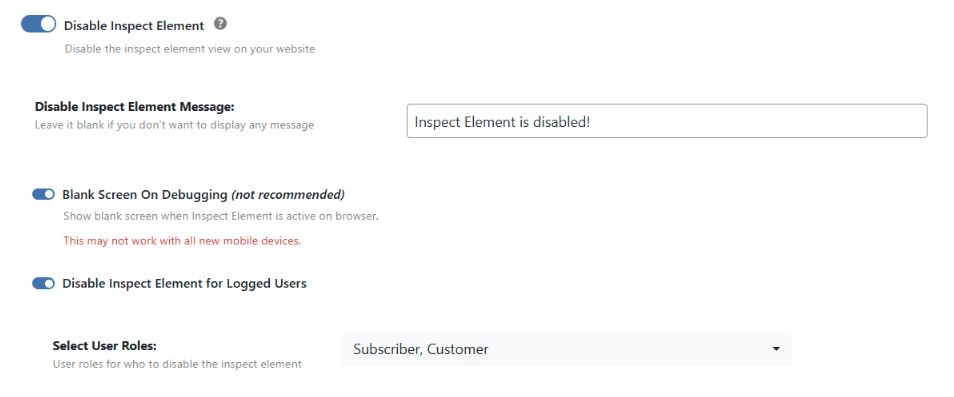
Does this work with WooCommerce?

Yes. WooCommerce uses admin-ajax.php extensively for cart updates, product filters, checkout processing, and more. WP Ghost is fully compatible with WooCommerce. All AJAX-powered features continue functioning normally with a custom AJAX path.

Will Elementor still work after changing the AJAX path?

Yes. Elementor relies heavily on AJAX for its editor, form submissions, and dynamic widgets. WP Ghost’s rewrite rules route Elementor’s AJAX calls through the custom path correctly. If you experience specific issues with the Elementor editor, check cache settings and try running a Frontend Test.

Do I need all three AJAX options enabled?

For maximum protection, yes. Each option addresses a different vector: changing the filename stops scripts targeting admin-ajax.php, hiding wp-admin removes the directory identifier from the URL, and changing paths in AJAX responses prevents your responses from leaking your site structure. You can enable them individually, but together they provide complete AJAX security.

What about the REST API? Is admin-ajax.php the only endpoint I need to protect?

No. WordPress has two main API endpoints: admin-ajax.php (older) and the REST API at /wp-json/ (newer). Many modern plugins use the REST API instead of or in addition to admin-ajax.php. Change the REST API path separately at WP Ghost > Change Paths > API Security. For complete protection, secure both.

Does WP Ghost modify WordPress core files?

No. WP Ghost never touches, moves, or renames any WordPress file. The actual admin-ajax.php file stays in /wp-admin/ exactly where WordPress expects it. WP Ghost uses URL rewrite rules to create virtual paths. Deactivating the plugin restores the original URL instantly.

How Do I Rename a wp-content Folder in WordPress?

You have two options to rename the wp-content folder in WordPress: a manual rename via FTP or File Manager (physically renaming the folder and updating wp-config.php), or the WP Ghost plugin method, which creates a virtual path without moving or renaming any files. The WP Ghost approach is safer because nothing is physically altered on your server – the original wp-content directory stays where WordPress expects it, and deactivating the plugin restores the original path instantly. Configure it at WP Ghost > Change Paths > WP Core Security by setting a custom name in the Custom wp-content Path field, then enable Hide WordPress Common Paths to block access to the original path.

Manual Rename vs WP Ghost: What’s the Difference

Both approaches achieve the same visible result – your page source shows a custom path instead of /wp-content/. The difference is what happens on your server and how reversible the change is.

AspectManual Rename (FTP)WP Ghost Plugin
Physical file changesYes, folder is actually renamed on serverNo, files stay in original location
wp-config.php edit requiredYes, must define new content path constantNo
Risk of breaking the siteHigher, typo in path constant locks you outLower, settings can be reverted from admin
Re-login required after changeYesNot necessarily
ReversibilityManual, rename folder back + revert wp-configDeactivate the plugin, instant revert
Blocks access to old pathNo automatic blockYes, with Hide WordPress Common Paths enabled
Technical skill neededPHP/server familiarity requiredNone

For most users, the WP Ghost method is the safer and more complete option.

Option 1: Manual Rename via File Manager or FTP

You can physically rename the wp-content folder to lib (or any other name) using the File Manager in your hosting panel or an FTP client. After the rename, you need to re-login to your website. This is the approach documented in the original WordPress codex, it works but requires care with file permissions and any code that references the old path.

Note: some plugins, themes, and caching tools reference the default wp-content path directly. After a manual rename, those references can break until each plugin or theme is updated to match the new path. You’re responsible for testing and troubleshooting those compatibility issues yourself.

Option 2: Use WP Ghost (Recommended)

WP Ghost changes the wp-content path without moving, renaming, or modifying any files on your server. The actual folder stays exactly where WordPress expects it, WP Ghost uses URL rewrite rules to create the virtual path your visitors and scanners see.

  1. Go to WP Ghost > Change Paths > Level of Security. Select Safe Mode or Ghost Mode. Click Save.
  2. Go to WP Ghost > Change Paths > WP Core Security.
  3. In the Custom wp-content Path field, a predefined name is already filled in. Enter a different name or keep the predefined one. Avoid names that obviously relate to content, like content, assets, files, or resources. Choose something random that doesn’t suggest what’s inside.
  4. Switch on Hide WordPress Common Paths to block access to the old wp-content path and all sub-paths. Anyone trying to access the old path gets a 404.
  5. Under Hide File Extensions, select which file types to block from the old sub-paths (PHP, JS, TXT are the key ones).
  6. Click Save to apply.
  7. Run a Security Check at WP Ghost > Security Check to verify the change is working.

Full walkthrough in the Change wp-content Path with WP Ghost guide.

What Happens After You Save

Every URL that referenced /wp-content/ now uses your custom path. If you view your page source, images, CSS, JS, and font URLs all update to the new path. Where you used to see /wp-content/themes/your-theme/style.css, you’ll now see something like /your-custom-name/themes/your-theme/style.css.

Vulnerability scanners that enumerate plugins and themes by probing /wp-content/plugins/ or /wp-content/themes/ can’t find those directories at the default path, they hit 404s instead.

To verify manually: open a private browser window, view the page source, and search for wp-content. If the path change is working, there should be no instances.

Frequently Asked Questions

How do I rename the wp-content folder?

You can either physically rename the folder via FTP or File Manager (requires a matching wp-config.php edit and re-login), or use WP Ghost to change the path virtually without moving any files. With WP Ghost, go to WP Ghost > Change Paths > WP Core Security, set a custom name in the Custom wp-content Path field, enable Hide WordPress Common Paths, and save.

Does WP Ghost physically move or rename the wp-content folder?

No. WP Ghost never moves, renames, or modifies any file or folder on your server. The wp-content directory stays exactly where WordPress expects it. WP Ghost creates virtual paths through URL rewrite rules. Deactivating the plugin restores all original paths instantly.

Will this affect my SEO?

No. Search engines don’t index or rank based on your asset folder structure. Your posts, pages, sitemaps, and canonical URLs remain exactly the same. Image URLs in your content use the new path, but since the images still load correctly, there’s no SEO impact.

Should I also change the plugins and themes paths?

Yes, for complete path security. Plugins and themes both live inside /wp-content/. Changing the wp-content path alone hides the parent directory, but the /plugins/ and /themes/ subdirectories are still visible inside your new custom path. For complete security, also change the plugins path and themes path to hide those directory names too.

What name should I choose for the custom path?

Avoid names that obviously relate to content, like content, assets, files, or resources. Choose something random that doesn’t suggest what’s inside. WP Ghost fills in a predefined random name by default, which you can use as-is.

Do I need to clear my cache after changing the wp-content path?

Yes. If you use a caching plugin, clear your cache after making the change. Cached pages may still contain the old /wp-content/ references until the cache is refreshed. If your caching plugin minifies or combines CSS and JS, also enable Change Paths in Cached Files so the new paths appear inside minified files.

Does WP Ghost modify WordPress core files?

No. WP Ghost uses URL rewrite rules and WordPress filters. No files are moved, renamed, or modified. Deactivating the plugin restores all original paths instantly.

How Do I Change the Default Login Page in WordPress?

Change the default WordPress login page with WP Ghost through WP Ghost > Change Paths > Login Security. Enter a custom name in the Custom Login Path field and save. The default /wp-login.php and /login paths can also be hidden from bots in the same panel, so attackers scanning for WordPress logins get a 404 instead of reaching the login form. WP Ghost does not move, rename, or modify any WordPress file, all changes work through server rewrite rules, which means no impact on SEO or page speed, and deactivating WP Ghost restores defaults instantly.

Why Change the Default Login Page

The /wp-login.php, /wp-login, and /login paths are the first URLs hacker bots check when scanning a site. Bots assume every WordPress site has these paths at their default locations and send automated brute force attempts against them. Changing and hiding these paths is one of the most effective hack prevention steps you can take on WordPress.

How to Change the Login Path with WP Ghost

Step 1. Activate Safe Mode or Ghost Mode

Go to WP Ghost > Change Paths > Level of Security. Select Safe Mode or Ghost Mode. Safe Mode applies essential path changes, Ghost Mode adds advanced path security. Save. See Set Up WP Ghost in Safe Mode in 3 Minutes for the quick-start walkthrough.

Step 2. Set a Custom Login Path

Go to WP Ghost > Change Paths > Login Security. Enter a custom name in the Custom Login Path field (for example, “customlogin” or a unique word you choose). Save.

WP Ghost Login Security panel showing the Custom Login Path field for changing the default wp-login URL

Choose a name that is not easily guessable. Avoid obvious options like “login”, “signin”, “access”, or “admin-login”, bots are programmed to try common variations. A unique word or combination works best.

Step 3. Hide the Default Login Paths

In the same WP Ghost > Change Paths > Login Security panel:

Switch on Hide “wp-login” to hide the wp-login.php and wp-login paths from non-logged-in visitors. Switch on Hide “login” to also hide the /login path. Save. Once active, requests to any of these default paths return a 404.

Step 4. Save Your New Login URL

Your new login URL is yourdomain.com/your-custom-name. Bookmark it, save it in a password manager, or share it with your team through a secure channel. If you lose this URL and cannot access the admin dashboard, follow the recovery steps in How to Disable WP Ghost in Case of an Error.

Note! No files or directories are physically altered. All changes are implemented through server rewrite rules, ensuring no impact on SEO or loading speed.

Beyond Changing the Login Path

Changing the login path is the foundation of login security. For complete protection, WP Ghost includes several complementary features:

Brute force protection with reCAPTCHA. Even if a bot finds your login URL, reCAPTCHA blocks automated submission attempts. See Brute Force Attack Protection.

Two-Factor Authentication. Add a second verification step so password compromises do not lead to account breaches. See Two-Factor Authentication and Passkey 2FA.

Clean Login Page. Remove the default WordPress branding and customize the login appearance. See Clean Login.

Login Page Design Customization. A full visual customizer for login backgrounds, colors, fonts, and layout. See Login Page Design Customization.

Frequently Asked Questions

What is a good custom login path name?

Anything that is not easily guessable. Avoid obvious names like “login”, “signin”, “access”, “admin”, “wp-login”, or your site name. A unique word, a combination of words, or a random-looking string works well. The goal is to pick something bots will not try.

What happens if someone visits the old /wp-login.php URL?

With the Hide options active, they get a 404 Page Not Found error. If you want a different response (for example, redirect to the homepage or show a 403 Forbidden), you can configure this at WP Ghost > Tweaks > Redirects in the Redirect Hidden Paths option.

Does changing the login path affect other plugins?

In most cases no, because WP Ghost uses rewrite rules rather than file modifications. Plugins that call WordPress’s login functions internally continue working normally. If another security plugin has also customized the login path, review both plugins to ensure only one is handling the custom path, to avoid conflicts.

What if I get locked out after changing the login path?

WP Ghost provides emergency recovery options if you cannot access your custom login path. See How to Disable WP Ghost in Case of an Error for the full recovery procedures.

Can I change the path again later?

Yes. You can update the custom login path at any time at WP Ghost > Change Paths > Login Security. The previous custom path stops working immediately, and the new one activates after you save. Remember to update any bookmarks or team documentation after the change.

Does WP Ghost modify WordPress core files?

No. WP Ghost works through server rewrite rules and WordPress hooks. The login path change is implemented virtually, no WordPress files are moved, renamed, or modified. Deactivating WP Ghost restores the default /wp-login.php instantly.

Read More: Change and Hide Login Path with WP Ghost

Can I Change WP-Admin To Something Else?

Yes. You can change the default /wp-admin URL to any custom name with WP Ghost, no code editing or .htaccess modifications required. Go to WP Ghost > Change Paths > Admin Security, enter your chosen name in the Custom Admin Path field (for example, mysecretpanel), and click Save. Your new admin URL becomes yourdomain.com/mysecretpanel. No files or directories are physically altered, the change is applied through server rewrite rules, so there’s no impact on SEO or loading speed. Deactivating WP Ghost restores the default /wp-admin path instantly.

Why Rename wp-admin

The /wp-admin path is the default URL that leads to the WordPress dashboard, it’s where you manage posts, install plugins, update themes, and configure your entire website. Every WordPress site uses the same address by default: https://yourdomain.com/wp-admin.

That predictability is the problem. Automated bots are programmed to target /wp-admin and /wp-login.php on every WordPress site they find. They run 24/7, testing common username and password combinations. Changing the path means exploit scripts that target the default URL fail before they reach a login form, if they can’t find the door, they move on to the next target.

How to Change wp-admin to Something Else

  1. Go to WP Ghost > Change Paths > Level of Security. Select Safe Mode or Ghost Mode and click Save. This activates the path-changing features.
  2. Go to WP Ghost > Change Paths > Admin Security.
  3. Enter a custom name for the wp-admin path in the Custom Admin Path field. Choose something unique that isn’t easy to guess.
  4. Click Save to apply the change.
  5. Bookmark the new admin URL immediately.
  6. Run a Security Check at WP Ghost > Security Check to confirm the change is working.
Use Admin Security to change the admin path to a custom name

Full walkthrough in the Change and Hide wp-admin Path guide.

Choosing a Good Custom Name

Avoid common words like login, admin, backend, or dashboard. Bots are programmed to try these variations too. Use something truly unique, a combination of random words or characters works well.

AvoidBetter Alternatives
login, admin, backend, dashboard, wp-admin2Random word combinations or character strings
Your domain name or brand nameSomething unrelated to your site
Easy-to-guess variations of default pathsUnique, memorable but non-obvious strings

Extra Protection: Hide wp-admin Too

Changing the path alone gives you a new URL, but the original /wp-admin path may still be accessible and redirect to the login page. WP Ghost offers two additional options under WP Ghost > Change Paths > Admin Security that complete the protection:

Hide “wp-admin”. When enabled, anyone who isn’t logged in and tries to access /wp-admin gets a 404 error page. The path simply doesn’t exist for them. Bots hit a dead end.

Hide “wp-admin” from Non-Admin Users. By default, every logged-in WordPress user (editors, authors, subscribers) can access the /wp-admin dashboard. This option restricts access to administrators only, other user roles get redirected away. Especially useful for WooCommerce stores, membership sites, or any site with multiple user roles.

What Happens After You Save

Your new admin URL takes effect right away. If you chose mysecretpanel as your custom path, your new admin URL is yourdomain.com/mysecretpanel. The old /wp-admin URL will either return a 404 (if you enabled the Hide option) or redirect logged-in users to the new path.

WordPress continues to work normally behind the scenes. WP Ghost uses rewrite rules, not file changes. Your plugins, themes, and WordPress core are completely unaffected. Admin AJAX, REST API, and cron jobs continue functioning as expected. Internal links in the admin bar, dashboard menus, and internal redirects all point to the new path automatically.
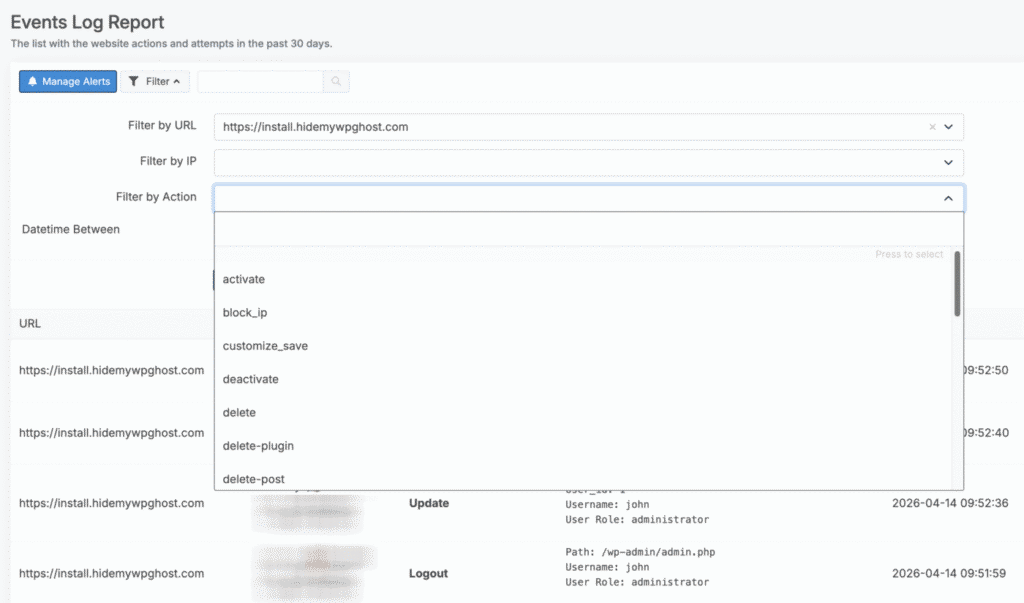
Hosting Notes

Not all hosting environments handle custom admin paths in exactly the same way. Managed hosts that use Nginx (like WP Engine) handle custom wp-admin paths differently using path redirection instead of mapping, which can cause WP Ghost to be unable to identify calls to the custom wp-admin path. If you’re on WP Engine, Kinsta, or a similar Nginx-based managed host and experience issues, use the default wp-admin path and enable Hide “wp-admin” from Non-Admin Users instead.

Frequently Asked Questions

Can I change wp-admin to something else?

Yes. With WP Ghost, go to WP Ghost > Change Paths > Admin Security, enter your chosen custom name in the Custom Admin Path field, and click Save. Your new admin URL replaces /wp-admin immediately. No code editing, no file changes, no .htaccess modifications.

What names should I avoid?

Avoid common words like login, admin, backend, or dashboard. Bots try these variations. Also avoid obvious derivatives like admin2, wp-admin2, or your domain name. Use something truly unique, a combination of random words or characters that isn’t easy to guess.

Will changing wp-admin break my site or plugins?

In most cases, no. WP Ghost uses rewrite rules that route requests transparently. Some plugins that hardcode the default wp-admin path may not work correctly. If you see compatibility issues, revert to the default path and enable Hide “wp-admin” from Non-Admin Users instead, which keeps the default path but restricts access to administrators only.

What if I forget my custom admin URL?

Bookmark the URL immediately after setting it. If you forget, see the emergency disable guide for recovery via FTP. Renaming the plugin folder deactivates WP Ghost and restores the default /wp-admin path.

Will this affect my SEO?

No. Search engine crawlers don’t need access to /wp-admin. The admin area isn’t indexed and has no impact on rankings. Changing or hiding admin paths only affects admin-side URLs. Public content, sitemaps, and front-end URLs remain exactly the same.

Does this work with WooCommerce?

Yes. WP Ghost is fully compatible with WooCommerce. Customer-facing pages like shop, cart, checkout, and my-account are not affected by admin path changes. WooCommerce AJAX calls continue to function normally.

Does WP Ghost work on WordPress multisite?

Yes. WP Ghost supports WordPress multisite installations. The wp-admin path change can be applied network-wide, and each subsite’s admin path uses the same custom path you configure.

Does WP Ghost modify WordPress core files?

No. WP Ghost never modifies, moves, or renames any WordPress core file. All path changes are handled through URL rewrite rules and WordPress filters. Deactivating WP Ghost restores all default paths instantly.

How Do I Know If My Website Is Hidden with WP Ghost?

After configuring WP Ghost, verify your hiding with external WordPress detector tools. Run your site URL through WhatCMS, WPThemeDetector, WhatWPThemeIsThat, Wappalyzer, and BuiltWith. If WP Ghost is properly configured, these detectors return “Unknown CMS”, identify your site as something other than WordPress, or cannot detect the theme and plugins you are using. You can also view your page source manually and search for WordPress-identifying strings like “wp-content”, “wp-includes”, “generator”, or “WordPress”, a properly hidden site shows none of these.

Before You Verify, Complete the Setup

Verification only makes sense after you have fully configured WP Ghost’s hiding features. Make sure you have followed the setup instructions:

Hide Your Site From Theme Detectors and Hacker Bots

This covers all the toggles, path changes, and tweaks needed to remove WordPress fingerprints from your public site.

Run WP Ghost’s Built-In Security Check First

WP Ghost includes a Security Check that scans your configuration and flags any gaps before you test externally. Go to WP Ghost > Security Check and run the scan. The report shows which hiding features are active and which are still needed. See Website Security Check for details on interpreting the results.

External WordPress Detector Tools

Once the Security Check looks clean, test your site against the same detectors attackers and competitors use:

Example of a WordPress vulnerability and theme detector tool reporting site information for verification

Recommended verification tools:

WP Ghost Security Check online, the public scanner at wpghost.com/#security_check reports whether WordPress signals are detectable on your site.

WPThemeDetector, wpthemedetector.com attempts to identify WordPress themes, plugins, and version.

WhatWPThemeIsThat, whatwpthemeisthat.com focuses on theme detection.

WhatCMS, whatcms.org identifies the CMS itself (WordPress, Drupal, Joomla, etc.).

MyCodelessWebsite, mycodelesswebsite.com additional detection checks.

For the specific Wappalyzer verification, see the dedicated guide at Hide WordPress from Wappalyzer.

What “Hidden” Looks Like on Each Tool

A properly hidden site returns different results depending on the tool:

CMS detectors (WhatCMS): return “Unknown CMS” or identify the site as something other than WordPress.

Theme detectors (WPThemeDetector, WhatWPThemeIsThat): cannot identify the theme name, or return “Theme not detected”.

Tech stack profilers (Wappalyzer, BuiltWith): cannot identify WordPress, or identify only non-specific server and language information (Apache, PHP) without revealing the CMS.

If a detector still shows your site as WordPress after full configuration, one or more signals are leaking through. The most common causes are listed below.

Manual Verification Through Page Source

External detectors are helpful but not exhaustive. You can also inspect your own page source directly:

1. Open your site in an incognito or private browser window. 2. Right-click anywhere on the page and select “View Page Source”. 3. Use Ctrl+F (or Cmd+F on Mac) to search for the following strings: wp-content, wp-includes, wp-json, generator, WordPress, wp-.

A fully hidden site shows zero matches for any of these. If you find matches, note which file or feature is exposing the signal, and review the corresponding WP Ghost settings.

If Detectors Still Identify Your Site

If WordPress detectors still find your site after completing the full hiding setup, the most common causes are:

Theme or plugin incompatibility. Some themes or plugins hardcode WordPress-specific references that WP Ghost cannot automatically override. Check if your theme and plugins are on the compatibility list: Theme Compatibility List and Plugin Compatibility List.

Caching interference. Cached pages may still contain pre-hiding content. Clear your WordPress cache, CDN cache, and server cache, then retest.

Missing hiding options. Return to WP Ghost > Tweaks and verify every toggle under Hide from Theme Detectors is enabled.

CMS simulation for edge cases. For stubborn detectors, Premium users can simulate running Drupal or Joomla instead of WordPress, which actively misdirects detectors rather than just removing signals. See Simulating Drupal or Joomla with WP Ghost.

If none of these resolve the issue, contact WP Ghost support and include the detector URL showing the WordPress identification. The support team can investigate specific theme or plugin incompatibilities.

Frequently Asked Questions

Which detector is the most accurate?

No single detector catches everything. Each tool checks different signals, so use several detectors together for complete verification. If your site is hidden from all of the tools listed above, it is likely hidden from most real-world attackers and competitors as well.

Do I need to check after every WordPress update?

It is a good idea to re-verify after major WordPress updates and after installing new plugins or themes, because those updates can occasionally reintroduce WordPress-identifying code. A quick Security Check and one detector test takes a few minutes and confirms your hiding still works.

What if my site is identified as WordPress but the theme and plugins are hidden?

That is still a significant improvement. Most targeted attacks rely on knowing specific plugin and theme versions to exploit known vulnerabilities. If detectors can confirm “WordPress” but cannot identify which theme or plugins you use, attackers cannot target specific CVEs on your site. For complete hiding including the CMS itself, enable all the options in Hide from Theme Detectors, and consider CMS simulation for Premium.

Does my hosting affect detector results?

Server headers can reveal some information, but not WordPress specifically. Server type (Apache, Nginx) and PHP version may show in detector results, these are separate from WordPress identification and typically not considered security risks.

Does WP Ghost modify WordPress core files?

No. WP Ghost works through server rewrite rules and WordPress hooks that filter HTML output at runtime. No WordPress core files, theme files, or plugin files are modified. Deactivating WP Ghost restores every default signal and WordPress becomes identifiable again, proving the changes are reversible at any time.

If the WordPress detectors still find your website after completing the full setup, please contact us and we will check if there are any theme or plugin incompatibilities.

Is It Safe That Logged-In Users Can Access wp-admin?

By default, the wp-admin path is accessible to all logged-in users (administrators, editors, authors, subscribers, and customers). This is normal WordPress behavior, not a WP Ghost issue. Most lower-privileged users never need to see the admin dashboard though, so WP Ghost includes a Hide “wp-admin” from Non-Admin Users option that restricts dashboard access to administrators only. Other user roles can still log in and use the site, they just cannot reach the wp-admin dashboard. This reduces the attack surface if a non-admin account gets compromised: even with valid credentials, the attacker cannot reach sensitive admin pages.

Why wp-admin Is Visible to All Logged Users by Default

WordPress dashboard showing wp-admin accessible to logged-in users by default across all user roles

WordPress was designed to give every logged-in user access to some version of the admin dashboard, even basic users like subscribers see a profile page at /wp-admin/profile.php. This default behavior makes sense for simple blog setups where everyone is a trusted contributor, but it creates unnecessary exposure on sites with many user roles.

Sites where this default becomes a problem:

WooCommerce stores. Customers are registered users but should never see anything in wp-admin.

Membership sites. Members log in to access member content, not the WordPress dashboard.

Multi-author blogs with subscribers. Subscribers who sign up for newsletters or comments do not need admin access.

On any of these sites, if a non-admin account gets compromised (phished, reused password, credential stuffing), the attacker inherits access to wp-admin, which is a bigger attack surface than necessary.

How to Restrict wp-admin to Administrators Only

Go to WP Ghost > Change Paths > Admin Security. Switch on Hide “wp-admin” from Non-Admin Users. Save.

WP Ghost Admin Security toggle for Hide wp-admin from Non-Admin Users restricting dashboard access to administrators only

With this option active, logged-in users still authenticate normally, but only administrators can reach the wp-admin dashboard. Editors, authors, subscribers, customers, and other non-admin roles get redirected away from wp-admin.

Note! Keeping wp-admin visible when you are logged in as administrator helps prevent site issues if WP Ghost is deactivated or if another plugin relies on the default admin path in the backend.

Why This Adds Real Security

The principle is called least privilege, users and processes should have access to only what they need. When every logged-in user has wp-admin access, a compromise of any single account becomes a compromise of the admin surface. With the restriction active:

A compromised subscriber account cannot probe admin-only plugins. A compromised editor account cannot reach plugin or theme installation screens. A stolen customer credential pair cannot be used to probe admin vulnerabilities. The admin surface stays restricted to admin accounts, which are typically fewer in number and easier to protect with strong passwords, 2FA, and IP whitelisting.

Other Admin Security Layers in WP Ghost

Restricting wp-admin to admins is one layer. The complete admin protection stack in WP Ghost includes:

Change the admin path. Replace the default /wp-admin with a custom URL so bots scanning the default path get nothing. See Change and Hide Login Path.

Two-Factor Authentication. Require a second verification step for admin logins, so credential theft alone is not enough to log in. See Two-Factor Authentication.

IP whitelist. Allow admin access only from trusted IP addresses. See Whitelist IPs and Paths.

Each layer is additive. Together they make admin access dramatically harder for attackers, even when other WordPress components have vulnerabilities.

Frequently Asked Questions

Will this break WooCommerce customer accounts?

No. WooCommerce customers access their account through the front-end My Account page, not wp-admin. Enabling Hide wp-admin from Non-Admin Users affects only the backend dashboard, not the customer-facing account pages, cart, checkout, or shop. Customers will not notice any change.

What about shop managers and editors, can they still do their jobs?

Shop managers in WooCommerce have admin-level capabilities, so they continue to access the dashboard normally. The restriction affects user roles below admin level: subscribers, customers, and typically authors and contributors unless you adjust the settings for your specific site. Editors and shop managers keep working as they did.

What happens if a non-admin tries to access wp-admin?

They are redirected away from the dashboard. The exact redirect target depends on your configuration, most commonly they land on the front-end homepage or their profile page.

Can I test this works correctly?

Yes. After saving the setting, log out of your admin account, log in with a non-admin test account (create one if needed at Users > Add New with the Subscriber role), and try to access wp-admin. You should be redirected rather than seeing the dashboard. Then log back in as admin and confirm your own access still works.

What if I get locked out as an administrator?

WP Ghost has recovery options for emergency access. See How to Disable WP Ghost in Case of an Error. Administrators should normally never be affected by this specific setting because it only restricts non-admin roles, but the recovery guide covers all lockout scenarios.

Does WP Ghost modify WordPress core files?

No. WP Ghost works through server rewrite rules and WordPress hooks. The admin restriction is implemented through role capability checks in the WordPress admin lifecycle, not through core file modifications. Deactivating WP Ghost restores the default behavior where all logged-in users can reach wp-admin.

Hiding common paths with WP Ghost protects your site against bot attacks that target default WordPress URLs.

Should You Disable XML-RPC on WordPress?

For most WordPress sites, yes, you should disable XML-RPC. It’s a legacy remote-communication protocol that predates the REST API, and while it was essential in its era, almost every modern use case has been replaced by the REST API (/wp-json/). Meanwhile, XML-RPC is one of the most abused WordPress endpoints: it’s exploited for brute force amplification (the system.multicall method bundles hundreds of password guesses into a single request that bypasses login rate limiting), DDoS attacks through pingback abuse, and username enumeration. Most WordPress security plugins don’t even monitor it. The main exception is Jetpack, which still uses XML-RPC for some features. With WP Ghost, disable it at WP Ghost > Change Paths > API Security with a single toggle, and whitelist Jetpack IPs in .htaccess if you need Jetpack compatibility.

What XML-RPC Actually Does

XML-RPC (XML Remote Procedure Call) is a protocol that lets external applications communicate with your WordPress site remotely. It’s WordPress’s original API, predating the REST API, and it handles requests through a single file: xmlrpc.php. By default, the file sits at https://yourdomain.com/xmlrpc.php.

XML-RPC was designed for legitimate uses: publishing posts from mobile apps, managing multiple WordPress sites from a single dashboard, trackbacks and pingbacks, and third-party tools interacting with your site. Functions available through XML-RPC include publishing posts, editing posts, deleting posts, uploading files, getting a list of comments, and editing comments. For the complete function list, see XML-RPC WordPress API on the WordPress Codex.

Today, almost everything XML-RPC does has been replaced by the REST API, which is more secure, more flexible, and better supported. But xmlrpc.php is still active on every default WordPress installation, and unlike the REST API, it has almost no built-in security controls. No rate limiting. No CAPTCHA. No login attempt tracking.

Why Disable XML-RPC

XML-RPC is one of the most abused WordPress endpoints. The KB documents four specific attack patterns:

Brute force amplification via system.multicall. The system.multicall method allows multiple XML-RPC calls to be bundled into a single HTTP request. Attackers exploit this to send hundreds or even thousands of username/password guesses in one request. Publicly available exploit tools can send up to 1,999 authentication attempts per HTTP request. Login rate limiters on wp-login.php don’t see thousands of requests, they see one, so the protection is bypassed entirely.

Most security plugins don’t monitor it. The majority of WordPress security plugins focus their protection on /wp-login.php while leaving xmlrpc.php completely unmonitored. Attackers shifted from targeting the login page to targeting XML-RPC specifically because it flies under the radar.

DDoS amplification through pingbacks. The pingback.ping method can be abused to launch distributed denial-of-service attacks. An attacker sends fake pingback requests to thousands of WordPress sites, all pointing back to a single target. Each site then makes a request to the target. Your site becomes an unwitting participant in a DDoS attack against someone else.

Username enumeration. Attackers can use methods like wp.getUsersBlogs to verify whether a username exists. Combined with author ID enumeration and REST API user discovery, XML-RPC provides another channel for username harvesting.

What You’ll Lose by Disabling XML-RPC

The potential downside is app and plugin compatibility. If you use a third-party application that communicates with your site through XML-RPC, it will stop working after disabling. Example: if you have an app that moderates WordPress comments through XML-RPC, disabling XML-RPC means the app can no longer talk to your site.

That said, the list of modern software that genuinely depends on XML-RPC is short:

SoftwareStill Uses XML-RPC?
Current WordPress mobile appNo, uses REST API (older versions used XML-RPC, update to latest)
WordPress block editor (Gutenberg)No, uses REST API
Admin dashboard, plugin updates, theme customizationNo, uses REST API
WooCommerceNo, uses REST API
JetpackYes, for some features (whitelist WordPress.com IPs in .htaccess)
Older remote publishing tools and multisite management dashboardsSome, test before disabling

How to Disable XML-RPC With WP Ghost

  1. Go to WP Ghost > Change Paths > Level of Security. Select Safe Mode or Ghost Mode. Click Save.
  2. Go to WP Ghost > Change Paths > API Security.
  3. Switch on Disable XML-RPC Access.
  4. Click Save. The xmlrpc.php file now returns a 404 for all requests.
  5. Run a Security Check at WP Ghost > Security Check to confirm.

Manual check: visit yourdomain.com/xmlrpc.php in a private browser window. If you see a 404 instead of the “XML-RPC server accepts POST requests only” message, protection is active. Full walkthrough in the Disable XML-RPC Access guide.

Whitelisting Jetpack IPs (If Needed)

If you use Jetpack and need to keep XML-RPC accessible to its servers while blocking everyone else, add Jetpack’s IP ranges to your .htaccess file. Add the following at the beginning of your .htaccess:

<Files xmlrpc.php>
Order deny,allow
Deny from all
Allow from 127.0.0.1
Allow from *.wordpress.com
Allow from 192.0.64.0/18
Allow from 185.64.140.0/22
Allow from 2a04:fa80::/29
Allow from 76.74.255.0/22
Allow from 192.0.65.0/22
Allow from 192.0.80.0/22
Allow from 192.0.96.0/22
Allow from 192.0.123.0/22
Satisfy All
ErrorDocument 404 /
</Files>

This blocks all access to xmlrpc.php except from Jetpack’s servers and localhost. If you don’t use Jetpack, you don’t need this, just disable XML-RPC entirely through WP Ghost.

What Happens After You Disable XML-RPC

Brute force amplification attacks stop completely. The system.multicall method is no longer accessible. Attackers can’t bundle password guesses into single requests. Every amplified brute force tool targeting your site fails instantly.

DDoS pingback abuse ends. Your site can no longer be used as a node in pingback-based DDoS amplification attacks.

CMS detection through xmlrpc.php fails. Scanners that check for a responsive xmlrpc.php file get a 404 instead of the tell-tale “XML-RPC server accepts POST requests only” response.

Server resources are freed up. XML-RPC attacks consume CPU and database resources even when they fail. Each authentication attempt triggers a database query. Disabling XML-RPC eliminates this load entirely.

Your normal WordPress functions are unaffected. The REST API handles everything XML-RPC used to do. The block editor, admin dashboard, plugin updates, theme customization, and all admin functions work through the REST API, not XML-RPC. Visitors see no change at all.

Frequently Asked Questions

Should I disable XML-RPC on WordPress?

For most sites, yes. XML-RPC is a legacy protocol that has been replaced by the REST API for virtually all modern use cases. It’s heavily exploited for brute force amplification, DDoS pingback abuse, and username enumeration. Unless you use Jetpack or an older third-party tool that specifically requires XML-RPC, disable it.

What is system.multicall and why is it dangerous?

system.multicall is an XML-RPC method that bundles multiple calls into one HTTP request. Attackers exploit it to send up to 1,999 password guesses per request. Standard login protections see it as one request, not thousands. That’s brute force amplification, and it bypasses login rate limiters on wp-login.php.

Do I need XML-RPC for anything?

Almost certainly not. The REST API has replaced XML-RPC for every modern use case: remote publishing, mobile apps, third-party integrations, and admin automation. The only notable exception is Jetpack, which uses XML-RPC for some features. If you use Jetpack, either whitelist its IP ranges (see the Whitelisting Jetpack IPs section above) or check if Jetpack’s newer versions have migrated to the REST API for your specific features.

What’s the difference between XML-RPC and the REST API?

Both allow remote communication with WordPress, but they’re different systems. XML-RPC uses a single file (xmlrpc.php) with XML-encoded requests. It’s the legacy protocol with minimal security controls. The REST API uses URL-based endpoints (/wp-json/) with JSON-encoded data and supports proper authentication, permissions, and namespacing. For complete API security, secure the REST API as well.

What is pingback DDoS and how does disabling XML-RPC stop it?

WordPress’s pingback feature notifies other sites when you link to their content. Attackers abuse this by sending fake pingback requests to thousands of WordPress sites, all pointing to a single target URL. Each site then makes a request to the target, creating a distributed denial-of-service attack. Your site becomes an involuntary attacker. Disabling XML-RPC removes the pingback.ping method entirely, so your site can’t be weaponized this way.

Does this affect WooCommerce?

No. WooCommerce uses the REST API (/wp-json/wc/v3/), not XML-RPC. Disabling XML-RPC has zero impact on WooCommerce functionality. Cart, checkout, product pages, and all customer-facing features continue working normally. WP Ghost is fully compatible with WooCommerce.

Will the WordPress mobile app still work?

The current WordPress mobile app uses the REST API for most functionality. Older versions relied on XML-RPC. If you use the WordPress app, update it to the latest version before disabling XML-RPC. The modern app works fine without XML-RPC.

Does WP Ghost delete the xmlrpc.php file?

No. WP Ghost never modifies, moves, or deletes any file. The xmlrpc.php file stays on your server. WP Ghost blocks access to it through URL rewrite rules so all requests return a 404. Deactivating WP Ghost restores access to xmlrpc.php instantly.

Does WP Ghost Make My Website Invisible On FTP?

No. When you connect via FTP or your hosting File Manager, your WordPress files and folders look exactly the same as before WP Ghost was installed. The /wp-content/, /wp-includes/, /wp-admin/, and all other default directories stay exactly where WordPress expects them. WP Ghost works entirely through server rewrite rules and WordPress filters, it creates virtual paths that visitors and bots see, without moving, renaming, or modifying a single file on disk. The practical benefit: deactivating WP Ghost restores all default paths instantly, and your WordPress site won’t break if you remove the plugin.

Virtual Paths vs Physical Paths: What Actually Happens

There are two ways to change WordPress paths: physically rename folders on the server (which requires matching code edits and can break things), or create virtual paths through rewrite rules (which only affects what URLs visitors see, without touching the files themselves). WP Ghost uses the second approach exclusively.

What You SeeVia FTPIn Page Source / Browser
Folder structureDefault WordPress layout (wp-content, wp-includes, wp-admin, etc.)Your custom paths
plugins folder/wp-content/plugins/Your custom path, like /your-name/plugins/ or hidden directory names
Deactivate WP GhostNothing changes, files stay putDefault paths restored instantly
WordPress core filesUntouched, never modifiedURLs rewritten at request time only

Your FTP file tree is unchanged. Your page source shows custom paths to visitors, bots, and scanners.

Why This Approach Matters

No risk of breaking WordPress. Physical file renames require matching edits in wp-config.php and can conflict with plugins that hardcode default paths. Virtual paths through rewrite rules don’t touch any files, so WordPress continues to find everything exactly where it expects.

Safe to deactivate. If you ever need to disable WP Ghost (for troubleshooting, or if you move hosts), deactivating the plugin removes the rewrite rules and your site returns to default WordPress behavior immediately. No manual cleanup, no “undo” procedure, no data loss.

Full compatibility with your host’s backup and migration tools. Because the file structure is standard, any backup plugin, migration tool, or hosting backup system sees a normal WordPress installation. Restoring a backup doesn’t require any special WP Ghost configuration.

Works with other security plugins and host firewalls. WP Ghost’s rewrite rules operate at the request-handling level, so malware scanners, firewall plugins like Wordfence, and hosting-level security (Cloudflare, host firewalls, etc.) all continue to see and scan the real files at their standard locations.

Where WP Ghost Actually Writes Rules

The rewrite rules go into your server’s configuration file, which depends on your server type:

  • Apache, LiteSpeed, and OpenLiteSpeed servers: rules are written to .htaccess.
  • Nginx servers: rules are written to a hidemywp.conf file (requires server-level inclusion, see hosting-specific guides).

These are small text config files that control URL routing, they don’t move or rename any WordPress files. If you deactivate WP Ghost, the rules are removed and routing returns to defaults.

Frequently Asked Questions

Does WP Ghost make my website invisible on FTP?

No. Your WordPress files and folders are visible in FTP exactly as they are on any standard WordPress site. WP Ghost doesn’t hide files from FTP, it creates virtual paths through server rewrite rules so that the URLs visible to visitors, bots, and scanners don’t reveal your WordPress structure. The files themselves stay in place.

Will my site break if I deactivate WP Ghost?

No. Because no files or folders are physically moved or renamed, deactivating WP Ghost removes the rewrite rules and your WordPress site returns to default paths instantly. Everything continues to work normally at the default URLs.

Can my host’s backup system back up my site normally?

Yes. Your host sees a standard WordPress file structure, so any backup plugin or hosting-level backup tool works without special configuration. Restoring from a backup also works normally, the restored WordPress installation will use default paths until WP Ghost is activated again.

Does WP Ghost work with other security plugins like Wordfence?

Yes. WP Ghost is designed to work alongside other security tools like Wordfence, Solid Security, and Sucuri. Because WP Ghost doesn’t alter the files themselves, malware scanners and file integrity monitors continue to see and scan the real WordPress files at their standard locations without any interference.

Where does WP Ghost save its rewrite rules?

On Apache, LiteSpeed, and OpenLiteSpeed servers, the rules are written to .htaccess. On Nginx servers, they’re written to a hidemywp.conf file that must be included in your Nginx configuration by the hosting provider. These are small config files that affect URL routing, not file storage.

Does WP Ghost modify WordPress core files?

No. WP Ghost never modifies, moves, or renames any WordPress core file. All path changes are handled through URL rewrite rules and WordPress filters at runtime. Deactivating WP Ghost removes the rules and restores all default paths instantly.

Does WP Ghost Work with All Cache Plugins?

Yes, WP Ghost works with all major cache plugins and over 1,000 other plugins and themes tested so far. Officially tested and verified cache plugins include W3 Total Cache, WP Super Cache, WP Fastest Cache, LiteSpeed Cache, Cache Enabler, CDN Enabler, Autoptimize, Jetpack, NitroPack, SiteGround Optimizer, Hummingbird, Breeze, Hyper Cache, BunnyCDN, JCH Optimize, WP Speed of Light, SWIS Performance, Rabbit Loader, and more. If your cache plugin is not on the list, it does not mean WP Ghost will not work with it, just that it has not been specifically tested yet. The WP Ghost team periodically expands the tested list and welcomes compatibility reports for plugins not yet included.

Officially Tested Cache Plugins

The WP Ghost team periodically tests compatibility with popular cache plugins to ensure smooth operation with WordPress sites that use caching. The currently tested cache and performance plugins include:

W3 Total Cache, WP Super Cache, WP Fastest Cache, Cache Enabler, CDN Enabler, Autoptimize, Jetpack by WordPress.com, LiteSpeed Cache, Cache-Control, Comet Cache, Power Cache, Hummingbird Cache, Breeze Cache, Hyper Cache, BunnyCDN, JCH Optimize 3, SWIS Performance, WP Speed of Light, SiteGround Optimizer, NitroPack, and Rabbit Loader Cache.

The complete, up-to-date compatibility list is maintained here: WP Ghost Compatibility Plugins List.

What “Compatible” Means in Practice

WP Ghost and cache plugins work at different layers of the WordPress stack, which is why compatibility is generally smooth. Cache plugins serve pre-generated HTML copies to speed up delivery. WP Ghost rewrites WordPress paths at the server level before the browser receives the response. When both are configured correctly:

Cached pages still show custom paths. WP Ghost includes a feature to ensure cached HTML contains your custom WordPress paths rather than the defaults. See Change Paths in Cached Files for the configuration.

Cache purging works normally. When your cache plugin purges after updates, it purges the cached versions of the custom-path URLs.

CDN integration works. If your cache plugin manages a CDN connection, WP Ghost’s CDN mapping applies path changes to CDN-served assets so consistency is preserved across domains.

If Your Cache Plugin Is Not on the List

Not being on the tested list does not mean WP Ghost is incompatible. It means the combination has not been specifically tested yet. Because WP Ghost does not physically modify WordPress files, most cache plugins continue to function alongside it without special configuration.

If you use a cache plugin that is not in the compatibility list and notice any issue, please contact WP Ghost support. The team will work to investigate and add compatibility for plugins not yet verified.

Common Cache + WP Ghost Issues and Fixes

If you notice any issue after enabling both a cache plugin and WP Ghost, try these steps in order:

Clear all caches. After changing paths in WP Ghost, purge your WordPress cache plugin, CDN cache, and server cache. Cached pages from before the change may still reference old paths until caches refresh.

Re-save WP Ghost settings. Go to WP Ghost settings and click Save again to regenerate rewrite rules if they were affected by a cache plugin update.

Enable Change Paths in Cached Files. If cached pages still reference default WordPress paths, this specific feature handles the cache-layer rewriting. See the tutorial linked above.

Use WP Ghost recovery options if locked out. In rare cases where a conflict prevents access, see How to Disable WP Ghost in Case of an Error.

Frequently Asked Questions

Do I need to configure anything special when using a cache plugin?

In most cases no, both plugins work together out of the box. The main setting to know about is Change Paths in Cached Files, which ensures cached HTML uses your custom WordPress paths instead of the defaults. Details in the linked tutorial.

Should I activate WP Ghost first or the cache plugin first?

The order does not matter for activation itself. What matters is that after changing paths in WP Ghost, you purge your cache plugin so it regenerates cached pages with the new paths. A stale cache is the most common cause of “WP Ghost is not working” reports.

Will a cache plugin reveal WordPress paths even after WP Ghost hides them?

Only if the cache was generated before WP Ghost was activated, or if Change Paths in Cached Files is not configured. After purging the cache and enabling this feature, cached pages reflect the same custom paths as live pages.

Does WP Ghost add its own caching?

WP Ghost is a security-focused plugin, not a cache plugin. Its job is hack prevention through path security, firewall, and access controls. For page caching and performance optimization, use a dedicated cache plugin alongside WP Ghost.

Can I use WP Ghost with CDN plugins like BunnyCDN or CDN Enabler?

Yes. BunnyCDN, CDN Enabler, and other CDN integrations are tested and supported. WP Ghost includes CDN mapping features to ensure custom paths apply to CDN-served assets, keeping path security consistent across your main domain and CDN subdomains.

Does WP Ghost modify WordPress core files?

No. WP Ghost works through server rewrite rules and WordPress hooks. No WordPress core files, theme files, or plugin files are modified, including cache plugin files. This is why compatibility with cache plugins is generally seamless, WP Ghost operates at a different layer and does not interfere with cache plugin file operations. Deactivating WP Ghost restores every default path instantly.

Is WP Ghost Compatible With BuddyBoss Theme?

Yes. WP Ghost is compatible with the BuddyBoss Theme and has been tested with the BuddyBoss platform, including its social networking features, community tools, and membership functionalities. One important configuration note: because BuddyBoss relies on the WordPress REST API for various features (especially app-related integrations), leave the REST API path unchanged in WP Ghost settings. The BuddyBoss App specifically has not been tested with WP Ghost, so if you use the app, perform your own compatibility testing before relying on the combination in production.

Compatibility at a Glance

BuddyBoss ComponentTested With WP Ghost?Notes
BuddyBoss ThemeYes, compatibleWorks with default WP Ghost configuration
BuddyBoss Platform pluginYes, compatibleCovers social networking, community, and membership features
BuddyBoss AppNot testedPerform your own compatibility testing if you use the app

Important: Keep the REST API Path Unchanged

BuddyBoss relies on the WordPress REST API for various features, especially for app-related functionality and integrations. If you change the REST API path in WP Ghost, remote connections (including those required by the BuddyBoss App) may fail.

The REST API path setting lives at WP Ghost > Change Paths > API Security. Leave the wp-json path at its default value when using BuddyBoss. Other WP Ghost features (path changes for wp-admin, wp-content, wp-includes, plugins, themes, firewall, brute force protection, 2FA, and so on) continue working normally, it’s only the REST API path that should remain at its default.

For the full explanation of the REST API path setting, see Change REST API Path with WP Ghost.

Frequently Asked Questions

Is WP Ghost compatible with BuddyBoss Theme?

Yes. WP Ghost has been tested with the BuddyBoss Theme and works with default WP Ghost configuration. Leave the REST API path unchanged because BuddyBoss relies on it for several features.

Does WP Ghost work with the BuddyBoss Platform plugin?

Yes. WP Ghost has been tested and confirmed to work with the BuddyBoss platform, including social networking features, community tools, and membership functionalities. For details on BuddyBoss as a complete platform, see Is WP Ghost Compatible with BuddyBoss?.

Can I use WP Ghost with the BuddyBoss App?

The BuddyBoss App has not been specifically tested with WP Ghost. If you use the app or plan to integrate it, we recommend performing your own compatibility testing to ensure everything functions as expected. Pay particular attention to the REST API path setting, the app relies heavily on REST API access.

Why is the REST API path so important for BuddyBoss?

BuddyBoss relies on the WordPress REST API for various features, especially for app-related functionality and integrations. Disabling or restricting REST API access could interfere with remote connections. For BuddyBoss compatibility, keep the REST API path at its default /wp-json/ value.

Where can I find the full WP Ghost compatibility list?

See the WP Ghost Compatibility Plugins List for a complete list of tested plugins, or the WP Ghost Compatibility Themes List for tested themes.

Does WP Ghost modify WordPress core files?

No. WP Ghost uses URL rewrite rules and WordPress filters. No files are moved, renamed, or modified. Deactivating WP Ghost restores all original paths instantly.

Is WP Ghost Compatible with Jupiter Theme?

Yes, WP Ghost is compatible with the Jupiter Theme from ThemeForest. Jupiter is one of the many WordPress themes tested with WP Ghost, it can be used alongside WP Ghost’s path security, firewall, brute force protection, and 2FA features without conflicts. Because WP Ghost works through server rewrite rules rather than file modifications, theme compatibility is generally high and Jupiter is no exception.

What Compatibility Means for Jupiter

WP Ghost does not interfere with how Jupiter Theme renders pages, loads its assets, or handles its customizer. The theme works exactly as it would without WP Ghost. What changes is what the public sees in the URLs of your site’s assets (for example, Jupiter’s CSS and JS files load from your custom WordPress paths instead of the default /wp-content/themes/jupiter/).

Setting Up WP Ghost on a Jupiter-Based Site

The setup process is the same as for any WordPress theme:

1. Install and activate WP Ghost. 2. Activate Safe Mode or Ghost Mode at WP Ghost settings. 3. Configure the path security, firewall, 2FA, and other features as needed.

For the quick-start walkthrough, see Set Up WP Ghost in Safe Mode in 3 Minutes. Run a Security Check at WP Ghost > Security Check after setup to confirm your configuration is active. See Website Security Check.

Complete Compatibility Lists

For the full list of tested themes, see WP Ghost Compatibility Themes List. For plugins, see WP Ghost Compatibility Plugins List.

Frequently Asked Questions

Will WP Ghost affect Jupiter Theme’s performance?

No. WP Ghost runs at the server level through rewrite rules with minimal overhead on legitimate traffic. Jupiter’s page rendering, animations, and customizer all work as normal.

Do I need to configure Jupiter differently when WP Ghost is active?

In most cases no. Continue using Jupiter’s customizer and settings as you normally would. WP Ghost handles path security and firewall protection independently of the theme.

If I notice an issue, what should I do?

Contact WP Ghost support with details of the issue. Because WP Ghost works without modifying files, most conflicts are configuration-related and can be resolved quickly. The team also maintains and updates compatibility for new theme versions as they release.

Does WP Ghost modify WordPress core files?

No. WP Ghost works through server rewrite rules and WordPress hooks. Jupiter Theme files, plugin files, and WordPress core files are all untouched. Deactivating WP Ghost restores every default path instantly, with no impact on Jupiter’s functionality.

Why Do I Get a 404 Error When I Access My New Admin URL?

The 404 is intentional. When you change the wp-admin path and switch on Hide the New Admin Path at WP Ghost > Change Paths > Admin Security, the new admin URL returns a 404 to anyone who isn’t already logged in. This is the point of the option: it makes your custom admin path look like a non-existent URL to bots, scanners, and casual visitors, not just like a renamed login page. The fix is to go to your custom login path (not the new admin path) to log in first. After you log in, you’ll be redirected to your WordPress dashboard on the new admin path. If you’d rather not see a 404 at all, you can either switch off Hide the New Admin Path, or redirect hidden paths to your front page from WP Ghost > Tweaks > Redirects.

Why This Happens: It’s a Feature, Not a Bug

The 404 error you’re seeing is the correct, intended behavior when Hide the New Admin Path is enabled. Here’s what the option actually does and why it exists.

When you change the wp-admin path (for example, from /wp-admin to /mysecretpanel), you’ve replaced a well-known URL with a custom one. That’s a solid first step, but any bot that discovers your custom path through a leak, a log, or guessing, can then attempt brute force attacks against it just as easily as they would against /wp-admin.

Hide the New Admin Path closes that door too. With it enabled, the custom admin URL itself returns a 404 to non-logged-in visitors. There’s no login form on the custom path. There’s nothing to brute force. The path appears to simply not exist. Bots and scanners hit a dead end.

Only users who first log in through the custom login path (a different URL) can reach the dashboard. After logging in, they’re automatically redirected to the dashboard on the new admin path.

How to Access Your Dashboard Correctly

The workflow with Hide the New Admin Path enabled:

  1. Go to your custom login path, not the custom admin path. These are two separate custom URLs that you configured in WP Ghost.
  2. Enter your WordPress username and password on the login form.
  3. After successful login, WP Ghost redirects you to the WordPress dashboard on the new admin path automatically.

If you’re not sure what your custom login and admin paths are, check WP Ghost > Change Paths > Login Security and WP Ghost > Change Paths > Admin Security. For the full setup guide, see Change and Hide wp-admin Path.

How to Stop Seeing the 404 Error

If the 404 bothers you (for example, you’ve shared the admin URL with another administrator and they’re confused by the error), you have two options:

Option 1: Switch Off Hide the New Admin Path

  1. Go to WP Ghost > Change Paths > Admin Security.
  2. Switch off Hide the New Admin Path.
  3. Click Save.

After saving, the new admin URL will redirect non-logged-in visitors to the login page instead of returning a 404. This is easier for administrators to navigate but gives bots a login form to target if they discover the custom path.

Option 2: Change the 404 to a Front Page Redirect

If you want to keep the security benefit of hiding the admin path but replace the bare 404 with a friendlier response (like a redirect to your homepage), configure it at WP Ghost > Tweaks > Redirects.

  1. Go to WP Ghost > Tweaks > Redirects > Redirect Hidden Paths.
  2. Select the redirection type. Options documented in the KB are: 404 error (default), 403 error, or redirect to a specific page.
  3. Click Save.

Full setup in the Redirects guide.

Which Option Should You Choose?

OptionBest ForSecurity Trade-off
Keep Hide the New Admin Path enabled (404)Maximum hack prevention. Bots see a dead end.Most effective against automated attacks
Switch off Hide the New Admin PathSimpler access for multiple admins who aren’t technicalSlightly weaker, the custom path shows a login form to anyone who finds it
Redirect hidden paths to front pageClient-facing sites where a 404 looks unprofessionalSimilar to the 404 option, the admin path still appears to not exist as an admin URL

For most sites focused on hack prevention, keeping Hide the New Admin Path enabled and getting used to logging in through the custom login path is the best approach. The 404 is the security feature working as intended.

Frequently Asked Questions

Why do I get a 404 error when I access my new admin URL?

Because you have the Hide the New Admin Path option enabled in WP Ghost > Change Paths > Admin Security. This option intentionally returns a 404 to anyone who isn’t logged in, so that the custom admin URL doesn’t look like a reachable login target to bots or scanners. To access the dashboard, go to your custom login path first (not the custom admin path). After logging in, you’ll be redirected to the dashboard on the new admin path.

What’s the difference between the custom admin path and the custom login path?

They’re two separate custom URLs. The custom admin path replaces /wp-admin (the dashboard directory). The custom login path replaces /wp-login.php (the login form URL). With Hide the New Admin Path enabled, you log in through the custom login path, and you’re then redirected to the custom admin path for the dashboard.

Can I turn off the 404 without losing security?

Yes. Instead of switching off Hide the New Admin Path (which makes the custom admin URL show a login form), configure WP Ghost > Tweaks > Redirects > Redirect Hidden Paths to send visitors to your front page or another URL. The admin path still appears to not exist as an admin URL, but visitors see a friendlier response than a raw 404.

What if I forgot my custom login URL?

You can check the URL at WP Ghost > Change Paths > Login Security if you still have access to the dashboard through another device or session. If you’ve lost all access, see the emergency disable guide for recovery via FTP.

Does the 404 affect SEO?

No. Search engine crawlers don’t try to index /wp-admin or your custom admin URL. Admin paths are not indexed, and returning a 404 on the admin URL has no impact on your public content’s search rankings.

Does WP Ghost modify WordPress core files?

No. All path changes and the Hide the New Admin Path behavior are handled through URL rewrite rules and WordPress filters. No files are moved, renamed, or modified. Deactivating WP Ghost restores default paths instantly.

Is WP Ghost Compatible with Classiera Theme?

Yes, WP Ghost is compatible with the Classiera Theme from ThemeForest. Classiera is a popular classified ads WordPress theme, and it can be used alongside WP Ghost’s path security, firewall, brute force protection, and 2FA features without conflicts. Because WP Ghost works through server rewrite rules rather than modifying theme files, Classiera’s classified listings, user registrations, and ad submission forms all continue to work as expected while your WordPress paths stay hidden from bots and detectors.

What Compatibility Means for Classiera

WP Ghost does not interfere with how Classiera renders pages, processes ad submissions, or handles its theme options. The theme works exactly as it would without WP Ghost. What changes is what the public sees: Classiera’s CSS and JS files load from your custom WordPress paths instead of the default /wp-content/themes/classiera/, so detectors and bots cannot identify the theme or the CMS from asset URLs alone.

Why Classified Ad Sites Benefit from WP Ghost

Classified ad sites typically have more exposed surface area than standard blogs: user registration forms, ad submission forms, login pages for ad owners, and often messaging or contact features. Each of those is a potential target for bot attacks and spam. Running WP Ghost alongside Classiera adds protection layers that address these specific risks:

Brute force protection on registration, login, and lost password forms helps block automated account creation and credential stuffing attempts that classified sites are often targeted with.

reCAPTCHA on forms reduces spam ad submissions from bots.

Path security hides the WordPress admin dashboard from users who only need front-end access to post and manage their ads.

Setting Up WP Ghost on a Classiera Site

The setup process is the same as for any WordPress theme:

1. Install and activate WP Ghost. 2. Activate Safe Mode or Ghost Mode. 3. Configure path security, firewall, brute force protection, and 2FA.

For the quick-start walkthrough, see Set Up WP Ghost in Safe Mode in 3 Minutes. Run a Security Check at WP Ghost > Security Check after setup to confirm your configuration is active. See Website Security Check.

Complete Compatibility Lists

For the full list of tested themes, see WP Ghost Compatibility Themes List. For plugins commonly used alongside classified ad themes, see WP Ghost Compatibility Plugins List.

Frequently Asked Questions

Will WP Ghost affect ad submission or user registration?

No. WP Ghost’s brute force protection and reCAPTCHA features are specifically designed to protect these forms without blocking legitimate submissions. Real users complete the forms as usual, bots are filtered out.

Can Classiera users register and log in normally?

Yes. The registration and login flow continues to work, with the added protection of brute force limits and reCAPTCHA if configured. Users can also optionally enable 2FA for their accounts.

Do I need to configure Classiera differently when WP Ghost is active?

In most cases no. Continue using Classiera’s theme options and settings as you normally would. WP Ghost handles path security and firewall protection independently of the theme.

If I notice an issue, what should I do?

Contact WP Ghost support with details of the issue. Because WP Ghost works without modifying files, most conflicts are configuration-related and can be resolved quickly. The team maintains and updates compatibility for new theme versions as they release.

Does WP Ghost modify WordPress core files?

No. WP Ghost works through server rewrite rules and WordPress hooks. Classiera Theme files, plugin files, and WordPress core files are all untouched. Deactivating WP Ghost restores every default path instantly, with no impact on Classiera’s functionality.

Do I Have to Write Some Code in .htaccess?

In most cases, no. WP Ghost writes its rewrite rules automatically when the .htaccess file is writable by the web server. You save your settings in WP Ghost > Change Paths, and WP Ghost updates .htaccess itself, no manual editing required. You only need to write code manually if .htaccess isn’t writable (because of strict file permissions or hosting restrictions). In that case, WP Ghost shows you the exact rules to copy in the WP Ghost > Change Paths notification bar, and you paste them into .htaccess using FTP, your hosting File Manager, or a WordPress plugin like Htaccess File Editor – Safely Edit Htaccess File. Note: this applies to Apache and LiteSpeed servers. Nginx uses hidemywp.conf instead, and Windows IIS uses web.config, both typically require hosting-provider assistance.

When You Don’t Need to Edit .htaccess Manually

On a standard Apache or LiteSpeed installation with default file permissions (644 for .htaccess), WP Ghost handles everything automatically. When you save settings in WP Ghost > Change Paths, WP Ghost writes the necessary rewrite rules to .htaccess on your behalf. You never see or touch the file.

This is the default experience for the vast majority of users on shared hosting, VPS hosting, and most managed WordPress hosts running Apache or LiteSpeed.

When You Need to Write the Rules Manually

If WP Ghost shows a notification saying “.htaccess not writable” or similar, it means the file has permissions set in a way that prevents WP Ghost’s PHP process from writing to it. This can happen in a few specific scenarios:

  • You’ve intentionally set .htaccess to read-only (444) as a security hardening step to prevent attackers from modifying it.
  • Your hosting provider locks down .htaccess permissions by default for security reasons.
  • File ownership mismatch between the web server user and the file owner, the PHP process can’t modify files it doesn’t own.

In these cases, you have three options: temporarily change permissions to save WP Ghost settings, paste the rules manually, or use a plugin.

Three Ways to Handle Non-Writable .htaccess

Option 1: Temporarily Change Permissions to 644

This is the KB-recommended approach if you’ve intentionally set .htaccess to read-only. Before making changes to WP Ghost settings (changing paths, switching modes, etc.), temporarily revert the permissions to 644 with chmod 644 .htaccess or via FTP/cPanel. After saving your WP Ghost changes, set it back to 444. This is documented in the Change .htaccess Permission to Read Only guide.

Option 2: Copy the Rules Manually

If you can’t or don’t want to change file permissions:

  1. In WP Ghost, go to Change Paths and save your settings. A notification bar appears with the exact rewrite rules WP Ghost needs.
  2. Copy the rules from the notification.
  3. Access .htaccess via FTP (FileZilla, Cyberduck), cPanel File Manager, or SSH.
  4. Paste the rules into .htaccess (at the top of the file, above the # BEGIN WordPress block).
  5. Save the file and reload your site to test.

Option 3: Use a WordPress Plugin to Edit .htaccess

If you don’t have server access, the Htaccess File Editor – Safely Edit Htaccess File plugin on wordpress.org lets you edit .htaccess from the WordPress admin. Install it, paste the WP Ghost rules, save, and then remove the plugin once you’re done configuring WP Ghost if you don’t need ongoing access.

Other Server Types: Nginx and IIS

The .htaccess file is specific to Apache and LiteSpeed servers. Other server types work differently:

ServerConfig FileDoes WP Ghost Write Automatically?
Apache, LiteSpeed, OpenLiteSpeed.htaccessYes, if writable
Nginxhidemywp.confNo, requires your host to include it in Nginx config
Windows IISweb.configOn most IIS configurations, no, rules must be copied manually

For Nginx, the setup involves downloading the hidemywp.conf file from your WordPress root directory and asking your hosting provider to add it to the Nginx configuration. For Windows IIS, see Setup WP Ghost on Windows IIS Server. For all supported server types, see the Hosting and Server Types overview.

Frequently Asked Questions

Do I have to write code in .htaccess for WP Ghost?

Not usually. On Apache and LiteSpeed servers with default file permissions, WP Ghost writes the necessary rewrite rules to .htaccess automatically when you save your settings. You only need to paste the rules manually if .htaccess isn’t writable by WP Ghost, typically because of strict permissions (like 444) or hosting restrictions.

Why isn’t my .htaccess writable?

Common reasons: you or your host set the file to read-only (444) for security, the file ownership doesn’t match the web server user, or your hosting provider restricts .htaccess modifications. Check the KB guide Make Sure .htaccess is Working with AllowOverride All for Apache configuration requirements.

Where do I paste the WP Ghost rules in .htaccess?

WP Ghost’s rules should go at the top of the file, above the # BEGIN WordPress and # END WordPress block. WP Ghost writes them this way automatically when it has write access. If you later add or change WP Ghost settings, you’ll need to update the rules each time, or see WP Ghost > Advanced > Compatibility > Add Rewrites in WordPress Rules Section for an alternate placement inside the WordPress block.

Can I use a plugin instead of FTP to edit .htaccess?

Yes. The Htaccess File Editor plugin on wordpress.org lets you edit .htaccess from the WordPress admin without needing FTP access. Install it, paste the WP Ghost rules into your .htaccess, and save. You can remove the Htaccess File Editor plugin after you’re done configuring WP Ghost if you don’t need ongoing access to the file.

What if I’m on Nginx instead of Apache?

Nginx doesn’t use .htaccess. Instead, WP Ghost generates a hidemywp.conf file in your WordPress root directory that your hosting provider needs to include in the Nginx server configuration. This typically requires contacting support on managed hosts like Kinsta, WP Engine, or WPMUDEV. See the Hosting and Server Types guide for host-specific instructions.

Do I need to update .htaccess every time I change WP Ghost settings?

Only if you change path-related settings (custom admin path, login path, wp-content path, etc.), since those affect the rewrite rules. Non-path settings like firewall options, brute force protection, and 2FA don’t require .htaccess updates. If .htaccess is writable, WP Ghost updates it automatically every time paths change.

Does WP Ghost modify WordPress core files?

No. .htaccess is part of your site’s server configuration, not a WordPress core file. WP Ghost writes rewrite rules to .htaccess (or hidemywp.conf on Nginx, or web.config on IIS), but never modifies WordPress core files. Deactivating WP Ghost removes its rules from .htaccess automatically.

Does WP Ghost Work Without Custom Permalinks?

Yes, WP Ghost works with any WordPress permalink structure, including the default Plain (post ID) setting. You do not need to change your permalinks to use WP Ghost. That said, for improved SEO, readability, and compatibility with path security features, the Post Name permalink structure is recommended. You can set this at Settings > Permalinks in your WordPress dashboard. WP Ghost’s path security, firewall, brute force protection, and 2FA all function regardless of which permalink option you choose.

How WP Ghost Handles Permalinks

WP Ghost uses server rewrite rules to apply path security, these rules operate at a different layer than WordPress’s permalink settings. Whether your site uses Plain, Day and Name, Month and Name, Numeric, Post Name, or a Custom Structure for post URLs, WP Ghost’s path changes for wp-admin, wp-login, wp-content, plugins, themes, and other WordPress paths continue to work the same way.

Why Post Name Permalinks Are Recommended

While every permalink option works with WP Ghost, the Post Name structure offers several benefits for most WordPress sites:

Better SEO. URLs like yourdomain.com/sample-post/ are more descriptive to search engines and users than yourdomain.com/?p=123. Descriptive URLs help search engines understand page content.

Improved readability. Human-readable URLs are easier to share, remember, and trust. Visitors seeing a clean URL are more likely to click it than a query-string URL with numeric IDs.

Consistent with path security. Custom paths created by WP Ghost blend naturally with Post Name URLs. Your entire URL structure becomes clean and intentional rather than mixing human-readable and query-string formats.

How to Change Your Permalinks

If you decide to switch permalink structures:

  1. Go to Settings > Permalinks in your WordPress dashboard.
  2. Select Post Name (or any structure other than Plain).
  3. Click Save Changes.
WordPress automatically sets up 301 redirects from the old permalink format to the new one, so links that were previously shared or indexed continue to work. After changing permalinks, re-save WP Ghost settings so the rewrite rules stay in the correct order.

For initial WP Ghost setup guidance, see Set Up WP Ghost in Safe Mode in 3 Minutes. After any permalink change, run a Security Check to confirm WP Ghost’s path security is still active: Website Security Check.

Frequently Asked Questions

Will changing permalinks break my existing links?

WordPress handles most permalink transitions automatically by setting up redirects from old URL formats to the new ones. Bookmarked links and links in search engine results typically continue to work after the change, though it is a good idea to monitor Google Search Console for any crawl errors in the weeks after switching.

Do I need to do anything in WP Ghost after changing permalinks?

Re-save your WP Ghost settings. Go to any WP Ghost settings page and click Save to regenerate the rewrite rules in the correct order relative to WordPress’s permalink rules. This takes just a moment and prevents rule-order issues.

What happens if I use a Custom Structure?

WP Ghost works with Custom Structure permalinks too. As long as your custom structure produces valid WordPress URLs, WP Ghost’s path security applies on top of whatever permalink format you choose.

What if something breaks after the permalink change?

The most common cause is cached pages or cached server configuration still pointing to old URLs. Clear your WordPress cache plugin, CDN cache, and server cache, then retest. If issues persist, see How to Disable WP Ghost in Case of an Error for recovery options.

Does WP Ghost modify WordPress core files?

No. WP Ghost works through server rewrite rules and WordPress hooks, at a different layer than WordPress’s permalink engine. No WordPress core files are modified. Deactivating WP Ghost restores every default path instantly, regardless of which permalink structure your site uses.

I Forgot the Custom Login URL. What Should I Do?

Don’t panic. You’re never permanently locked out. There are two documented ways to regain access, both temporarily disable WP Ghost’s path changes so you can log in at the default /wp-login.php and fix the issue. Method 1: Use your Safe URL. This is a unique URL WP Ghost generates for your site (looks like https://yourdomain.com/wp-login.php?your_unique_code), visible in WP Ghost > Change Paths or in your WP Ghost Dashboard cloud account if you connected it. Method 2: If you don’t have the Safe URL, rename the plugin folder via FTP, change /wp-content/plugins/hide-my-wp to /wp-content/plugins/hide-my-wp1, log in at /wp-login.php, then rename it back. After logging in, go to WP Ghost > Change Paths to retrieve your custom login URL and bookmark it.

Method 1: Use the Safe URL

WP Ghost generates a unique Safe URL that temporarily disables path changes when accessed. You can find it in two places, depending on whether you still have admin access:

From WP Ghost Settings (if you still have admin access)

Go to WP Ghost > Change Paths and copy the Safe URL shown in the sidebar. It looks like https://yourdomain.com/wp-login.php?your_unique_code.

From the WP Ghost Dashboard (if you’re locked out)

Log in to your WP Ghost Dashboard cloud account. Find your connected website and click the Safe URL link. This opens the default WordPress login page with WP Ghost temporarily deactivated.

After logging in through the Safe URL, WP Ghost reactivates automatically. Go to WP Ghost > Change Paths to fix the configuration issue before it causes problems again.

Keep your Safe URL private. Anyone with the Safe URL can temporarily disable WP Ghost’s path changes on your site. Don’t share it publicly or include it in support tickets on public forums.

Method 2: Rename the Plugin Folder via FTP or File Manager

If you don’t have access to the Safe URL (you didn’t connect to the WP Ghost Dashboard, or you don’t remember the code), deactivate WP Ghost by renaming its folder:

  1. Connect to your server via FTP, SFTP, or your hosting control panel’s File Manager.
  2. Navigate to /wp-content/plugins/.
  3. Rename the hide-my-wp folder to hide-my-wp1.
  4. Access your site at yourdomain.com/wp-login.php and log in.
  5. Rename the folder back to hide-my-wp to reactivate WP Ghost.
  6. Go to WP Ghost > Change Paths and reconfigure the settings, following the server configuration instructions for your server type.

After Regaining Access

Once you’re logged in, review what caused the issue before reactivating the same settings. Common causes include:

  • Incorrect server configuration. Run the Frontend Test at WP Ghost > Change Paths.
  • Plugin conflicts. See Plugin or Theme Conflicts.
  • Cache serving old paths. Clear all caches.
  • Custom paths your server doesn’t support. Try Safe Mode instead of Ghost Mode.

Once everything is stable, bookmark your custom login URL and save your Safe URL in a password manager so you can recover faster next time. For additional help, contact WP Ghost support with details about the issue.

Full guide: Disable WP Ghost In Case Of Error.

Frequently Asked Questions

I forgot my custom login URL. What should I do?

Use the Safe URL if you have it, either from WP Ghost > Change Paths (if you can still reach the admin) or from your WP Ghost Dashboard cloud account. If neither is available, rename the hide-my-wp folder to hide-my-wp1 via FTP, log in at /wp-login.php, then rename the folder back. Retrieve your custom login path at WP Ghost > Change Paths and bookmark it.

What is the Safe URL?

The Safe URL is a unique URL WP Ghost generates for your site that temporarily disables path changes when accessed. It looks like https://yourdomain.com/wp-login.php?your_unique_code. Anyone with the Safe URL can temporarily disable WP Ghost’s path changes, so treat it as private, same as a password.

Where do I find my Safe URL?

Two places: (1) In WP Ghost > Change Paths sidebar, visible while you’re logged in to the admin. (2) In the WP Ghost Dashboard cloud account, which you can access from any device even when locked out of your site. If you connected your site to the WP Ghost Dashboard during setup, this is the fastest recovery path.

Will I lose my settings if I rename the plugin folder?

No. Your WP Ghost settings are stored in the WordPress database, not in the plugin folder. Renaming the folder only deactivates the plugin temporarily. When you rename it back to hide-my-wp and reactivate, all your previous settings are preserved.

What if I don’t have FTP access either?

Most hosting control panels include a File Manager that lets you rename folders without FTP. Log in to your hosting account, open the File Manager, navigate to /wp-content/plugins/, and rename the hide-my-wp folder to hide-my-wp1. If your host doesn’t provide file access at all, contact support, they can rename the folder for you.

Does WP Ghost modify WordPress core files?

No. All path changes are handled through URL rewrite rules and WordPress filters. No files are moved, renamed, or modified. Deactivating WP Ghost (whether through the Safe URL or by renaming the plugin folder) restores all default paths instantly.

Does WP Ghost Work on WordPress Multisite?

Yes, WP Ghost works on WordPress Multisite. Both multisite structures are supported, subdomain installations (site1.yourdomain.com) and subdirectory installations (yourdomain.com/site1). Configuration happens at the network level through Network > Plugins rather than per-site, and a WP Ghost license counts your entire multisite network as one site. Ghost Mode also works across all major server types: Apache, Nginx, IIS, and LiteSpeed.

How WP Ghost Works on Multisite

On a WordPress Multisite network, WP Ghost is activated and configured at the network level, not on each individual site. This is the WordPress standard for network-wide plugins: rather than installing the same security settings 10 times on a 10-site network, you configure WP Ghost once at Network > Plugins, and the path security, firewall rules, and other protections apply across all subsites.

Both Multisite Structures Are Supported

Subdomain installations, where each subsite lives at its own subdomain (blog1.yourdomain.com, blog2.yourdomain.com, etc.). WP Ghost applies path security across all subdomains consistently.

Subdirectory installations, where each subsite lives under a path on your main domain (yourdomain.com/blog1/, yourdomain.com/blog2/, etc.). WP Ghost applies path security across all subdirectories consistently.

Whichever structure you use, WP Ghost’s rewrite rules are applied network-wide so each subsite benefits from the same security layer.

Licensing on Multisite

A WP Ghost license treats a multisite network as a single site. You do not need separate licenses for each subsite, whether your network has 3 subsites or 300 subsites, one WP Ghost license covers the entire network. This matches the way WordPress Multisite is designed to be managed: one installation, one configuration, one license.

Server Compatibility on Multisite

Ghost Mode works across all major server types used for WordPress Multisite hosting:

Apache, the most common WordPress server. WP Ghost’s rewrite rules apply through .htaccess.

Nginx, popular on high-performance hosting. See Setup WP Ghost on Nginx for multisite-specific configuration notes.

IIS, Windows-based hosting environments.

LiteSpeed, commonly used on managed WordPress hosting for performance.

Setting Up WP Ghost on Multisite

The general process is the same as for a standard WordPress install, just activated at the network level:

  1. Log in as Super Admin.
  2. Go to Network > Plugins and activate WP Ghost network-wide.
  3. Configure path security, firewall, and other features through the WP Ghost settings.
  4. Run a Security Check to verify the configuration.

For the quick-start walkthrough, see Set Up WP Ghost in Safe Mode in 3 Minutes. After setup, verify with Website Security Check. For configuration recommendations, see WP Ghost Settings Best Practice.

Frequently Asked Questions

Do I need to install WP Ghost on each subsite?

No. WP Ghost is installed and activated once at the network level through Network > Plugins. The configuration applies across all subsites in your network. You do not need to install or configure WP Ghost separately on each subsite.

Does a multisite network need multiple WP Ghost licenses?

No. A WordPress Multisite network counts as one site for WP Ghost licensing, regardless of how many subsites are in the network. One license covers the entire network.

Does WP Ghost work with subdomain and subdirectory multisite equally?

Yes. Both multisite structures are fully supported. You do not need to configure anything differently based on your network structure, WP Ghost handles both transparently.

What if I run into issues on my multisite network?

For emergency access recovery, see How to Disable WP Ghost in Case of an Error. Most configuration issues are resolved by clearing cache across the network, re-saving WP Ghost settings, or reviewing server-specific setup guides. Contact WP Ghost support if the issue persists, multisite-specific troubleshooting is available.

Does WP Ghost modify WordPress core files?

No. WP Ghost works through server rewrite rules and WordPress hooks, at the network level for multisite installations. No WordPress core files, theme files, or plugin files are modified on any subsite. Deactivating WP Ghost from Network Plugins restores every default path across all subsites instantly.

How Do I Know My Website Is Hidden from Hackers?

Verifying your site is hidden involves two types of checks: security scanners (to confirm attack surface reduction against hacker bots) and theme detectors (to confirm CMS and theme identity hiding). For security scanning, use Sucuri SiteCheck and ImmuniWeb to find known vulnerabilities and exposed attack surfaces. For detector verification, use WhatWPThemeIsThat, WPThemeDetector, WhatCMS, and the WP Ghost online security check. Run both types of checks, and run them again after any WordPress update. Your site is properly hidden when security scanners report a clean surface and detectors cannot identify WordPress, your theme, or your plugins.

Hide Website from Theme Detectors and Hackers

Before running any verification, make sure you have configured WP Ghost properly. Start by activating Safe Mode or Ghost Mode to secure your website.

Here is the tutorial that will help you hide and secure your website:
Hide Your Site From Theme Detectors and Hacker Bots

Website Security Check

After securing the website, you need to check its security. Use Security Check from WP Ghost first to review your configuration, then run your site through third-party security scanners to check for vulnerabilities an attacker might find:

Sucuri SiteCheck scans for known malware, blacklist status, website errors, and outdated software.

ImmuniWeb Website Security Test checks for security headers, SSL configuration, known CVEs, and general web security posture.

Third-party website security check report showing vulnerability scan results after configuring WP Ghost

A well-configured site shows a clean Sucuri scan (no malware, no blacklisting), ImmuniWeb flags few or no vulnerabilities, and WP Ghost’s own Security Check reports all hiding features active.

Theme Detectors Check

Now check if the WordPress CMS is hidden from theme detectors and hackers. Use external WordPress detectors that will check for CMS, version, WP paths, plugins, themes, and everything that might lead to the WordPress CMS:

WhatWPThemeIsThat, theme identification focused.
WPThemeDetector, theme, plugins, and WordPress version detection.
WhatCMS, identifies which CMS a site runs.
WP Ghost Online Security Check, WordPress-specific signal checker.

WhatCMS theme detector report showing WordPress CMS detection results for a website
WPThemeDetector scan report showing WordPress theme and plugin identification results

What Success Looks Like on Each Check

The specific results to look for vary by tool:

Sucuri SiteCheck, “Website is clean” with no malware, no blacklisting, no known vulnerabilities detected on active software.

ImmuniWeb, high grade (A or better) for security headers, SSL configuration, and overall security posture. Low or zero detected CVEs on identified software.

WhatCMS and theme detectors, “Unknown CMS”, “Theme not detected”, or identifies your site as something other than WordPress if you have enabled CMS simulation.

WP Ghost Online Security Check, confirms WordPress-specific signals (generator meta, version tags, common paths, wp-content references) are not exposed in your page source.

Manual Page Source Check

In addition to external tools, you can verify manually:

Open your site in an incognito browser window. Right-click and select View Page Source. Use Ctrl+F (or Cmd+F) to search for wp-content, wp-includes, wp-json, WordPress, generator, and wp-. A properly configured site shows zero matches for any of these.

If Detectors or Scanners Still Find WordPress

If tools still identify your site as WordPress after setup, common causes include:

Caching. Cached pages may still contain pre-hiding content. Clear your WordPress cache plugin, CDN cache, and server cache, then retest.

Theme or plugin signals. Some themes and plugins hardcode WordPress references that WP Ghost may not override automatically. Check the Compatibility Themes List and Compatibility Plugins List for your theme and plugins.

CMS simulation for edge cases. For stubborn detectors, Premium users can actively misdirect detectors to report Drupal or Joomla instead of WordPress. See Simulating Drupal or Joomla CMS with WP Ghost.

Specific Wappalyzer considerations. Wappalyzer can sometimes pick up signals other detectors miss. See Hide WordPress Website from Wappalyzer.

Frequently Asked Questions

Why check both security scanners and theme detectors?

They check different things. Security scanners (Sucuri, ImmuniWeb) look for exploitable vulnerabilities, malware, and security configuration gaps, what an attacker would find. Theme detectors (WhatCMS, WPThemeDetector) look for WordPress identity signals, what competitors or attackers use to target WordPress-specific exploits. Full verification means clearing both types of checks.

How often should I re-verify?

Re-verify after major WordPress updates, after installing new plugins or themes, and periodically as part of routine maintenance. Updates can sometimes reintroduce default paths or identity signals. A quick re-check every few months catches any drift.

What if different detectors give different results?

Each detector checks different signals, so some variation is normal. What matters is the overall picture: if most detectors cannot identify WordPress and your theme/plugins, you are likely hidden from real-world attackers and competitors. For any detector that still identifies your site, review its specific findings and address the exposed signals through WP Ghost’s hiding options.

Does a clean security scan mean I am hack-proof?

No. Clean scans mean your site has no publicly detected vulnerabilities or malware, which is a good baseline. But security is an ongoing practice: new vulnerabilities are disclosed regularly, so combine your verification with routine WordPress updates, regular backups, strong authentication (2FA), and monitoring of any exposed admin access.

Does WP Ghost modify WordPress core files?

No. WP Ghost works through server rewrite rules and WordPress hooks that filter output at runtime. No WordPress core files, theme files, or plugin files are modified. When external scanners and detectors cannot identify WordPress on your site, that is the result of filtered output, not file changes. Deactivating WP Ghost restores every default signal instantly, proving the hiding is fully reversible.