
Block right-click, Inspect Element, View Source, copy/paste, and image drag-and-drop for visitors and specific user roles with WP Ghost. These features prevent casual content theft and make it harder for non-technical users to examine your site’s source code. They work by disabling browser context menus, keyboard shortcuts, and interaction events that expose your page structure. Each feature can be enabled independently, configured with custom warning messages, and applied to specific user roles.
What Are Disable Options in WP Ghost?

The Disable Options in WP Ghost are a set of five features that control how visitors can interact with your website’s content and source code. They prevent actions like right-clicking, opening DevTools, viewing page source, copying text, and dragging images. Each feature works through JavaScript event handlers and can be configured per user role.
All five features are found in WP Ghost > Tweaks > Disable Options. Each one can be enabled independently, includes a custom warning message field, and supports role-based activation for logged-in users.
Why Disable Clicks and Keys?
These features are part of your overall hack prevention strategy, but they serve a different purpose than path security or firewall rules. They’re about content protection and raising the barrier for casual inspection:
They prevent casual source code inspection. Most people who right-click and select “View Source” or “Inspect Element” are doing casual analysis – checking what theme you use, looking at your page structure, or scraping content. Disabling these actions blocks the casual inspector. It won’t stop a determined developer (they can always use external tools), but it stops the 90% who rely on the browser’s built-in tools.
They protect content from copying and scraping. For sites with original content, photography, or proprietary information, disabling copy/paste and image drag-and-drop adds a practical layer of content protection. Combined with right-click disabling, it makes casual content theft significantly harder.
They complement WP Ghost’s other security features. You’ve hidden HTML comments, removed element IDs, and stripped version numbers. Even after all that, someone viewing your source code might find residual clues. Disabling View Source and Inspect Element means most visitors can’t even reach the source code to look.
They’re essential for photography and design sites. If your site displays original images, artwork, or design work, disabling right-click, image drag-and-drop, and copy prevents the most common methods casual visitors use to save your images. It’s not bulletproof (screenshots still work), but it stops the easy path.
How to Configure Disable Options
All five features share the same structure: a main toggle, a custom warning message field, and an optional “for Logged Users” toggle with role selection. Enable them in WP Ghost > Tweaks > Disable Options.
Disable Right-Click
Blocks the browser context menu when visitors right-click anywhere on your site. This removes access to “Inspect Element,” “View Source,” “Save Image As,” and other context menu options.
- Go to WP Ghost > Tweaks > Disable Options.
- Switch on Disable Right-Click.
- Enter a Disable Click Message (optional – leave blank for no message).
- Click Save to apply.

To apply for logged-in users too, switch on Disable Right-Click for Logged Users and select the user roles.
Note: Even if you leave Disable Right-Click off, enabling Disable Inspect Element, Disable View Source, or Disable Copy/Paste will automatically suppress the context menu to prevent access to those features through right-click.
Disable Inspect Element
Blocks the keyboard shortcuts that open browser DevTools: Ctrl+Shift+I, Ctrl+Shift+C, Ctrl+Shift+J, Ctrl+Shift+K, F12 on Windows, and Option+Shift+Command+I on macOS. Also disables Inspect Element from the context menu. Optionally, enables Blank Screen On Debugging to show a blank page when DevTools are detected.
- Go to WP Ghost > Tweaks > Disable Options.
- Switch on Disable Inspect Element.
- Enter a Disable Inspect Element Message (optional).
- Optional: Switch on Blank Screen On Debugging to show a blank page when DevTools open.
- Click Save to apply.
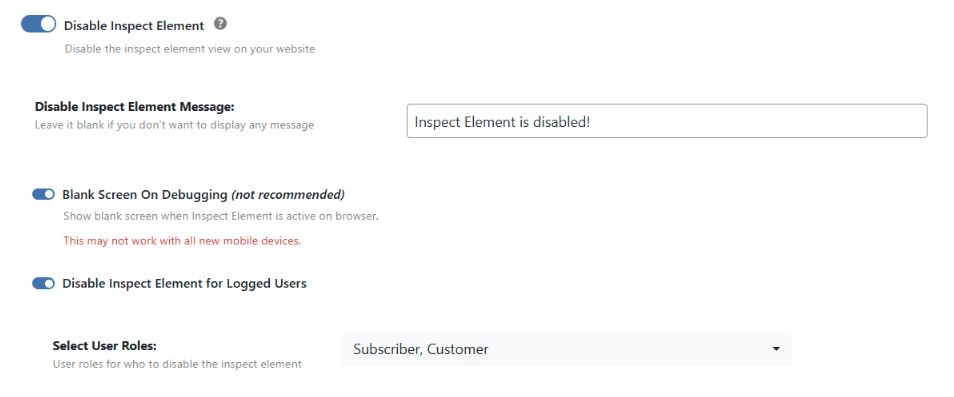
To apply for logged-in users, switch on Disable Inspect Element for Logged Users and select the user roles.
Disable View Source
Blocks the keyboard shortcuts that open the page source view: Ctrl+U on Windows and Option+Command+U on macOS. Also removes View Source from the context menu. This prevents visitors from reading your raw HTML, which contains all the meta tags, script references, and page structure.
- Go to WP Ghost > Tweaks > Disable Options.
- Switch on Disable View Source.
- Enter a Disable View Source Message (optional).
- Click Save to apply.
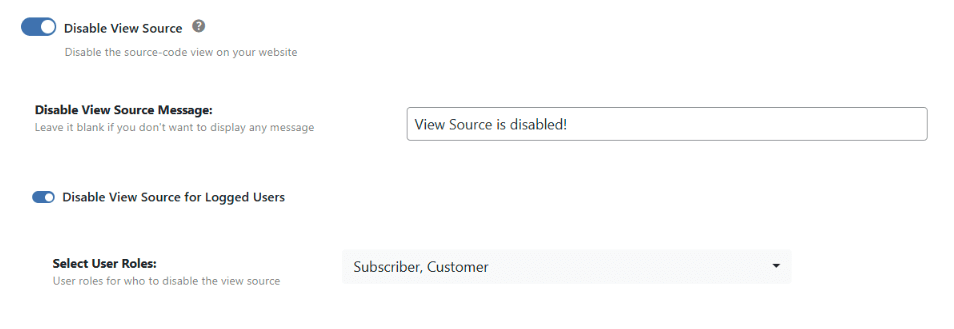
To apply for logged-in users, switch on Disable View Source for Logged Users and select the user roles.
Disable Copy and Paste
Blocks text copying (Ctrl+C / Command+C) and optionally pasting (Ctrl+V / Command+V). Prevents visitors from selecting and copying your content. The paste disable is a sub-option – enable it only if you want to block pasting into forms.
- Go to WP Ghost > Tweaks > Disable Options.
- Switch on Disable Copy.
- Optional: Switch on Disable Paste.
- Enter a Disable Copy/Paste Message (optional).
- Click Save to apply.

Warning about Disable Paste: This blocks pasting into all forms on your site, including search, contact forms, and comment fields. If your site has forms, either leave Disable Paste off or whitelist the paths containing forms in Firewall > Whitelist Paths.
To apply for logged-in users, switch on Disable Copy/Paste for Logged Users and select the user roles.
Disable Drag/Drop Images
Prevents visitors from dragging images from your site to their desktop or another application. This is one of the simplest ways people save images from websites. Disabling it makes casual image theft harder.
- Go to WP Ghost > Tweaks > Disable Options.
- Switch on Disable Drag/Drop Images.
- Enter a Disable Drag/Drop Message (optional).
- Click Save to apply.
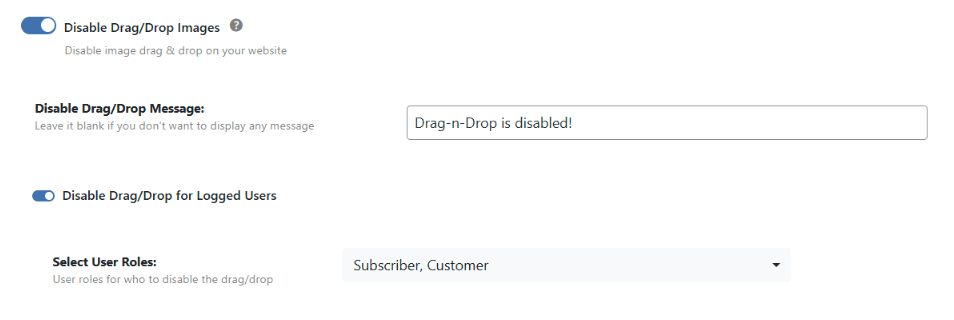
To apply for logged-in users, switch on Disable Drag/Drop for Logged Users and select the user roles.
Frequently Asked Questions
Can determined users bypass these restrictions?
Yes. These features block browser-level actions through JavaScript. A technically skilled user can use external tools, browser extensions, or command-line utilities to access your source code and content. The purpose of these features is to block casual inspection and content theft – not to provide absolute protection. For complete source code protection, combine them with hidden HTML comments, hidden element IDs, and hidden version numbers so that even if someone does view the source, there’s nothing identifying to find.
Will these features affect administrators?
By default, disable options only apply to non-logged-in visitors. For each feature, there’s a separate “for Logged Users” toggle where you can select which user roles are affected. Administrators are never affected unless you specifically add them to the selected roles – which is not recommended since you need DevTools access for site management.
Will disabling right-click annoy visitors?
It can. Some visitors use right-click to open links in new tabs, access spell-check, or use accessibility tools. Consider your audience before enabling this. For photography and design portfolios where content protection is important, the trade-off is worthwhile. For general blogs and information sites, disabling only Inspect Element and View Source (without blocking the entire right-click menu) may be a better balance.
Do these features affect SEO?
No. These features use client-side JavaScript to block browser interactions. Search engine crawlers don’t execute JavaScript the same way browsers do, and Google specifically states that blocking right-click or View Source has no impact on crawling, indexing, or rankings.
Does this work with WooCommerce?
Yes, with one caution: if you enable Disable Paste, it blocks pasting into all forms including WooCommerce checkout fields (coupon codes, billing information, etc.). Either leave Disable Paste off for WooCommerce sites, or whitelist your checkout page path. WP Ghost is fully compatible with WooCommerce.
Does WP Ghost modify WordPress core files?
No. All disable features work through JavaScript event handlers injected at runtime. No core files are modified. Disabling any feature or deactivating WP Ghost restores full browser functionality instantly.
Related Tutorials
Complement content protection with source code cleanup:
- Hide HTML Comments – Remove identifying comments from the source code visitors can’t access.
- Hide the WordPress Version – Strip version numbers from the source code.
- Hide Source Map References – Remove debugging metadata from CSS and JS files.
- Hide from WordPress Theme Detectors – Remove all CMS detection signals.