
Monitor every malicious request your WordPress site receives – what was targeted, from which IP and country, and whether WP Ghost blocked it. The Security Threats Log is a Premium feature that records all hostile traffic detected by WP Ghost’s protection layers: exploit scans, PHP file probing, requests targeting hidden paths, malformed HTTP requests, and repeated attacks from the same IP. You can filter by threat type, country, status, and time range – and respond directly from the log by whitelisting paths, whitelisting rules, or blacklisting IPs.
What Is the Security Threats Log?

The Security Threats Log records every malicious or suspicious request detected by WP Ghost. It focuses exclusively on external threats – not user activity. Each entry includes the threat type, targeted path, source IP and country, HTTP method, detection rule, timestamp, and block status. The log gives you visibility into hostile traffic that WP Ghost blocks silently in the background.
Why Monitoring Security Threats Matters
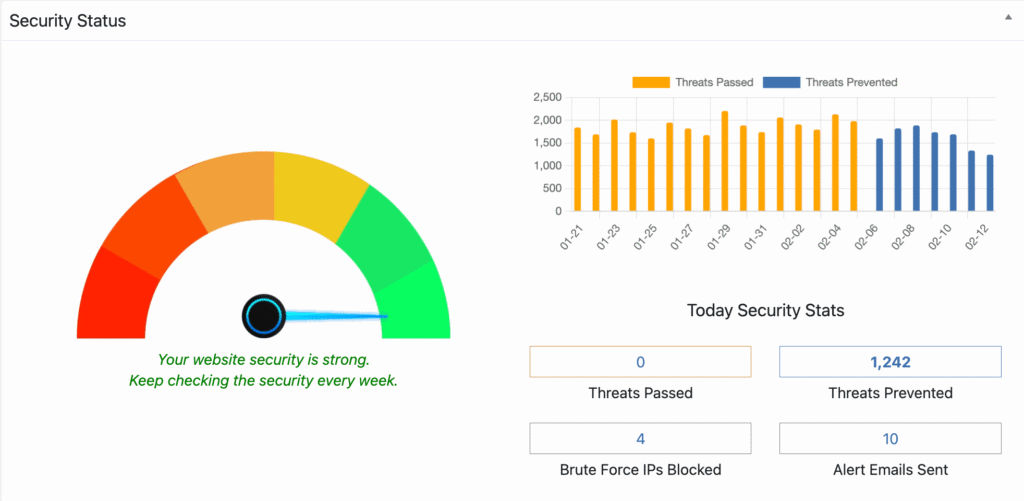
WP Ghost blocks attacks proactively. The Threats Log shows you what’s being blocked and why. This matters for your hack prevention strategy:
Validate that your protections are working. The log confirms that blocked requests are actually being stopped. If you see “Prevented” status on exploit scans and injection attempts, your firewall and path-security configuration are doing their job.
Identify attack patterns and sources. When the same IP sends hundreds of requests targeting different plugin paths, that’s a scanner. When multiple IPs from the same country probe wp-login.php, that’s a coordinated brute force campaign. The log makes these patterns visible so you can respond with IP blacklisting or country blocking.
Resolve false positives. Occasionally, a legitimate request triggers a firewall rule. The log shows exactly which rule was triggered and which path was blocked. You can whitelist the path or the specific rule directly from the log entry – no guessing required.
How to Activate the Security Threats Log
- Go to WP Ghost > Logs > Settings.
- Enable Log Security Threats.
- Set the Retention period (in days) – how long logs are stored locally before automatic cleanup.
- Click Save.
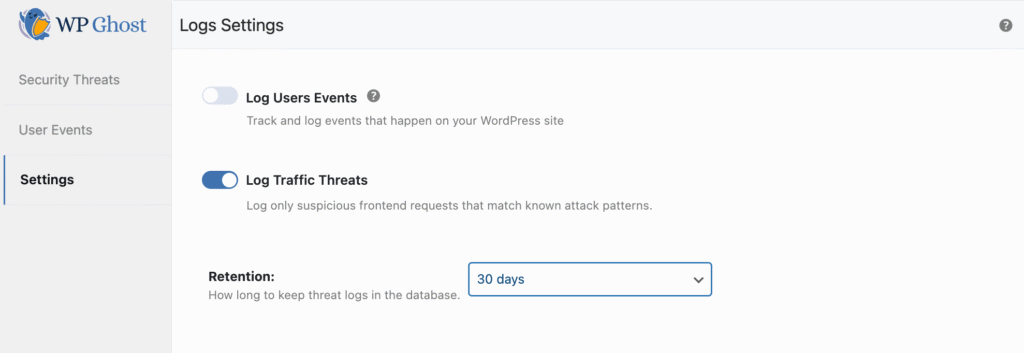
Once enabled, WP Ghost starts recording detected threats automatically. No additional configuration is needed.
What Gets Logged
The log records malicious or suspicious requests detected by WP Ghost’s protections: probing for vulnerable or non-existent PHP files, exploit scanning against plugins/themes/core files, requests targeting hidden or protected paths, malformed or suspicious HTTP requests, and repeated hostile traffic from the same IP. Each entry documents the attempt even when it’s fully blocked.
Every log entry captures: the threat type, targeted path or URL, source IP address and country, HTTP method and protocol, detection rule and matched pattern, date and time, and block status (e.g., “Prevented”).
Reading the Threats Report
View detected threats at WP Ghost > Logs > Security Threats.
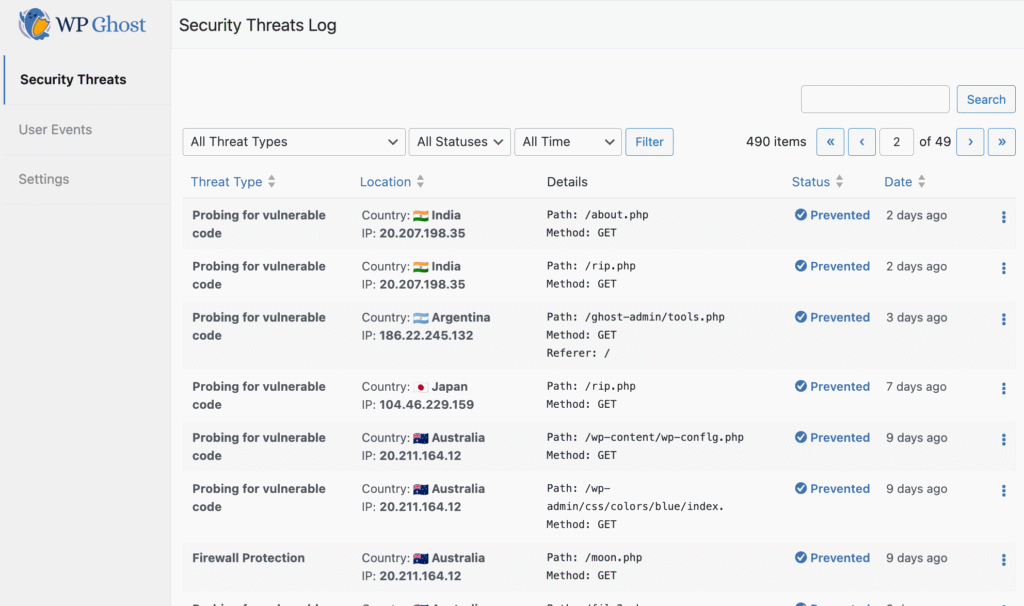
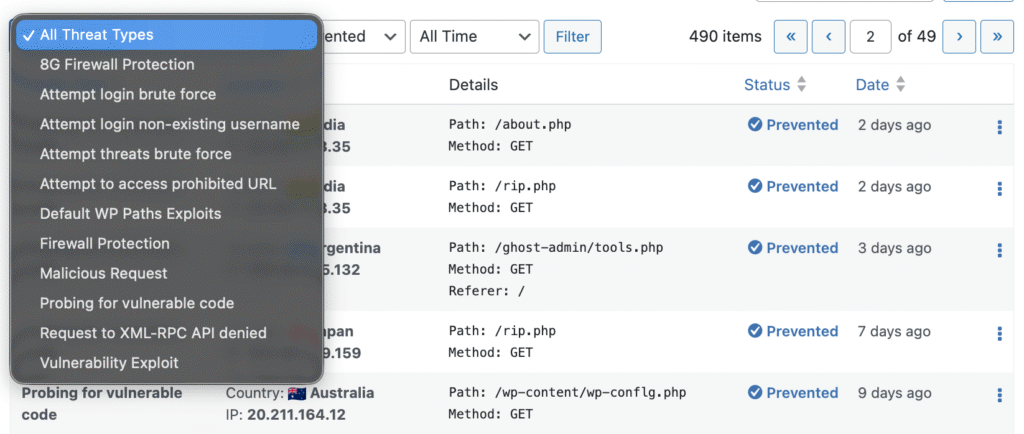
The report shows all detected threats in chronological order. You can identify attack types and targeted paths, view source IPs and countries, confirm whether threats were blocked, and detect recurring or coordinated attack patterns.
Filtering and searching: Use the built-in filters to narrow results by threat type, status (Prevented, etc.), country, and time range. Search by keyword, path, or IP address. Starting with WP Ghost 9.0, the country filter lets you isolate threats from a specific region – useful for assessing whether to enable country blocking for specific countries.
Responding to Threats
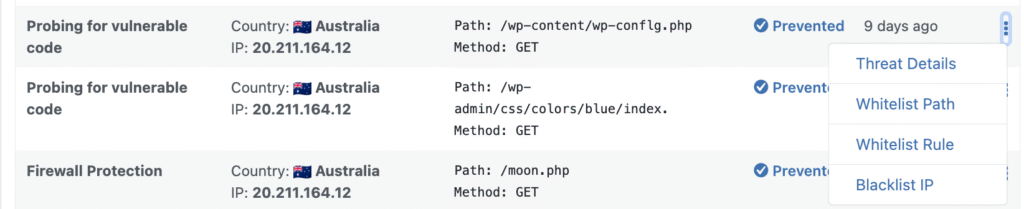
Each threat entry includes an action menu with four response options:
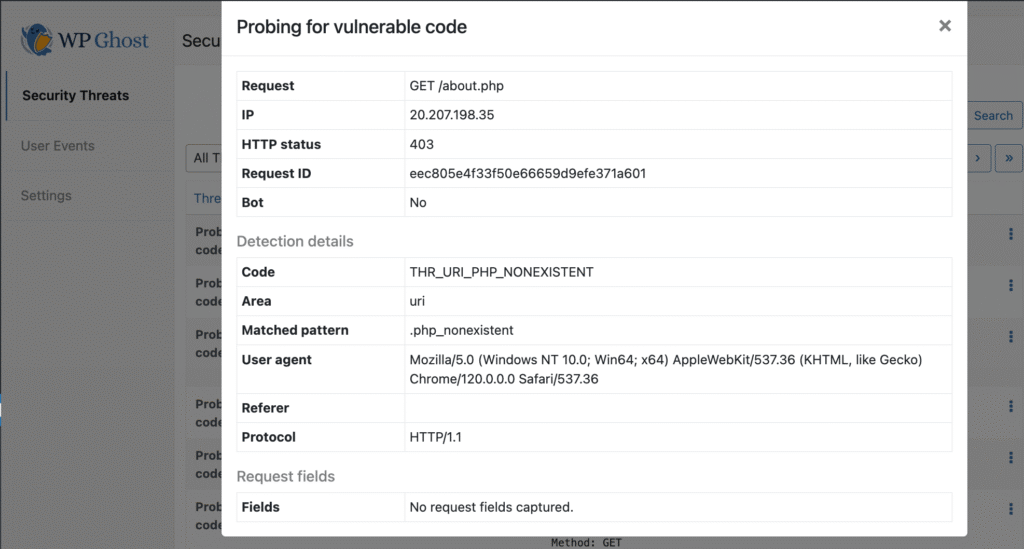
Threat Details – View the full request: path, source IP, HTTP status, detection rule and matched pattern, user agent, referrer, protocol, and unique request ID. This tells you exactly why the request was flagged.
Whitelist Path – If a legitimate request is being blocked, whitelist that specific URL or endpoint. The path is added to Firewall > Whitelist.
Whitelist Rule – If a trusted integration triggers a specific detection rule, whitelist that rule. Useful for custom applications or third-party services that send requests matching firewall patterns.
Blacklist IP – Permanently block a malicious IP that repeatedly targets your site. The IP is added to Firewall > Blacklist.
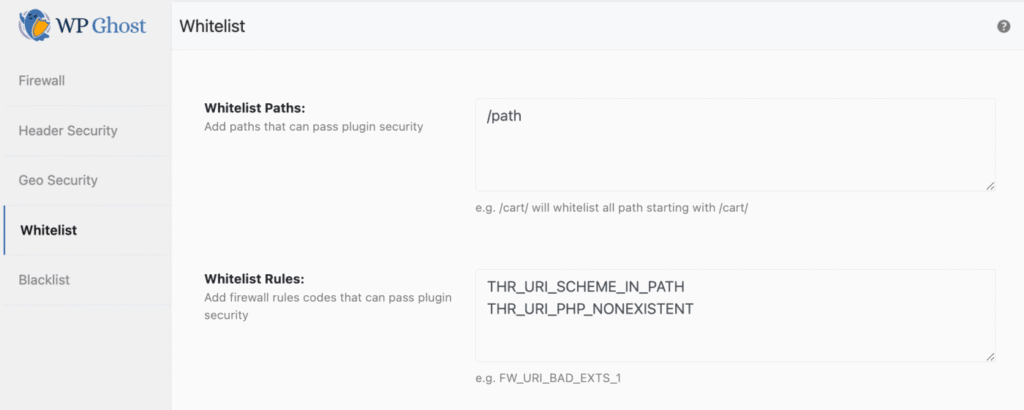
All whitelist and blacklist entries created from the Threats Log are centrally managed in the Firewall section: whitelisted paths and rules at Firewall > Whitelist, blocked IPs at Firewall > Blacklist.
GDPR and Data Storage
All threat data is stored locally in the WordPress database table hmwp_logs. Data is collected strictly for security monitoring and incident analysis. The retention period you set controls automatic cleanup.
For statistical and reporting purposes, WP Ghost sends aggregated, non-personal data to the WP Ghost Dashboard: only the date and total number of detected threats. No IP addresses, URLs, request details, or individual visitor data is transmitted.
Frequently Asked Questions
Is this a Premium feature?
Yes. The Security Threats Log is available in WP Ghost Premium. The free version includes the firewall, brute force protection, and all path-security features – but threat logging requires Premium.
Does logging affect performance?
Minimally. Threat logging writes to the local database only when a malicious request is detected. Legitimate traffic is not logged. The retention setting automatically cleans up old entries to keep database size manageable.
What if a legitimate request shows as a threat?
Open the threat details to see which rule was triggered and which path was blocked. Use Whitelist Path to allow that specific URL, or Whitelist Rule to allow all requests matching that detection pattern. The whitelist is managed centrally at Firewall > Whitelist.
Is this the same as the User Events Log?
No. The Security Threats Log records external threats – malicious requests from bots and attackers. The User Events Log tracks internal activity – admin logins, plugin changes, settings modifications. They’re complementary: threats show what’s attacking you; events show what’s happening inside.
Does WP Ghost modify WordPress core files?
No. Threat logging uses WP Ghost’s own database table (hmwp_logs) and WordPress hooks. No core files are modified. Disabling the feature stops logging instantly.
Related Tutorials
Use the Threats Log alongside these security features:
- Firewall Security – The firewall rules that generate threat log entries.
- Blacklist IPs, User Agents, and Referrers – Manually block sources identified in the log.
- Whitelist IPs and Paths – Exempt legitimate requests that trigger false positives.
- Geo Security – Block countries that generate the most threats in your log.
- 8G Firewall Protection – The firewall ruleset that generates most threat detections.