
Change and hide the default WordPress paths (wp-admin, wp-login.php, wp-content, wp-includes, plugins, themes, and more) to prevent bots from identifying and attacking your site. WP Ghost replaces standard WordPress URLs with custom paths using redirects and rewrite rules. No files are physically moved or renamed on your server. Select Safe Mode or Ghost Mode, customize the path names, save, and your WordPress identity is hidden from theme detectors and hacker bots. This is the core feature of WP Ghost and the foundation of your hack prevention strategy.
What Is Path Customization?

Path customization changes the URLs that WordPress uses for its admin dashboard, login page, content directories, plugin paths, theme paths, and other core locations. Instead of the predictable /wp-admin, /wp-login.php, /wp-content/plugins, and /wp-content/themes that every WordPress site uses by default, WP Ghost maps these to custom names you choose. The original paths return 404 errors while the new paths work normally. Bots scanning for standard WordPress structure find nothing.
Why Customize WordPress Paths
WordPress powers 43% of all websites (W3Techs). This makes its default structure the most targeted in the world. Every bot knows that /wp-login.php is the login page, /wp-admin is the dashboard, and /wp-content/plugins/plugin-name/ reveals which plugins are installed. WPScan tracks 64,782 known WordPress vulnerabilities, and 7,966 new ones were disclosed in 2024 alone (Patchstack). Bots use this predictable structure to find and exploit vulnerable plugins automatically.
Changing these paths breaks the bot’s playbook. If /wp-login.php returns 404, brute force bots have no login page to attack. If /wp-content/plugins/ doesn’t exist, vulnerability scanners can’t enumerate your plugins. WP Ghost doesn’t just hide one path, it replaces the entire WordPress URL structure so your site doesn’t look like WordPress at all.
How to Customize Paths with WP Ghost
If you haven’t installed the plugin yet, follow the Install WP Ghost Free or Install WP Ghost Premium guide first.
Select Level of Security
Go to WP Ghost > Change Paths and select your security level:
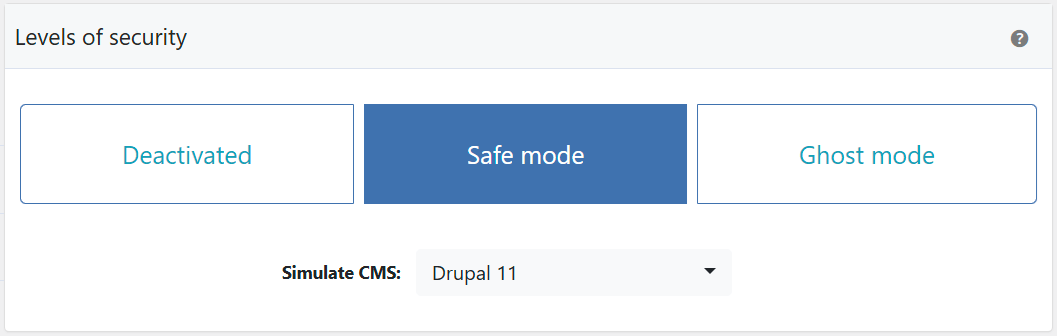
Safe Mode changes the login path, wp-content, wp-includes, plugins, themes, and other common paths. It works on all server types and is the recommended starting point for most sites.
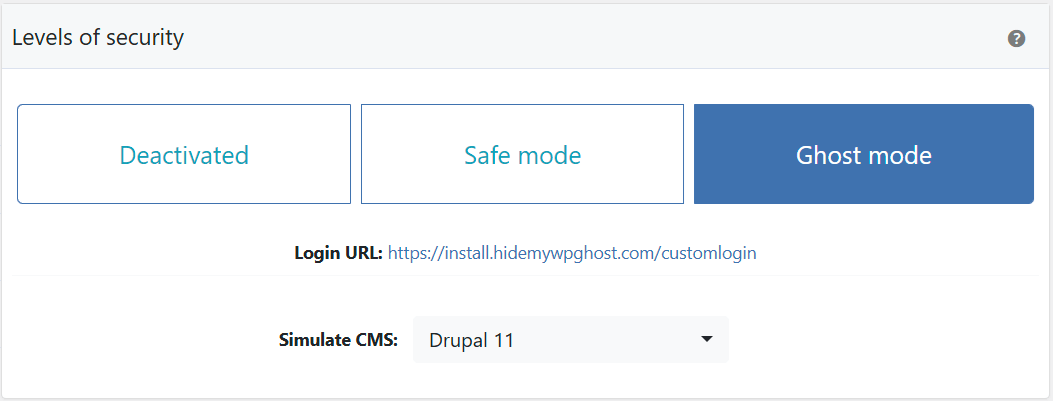
Ghost Mode (Premium) applies more aggressive path changes, including file extension replacement and deeper source code cleanup. It provides maximum hiding but requires compatibility testing with your specific plugins and theme.
Customize the WordPress Paths
After selecting Safe Mode or Ghost Mode, new input fields appear for every WordPress path you can customize: wp-content, wp-includes, wp-admin, wp-login.php, plugins, themes, uploads, author, admin-ajax, and more.
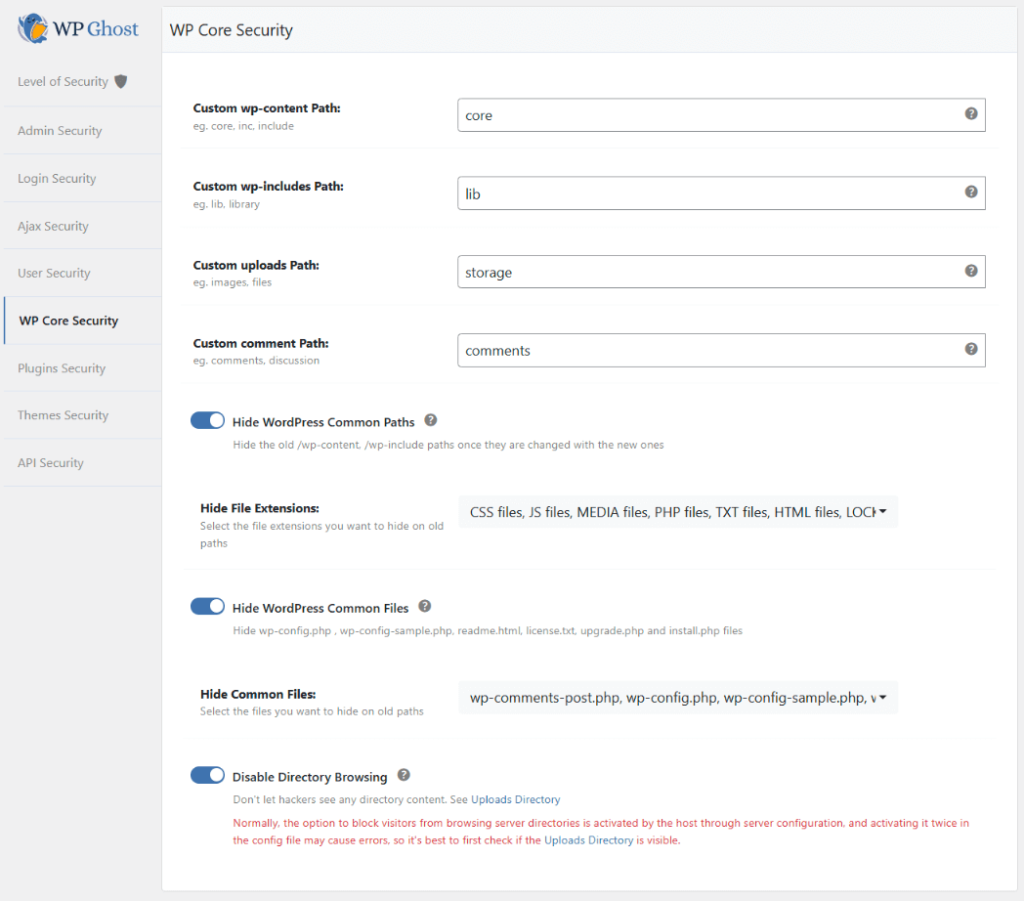
If you’re not sure what to name the paths, use the defaults that WP Ghost generates. They’re random and effective. If you customize them, follow these rules:
Every path must be unique. Don’t give two paths the same name, this will break site functionality.
Use memorable names for login and admin paths. You’ll need to remember these to access your dashboard. Bookmark them immediately after saving.
WP Ghost does not physically rename any files or folders. All changes are handled through redirects and rewrite rules. Deactivating the plugin instantly restores all original paths.
Compatibility note: Not all plugins support custom wp-admin and admin-ajax.php paths. If you experience issues with other plugins after saving, try leaving the wp-admin and admin-ajax.php paths unchanged. See the Compatibility Plugins List for known issues.
Save and Verify
Click Save. WP Ghost writes the rewrite rules to your server configuration file.
If the config file is not writable, WP Ghost displays the rules you need to add manually. Follow the on-screen instructions for your server type.
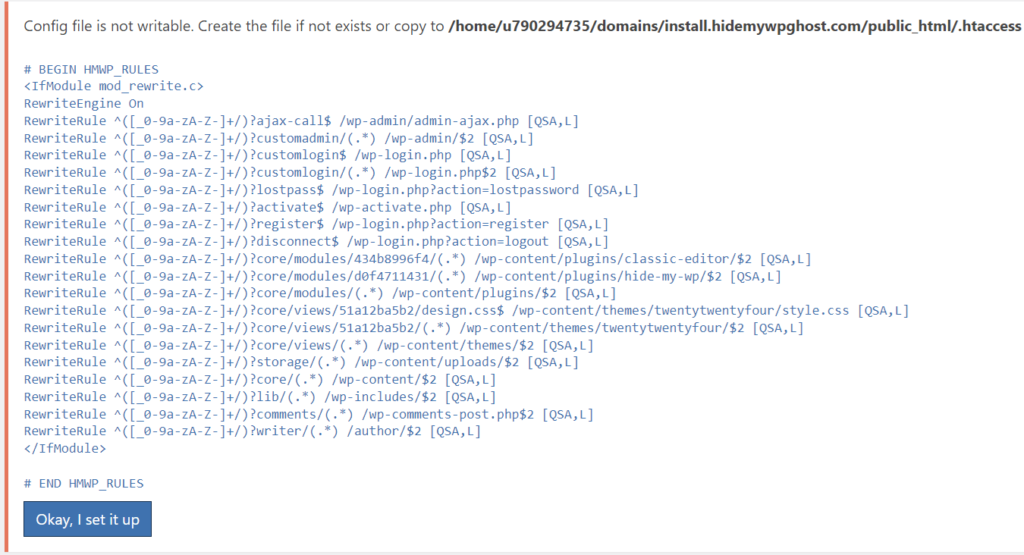
For Nginx servers: restart Nginx after adding the rules. On Linux, use:
sudo nginx -s reload
For Apache servers: ensure AllowOverride All is set for your directory. See Set AllowOverride All on Apache.
After saving, WP Ghost prompts you to run a Frontend Test. Run it to confirm the new paths are loading correctly.
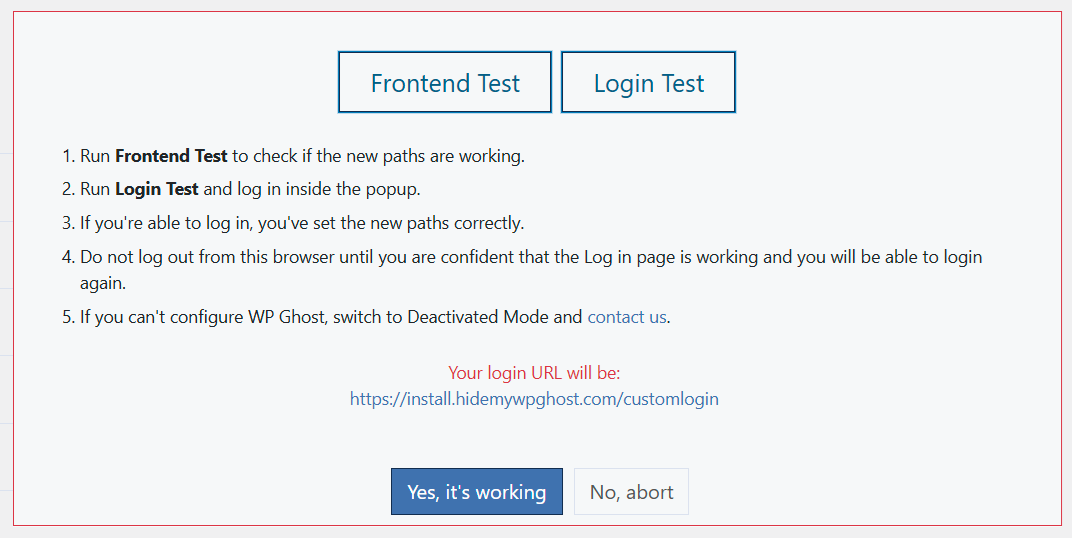
Important: If you changed wp-admin or wp-login.php, bookmark your new login URL immediately. If you forget the custom path, use the Safe URL parameter to regain access.
Run a Security Check
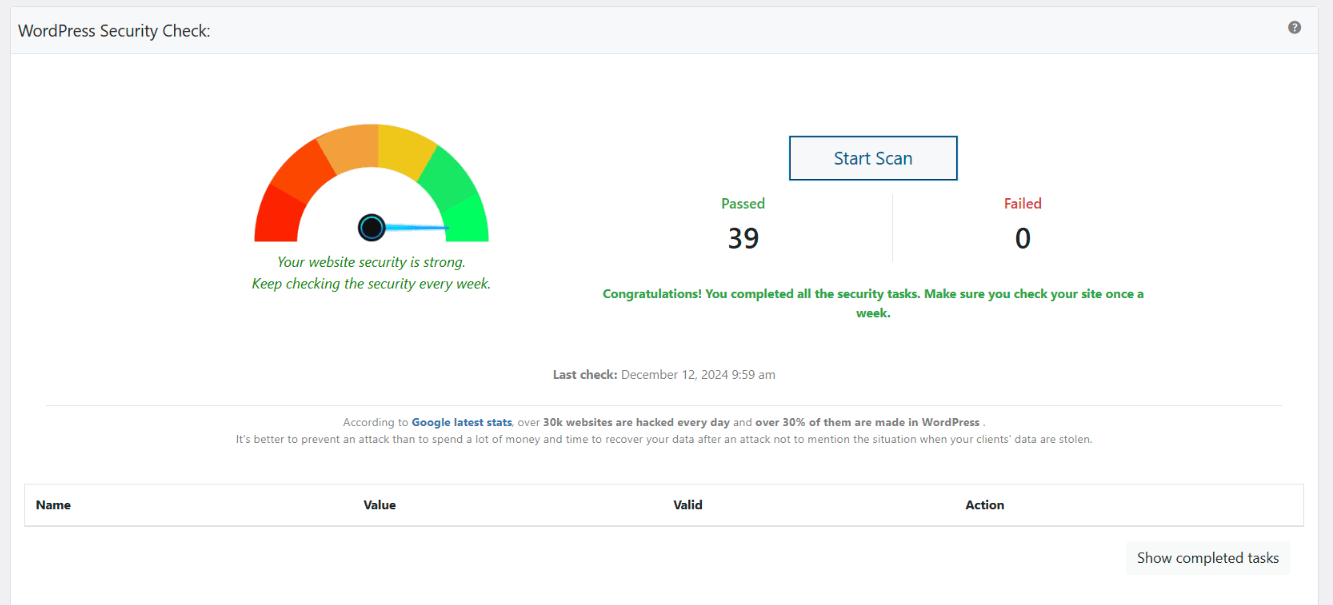
After saving your path changes, run a Security Check to verify your configuration is complete.
Go to WP Ghost > Security Check > Start Scan. WP Ghost runs 39 security tasks and reports which checks pass and which need attention. If the path-related checks show green, your WordPress structure is hidden.
Troubleshooting
Can’t log in after changing paths
Try the default login paths: /newlogin for Safe Mode or /ghost-login for Ghost Mode. If those don’t work, use the Safe URL parameter to bypass WP Ghost temporarily. If you can’t access the dashboard at all, use the emergency disable guide or add a constant in wp-config.php.
Theme or plugin not working after path changes
Some themes and plugins hardcode WordPress paths. Deactivate other plugins one by one to isolate the conflict. If the issue is with wp-admin or admin-ajax.php, try leaving those two paths at their default values while keeping all other paths customized. Check the Compatibility Plugins List for known issues.
Site layout breaks after saving
The rewrite rules may not be loading correctly. Enable Prevent Broken Website Layout in Rollback Settings to protect the frontend while you troubleshoot. Verify your server type is correctly detected. On Apache, check that AllowOverride All is set.
Config file not writable on Nginx
Nginx doesn’t support .htaccess. You need to add the rules to nginx.conf manually and restart Nginx. See Setup WP Ghost on Nginx Server for full instructions. If you can’t edit the config, see Use WP Ghost on Nginx Without Config Changes for the features that work without rewrite rules.
Frequently Asked Questions
Does WP Ghost physically move or rename files?
No. All path changes are handled through redirects and server rewrite rules. No files or folders are renamed, moved, or modified on your server. Deactivating WP Ghost restores all original paths instantly.
What’s the difference between Safe Mode and Ghost Mode?
Safe Mode changes the most commonly targeted paths (login, wp-content, wp-includes, plugins, themes, etc.) and works on all server types. Ghost Mode (Premium) applies more aggressive changes including file extension replacement and advanced path security.
Does this work with WooCommerce?
Yes. WP Ghost is fully compatible with WooCommerce. If you experience issues with cart or checkout after changing paths, try leaving the wp-admin and admin-ajax.php paths at their defaults.
Does WP Ghost modify WordPress core files?
No. Path customization works through rewrite rules written to the server configuration file (.htaccess on Apache, nginx.conf on Nginx). No WordPress core files are modified. Deactivating WP Ghost removes all rules and restores default behavior.
Related Tutorials
Continue securing your site after customizing paths:
- Change and Hide the Login Path – Detailed guide for the login path specifically.
- Change and Hide the wp-admin Path – Detailed guide for the admin path.
- Firewall Security – Enable injection protection after hiding paths.
- Brute Force Protection – Add reCAPTCHA to your new custom login page.
- Hide from WordPress Theme Detectors – Verify your site passes theme detection tools.
- WP Ghost Settings Best Practice – Complete configuration guide for all features.