
Download WP Ghost Premium from your account dashboard, install it on your WordPress site, activate your license token, and choose between Safe Mode (maximum compatibility) or Ghost Mode (maximum security) for your path protection. This guide covers the complete Premium installation process: downloading the plugin, uploading to WordPress, activating the license, picking the right Premium security mode, customizing paths, configuring server rules, and running your first Security Check. If you’re looking for the free version instead, see Install WP Ghost Free Plugin.
Download WP Ghost Premium
Log in to your WP Ghost Dashboard account and download the Premium plugin zip file from your orders page.
Install and Activate
Upgrading from the free version? If you already have WP Ghost Free installed, deactivate it first, then install and activate the Premium version. Your existing settings are preserved. The Premium plugin file is named hide-my-wp.zip, the same as the free version.
- Log in to your WordPress dashboard as an administrator.
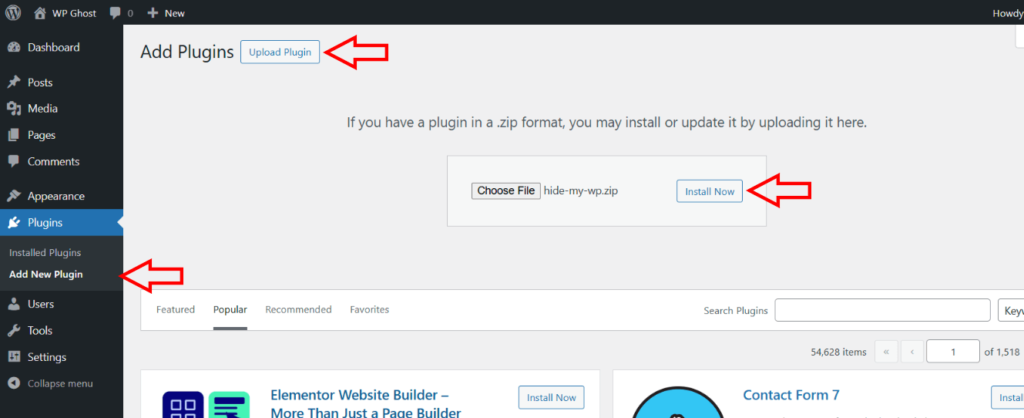
- Go to Plugins > Add New Plugin.
- Click Upload Plugin at the top of the page.
- Browse and upload the hide-my-wp.zip file you downloaded from your account.
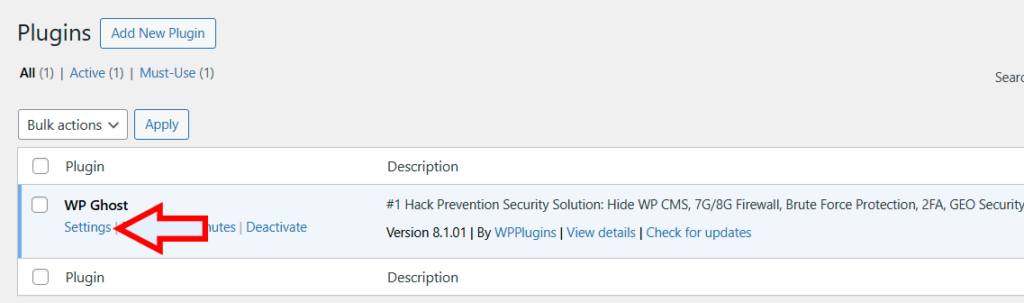
- Click Activate Plugin.
- From the plugins list, click the Settings link to go to WP Ghost settings.
Activate Your Premium License
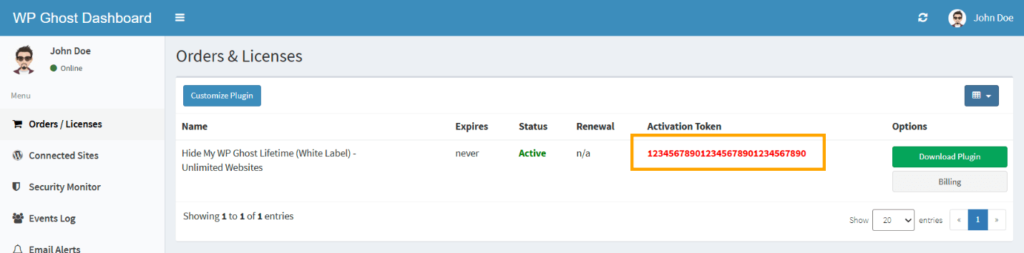
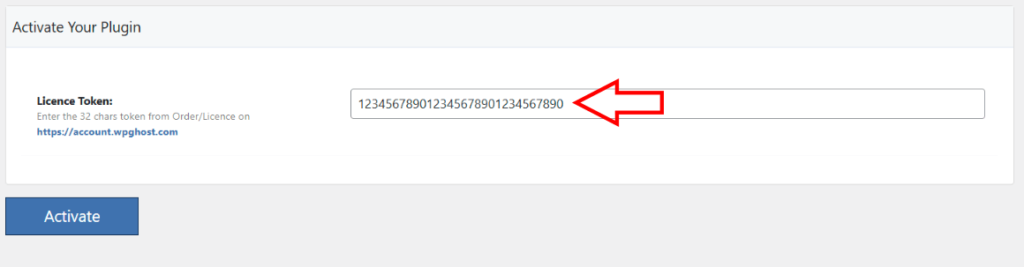
Premium activation requires a license token from your WP Ghost Dashboard account, not an email address like the free version.
- Copy the activation token from your WP Ghost Dashboard account.
- Paste the token into the activation field in WP Ghost settings.
- Click Activate to register the license on your website.
Select Your Premium Security Mode
After activation, you’re redirected to the WP Ghost > Overview page. Go to WP Ghost > Change Paths > Level of Security to select your protection level.
WP Ghost Premium unlocks two security modes on top of the free Lite Mode:
Safe Mode (Premium, recommended default). Extends Lite Mode path coverage to wp-admin and admin-ajax.php using rewrite techniques engineered for maximum compatibility with 1,000+ plugins and themes, including WooCommerce, Elementor, Divi, membership platforms, and LMS plugins. Activates automated IP blocking, country blocking, AI crawler blocking at the firewall level, and the full Events & Threats Log.
Ghost Mode (Premium, maximum security). Everything Safe Mode does, plus full file extension hiding (.php, .json, .css, and others) and the most aggressive fingerprint removal WP Ghost offers. Recommended for hardened standalone sites once you’ve verified your stack.
- Go to WP Ghost > Change Paths > Level of Security.
- Select Safe Mode (recommended) or Ghost Mode, then review the popup information.
- Click Continue to load predefined paths.
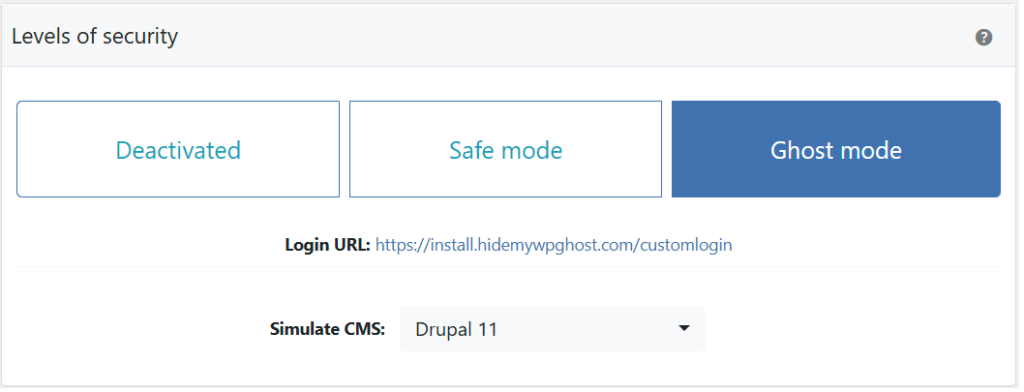
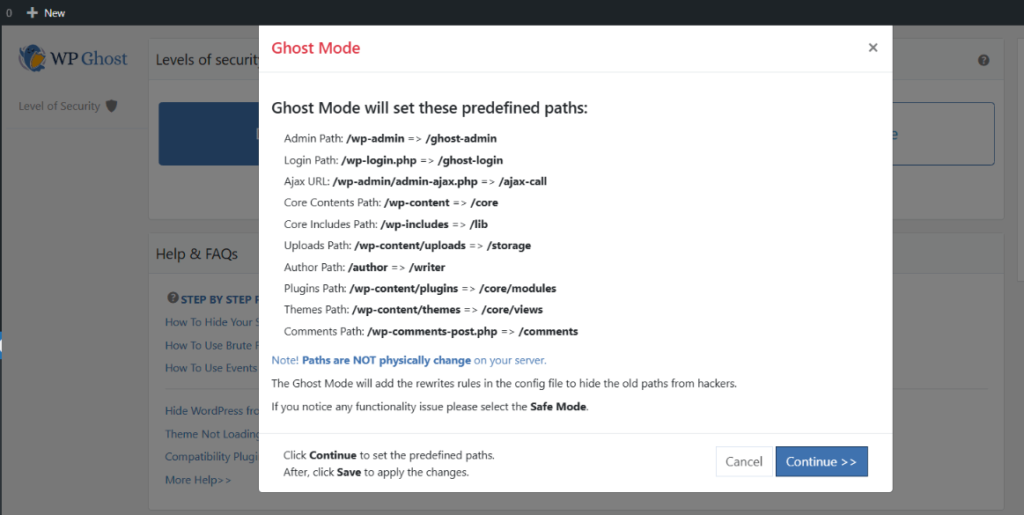
Which mode should a Premium user pick first? Start with Safe Mode. It’s the default Premium configuration, tested against the widest plugin and theme ecosystem, and it unlocks the full Premium feature set. Once you’ve verified everything works on your stack, you can switch to Ghost Mode from the same screen for tighter fingerprint removal. If Ghost Mode ever causes a compatibility issue, switch back to Safe Mode instantly, no settings are lost. See Lite Mode vs Safe Mode vs Ghost Mode for the full comparison.
Customize Your Paths
After selecting Safe Mode or Ghost Mode, WP Ghost generates predefined custom paths for every WordPress location. You can use the defaults or customize each path. The settings are organized into sections:
Admin Security, customize and secure the wp-admin path.
Login Security, customize the wp-login.php path.
Ajax Security, customize the admin-ajax.php path in the frontend.
User Security, customize the author path.
WP Core Security, customize wp-content, wp-includes, and common paths and files.
Plugins Security, customize the plugins path and individual plugin names.
Theme Security, customize the themes path and individual theme names.
API Security, customize the REST API path and manage XML-RPC access.
Firewall & Headers Security, activate firewall rules and security headers.
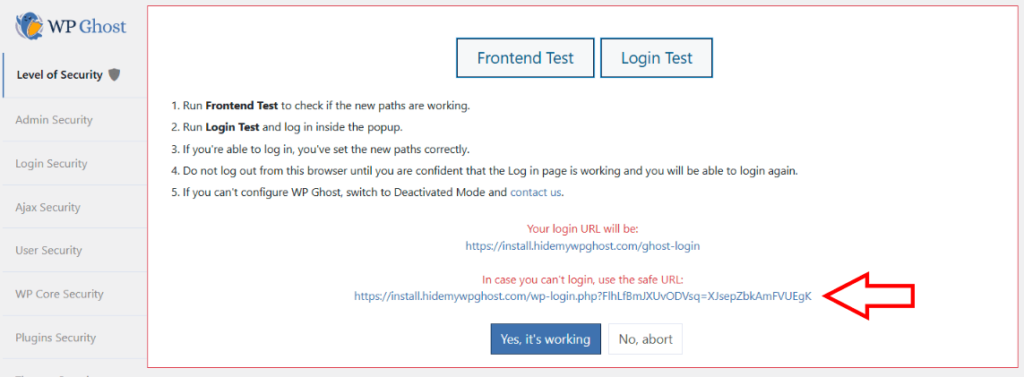
Important: Bookmark your new login path immediately after saving. The default /wp-login.php and /wp-admin are no longer accessible to visitors. If you forget your custom path, use the Safe URL parameter to regain access.
After customizing, click Save to apply the changes.
Server Configuration
If WP Ghost can’t write rewrite rules to your server config file automatically, it shows the rules you need to add manually. Follow the on-screen instructions for your server type and click Okay, I set it up.
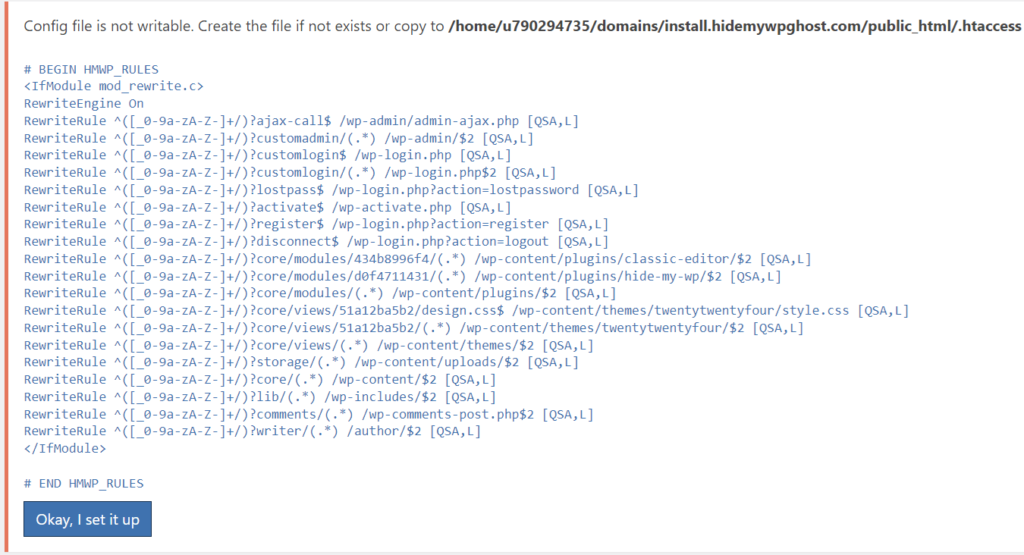
For Nginx: Add the config include line to your nginx.conf and restart Nginx with sudo nginx -s reload. This is a one-time setup. See Setup WP Ghost on Nginx Server for full instructions.

For Apache: Ensure AllowOverride All is set for your directory. See Set AllowOverride All on Apache.
Run a Security Check
After saving your configuration, verify everything is working. Go to WP Ghost > Security Check > Start Scan. WP Ghost runs security tasks and reports which checks pass. Use the Fix it buttons to resolve any remaining issues automatically.
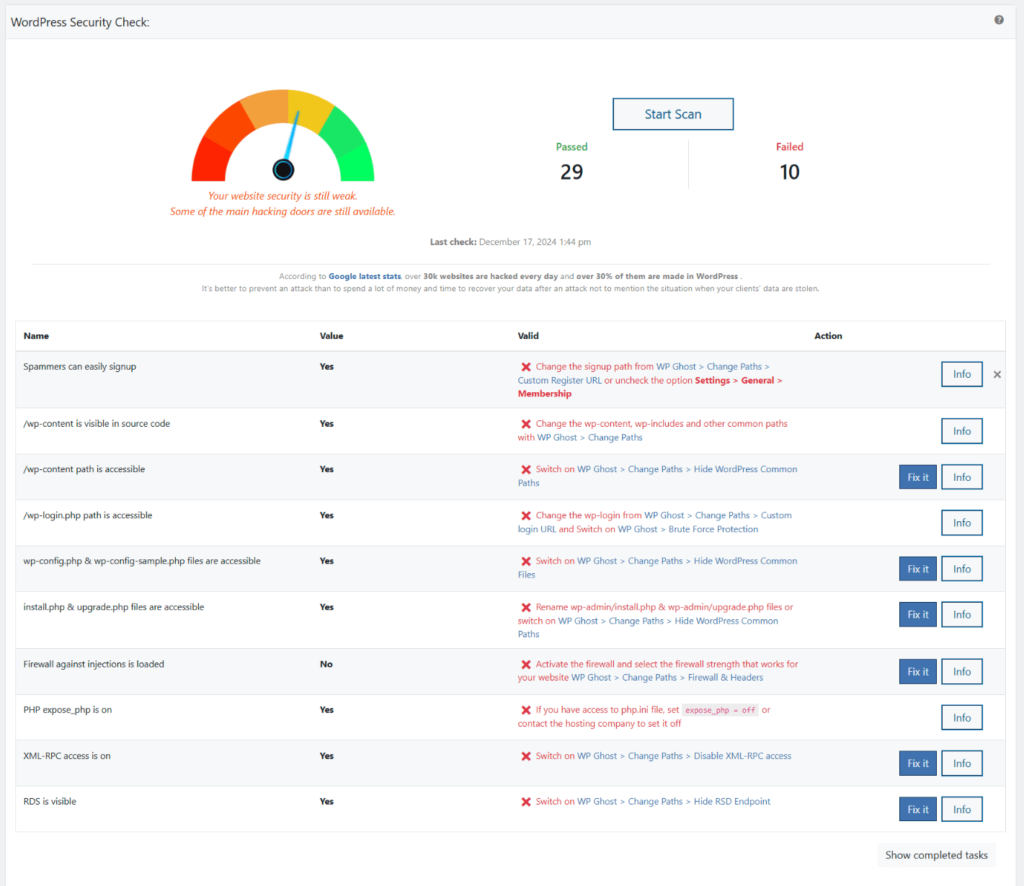
Save your Safe URL from WP Ghost > Change Paths. This is your emergency access link if a compatibility issue ever locks you out. The Safe URL bypasses all custom paths and lets you access the default WordPress login.
For a comprehensive security setup beyond the initial install, continue with the complete hiding checklist and brute force protection. If you ever can’t log in, see the Emergency Disable guide.
Frequently Asked Questions
Can I upgrade from the free version without losing settings?
Yes. Deactivate the free version, install and activate Premium, then enter your license token. All your existing WP Ghost settings are preserved in the database. You don’t need to reconfigure anything. Your previous Lite Mode path customizations carry over when you switch to Safe Mode or Ghost Mode.
Where do I find my activation token?
Log in to your WP Ghost Dashboard account and go to your orders page. The activation token is displayed next to your purchase. Copy and paste it into the WP Ghost activation field in your WordPress dashboard.
Should I start with Safe Mode or Ghost Mode?
Start with Safe Mode. It’s the default Premium configuration and is engineered for maximum compatibility with plugins and themes, including WooCommerce, Elementor, Divi, membership sites, and LMS platforms. It also unlocks the full Premium feature set (automated IP blocking, country blocking, AI crawler blocking, full Events & Threats Log). Move to Ghost Mode only after you’ve verified your stack, to add file extension hiding and the tightest fingerprint removal. You can switch between Safe Mode and Ghost Mode at any time from WP Ghost > Change Paths > Level of Security, no settings are lost.
What does Premium add over the free version?
Premium unlocks Safe Mode and Ghost Mode (the free version is limited to Lite Mode), plus the full User Events Log, full Security Threats Log, country blocking, AI crawler blocking at the firewall level, automated IP blocking, extended file extension security, file permission fixes, database prefix changes, SALT key regeneration, vulnerability management, and priority support.
Does this work with WooCommerce?
Yes. WP Ghost Premium is fully compatible with WooCommerce. Safe Mode is the recommended default for WooCommerce stores, it’s engineered for compatibility with the ecommerce plugin ecosystem and works out of the box with cart, checkout, product pages, and customer accounts. Ghost Mode also works with WooCommerce in most setups; test your cart and checkout after activating, and switch back to Safe Mode from the same settings screen if any extension hardcodes paths.
Does WP Ghost modify WordPress core files?
No. All path changes use server rewrite rules and WordPress hooks. No files are moved, renamed, or modified. Deactivating WP Ghost restores all defaults instantly.
Related Tutorials
Continue setting up your security:
- Install WP Ghost Free Plugin – for the free version installation.
- Customize Paths with WP Ghost – detailed guide to customizing all WordPress paths.
- Preset Security Options – one-click configurations for fast setup.
- Lite Mode vs Safe Mode vs Ghost Mode – understand the three security levels.
- Prevent Hack Attacks – the complete WP Ghost security overview.
- Rollback Settings – recovery options if Ghost Mode causes compatibility issues.