
- What Is admin-ajax.php in WordPress?
- Why You Need to Secure admin-ajax.php
- How to Secure admin-ajax.php with WP Ghost
- What Happens After You Change the admin-ajax.php Path
- Troubleshooting
- Frequently Asked Questions
- Why is admin-ajax.php such a high-priority security target?
- Will changing the admin-ajax.php path break my site?
- Does this work with WooCommerce?
- Will Elementor still work after changing the AJAX path?
- Do I need all three AJAX options enabled?
- What about the REST API? Is admin-ajax.php the only endpoint I need to protect?
- Does WP Ghost modify WordPress core files?
- Related Tutorials
Secure your WordPress admin-ajax.php endpoint by changing its path, hiding wp-admin from AJAX URLs, and changing paths in AJAX responses with WP Ghost. Unlike the login or registration pages where you’re hiding a form, admin-ajax.php is different. It’s the backbone of every dynamic interaction on your WordPress site, and it’s also one of the most exploited endpoints in the entire WordPress ecosystem. This tutorial shows you three ways WP Ghost protects it.
What Is admin-ajax.php in WordPress?

Admin-ajax.php is the file that handles all AJAX (Asynchronous JavaScript and XML) requests in WordPress. It’s the central hub that plugins, themes, and custom scripts use to send and receive data from the server without reloading the entire page.
By default, it lives at: https://yourdomain.com/wp-admin/admin-ajax.php
Every time you submit a form, filter products in a WooCommerce shop, load more posts with infinite scroll, or see a live search suggestion, admin-ajax.php is doing the work behind the scenes. It receives the request, processes it through the appropriate WordPress hook, and sends back the response. All without a page reload.
Here’s what makes it unique compared to other WordPress paths: admin-ajax.php is used on both the front end and the back end. Your visitors interact with it, your admin dashboard relies on it, and virtually every plugin you’ve installed sends requests through it. That’s what makes it so powerful. And that’s exactly what makes it such a high-value target for attackers.
Why You Need to Secure admin-ajax.php
If you could only secure one WordPress file beyond wp-login.php, this should probably be it. The /wp-admin/admin-ajax.php endpoint is involved in more documented WordPress exploits than almost any other file. Here’s why it’s such a magnet for attacks, and why changing its path is a critical part of any hack prevention strategy:
It’s the most common entry point for plugin exploits. Most WordPress plugin vulnerabilities are exploited through admin-ajax.php. Attackers send crafted POST requests to this endpoint with specific action parameters that trigger vulnerable functions in installed plugins. In late 2025, Wordfence blocked over 48,000 exploit attempts against a single vulnerability (CVE-2025-8489) in the King Addons plugin, all routed through /wp-admin/admin-ajax.php. A critical SQL injection in the LayerSlider plugin (CVE-2024-2879) was exploited the same way. These aren’t edge cases. This is the standard attack pattern.
It enables privilege escalation without authentication. Many plugin vulnerabilities allow unauthenticated users to send requests to admin-ajax.php and gain admin-level access. Patchstack’s research on privilege escalation shows that attackers commonly use this endpoint to change user roles, enable open registration, or create administrator accounts, all with a single POST request to a predictable URL. If the URL doesn’t exist, these exploits fail.
The URL itself reveals your CMS and admin structure. The path /wp-admin/admin-ajax.php contains two WordPress identifiers: the wp-admin directory and the admin-ajax.php filename. Bots, vulnerability scanners, and theme detectors use this path to confirm you’re running WordPress and start probing for known vulnerabilities in your installed plugins.
It handles file uploads. Some AJAX requests allow file uploads. If a plugin has a vulnerable upload handler registered through admin-ajax.php, attackers can upload malicious PHP files directly to your server. Cloudflare community reports show real-world cases of malicious files being uploaded through this exact endpoint.
WP Ghost gives you three layers of protection for admin-ajax.php: changing the filename, hiding the wp-admin directory from the URL, and changing all paths within AJAX responses. Combined with your firewall rules and hidden wp-admin path, this makes your AJAX endpoint virtually invisible to automated attacks.
How to Secure admin-ajax.php with WP Ghost
WP Ghost offers three separate protections for the AJAX endpoint, each addressing a different attack vector. You can enable all three for maximum protection.
Activate Safe Mode or Ghost Mode
Before you can change any paths, one of WP Ghost’s security levels must be active.
- Go to WP Ghost > Change Paths > Level of Security.
- Select Safe Mode or Ghost Mode. Safe Mode applies essential path changes. Ghost Mode adds advanced path security.
- Click Save to apply.
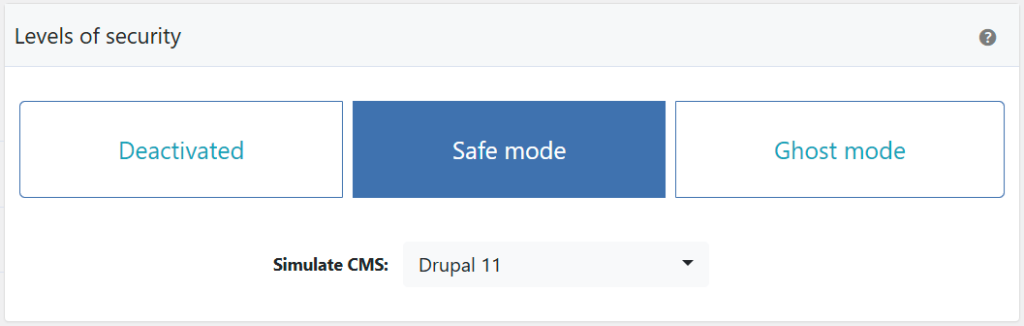
Need help choosing? Check the Safe Mode vs Ghost Mode comparison.
Change the admin-ajax.php Path
This replaces the admin-ajax.php filename with a custom name. Instead of /wp-admin/admin-ajax.php, your AJAX requests will go through something like /wp-admin/my-custom-handler.php (or whatever you choose). This alone breaks every automated script that targets the default filename.
- Go to WP Ghost > Change Paths > Ajax Security.
- Find the Custom admin-ajax Path field. A predefined name is already filled in.
- Enter a different name or keep the predefined one.
- Click Save to apply.

Important: Avoid names that obviously relate to AJAX, like “ajax-handler”, “async-request”, or “data-endpoint”. Choose something random and unique.
Hide wp-admin from the Ajax URL
Even after changing the filename, the default AJAX URL still contains /wp-admin/ in the path. That’s a dead giveaway that you’re running WordPress. This option strips the wp-admin directory (or your custom admin path) from the AJAX URL entirely, so the full path no longer reveals your admin structure.
- Go to WP Ghost > Change Paths > Ajax Security.
- Switch on Hide wp-admin from Ajax URL.
- Click Save to apply.

Note: This option requires a custom admin-ajax path to be set first. You can’t hide wp-admin from the AJAX URL while using the default admin-ajax.php filename.
With both options enabled, your AJAX URL changes from something like /wp-admin/admin-ajax.php to just /my-custom-handler. No wp-admin, no admin-ajax.php. Nothing that identifies WordPress.
Change Paths in Ajax Calls
This is the third layer, and it catches something the other two don’t. When WordPress responds to an AJAX request, the response often contains paths to images, scripts, and files that include /wp-content/, /wp-includes/, and plugin or theme directory names. These paths reveal your site’s structure to anyone inspecting network traffic.
The Change Paths in Ajax Calls option intercepts AJAX responses and replaces all default WordPress paths with your custom paths. So if you’ve changed wp-content to a custom name, that change is applied inside AJAX responses too.
- Go to WP Ghost > Change Paths > Ajax Security.
- Switch on Change Paths in Ajax Calls.
- Click Save to apply.

This is especially important if you’ve already changed the wp-content path, changed the plugins path, or changed the themes path. Without this option, AJAX responses could still leak the original paths and undo your work.
Verify with a Security Check
After enabling your AJAX protections, run a security scan to confirm everything is working.
- Go to WP Ghost > Security Check.
- Click Start Scan.
- The plugin verifies that the admin-ajax.php path has been successfully changed.
- If everything is working, the security task is marked as complete.
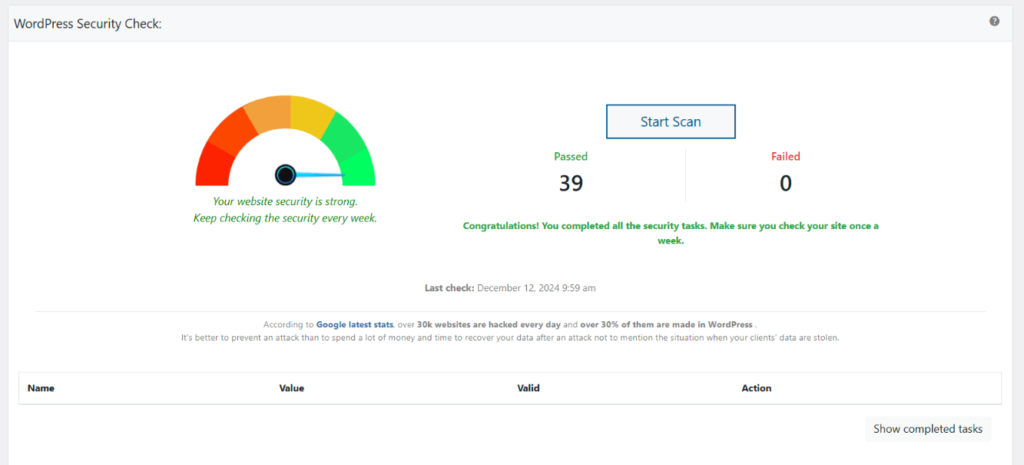
For everything the scanner checks, see the Security Check tutorial.
What Happens After You Change the admin-ajax.php Path
Save your settings and things change immediately. But don’t worry, the user experience stays the same:
All AJAX functionality continues working normally. Forms, live search, WooCommerce cart updates, Elementor editor, product filters, infinite scroll, everything that uses AJAX keeps working. WP Ghost rewrites the URLs at the server level, so plugins and themes don’t need any modifications.
Automated exploit scripts break. This is the big one. Every script targeting /wp-admin/admin-ajax.php with crafted payloads gets a 404 or redirect instead of reaching your AJAX handler. The attack fails before it even starts. No PHP execution, no database queries, no server resources wasted.
Your site stops being identifiable as WordPress through AJAX. With all three options enabled (custom path, hidden wp-admin, changed paths in responses), there’s no trace of WordPress in your AJAX URLs or responses. Theme detectors and vulnerability scanners that rely on AJAX fingerprinting come up empty.
Your front-end pages are unaffected. AJAX path changes only affect how your site handles background requests. Public URLs, SEO, sitemaps, and page content remain exactly the same.
Troubleshooting
Theme Compatibility Check
Admin-ajax.php is deeply integrated into WordPress, and some themes or plugins may not handle custom AJAX paths gracefully. After making changes, test your site thoroughly:
- Open your site in a private/incognito browser window (or a different browser) to test without cached data.
- Verify that everything works as expected. If forms don’t submit, filters don’t respond, or the page editor breaks, the theme or plugin may be hardcoding the AJAX path.
If something breaks: Go to WP Ghost > Change Paths > Ajax Security, delete the custom path, and switch it back to default. This restores the original admin-ajax.php path instantly.

Website Forms Are Not Submitting Correctly After Changing Ajax Path
If contact forms, comment forms, or other AJAX-powered forms stop submitting after changing the admin-ajax.php path in WP Ghost, the form plugin is still sending requests to the old AJAX URL. Most form plugins (Contact Form 7, WPForms, Gravity Forms, Ninja Forms, etc.) use WordPress’s admin_url('admin-ajax.php') to locate the AJAX endpoint, which WP Ghost rewrites automatically. If forms still break, the issue is usually caching or server configuration.
Clear all caches
Cached pages contain the old admin-ajax.php URL in their JavaScript. Clear your WordPress cache plugin, CDN cache, and browser cache. Enable Change Paths in Cached Files at WP Ghost > Change Paths so cached JS files are rewritten with the new AJAX path. Test the form in an incognito window after clearing.
Run the Frontend Test
Go to WP Ghost > Change Paths and click the Frontend Test button. If the test fails for the AJAX path, your server’s rewrite rules aren’t mapping it correctly. Follow the configuration instructions shown for your server type.

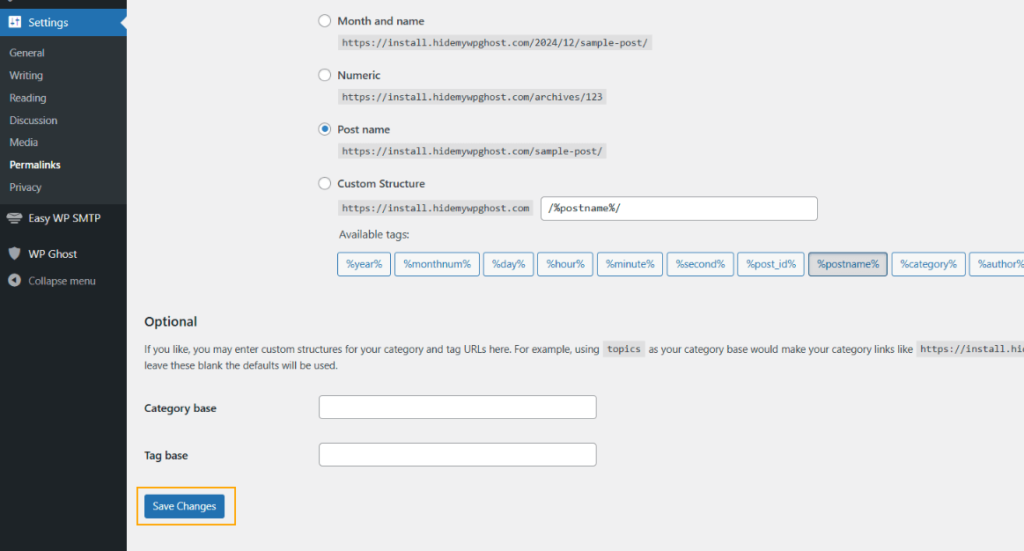
Flush permalink settings
Go to Settings > Permalinks and click Save Changes without modifying anything. This regenerates rewrite rules that map the custom AJAX path to the original endpoint.
Check for hardcoded AJAX URLs
Some form plugins or custom theme code hardcode the AJAX URL instead of using admin_url(). Open your browser’s developer console (F12 > Network tab), submit the form, and check which URL the form sends its request to. If it shows the old /wp-admin/admin-ajax.php instead of your custom path, the form plugin is hardcoding the URL. Contact the plugin’s support or add the old AJAX path to WP Ghost > Change Paths > Whitelist Paths.
Revert to the default admin-ajax path
To confirm the custom path is causing the issue, go to WP Ghost > Change Paths > Ajax Security and set the path back to admin-ajax.php. Save and test the form. If forms work with the default path, the issue is server rewrite rules or a plugin hardcoding the old URL.
If you’ve lost access to the admin dashboard, see the emergency disable guide.
Elementor Shows an Error When Saving Changes After Changing the Ajax Path
If Elementor, Divi, Bricks, or another page builder shows “Saving failed” or similar errors after changing the admin-ajax.php path in WP Ghost, the page builder’s save requests can’t reach the new AJAX endpoint. Page builders rely heavily on AJAX calls for saving content, loading templates, and syncing editor state.
Log out and log back in
If you changed both the wp-admin and admin-ajax.php paths, your session cookies are tied to the old paths. Log out completely and log back in through your custom login path. This creates fresh cookies on the new paths and resolves most page builder save errors immediately.
Clear all caches
Page builders cache the AJAX endpoint URL in their JavaScript. Clear your WordPress cache plugin, CDN cache, and browser cache. Enable Change Paths in Cached Files at WP Ghost > Change Paths so cached JS files use the new AJAX path. Reload the page builder editor after clearing.
Run the Frontend Test
Go to WP Ghost > Change Paths and click the Frontend Test button. If the test fails for the AJAX path, your server’s rewrite rules aren’t mapping it correctly. Follow the configuration instructions shown for your server type.
Flush permalink settings
Go to Settings > Permalinks and click Save Changes without modifying anything. This regenerates the rewrite rules that map the custom AJAX path to the original endpoint.
Revert to the default admin-ajax path
To confirm the AJAX path is the cause, go to WP Ghost > Change Paths > Ajax Security and set the path back to admin-ajax.php. If Hide wp-admin from Ajax path is enabled, switch it off too. Save and test saving a page in the builder. If saving works with the default path, consider keeping the default AJAX path and using WP Ghost’s other security features instead. See also Elementor Stopped Working After Changing Paths for additional Elementor-specific fixes including REST API and admin path checks.
If you’ve lost access to the admin dashboard, see the emergency disable guide.
Post Editor Shows an Error When Saving Changes After Changing the Ajax Path
If the WordPress post editor (Gutenberg or Classic) shows errors like “Updating failed” or “Publishing failed” after changing the admin-ajax.php path in WP Ghost, the editor’s AJAX requests can’t reach the new path. The block editor uses both the REST API and AJAX for saving, and a misconfigured AJAX path breaks the save process.
Log out and log back in
If you changed both the wp-admin and admin-ajax.php paths, your session cookies are tied to the old paths. Log out of WordPress completely and log back in through your custom login path. This creates fresh session cookies on the new paths and is often enough to fix the editor save error.
Clear all caches
Cached admin pages may still reference the old admin-ajax.php URL. Clear your WordPress cache plugin and browser cache. Some cache plugins also cache admin AJAX responses, which can cause mismatches after a path change.
Run the Frontend Test
Go to WP Ghost > Change Paths and click the Frontend Test button. If the test fails for the AJAX path, your server’s rewrite rules aren’t mapping it correctly. Follow the configuration instructions shown for your server type.
Flush permalink settings
Go to Settings > Permalinks and click Save Changes without modifying anything. This regenerates rewrite rules that may have gone stale after the AJAX path change.
Revert to the default admin-ajax path
To confirm the custom path is the cause, go to WP Ghost > Change Paths > Ajax Security and set the AJAX path back to admin-ajax.php. If Hide wp-admin from Ajax path is enabled, switch it off too. Save, clear cache, and test saving a post. If the editor works with the default path, the issue is server rewrite rules not handling the custom AJAX path.
If you’ve lost access to the admin dashboard, see the emergency disable guide.
If you’ve lost access to your site, check the emergency disable guide or add a constant in wp-config.php to disable WP Ghost temporarily.
Frequently Asked Questions
Why is admin-ajax.php such a high-priority security target?
Because it’s the execution gateway for virtually every WordPress plugin. When a plugin has a vulnerability, the exploit is almost always routed through /wp-admin/admin-ajax.php with a specific action parameter. Changing this path means exploit scripts can’t find the endpoint, and the attack fails before any vulnerable code is even reached. It’s one of the most impactful single changes you can make for hack prevention.
Will changing the admin-ajax.php path break my site?
In most cases, no. WP Ghost uses rewrite rules that transparently redirect AJAX requests to the correct handler. Plugins and themes that use the standard WordPress AJAX API (wp_ajax_ and wp_ajax_nopriv_ hooks) continue working without changes. However, some themes or plugins hardcode the /wp-admin/admin-ajax.php path instead of using the WordPress API. In those cases, you may see broken forms or features. The fix is simple: check in a private browser window after enabling, and if something breaks, switch back to the default path.
Does this work with WooCommerce?
Yes. WooCommerce uses admin-ajax.php extensively for cart updates, product filters, checkout processing, and more. WP Ghost is fully compatible with WooCommerce, and all AJAX-powered WooCommerce features continue functioning normally with a custom AJAX path.
Will Elementor still work after changing the AJAX path?
Yes. Elementor relies heavily on AJAX for its editor, form submissions, and dynamic widgets. WP Ghost’s rewrite rules ensure Elementor’s AJAX calls are properly routed through the custom path. If you experience issues with the Elementor editor after the change, check our Elementor troubleshooting guide.
Do I need all three AJAX options enabled?
For maximum protection, yes. Each addresses a different vector. Changing the filename stops scripts targeting admin-ajax.php. Hiding wp-admin removes the directory identifier from the URL. Changing paths in AJAX calls prevents responses from leaking your site structure. You can enable them individually if needed, but together they provide complete AJAX security.
What about the REST API? Is admin-ajax.php the only endpoint I need to protect?
Good question. WordPress has two main API endpoints: admin-ajax.php (the older one) and the REST API (wp-json). Many modern plugins use the REST API instead of, or in addition to, admin-ajax.php. WP Ghost lets you change the REST API path separately. For complete protection, secure both.
Does WP Ghost modify WordPress core files?
No. WP Ghost never touches, moves, or renames any WordPress file. The actual admin-ajax.php file stays in /wp-admin/ exactly where WordPress expects it. WP Ghost uses URL rewrite rules to create virtual paths. Deactivating the plugin restores all defaults instantly.
Related Tutorials
Continue securing your WordPress backend:
- Change and Hide the wp-admin Path – Protect the admin dashboard that admin-ajax.php sits inside.
- Change the REST API Path – Secure the other major WordPress API endpoint.
- Change the wp-content Path – Hide your content directory from scanners.
- Change the Plugins Path – Prevent plugin detection through path inspection.
- Change the Themes Path – Hide your theme directory from detectors.
- Firewall Security (7G/8G) – Block SQL injection and script injection at the server level.
- Hide from WordPress Theme Detectors – Make your entire site invisible to CMS detection tools.