
- What Is the wp-login Path in WordPress?
- Why You Need to Secure the wp-login Path
- How to Change and Hide wp-login with WP Ghost
- What Happens After You Change the wp-login Path
- Avoiding Login Path Conflicts
- Troubleshooting
- Frequently Asked Questions
- Does changing the wp-login URL actually improve WordPress security?
- What’s the difference between hiding wp-login and hiding wp-admin?
- What if I forget my custom login URL?
- Will registration and password reset still work after changing the login path?
- Will hiding the login page affect my SEO?
- Does this work with WooCommerce login and My Account pages?
- Can I use WP Ghost alongside other security plugins?
- How do I remove the language switcher from the WordPress login page?
- Related Tutorials
The WordPress login page is the single most attacked page on any WordPress site. Every bot on the internet already knows its address. Changing and hiding it is one of the fastest ways to cut attack volume and protect your site from brute force attempts.
This tutorial walks you through everything you need to know about securing the WordPress login path using WP Ghost, step by step.
What Is the wp-login Path in WordPress?

The wp-login.php file is the default login handler for every WordPress website. It’s the page where administrators, editors, authors, and any registered users enter their credentials to access the dashboard.
By default, the login page lives at: https://yourdomain.com/wp-login.php
This file does more than just log you in. It also handles user activation, registration, password recovery, and authentication redirects. After a successful login, it sends users to the WordPress dashboard or their assigned role’s default page.
The problem is obvious: every single WordPress installation uses the same login URL. With WordPress powering over 43% of all websites on the internet (W3Techs), attackers don’t need to discover your login page. They already know where it is.
Why You Need to Secure the wp-login Path
The wp-login.php file is the number one target for automated attacks on WordPress. According to a 2025 report by Limit Login Attempts Reloaded, brute force attacks on WordPress sites surged by 130% in 2024, with attacks per domain increasing by 120% over the same period. The WordPress Advanced Administration Handbook specifically calls out /wp-login.php and /xmlrpc.php as the two most targeted endpoints.
Here’s what makes the default login path so dangerous:
It’s the first thing bots look for. Automated scripts don’t scan randomly. They go straight to /wp-login.php and start firing login attempts. A report from FatLab Web Support found that the average WordPress site faces a brute force attempt roughly every 28 minutes. On an unprotected site, that adds up to over 50 attacks per day, all hitting the same predictable URL.
Each failed login attempt consumes server resources. When a bot hits wp-login.php, it triggers a full PHP execution cycle, a database query, and an authentication check. Multiply that by hundreds or thousands of attempts per hour, and your hosting resources get drained fast. On shared hosting, this can make your entire site slow or unresponsive for real visitors.
AI is making these attacks smarter. According to research from Home Security Heroes, AI-powered tools can now crack over half of common passwords almost instantly. Bots no longer just cycle through dictionary words. They use leaked credential databases and AI-generated password patterns. Without a hidden login path and additional layers like two-factor authentication, your login page is an open invitation.
Hiding the login path doesn’t replace other security measures, but it removes the easiest target. When bots can’t find wp-login.php, they can’t attack it. Combined with brute force protection, firewall rules, and hiding wp-admin, you’re shutting down the most common attack paths entirely.
How to Change and Hide wp-login with WP Ghost
WP Ghost lets you replace the default wp-login.php URL with any custom path you choose, then completely hide the original so bots get nothing but a 404 error. No code editing. No .htaccess modifications. Everything is handled through rewrite rules, so your actual WordPress files stay untouched.
Activate Safe Mode or Ghost Mode
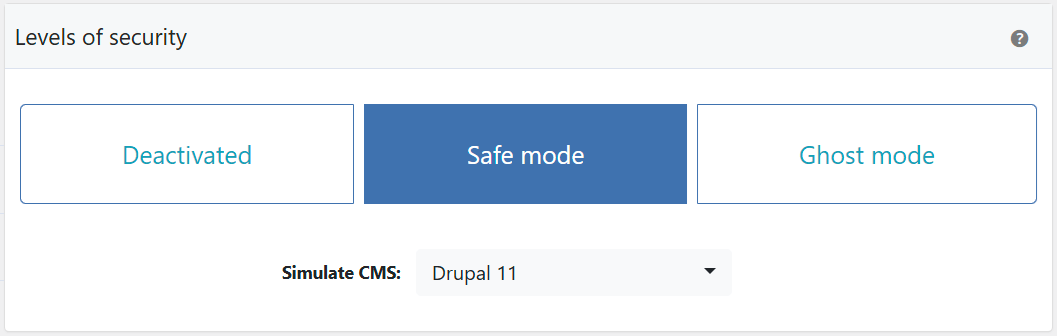
Before you can change any paths, you need to activate one of WP Ghost’s security levels. This enables all the path-changing features across the plugin.
- Go to WP Ghost > Change Paths > Level of Security.
- Select Safe Mode or Ghost Mode. Safe Mode applies essential path changes and is a good starting point. Ghost Mode adds advanced path security for maximum protection. If you’re unsure, start with Safe Mode and upgrade later.
- Click Save to apply.
Not sure which mode to choose? Check the full comparison in our Safe Mode vs Ghost Mode guide.
Change the wp-login Path
This is where you replace the default /wp-login.php URL with a custom path that only you and your team know. Instead of the predictable login address, you’ll use something like yourdomain.com/myaccess or any unique name you choose.
- Go to WP Ghost > Change Paths > Login Security.
- Enter a custom name for the wp-login path. Choose something unique that isn’t easy to guess.
- Click Save to apply.
Important: Don’t use obvious names like “login”, “signin”, “access”, or “admin-login” for your custom path. Bots are programmed to try common variations. Pick something truly unique, like a combination of random words.

Good to know: WP Ghost does not physically move or rename any files on your server. It uses rewrite rules to create virtual paths. Your WordPress installation stays completely untouched, and deactivating the plugin restores all defaults instantly.
Hide wp-login from Visitors and Bots
Changing the login path gives you a new URL, but the original wp-login.php and /login paths may still be accessible. That’s a problem because bots will keep hitting them. The hide option ensures that anyone accessing the old login paths gets a 404 error instead of a redirect to your new login page.
- Go to WP Ghost > Change Paths > Login Security.
- Switch on Hide “wp-login” to hide both
wp-login.phpandwp-loginfrom non-logged-in users. - Switch on Hide “login” to also hide the
/loginpath. - Click Save to apply.


Once these options are active, anyone trying to access the old login URLs will see a dead end:

This is the core of login path protection. When the default login URLs return 404, bots have nothing to attack. They can’t find your login form, so they can’t attempt brute force. It’s one of the most effective ways to prevent hack attacks on WordPress.
Hide the New Custom Login Path
Here’s an advanced layer most plugins don’t offer. Even after you create a custom login URL, some WordPress redirects may still point to it. For example, if a plugin or theme triggers a login redirect, it could expose your new path to bots.
The Hide the New Login Path option prevents this. When activated, only direct access to your custom login URL works. Any internal WordPress redirect that tries to send users to the login page gets blocked and treated as a hidden path.

This means your login URL is truly secret. No redirect, no plugin, and no theme behavior can accidentally reveal it. Only people who know the exact custom URL can reach the login form.
Customize the Redirect for Hidden Paths
By default, when someone accesses a hidden path like wp-login.php, they get a 404 Page Not Found error. But you can customize this behavior if you want. For example, you might want to show a 403 Forbidden error instead, or redirect visitors to a specific page on your site.
- Go to WP Ghost > Tweaks > Redirects.
- Click Save to apply.

For most sites, the default 404 error works perfectly. But if you want more control over the user experience or want to track how often bots hit your old login paths, redirecting to a custom page with analytics can give you that visibility. You can learn more about all redirect options in the Redirects tutorial.
Hide the Language Switcher on the Login Page
Since WordPress 5.9, a language switcher dropdown appears on the login page if your site has multiple languages activated in Settings > General or uses a multilingual plugin. While convenient for legitimate users, this element can reveal information about your site’s configuration and is another WordPress fingerprint that theme detectors and bots can identify.

WP Ghost lets you remove it with a single toggle:
- Go to WP Ghost > Change Paths > Login Security.
- Switch on Hide Language Switcher.
- Click Save to apply.

This is a small but meaningful step toward reducing the WordPress fingerprints on your login page. For even more login customization, check out the Login Page Design Customization tutorial and the Clean Login feature.
Verify with a Security Check
After making your changes, always verify that everything is working. WP Ghost’s built-in scanner confirms that the login paths are properly hidden and flags any issues.
- Go to WP Ghost > Security Check.
- Click Start Scan.

Run this scan after every path change and after plugin updates. It takes seconds and confirms your protection is active. For a deeper understanding of everything the scanner checks, see the Security Check tutorial.
What Happens After You Change the wp-login Path
Once you save your new login path settings, several things change immediately:
Your new login URL is active right away. Bookmark it. If you chose myaccess, your login page is now at yourdomain.com/myaccess. The old /wp-login.php URL will return a 404 error (if you enabled the hide option).
Registration, password reset, and activation links update automatically. The wp-login.php file handles more than just login. It also manages the registration form, lost password page, and activation page. When you change the login path with WP Ghost, all of these functions continue working through the new URL. You can also change each of these paths individually for even more protection.
Bot traffic drops significantly. WP Ghost users regularly report up to a 99% reduction in hacking attempts once login paths are properly hidden. The bots simply can’t find the door, so they move on to easier targets.
Nothing changes on the front end. Your public pages, posts, menus, and SEO remain exactly the same. Login path changes only affect admin-side URLs. Search engines never see or index the login page, so there’s zero impact on your rankings.
Avoiding Login Path Conflicts
If you’re using other plugins that also modify the WordPress login path (like WPS Hide Login, Solid Security, or Wordfence’s login security features), you can run into conflicts. Two plugins trying to control the same URL leads to broken login pages or redirect loops.
WP Ghost automatically checks for existing login path customizations and warns you if it detects a conflict. But it’s important to follow one rule: only use one plugin to control the login path. If you’ve chosen WP Ghost for login protection, make sure no other plugin is trying to modify wp-login.php at the same time.
If you previously customized the login path with a different plugin and then installed WP Ghost, deactivate the other plugin’s login path feature first. Then configure your custom login path in WP Ghost. This avoids any overlap or unexpected behavior.
For detailed compatibility guides, check out WP Ghost with Wordfence, WP Ghost with Solid Security, or the full compatibility plugins list.
Troubleshooting
Changing login paths is generally smooth, but some configurations can cause issues. Here are the most common problems and how to fix them:
Cannot Access the Login Page After Changing Wp-Login Path
If you can’t reach the login page or see errors after changing the login path in WP Ghost, work through these checks.
Clear all caches
Changing the login path alters URL structures that cache plugins and server caches store. Clear your WordPress cache plugin (WP Rocket, LiteSpeed Cache, W3 Total Cache, etc.), your CDN cache (Cloudflare, etc.), and your browser cache. Then try accessing the new login URL in an incognito window.
Use the correct custom login URL
Access your login page using the custom path you set in WP Ghost, not through /wp-admin/ or /wp-login.php. The correct URL is yourdomain.com/your-custom-login. If you don’t remember the custom path you set, check your email for the WP Ghost notification that was sent when the path was changed, or use the Safe URL method below.
Try a different browser or device
Open the login URL in a different browser or incognito/private window to rule out browser cache or extension conflicts. Browser extensions (especially security or privacy extensions) can interfere with redirected login pages.
Use the Safe URL to recover access
If you can’t access the login page at all, use WP Ghost’s Safe URL parameter to temporarily bypass path changes and reach the default WordPress login. See the Rollback Settings guide for the Safe URL. If that doesn’t work, follow the emergency disable guide to deactivate WP Ghost via FTP or file manager and restore default paths.
Can't Log in Via wp-admin as I am Redirected To the Front Page
If accessing /wp-admin/ redirects to the homepage instead of the login page, this is because WP Ghost’s Hide “wp-admin” option is active. When enabled, requests to /wp-admin/ return a 404 or redirect to the homepage instead of forwarding to the login page.

Use your custom login path
If you’ve set a custom login path in WP Ghost, use that path instead of /wp-admin/. For example, if you set the login path to my-login, access yourdomain.com/my-login. This is the intended behavior: /wp-admin/ is hidden to prevent bots from finding it, and your custom login path is the secure entry point.
Allow wp-admin to redirect to login
If you want /wp-admin/ to redirect non-logged-in users to the login page (default WordPress behavior), disable the Hide option:
- Go to WP Ghost > Change Paths > Admin Security.
- Switch off Hide “wp-admin”.
- Click Save.

With Hide “wp-admin” off, accessing /wp-admin/ redirects non-logged-in users to your custom login page. The admin path itself is still changed to your custom name, so bots scanning for /wp-admin/ are redirected rather than finding the admin dashboard.
Can’t access the admin dashboard at all
If you can’t log in through any path, use the Safe URL parameter to temporarily bypass WP Ghost’s path changes, or follow the emergency disable guide to deactivate WP Ghost via FTP.
Plugin or Theme Conflicts
If something breaks after activating WP Ghost, the issue is likely a conflict with another plugin or your theme. Follow this process to isolate the conflict.
Deactivate other plugins one by one
Deactivate all plugins except WP Ghost. If the issue disappears, reactivate plugins one at a time, testing after each one. The plugin that brings back the issue is the conflict. Common conflicts involve cache plugins that haven’t cleared their cache after path changes, security plugins with overlapping firewall rules, and page builders that hardcode WordPress paths in their output.
Switch to a default theme
If deactivating plugins doesn’t help, switch to a default WordPress theme (Twenty Twenty-Four or similar) to check if your theme is the conflict source. Do this on a staging site to avoid losing theme customizations. If the issue disappears with the default theme, the conflict is in your theme’s code (usually hardcoded paths or non-standard asset loading).
Use WP Ghost’s Whitelist Paths
If you’ve identified the conflicting plugin or theme but need both to work, try whitelisting the paths it uses. Go to WP Ghost > Change Paths > Whitelist Paths and add the URL paths the conflicting plugin relies on. This tells WP Ghost to skip path changes on those specific URLs.
Check the compatibility list
WP Ghost is tested with over 1,000 plugins and themes. Check the compatibility list for known issues and specific configuration instructions for your plugin or theme. If the conflict isn’t listed, contact WP Ghost support with the conflicting plugin name and a description of the issue.
If you’ve lost access to the admin dashboard due to a conflict, see the emergency disable guide.
If you’ve completely lost access to your login page, WP Ghost has a safe recovery method. See the emergency disable guide to restore access without touching your database. You can also use the rollback settings feature to revert all path changes at once, or add a constant in wp-config.php to disable WP Ghost temporarily.
Frequently Asked Questions
Does changing the wp-login URL actually improve WordPress security?
Yes. The overwhelming majority of WordPress login attacks are automated bots that target /wp-login.php by default. When that URL doesn’t exist, bots can’t find the login form and move on. It won’t stop every attacker, but it eliminates the highest-volume threat. For complete protection, pair it with brute force protection and two-factor authentication.
What’s the difference between hiding wp-login and hiding wp-admin?
wp-login.php is the login form. wp-admin is the dashboard you see after you log in. They’re two separate entry points, and bots target both. For maximum protection, you should change and hide wp-admin alongside the login path. WP Ghost handles both independently, giving you full control over each.
What if I forget my custom login URL?
WP Ghost shows your new login URL after saving, so bookmark it right away. If you do forget it, you can disable WP Ghost via FTP by renaming the plugin folder, which restores all default paths. You can also add the STARTER_SAFE_URL constant to wp-config.php to create a temporary safe login URL.
Will registration and password reset still work after changing the login path?
Yes. The wp-login.php file handles registration, password recovery, and user activation in addition to login. When you change the login path, all of these functions continue working through the new URL. You can also customize the register path, lost password path, and activation path individually for even more granular control.
Will hiding the login page affect my SEO?
No. Search engines don’t crawl or index the login page. It’s an admin-side URL with no public content. Changing or hiding wp-login.php has zero impact on your search rankings, sitemaps, or front-end URLs. Your public site remains exactly the same.
Does this work with WooCommerce login and My Account pages?
Yes. WP Ghost is fully compatible with WooCommerce. The WooCommerce “My Account” login form works independently from wp-login.php, so changing the WordPress login path doesn’t affect WooCommerce customer logins. WP Ghost also provides brute force protection for WooCommerce login forms specifically.
Can I use WP Ghost alongside other security plugins?
Yes, but with one important rule: only use one plugin to modify the login path. WP Ghost works alongside Wordfence, Sucuri, Solid Security, and others for features like malware scanning, firewall rules, and monitoring. Just make sure the login path customization is handled by WP Ghost alone to avoid conflicts.
How do I remove the language switcher from the WordPress login page?
Go to WP Ghost > Change Paths > Login Security and switch on Hide Language Switcher. This removes the dropdown that WordPress 5.9+ shows on the login page when multiple languages are enabled. It’s a one-click toggle; no custom code or functions.php edits required.
Related Tutorials
Continue building your WordPress login security with these related guides:
- Change and Hide the wp-admin Path – Protect the admin dashboard alongside the login page for complete admin security.
- Brute Force Attack Protection – Add CAPTCHA, rate limiting, and lockout rules to all login forms.
- Two-Factor Authentication (2FA) – Enable 2FA by code, email, or passkey for an extra login layer.
- Change the Lost Password Path – Hide the password recovery page from bots and spammers.
- Change the Register Path – Secure the registration page to prevent spam signups.
- Login Page Design Customization – Customize the look and feel of your login page.
- Magic Link Login – Let users log in with a secure email link instead of a password.
- Disable XML-RPC Access – Block the other major brute force entry point alongside wp-login.php.