
Regain access to your WordPress site if WP Ghost settings cause a conflict, using the Safe URL parameter, 5-minute pause, or full settings rollback. Rollback Settings are WP Ghost’s built-in safety net. They ensure you can always reach your admin dashboard and restore default settings, even if custom paths, firewall rules, or other security changes break something. Every WP Ghost installation includes a unique Safe URL that bypasses all security customizations when you need emergency access. This is a free feature.
What Are Rollback Settings?

Rollback Settings are WP Ghost’s recovery tools. They let you bypass custom security paths, temporarily disable the plugin, or reset all settings to defaults when something goes wrong. The three tools are: the Safe URL Parameter (bypasses custom paths on any page), Pause for 5 Minutes (temporarily disables WP Ghost from the Plugins page), and Rollback to Defaults (resets all WP Ghost settings). Together they ensure you’re never locked out of your own site.
The Safe URL Parameter
How the Safe URL Works
Every WP Ghost installation generates a unique Safe URL parameter. When you append this parameter to any page on your site, WP Ghost temporarily deactivates its security features for that request. This lets you:
Access the login page during conflicts. If your custom login path causes a 404 or white screen, adding the Safe URL parameter to the default /wp-login.php URL bypasses the path change and loads the original login form.
Compare default vs custom paths. Developers can append the parameter to any page to see the original WordPress output without WP Ghost’s modifications, making it easy to debug which WP Ghost setting is causing an issue.
Example: https://yourdomain.com/?disable=NwznPAYbmUBxZtoE
The disable parameter name and the value (NwznPAYbmUBxZtoE) are both customizable. WP Ghost generates a random value on installation.
Customize the Safe URL Parameter
The default Safe URL works immediately, but you should customize it to prevent unauthorized use:
- Go to WP Ghost > Advanced > Rollback Settings.
- Enter a unique, unpredictable value in the Custom Safe URL Param field.
- Click Save.
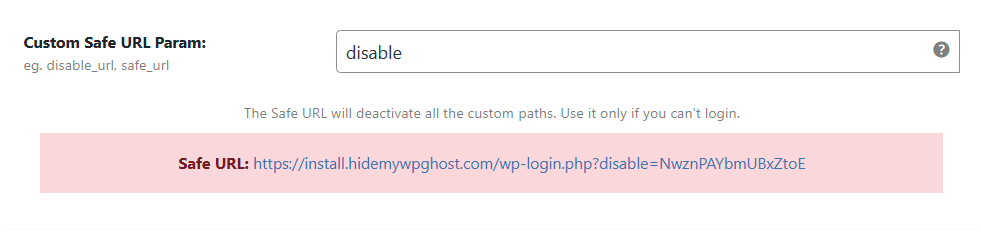
Important: The Safe URL can bypass all WP Ghost security features. Always customize it to something unique and unpredictable. Don’t use common words like “admin” or “test.” Treat it like a password and store it securely. Anyone with the Safe URL parameter can bypass your site’s security protections.
Prevent Broken Website Layout
This option automatically prevents frontend layout issues if server rewrite rules aren’t correctly loaded. When enabled, WP Ghost detects when the configuration file doesn’t contain the expected rewrite rules and skips path changes to preserve the site layout.
To enable:
- Go to WP Ghost > Advanced > Rollback Settings.
- Switch on Prevent Broken Website Layout.
- Click Save.

This is a setup tool, not a permanent setting. Enable it while configuring path changes for the first time. Once you’ve confirmed your site works correctly with the new paths (by running a Frontend Test), switch it off. While enabled, WP Ghost’s path changes may not apply on the frontend.
To safely disable after confirming paths work:
- Go to WP Ghost > Change Paths > Level Of Security.
- Set Safe Mode or Ghost Mode and customize your paths.
- Click Save.
- Run a Frontend Test and follow the instructions for your server type.
- Verify the site works correctly in the frontend, then switch off Prevent Broken Website Layout.
Three Ways to Recover Access
If WP Ghost causes a conflict, you have three recovery options from least disruptive to most disruptive:
Temporary Deactivation via Safe URL
When to use: You can load pages but something looks wrong, or your custom login path isn’t working.
Append the Safe URL parameter to any page to temporarily deactivate WP Ghost for that request:
https://yourdomain.com/?disable=YOUR_SAFE_PARAM
This lets you access the default WordPress login, compare original vs custom paths, and troubleshoot the issue without permanently changing any settings. WP Ghost reactivates automatically on the next request without the parameter.
Pause WP Ghost for 5 Minutes
When to use: You can access the WordPress dashboard but need to troubleshoot a conflict quickly.
- Go to Plugins in the WordPress dashboard.
- Find WP Ghost in the plugin list.
- Click Pause 5 Minutes.
WP Ghost disables all security features for 5 minutes, giving you time to test compatibility, adjust settings, or deactivate a conflicting plugin. After 5 minutes, WP Ghost reactivates automatically.
Rollback to Default Settings
When to use: You need to start over and reset all WP Ghost settings to their defaults.
Use the Safe URL to access the admin panel, then navigate to WP Ghost > Change Paths and set the Level of Security to Default. Click Save. This removes all custom paths, disables all protection features, and returns WP Ghost to its initial state.
If you can’t access the dashboard at all: Use the Emergency Disable guide which covers FTP-based recovery, or add a constant in wp-config.php to disable WP Ghost without dashboard access.
Frequently Asked Questions
Is the Safe URL a security risk?
Only if someone knows the parameter. The default value is randomly generated and unique to your installation. Customize it to something long and unpredictable, and don’t share it publicly. The Safe URL bypasses WP Ghost’s protections for that single request, so treat it with the same care as a password.
Does the Safe URL permanently disable WP Ghost?
No. The Safe URL only deactivates WP Ghost for the specific request that includes the parameter. The next request without the parameter loads WP Ghost normally. No settings are changed.
Does the 5-minute pause reactivate automatically?
Yes. After 5 minutes, WP Ghost reactivates with all your current settings. You don’t need to do anything to re-enable it. If you need more time, click Pause 5 Minutes again.
Does rollback delete my backup files?
No. Rolling back to defaults resets WP Ghost’s active settings in the database. Any backup files you previously exported remain on your computer. You can re-import them at any time to restore your configuration.
Does WP Ghost modify WordPress core files?
No. Rollback Settings read and write WP Ghost’s own configuration stored in the WordPress options table. No core files are modified. The Safe URL, pause, and rollback all operate through WP Ghost’s internal logic.
Related Tutorials
Recovery and configuration management:
- Emergency Disable – FTP-based recovery when you can’t access the dashboard at all.
- WP Ghost Constants in wp-config.php – Override settings via code without dashboard access.
- Backup and Restore – Export your settings before making changes so you can restore them later.
- Preset Security Options – One-click configurations if you need to start fresh after a rollback.
- WP Ghost Settings Best Practice – Recommended configuration after recovering access.