
Change your WordPress logout URL to a custom path with WP Ghost to prevent CSRF forced-logout attacks and remove another WordPress fingerprint from your site. The logout endpoint isn’t the first thing most people think about when hardening WordPress. But here’s the thing: if you’ve already hidden your login page, admin panel, and registration form, leaving the logout URL at its default is like locking every window in the house but leaving the back door wide open. Bots notice that inconsistency. WP Ghost lets you fix it in one field.
What Is the Logout Path in WordPress?

The logout path is the URL that WordPress uses to end a user’s session. When a user clicks “Log Out” in the admin bar or dashboard, WordPress directs them to this URL, clears their login cookies, terminates the session, and redirects them to the login page.
By default, the logout URL follows this pattern: https://yourdomain.com/wp-login.php?action=logout
Sound familiar? It should. It’s the same wp-login.php file that handles every other login-related action in WordPress. The URL also includes a security nonce to verify the request is legitimate. When a user logs out, WordPress destroys their session cookies and authentication tokens, then redirects to the login screen with a confirmation message.
Here’s the catch: every WordPress site on the planet uses this exact same URL structure. That’s over 43% of all websites. Bots don’t need to guess. They know.
Why You Should Secure the Logout Path
Most people skip this one. They secure the login page, hide wp-admin, lock down registration, and call it done. But the logout path plays a specific role in a complete hack prevention strategy, and here’s why it deserves attention:
It prevents forced logout attacks (CSRF). This one’s sneaky. Cross-Site Request Forgery attacks trick a logged-in user into executing an action they didn’t intend, like logging out. How? An attacker embeds the logout URL in an image tag, an email, or a hidden element on a page. When a logged-in admin visits that page, their browser fires the request in the background. Session terminated. No click required. WordPress does use nonces to protect against this, but a custom logout path adds a second barrier that makes the attack much harder to pull off. You can’t forge a request to a URL you don’t know.
It removes another WordPress fingerprint. Bots, theme detectors, and vulnerability scanners probe for known WordPress files and URL patterns to identify your CMS. The wp-login.php?action=logout endpoint is one of these identifiers. Changing it helps make your site invisible to WordPress detection tools as part of a broader strategy to hide that you’re running WordPress.
It completes your path-security strategy. Think of it this way. You’ve changed the login path. You’ve hidden wp-admin. You’ve secured registration, password recovery, and the activation path. Five out of six wp-login.php actions are hidden. But the logout action? Still sitting at the default URL. That one exposed endpoint tells bots everything they need to know. Changing it takes ten seconds. It seals the last gap.
It’s especially useful for sites with custom dashboards. If you run a WooCommerce store, membership site, or learning platform where customers interact with a custom “My Account” area, the logout link is visible to all logged-in users. A custom logout path keeps the internal URL structure clean and prevents any accidental exposure of WordPress paths in the user-facing interface.
How to Change the Logout Path with WP Ghost
The whole process takes about 30 seconds. WP Ghost replaces the default wp-login.php?action=logout URL with whatever custom path you choose. No code editing. No file changes. Rewrite rules handle everything behind the scenes.
Activate Safe Mode or Ghost Mode
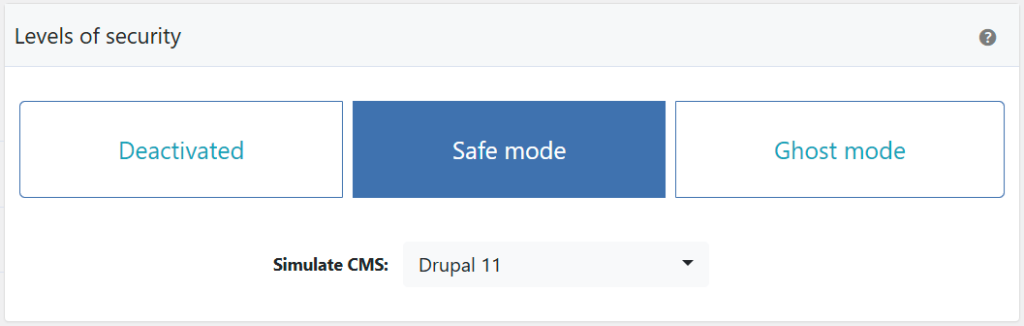
Before you can change any paths, one of WP Ghost’s security levels must be active.
- Go to WP Ghost > Change Paths > Level of Security.
- Select Safe Mode or Ghost Mode. Safe Mode applies essential path changes. Ghost Mode adds advanced path security.
- Click Save to apply.
Need help choosing? Check the Safe Mode vs Ghost Mode comparison.
Change the Logout Path
Once a security mode is active, you can replace the default logout URL.
- Go to WP Ghost > Change Paths > Login Security.
- Find the Custom Logout Path field. You’ll see a predefined custom name already filled in.
- Enter a different name or keep the predefined one.
- Click Save to apply.

Good to know: WP Ghost doesn’t physically move or rename any files. It uses rewrite rules to create virtual paths. Deactivating WP Ghost restores all defaults instantly.
Verify with a Security Check
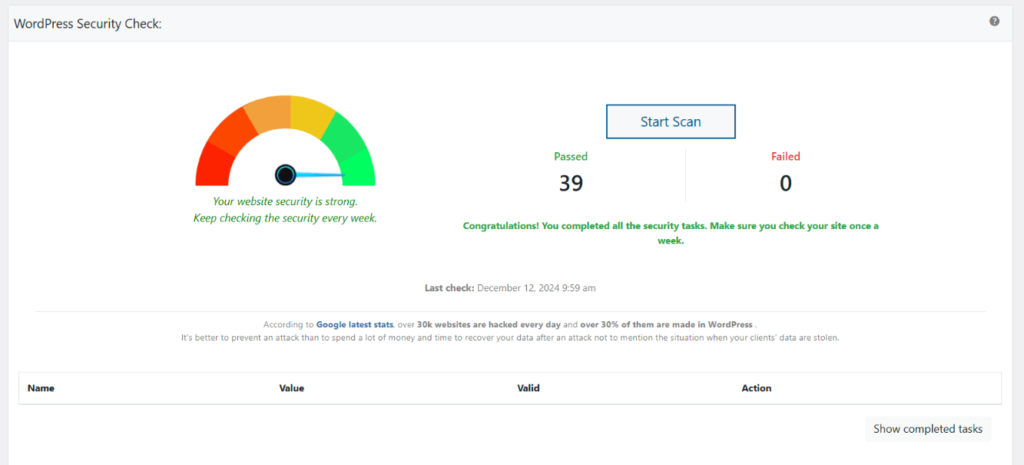
After saving, run a quick scan to confirm the logout path is properly changed.
- Go to WP Ghost > Security Check.
- Click Start Scan.
- The plugin verifies that the logout path has been successfully changed.
- If everything is working, the security task is marked as complete.
For a full breakdown of everything the scanner checks, see the Security Check tutorial.
What Happens After You Change the Logout Path
Save the new path and you’re done. Here’s what changes right away:
The logout action uses the new URL immediately. Click “Log Out” anywhere on your site, the admin bar, the dashboard menu, a WooCommerce account page, and the request goes through your custom path. Same result, different URL. Sessions end the same way they always did.
The default wp-login.php?action=logout is no longer predictable. If you’ve also hidden wp-login.php, the old logout URL returns a 404. Even if wp-login.php is still accessible, the ?action=logout parameter is mapped to your custom path, removing the predictable pattern.
All “Log Out” links across your site update automatically. WordPress generates logout URLs dynamically using the wp_logout_url() function. WP Ghost hooks into this function, so every logout link throughout your site (admin bar, dashboard, custom menus, WooCommerce account pages) automatically points to the new path.
Your front-end content is unaffected. This change only applies to the logout endpoint. Your public pages, posts, SEO, and sitemaps remain exactly the same.
Troubleshooting
I Can't Log Out From my WordPress Dashboard After Changing the Logout Path
If clicking the logout link does nothing, redirects to the homepage, or shows an error after changing the logout path in WP Ghost, the custom path isn’t resolving or the session nonce is mismatched.
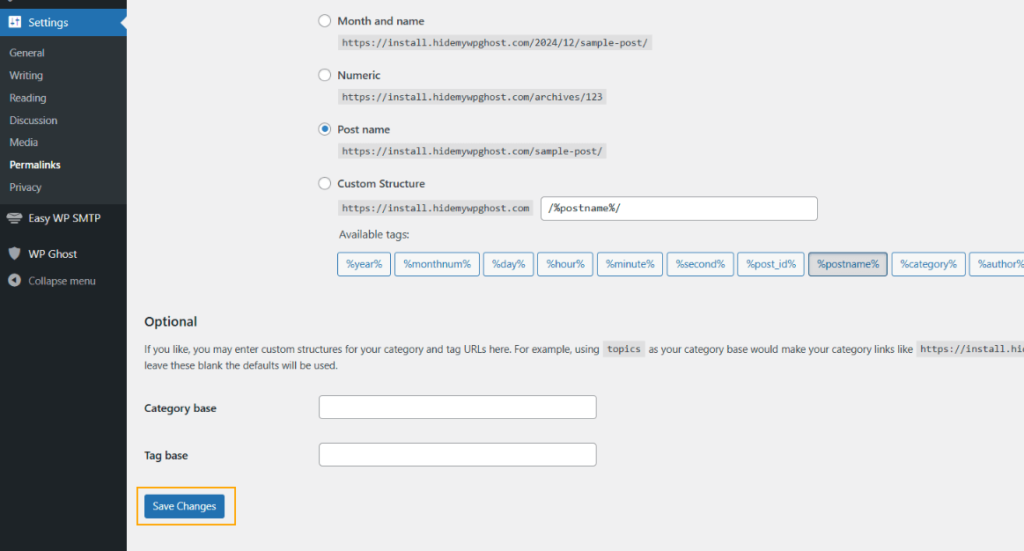
Flush permalink settings
Go to Settings > Permalinks and click Save Changes without modifying anything. This regenerates WordPress’s rewrite rules, which often fixes logout path issues immediately.
Log out and log back in
If you changed multiple paths (admin, login, and logout) at the same time, your session cookies are tied to the old paths. Try logging out by visiting the default WordPress logout URL directly: yourdomain.com/wp-login.php?action=logout. If that works, log back in through your custom login path so WP Ghost creates fresh cookies on the new paths.
Check for typos in the custom path
Go to WP Ghost > Change Paths > Login Security and review the custom logout path for typos, spaces, or special characters. The path should be a simple alphanumeric slug.
Revert to the default logout path
If the issue persists, go to WP Ghost > Change Paths > Login Security, clear the Custom Logout Path field, and save. This restores the default WordPress logout behavior. If logout works with the default path, the issue is server rewrite rules not handling the custom path.

Check for plugin conflicts
Plugins that modify the logout process (custom login page plugins, session management plugins, security plugins with their own logout handling) can override WP Ghost’s custom logout URL. Temporarily deactivate login-related plugins and test the logout. If it works, the conflicting plugin is overriding the logout path.
If you’ve lost access to the admin dashboard, see the emergency disable guide.
If you’re experiencing any other issues after changing the logout path, check the emergency disable guide to restore defaults, use the rollback settings, or add a constant in wp-config.php to disable WP Ghost temporarily.
Frequently Asked Questions
Is it necessary to change the logout path?
Not strictly, no. But it’s worth doing. The logout URL is another predictable wp-login.php action that reveals you’re running WordPress. If you’ve already changed the login, register, lost password, and activation paths, leaving logout at default is an inconsistency. Bots notice inconsistencies. It takes ten seconds to fix. Why leave the gap open?
How does changing the logout path help prevent CSRF attacks?
In a CSRF attack, an attacker embeds a logout request in a malicious page or email. When a logged-in user visits that page, their session is terminated without consent. This works because the attacker knows the exact URL format (wp-login.php?action=logout). WordPress uses nonces (one-time security tokens) to protect against this, but a custom logout path adds a second barrier. Attackers can’t target a URL they don’t know.
Does this work with WooCommerce My Account logout?
Yes. WooCommerce generates its logout links using the WordPress wp_logout_url() function, which WP Ghost hooks into. When you change the logout path, WooCommerce account page logout links automatically update to use the new custom URL. Customer-facing “Log Out” buttons continue working as expected. WP Ghost is fully compatible with WooCommerce.
Will users notice any difference?
No. The logout experience is identical. Users click “Log Out,” their session ends, and they’re redirected to the login page (or whichever page you’ve configured). The only difference is the URL in the browser address bar during the redirect, which most users never see. If you use a custom redirect after logout, that works the same way too.
What if I have hardcoded logout links in my theme or a plugin?
Any theme or plugin that uses the WordPress wp_logout_url() function (which is the standard approach) will automatically use the new path. If a theme or plugin has hardcoded wp-login.php?action=logout directly in its code, that link may not update automatically. In that case, you’ll need to update the hardcoded URL in the theme or plugin settings, or contact the developer. This is rare; most well-built themes and plugins use the standard WordPress function.
Does WP Ghost modify WordPress core files?
No. WP Ghost never touches, moves, or renames any WordPress file. All path changes are handled through URL rewrite rules and WordPress filters. Deactivating WP Ghost restores the default wp-login.php?action=logout path instantly.
Related Tutorials
Complete your WordPress path-security strategy with these related guides:
- Change and Hide the Login Path – Secure the main wp-login.php page.
- Change and Hide the wp-admin Path – Protect the admin dashboard.
- Change the Register Path – Block spam registrations.
- Change the Lost Password Path – Hide the password recovery form from bots.
- Change the Activation Path – Secure user activation endpoints.
- Redirects – Configure where users go after logout and other actions.
- Hide from WordPress Theme Detectors – Make your site invisible to CMS detection tools.