
- What Is the Activation Path in WordPress?
- Why You Need to Secure the Activation Path
- How to Change the Activation Path with WP Ghost
- What Happens After You Change the Activation Path
- Troubleshooting
- Frequently Asked Questions
- Do I need to change the activation path if I’m not using Multisite?
- Will users still be able to activate their accounts?
- What about users who already have pending activation links?
- Does this work across all subsites in a Multisite network?
- Will membership plugins still work after this change?
- Does WP Ghost modify WordPress core files?
- Does this affect SEO?
- Related Tutorials
The wp-activate.php file is another predictable WordPress path that bots can probe. While it’s most relevant on Multisite installations, changing it is a smart step in any complete path-security strategy. WP Ghost lets you replace it with a custom path in seconds.
What Is the Activation Path in WordPress?

The activation path (wp-activate.php) is the URL that WordPress uses to complete the user registration process. After a user signs up, WordPress sends an email containing an activation link. Clicking that link takes the user to wp-activate.php, where their account is officially activated and they gain access to the site.
By default, the activation page lives at: https://yourdomain.com/wp-activate.php
This file is especially important in WordPress Multisite environments. On a Multisite network, wp-activate.php is the page that activates new users for specific subsites. When someone registers on a subsite, the network sends an activation email. The link in that email points to wp-activate.php with a unique activation key. Once the user clicks it, their account is activated for that particular subsite.
On single-site WordPress installations, the activation process is handled differently (typically through wp-login.php action parameters), but the wp-activate.php file still exists in the WordPress root directory. That means it’s still discoverable by bots and security scanners, and it still reveals that you’re running WordPress.
Why You Need to Secure the Activation Path
Here’s what’s at stake for your hack prevention strategy:
Even if wp-activate.php isn’t your most trafficked page, leaving it at its default location creates unnecessary risk. Here’s why it matters:
It’s a WordPress fingerprint. Theme detectors, bot scanners, and attackers probe for known WordPress files to confirm that a site runs on WordPress. Files like wp-activate.php, wp-login.php, and wp-signup.php are among the first things they check. If the file responds (even with an error page), it confirms WordPress as the CMS. Changing the path removes this fingerprint and helps make your site invisible to theme detectors.
Bots can abuse the activation process on Multisite. On WordPress Multisite networks, the activation path handles user creation for subsites. If bots can find this URL, they can probe for valid activation keys, attempt to replay activation requests, or flood the endpoint to drain server resources. Changing the path eliminates this attack surface.
It’s part of a complete path-security strategy. Security works in layers. You’ve already changed the login path, hidden wp-admin, secured the register path, and changed the lost password path. Leaving wp-activate.php at its default location is a gap in your defense. Every exposed WordPress file is one more clue for attackers.
WordPress had nearly 8,000 new vulnerabilities reported in 2024. According to Patchstack, 43% of those could be exploited without authentication. While not all of these target wp-activate.php directly, the trend is clear: attackers look for any exposed WordPress endpoint they can probe. Reducing your attack surface by hiding every default path is a proactive defense strategy.
How to Change the Activation Path with WP Ghost
WP Ghost replaces the default wp-activate.php URL with a custom path. No code editing, no file renaming. Everything is handled through rewrite rules.
Activate Safe Mode or Ghost Mode
Before you can change any paths, one of WP Ghost’s security levels must be active.
- Go to WP Ghost > Change Paths > Level of Security.
- Select Safe Mode or Ghost Mode. Safe Mode applies essential path changes. Ghost Mode adds advanced path security.
- Click Save to apply.
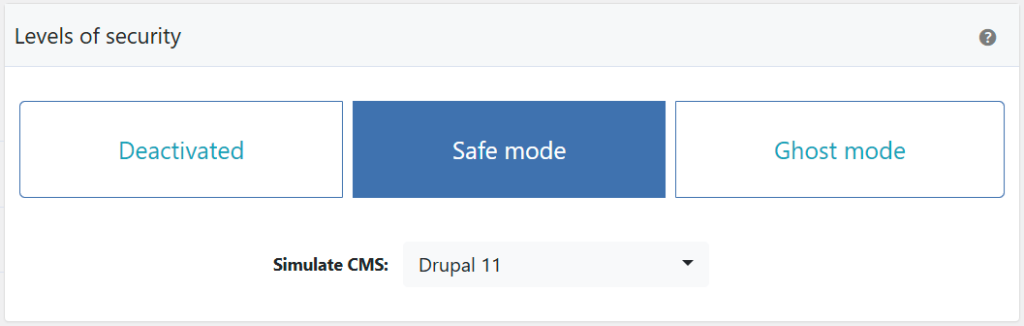
Need help choosing? Check the Safe Mode vs Ghost Mode comparison.
Change the wp-activate.php Path
Once a security mode is active, you can replace the default activation URL.
- Go to WP Ghost > Change Paths > Login Security.
- Find the Custom Activation Path field. You’ll see a predefined custom name already filled in.
- Enter a different name or keep the predefined one. Choose something unique that bots won’t guess.
- Click Save to apply.
Important: Avoid obvious names like “activate”, “confirm”, or “verify” for your custom path. Use something unrelated and unique.

Good to know: WP Ghost doesn’t physically move or rename any files. It uses rewrite rules to create virtual paths. Your WordPress installation stays untouched, and deactivating WP Ghost restores all defaults instantly.
Verify with a Security Check
After saving, run a security scan to confirm the activation path is properly changed.
- Go to WP Ghost > Security Check.
- Click Start Scan.
- The plugin verifies that the activation path has been successfully changed.
- If everything is working, the security task is marked as complete.
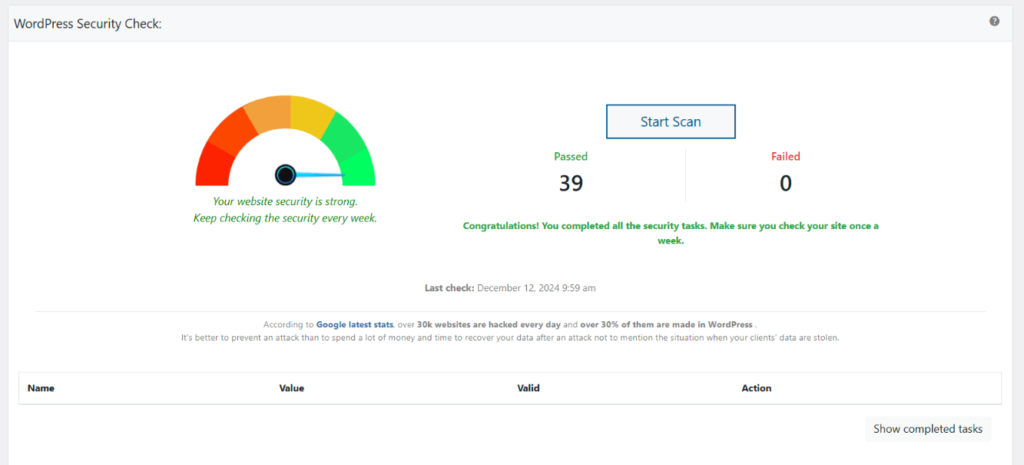
Run this scan after every path change. For full details on everything the scanner checks, see the Security Check tutorial.
What Happens After You Change the Activation Path
Once you save the new activation path, here’s what changes:
The new activation URL is active immediately. On Multisite networks, activation emails sent to new users will use the new custom path. On single-site installations, the wp-activate.php file at the default location becomes inaccessible to bots and scanners.
Existing activation links in pending emails continue to work. If users have already received activation emails before the change, WP Ghost handles the redirect so those links still function. New activation emails will use the updated path going forward.
The default wp-activate.php is no longer discoverable. Bots and theme detectors that probe for this file will get nothing useful in return. This removes one more WordPress fingerprint from your site.
Your front-end content is unaffected. This change only applies to the activation endpoint. Your public pages, posts, SEO, and sitemaps remain exactly the same.
Troubleshooting
Changing the activation path is usually seamless, but here are the most common issues:
Certain Membership Plugins Not Function Properly After Changing the Activation Path
Membership and registration plugins (BuddyPress, Ultimate Member, Paid Memberships Pro, etc.) can break when WP Ghost changes the activation path because they hardcode references to wp-activate.php for account activation links.
Revert the activation path to default
Go to WP Ghost > Change Paths and set the activation path back to wp-activate.php. This restores compatibility with membership plugins that depend on the default path. The rest of your WP Ghost path changes (login, admin, wp-content, etc.) continue to work normally.
Whitelist the activation path
Alternatively, add the activation path to WP Ghost > Change Paths > Whitelist Paths. This tells WP Ghost to skip path changes on that specific URL while keeping the custom path active for other requests.
Contact the membership plugin author
If you want to keep the custom activation path, contact the membership plugin’s support and explain that the activation URL has changed. Well-maintained plugins use WordPress filters for activation URLs rather than hardcoding them, and the author may provide an update or a workaround.
If you’ve lost access to the admin dashboard, see the emergency disable guide.
If you’ve lost access to your site, check the emergency disable guide to restore all default paths. You can also use rollback settings or add a constant in wp-config.php to disable WP Ghost temporarily.
Frequently Asked Questions
Do I need to change the activation path if I’m not using Multisite?
It’s still recommended. Even on single-site installations, the wp-activate.php file exists in your WordPress root directory. Bots and security scanners probe for it to confirm your site runs WordPress. Changing the path removes this fingerprint and closes a gap in your path-security strategy. If you’ve already hidden the login path and hidden wp-admin, changing the activation path completes the picture.
Will users still be able to activate their accounts?
Yes. The activation process works exactly the same way. Users receive an email with an activation link, click it, and their account is activated. The only difference is the URL in that link now points to your custom path instead of the default wp-activate.php.
What about users who already have pending activation links?
WP Ghost handles this gracefully. Existing activation links from emails sent before the path change will still work through internal redirects. New activation emails sent after the change will use the updated custom path.
Does this work across all subsites in a Multisite network?
Yes. When you change the activation path on a WordPress Multisite network, the new path applies network-wide. All subsites will use the custom activation URL for new user registrations. This is especially valuable for Multisite networks where each subsite may have its own users and registration flow.
Will membership plugins still work after this change?
Most membership plugins that use the standard WordPress activation process will continue working. WP Ghost uses rewrite rules that properly route activation requests through the new path. If a specific plugin hardcodes wp-activate.php, you may need to update that reference. Check the compatibility plugins list for known integrations.
Does WP Ghost modify WordPress core files?
No. WP Ghost never touches, moves, or renames any WordPress file. All path changes are handled through URL rewrite rules and WordPress filters. Deactivating WP Ghost restores the default wp-activate.php path instantly.
Does this affect SEO?
No. The activation page is an admin-side URL that search engines never crawl or index. Changing it has zero impact on your public pages, rankings, sitemaps, or front-end content.
Related Tutorials
Complete your WordPress path-security strategy with these related guides:
- Change and Hide the Login Path – Secure the main wp-login.php page.
- Change and Hide the wp-admin Path – Protect the admin dashboard from bots.
- Change the Register Path – Prevent spam signups by hiding the registration form.
- Change the Lost Password Path – Hide the password recovery page from bots.
- Hide WordPress Common Paths and Files – Remove wp-config, readme, license, and other detectable files.
- Hide from WordPress Theme Detectors – Make your entire site invisible to CMS detection tools.
- Brute Force Attack Protection – Add CAPTCHA and rate limiting to all login forms.