
Track every user action on your WordPress site and get notified when critical events happen. The Events Log records logins, content changes, plugin activations, settings modifications, and other dashboard actions. Logs are stored locally in your WordPress database with configurable retention, and optionally synced to WP Ghost’s cloud for 30-day access from any device. If you manage a team or give clients backend access, you’ll know exactly what was changed, by whom, and when. Set up email alerts for critical actions like logins from new IPs or unauthorized settings changes. This is a Premium feature.
What Is the Events Log?

The Events Log monitors and records user actions in your WordPress dashboard. It tracks logins, logouts, content edits, plugin activations, settings modifications, and more. Logs are stored in your local database, so you always have a record of what happened on your site. You can optionally enable cloud storage to keep a copy on the WP Ghost Dashboard for 30 days, accessible from any device, even if someone deletes the plugin from your site. For the full feature reference, see the Events Log Report tutorial.
How to Activate and Use the Events Log
Activate the Events Log
- Go to WP Ghost > Logs > Settings.
- Switch on Log Users Events to start monitoring.
- Optionally, switch on Enable Cloud Storage for Events Log to keep a copy on the WP Ghost Dashboard for 30 days.
- Select the user roles you want to monitor from Log User Roles. Leave empty to monitor all roles.
- Click Save.
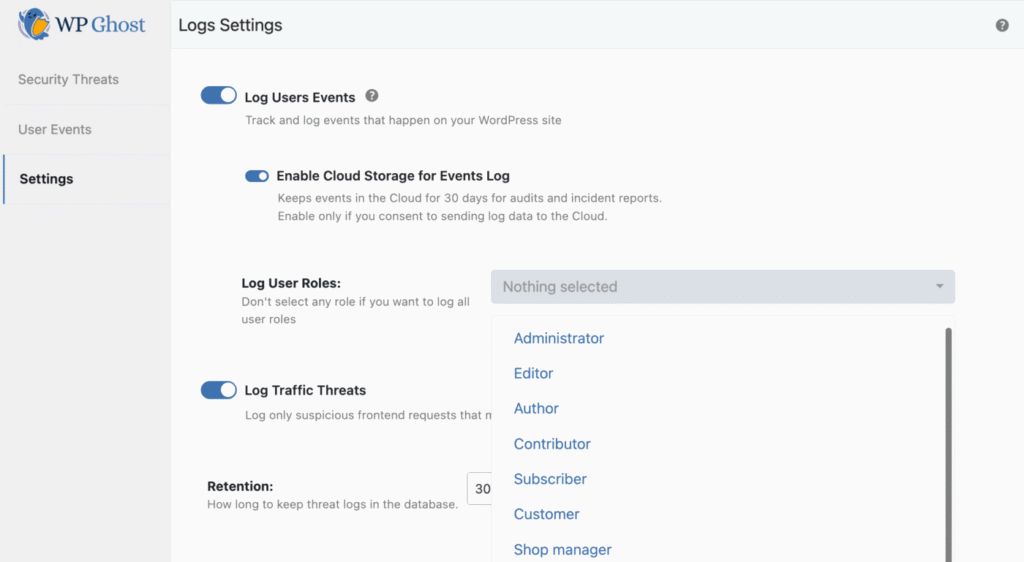
User role filtering: You can choose to log only specific roles. For example, monitor Subscribers and Contributors but skip Administrator activity. Select multiple roles or leave the dropdown empty (“Nothing Selected”) to track all user roles.
Cloud storage is tamper-proof. When enabled, cloud-stored logs remain accessible from the WP Ghost Dashboard even if a user deactivates and deletes the plugin from your site. Local logs stored in your database are removed if the plugin is uninstalled.
Check and Filter the Log
View the Events Log from your WordPress site (WP Ghost > Logs > Events Log) or from the WP Ghost Dashboard if cloud storage is enabled.
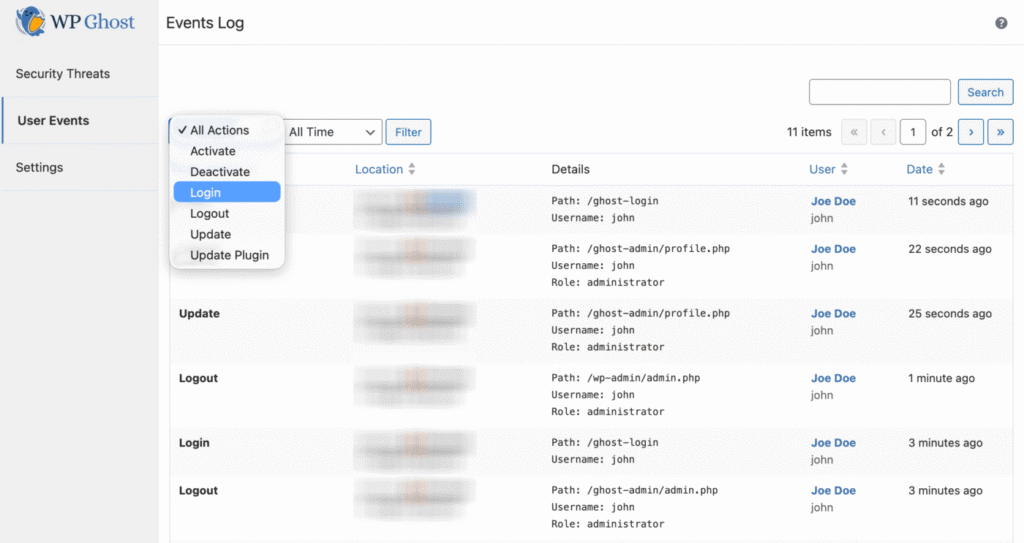
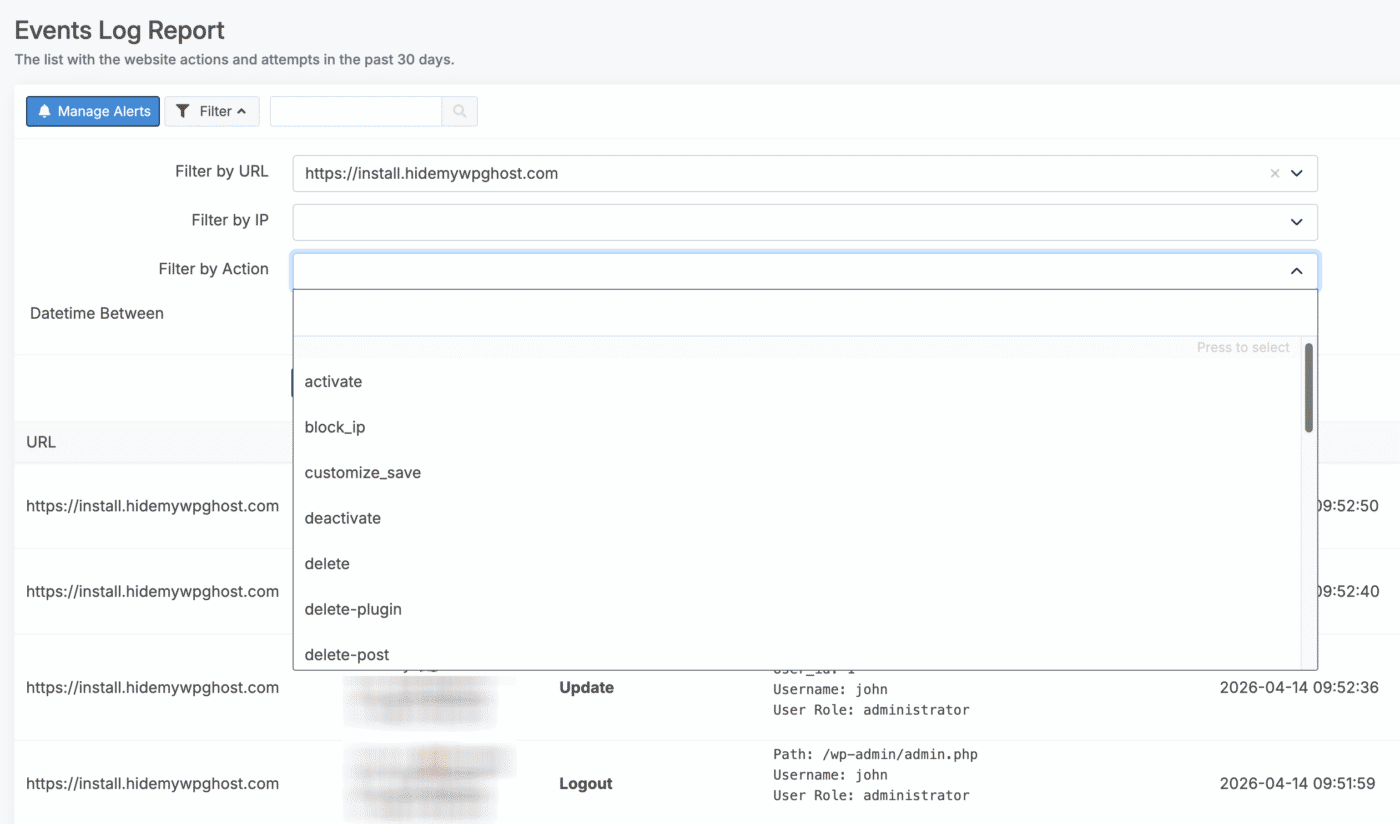
If you manage multiple sites, click Filter and select the website from “Filter by URL.” You can also filter by user action type and time interval. Click Search to see details for every action: username, role, paths, post name, plugin name, attachment, and more.
Cloud-stored logs are retained for 30 days. Local logs are retained based on the retention period you set in Settings.
Timezone note: Event times are stored in UTC-0 on the WP Ghost Dashboard. Convert to your local timezone when reviewing cloud logs.
Set Up Email Alerts
Get notified instantly when critical actions happen on your site. Go to the WP Ghost Dashboard at Email Alerts > New Alert and select the events you want to be notified about.
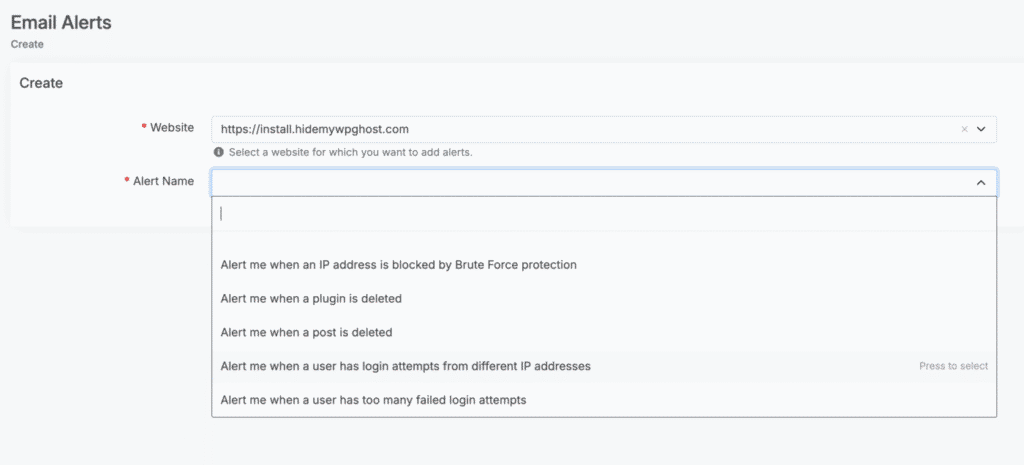
WP Ghost includes predefined alerts such as login from a new IP, unauthorized settings changes, plugin activations, and user role modifications. Alerts are sent immediately when the event triggers. You can manage all alerts from the Email Alerts section for every website connected to your account.
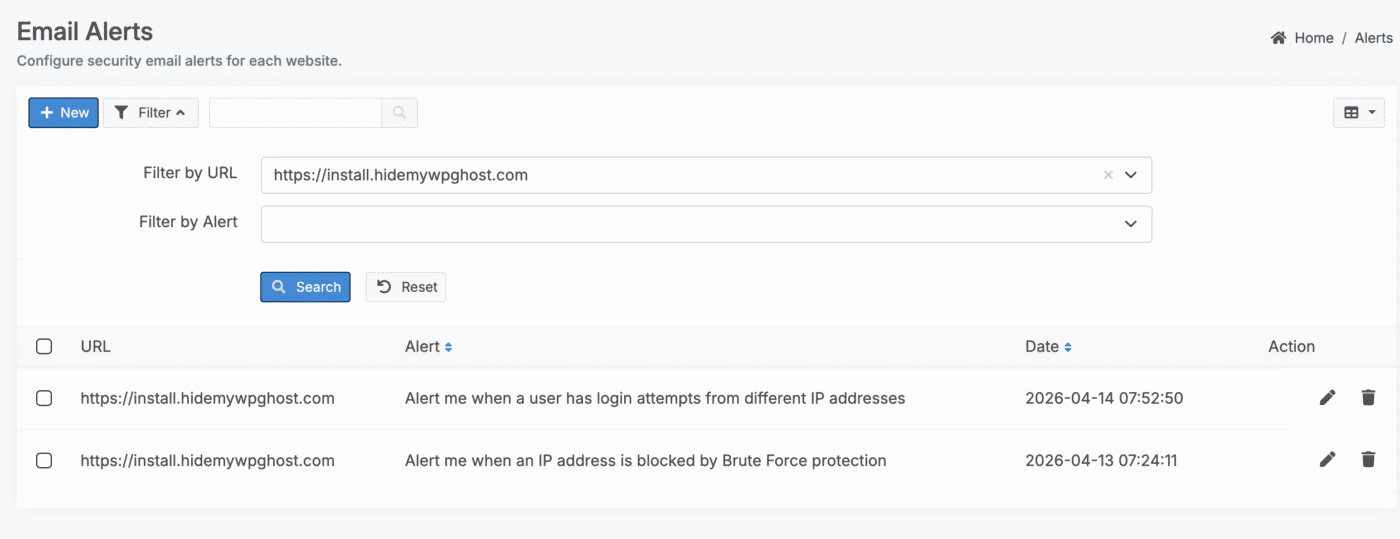
Email alerts require cloud storage. To receive email alerts, the Enable Cloud Storage for Events Log option must be switched on. Alerts are triggered from cloud-stored events.
Frequently Asked Questions
Is this available in the free version?
No. The Events Log and Email Alerts require WP Ghost Premium. The free version does not include user activity logging.
What’s the difference between local and cloud storage?
Local storage saves events in your WordPress database. Logs are accessible from your WordPress dashboard and retained based on the period you configure. If the plugin is uninstalled, local logs are removed. Cloud storage sends a copy to the WP Ghost Dashboard where logs are kept for 30 days. Cloud logs survive plugin deletion, are accessible from any device, and are required for email alerts.
What’s the difference between Events Log and Security Threats Log?
The Events Log tracks actions by logged-in users (edits, logins, settings changes). The Security Threats Log tracks malicious requests from external visitors (blocked attacks, firewall hits, brute force attempts). Together they give you full visibility into both internal activity and external threats.
Does the Events Log store personal data?
Yes. The log records usernames, IP addresses, and user actions. If you need to comply with GDPR or similar regulations, inform your users that their dashboard activity is logged. Cloud-stored data is kept for 30 days and then automatically deleted. Local retention is configurable. See the Events Log Report tutorial for GDPR details.
Does WP Ghost modify WordPress core files?
No. The Events Log operates through WordPress hooks that monitor actions. No core files are modified. Local logs are stored in a dedicated database table. Cloud logs are sent via API.
Related Tutorials
Monitoring and logging features:
- Events Log Report – The full reference tutorial with all event types, filtering, GDPR details, and role-based configuration.
- Security Threats Log – Monitor external threats and blocked attacks.
- Security Monitor – Weekly cloud-based security scanning.
- Brute Force Protection – Protect the login page before monitoring login activity.