
Manually block specific IP addresses, user agents, referrers, and hostnames from accessing your WordPress site using WP Ghost’s Blacklist feature. While WP Ghost’s firewall automatically blocks malicious request patterns and automated IP blocking catches repeat offenders, the Blacklist gives you manual control to block known threats by four criteria: IP address, user agent string, HTTP referrer, and hostname. This is where you ban the specific IPs, bots, spam referrers, and networks you’ve identified in your security logs.
What Is Blacklisting in WP Ghost?

Blacklisting is the manual counterpart to WP Ghost’s automated blocking. Where the firewall blocks by attack pattern and automated IP blocking bans repeat offenders, the Blacklist lets you manually specify exactly who to block – by IP address, user agent, referrer URL, or hostname. Once blacklisted, the blocked entity receives no access to your site.
All blacklisting settings are in WP Ghost > Firewall > Blacklist. The feature becomes active as soon as you add data to any of its five options.
When to Use Manual Blacklisting
Manual blacklisting is a targeted response to known threats. Use it for your hack prevention strategy when:
Your security logs identify persistent attackers. The Security Logs (Premium) show which IPs, user agents, and referrers generate malicious traffic. When you spot the same IP repeatedly targeting your site, blacklist it permanently. The firewall blocks the attack pattern; the blacklist blocks the source.
Spam bots hit your forms from specific referrers. If your contact form or comment section gets spam from specific referring domains, blocking those referrers stops the traffic before it reaches your forms.
Malicious crawlers use identifiable user agents. Some attack tools and scraping bots send distinctive user agent strings. Blocking them by user agent catches all requests from that tool, regardless of which IP they rotate to.
You want to block AI training crawlers. AI bots like GPTBot, ClaudeBot, and PerplexityBot identify themselves through their user agent strings. Blocking them prevents your content from being used for AI training.
How to Configure Blacklisting
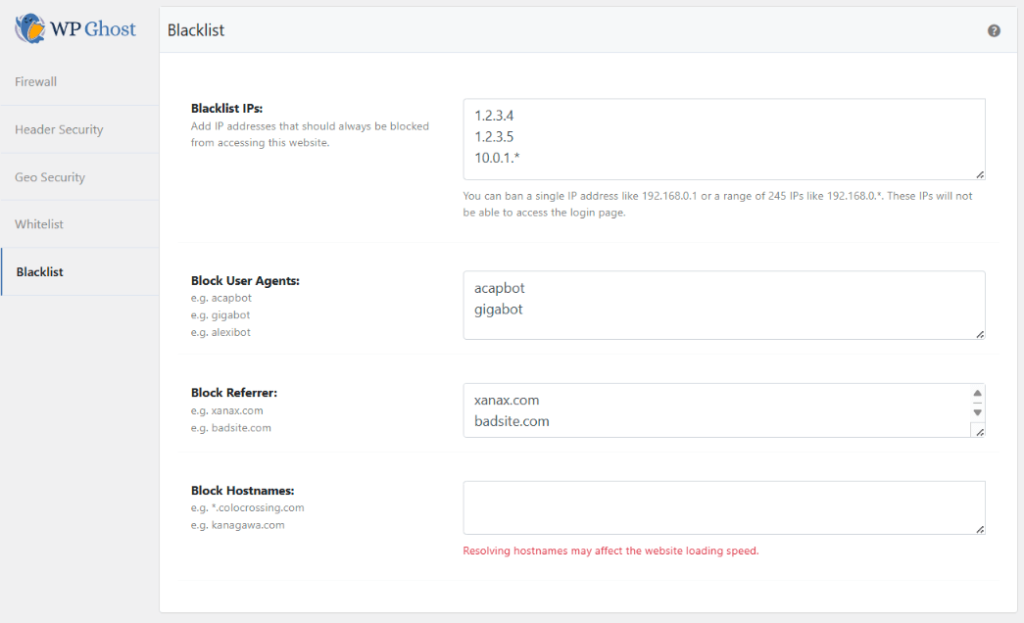
Blacklist IP Addresses
Block specific IPs or entire IP ranges that have been identified as malicious sources. Enter individual IPs or use wildcards: 192.168.0.* (entire subnet), 192.168.*.* (entire class B range), or 192.*.*.* (entire class A range).

Block by User Agent
Block requests from specific user agent strings. User agents identify the software making the request – browsers, bots, crawlers, and scraping tools all send distinctive strings. Blocking a user agent catches all requests from that tool, regardless of which IP it uses.

Block AI Crawlers
AI training bots identify themselves through their user agent strings. You can block them using the Block by User Agent feature to prevent your content from being scraped for AI training.
Only block AI bots if your goal is to protect your content from AI training. If your site benefits from AI search visibility (being cited by ChatGPT, Perplexity, etc.), blocking these bots removes your content from those ecosystems.
Here’s the current list of known AI bot user agents you can add to the Block by User Agent field:
AI2Bot,Amazonbot,AnthropicBot,anthropic-ai,Applebot-Extended,bigsur.ai,Bytespider,CCBot,ChatGPT-Operator,ChatGPT-User,Claude-Code,Claude-SearchBot,Claude-User,Claude-Web,ClaudeBot,cohere-ai,cohere-training-data-crawler,DeepSeekBot,DigitalOceanGenAICrawler,DuckAssistBot,Google-Extended,GPTBot,Grok,GrokBot,img2dataset,LinerBot,Meta-externalagent,Meta-externalfetcher,MistralAI-User,MyCentralAIScraperBot,OAI-SearchBot,PanguBot,Perplexity-User,PerplexityBot,quillbot.com,SBIntuitionsBot,YouBot
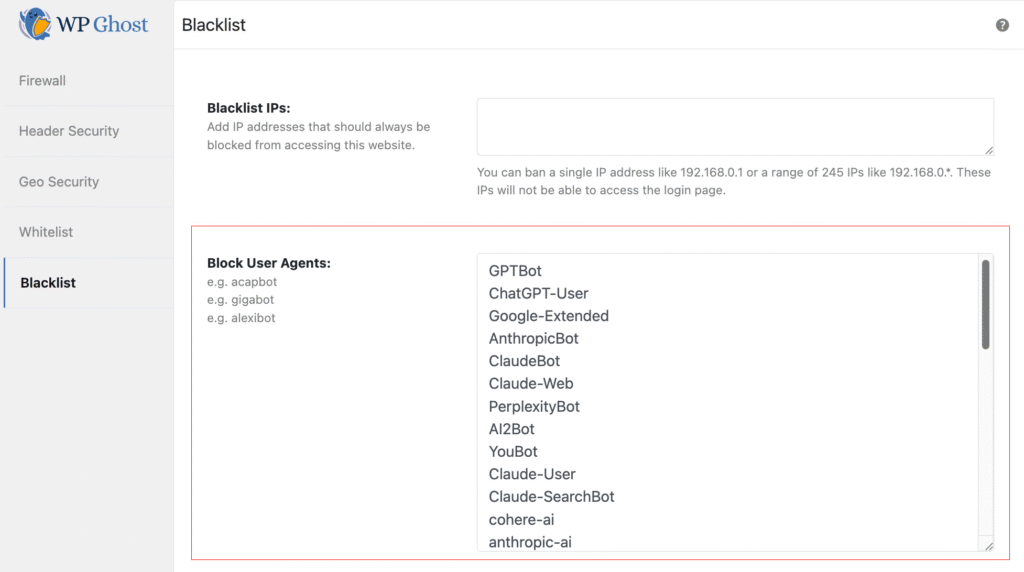
Easier option: WP Ghost also offers a one-click Block AI Crawler Bots toggle in the Firewall settings that handles this automatically with an auto-updating list. Use the manual method here only if you need to customize which AI bots to block.
Block by Referrer
Block traffic arriving from specific referring URLs or domains. This stops visits from spam referrer domains, malicious link sources, or any specific URL you’ve identified as a threat source. Enter the domain or URL fragment to block.

Block by Hostname
Block traffic based on the visitor’s reverse DNS hostname. This is useful for blocking traffic from specific hosting providers, ISPs, or networks known for malicious activity. Enter the hostname or hostname fragment to block.

Performance note: Hostname blocking requires a reverse DNS lookup for each visitor, which adds processing time. Use this option only when you specifically need to block by hostname – IP blocking is more efficient for most use cases.
Troubleshooting
Avoid blocking search engine crawlers
Be careful when adding user agents or IP ranges to the blacklist. Blocking legitimate search engine crawlers (Googlebot, Bingbot, Yandex) will negatively impact your search rankings. WP Ghost’s firewall automatically whitelists major search engine crawlers, but manual blacklist entries override this. Never add user agent strings like “Googlebot” or “Bingbot” to the blacklist.
Google Ads compliance
If you use Google Ads, be cautious with country blocking and IP blacklisting. Google Ads policies prohibit blocking any country entirely from viewing pages with ads. If you receive a compliance warning, use path-based country blocking instead – restrict only the paths without Google Ads, not the entire site.
If you’ve lost access or blocked yourself by mistake, check the emergency disable guide, use the rollback settings, or add a constant in wp-config.php to disable WP Ghost temporarily.
Frequently Asked Questions
What’s the difference between automated IP blocking and the blacklist?
Automated IP blocking detects and bans IPs that trigger repeated firewall violations – it’s hands-off and reactive. The Blacklist is manual and proactive – you add specific IPs, user agents, referrers, or hostnames that you’ve identified as threats. Use both: automated for pattern-based detection, manual for known threats.
Can bots fake their user agent?
Yes. User agent strings are self-reported and can be changed. A malicious bot can spoof a legitimate browser’s user agent to bypass user agent blocking. However, most automated tools and AI crawlers use their real user agents (GPTBot, ClaudeBot, etc.) because spoofing would violate their own terms of service. User agent blocking is effective against bots that play by the rules – for everything else, IP blocking and the firewall provide additional layers.
Does blacklisting affect SEO?
Only if you accidentally blacklist search engine crawlers. Never add Googlebot, Bingbot, or other legitimate crawler user agents to the blacklist. WP Ghost’s firewall automatically whitelists these, but manual blacklist entries take priority. If you’re unsure about a user agent, research it before blocking.
Does this work with WooCommerce?
Yes. Blacklisting is commonly used to block IPs that attempt fraudulent orders, spam referrers that pollute analytics, and bot user agents that scrape product data. WP Ghost is fully compatible with WooCommerce.
Does WP Ghost modify WordPress core files?
No. Blacklisting is handled through runtime checks during WordPress initialization. No files are modified. Removing an entry from the blacklist restores access for that IP, user agent, referrer, or hostname instantly.
Related Tutorials
Build your complete access control system:
- Whitelist IPs and Paths – The opposite of blacklisting – ensure trusted IPs and paths are always accessible.
- Firewall Security – Automated request filtering with 7G/8G rulesets and automated IP blocking.
- Geo Security – Block entire countries or restrict paths by geographic location.
- Brute Force Protection – Block login attacks with attempt limits and reCAPTCHA.