

Exempt specific IP addresses from WP Ghost’s security checks and ensure specific paths are always accessible – regardless of firewall rules, brute force limits, or country blocking. WP Ghost’s whitelisting lets you define trusted IPs that are never blocked and trusted paths that are always accessible. This prevents accidental lockouts for your team, ensures third-party services can reach your site, and exempts specific pages from security restrictions that would otherwise block them.
What Is Whitelisting in WP Ghost?

WP Ghost provides two whitelisting features that work together. IP Whitelisting ensures specific IP addresses are never blocked by the firewall, brute force protection, country blocking, or automated IP banning – even if those IPs trigger security rules. Path Whitelisting ensures specific URL paths and their subpaths are always accessible, bypassing firewall restrictions and disabled-feature rules.
Additionally, WP Ghost offers three whitelist levels that control how much access whitelisted IPs receive – from seeing only hidden paths (minimal) to full unrestricted access with no security checks applied.
When You Need Whitelisting
Whitelisting is the safety net for your hack prevention strategy. You need it when security rules unintentionally block something legitimate:
Prevent team lockouts. If your team works from fixed IP addresses, whitelist those IPs to ensure no one gets locked out by brute force limits, the firewall, or country blocking. Even after multiple failed login attempts, whitelisted IPs remain unblocked.
Allow third-party service access. Payment gateways, monitoring services, uptime checkers, and API integrations may send requests that trigger firewall rules. Whitelisting their IPs or the paths they access prevents false positives from blocking critical services.
Exempt paths from security restrictions. If you’ve enabled Disable Copy/Paste but need it to work on specific pages (like forms with paste functionality), whitelist those paths. If your firewall blocks a legitimate plugin action on a specific URL, whitelist that path.
Debug security issues. When troubleshooting whether WP Ghost is blocking something, temporarily whitelist your IP with “Allow Everything” to see your site without any security modifications. This isolates whether the issue is caused by WP Ghost or something else.
How to Configure Whitelisting
All whitelisting settings are in WP Ghost > Firewall > Whitelist.
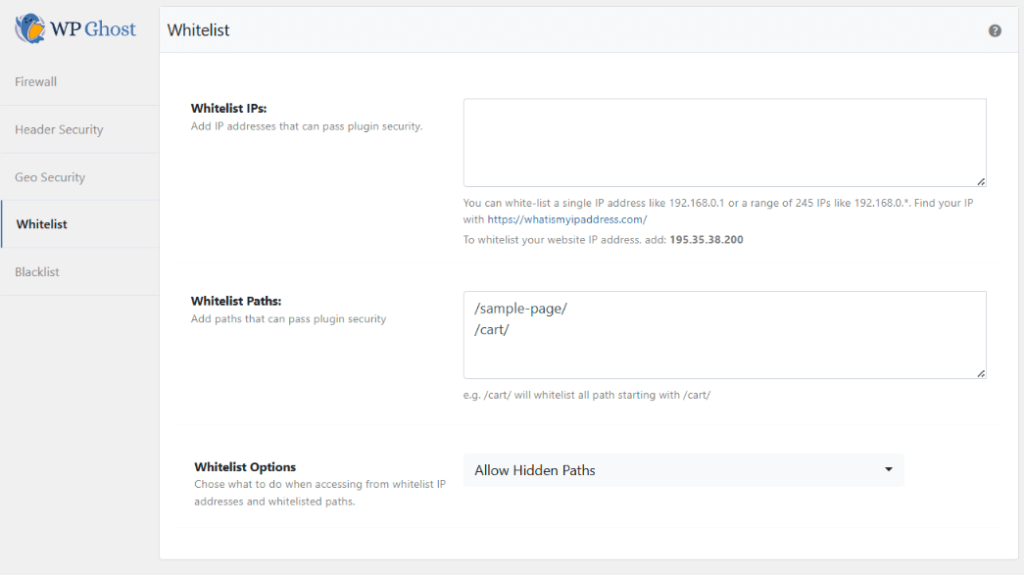
Set the Whitelist Level
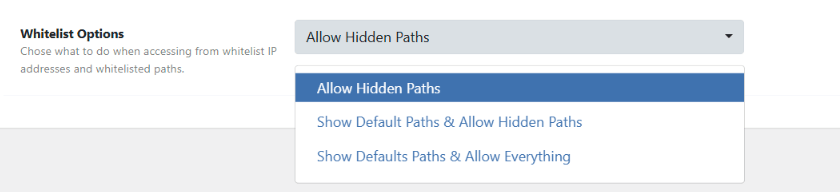
Choose how much access whitelisted IPs receive. Three levels are available:
Allow Hidden Paths – Whitelisted IPs can access the hidden paths (like the original /wp-admin and /wp-login.php) while still seeing custom paths in the source code. This is the minimum level – useful for IPs that need to access hidden endpoints but should still see the security-modified site.
Show Default WordPress Paths & Allow Hidden Paths – Whitelisted IPs see both the custom paths and the original default WordPress paths in the source code. Hidden paths are accessible. This is useful for debugging – you can see what WP Ghost has changed while still accessing everything.
Allow Everything – Whitelisted IPs get full unrestricted access: default WordPress paths shown, no security checks applied, no keyboard/mouse restrictions, no hidden paths enforced. The site behaves as if WP Ghost is not active. Use this for your own IP during troubleshooting.
Add Whitelisted IP Addresses
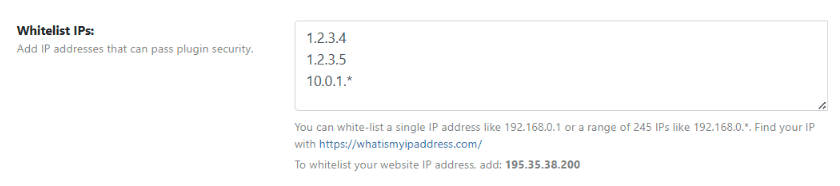
Add individual IP addresses or IP ranges that should never be blocked by any WP Ghost security feature.
Enter individual IPs (like 192.168.1.100) or use wildcards for IP ranges: 192.168.0.* (entire subnet), 192.168.*.* (entire class B range), or even 192.*.*.* (entire class A range). Whitelisted IPs bypass the firewall, brute force limits, automated IP blocking, and country blocking.
Best practice: Only whitelist IPs you fully trust. Don’t whitelist broad ranges unless necessary. Every whitelisted IP bypasses your security protections entirely at the selected whitelist level.
Add Whitelisted Paths
Specify URL paths that should always be accessible, regardless of firewall rules, disable options, or other restrictions. Whitelisting a path also whitelists all its subpaths.
For example, whitelisting /cart/ makes every URL beginning with /cart/ accessible – including /cart/checkout/, /cart/apply-coupon/, etc. This is particularly useful for e-commerce sites where cart and checkout pages need to bypass restrictions like Disable Paste or firewall rules that might interfere with form submissions.

Frequently Asked Questions
Which whitelist level should I use?
For most use cases, Allow Hidden Paths is sufficient – it lets whitelisted IPs access hidden paths without exposing the full default WordPress structure. Use Allow Everything only temporarily for your own IP during debugging. Avoid leaving “Allow Everything” active for multiple IPs long-term – it disables all WP Ghost protections for those IPs.
What if my IP address changes?
If you have a dynamic IP (most residential connections), your whitelisted IP will eventually change and no longer match. You can whitelist a range using wildcards (e.g., 192.168.1.* if your IP always starts with 192.168.1.), but this is less secure than whitelisting a specific IP. For the most reliable access, consider using a VPN with a static IP or contact your ISP about a fixed IP address.
Does whitelisting a path reduce security?
Yes, for that specific path. Whitelisted paths bypass firewall rules and other restrictions. Only whitelist paths that genuinely need it – like a cart page where Disable Paste interferes with coupon code entry, or an API endpoint that a third-party service needs to reach. Don’t whitelist broad paths like / (which would whitelist your entire site).
Does this work with WooCommerce?
Yes. Path whitelisting is commonly used for WooCommerce checkout, cart, and account pages that need to bypass Disable Paste or firewall rules. IP whitelisting ensures payment gateway IPs and monitoring services are never blocked. WP Ghost is fully compatible with WooCommerce.
Does WP Ghost modify WordPress core files?
No. Whitelisting is handled through runtime checks in WP Ghost’s processing. No files are modified. Removing an IP or path from the whitelist re-applies all security rules to that IP or path instantly.
Related Tutorials
Understand the security features that whitelisting exempts:
- Firewall Security – The firewall rules that whitelisted IPs and paths bypass.
- Brute Force Protection – Login attempt limits that whitelisted IPs bypass.
- Geo Security – Country blocking rules that whitelisted IPs bypass.
- Disable Right-Click and Keys – Restrictions that whitelisted paths can exempt.
- Emergency Disable Guide – What to do if you’ve locked yourself out.