
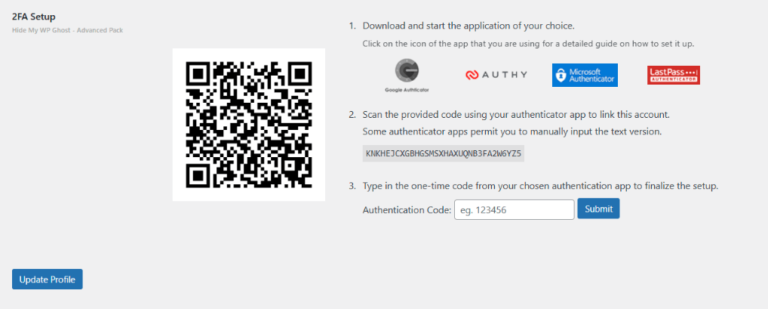
Connect WP Ghost’s 2FA Code method to your preferred authenticator app – Google Authenticator, Authy, Microsoft Authenticator, or LastPass Authenticator. After you enable the 2FA Code method in WP Ghost, each user needs to link their authenticator app by scanning a QR code. This guide walks through the setup process for the four supported apps, step by step.
Before You Start
Make sure the 2FA feature is enabled in WP Ghost and the 2FA Code method is selected. Navigate to your User Profile and click Add Two-Factor Authentication to see the QR code and text key that you’ll need for the steps below.
Google Authenticator
- Download Google Authenticator (Android, iPhone, or Chrome extension).
- Open the app and tap the + icon (lower right corner).
- Select Scan a QR code and point your camera at the QR code shown in your WordPress profile. Or tap Enter a setup key and type the text key from Step 2.
- Your WordPress site appears in the app. Note the 6-digit code displayed.
- Enter the code in the WP Ghost 2FA setup wizard and click Submit.
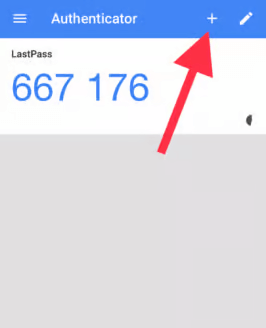
Authy
- Download Authy (Android, iPhone, or desktop).
- Tap the menu icon and select Add Account.
- Scan the QR code from your WordPress profile, or enter the text key manually.
- Name the account (e.g., “My Site WP Ghost”) and choose an icon for easy identification.
- Save. The rotating 6-digit code appears.
- Enter the code in the WP Ghost 2FA setup wizard and click Submit.
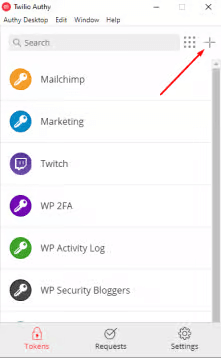
Microsoft Authenticator
- Download Microsoft Authenticator (Android, iPhone, or Windows).
- Tap Add Account on the home screen.
- Select Other account (or skip the account type selection).
- Scan the QR code from your WordPress profile, or enter the text key manually.
- The account appears in your list with a rotating code.
- Enter the code in the WP Ghost 2FA setup wizard and click Submit.

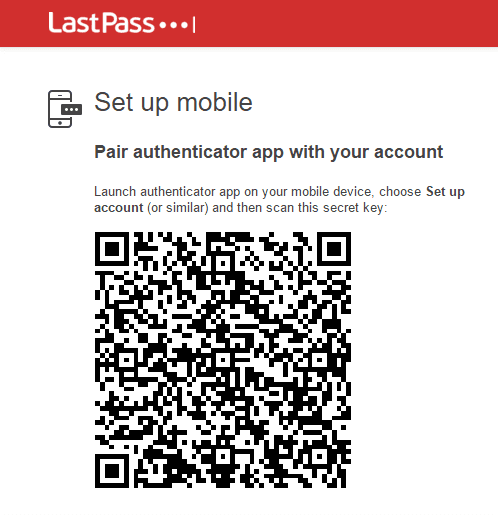
LastPass Authenticator
After connecting any app: Generate and download your backup codes when prompted by WP Ghost. These one-time-use codes let you log in if you lose access to your authenticator app. Store them in a safe place – a password manager or printed in a secure location.
Which App Should You Choose?
Google Authenticator is the most widely used and simplest option. It generates codes with no account setup required – just scan and go. However, it doesn’t support cloud backup by default, so losing your phone means reconfiguring all accounts.
Authy offers cloud-synced backups and works across multiple devices. If you lose your phone, your codes are recoverable on another device. This makes it the best choice for users who want resilience against device loss.
Microsoft Authenticator is ideal if you’re already in the Microsoft ecosystem. It supports cloud backup and push notifications for Microsoft accounts, making it a natural fit for users managing both WordPress and Microsoft services.
LastPass Authenticator integrates with the LastPass password manager. If you already use LastPass, this keeps your 2FA codes alongside your passwords in one ecosystem.
Troubleshooting
The code from my app is rejected
Authenticator codes are time-based (TOTP). If your device’s clock is off by more than 30 seconds, codes will be invalid. Enable automatic time sync on your device (Settings → Date & Time → Set Automatically). If the issue persists, use the Reset Key option in your WordPress profile and re-scan the QR code.
I lost my phone and can’t generate codes
Use a backup code to log in. If you didn’t generate backup codes, check the emergency disable guide, use the rollback settings, or add a constant in wp-config.php to disable WP Ghost temporarily. Once logged in, reset your 2FA and re-link a new device.
QR code won’t scan
Use the text key instead. The text version of the setup key is shown in Step 2 of the WP Ghost 2FA setup. Open your authenticator app, choose manual entry, and type the text key. This produces the same codes as scanning the QR code.
Frequently Asked Questions
Can I use any TOTP authenticator app?
Yes. WP Ghost uses the standard TOTP protocol. Any authenticator app that supports TOTP will work – including 1Password, Bitwarden, Keeper, and others. The four apps listed here are the most popular and officially tested, but any TOTP-compatible app generates valid codes.
Can I use one app for multiple WordPress sites?
Yes. Each site gets its own entry in your authenticator app. You can add as many sites as you want to a single app – each generates its own independent rotating code.
Can I switch authenticator apps later?
Yes. Use the Reset Key option in your WordPress user profile. This generates a new QR code that you scan with your new app. The old app’s codes stop working once the key is reset.
Does WP Ghost modify WordPress core files?
No. 2FA is handled through WordPress hooks. No core files are modified. Disabling 2FA removes the requirement instantly.
Related Tutorials
Complete your 2FA and login security setup:
- Two-Factor Authentication – The complete 2FA guide covering all three methods (Code, Email, Passkey).
- Magic Link Login – Passwordless login via email link.
- Brute Force Protection – Block login attacks with attempt limits and reCAPTCHA.
- Change and Hide the Login Path – Move your login page to a custom URL.