
- What Is the Comments Path in WordPress?
- Why You Need to Secure the Comments Path
- How to Secure the Comments Path with WP Ghost
- What Happens After You Secure the Comments Path
- Troubleshooting
- Frequently Asked Questions
- Will changing the comments path stop all comment spam?
- Does this work with WooCommerce product reviews?
- Can I just disable comments instead of changing the path?
- Do I still need Akismet if I change the comments path?
- Which reCAPTCHA version does WP Ghost support?
- Does changing the comments path affect SEO?
- Does WP Ghost modify WordPress core files?
- Related Tutorials
Block comment spam bots by changing the comments path, hiding wp-comments-post.php, and adding reCAPTCHA protection with WP Ghost. Most WordPress comment spam doesn’t come from bots filling out your comment form. It comes from bots that POST directly to wp-comments-post.php using automated tools like CURL, completely bypassing your comment form, any anti-spam honeypots, and even JavaScript-based protections. Change the file path, and those direct-POST bots hit a dead end.
What Is the Comments Path in WordPress?

The comments path is the file WordPress uses to process all comment submissions. Every time someone submits a comment on your site – whether on a blog post, page, or WooCommerce product review – the form data is sent to this file for processing.
By default, it sits at: https://yourdomain.com/wp-comments-post.php
This file accepts POST requests containing the comment content, author name, email, and the post ID being commented on. WordPress processes this data, runs it through any spam filters (like Akismet), and either publishes the comment, queues it for moderation, or marks it as spam.
The problem? The file is publicly accessible, its location is identical on every WordPress site, and bots can POST data to it directly without ever loading your comment form. They don’t need to render JavaScript, solve CAPTCHAs, or fill in honeypot fields. They just send a CURL request to wp-comments-post.php with a post ID and spam content. Done.
Why You Need to Secure the Comments Path
Comment spam isn’t just annoying. It consumes server resources, pollutes your database, damages SEO, and can even inject malicious links into your pages. Here’s why securing the comments path matters for your hack prevention strategy:
Bots bypass your comment form entirely. This is the key insight most people miss. Spam bots don’t visit your page, find your comment form, and fill it out. They POST directly to wp-comments-post.php using automated tools. That means front-end protections like JavaScript-based honeypots, time-delay checks, and form-only CAPTCHAs are bypassed completely. The bot never loads your page. It just sends data to the known file path. Change the path, and these direct-POST attacks fail.
Comment spam attacks can overwhelm your server. Aggressive comment spam campaigns send thousands of POST requests to wp-comments-post.php in rapid succession. Each request triggers WordPress to load, process the comment, query the database, run spam filters, and either store or discard the result. Even discarded spam costs CPU and database resources. On shared hosting, this can make your site slow or unresponsive for legitimate visitors. Some site owners have reported server loads exceeding 190% during sustained comment spam attacks.
The file confirms WordPress to scanners. Like xmlrpc.php and wp-login.php, the existence of wp-comments-post.php is a WordPress fingerprint. Bots and theme detectors check for this file to confirm your CMS. Hiding it removes one more detection signal.
Spam comments can contain malicious links and injected code. Beyond SEO damage from spammy backlinks, some comment spam includes phishing URLs, malware download links, and even script injection attempts. If these get through moderation (or if moderation is overwhelmed by volume), they appear on your public pages.
WP Ghost gives you three layers of comment protection: changing the file path so direct-POST bots can’t find it, hiding the original file so it returns a 404, and adding reCAPTCHA to your comment forms for front-end protection.
How to Secure the Comments Path with WP Ghost
Activate Safe Mode or Ghost Mode
Before you can change any paths, one of WP Ghost’s security levels must be active.
- Go to WP Ghost > Change Paths > Level of Security.
- Select Safe Mode or Ghost Mode.
- Click Save to apply.
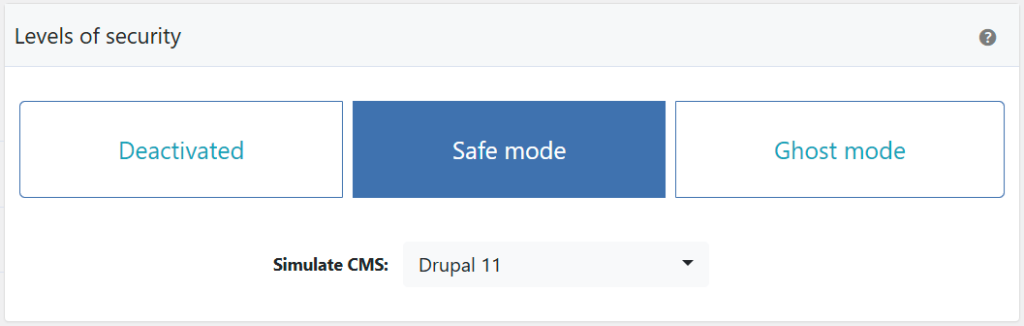
Need help choosing? Check the Safe Mode vs Ghost Mode comparison.
Change the Comments Path
This replaces the wp-comments-post.php filename with a custom name. Comment forms on your site will submit to the new path instead. Every bot script targeting the default filename gets a 404.
- Go to WP Ghost > Change Paths > WP Core Security.
- Find the Custom Comments Path field.
- Enter a different name or keep the predefined one.
- Click Save to apply.

Good to know: WP Ghost doesn’t physically rename any files. The wp-comments-post.php file stays in your WordPress root. WP Ghost creates a virtual path through URL rewrite rules. Deactivating the plugin restores the default instantly.
Hide wp-comments-post.php
After changing the path, the original wp-comments-post.php file may still respond to direct requests. This step blocks it completely. Bots POSTing to the old path get a 404.
- Go to WP Ghost > Change Paths > WP Core Security.
- Switch on Hide WordPress Common Files.
- From the Hide Common Files list, select wp-comments-post.php.
- Click Save to apply.
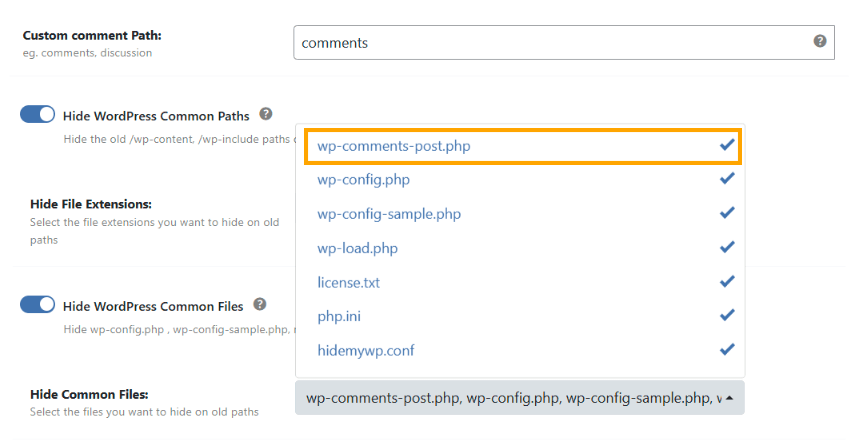
Important: Hiding wp-comments-post.php blocks direct POST requests to the file. It does not stop visitors from using your comment forms normally, since your forms now submit to the custom path. But it also won’t stop all comment spam by itself – some sophisticated bots scrape your forms and submit to the correct action URL. That’s why the next step matters.
Enable Comment Form Protection
For complete anti-spam protection, add reCAPTCHA to your comment forms. This catches bots that are sophisticated enough to scrape your form and submit to the correct (custom) path.
- Go to WP Ghost > Brute Force > Settings.
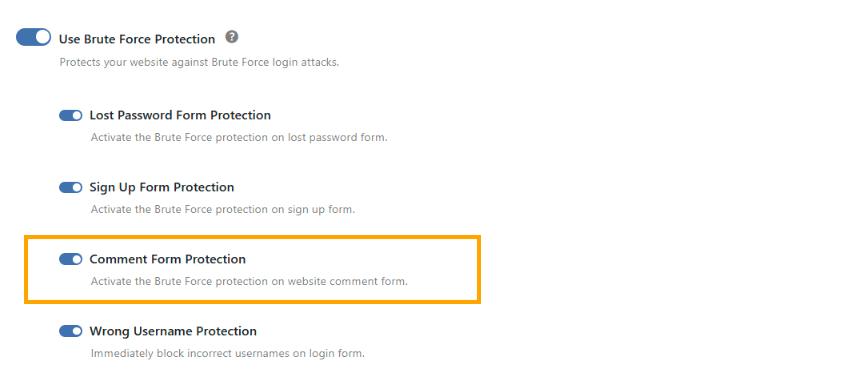
- Switch on Use Brute Force Protection.
- Switch on Comment Form Protection to add reCAPTCHA to all comment forms.
- Click Save to apply.
With Google reCAPTCHA V2 enabled, your comment forms display the verification checkbox before submission:
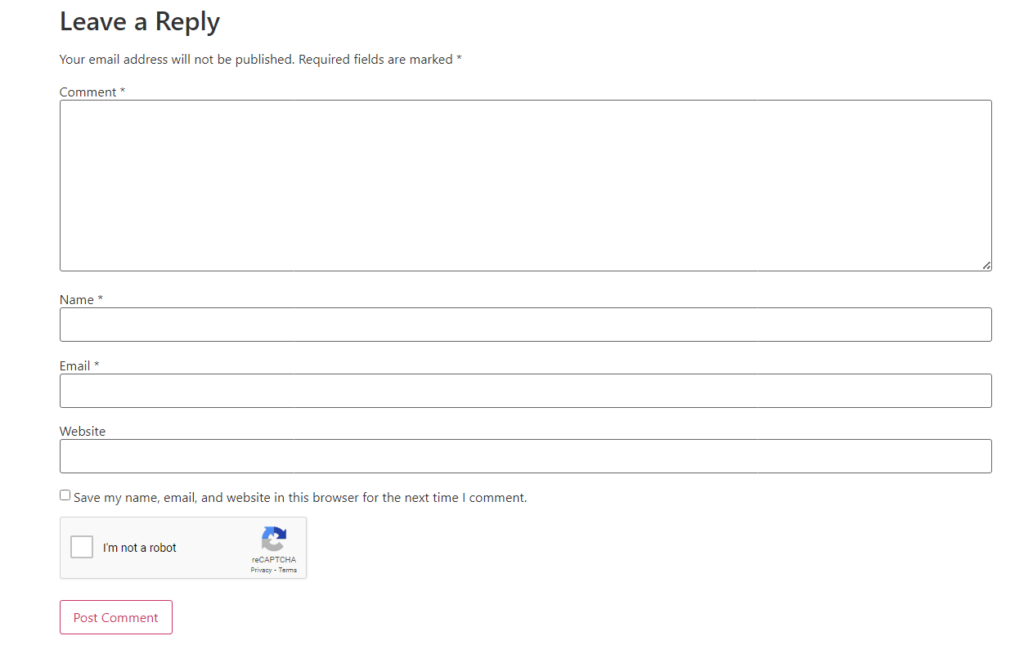
For more reCAPTCHA options and configuration, see the Brute Force Attack Protection tutorial.
Verify with a Security Check
After saving all your comment security settings, run a scan to confirm everything works.
- Go to WP Ghost > Security Check.
- Click Start Scan.
- If everything works, the security task is marked complete.
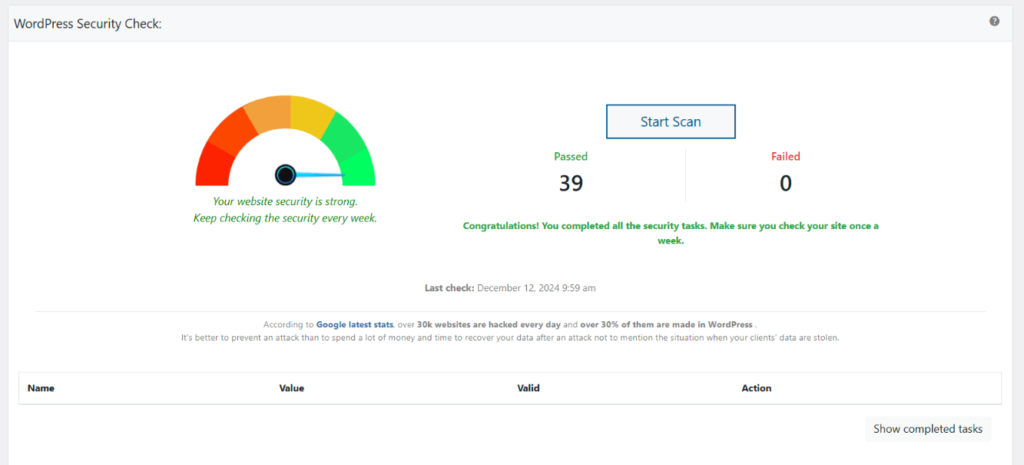
For everything the scanner checks, see the Security Check tutorial.
What Happens After You Secure the Comments Path
Save your settings and the changes take effect immediately:
Direct-POST spam bots get a 404. Every bot script that targets wp-comments-post.php with CURL or WGET requests fails. The file no longer responds. This is the single most effective change because it eliminates the majority of automated comment spam at the server level, before WordPress even loads.
Legitimate comments continue working normally. Your comment forms automatically submit to the new custom path. Visitors type their comment, click submit, and it processes exactly as before. They never see the URL change. The experience is identical.
Server load decreases. If your site was receiving heavy spam traffic, you’ll notice an immediate drop in server resource usage. Each blocked spam request that used to trigger a full WordPress load cycle now gets a lightweight 404 response instead.
WooCommerce product reviews still work. WooCommerce reviews use the same wp-comments-post.php processing pipeline. When you change the comments path, WooCommerce reviews automatically route through the new path. No additional configuration needed.
You may still get some spam. Changing the path eliminates direct-POST bots, but more sophisticated bots that scrape your page, find your comment form, and submit to the correct action URL can still get through. That’s why the Comment Form Protection (reCAPTCHA) layer is important. For maximum protection, also consider a dedicated anti-spam plugin like Akismet or Antispam Bee for content-based filtering alongside WP Ghost’s path-level protection.
Troubleshooting
Comments Not Being Posted or Processed
If visitors can’t submit comments after changing the comments path in WP Ghost, the comment form is still pointing to the old wp-comments-post.php path while the server expects the new one. Work through these checks.
Clear all caches
Cached pages still contain the old comment form action URL pointing to wp-comments-post.php. Clear your WordPress cache plugin, CDN cache, and browser cache. Check the comment form in an incognito window to confirm it’s using the new path.
Run the Frontend Test
Go to WP Ghost > Change Paths and click the Frontend Test button. This verifies that your server’s rewrite rules are correctly applied for all custom paths including the comments path. If the test fails, follow the server configuration instructions shown.

Flush permalink settings
Go to Settings > Permalinks and click Save Changes (without changing anything). This forces WordPress to regenerate rewrite rules, which can fix comments path issues caused by stale rules.
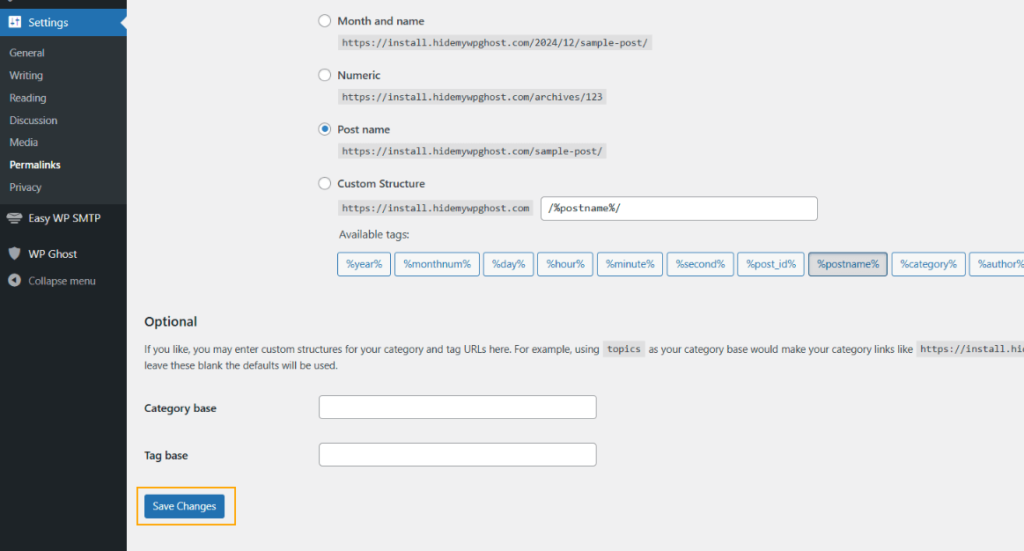
Verify the custom comments path
Check your custom comments path at WP Ghost > Change Paths for typos. Then test the path directly in your browser: go to yourdomain.com/your-custom-comments-path. You should see a WordPress error page (like “Please fill the required fields”), not a 404. If you get a 404, the server rewrite rules aren’t picking up the custom path. On Nginx, verify the hidemywp.conf is included and the service was restarted.
If you’ve lost access to the admin dashboard, see the emergency disable guide.
Brute Force Protection Not Working on Comment Forms
If reCAPTCHA doesn’t appear on your comment forms after enabling Brute Force Protection, the comment form may not be using WordPress’s standard comment hooks, or the settings aren’t fully configured.
Verify both settings are enabled
Go to WP Ghost > Brute Force > Settings and confirm that both Use Brute Force Protection (the main toggle) and Comment Form Protection are switched on. If you’re using Google reCAPTCHA (V2, V3, or Enterprise), verify the Site Key and Secret Key are entered and correct. Use the reCaptcha Test button to confirm the keys work.
Clear all caches
Cached pages still serve the old comment form without reCAPTCHA. Clear your WordPress cache plugin, CDN cache, and browser cache. Check the comment form in an incognito window to confirm reCAPTCHA appears.
Custom comment forms or themes
WP Ghost injects reCAPTCHA into WordPress’s standard comment form using the comment_form hook. Themes or plugins that use custom comment forms (like wpDiscuz, Thrive Comments, or custom-built forms) may bypass this hook entirely. If your comment form is custom, add the WP Ghost brute force shortcode directly into the form template:
Place this shortcode inside the comment form HTML, before the submit button. This forces WP Ghost to render the reCAPTCHA on that specific form regardless of which hooks the form uses.
JavaScript conflicts
reCAPTCHA requires JavaScript to render. If another plugin or optimization tool defers, delays, or blocks JavaScript loading, reCAPTCHA may not appear. Check your browser’s developer console (F12 > Console tab) for JavaScript errors. If you use a script optimization plugin (Autoptimize, WP Rocket JS delay, Perfmatters, etc.), exclude the Google reCAPTCHA script from optimization.
If you’ve lost access to the admin dashboard, see the emergency disable guide.
Spam Still Appearing Despite Comments Changes
If spam comments continue after changing the comments path in WP Ghost, the spam is likely coming from human spammers or bots that have adapted to the new path. WP Ghost blocks automated bots that target the default wp-comments-post.php path, but spam submitted through the actual comment form by filling in all fields correctly bypasses path-based protection.
Enable reCAPTCHA on comment forms
Go to WP Ghost > Brute Force > Settings and enable Comment Form Protection. This adds reCAPTCHA (Math, Google V2, V3, or Enterprise) to the comment form, which catches automated submissions that path changes alone miss. If you use a custom comment form from a theme or plugin, verify that the reCAPTCHA appears on that form too.
Change the comments path to something less predictable
If your custom comments path is short or common (like comments or post-comment), bots may find it through brute-force path guessing. Go to WP Ghost > Change Paths and set a longer, random name that’s harder to guess.
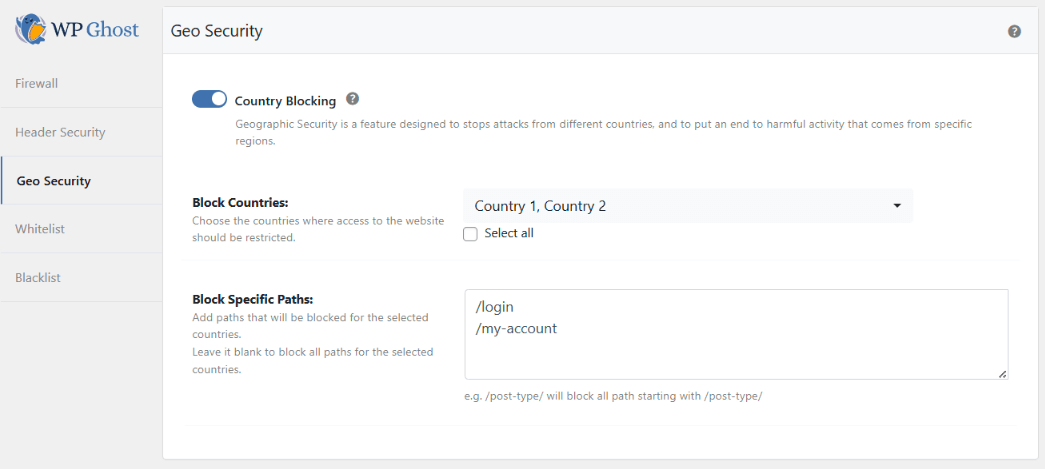
Block high-spam countries
If spam consistently comes from specific regions, use country blocking to prevent access from those areas. Go to WP Ghost > Firewall > Geo Security and block the countries generating the most spam. Check your spam comments for IP patterns to identify the regions. This is a Premium feature.
Add a dedicated anti-spam plugin
WP Ghost prevents bots from reaching the comment form. Human spammers who complete all fields correctly and pass reCAPTCHA require content-based filtering that WP Ghost doesn’t provide. Dedicated anti-spam plugins like Akismet, Antispam Bee, or CleanTalk maintain spam databases that analyze the comment content, email, and IP to catch spam that bypasses form-level protection. Use one alongside WP Ghost for complete comment spam defense.
If you’ve lost access or something broke, check the emergency disable guide, use the rollback settings, or add a constant in wp-config.php to disable WP Ghost temporarily.
Frequently Asked Questions
Will changing the comments path stop all comment spam?
It will stop the majority of it. Most comment spam comes from bots that POST directly to wp-comments-post.php without loading your page. Changing the path eliminates these entirely. However, more sophisticated bots that scrape your forms and submit to the correct action URL can still get through. For complete protection, combine the path change with Comment Form Protection (reCAPTCHA) and a content-based anti-spam plugin like Akismet or Antispam Bee.
Does this work with WooCommerce product reviews?
Yes. WooCommerce product reviews use the same WordPress comment system and the same wp-comments-post.php processing pipeline. When you change the comments path, WooCommerce reviews automatically route through the custom path. Review submission, ratings, and display all work normally. WP Ghost is fully compatible with WooCommerce.
Can I just disable comments instead of changing the path?
You can, but you lose a valuable engagement channel. Comments build community, provide social proof, and can improve SEO through user-generated content. Changing the comments path lets you keep comments enabled while eliminating most bot spam. It’s the best of both worlds – engagement without the spam.
Do I still need Akismet if I change the comments path?
They complement each other. WP Ghost blocks bots at the path level (they can’t find the file to POST to). Akismet filters spam at the content level (it analyzes what was submitted). Together, they create two layers of protection. WP Ghost handles the bulk of automated bot traffic. Akismet catches any spam that makes it through from more sophisticated bots or manual spammers.
Which reCAPTCHA version does WP Ghost support?
WP Ghost supports Math reCAPTCHA (a built-in math challenge that requires no API keys), Google reCAPTCHA V2 (the “I’m not a robot” checkbox), and Google reCAPTCHA V3 (invisible, score-based). For comment forms, V2 provides the most visible deterrent. V3 is less intrusive but requires a higher score threshold for comment submissions. See the Brute Force Protection tutorial for setup details.
Does changing the comments path affect SEO?
No. The comments path is a backend processing URL that search engines don’t index. Your posts, pages, and the comments displayed on them are unaffected. Actually, reducing comment spam can improve SEO by preventing spammy links from appearing on your pages.
Does WP Ghost modify WordPress core files?
No. WP Ghost never touches, moves, or renames any file. The wp-comments-post.php file stays in your WordPress root. WP Ghost creates a virtual path through URL rewrite rules. Deactivating the plugin restores the default path instantly.
Related Tutorials
Build your complete comment and form protection:
- Brute Force Attack Protection – Configure reCAPTCHA options and rate limiting for all forms.
- Hide WordPress Common Paths and Files – Block access to wp-comments-post.php and other sensitive files.
- Change and Hide the Login Path – Protect your login form from brute force attacks.
- Change the Register Path – Block bot registrations alongside comment spam.
- Disable XML-RPC Access – Block another endpoint bots use for automated attacks.
- Firewall Security (7G/8G) – Block SQL injection and script injection at the server level.
- Hide from WordPress Theme Detectors – Remove all CMS detection signals.