

- What Is the wp-includes Path in WordPress?
- Why You Need to Secure the wp-includes Directory
- How to Secure wp-includes with WP Ghost
- What Happens After You Change the wp-includes Path
- Troubleshooting
- Frequently Asked Questions
- What’s the difference between wp-includes and wp-content?
- Will this break jQuery or other core scripts?
- Does the block editor (Gutenberg) still work?
- Do I need to clear my cache after changing this path?
- Does this work with CDNs?
- Will this affect my SEO?
- Does WP Ghost physically move the wp-includes folder?
- Related Tutorials
Hide your WordPress core library by changing and hiding the wp-includes path with WP Ghost. If /wp-content/ tells scanners what plugins and themes you use, /wp-includes/ tells them you’re running WordPress at all. It’s one of the most reliable CMS fingerprints on any site, and it loads on every single page. Rename it once, and the biggest WordPress giveaway in your page source disappears.
What Is the wp-includes Path in WordPress?

The wp-includes directory is the core library of WordPress. It contains the essential scripts, styles, classes, and functions that power every aspect of your site, from rendering pages and handling database queries to managing user sessions and processing media.
By default, it lives at: https://yourdomain.com/wp-includes/
Unlike /wp-content/ (which stores your themes, plugins, and uploads), /wp-includes/ stores WordPress itself. jQuery, the block editor scripts, the REST API framework, core CSS files, media handlers, and hundreds of PHP classes all live here. Open the page source on any default WordPress site and you’ll see dozens of references to /wp-includes/ in script and stylesheet URLs.
That’s precisely the problem. Every WordPress site in existence loads files from /wp-includes/. It’s the most universal WordPress fingerprint there is. A bot doesn’t even need to probe specific files. If it sees /wp-includes/js/jquery/jquery.min.js in your page source, it knows you’re running WordPress. Full stop.
Why You Need to Secure the wp-includes Directory
The wp-includes directory is the engine room of your WordPress site. Leaving it at its default path gives attackers two things they want: CMS confirmation and a known file structure to probe. Here’s why that matters as part of your hack prevention strategy:
It’s the most reliable WordPress fingerprint. Theme detectors, vulnerability scanners, and bots all check for /wp-includes/ as their primary method of identifying WordPress. Tools like Wappalyzer and BuiltWith look for /wp-includes/js/ references in your page source before anything else. If they find it, they know it’s WordPress. Once they know the CMS, they start probing for known vulnerabilities. Change the path, and the detection chain breaks at step one. For a complete approach, also hide from theme detectors and hide from Wappalyzer.
Core files have been targeted by exploits. While WordPress core is generally well-maintained, it’s not immune to vulnerabilities. WPScan’s database tracks vulnerabilities in WordPress core alongside plugins and themes. When a core vulnerability is disclosed, attackers immediately target known paths inside /wp-includes/. Changing the path means their exploit scripts point to URLs that don’t exist on your server.
Directory browsing can reveal version information. If directory listing is enabled on your server (which it shouldn’t be, but sometimes is), anyone can browse /wp-includes/ and see every file inside. Even without directory listing, individual files like /wp-includes/version.php can reveal your exact WordPress version. Hiding the path blocks this reconnaissance entirely.
It completes the core path protection. If you’ve already changed the wp-content path but left wp-includes at its default, scanners still see the wp- prefix in your page source and can confirm WordPress. Both core directories need to be renamed for complete CMS hiding. Together with hiding wp-admin, you remove all three major WordPress directory fingerprints.
How to Secure wp-includes with WP Ghost
WP Ghost gives you two protections: changing the /wp-includes/ path to a custom name, and hiding the original path so direct access returns a 404. No file changes. No code editing. Rewrite rules handle everything.
Activate Safe Mode or Ghost Mode
Before you can change any paths, one of WP Ghost’s security levels must be active.
- Go to WP Ghost > Change Paths > Level of Security.
- Select Safe Mode or Ghost Mode. Safe Mode applies essential path changes. Ghost Mode adds advanced path security.
- Click Save to apply.
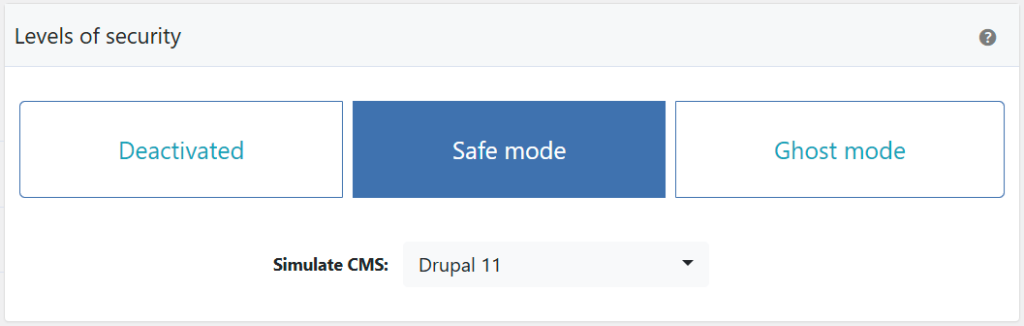
Need help choosing? Check the Safe Mode vs Ghost Mode comparison.
Change the wp-includes Path
This replaces every visible reference to /wp-includes/ in your page source with a custom name. jQuery URLs, block editor scripts, core CSS files, and every other asset loaded from wp-includes will show the new path instead. One change, dozens of references updated.
- Go to WP Ghost > Change Paths > WP Core Security.
- Find the Custom wp-includes Path field. A predefined name is already filled in.
- Enter a different name or keep the predefined one.
- Click Save to apply.
Important: Don’t use names that suggest core libraries, like “core”, “lib”, “includes”, or “framework”. Choose something random that doesn’t hint at what’s inside.

Good to know: WP Ghost doesn’t physically move or rename any files. The wp-includes folder stays exactly where WordPress expects it. WP Ghost creates virtual paths through URL rewrite rules. Deactivating the plugin restores all original paths instantly.
Hide the wp-includes Path
Changing the path gives you a new URL, but the original /wp-includes/ might still respond to direct requests. The Hide WordPress Common Paths option blocks this. Anyone accessing the old path gets a 404 error instead.
- Go to WP Ghost > Change Paths > WP Core Security.
- Switch on Hide WordPress Common Paths to block access to the old wp-includes path and all sub-paths.
- Under Hide File Extensions, select file types to block from the old paths. PHP and JS are the most important, as they’re the files attackers target for injection and exploitation.
- Click Save to apply.
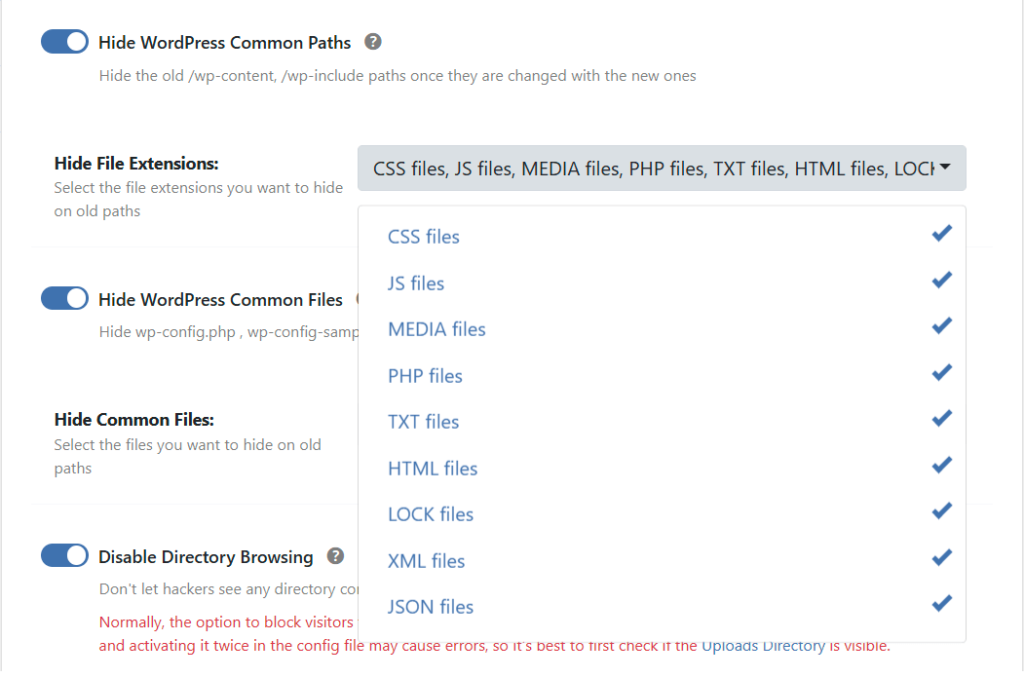
After enabling this, trying to access the old wp-includes path directly returns a 404:
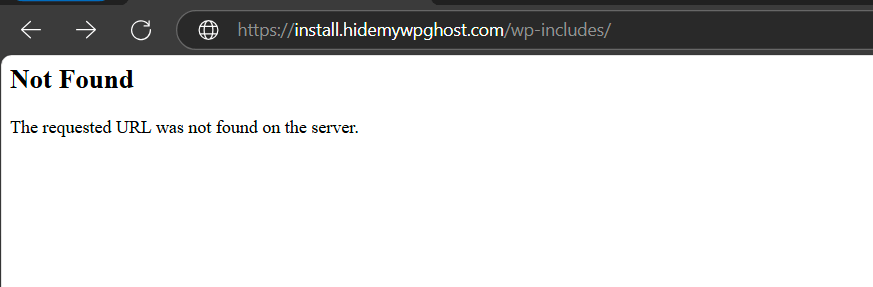
This option also covers /wp-content/ paths simultaneously. If you’ve already changed the wp-content path, enabling Hide WordPress Common Paths protects both core directories with a single toggle. For more details on all the paths this covers, see the Hide WordPress Common Paths and Files tutorial.
Verify with a Security Check
After saving, run a scan to confirm everything is working.
- Go to WP Ghost > Security Check.
- Click Start Scan.
- If everything is working, the security task is marked as complete.
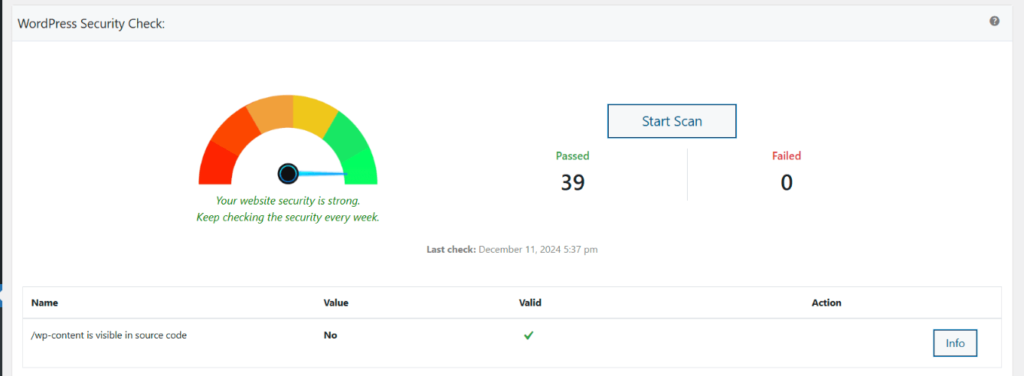
For a quick manual test, open a private browser window, view your page source, and search for “wp-includes”. If the change is working, you won’t find any matches. For everything the scanner checks, see the Security Check tutorial.
What Happens After You Change the wp-includes Path
Save your settings and the changes take effect right away:
All core asset URLs in your page source update immediately. jQuery, the block editor, wp-emoji, media handlers, core CSS – every reference that previously showed /wp-includes/ now shows your custom path. This is the most visible change. One look at your page source confirms it’s working.
CMS detection tools lose their primary signal. The /wp-includes/ path is the number one way scanners identify WordPress. With a custom path, tools like Wappalyzer, BuiltWith, and WPScan can no longer use this fingerprint. Combined with a custom wp-content path, your site becomes extremely difficult to identify as WordPress.
Your site functions exactly the same. WordPress doesn’t care what the URL path looks like. It only cares that the files are accessible. WP Ghost’s rewrite rules ensure every request through the new path reaches the correct file. jQuery loads, the block editor works, media embeds display, and every front-end interaction behaves identically.
Some plugins may need attention. Most plugins load wp-includes assets through WordPress functions, which automatically use the new path. However, plugins that hardcode /wp-includes/ paths directly may need testing. This is uncommon, but worth checking. See the troubleshooting section below.
Troubleshooting
Theme Breaks or The Layout Doesn't Load Correctly
If your theme’s layout is broken, CSS styles are missing, or the site looks unstyled after changing paths in WP Ghost, the custom paths for CSS and JS files aren’t resolving on your server. The browser can’t load stylesheets and scripts from the new paths, so the theme renders without styling.
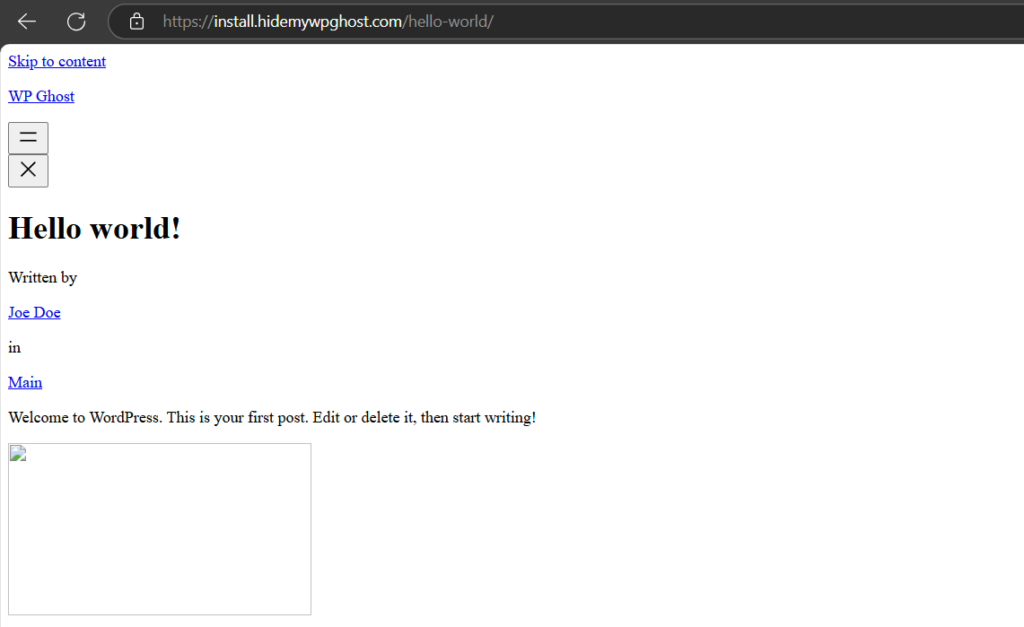
Clear all caches
This is the most common cause. Cached pages still reference the old CSS and JS paths. Clear your WordPress cache plugin, CDN cache, and browser cache. Enable Change Paths in Cached Files at WP Ghost > Change Paths so cached CSS/JS files are rewritten with the new paths. Check in an incognito window after clearing.
Run the Frontend Test
Go to WP Ghost > Change Paths and click the Frontend Test button. If the test fails, your server’s rewrite rules aren’t mapping the custom paths to the original directories. Follow the configuration instructions shown for your server type.

Check server configuration
Nginx: The hidemywp.conf file must be included in your Nginx server block and the service restarted. Without this, Nginx returns 404 for all custom paths. See Setup WP Ghost on Nginx Server.
Apache: Verify that AllowOverride is set to All in your server configuration. Without this, Apache ignores the .htaccess rewrite rules WP Ghost writes. See How to Set AllowOverride All.
Check Text Mapping
If you’ve renamed CSS class names using WP Ghost > Mapping > Text Mapping but didn’t enable Text Mapping in CSS and JS files, the HTML uses the new class names while stylesheets still reference the old ones. This breaks styling. Either enable the CSS/JS mapping option, or remove the class name mapping that’s causing the issue.
Inspect which files fail to load
Open your browser’s developer console (F12 > Console or Network tab) and look for red 404 errors on CSS and JS files. The URLs will show which custom paths aren’t resolving. If all custom paths return 404, it’s a server configuration issue (see above). If only specific paths fail, those paths may have typos in the WP Ghost settings.
For a comprehensive guide on server configuration for theme loading, see Theme Not Loading Correctly. If you’ve lost access to the admin dashboard, see the emergency disable guide.
After Changing the wp-includes Path Some Plugins are not Functioning Properly
If plugins break or display errors after changing the wp-includes path in WP Ghost, the plugins are loading scripts or stylesheets from /wp-includes/ and the server isn’t correctly rewriting the custom path back to the original location.
Clear all caches
Cached pages still reference the old /wp-includes/ path in script and stylesheet URLs. Clear your WordPress cache plugin, CDN cache, and browser cache. Check in an incognito window to confirm assets are loading from the new path.
Run the Frontend Test
Go to WP Ghost > Change Paths and click the Frontend Test button. If the test fails for the wp-includes path, your server’s rewrite rules aren’t correctly mapping the custom path. Follow the configuration instructions shown for your server type (Apache, Nginx, LiteSpeed, etc.).
Check for typos in the custom path
Go to WP Ghost > Change Paths and review the custom wp-includes path. Check for typos, spaces, or special characters that could prevent the rewrite from matching. The path should be a simple alphanumeric name like core or lib.
Revert to the default wp-includes path
To confirm the custom path is the cause, go to WP Ghost > Change Paths and set the wp-includes path back to wp-includes. Save and test. If plugins work again with the default path, the issue is server rewrite rules not handling the custom path correctly.

Identify the conflicting plugin
If the Frontend Test passes but a specific plugin still breaks, that plugin may hardcode references to /wp-includes/ instead of using WordPress functions. Deactivate plugins one at a time to identify which one breaks with the custom path. Plugins that directly reference wp-includes JavaScript files (like jQuery, Underscore, or Backbone) are the most common conflicts. For the conflicting plugin, try adding its specific wp-includes scripts to WP Ghost > Change Paths > Whitelist Paths.
If you’ve lost access to the admin dashboard, see the emergency disable guide.
If you’ve lost access or something broke, check the emergency disable guide, use the rollback settings, or add a constant in wp-config.php to disable WP Ghost temporarily.
Frequently Asked Questions
What’s the difference between wp-includes and wp-content?
They serve completely different purposes. wp-includes contains the WordPress core library – the code that makes WordPress itself work (jQuery, the editor, REST API framework, core PHP classes). wp-content contains your customizations – themes, plugins, and uploaded media. Both directories are WordPress fingerprints, and both should be renamed for complete CMS hiding. If you’ve changed one, you should also change the other.
Will this break jQuery or other core scripts?
No. jQuery and all other core scripts continue loading normally. WP Ghost uses rewrite rules that transparently serve files from the original /wp-includes/ directory through the new URL. WordPress and your browser don’t know the difference. The scripts load at the same speed, with the same functionality. Only the URL path visible in the page source changes.
Does the block editor (Gutenberg) still work?
Yes. The block editor loads its scripts and styles from /wp-includes/. WP Ghost’s rewrite rules ensure these assets are served correctly through the custom path. The editor’s functionality, block library, and inline editing all work exactly as before. If you encounter issues, check the wp-includes compatibility troubleshooting guide.
Do I need to clear my cache after changing this path?
Yes. If you use a caching plugin (WP Rocket, LiteSpeed Cache, Autoptimize, etc.), clear your cache after making the change. Cached pages may still contain the old /wp-includes/ references until the cache is refreshed. If your caching plugin minifies or combines CSS and JS, also enable Change Paths in Cached Files so the new paths are reflected in minified files.
Does this work with CDNs?
Yes, but you may need to update your CDN configuration. If your CDN caches assets by URL path, it needs to know about the new path so it can serve cached files correctly. See the CDN URL Mapping tutorial for setup details.
Will this affect my SEO?
No. The wp-includes path change affects asset URLs (scripts, styles, core media), not your public page URLs. Search engines don’t index or rank based on your core library folder structure. Your posts, pages, sitemaps, and canonical URLs remain exactly the same.
Does WP Ghost physically move the wp-includes folder?
No. WP Ghost never moves, renames, or modifies any file or folder on your server. The wp-includes directory stays exactly where WordPress installed it. WP Ghost creates virtual paths through URL rewrite rules. Deactivating the plugin restores all original paths instantly.
Related Tutorials
Continue hiding your WordPress core structure:
- Change the wp-content Path – Hide your themes, plugins, and uploads directory.
- Change the Plugins Path – Rename the /plugins/ subdirectory for plugin security.
- Change the Themes Path – Rename the /themes/ subdirectory to hide your active theme.
- Change and Hide the wp-admin Path – Complete the trio of core WordPress directories to hide.
- Hide WordPress Common Paths and Files – Block access to wp-config, readme, license, and other detectable files.
- Hide from WordPress Theme Detectors – Make your entire site invisible to CMS scanning tools.
- Hide the WordPress Version – Remove version numbers from your page source and headers.