
Hide WordPress-exclusive plugin identifiers like woocommerce and elementor from your page source using WP Ghost’s Text Mapping. Some plugins only exist for WordPress. When theme detectors see class names like woocommerce-product-gallery or elementor-widget-container in your HTML, they identify WordPress immediately – even if every path has been changed and every other fingerprint removed. This tutorial shows how to replace those class names with custom alternatives across HTML, CSS, and JavaScript files.
Before you proceed: Hiding class names for major plugins like WooCommerce and Elementor is an advanced step that requires CSS/JS dynamic rewriting, which can affect performance. This tutorial is for sites where maximum CMS concealment is the priority. For most sites, changing plugin paths and hiding element IDs is sufficient. Read the caveats below before enabling.
Why Plugin Class Names Reveal WordPress
Plugins like WooCommerce and Elementor are WordPress-exclusive. They don’t exist on any other CMS. Here’s why their class names matter for your hack prevention strategy:
WooCommerce uses hundreds of distinctive class names. Every product page contains classes like woocommerce-product-gallery, woocommerce-loop-product, wc-block-grid, and woocommerce-tabs. These appear in the HTML markup, in CSS stylesheets, and in JavaScript files. A scanner that finds any woocommerce- prefixed class confirms both WordPress and WooCommerce in one match.
Elementor embeds its name throughout the page structure. Every Elementor-built page uses classes like elementor-widget-container, elementor-section, elementor-column, and elementor-inner. These aren’t occasional mentions – they appear on every element Elementor renders. A typical Elementor page has dozens of elementor- prefixed classes.
Theme detectors check class names specifically. Tools like Wappalyzer and BuiltWith maintain databases of class name patterns mapped to specific plugins. Even with all paths hidden, all versions removed, and all HTML comments stripped, a single woocommerce- class confirms your CMS. Text Mapping is the only way to address this.
How to Hide Plugin Class Names
This is a two-step process: replace class names in HTML using Text Mapping, then extend the replacements to CSS and JS files so styles and scripts still work with the new names.
Replace Plugin Class Names with Text Mapping
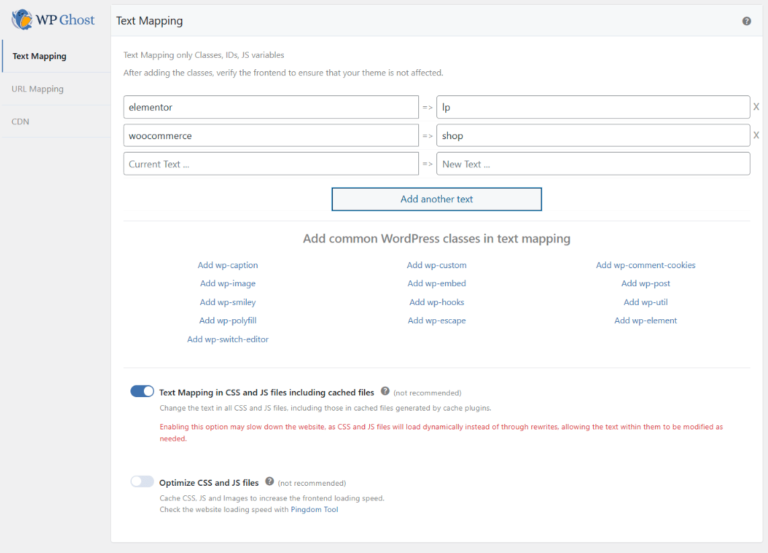
- Go to WP Ghost > Mapping > Text Mapping.
- Add the plugin class name in the left field (e.g.,
woocommerce). - Add the replacement name in the right field (e.g.,
shop). - Repeat for other plugins (e.g.,
elementor→lp). - Click Save to apply.
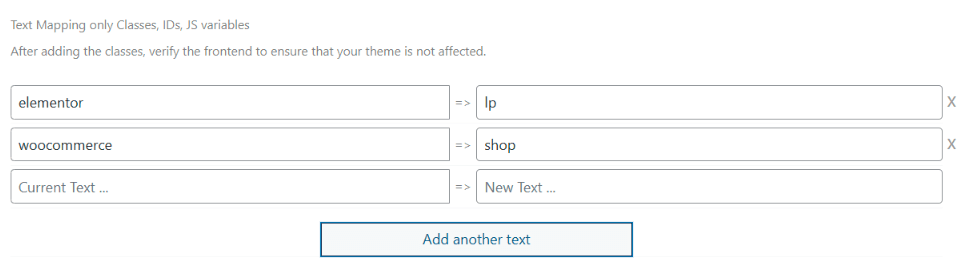
After saving, every occurrence of woocommerce in your HTML output becomes shop, and every elementor becomes lp. This covers class names, IDs, data attributes – any text that contains the mapped string. For more Text Mapping options including {blank} and {rand} patterns, see the Text Mapping tutorial.
Extend to CSS and JS Files
Replacing class names in HTML alone will break your layout – the CSS still targets the original class names. You must enable CSS/JS mapping to synchronize the replacements across all files.
- Go to WP Ghost > Mapping > Text Mapping.
- Switch on Text Mapping in CSS and JS files.
- Click Save to apply.

With this enabled, WP Ghost dynamically processes CSS and JS files, replacing the original class names with your custom ones so styles and scripts continue targeting the correct elements.
Important Caveats
Hiding plugin class names across HTML, CSS, and JavaScript is the most advanced hiding feature in WP Ghost. It works, but it comes with trade-offs you should understand:
Dynamic CSS/JS creates a performance cost. When Text Mapping in CSS and JS files is enabled, WP Ghost dynamically processes every CSS and JS file to replace class names. This adds server processing time. The solution is straightforward: use a caching plugin (WP Rocket, LiteSpeed Cache, Autoptimize) to cache the processed files. Once cached, the performance impact disappears.
Avoid inline defer JS in your caching plugin. Inline defer JS loads JavaScript content as a Base64 data URL. WP Ghost cannot process Base64-encoded content – it needs to read the actual file to replace class names. Use delayed JS instead of inline defer JS in your caching plugin’s settings. This ensures WP Ghost can dynamically process the JavaScript files.
Test thoroughly after enabling. WooCommerce and Elementor use their class names extensively in JavaScript for DOM manipulation, event handling, and AJAX interactions. Replacing these names requires that every reference – in HTML, CSS, and JS – is updated consistently. Test product pages, cart, checkout, form submissions, and any interactive elements after enabling.
Multiple cache layers need clearing. Browser cache, server cache, CDN cache, and caching plugin cache can all serve old files with original class names. After enabling Text Mapping in CSS/JS files, clear all cache layers and test in a private browser window.
Troubleshooting
Cache is the most common issue. After enabling class name replacement, clear all caches – browser, WordPress caching plugin, CDN, and server cache – and test in a private browser window.
Theme Breaks or The Layout Doesn't Load Correctly
If your theme’s layout is broken, CSS styles are missing, or the site looks unstyled after changing paths in WP Ghost, the custom paths for CSS and JS files aren’t resolving on your server. The browser can’t load stylesheets and scripts from the new paths, so the theme renders without styling.
Clear all caches
This is the most common cause. Cached pages still reference the old CSS and JS paths. Clear your WordPress cache plugin, CDN cache, and browser cache. Enable Change Paths in Cached Files at WP Ghost > Change Paths so cached CSS/JS files are rewritten with the new paths. Check in an incognito window after clearing.
Run the Frontend Test
Go to WP Ghost > Change Paths and click the Frontend Test button. If the test fails, your server’s rewrite rules aren’t mapping the custom paths to the original directories. Follow the configuration instructions shown for your server type.

Check server configuration
Nginx: The hidemywp.conf file must be included in your Nginx server block and the service restarted. Without this, Nginx returns 404 for all custom paths. See Setup WP Ghost on Nginx Server.
Apache: Verify that AllowOverride is set to All in your server configuration. Without this, Apache ignores the .htaccess rewrite rules WP Ghost writes. See How to Set AllowOverride All.
Check Text Mapping
If you’ve renamed CSS class names using WP Ghost > Mapping > Text Mapping but didn’t enable Text Mapping in CSS and JS files, the HTML uses the new class names while stylesheets still reference the old ones. This breaks styling. Either enable the CSS/JS mapping option, or remove the class name mapping that’s causing the issue.
Inspect which files fail to load
Open your browser’s developer console (F12 > Console or Network tab) and look for red 404 errors on CSS and JS files. The URLs will show which custom paths aren’t resolving. If all custom paths return 404, it’s a server configuration issue (see above). If only specific paths fail, those paths may have typos in the WP Ghost settings.
For a comprehensive guide on server configuration for theme loading, see Theme Not Loading Correctly. If you’ve lost access to the admin dashboard, see the emergency disable guide.
Layout breaks after replacing class names
This means CSS/JS mapping isn’t enabled or isn’t processing the files correctly. Confirm Text Mapping in CSS and JS files is switched on. If it is, check your caching plugin settings – make sure you’re not using inline defer JS (use delayed JS instead). Clear all caches and retest.
WooCommerce checkout or cart not working
WooCommerce relies heavily on its class names in JavaScript for AJAX cart updates, checkout validation, and payment gateway interactions. If checkout breaks, the most likely cause is a JavaScript file that wasn’t processed by Text Mapping. Enable Change Paths in Cached Files and clear all caches. If the issue persists, consider whether maximum class name hiding is worth the WooCommerce trade-off for your specific site.
If you’ve lost access or something broke, check the emergency disable guide, use the rollback settings, or add a constant in wp-config.php to disable WP Ghost temporarily.
Frequently Asked Questions
Is this necessary for every site?
No. This is an advanced feature for sites that need maximum CMS concealment. For most sites, changing plugin paths, hiding element IDs, and removing version numbers provides excellent protection. Plugin class name hiding adds the final layer for sites where even class-name-level detection is unacceptable.
Which plugins should I hide?
Focus on WordPress-exclusive plugins – plugins that only exist on WordPress. WooCommerce, Elementor, Contact Form 7, Gravity Forms, Yoast SEO, and WPBakery are the most commonly detected. Plugins that exist on multiple platforms (like general JavaScript libraries) don’t reveal WordPress specifically and don’t need hiding.
What’s the difference between this and the Text Mapping tutorial?
This tutorial is a specific use case of Text Mapping. The Text Mapping tutorial covers the general feature – how to add rules, use predefined classes, and configure CSS/JS mapping. This tutorial focuses specifically on hiding WordPress-exclusive plugins like WooCommerce and Elementor, including the caveats and testing approach for these high-impact replacements.
Will WooCommerce still work correctly?
Yes, when properly configured. With Text Mapping in CSS and JS files enabled and a caching plugin active, WooCommerce functions normally – product pages, cart, checkout, and account pages all work. Test thoroughly after enabling, especially checkout and payment flows. WP Ghost is fully compatible with WooCommerce.
Does WP Ghost modify WordPress core files?
No. Text Mapping replaces class names in the HTML output and in dynamically generated copies of CSS/JS files. The original plugin files, theme files, and WordPress core remain untouched. Disabling Text Mapping restores all original class names instantly.
Related Tutorials
Complete your plugin concealment strategy:
- Text Mapping – The general Text Mapping feature guide with all options.
- Advanced Text Mapping – Extended patterns for complex replacements.
- Change the Plugins Path – Hide plugin directory names in URLs.
- URL Mapping – Replace plugin-specific filenames in URLs.
- Hide from WordPress Theme Detectors – The complete guide to defeating scanner tools.