
The wp-content directory is one of the most recognizable WordPress paths and a primary target for automated attacks. Changing its URL prevents bots from finding and targeting your plugins, themes, and uploads directories. WP Ghost changes the wp-content path through rewrite rules (no files moved), or you can change it at the WordPress level using wp-config.php constants (physical directory rename required). WP Ghost’s approach is recommended because it’s reversible and doesn’t modify core files.
Why Change the wp-content Path?

Automated bots scan for /wp-content/ to identify WordPress sites and locate plugins, themes, and uploaded files. Once they find wp-content, they probe for known vulnerabilities in specific plugins and themes. Changing this path to a custom name (like /lib/ or /assets/) makes your site unrecognizable to these automated scans. This is a core part of WP Ghost’s hack prevention strategy: if bots can’t find the doors, they can’t try to break them.
Method 1: Change wp-content with WP Ghost (Recommended)
WP Ghost changes the wp-content path through URL rewrite rules without physically moving any files or directories. This is the safest approach because deactivating WP Ghost instantly restores original paths with no cleanup needed.
- Go to WP Ghost > Change Paths > Level of Security.
- Select Safe Mode or Ghost Mode.
- Scroll to the wp-content path field and enter your custom name (for example,
lib). - Click Save.

Your site now serves content from the custom path (for example, yourdomain.com/lib/) instead of yourdomain.com/wp-content/. The physical directory on the server remains wp-content. WP Ghost handles the mapping through rewrite rules.
No files are moved. WP Ghost uses rewrite rules to map the custom URL path to the original wp-content directory. If you deactivate WP Ghost, all paths revert to their defaults immediately. You don’t need to move plugins, themes, or uploads back.
Method 2: Change wp-content with Code
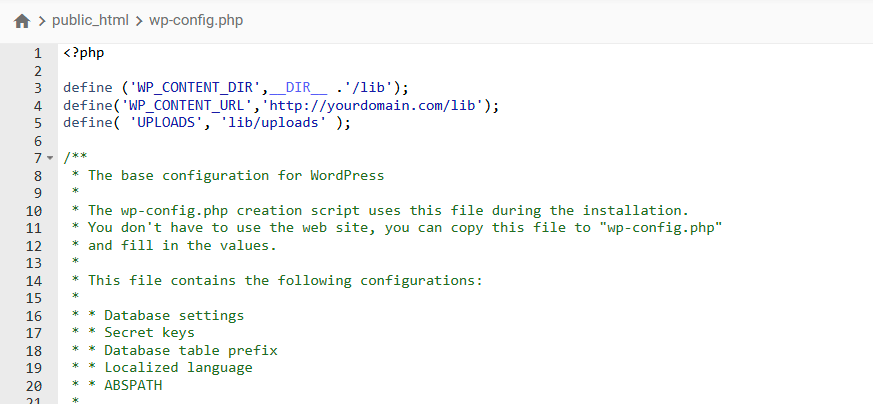
You can change the wp-content directory at the WordPress level using constants in wp-config.php. This method physically renames the directory and is permanent until you reverse it manually.
- Open
wp-config.phpvia FTP, File Manager, or SSH. - Add the following lines near the top of the file (replace
libwith your custom name andyourdomain.comwith your actual domain):
define('WP_CONTENT_DIR', __DIR__ . '/lib');
define('WP_CONTENT_URL', 'https://yourdomain.com/lib');
define('UPLOADS', 'lib/uploads');- Save the file.
- Physically rename the
wp-contentfolder tolib(or your chosen name) using File Manager or FTP. - Log in again to your WordPress dashboard.
Method 2 is harder to reverse. This approach physically renames the directory and changes WordPress constants. To revert, you need to rename the directory back to wp-content and remove the constants from wp-config.php. Some plugins may store absolute paths in the database, which can cause issues after reverting. Method 1 (WP Ghost) is recommended because it’s fully reversible with no file changes.
Frequently Asked Questions
Which method should I use?
Method 1 (WP Ghost) is recommended for most users. It changes the URL path without moving files, is instantly reversible, and works alongside WP Ghost’s other security features. Method 2 (code) is for advanced users who want a WordPress-level change independent of WP Ghost.
Can I use both methods together?
No. If you’ve already changed the wp-content directory using Method 2, WP Ghost’s path field should reflect the current directory name, not wp-content. Using both methods simultaneously creates conflicting path mappings.
Can I also change wp-includes?
Yes. WP Ghost can change both wp-content and wp-includes paths through the same Change Paths interface. The code approach (Method 2) only supports changing wp-content. WordPress doesn’t provide constants for changing wp-includes.
Does WP Ghost modify WordPress core files?
No. WP Ghost uses rewrite rules and WordPress hooks to map custom paths to original directories. No files or directories are physically renamed. Deactivating WP Ghost restores all defaults instantly.
Related Tutorials
Path security and WordPress identity protection:
- Change WordPress Paths – Main path security configuration for all paths.
- Hide WordPress Version – Remove version numbers from source code.
- Simulate Drupal or Joomla CMS – Change the generator tag alongside path changes.
- Text and URL Mapping – Replace remaining WordPress references in page source.