
- What Are Author Path and Author ID in WordPress?
- Why You Need to Secure Author Paths and IDs
- How to Secure Author Paths with WP Ghost
- What Happens After You Secure Author Paths
- Troubleshooting
- Frequently Asked Questions
- What exactly is WordPress user enumeration and why is it dangerous?
- Do I need all three protections (change path, hide ID, hide enumeration)?
- Will changing the author path hurt my SEO?
- Does hiding user enumeration also protect the REST API users endpoint?
- What if a profile or membership plugin breaks after changing the author path?
- Does this affect WooCommerce customer accounts?
- Does WP Ghost modify WordPress core files?
- Related Tutorials
Block WordPress username discovery by changing the author path, hiding author IDs, and preventing user enumeration with WP Ghost. User enumeration is the reconnaissance step that comes before every brute force attack. If an attacker knows your username, they only need to guess the password. That’s half the work already done. This tutorial shows you three ways WP Ghost shuts down username discovery before it starts.
What Are Author Path and Author ID in WordPress?

By default, author archive pages follow this URL pattern: https://yourdomain.com/author/username/
Notice the problem? The URL contains the actual WordPress login username. If the author’s login name is “john”, anyone can visit /author/john/ and confirm that “john” is a valid account on your site.
It gets worse. WordPress also supports author ID lookups. Every user is assigned a numeric ID starting at 1 (which is almost always the administrator). Visit https://yourdomain.com/?author=1 and WordPress redirects you to the admin’s author page, revealing their username in the URL. No login required. No special tools. Just a browser.
This is user enumeration in its simplest form, and it works on every default WordPress installation.
Why You Need to Secure Author Paths and IDs
User enumeration isn’t an attack by itself. It’s the information-gathering step that makes every attack that follows dramatically more effective. Here’s why this matters as part of your hack prevention strategy:
It turns brute force from guessing into targeting. Without a valid username, an attacker has to guess both the username and the password. That’s like trying every key on every door. With a confirmed username from the author archive, they only need to crack the password. According to FatLab Web Support, Wordfence blocks roughly 65 million brute force login attempts every single day. In Q4 2025, those attacks increased 45% year-over-year, with AI-enhanced bots nearly doubling automated login attempts. Every one of those attacks is more effective when the attacker already has a confirmed username.
WordPress exposes usernames in multiple places. The author archive URL is just one method. Bots also discover usernames through the REST API (/wp-json/wp/v2/users), author ID parameters (/?author=1), XML-RPC, oEmbed endpoints, author sitemaps, and login error messages that distinguish between invalid usernames and wrong passwords. A thorough defense needs to block all of these channels, not just one.
Author ID 1 is almost always the admin. WordPress assigns user IDs sequentially, starting at 1. On the vast majority of sites, ID 1 is the original administrator account. Bots know this. A single request to /?author=1 often reveals the admin username instantly. That’s the highest-value target on any WordPress site, exposed by a three-character URL parameter.
Search engines index author archives. Even without bots, your author usernames may be discoverable through Google. Author archive pages are public and indexable by default. Anyone who knows how to use Google’s site: operator can find your authors and their login names. Changing the author path eliminates this exposure.
WP Ghost gives you three layers of protection: changing the /author/ path to a custom slug, hiding the ?author=ID parameter entirely, and blocking user enumeration across the REST API, oEmbed, sitemaps, and other discovery endpoints. Together, they make username discovery virtually impossible for automated scanners.
How to Secure Author Paths with WP Ghost
Activate Safe Mode or Ghost Mode
Before you can change any paths, one of WP Ghost’s security levels must be active.
- Go to WP Ghost > Change Paths > Level of Security.
- Select Safe Mode or Ghost Mode. Safe Mode applies essential path changes. Ghost Mode adds advanced path security.
- Click Save to apply.
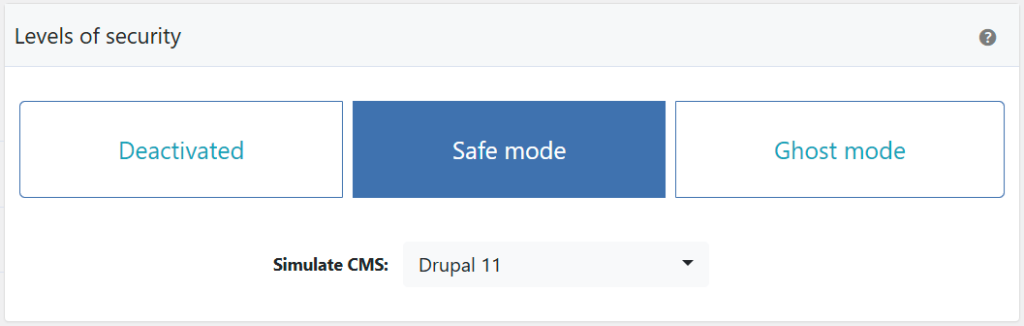
Need help choosing? Check the Safe Mode vs Ghost Mode comparison.
Change the Author Path
This replaces the default /author/ slug in your author archive URLs with a custom name. Instead of /author/john/, your author pages will show something like /writer/john/ or whatever custom slug you choose. This breaks every bot script that targets the default /author/ pattern.
- Go to WP Ghost > Change Paths > User Security.
- Enter a different name or keep the predefined one.
- Click Save to apply.

Note: Some profile plugins and themes rely on the /author/ path for user portfolios and customized profile pages. If you notice broken author pages after changing the path, revert to the default and check the compatibility plugins list.
Hide Author ID URL
This is the big one. By default, visiting yourdomain.com/?author=1 redirects to the admin’s author page, revealing their login username in the URL. The Hide Author ID URL option blocks this entirely. Instead of a redirect to the author page, the request returns a 404 error.
- Go to WP Ghost > Change Paths > User Security.
- Click Save to apply.

Here’s what changes. Before enabling this option, a request to /?author=1 would redirect to /author/admin-username/, exposing the login name. After enabling it, that same request hits a dead end:
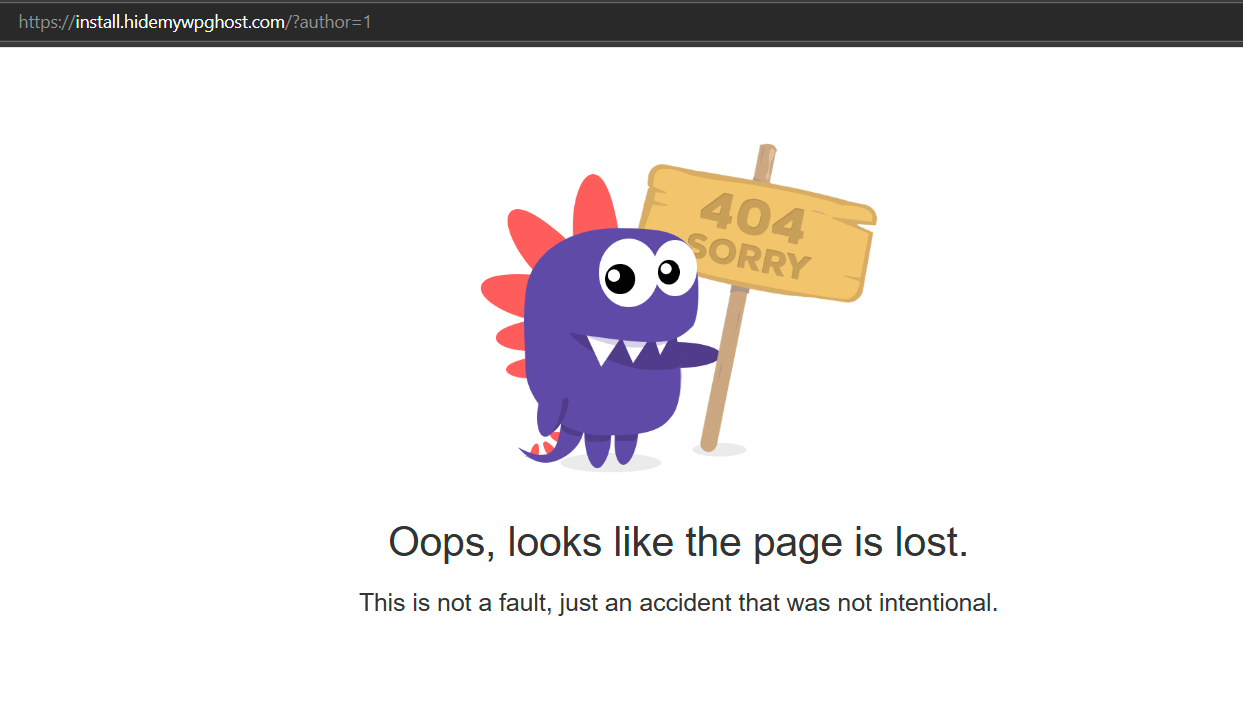
This blocks the simplest and most common username enumeration technique. Bots that cycle through /?author=1, /?author=2, /?author=3 get nothing back. No usernames, no redirects, no information.
Hide User Enumeration
The author ID URL is just one enumeration method. WordPress leaks usernames through several other channels too. The Hide User Enumeration option blocks all of them at once.
- Go to WP Ghost > Change Paths > User Security.
- Switch on Hide User Enumeration.
- Click Save to apply.

When enabled, WP Ghost blocks or limits username discovery across multiple WordPress endpoints, including the REST API (/wp-json/wp/v2/users), which by default returns a JSON list of all authors and their slugs; author sitemaps, which can expose usernames depending on your SEO plugin configuration; oEmbed endpoints, which can reveal user IDs when your content is embedded on external sites; and other common author discovery paths that automated scanners probe.
This doesn’t replace strong passwords or two-factor authentication. But it removes the reconnaissance step that attackers rely on to pick their targets. Without valid usernames, brute force attacks go from targeted to random guessing, which is dramatically less effective.
Verify with a Security Check
After saving all three settings, run a security scan to confirm everything is working.
- Go to WP Ghost > Security Check.
- Click Start Scan.
- If everything is working, the security tasks are marked as complete.
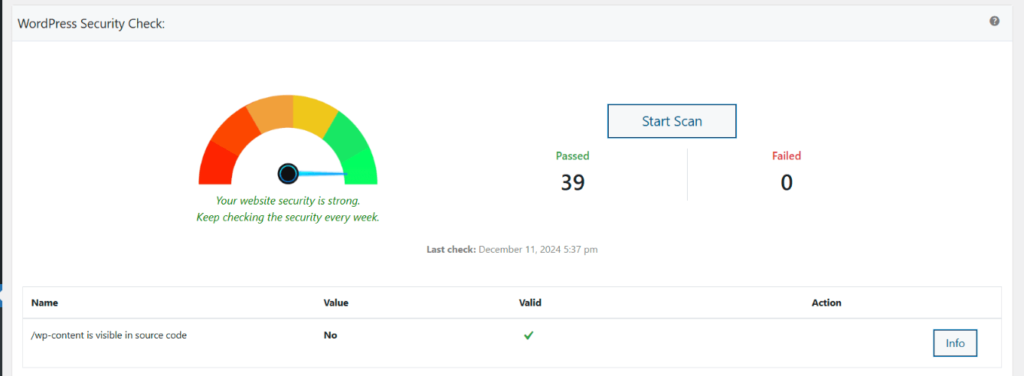
You can also manually test by opening a private browser window and visiting yourdomain.com/?author=1. If you see a 404 error instead of a redirect to the author page, the protection is active. For everything the scanner checks, see the Security Check tutorial.
What Happens After You Secure Author Paths
Save your settings and the protections kick in immediately. Here’s what changes:
Author archive pages still work, just with the new path. If you changed /author/ to /writer/, your author pages now live at /writer/john/ instead. All existing internal links that WordPress generates update automatically. Your author archives, pagination, and RSS feeds for individual authors continue functioning normally.
The ?author=ID trick stops working. Bots cycling through numeric IDs get nothing. No redirects, no usernames, no confirmation that accounts exist. This shuts down the single most common enumeration technique on WordPress.
The REST API, oEmbed, and sitemaps stop leaking usernames. With Hide User Enumeration enabled, requests to /wp-json/wp/v2/users no longer expose your user list. Author entries in sitemaps are suppressed. oEmbed responses don’t reveal user IDs. Automated scanners that chain multiple enumeration methods come up empty across the board.
Your SEO is not negatively affected. Author archive pages still exist and are indexable. They just use the new path. If you’re concerned about existing indexed URLs, WordPress handles the 301 redirects from old author URLs to new ones. Search engines follow these redirects and update their index over time.
Troubleshooting
Author Pages or Profiles Are Not Accessible After Changing the Author Path
If author pages return 404 errors after changing the author path in WP Ghost, the server’s rewrite rules aren’t mapping the new path correctly or caches are serving the old URLs.
Clear all caches
Cached pages still serve the old author path. Clear your WordPress cache plugin, CDN cache, and browser cache. Then test an author page directly in an incognito window using the new path: yourdomain.com/your-custom-author/username.
Flush permalink settings
Go to Settings > Permalinks and click Save Changes without modifying anything. Author archive URLs are part of WordPress’s rewrite rules, and flushing them forces WordPress to register the new author path.
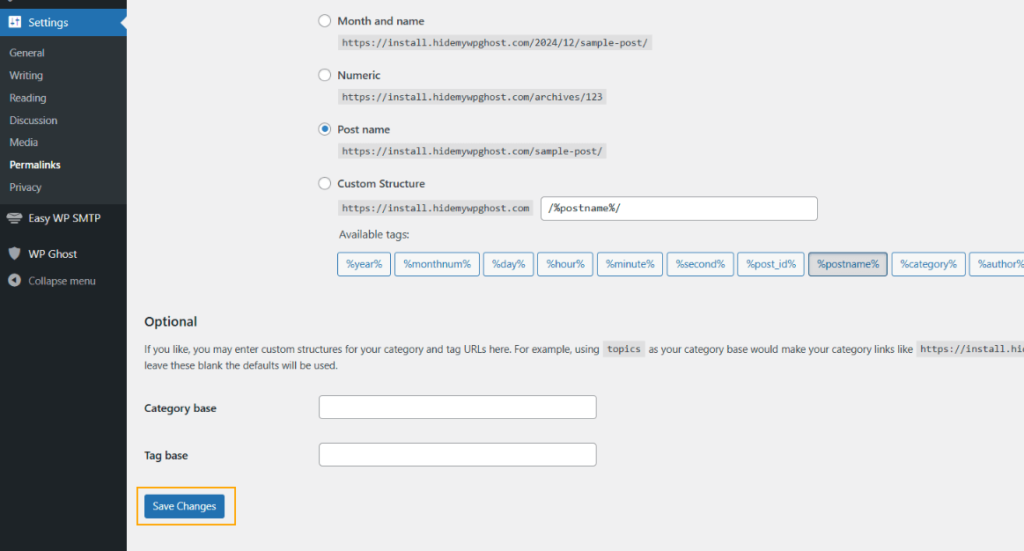
Check for typos in the custom path
Go to WP Ghost > Change Paths and review the custom author path for typos, spaces, or special characters. The path should be a simple alphanumeric slug like writer or team.
Check server configuration
On Apache, verify that .htaccess is writable and contains the WP Ghost rewrite rules. On Nginx, verify that hidemywp.conf is included in your Nginx config and the service was restarted after the path change. Author path rewrites require working server-level rules. See Nginx Config Setup for Nginx-specific instructions.
Revert to the default author path
To confirm the custom path is the cause, go to WP Ghost > Change Paths and clear the custom author path to restore the default author. Save and test. If author pages work again with the default path, the issue is server rewrite rules not handling the custom path.

If you’ve lost access to the admin dashboard, see the emergency disable guide.
Some Author Links Are Broken After Changing the Author Path
If author page links return 404 errors or redirect to the wrong page after changing the author path in WP Ghost, cached pages or hardcoded links still reference the old /author/ path.
Clear all caches
Cached pages contain the old author URLs. Clear your WordPress cache plugin, CDN cache, and browser cache. Check author links on the frontend in an incognito window to confirm they use the new path.
Flush permalink settings
Go to Settings > Permalinks and click Save Changes without modifying anything. This regenerates WordPress’s rewrite rules. Author archive URLs depend on the permalink structure, and flushing ensures the new author path is registered in the rewrite rules.
Update hardcoded author links
WordPress automatically updates author links generated by functions like get_author_posts_url(). However, hardcoded links in post content, widgets, theme templates, or custom menus still point to the old /author/ path. Search your content and theme files for /author/ and update them to the new path. Alternatively, use WP Ghost’s Text Mapping to replace /author/ with your custom path automatically in the HTML output.
Check SEO plugin sitemaps
If you use an SEO plugin (Yoast, Rank Math, All in One SEO), regenerate your sitemap after the author path change. Old sitemaps may still list author pages with the /author/ prefix, which search engines will follow to 404 pages. Most SEO plugins regenerate sitemaps automatically when permalinks are flushed.
If you’ve lost access to the admin dashboard, see the emergency disable guide.
Some Contributors or Users Have Difficulty Accessing their Profiles after Changing Author Path
After changing the author path in WP Ghost, users may not be able to access their author pages or profile URLs because the old /author/username/ path no longer works.
Old author URLs return 404
WP Ghost replaces the /author/ path with your custom path. The old URLs stop working immediately. Bookmarks, links from other sites, and saved URLs pointing to /author/username/ will return a 404 error. Users need to update their bookmarks to use the new path (for example, yourdomain.com/writer/username/ if you set the author path to writer).
Notify your contributors
Let contributors, editors, and other users know the author path has changed. Share the new URL format so they can update their bookmarks and any external profiles that link to their author pages.
Check internal links
WordPress automatically updates author archive links in menus and widgets, but hardcoded author links in post content, custom templates, or third-party plugins may still point to the old path. Search your site for /author/ references and update them to the new path. WP Ghost’s Text Mapping can also handle this replacement automatically in HTML output.
Clear cache after the change
If author pages still show the old path or return errors, clear your cache plugin and CDN cache. Cached pages may still reference the old author URLs until the cache is regenerated.
If you’ve lost access to the admin dashboard, see the emergency disable guide.
If you’ve lost access or something broke, check the emergency disable guide, use the rollback settings, or add a constant in wp-config.php to disable WP Ghost temporarily.
Frequently Asked Questions
What exactly is WordPress user enumeration and why is it dangerous?
User enumeration is a reconnaissance technique where attackers discover valid WordPress usernames through publicly accessible endpoints like author archives, the REST API, author ID parameters, and oEmbed responses. It’s dangerous because it changes the math for brute force attacks. Without a username, attackers have to guess both the username and password. With a confirmed username, every login attempt is a real password guess against a known account. That’s an orders-of-magnitude difference in effectiveness.
Do I need all three protections (change path, hide ID, hide enumeration)?
For maximum protection, yes. Each blocks a different enumeration method. Changing the author path removes the /author/ slug that bots look for. Hiding the author ID URL blocks the /?author=1 numeric lookup. Hiding user enumeration blocks the REST API, oEmbed, and sitemap methods. Attackers chain multiple enumeration techniques together. Blocking only one leaves the others open.
Will changing the author path hurt my SEO?
No. Author archive pages still exist and are indexable; they just use the new slug. WordPress handles 301 redirects from old author URLs to new ones, so search engines follow the redirect and update their index. Your author content remains accessible and ranked. The change only affects the URL structure, not the content or its discoverability.
Does hiding user enumeration also protect the REST API users endpoint?
Yes. By default, /wp-json/wp/v2/users returns a JSON list of all authors, their slugs, and display names. With Hide User Enumeration enabled, WP Ghost blocks or restricts access to this endpoint so automated scanners can’t harvest your user list. If you also want to customize the REST API path itself, see the Change REST API Path tutorial.
What if a profile or membership plugin breaks after changing the author path?
Some plugins (like BuddyPress, BuddyBoss, or Ultimate Member) use the /author/ path for custom profile pages. If these break after the change, revert the author path to default in WP Ghost > Change Paths > User Security and keep the Hide Author ID URL and Hide User Enumeration options enabled instead. That way you still block the most critical enumeration methods without breaking profile functionality. Check the compatibility plugins list for specific guidance.
Does this affect WooCommerce customer accounts?
WooCommerce customer accounts don’t typically have public author pages (customers aren’t authors), so changing the author path has no impact on WooCommerce functionality. The Hide User Enumeration feature blocks REST API user discovery, which protects WooCommerce admin and shop manager accounts from being enumerated. WP Ghost is fully compatible with WooCommerce.
Does WP Ghost modify WordPress core files?
No. WP Ghost never touches, moves, or renames any WordPress file. Author path changes are handled through URL rewrite rules. The /author/ slug in WordPress is managed by the permalink system, and WP Ghost modifies it through filters without changing any core file. Deactivating WP Ghost restores all defaults instantly.
Related Tutorials
Continue blocking username discovery and securing user data:
- Change and Hide the Login Path – Block the login form that enumerated usernames target.
- Change the Register Path – Stop bots from confirming usernames through the registration form.
- Change the REST API Path – Protect the other major endpoint that exposes user data.
- Brute Force Attack Protection – Add CAPTCHA and rate limiting to make brute force impractical.
- Two-Factor Authentication (2FA) – Make stolen usernames useless by requiring a second factor.
- Disable XML-RPC Access – Block another common username enumeration and brute force vector.
- Hide from WordPress Theme Detectors – Make your entire site invisible to CMS scanners.