
Add reCAPTCHA and login attempt limits to your custom login page in under 5 minutes. After customizing your WordPress paths, the next step is protecting the login page from brute force attacks. Even with a hidden login URL, you need attempt limits and CAPTCHA to block bots that find the path through other means. WP Ghost includes Math reCAPTCHA (no API keys needed), Google reCAPTCHA V2, V3, and Enterprise. This quick-start guide gets you protected fast. For detailed configuration of every option, see the full Brute Force Protection tutorial.
Why Protect Your Login Page
You’ve already changed and hidden your login path as part of your hack prevention strategy. That stops bots targeting the default /wp-login.php. But your custom login path still needs protection:
Your login path may be shared with users. If your site has subscribers, authors, or clients who need to log in, they know the custom URL. Brute force protection ensures that even if the path is known, automated password guessing is blocked.
Bots find login pages through other methods. Referrer logs, social engineering, and link scraping can reveal a custom login URL. Brute force protection is the second line of defense after path security.
You don’t need just one login path. If your theme has its own subscriber login page, you can keep that running with its own security while your WP Ghost custom path stays secret for admin access only. WP Ghost protects whichever login path you configure.
How to Activate Brute Force Protection
Enable Brute Force and Select reCAPTCHA
- Go to WP Ghost > Brute Force > Settings.
- Switch on Use Brute Force Protection.
- Select Math reCAPTCHA for the quickest setup (no API keys needed), or choose Google V2/V3 if you prefer Google’s protection.
- Click Save.

Configure Lockout Settings
After selecting a reCAPTCHA type, configure how the lockout works:
Max Failed Attempts – how many wrong passwords before the IP is blocked. Default: 5.
Ban Duration – how long the block lasts (in seconds). Default: 3600 (1 hour).
Lockout Message – the message shown to blocked users. Customize it or use the default.
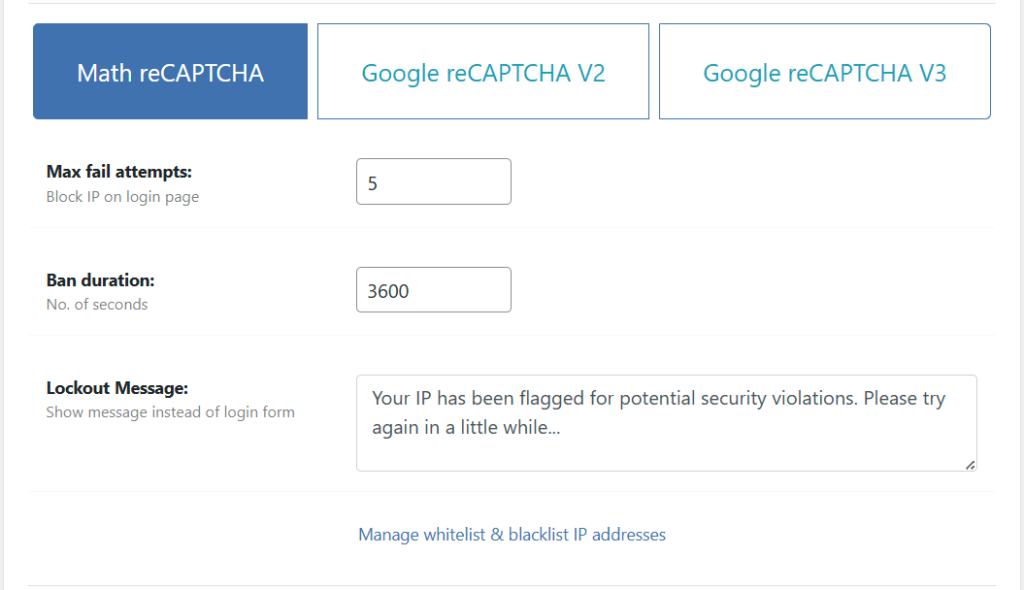
On each failed attempt, the user sees the remaining attempts before lockout. When the limit is reached, the login form is replaced with the lockout message for the ban duration.
Whitelist Your IP
If you have a static IP address, whitelist it to prevent accidentally locking yourself out:
Go to WP Ghost > Firewall > Whitelist and add your IP. You can use wildcards for ranges: 192.168.0.* or 192.168.*.* to cover a subnet.
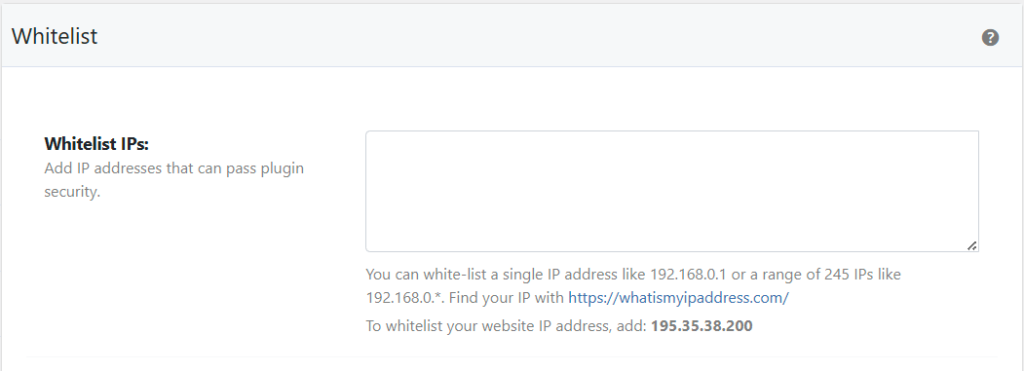
For detailed whitelist and blacklist configuration, see the Whitelist IPs and Paths and Blacklist tutorials.
Set Up Google reCAPTCHA (Optional)
If you want Google’s reCAPTCHA instead of Math reCAPTCHA:
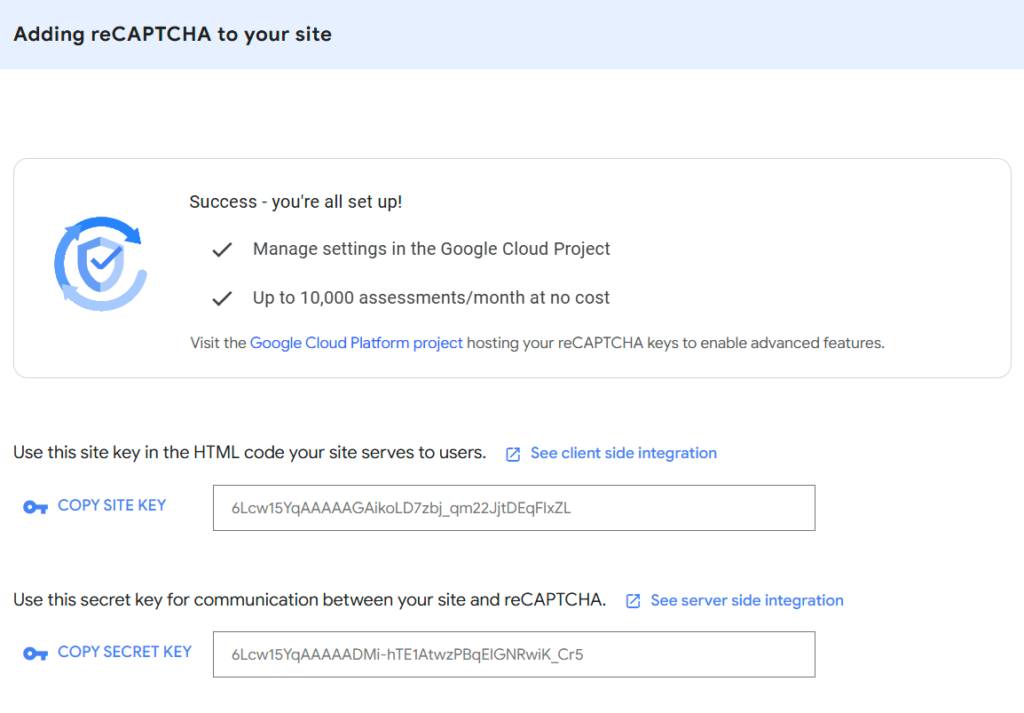
- Go to Google reCAPTCHA admin and create a V2 or V3 site.
- Copy the Site Key and Secret Key.
- In WP Ghost > Brute Force > Settings, select Google reCAPTCHA V2 or V3 and paste both keys.
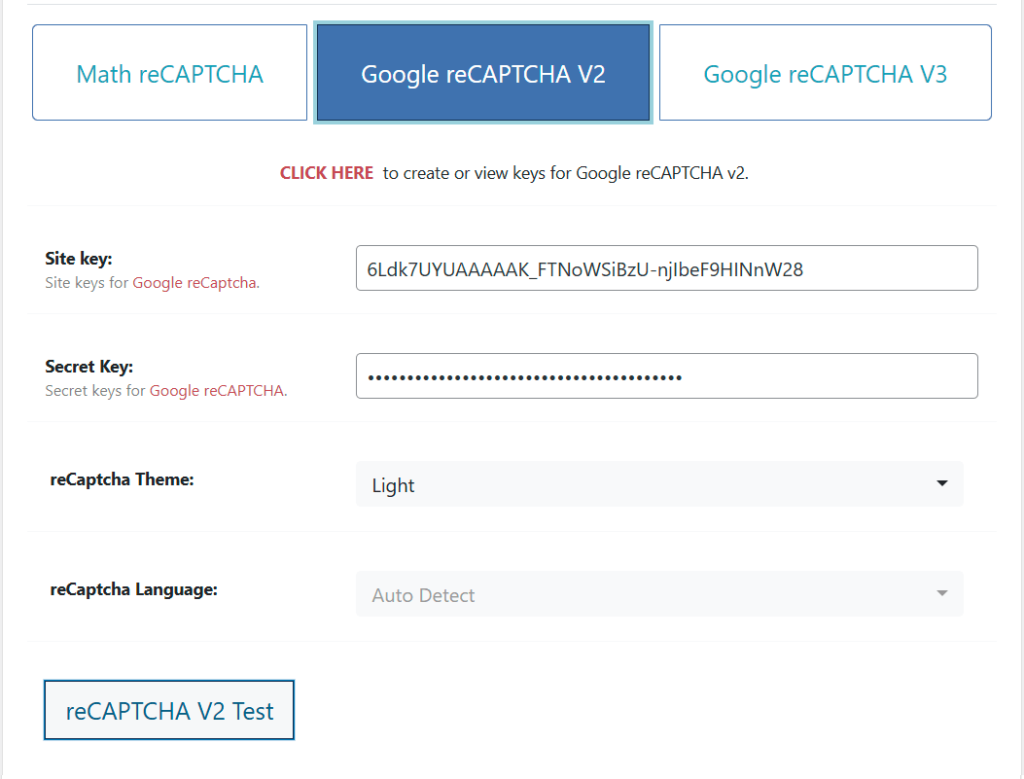
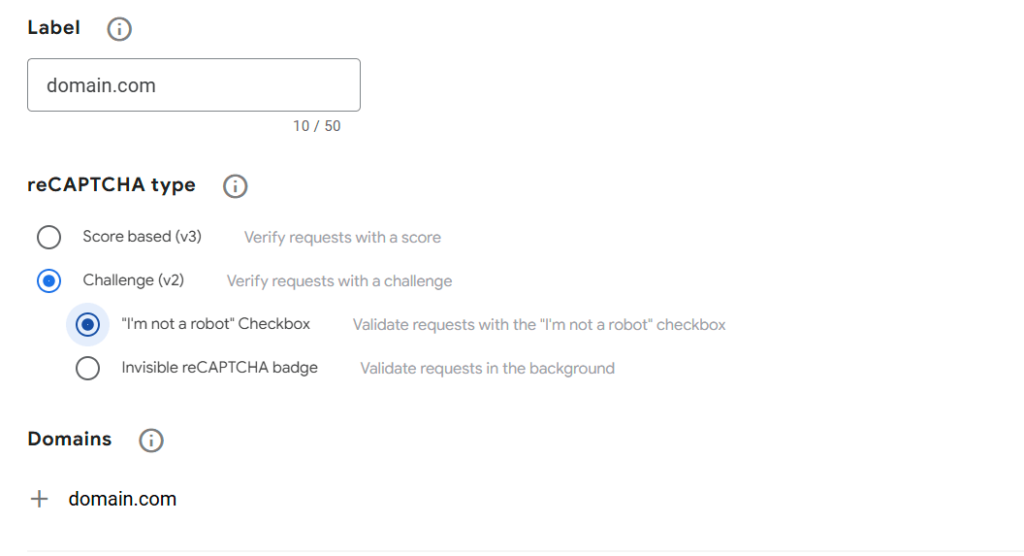
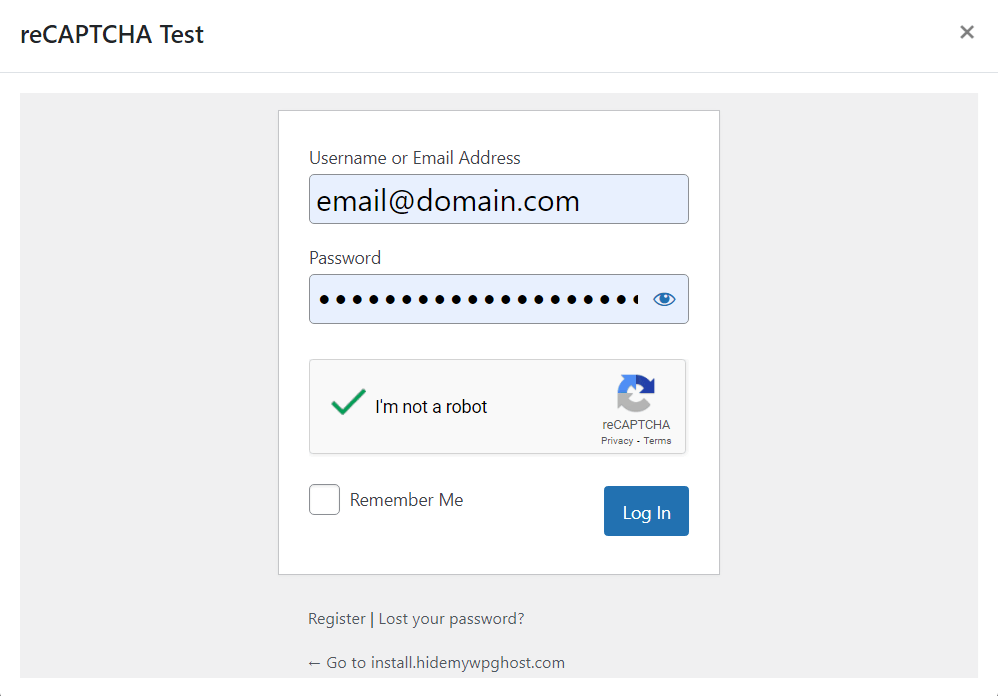
Important: Always test your reCAPTCHA configuration before logging out. If the keys are wrong, you could lock yourself out of the login page. Use the reCaptcha Test button, then test in an incognito browser.
Strengthen your credentials too. Avoid usernames like “admin” or “administrator” and passwords like “123456” – these are the first combinations bots try. With a strong password, brute force protection, and a hidden login path, your login is well protected.
Frequently Asked Questions
Should I use Math reCAPTCHA or Google reCAPTCHA?
Math reCAPTCHA for the fastest setup with zero external dependencies. Google V3 for invisible protection with no user friction. Google V2 for the familiar checkbox experience. Most sites should start with Math reCAPTCHA and switch to Google V3 later if desired. For enterprise-grade analysis, see Google reCAPTCHA Enterprise.
What if I lock myself out?
Wait for the ban duration to expire (default: 1 hour). If you can’t wait, use the Safe URL parameter to bypass WP Ghost, or follow the emergency disable guide. To prevent future lockouts, whitelist your IP.
Does this also protect comment forms?
Yes. You can extend brute force protection to the lost password form, registration form, comment form, and WooCommerce login form. See the full Brute Force Protection tutorial for all protected form options.
Does WP Ghost modify WordPress core files?
No. Brute Force Protection is added through WordPress hooks. No core files are modified. Disabling the feature removes all protections instantly.
Related Tutorials
Continue building your security layers:
- Customize Paths with WP Ghost – The previous step: customize and hide your WordPress paths.
- Hide from WordPress Theme Detectors – The next step: verify your site passes detection tools.
- Two-Factor Authentication – Add a second verification layer after brute force protection.
- Whitelist IPs and Paths – Prevent locking yourself out by whitelisting your IP.
- Register a New Google reCAPTCHA V2 – Step-by-step guide to getting your Google reCAPTCHA keys.