

- What Is the wp-admin Path in WordPress?
- Why You Need to Secure the wp-admin Path
- How to Change and Hide wp-admin with WP Ghost
- What Happens After You Change the wp-admin Path
- Troubleshooting
- Frequently Asked Questions
- Does changing the wp-admin URL actually improve WordPress security?
- Will changing the wp-admin path break my website or plugins?
- What if I forget my custom admin URL?
- Does WP Ghost physically change WordPress core files?
- Can I use WP Ghost alongside Wordfence or other security plugins?
- Will hiding wp-admin affect my SEO rankings?
- Does changing the wp-admin path work with WooCommerce?
- Does WP Ghost work on WordPress multisite?
- Related Tutorials
Protect your WordPress dashboard by changing and hiding the wp-admin path with WP Ghost. The default /wp-admin URL is the single most attacked path on any WordPress site. Every bot knows it. Every scanner targets it. Change it once, and that entire class of automated attacks fails before it starts.
What Is the wp-admin Path in WordPress?

The wp-admin path is the default URL that leads to the WordPress dashboard. It’s where you manage posts, install plugins, update themes, and configure your entire website.
By default, every WordPress site uses the same address: https://yourdomain.com/wp-admin.
Here’s the problem: because WordPress powers over 43% of all websites on the internet (according to W3Techs, April 2025), every bot and attacker already knows exactly where your admin panel lives. They don’t need to guess. They just append /wp-admin to your domain and start attacking.
That’s a massive opportunity for hacker bots, and it’s exactly why changing and hiding your wp-admin path is one of the most effective hack prevention steps you can take.
Why You Need to Secure the wp-admin Path
Let’s be real: leaving /wp-admin at its default location in 2026 is like putting a “break in here” sign on your front door. According to a report by Limit Login Attempts Reloaded, brute force attacks on WordPress sites surged by 130% in 2024. That same report showed brute force attacks per domain increased by 120% year over year.
Most of these attacks aren’t coming from sophisticated hackers sitting in a dark room. They’re coming from automated bots that scan thousands of WordPress sites per hour, hitting predictable paths like /wp-admin and /wp-login.php.
Here’s what’s actually at stake when you leave the default wp-admin path exposed:
Bots already know your admin URL. Automated scripts are programmed to target /wp-admin and /wp-login.php on every WordPress site they find. They run 24/7, testing common username and password combinations until something works. If they can’t even find the door, they move on to the next target.
Brute force attacks drain your server resources. Even when attackers don’t get in, repeated login attempts put a heavy load on your server. On shared hosting, this can slow down your entire website for legitimate visitors. It’s not just a security problem; it’s a performance problem.
Successful attacks lead to full site compromise. If a bot does guess your credentials, it gets access to your entire WordPress dashboard. From there, it can inject malware, steal customer data, redirect your traffic, or completely destroy your site. Melapress’s 2024 WordPress Security Survey confirms that brute force remains the attack type site owners fear most. They’re right to worry. Brute force attacks, plugin vulnerabilities, and malicious code injection were the top three security threats reported by WordPress professionals.
Changing and hiding your wp-admin path won’t make your site bulletproof on its own, but it eliminates a massive chunk of bot traffic before it ever reaches your login page. Combine it with brute force protection, two-factor authentication, and a firewall, and you’ve got a layered defense that stops the vast majority of attacks cold.
How to Change and Hide wp-admin with WP Ghost
WP Ghost makes this entire process straightforward. No code editing, no .htaccess modifications, no touching WordPress core files. Everything is handled through rewrite rules and filters, which means your actual files stay exactly where they are on the server.
Activate Safe Mode or Ghost Mode
Before you can change individual paths, you need to activate one of WP Ghost’s security levels. This is the foundation that enables all path-changing features.
- Select Safe Mode or Ghost Mode. Safe Mode applies essential path changes and is a good starting point. Ghost Mode takes it further with advanced hiding and path security. If you’re unsure, start with Safe Mode. You can always upgrade to Ghost Mode later.
- Click Save to apply your selection.
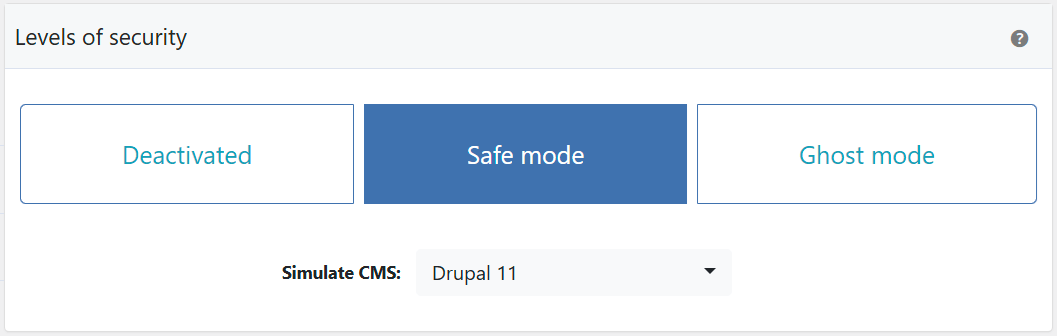
Not sure which mode fits your site? Check out the full comparison in our Safe Mode vs Ghost Mode guide.
Change the wp-admin Path
Changing the wp-admin path means replacing the default /wp-admin URL with a custom name that only you know. Instead of yourdomain.com/wp-admin, you could use something like yourdomain.com/mysecretpanel or any name you choose.
- Go to WP Ghost > Change Paths > Admin Security.
- Enter a custom name for the wp-admin path in the provided field. Choose something unique that isn’t easy to guess.
- Click Save to apply the change.
Important: Avoid common words like “login”, “admin”, “backend”, or “dashboard” for your custom path. Bots are programmed to try these variations too. Use something truly unique, like a combination of random words or characters.

Good to know: WP Ghost does not physically move or rename any files on your server. It uses rewrite rules to create the new path virtually. Your WordPress installation stays untouched, and everything continues to work normally behind the scenes.
Keep in mind that not all hosting environments handle custom admin paths in exactly the same way. If you’re on a managed host like WP Engine or Kinsta, check our hosting-specific guides: WP Engine setup, Kinsta setup, or Nginx server setup.
Hide wp-admin from Visitors and Bots
Changing the path alone gives you a new URL, but the original /wp-admin path may still be accessible and redirect to the login page. That’s where the Hide wp-admin option comes in. When you turn this on, anyone who isn’t logged in and tries to access /wp-admin will see a 404 error page. The path simply doesn’t exist for them.
- Go to WP Ghost > Change Paths > Admin Security.
- Switch on the Hide “wp-admin” option.
- Click Save to apply.
Once activated, any bot or visitor hitting /wp-admin will get a dead end. Only users who are already logged in through the custom login path will be able to reach the dashboard.

This is what a visitor or bot sees when trying to access the hidden wp-admin path:
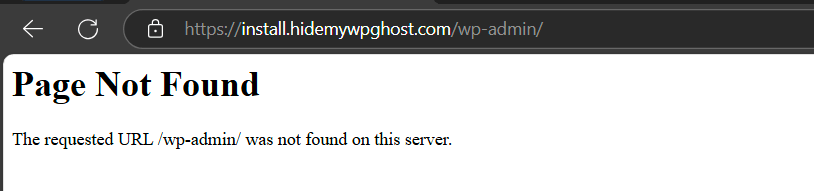
This is a powerful hack prevention layer. When bots can’t find the admin path, they can’t attempt brute force attacks against it. Combined with hiding the login path, you’re essentially removing the two most targeted entry points on any WordPress site.
Hide wp-admin from Non-Admin Users
By default, every logged-in WordPress user (editors, authors, subscribers) can access the /wp-admin dashboard. On most sites, that’s unnecessary. An author doesn’t need access to the full admin panel, and the fewer people who know the admin path, the smaller your attack surface.
WP Ghost lets you restrict wp-admin access to administrators only, while other user roles get redirected to their profile or the front end.

- Go to WP Ghost > Change Paths > Admin Security.
- Switch on “Hide ‘wp-admin’ from Non-Admin Users”.
- Click Save to apply.

This is especially useful for WooCommerce stores, membership sites, or any WordPress site with multiple user roles. It adds an extra security layer by ensuring that even if a subscriber or editor account gets compromised, the attacker still can’t reach the admin dashboard.
Verify with a Security Check
After making your changes, always run a quick security scan to confirm everything is working as expected. WP Ghost’s built-in scanner will verify that the wp-admin path is properly hidden and flag anything that still needs attention.
- Go to WP Ghost > Security Check.
- Click Start Scan.
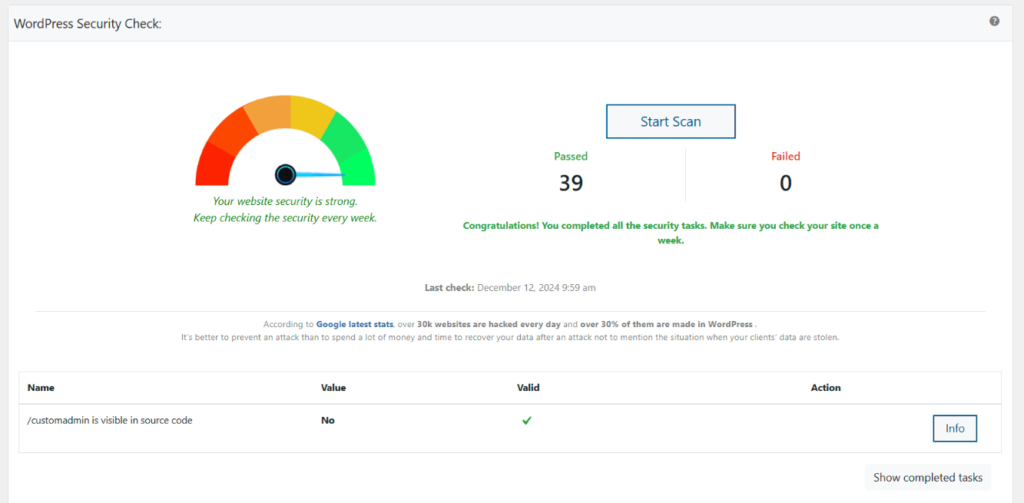
Make it a habit to run this scan after any path change or plugin update. It takes a few seconds and gives you peace of mind. For a deeper look at everything the scanner checks, see our Security Check tutorial.
What Happens After You Change the wp-admin Path
Once you save your new settings, a few things change immediately. Understanding them helps you avoid confusion and make the most of the protection you’ve just added.
Your new admin URL takes effect right away. Bookmark it. If you chose mysecretpanel as your custom path, your new admin URL is now yourdomain.com/mysecretpanel. The old /wp-admin URL will either redirect to a 404 page (if you enabled the hide option) or redirect logged-in users to the new path.
WordPress still works normally behind the scenes. WP Ghost uses rewrite rules, not file changes. Your plugins, themes, and WordPress core are completely unaffected. Admin AJAX, REST API, and cron jobs continue functioning as expected.
Bot traffic to the old path drops off. WP Ghost users regularly report up to a 99% reduction in hacking attempts when paths are properly configured. Without a valid target, automated attacks simply fail and move on.
All internal links update automatically. WP Ghost handles the path mapping across your site. Links in the admin bar, dashboard menus, and internal redirects all point to the new path. If you’re also using path changes for logged users, those are handled separately.
Troubleshooting
Admin Dashboard Not Working Properly After wp-admin Change
If the WordPress admin dashboard breaks after changing the wp-admin path in WP Ghost (pages not loading, settings not saving, blank screens, or redirect loops), the custom admin path isn’t fully supported by your server or a plugin depends on the default path.
Revert to default wp-admin and hide it instead
The safest fix is to keep the default wp-admin path but hide it from non-logged-in users. Go to WP Ghost > Change Paths > Admin Security, set the admin path back to wp-admin, and enable Hide “wp-admin”. This gives you the security benefit (bots can’t access /wp-admin/) without the compatibility issues that custom paths can cause.

Managed Nginx hosting (WP Engine, Kinsta, Flywheel, etc.)
Managed WordPress hosts that run Nginx handle custom wp-admin paths using path redirection instead of rewrite mapping. This difference prevents WP Ghost from identifying requests to the custom admin path, causing dashboard features to break. On these hosts, use the default wp-admin path with the Hide option enabled. The custom login path and all other WP Ghost path changes work normally on these hosts.
Identify conflicting plugins
Some plugins hardcode references to /wp-admin/ in their AJAX calls, redirects, or settings pages. With a custom admin path, those calls fail. Deactivate plugins one at a time and test the dashboard after each. Common conflicts include plugins that add admin pages with custom AJAX handlers, page builders that use admin-level API calls, and caching plugins that cache admin responses. For the conflicting plugin, try adding its specific admin paths to WP Ghost > Change Paths > Whitelist Paths.
Log out and log back in
After changing the admin path, session cookies are tied to the old path. Log out completely and log back in through your custom login URL so WP Ghost creates fresh session cookies on the new admin path.
If you’ve lost access to the admin dashboard entirely, use the Safe URL parameter or the emergency disable guide.
Can't Log in Via wp-admin as I am Redirected To the Front Page
If accessing /wp-admin/ redirects to the homepage instead of the login page, this is because WP Ghost’s Hide “wp-admin” option is active. When enabled, requests to /wp-admin/ return a 404 or redirect to the homepage instead of forwarding to the login page.
Use your custom login path
If you’ve set a custom login path in WP Ghost, use that path instead of /wp-admin/. For example, if you set the login path to my-login, access yourdomain.com/my-login. This is the intended behavior: /wp-admin/ is hidden to prevent bots from finding it, and your custom login path is the secure entry point.
Allow wp-admin to redirect to login
If you want /wp-admin/ to redirect non-logged-in users to the login page (default WordPress behavior), disable the Hide option:
- Go to WP Ghost > Change Paths > Admin Security.
- Switch off Hide “wp-admin”.
- Click Save.

With Hide “wp-admin” off, accessing /wp-admin/ redirects non-logged-in users to your custom login page. The admin path itself is still changed to your custom name, so bots scanning for /wp-admin/ are redirected rather than finding the admin dashboard.
Can’t access the admin dashboard at all
If you can’t log in through any path, use the Safe URL parameter to temporarily bypass WP Ghost’s path changes, or follow the emergency disable guide to deactivate WP Ghost via FTP.
The New Admin Path Is Redirected To Front Page
If your custom admin path (the one you set to replace wp-admin) redirects to the homepage when you’re not logged in, the Hide the New Admin Path option is active. This option hides the custom admin path from non-logged-in users, so accessing it before logging in redirects to the front page.

Use the custom login path first
This is the intended behavior when Hide the New Admin Path is active. You need to log in through your custom login path first (for example, yourdomain.com/my-login), then access the admin dashboard. The custom admin path only works for already-authenticated users. This prevents bots from discovering your admin area even if they find the custom path name.
Allow the custom admin path to redirect to login
If you want the custom admin path to redirect non-logged-in users to the login page (instead of the homepage), disable the Hide option:
- Go to WP Ghost > Change Paths > Admin Security.
- Switch off Hide the New Admin Path.
- Click Save.

With this option off, accessing the custom admin path while not logged in redirects to your login page. After logging in, you’re taken to the admin dashboard automatically.
Can’t access the admin dashboard at all
If you can’t log in through any path, use the Safe URL parameter to temporarily bypass WP Ghost’s path changes, or follow the emergency disable guide to deactivate WP Ghost via FTP.
The New Admin Path Is Redirected To Front Page When Logged In
If you’re logged in as an administrator but the custom admin path still redirects to the homepage, the browser session wasn’t established on the new path. WP Ghost creates sessions on both the default and custom admin paths when you log in. If the session creation fails (due to server config or plugin conflicts), WordPress treats the custom path as invalid and redirects to the homepage.
Log out and log back in
This is the most common fix. Log out of WordPress completely, then log back in through your custom login path. Logging in again forces WP Ghost to create fresh sessions on both the default /wp-admin and your custom admin path. After logging in, try the custom admin path again.
Clear cache and browser cookies
Stale session cookies or cached redirects can prevent the new path from working. Clear your browser cookies for your site’s domain, clear your WordPress cache plugin, and try again in an incognito window. If the custom path works in incognito but not in your regular browser, the issue is a cached cookie or redirect.
Check server configuration
On Apache, verify that .htaccess is writable and mod_rewrite is enabled. On Nginx, verify that hidemywp.conf is included in your Nginx config and the service was restarted after the path change. Some servers block cookie creation on non-standard paths. Check with your hosting provider if custom admin paths are supported.
Deactivate other security plugins
Other security plugins can clear or overwrite WP Ghost’s session cookies. Temporarily deactivate other security plugins (Wordfence, Solid Security, Sucuri, etc.), log out, log back in, and test the custom admin path. If it works, reactivate plugins one at a time to find the conflict.
Revert to default wp-admin
If the custom admin path remains inaccessible after all checks, revert to the default path while you investigate. Go to WP Ghost > Change Paths > Admin Security and set the admin path back to wp-admin. All other WP Ghost security features (firewall, brute force, login path, 2FA) continue to work normally.
If you can’t access the admin dashboard through any path, use the Safe URL parameter or follow the emergency disable guide.
If you’ve locked yourself out of the admin panel completely, don’t panic. WP Ghost has a safe recovery method. Check the emergency disable guide to restore access without touching the database. You can also review the rollback settings tutorial to revert all path changes instantly.
Frequently Asked Questions
Does changing the wp-admin URL actually improve WordPress security?
Yes, because the vast majority of attacks on WordPress sites are automated. Bots follow scripts that target known paths like /wp-admin and /wp-login.php. When those paths don’t exist, bots fail and move on. It’s not the only security layer you need, but it’s one of the most effective at reducing attack volume. Pair it with brute force protection and 2FA for a complete defense.
Will changing the wp-admin path break my website or plugins?
In most cases, no. WP Ghost uses virtual rewrite rules, so your actual files and folders stay exactly where they are. Plugins that rely on admin-ajax.php or the REST API will continue working. On some managed hosting environments (like WP Engine or Nginx-only servers), custom admin paths may need additional server configuration. If that happens, you can still use the default wp-admin path and simply hide it from non-logged-in users.
What if I forget my custom admin URL?
WP Ghost sends you the new URLs after saving. Bookmark them immediately. If you do forget, you can disable WP Ghost via FTP or file manager by renaming the plugin folder, which restores all default WordPress paths. You can also add a constant in wp-config.php to disable the plugin and regain access.
Does WP Ghost physically change WordPress core files?
No. WP Ghost never modifies, moves, or renames any WordPress core file. All path changes are handled through URL rewrite rules and WordPress filters. If you deactivate WP Ghost, everything reverts to the WordPress defaults instantly. Your files remain untouched the entire time.
Can I use WP Ghost alongside Wordfence or other security plugins?
Absolutely. WP Ghost is designed to work alongside other security tools. It handles hack prevention at the path level, while plugins like Wordfence, Solid Security, or Sucuri handle different layers like malware scanning and firewall rules. Think of WP Ghost as reducing the attack surface so other plugins have less work to do.
Will hiding wp-admin affect my SEO rankings?
Not at all. Search engine crawlers don’t need access to /wp-admin. The admin area is not indexed and has no impact on your rankings. Changing or hiding admin paths only affects admin-side URLs, which search engines never see. Your public content, sitemaps, and front-end URLs remain exactly the same.
Does changing the wp-admin path work with WooCommerce?
Yes. WP Ghost is fully compatible with WooCommerce. The customer-facing pages (shop, cart, checkout, my account) are not affected by admin path changes. WooCommerce AJAX calls continue to function normally. If you have the “Hide wp-admin from Non-Admin Users” option enabled, your shop managers still get proper dashboard access since they have admin-level capabilities.
Does WP Ghost work on WordPress multisite?
Yes, WP Ghost supports WordPress multisite installations. The wp-admin path change can be applied network-wide. Each subsite’s admin path will use the same custom path you configure. Check the best practices guide for multisite-specific recommendations.
Related Tutorials
Continue strengthening your WordPress security with these related guides:
- Change and Hide the Login Path – Hide wp-login.php alongside wp-admin for complete login protection.
- Brute Force Attack Protection – Add CAPTCHA, rate limiting, and lockout rules to your login forms.
- Two-Factor Authentication (2FA) – Enable 2FA by code, email, or passkey for an extra login security layer.
- Firewall Security (7G/8G) – Block SQL injection, script injection, and other exploits at the server level.
- Hide WordPress Common Paths and Files – Remove wp-config, readme, license, and other detectable files from public access.
- Change the Admin AJAX Path – Protect admin-ajax.php from being used as an attack vector.
- Safe Mode vs Ghost Mode Explained – Understand the differences to choose the right protection level.