
Replace any internal URL in your page source with a custom path using WP Ghost’s URL Mapping. WP Ghost’s standard path changes cover the main WordPress directories – wp-admin, wp-content, wp-includes, plugins, themes. But some URLs fall outside those categories: cache plugin directories, CDN paths, plugin-specific asset URLs, or custom file references that still reveal your stack. URL Mapping handles these edge cases. You define the original URL fragment and its replacement, and WP Ghost swaps them in the HTML output.
What Is URL Mapping?

URL Mapping is a find-and-replace feature for URLs in your site’s frontend output. You provide a URL path fragment (the “from” field) and a replacement path (the “to” field). WP Ghost replaces every occurrence of the original URL with the custom one in your HTML source code.
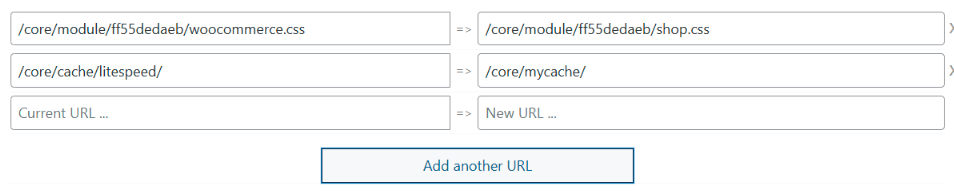
For example, if your page source shows /core/module/ff55dedaeb/woocommerce.css, you can map it to /core/module/ff55dedaeb/shop.css. Or if your cache directory appears as /core/cache/litespeed/, you can map it to /core/mycache/. The file loads the same content, but the URL in the source no longer reveals the plugin name, cache directory, or original file structure.
URL Mapping works alongside WP Ghost’s built-in path changes – it’s not a replacement for them. Use the standard path settings for wp-admin, wp-content, wp-includes, plugins, and themes. Use URL Mapping for everything else that still needs hiding.
Why You Need URL Mapping
Standard path changes cover 90% of WordPress fingerprints. URL Mapping handles the remaining 10%. Here’s why it matters for your hack prevention strategy:
Plugin names survive in file-level URLs. Even after changing the plugins directory, individual file names within plugins may still contain the plugin name. A URL like /custom-path/ff55dedaeb/woocommerce.css hides the directory structure but still says “woocommerce” in the filename. URL Mapping replaces that filename with something generic like shop.css.
Cache directories reveal your caching plugin. Caching plugins create directories with recognizable names: /wp-content/cache/litespeed/, /wp-content/cache/wp-rocket/, /wp-content/cache/autoptimize/. Even after enabling path changes in cached files, the cache directory URL itself may appear in the source. URL Mapping lets you rename it to a generic path.
CDN and third-party paths need customization. If your CDN or external services use URLs that reference WordPress-specific paths, URL Mapping can replace them with custom alternatives. This is particularly useful for sites using CDN rewriting or custom asset delivery.
It gives you full control over any URL. Some situations are unique to your site – a custom upload directory, a plugin that generates files with predictable names, or a legacy path structure that doesn’t fit standard WP Ghost settings. URL Mapping is the flexible tool for anything that standard path changes don’t cover.
How to Configure URL Mapping
URL Mapping requires a security level to be active. The setup involves enabling the feature, adding mapping rules, and optionally combining with cache plugin minification.
Activate a Security Level
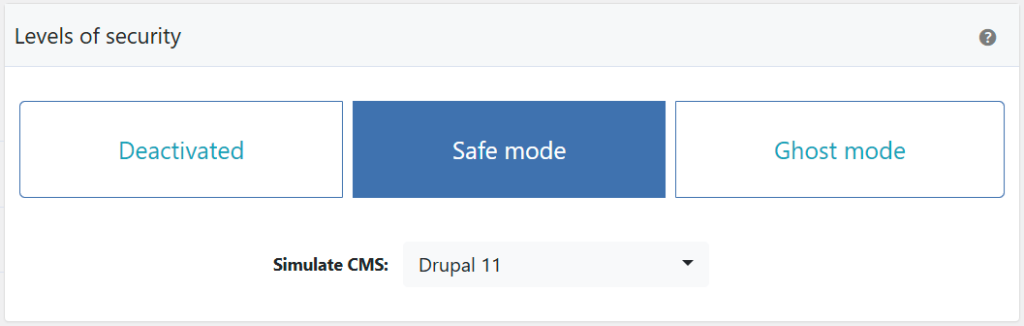
URL Mapping requires Safe Mode or Ghost Mode to be active.
- Go to WP Ghost > Change Paths > Level of Security.
- Select Safe Mode or Ghost Mode.
- Click Save to apply.
Enable URL Mapping
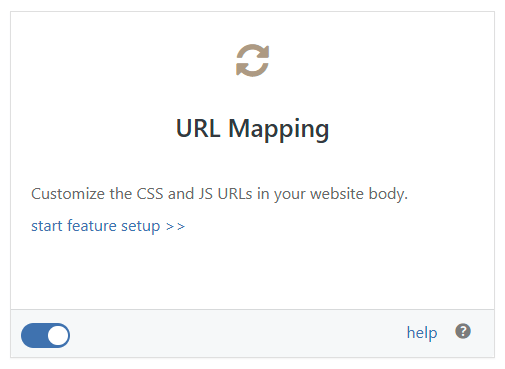
- Go to WP Ghost > Overview > Features.
- Switch on URL Mapping.
- Click Start Features Setup to access the mapping configuration.
Add URL Mapping Rules
Each rule maps an original URL fragment to a custom replacement.
- Go to WP Ghost > Mapping > URL Mapping.
- View your page source and identify URLs that still reveal plugin names, cache directories, or WordPress structure.
- Enter the original relative URL in the left field.
- Enter the custom replacement URL in the right field.
- Click Save to apply.
Important: Only use internal URLs from your frontend source code. Keep the same file extension when mapping static files (CSS, JS, images) to ensure they load correctly as static content.
Here are common URL Mapping examples:
| Original URL | Replacement URL | What It Hides |
|---|---|---|
/core/module/ff55dedaeb/woocommerce.css | /core/module/ff55dedaeb/shop.css | WooCommerce plugin name in filename |
/core/cache/litespeed/ | /core/mycache/ | LiteSpeed Cache plugin directory |
/core/module/f9f4ca341/main.css | /mystyle.css | Plugin directory structure entirely |
/core/module/f9f4ca341/ | /custom_assets/ | Entire asset directory path |
Nginx users: Remember to reload the Nginx service after saving URL Mapping rules for the rewrite rules to take effect.
Use Cache Plugin Minification for Extra Hiding
If plugin names still appear inside CSS or JS filenames and URL Mapping alone doesn’t cover them, your caching plugin’s minify/combine feature can merge multiple files into a single file with a generic name. This makes individual plugin filenames undetectable.
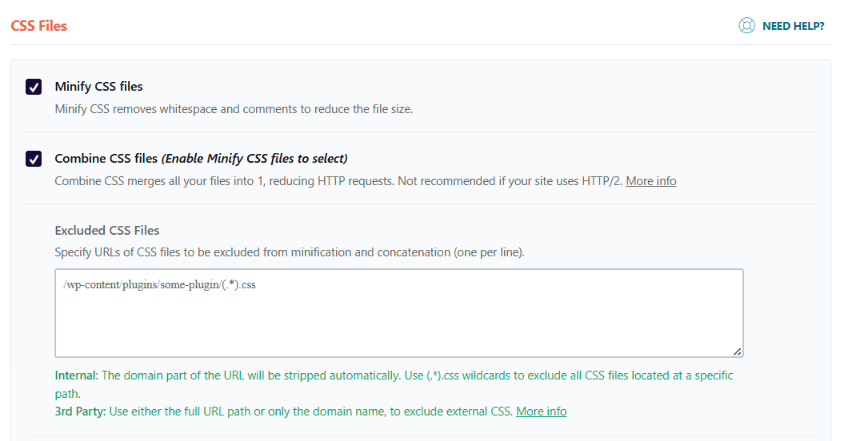
Caching plugins like LiteSpeed Cache, WP Rocket, and Autoptimize offer CSS/JS combine and minify options. When enabled, they merge all your stylesheets (or scripts) into a single file with a generated hash name. Theme detectors can’t extract individual plugin names from a combined file. See the full cache plugin compatibility list for tested plugins.
Troubleshooting
Mapped URLs not changing in page source
Clear all caches (WordPress caching plugin, CDN, server cache) and test in a private browser window. If you use a caching plugin, ensure Change Paths in Cached Files is also enabled so WP Ghost can process cached HTML. Double-check that the URL in the left field matches exactly what appears in your source – including the path prefix.
A CSS or JS file returns a 404 after mapping
Make sure you’re keeping the same file extension. Mapping /path/style.css to /custom/style.css works because both end in .css. Mapping /path/style.css to /custom/styles (without the extension) may cause the server to handle the file incorrectly. On Nginx servers, reload the service after saving changes.
If you’ve lost access or something broke, check the emergency disable guide, use the rollback settings, or add a constant in wp-config.php to disable WP Ghost temporarily.
Frequently Asked Questions
What’s the difference between URL Mapping and Text Mapping?
URL Mapping replaces URL paths in the HTML source (like file references and asset links). Text Mapping replaces non-URL text strings (like CSS class names, IDs, and identifiers). Both are find-and-replace tools, but they target different types of content. Use URL Mapping for file paths and asset URLs. Use Text Mapping for class names and identifiers.
Do I need URL Mapping if I’ve already changed standard paths?
Only if your page source still contains identifiable URLs after the standard path changes. View your source in a private browser and search for plugin names, cache directory names, or other recognizable patterns. If you find URLs that standard path changes didn’t cover, URL Mapping handles them. If everything looks clean, you may not need it.
Does URL Mapping affect performance?
The impact is negligible. URL Mapping is a runtime string replacement on the HTML output buffer – the same mechanism WP Ghost uses for all path changes. With a caching plugin, the replacement happens once when the cache is built. Subsequent page loads serve the cached version with no additional processing.
Does this work with WooCommerce?
Yes. URL Mapping is commonly used to rename WooCommerce-specific filenames like woocommerce.css to generic alternatives like shop.css. This hides WooCommerce in file-level references that standard path changes don’t cover. WP Ghost is fully compatible with WooCommerce.
Does WP Ghost modify WordPress core files?
No. URL Mapping replaces URLs in the HTML output at runtime. The actual files on disk remain at their original locations with their original names. WP Ghost creates server rewrite rules to serve the content at the new URL. Disabling URL Mapping restores all original URLs instantly.
Related Tutorials
Complete your URL and path customization:
- Text Mapping – Replace class names and identifiers in HTML, CSS, and JS.
- Change Paths in Cached Files – Ensure URL Mapping works in cached pages.
- Change the Plugins Path – Standard plugin directory path change.
- Change the Themes Path – Standard theme directory path change.
- Change the wp-content Path – The main content directory path change.
- Hide from WordPress Theme Detectors – The complete guide to defeating scanner tools.