
WP Ghost works on Nginx servers by adding a config include to your server block. Nginx doesn’t use .htaccess files, so WP Ghost generates a hidemywp.conf file containing rewrite rules and you add an include line to your Nginx configuration. This is a one-time setup. After the include is in place, WP Ghost updates the config file automatically when you save settings – you just need to reload Nginx.
No access to nginx.conf? If you’re on managed hosting (Kinsta, WPMUDEV, Flywheel, SiteGround) and can’t edit Nginx config files, see Use WP Ghost on Nginx Without Config Changes for features that work without server configuration.
Step 1: Activate WP Ghost
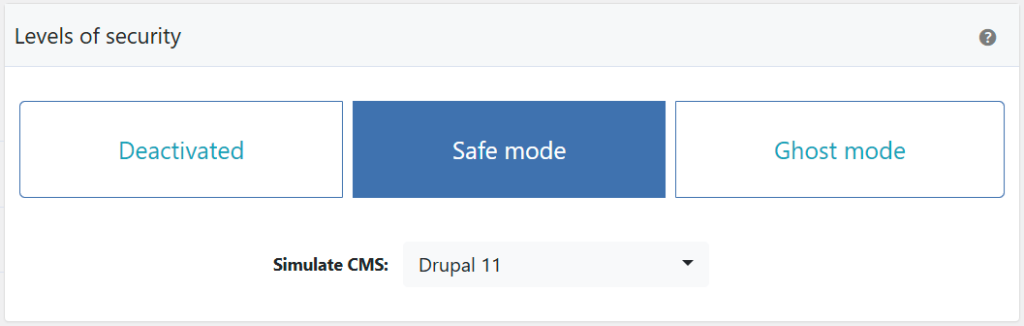
- Go to WP Ghost > Change Paths > Level of Security.
- Select Safe Mode or Ghost Mode and customize paths.
- Click Save.
- WP Ghost generates a
hidemywp.conffile and displays the include line you need to add.

Step 2: Add the Include to Your Nginx Config
Open your site’s Nginx server block config file via SSH. The file location depends on your server setup:
- With sites-enabled:
/etc/nginx/sites-available/yoursite(symlinked tosites-enabled/) - Without sites-enabled: directly in
/etc/nginx/nginx.confor in/etc/nginx/conf.d/yoursite.conf - Windows:
C:\nginx\conf\nginx.conf - Arch Linux:
/etc/nginx/conf/nginx.conf
Add the include line before the location / block inside the server { } block:
server {
    server_name yourdomain.com;
    root /var/www/yoursite;
    index index.php;

    # WP Ghost rewrite rules (add this line)
    include /var/www/yoursite/hidemywp.conf;

    location / {
        try_files $uri $uri/ /index.php?$args;
    }
}
Use the exact include path from WP Ghost’s notification. The path depends on your WordPress installation directory. Always copy the include line directly from WP Ghost’s notification rather than typing it manually. Don’t delete any existing lines from your server block unless you know what they do.
Step 3: Reload Nginx and Test
- Save the config file and go back to WP Ghost. Click “Okay, I set it up”.
- Test the config for syntax errors and reload Nginx:
# Test syntax
sudo nginx -t

# Reload (Linux)
sudo nginx -s reload

# Reload (Windows)
cd C:\nginx
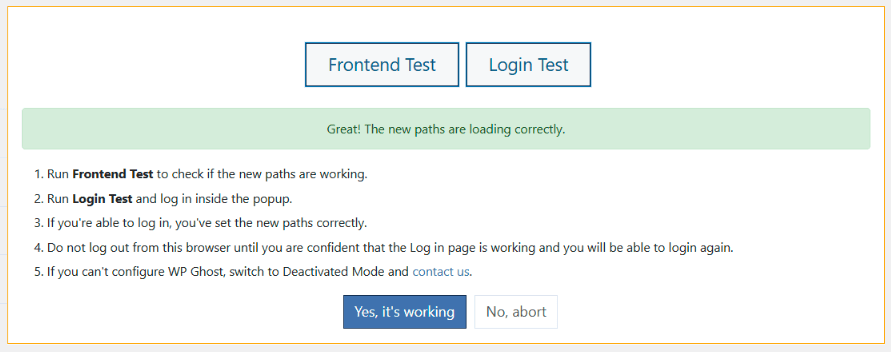
nginx -s reload- Run the Frontend Login Test in WP Ghost.
- If everything loads correctly, click “Yes, it’s working”.
- If something is broken, click “No, abort” to roll back.
Reload after every path change. Nginx loads its configuration into memory at startup. Any changes to hidemywp.conf require a reload (sudo nginx -s reload) to take effect. This is different from Apache, which re-reads .htaccess on every request.
Troubleshooting
Nginx syntax error after adding the include
The hidemywp.conf file may not exist at the specified path. Verify it exists with ls -la /path/to/hidemywp.conf. If it doesn’t exist, re-save WP Ghost settings to regenerate it. Also ensure the include line is inside the server { } block, not outside it.
Custom paths return 404
The include line is placed after the location / block. Move it before location / so WP Ghost’s rewrite rules are evaluated first. Reload Nginx after moving it.
Can’t find the server block config file
Run nginx -T 2>/dev/null | grep "server_name" to see all server names and which config files they come from. Or run find /etc/nginx -name "*.conf" | xargs grep -l "server_name" to locate files containing server blocks.
Locked out after configuration
SSH into your server and remove the include line, then reload Nginx to restore default paths. Or use the Safe URL parameter to bypass WP Ghost temporarily. See the Emergency Disable guide for additional methods.
Frequently Asked Questions
What if I can’t edit nginx.conf?
Use the Nginx Without Config Changes guide. WP Ghost’s custom login paths, brute force protection, firewall, 2FA, security headers, and version hiding all work without server config modifications.
Do I need to reload Nginx every time I save WP Ghost?
Only when you change path settings. WP Ghost updates hidemywp.conf automatically, but Nginx needs a reload to pick up the changes. Non-path settings (firewall, brute force, 2FA) don’t require a reload.
Which Nginx guide should I follow?
This guide covers the general Nginx setup. For specific environments, see the dedicated guides: Nginx VPS (detailed VPS walkthrough), Custom Nginx Config File (ownership and permissions), Bitnami Nginx, Kinsta, WPMUDEV, Local by Flywheel.
Does WP Ghost modify WordPress core files?
No. WP Ghost generates a separate hidemywp.conf file and uses WordPress hooks for application-level changes. No core files are modified. Deactivating WP Ghost restores all defaults instantly.
Related Tutorials
Nginx-specific guides:
- Nginx Without Config Changes – For managed hosting without config access.
- Nginx VPS Setup – Detailed VPS walkthrough with directory structure.
- Custom Nginx Config File – Config file ownership and permissions.
- Safe URL Parameter – Bypass WP Ghost temporarily if needed.
- Emergency Disable – Recovery via SSH if needed.