

- Why WooCommerce Sites Need Extra Protection
- Which WP Ghost Mode to Use on WooCommerce
- Step 1: Enable WooCommerce Brute Force Protection
- Step 2: Activate Anti-Spam Protection
- Step 3: Configure Customer Login and Logout Redirects
- Step 4: Enable 8G Firewall
- Step 5: Activate Security Headers
- Step 6: Country Blocking (Premium, Optional)
- Frequently Asked Questions
- Do I also need to change WordPress paths for WooCommerce?
- Which security mode should I use on my WooCommerce store?
- Will brute force protection or reCAPTCHA affect the WooCommerce checkout?
- CSP is blocking my payment gateway. What should I do?
- Can I enable all these settings on an existing WooCommerce store?
- Does WP Ghost modify WordPress core files?
- Related Tutorials
WooCommerce stores handle customer accounts, payment data, and order information, making them high-value targets for bots and attackers. WP Ghost provides a complete hack-prevention layer for WooCommerce with dedicated brute force protection on the WooCommerce login form, anti-spam filtering for registrations and reviews, secure customer redirects, 8G firewall rules, security headers, and optional country blocking. WP Ghost is fully compatible with WooCommerce in all three security modes (Lite Mode, Safe Mode, and Ghost Mode). This guide walks through each security layer step by step.
Why WooCommerce Sites Need Extra Protection

WooCommerce stores face targeted attacks that standard WordPress sites don’t: credential stuffing on the /my-account/ login page, fake account creation to exploit promotions or post spam reviews, price-scraping bots that overload product pages, fake cart bots that hold inventory, payment page scanners probing for checkout vulnerabilities, and automated vulnerability exploitation through known WooCommerce plugin flaws. WP Ghost addresses each of these with WooCommerce-specific features that integrate directly with WooCommerce’s login, registration, and checkout flows.
Which WP Ghost Mode to Use on WooCommerce
Before enabling the WooCommerce-specific protections below, set the right security mode at WP Ghost > Change Paths > Level of Security. All three modes are fully compatible with WooCommerce, but the right choice depends on your plan:
Lite Mode (WP Ghost Free). The correct starting point for any WooCommerce store on the free version. Lite Mode changes the most commonly targeted WordPress paths (wp-login.php, plugin folders, theme folders, uploads, core directories) while keeping wp-admin and admin-ajax.php at their defaults, so it’s universally compatible with WooCommerce cart, checkout, product pages, and customer accounts with zero configuration.
Safe Mode (WP Ghost Premium, recommended default for ecommerce). Extends Lite Mode coverage to wp-admin and admin-ajax.php using rewrite techniques engineered specifically for ecommerce plugin ecosystems. Safe Mode is the recommended Premium default for WooCommerce stores because it adds path protection for the admin and AJAX layers without breaking cart, checkout, or extension integrations. It also unlocks automated IP blocking, country blocking, AI crawler blocking, and the full Events & Threats Log.
Ghost Mode (WP Ghost Premium, maximum security). Everything Safe Mode does plus full file extension hiding and the tightest fingerprint removal WP Ghost offers. Ghost Mode works with WooCommerce in most setups, but because WooCommerce stacks often include many extensions, test cart, checkout, and AJAX-powered features thoroughly after activating. If any extension hardcodes paths, switch back to Safe Mode from the same settings screen, no configuration is lost.
Quick pick for WooCommerce operators: Free version, choose Lite Mode. Premium version, start with Safe Mode (the recommended ecommerce default). Only move to Ghost Mode once you’ve verified your full checkout flow works end to end with all active extensions. See Lite Mode vs Safe Mode vs Ghost Mode for the full comparison.
Step 1: Enable WooCommerce Brute Force Protection
WP Ghost includes a dedicated WooCommerce integration that adds brute force protection directly to the WooCommerce login form at /my-account/.
- Go to WP Ghost > Brute Force > WooCommerce.
- Switch ON the WooCommerce Support option.
- Click Save.

This activates brute force protection on the WooCommerce login form, attack throttling (rate limiting failed attempts), bot blocking on the /my-account/ path, and protection for WooCommerce customer authentication. Bots can no longer attempt thousands of password combinations against customer accounts.
Step 2: Activate Anti-Spam Protection
With WooCommerce Support enabled, extend protection to cover fake account creation, spam product reviews, and spam orders by enabling reCAPTCHA on registration and comment forms.
- Go to WP Ghost > Brute Force > Settings.
- Enable Comment Form Protection and Sign Up Form Protection.
- Click Save.
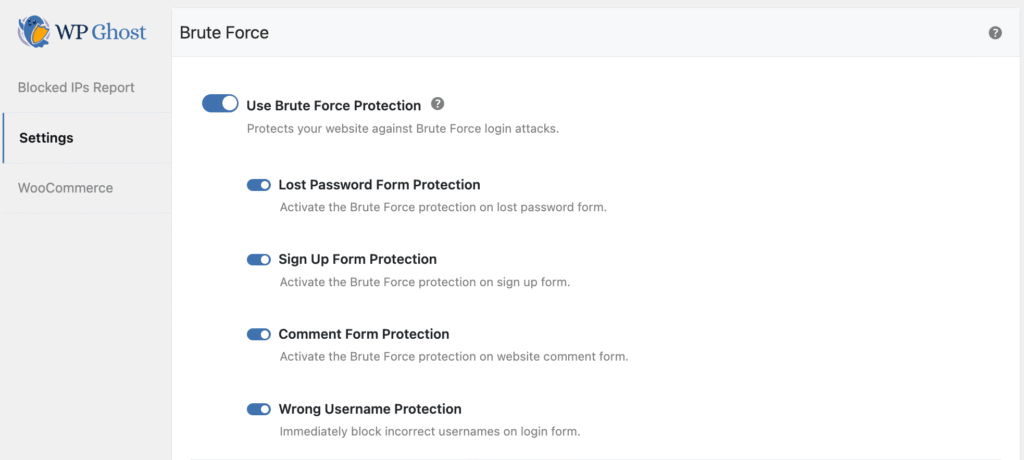
Comment Form Protection adds reCAPTCHA to product review forms, preventing fake reviews. Sign Up Form Protection adds reCAPTCHA to WooCommerce registration, blocking automated fake account creation.
Step 3: Configure Customer Login and Logout Redirects
Secure redirects improve both customer experience and security. WP Ghost lets you configure role-based redirects so WooCommerce customers go to the right page after login and logout.
- Go to WP Ghost > Tweaks > Redirects.
- Enable Do Login & Logout Redirects.
- Click the User Role tab and select Customer.
- Set the Login Redirect URL to
/my-accountto bring customers to their WooCommerce dashboard after login. - Set the Logout Redirect URL to
/to send customers to the homepage after logout. - Click Save.

Redirect tips for WooCommerce: Customer role redirects take priority over default redirects. Make sure the /my-account page is published and set as the WooCommerce Account page in WooCommerce > Settings > Accounts. Test both login and logout flows in an incognito browser after saving.
Step 4: Enable 8G Firewall
WooCommerce stores attract price-scraping bots, fake cart bots, payment page scanners, and vulnerability exploitation bots. The 8G Firewall blocks these attacks at the server level before WordPress loads. The 7G and 8G firewalls are fully included in WP Ghost Free.
- Go to WP Ghost > Firewall.
- Switch on Firewall Against Script Injection.
- Select 8G Firewall from Firewall Strength.
- Click Save.

The 8G Firewall protects product pages, checkout, cart, and account pages against SQL injection, script injection, directory traversal, and other server-level attacks.
Step 5: Activate Security Headers
Security headers protect against checkout form hijacking, session hijacking, XSS attacks on product and checkout pages, and clickjacking on payment forms.
- Go to WP Ghost > Firewall > Header Security.
- Enable the recommended headers: X-Frame-Options, X-XSS-Protection, Strict-Transport-Security (HSTS), and Content-Security-Policy (if your checkout and payment gateway allow it).
- Click Save.
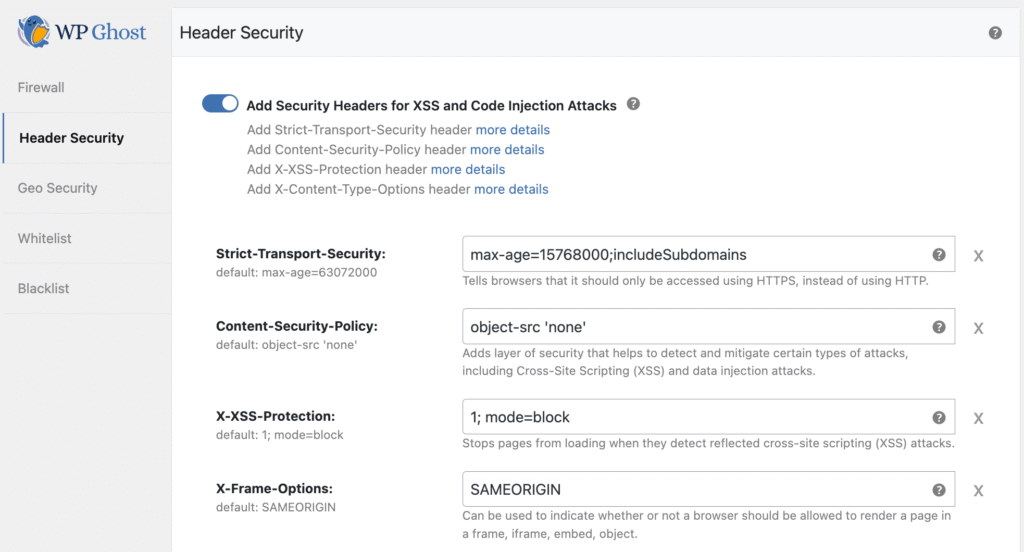
Test Content-Security-Policy carefully on WooCommerce. CSP can block external scripts used by payment gateways (Stripe, PayPal, etc.). Enable CSP and test the entire checkout flow including payment. If checkout breaks, adjust the CSP policy to allow your payment gateway’s domains, or disable CSP until you’ve configured the correct directives. See Content-Security-Policy (CSP) for configuration details.
Step 6: Country Blocking (Premium, Optional)
If your store only ships to specific countries, blocking access from regions outside your delivery zone significantly reduces bot traffic and attack attempts.
- Go to WP Ghost > Firewall > Country Blocking.
- Block countries outside your shipping and delivery zones.
- Click Save.
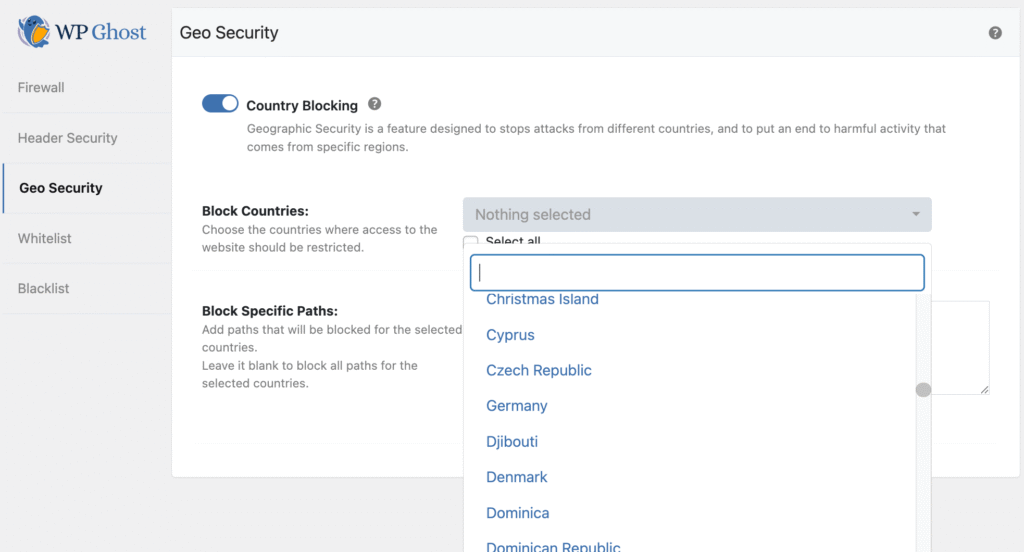
Country Blocking is a WP Ghost Premium feature (available in Safe Mode and Ghost Mode). If you sell internationally, skip this step or block only countries where you have zero customers and high attack volume. Check your security logs to identify which regions generate the most malicious traffic. WP Ghost Free users can still apply the earlier steps in this guide.
Frequently Asked Questions
Do I also need to change WordPress paths for WooCommerce?
Yes. Path security is the foundation of WP Ghost’s protection and works alongside everything in this guide. Set it up at WP Ghost > Change Paths > Level of Security. Pick Lite Mode on the free version, or Safe Mode on WP Ghost Premium (the recommended default for WooCommerce). WP Ghost is fully compatible with WooCommerce in all three modes, and path changes don’t affect product pages, cart, checkout, or my-account functionality. See the Change WordPress Paths guide.
Which security mode should I use on my WooCommerce store?
On WP Ghost Free, use Lite Mode, it’s universally compatible with WooCommerce. On WP Ghost Premium, start with Safe Mode, it’s the recommended default for WooCommerce because it’s engineered for compatibility with ecommerce plugin ecosystems (WooCommerce core, Elementor, Divi, subscription and membership extensions, etc.) while adding path protection for wp-admin and admin-ajax.php. Only move to Ghost Mode after you’ve verified cart, checkout, and all WooCommerce extensions work end to end. If Ghost Mode ever causes an issue, switch back to Safe Mode from WP Ghost > Change Paths > Level of Security, no settings are lost.
Will brute force protection or reCAPTCHA affect the WooCommerce checkout?
No. Brute force protection applies to the login form, registration form, and comment/review forms. It doesn’t add reCAPTCHA to the checkout page. Customers can complete purchases without any additional verification steps at checkout.
CSP is blocking my payment gateway. What should I do?
Content-Security-Policy restricts which external domains can load scripts on your site. Payment gateways like Stripe, PayPal, and Square load JavaScript from their own domains. Add your payment gateway’s domain to the CSP script-src directive. For example, for Stripe, add js.stripe.com. See the CSP guide for configuration details. If unsure, disable CSP until you’ve identified the correct domains.
Can I enable all these settings on an existing WooCommerce store?
Yes. All settings can be applied to existing stores at any time. Enable one feature at a time and test your store after each change: verify login, registration, product pages, add-to-cart, checkout, and payment. This way you can identify which setting caused an issue if something breaks. For emergency recovery, see the emergency disable guide.
Does WP Ghost modify WordPress core files?
No. WP Ghost integrates with WooCommerce through WordPress hooks and filters. No WooCommerce or WordPress core files are modified. Deactivating WP Ghost restores all defaults instantly.
Related Tutorials
Complete your WooCommerce security setup:
- Change WordPress Paths – core path security (compatible with WooCommerce in all three modes).
- Lite Mode vs Safe Mode vs Ghost Mode – pick the right security level for your WooCommerce store.
- Brute Force Protection – full guide covering all reCAPTCHA options and protected forms.
- Content-Security-Policy (CSP) – configure CSP for payment gateway compatibility.
- Two-Factor Authentication – add 2FA for admin and shop manager accounts.
- Redirect Logged Users to Dashboard – role-based redirect configuration.