
- What Is the Security Monitor?
- Why the Report Shows a Status per Category
- How to Set Up the Security Monitor
- Reading the Report
- Findings, and What to Do About Them
- Plugin Vulnerabilities and Why They Appear Under Path Security
- Run New Test Compared With the Weekly Scan
- The Weekly Email
- Email Notifications
- Frequently Asked Questions
- Related Tutorials
The Security Monitor scans your WordPress sites every week from the cloud and reports, protection by protection, what your server still gives away to a stranger. It runs in your WP Ghost Dashboard account. Add any connected site and WP Ghost scans it weekly from outside your server, then reports back by security category: whether Path Security is working, whether your browser protections are in place, and what your page source still reveals to anyone who looks. Reports are stored in your Dashboard and can be emailed to you or to a different address for each site. This is a Premium feature.
What Is the Security Monitor?

The Security Monitor is WP Ghost’s cloud-based scanner. It supplements the in-WordPress Security Check by running automated weekly scans from outside your server, seeing your website exactly as a bot does: no plugin settings, no admin session, just the responses your server gives to a stranger.
That outside perspective is the entire point. A path can look protected from inside your dashboard and still answer requests from the public internet, because caching, a server configuration change, or a rewrite rule that never took effect can all leave the old address serving quietly. The Monitor finds that the same way an attacker would.
Why the Report Shows a Status per Category
A single yes or no verdict on a whole website is not a useful answer. A site with a custom login path, a working firewall and one missing header is not “insecure” in any sense that helps you act, and a site that returns no findings is not necessarily safe, it may simply be unreadable from outside.
The report is therefore organised around the protections WP Ghost actually provides, and each one carries its own status. Instead of a single verdict you get a list that reads like a checklist of your defences, and you can see at a glance which layer moved since last week.
How to Set Up the Security Monitor
- Log in to your WP Ghost Dashboard.
- Go to Security Monitor.
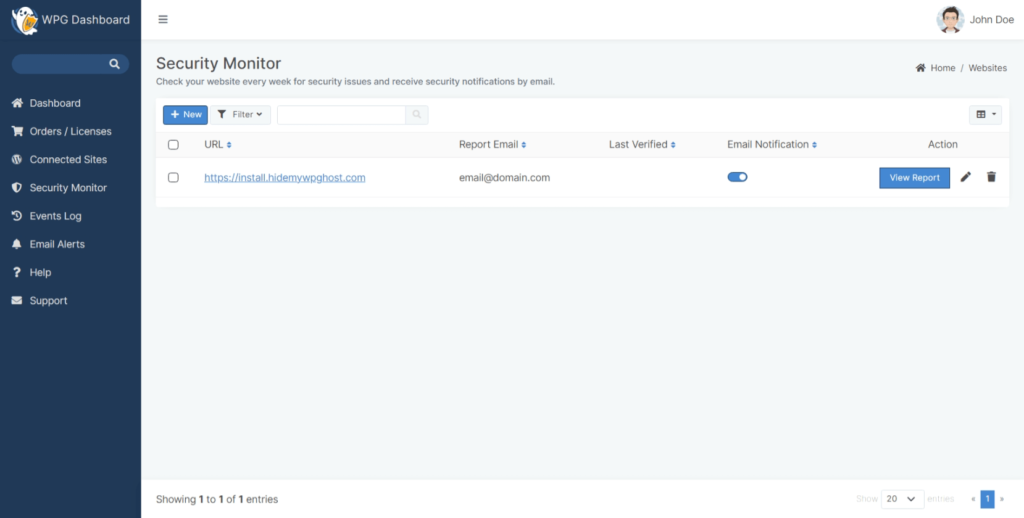
- Click +New.
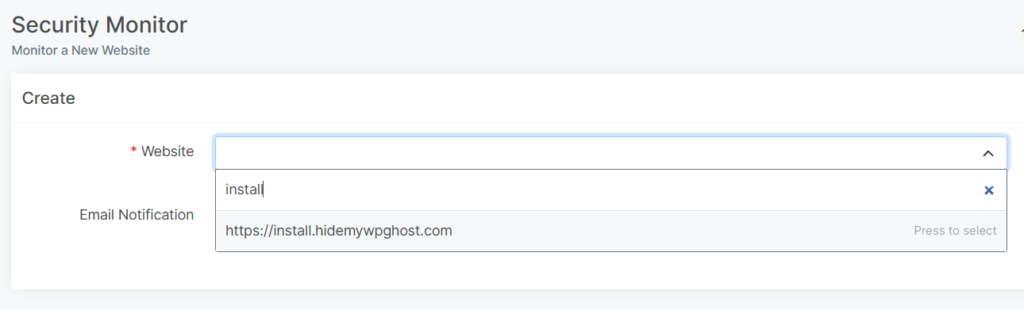
- Select the website you want to monitor. Only sites connected to your account through the WP Ghost plugin appear here.
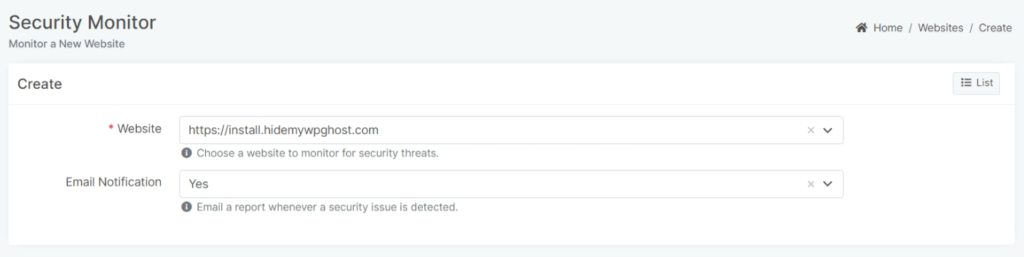
- Enable or disable Email Notification for the weekly report.
- Click Submit.
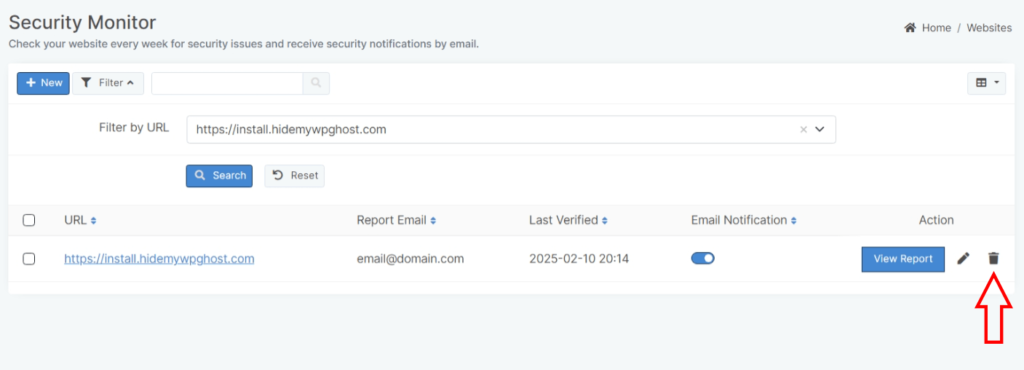
The Security Monitor list shows every monitored site with its URL, email notification status, the date it was added, and the date of the last scan. To stop monitoring a site, click the Trash icon next to it.
Reading the Report
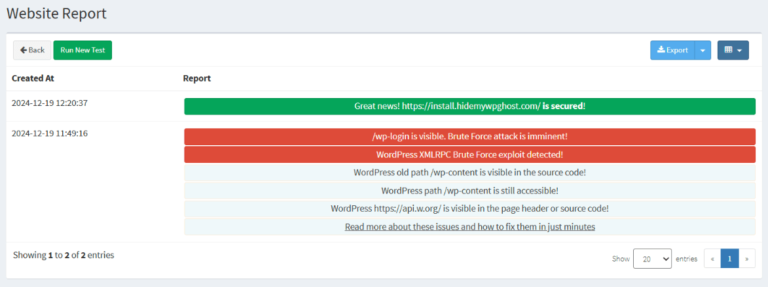
Click View Report next to any monitored site. If no report exists yet, click Run New Test.
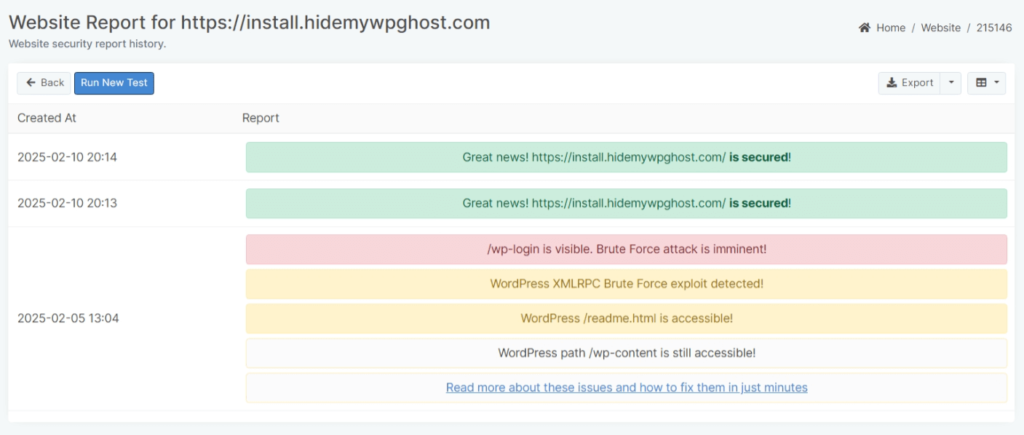
Each report is one block headed by the date it ran, so two reports in your history cannot blur into each other. Inside, findings are grouped by security category, and every category shows its own status next to its name.
| Status | What it means |
|---|---|
| Protected | The scan found evidence the protection is working |
| Partly protected | Some signals pass and others do not |
| Exposed | The scan found evidence the protection is absent |
Why Some Categories Are Missing
WP Ghost protects ten areas. A scanner working from outside can only measure five of them, so those five are what the report lists.
Two-factor authentication, credential attack limits, country and IP rules, your security logs, and your backup and rollback settings all live inside your website. A scanner that has never logged in cannot see any of them. Rather than list them as unknown rows that say nothing, or worse, mark them as passing because nothing disproved them, the report leaves them out. A report that tells you two-factor authentication is fine when it never checked is worse than no report at all.
The Five Categories You Will See
Path Security checks whether /wp-admin, /wp-login.php, /wp-content and /wp-includes still answer on their default addresses, and whether your plugins can be identified from outside.
Request Filtering sends one request carrying a common attack pattern and reports whether your firewall refused it before WordPress answered.
Browser Protections reads the seven security headers WP Ghost can send: Strict-Transport-Security, Content-Security-Policy, X-Frame-Options, X-XSS-Protection, X-Content-Type-Options, Cross-Origin-Opener-Policy and Cross-Origin-Embedder-Policy.
Fingerprint Management looks at what your page source gives away: the WordPress generator tag, version numbers on scripts and styles, the RSD discovery link, and default paths appearing in the HTML.
Configuration Hardening checks whether XML-RPC, the REST API, readme.html and directory browsing answer anonymous visitors, and whether PHP warnings are being printed into your pages.
One Note on the Firewall
Request Filtering behaves differently from the others, and the report says so. A firewall can be proven present but never proven absent. If the test request is refused, something is filtering and the category reads Protected. If it passes, that does not mean you have no firewall, only that this particular pattern was not one it blocks. The report states that rather than reporting a failure it cannot support.
Findings, and What to Do About Them
Inside each category, every finding carries a coloured bar:
- Red, critical. Someone can get in, or the way in is already published.
- Orange, important. A real weakness worth fixing this week.
- Blue, suggested. Hardening, worth doing when you have time.
Every finding carries two lines that the previous report format did not have.
How to fix names the exact screen in WP Ghost. Not “customise your paths” but Change Paths > WP Core Security and rename the wp-content path. The menu paths in the report are the same ones the plugin uses in its own advice, so the report and your dashboard send you to the same place.
How to confirm it is fixed tells you what to request and what answer to expect. For example: request /wp-admin in a private window. You should get a 404, and your own custom address should still open the dashboard.
That phrase, in a private window, matters more than it looks. WP Ghost deliberately keeps working for you while you are signed in, so testing your own custom login URL in your normal browser will often still let you through and make it look as though nothing changed. A private window is the only way to see what a visitor sees.
Plugin Vulnerabilities and Why They Appear Under Path Security
This is the most important thing to understand about the report, because the logic runs in one direction only.
The scanner can only name a plugin, and therefore look up its published vulnerabilities, by reading a path that is not protected. When your paths are exposed, an asset address reads /wp-content/plugins/contact-form-7/style.css?ver=5.3.1, which is a complete fingerprint: the plugin and its exact version. Once WP Ghost changes your paths, the same asset reads /core/modules/39d10ee62c/assets/css/style.css?rnd=30803. The folder is a hash and the version is a random token. There is no name left to read and nothing to look up.
So a finding like “contact-form-7 has a published vulnerability” is not a separate problem sitting beside your path settings. It is the evidence that Path Security is not protecting you, and it appears inside that category for exactly that reason. Its fix says to update the plugin now, and then change your paths so the next vulnerable plugin cannot be found this way.
The Monitor finds plugins two ways. It reads your homepage source for plugin references, and if your plugins directory allows browsing, it reads the folder listing directly. The second route matters because a site with a thin homepage that loads few assets can still have forty plugins installed, and a browsable directory lists every one of them.
What “No Vulnerabilities Found” Does Not Mean
If the report names no plugins, that does not mean you have no vulnerable plugins. It means nobody outside can tell, which is precisely what working path protection looks like.
This distinction is the difference between a report that reassures you correctly and one that reassures you falsely. To check the versions actually installed, use the Security Check inside your WordPress dashboard, which reads your real plugin list rather than guessing from the outside.
Run New Test Compared With the Weekly Scan
Run New Test gives you the full category report immediately.
The weekly scan additionally checks every readable plugin against the vulnerability database. That lookup is one network request per plugin, and a badly exposed site can expose dozens, so it runs in the background where the wait costs nothing rather than making you watch a spinner.
If you want a vulnerability check on demand, use the Security Check inside your WordPress dashboard.
The Weekly Email
The email shows the same categories with their statuses, so a glance tells you whether anything moved since last week. Categories the scan could not measure are left out, for the same reason they are left out of the report.
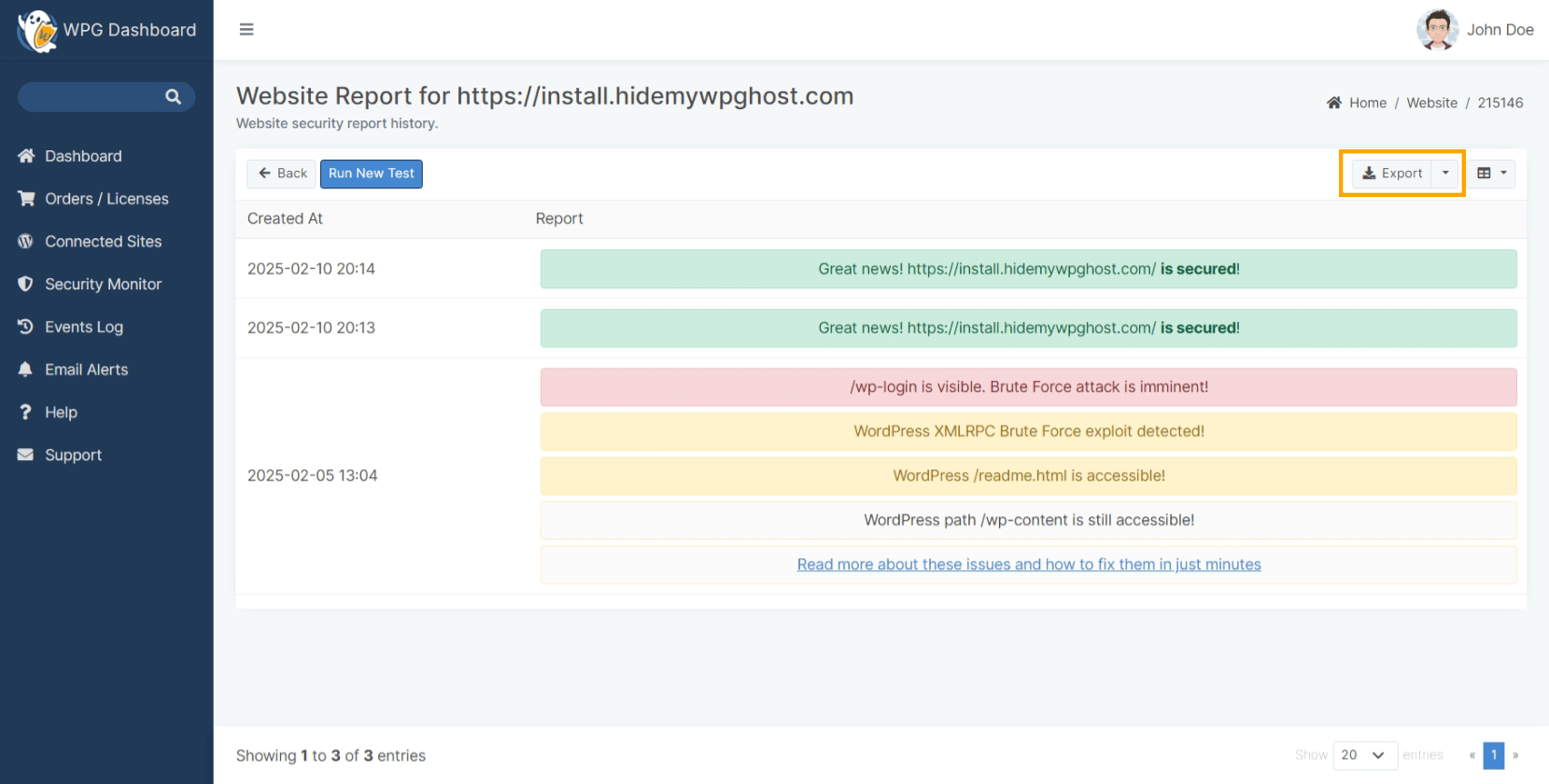
Use Export to download a copy of any report.
Email Notifications
Default notification email. Go to Profile > Settings in the WP Ghost Dashboard and set the Default Notification Email address. This is where all Security Monitor reports and User Events alerts are sent.


Per-site email. To send reports for specific sites to different addresses, go to Connected Sites, click the edit icon in the Alert Email column, enter the address and click Submit. Per-site settings override the default.
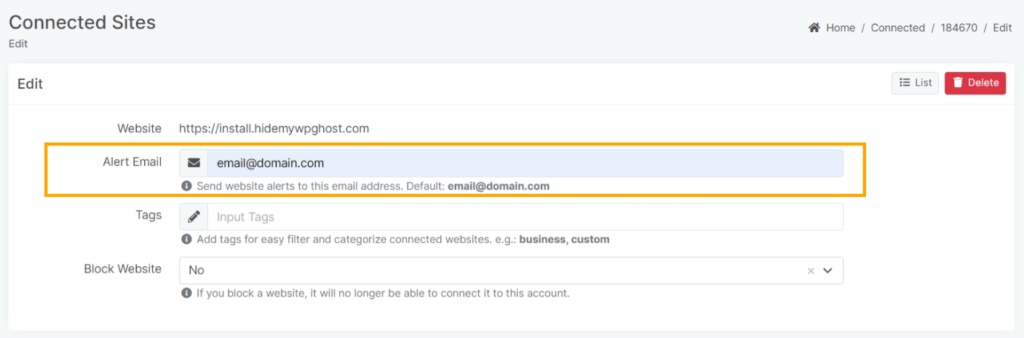
If no email is configured in either place, reports go to the address on your WP Ghost account.
Frequently Asked Questions
What is the difference between the Security Monitor and the Security Check?
The Security Check runs inside your WordPress dashboard when you press Start Scan. It reads your real configuration: installed plugin versions, file permissions, database prefix, security keys, and settings no outside scanner can see. The Security Monitor runs weekly from the WP Ghost Cloud and validates what the internet can actually reach. Use both. The Security Check knows what you have configured; the Monitor knows whether it is working.
Why does the Monitor show fewer categories than the plugin?
Because it can only report what it can prove from outside. Five of the ten protection categories are invisible to an external scanner, so it does not comment on them.
Is this a Premium feature?
Yes. The Security Monitor requires a WP Ghost Premium account and a connected site. The in-WordPress Security Check is available in the free version.
How often does it scan?
Every week automatically, and any time you press Run New Test.
Does WP Ghost modify WordPress core files?
No. The Monitor reads publicly accessible responses from outside. It installs nothing, modifies nothing, and needs no server configuration beyond the standard plugin connection.
Related Tutorials
Fix what the Security Monitor finds:
- Website Security Check – The in-WordPress scanner that reads your real configuration.
- Customize Paths with WP Ghost – Fix Path Security findings.
- Change and Hide the Login Path – Fix exposed login addresses.
- Firewall Security – Fix Request Filtering findings with 7G/8G rules.
- Header Security – Fix Browser Protections findings with one toggle.
- Hide WordPress Common Paths and Files – Fix readme.html, directory browsing and old path findings.
- Brute Force Protection – Credential attack limits the Monitor cannot see.
- User Events Log – Dashboard activity tracking, using the same notification email system.