
WP Ghost works on Amazon AWS Lightsail (Bitnami WordPress) with extra Apache configuration. Bitnami WordPress on Lightsail uses a non-standard Apache setup: it sets AllowOverride None by default and uses htaccess.conf files instead of .htaccess. WP Ghost needs rewrite rules to function, so you need to either enable AllowOverride All (so WP Ghost can write to .htaccess normally) or add the rewrite rules directly to Bitnami’s config file. This guide covers both options.
Why AWS Lightsail (Bitnami) Requires Extra Setup

Bitnami WordPress stacks on AWS Lightsail use a custom Apache configuration. Unlike standard Apache setups, Bitnami disables .htaccess processing by default (AllowOverride None) for performance reasons. Instead, Bitnami uses its own htaccess.conf files. The WordPress-specific config is at /opt/bitnami/apps/wordpress/conf/httpd-app.conf (legacy layout) or within the Bitnami Apache config directory (newer layout). You need to either enable standard .htaccess support or add WP Ghost’s rewrite rules directly to Bitnami’s config file. For more details on Bitnami’s approach, see the Bitnami .htaccess documentation.
Option A: Enable AllowOverride All (Recommended)
The simplest approach is to enable AllowOverride All so WP Ghost can write to .htaccess automatically, just like a standard Apache server. This also enables WordPress permalink support and compatibility with other plugins that use .htaccess.
- SSH into your Lightsail instance (use the browser-based SSH client in the Lightsail console or your own SSH client).
- Open the Bitnami WordPress config file:
sudo nano /opt/bitnami/apps/wordpress/conf/httpd-app.conf- Find the
<Directory>block and changeAllowOverride NonetoAllowOverride All:
<Directory "/opt/bitnami/apps/wordpress/htdocs">
    Options +MultiViews +FollowSymLinks
    AllowOverride All

    <IfDefine USE_PHP_FPM>
        <FilesMatch \.php>
            SetHandler "proxy:fcgi://wordpress-fpm/"
        </FilesMatch>
    </IfDefine>
</Directory>- Save and exit: press Ctrl + X, then Y, then Enter.
- Proceed to the Restart Apache and Test section below.
Newer Bitnami layout: If the file path above doesn’t exist, your Lightsail instance may use the newer Bitnami layout. Try /opt/bitnami/apache/conf/vhosts/htaccess/wordpress-htaccess.conf instead. Check the Bitnami documentation for your specific stack version.
Option B: Add Rules Directly to httpd-app.conf
If you prefer to keep AllowOverride None for performance reasons, you can add WP Ghost’s rewrite rules directly to the Bitnami config file instead of using .htaccess.
- Install WP Ghost, select Safe Mode or Ghost Mode, and click Save.
- WP Ghost displays a notification with the rewrite rules. Copy these rules.
- SSH into your Lightsail instance and open the config file:
sudo nano /opt/bitnami/apps/wordpress/conf/httpd-app.conf- Add the WP Ghost rewrite rules inside the
<Directory>block, before the existing WordPress rewrite rules (theRewriteBase/RewriteRuleblock). - Save and exit: press Ctrl + X, then Y, then Enter.
- Proceed to the Restart Apache and Test section below.
Option B requires manual updates. If you use Option B, you need to update the rewrite rules in httpd-app.conf every time you change paths in WP Ghost. With Option A, WP Ghost writes to .htaccess automatically. Option A is recommended unless you have a specific reason to keep AllowOverride None.
Restart Apache and Test
After completing either Option A or Option B, restart Apache and test:
- Restart the Bitnami Apache server:
sudo /opt/bitnami/ctlscript.sh restart apache- If you used Option A, go to WP Ghost, select Safe Mode or Ghost Mode, customize paths, and click Save. WP Ghost now writes to
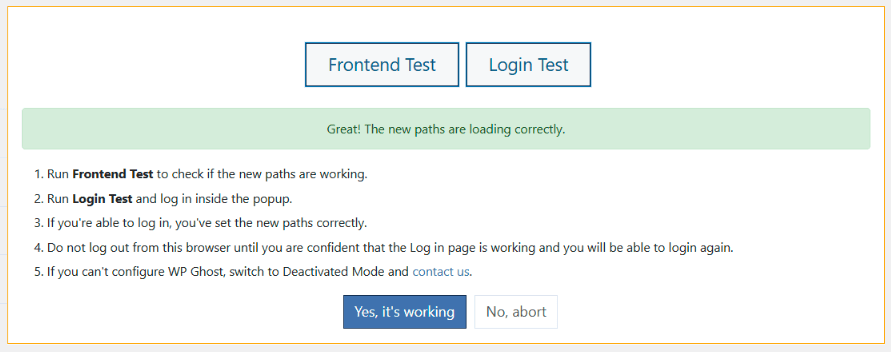
.htaccessautomatically. - Run the Frontend Login Test in WP Ghost.
- If everything loads correctly, click “Yes, it’s working”.
- If something is broken, click “No, abort” to roll back.
Troubleshooting
Config file path doesn’t exist
Bitnami has changed its directory layout over time. If /opt/bitnami/apps/wordpress/conf/httpd-app.conf doesn’t exist, try /opt/bitnami/apache/conf/vhosts/htaccess/wordpress-htaccess.conf or run find /opt/bitnami -name "httpd-app.conf" to locate the file. Check the Bitnami documentation for your stack version.
Custom paths return 404 after restart
If you used Option A, verify AllowOverride All is set in the correct <Directory> block and that a .htaccess file exists in the WordPress root with WP Ghost’s rewrite rules. If you used Option B, verify the rewrite rules are placed before the WordPress rewrite rules in the config file, not after.
Apache won’t restart
Syntax error in the config file. Run sudo /opt/bitnami/ctlscript.sh status apache to check the status, and sudo apachectl configtest to find the specific error. Fix the issue and restart again.
Locked out after configuration
SSH into your Lightsail instance and either fix the config or use the Safe URL parameter to bypass WP Ghost temporarily. If that doesn’t work, see the Emergency Disable guide.
Frequently Asked Questions
Which option should I choose?
Option A (AllowOverride All) is recommended for most users. It lets WP Ghost write to .htaccess automatically, which means path changes take effect immediately without SSH access. Option B is for administrators who want to keep AllowOverride None for performance and are comfortable editing server config files every time they change WP Ghost paths.
What if my Bitnami directory layout is different?
Bitnami has updated its directory structure over time. Older stacks use /opt/bitnami/apps/wordpress/, newer stacks use /opt/bitnami/wordpress/ or /opt/bitnami/apache/conf/vhosts/. The Bitnami documentation has the current paths for each layout version.
Do I need to SSH in every time I change WP Ghost paths?
Only if you used Option B. With Option A (AllowOverride All), WP Ghost writes to .htaccess automatically and you just need to restart Apache after path changes. With Option B, you need to SSH in, update the config file, and restart Apache every time you change paths.
Does WP Ghost modify WordPress core files?
No. WP Ghost writes rewrite rules to .htaccess (Option A) or you add them manually to the Bitnami config (Option B). No core files are modified. Deactivating WP Ghost restores all defaults instantly.
Related Tutorials
Apache and cloud server configuration:
- Set AllowOverride All on Apache – General Apache AllowOverride guide.
- Google Cloud Platform Setup – Another cloud hosting setup guide.
- Custom Nginx Config File – If your Lightsail instance uses Nginx instead.
- Safe URL Parameter – Bypass WP Ghost temporarily if needed.
- Emergency Disable – Recovery via SSH if needed.