

WP Ghost works on Kinsta managed WordPress hosting. Kinsta is a premium managed hosting provider built on Google Cloud Platform that uses Nginx exclusively. You don’t have direct access to the Nginx config files, so full path security requires contacting Kinsta support to add the WP Ghost config include. Alternatively, you can use WP Ghost’s features that work without server config changes (custom login path, brute force protection, firewall, 2FA, security headers). This guide covers both options.
Why Kinsta Requires Support Assistance

Kinsta uses Nginx and doesn’t provide .htaccess support or direct access to Nginx configuration files. On standard Nginx servers, you’d add an include line pointing to WP Ghost’s hidemywp.conf file. On Kinsta, only their support team can modify the Nginx config. This means either contacting Kinsta support for full path rewriting, or using WP Ghost’s features that don’t require server config changes. Both approaches provide meaningful security.
Option A: Use WP Ghost Without Config Changes
If you don’t want to contact Kinsta support, you can still use most of WP Ghost’s security features without any Nginx config changes. These features work through WordPress hooks and PHP at the application level, not through server rewrite rules.
Features that work without Nginx config changes:
- Custom login path (hide wp-login.php).
- Brute force protection with reCAPTCHA on login, register, lost password, and comment forms.
- 7G/8G Firewall.
- 2FA with passkeys (Face ID, Touch ID, Windows Hello).
- Security headers (HSTS, CSP, X-Frame-Options).
- Hide WordPress version, generator meta, and common files.
- Temporary logins and Magic Link Login.
- Country blocking.
For the complete no-config setup guide, see Use WP Ghost on Nginx Without Config Changes. That guide includes the Minimal (No Config Rewrites) preset that configures all available features automatically.
What you don’t get without config changes: Full path security for wp-content, plugins, themes, uploads, wp-includes, and REST API. These features require Nginx rewrite rules that only Kinsta support can add. Custom login paths and version hiding still work because they operate at the PHP level.
Option B: Full Setup via Kinsta Support
For full path security including wp-content, plugins, themes, and uploads, you need Kinsta support to add WP Ghost’s rewrite rules to your Nginx config.
Step 1: Configure and Save WP Ghost
- Go to WP Ghost > Change Paths > Level of Security.
- Select Safe Mode or Ghost Mode and customize paths.
- Click Save. WP Ghost generates the
hidemywp.conffile and displays the Nginx include instructions.

Step 2: Download the Config File and Contact Support
- Go to your website root directory using File Manager (in MyKinsta or via SFTP).
- Download the
hidemywp.conffile. - Open a support ticket with Kinsta support.
- Send them the
hidemywp.conffile and ask them to include it in your site’s Nginx configuration and restart the server.

Step 3: Backup, Deactivate, Wait, Restore
- Back up your WP Ghost settings at WP Ghost > Backup / Restore.
- Deactivate WP Ghost until Kinsta support confirms the rules are added.
- Wait for Kinsta support to reply that the config has been added and the server restarted.
- Re-activate WP Ghost and restore your saved settings from WP Ghost > Backup / Restore.
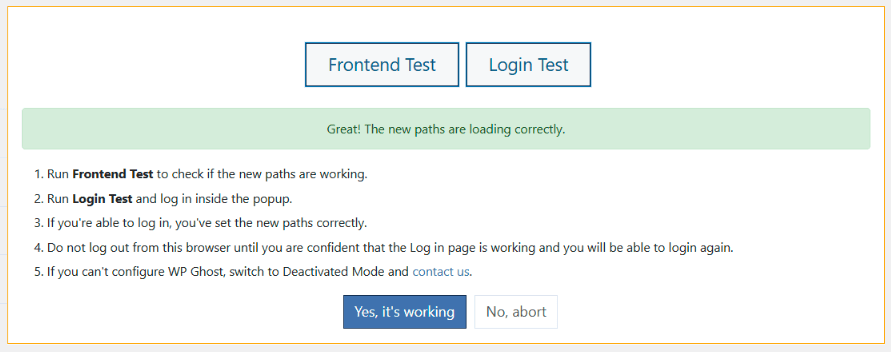
- Run the Frontend Login Test and confirm everything works.
Deactivate WP Ghost while waiting. If WP Ghost is active with Safe Mode or Ghost Mode but the Nginx rules aren’t in place yet, custom paths will break because Nginx doesn’t know how to route them. Deactivate WP Ghost until Kinsta confirms the rules are live, then re-activate and restore your settings.
Troubleshooting
Kinsta support declines to add the config
Some managed hosting support teams may be unfamiliar with WP Ghost or reluctant to modify Nginx config. If Kinsta declines, use Option A instead. The Minimal preset provides custom login paths, brute force protection, firewall, 2FA, and security headers without any server config changes. See Use WP Ghost on Nginx Without Config Changes.
Custom paths return 404 after Kinsta added the rules
The hidemywp.conf file may have been regenerated or WP Ghost settings need to be restored. Re-activate WP Ghost, restore your backup from WP Ghost > Backup / Restore, and re-save. If the issue persists, download the current hidemywp.conf and send it to Kinsta support again as the rules may need updating.
Need to update paths after initial setup
Every time you change paths in WP Ghost, the hidemywp.conf file is updated. You need to contact Kinsta support again to reload Nginx so it picks up the new rules. This is the trade-off of managed hosting – path changes aren’t instant like on Apache servers.
Locked out after configuration
Use the Safe URL parameter to bypass WP Ghost temporarily. If that doesn’t work, see the Emergency Disable guide to deactivate via SFTP. Kinsta provides SFTP access through the MyKinsta dashboard.
Frequently Asked Questions
Which option should I choose?
Option A (no config changes) is the quickest and doesn’t require support interaction. It provides custom login paths, brute force protection, firewall, 2FA, security headers, and version hiding. Option B (via support) adds full path security for wp-content, plugins, themes, and uploads but requires a support ticket and waiting for Kinsta to make the changes.
Is WP Ghost still effective without full path rewriting?
Yes. Custom login paths, brute force protection, firewall, 2FA, security headers, and version hiding cover the most critical attack vectors. Path rewriting for wp-content, plugins, and themes adds an additional layer by hiding your WordPress identity from theme detectors and bot scanners, but the features available without config changes provide strong protection on their own.
Do I need to contact Kinsta support every time I change paths?
Yes, if you used Option B. Kinsta needs to reload Nginx for the updated hidemywp.conf to take effect. With Option A, path changes that operate at the PHP level take effect immediately without support interaction.
Does WP Ghost modify WordPress core files?
No. WP Ghost generates a separate hidemywp.conf file for Nginx and uses WordPress hooks for application-level changes. No core files are modified. Deactivating WP Ghost restores all defaults instantly.
Related Tutorials
Nginx and managed hosting configuration:
- Use WP Ghost on Nginx Without Config Changes – Full guide for managed hosting environments.
- Custom Nginx Config File – Standard Nginx setup when you have config access.
- Flywheel Server Setup – Another managed Nginx hosting guide.
- Safe URL Parameter – Bypass WP Ghost temporarily if needed.
- Emergency Disable – Recovery via SFTP if needed.