
WP Ghost works on RunCloud with both web application stacks: NGINX + Apache2 Hybrid (recommended) and Native NGINX. The Hybrid stack is the easiest setup because it uses .htaccess the same way standard Apache does, so WP Ghost works out of the box with no extra configuration. Native NGINX requires one additional step: creating a hidemywp.conf file and adding an include directive to the RunCloud Nginx config. This guide covers both options and explains when to choose each.
Choose Your Web Application Stack

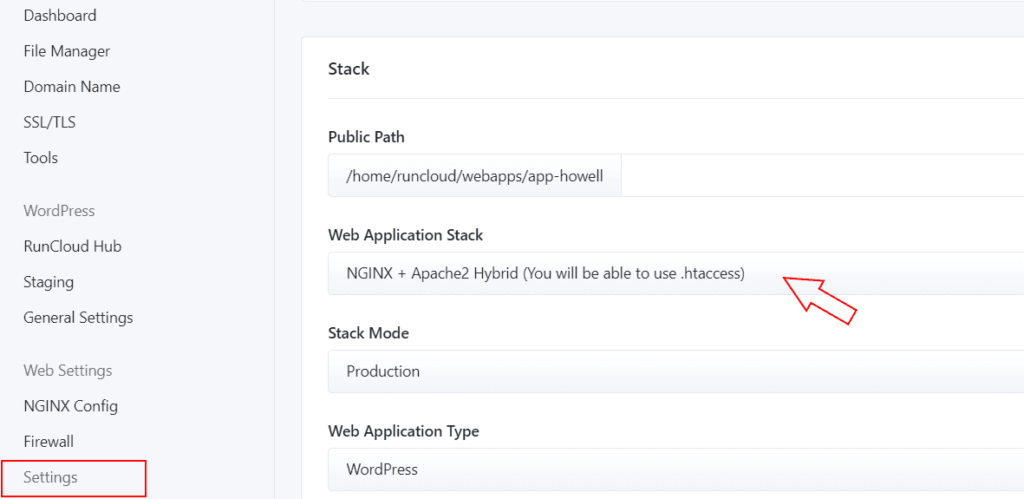
RunCloud offers two stack options when creating a WordPress application: NGINX + Apache2 Hybrid uses Nginx as a reverse proxy in front of Apache, with Apache handling .htaccess processing. This is the most compatible option and recommended for WP Ghost. Native NGINX uses Nginx alone with no Apache layer – it’s faster but doesn’t process .htaccess, so WP Ghost requires manual Nginx config additions. Choose Hybrid if you want the easiest setup. Choose Native NGINX if you need maximum performance and don’t mind one extra configuration step.
Option 1: NGINX + Apache2 Hybrid (Recommended)
This is the simplest setup. With Hybrid mode, WP Ghost writes rewrite rules to .htaccess just like on a standard Apache server, and Apache processes them automatically.
- In RunCloud, create a new WordPress application or edit an existing one.
- At the Web Application Stack selection, choose NGINX + Apache2 Hybrid.
- Complete the WordPress installation through RunCloud.
- Configure WP Ghost normally. All rules are written to
.htaccessautomatically and applied without any additional server configuration.
That’s it. With Hybrid mode, you don’t need to edit any Nginx configuration. WP Ghost works the same way it does on any Apache server. Skip to the Verify the Setup section.
Option 2: Native NGINX
Native NGINX is faster but requires manual configuration because Nginx doesn’t process .htaccess. WP Ghost generates a hidemywp.conf file with the rewrite rules, and you need to add an include directive to RunCloud’s Nginx config so the rules are loaded.
- In RunCloud, create your WordPress application with Native NGINX selected at the Web Application Stack.
- Install WP Ghost from your WordPress dashboard.
- Go to WP Ghost > Advanced > Compatibility and verify the Server type is set to Nginx.
- Create an empty file named
hidemywp.confin the root directory.

- Go to WP Ghost > Change Paths, configure your path security, and click Save.
- WP Ghost displays a notification with the exact
includedirective you need to add to your Nginx config:

- Copy the include directive from the notification.
- In RunCloud, go to your application and open the NGINX Config tab.
- Add the include directive (something like
include /home/runcloud/webapps/yoursite/hidemywp.conf;) to the configuration. - Click Save.

- Click Rebuild Web Application Config in RunCloud to apply the changes.
Reload Nginx After Path Changes
Important: On Native NGINX, you must rebuild the web application config in RunCloud every time you save WP Ghost path changes. Nginx loads its configuration at startup and keeps it in memory – changes to hidemywp.conf won’t take effect until Nginx reloads.
- After saving WP Ghost settings, go to your RunCloud web application.
- Click Rebuild Web Application Config.
- Wait for the rebuild to complete. The new path security rules are now active.

This step is only required for Native NGINX setups. Hybrid mode applies .htaccess changes immediately without any reload.
Verify the Setup
- Visit your site and confirm pages load normally.
- Try your custom WP Ghost login URL – it should work.
- Try the default
/wp-login.php– it should return 404. - View page source and confirm plugin/theme paths show your custom WP Ghost names.
- Run a Security Check in WP Ghost to verify all settings are applied.
Troubleshooting
Custom paths return 404 on Native NGINX
You probably forgot to rebuild the web app config after saving WP Ghost. Go to your RunCloud application and click Rebuild Web Application Config. If that doesn’t fix it, verify the include directive is present in the NGINX Config tab and that the path matches the actual hidemywp.conf file location.
“hidemywp.conf not found” error in RunCloud
The file path in your include directive doesn’t match the actual file location. RunCloud paths typically follow /home/runcloud/webapps/your-app-name/. SSH into your server and verify with ls -la /home/runcloud/webapps/your-app-name/hidemywp.conf – if the file isn’t there, create it through the RunCloud File Manager and re-save WP Ghost settings.
RunCloud Nginx config validation fails
Most common cause: missing semicolon at the end of the include line, or wrong file path. Check that your include line ends with a semicolon: include /home/runcloud/webapps/yoursite/hidemywp.conf;. RunCloud validates the config before applying it, so an error in this dialog means Nginx would fail to start.
Want to switch from Native NGINX to Hybrid
You can change the web application stack in RunCloud after creation, but it requires recreating the application. Back up your site first. After switching to Hybrid, remove the include directive from your old Nginx config (no longer needed) and let WP Ghost write rules to .htaccess automatically.
Locked out after configuration
Use the Safe URL parameter to bypass WP Ghost temporarily. If that doesn’t work, see the Emergency Disable guide to recover access via FTP or RunCloud File Manager.
Frequently Asked Questions
Which RunCloud stack should I choose?
For most users, NGINX + Apache2 Hybrid is the better choice. It works out of the box with WP Ghost and any other plugin that uses .htaccess (cache plugins, security plugins, redirect plugins). Native NGINX is faster for high-traffic sites but requires manual Nginx config for every plugin that writes rewrite rules.
Do I need to rebuild config every time I save WP Ghost?
Only on Native NGINX. The Nginx server keeps its configuration in memory, so any change to hidemywp.conf requires a rebuild for the new rules to take effect. On Hybrid mode, .htaccess changes are read on every request and apply immediately.
Will other plugins also need Nginx config additions?
Yes, on Native NGINX. Cache plugins, security plugins, and any plugin that writes rewrite rules will need their rules added to the RunCloud Nginx config. This is one of the main reasons to choose Hybrid mode unless you specifically need Native NGINX performance.
Does this work with WooCommerce?
Yes. WP Ghost is fully compatible with WooCommerce on RunCloud with both stack options. Cart, checkout, product pages, and customer accounts work normally.
Does WP Ghost modify WordPress core files?
No. WP Ghost writes rewrite rules to .htaccess (Hybrid) or hidemywp.conf (Native NGINX), and uses WordPress hooks for application-level changes. No core files are modified. Deactivating WP Ghost restores all defaults instantly.
Related Tutorials
Server configuration for WP Ghost:
- Setup WP Ghost on Nginx Server – General Nginx configuration for WP Ghost.
- Custom Config File for Nginx – Alternative location for the WP Ghost config file.
- Set AllowOverride All on Apache – Required for Hybrid mode .htaccess processing.
- Server Types – All server types supported by WP Ghost.
- Emergency Disable – Recovery if rewrite rules cause issues.