

WP Ghost works on InMotion Hosting with one configuration step. InMotion uses an Nginx-based Cache Manager that automatically caches static files (CSS, JS, images). When WP Ghost changes WordPress paths, the Nginx cache serves static files from the original paths and ignores the custom paths. The fix is to add a Force Passthrough rule in InMotion’s Cache Manager so static file requests bypass the Nginx cache and go through Apache, where WP Ghost’s .htaccess rewrite rules handle the path mapping correctly.
Why InMotion Hosting Needs WP Ghost Configuration

InMotion Hosting uses Nginx as a reverse proxy in front of Apache. Nginx caches static files (CSS, JS, images, fonts) and serves them directly without passing requests to Apache. When WP Ghost changes WordPress paths, Apache’s .htaccess rules handle the path mapping, but Nginx doesn’t know about these rules. Static file requests using WP Ghost’s custom paths never reach Apache because Nginx tries to serve them directly and returns 404. The Force Passthrough rule tells Nginx to pass static file requests through to Apache, where WP Ghost’s rewrite rules process them correctly.
Configure Force Passthrough for Static Files
- Log in to your InMotion Hosting cPanel.
- Go to Cache Manager > Options.
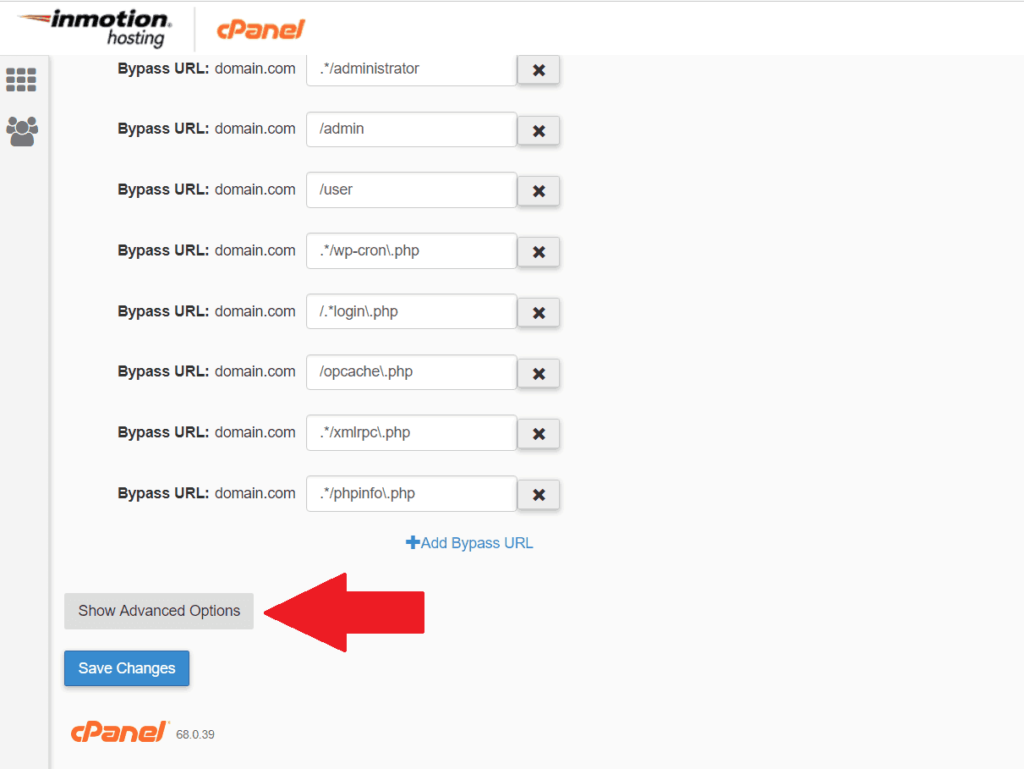
- Click Show Advanced Options.
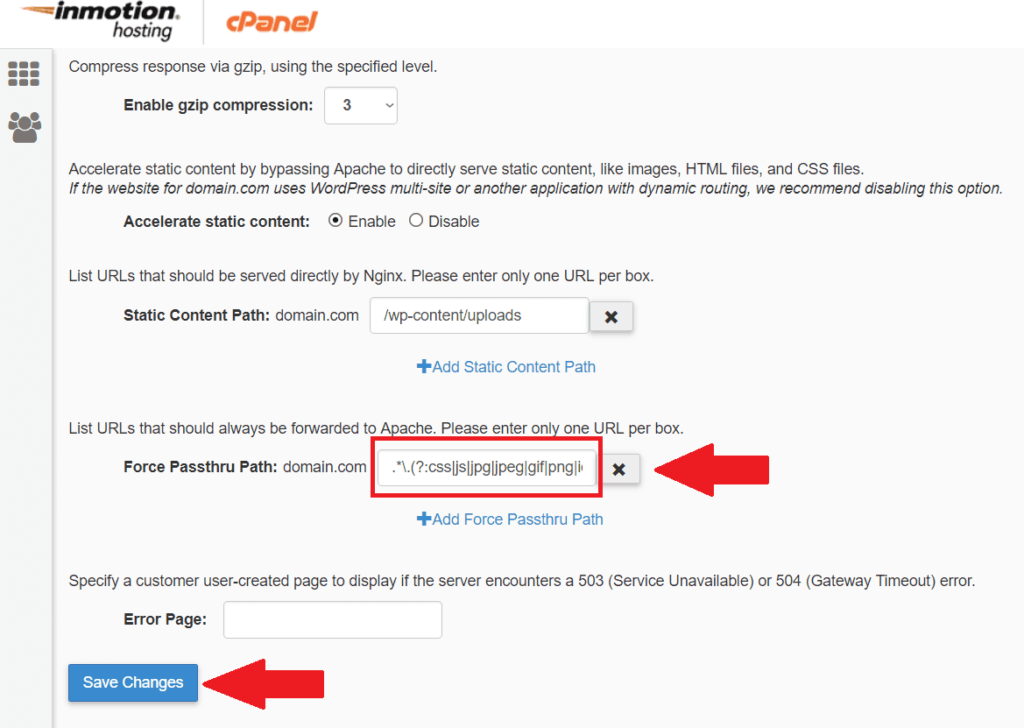
- Find the Force Passthrough Path section.
- Enter the following regex pattern:
.*\.(?:css|js|jpg|jpeg|gif|png|ico|cur|gz|svg|svgz|mp4|ogg|ogv|webm|htc|woff|woff2|ttf|eot|otf|svg|mp3)$- Click Save Changes.
- Click Purge All Cache to clear the existing Nginx cache.

After this, install and activate WP Ghost normally. Go to WP Ghost > Change Paths > Level of Security, select Safe Mode or Ghost Mode, customize paths, and save. WP Ghost writes to .htaccess automatically on InMotion’s Apache backend.
Performance note: The Force Passthrough rule tells Nginx to pass all static file requests to Apache instead of serving them from cache. This means Nginx’s caching no longer applies to these file types, which may slightly increase server load. For most sites, the impact is negligible. If you notice performance issues, consider using a CDN (Cloudflare, BunnyCDN) to cache static files at the edge instead.
Troubleshooting
Broken styles or missing CSS/JS after activating WP Ghost
The Force Passthrough rule is not configured or the Nginx cache hasn’t been purged. Go to cPanel > Cache Manager > Options, verify the Force Passthrough Path contains the regex pattern, and click Purge All Cache. Clear your browser cache and test again.
Images don’t load on custom paths
The regex pattern may be missing the image file extensions you’re using. The default pattern covers common formats (jpg, jpeg, gif, png, svg, webp is not listed). If you use WebP images, add webp to the pattern: .*\.(?:css|js|jpg|jpeg|gif|png|ico|cur|gz|svg|svgz|mp4|ogg|ogv|webm|htc|woff|woff2|ttf|eot|otf|svg|mp3|webp)$
Locked out after configuration
Use the Safe URL parameter to bypass WP Ghost temporarily. If that doesn’t work, see the Emergency Disable guide to recover access via cPanel File Manager or FTP.
Frequently Asked Questions
Is this a one-time setup?
Yes. The Force Passthrough rule persists in InMotion’s Cache Manager settings. After this one-time configuration, WP Ghost works normally via .htaccess and you don’t need to touch the Cache Manager again.
Will this slow down my site?
The Force Passthrough rule bypasses Nginx caching for static files, so Apache handles all static file requests instead of Nginx. For most sites, the performance difference is minimal. If you need edge caching, use an external CDN (Cloudflare, BunnyCDN) which caches static files at CDN edge servers regardless of the InMotion cache configuration.
Does WP Ghost modify WordPress core files?
No. WP Ghost writes rewrite rules to .htaccess and uses WordPress hooks for application-level changes. No core files are modified. Deactivating WP Ghost restores all defaults instantly.
Related Tutorials
WP Ghost on other hosting platforms:
- GoDaddy Hosting Setup – Another managed hosting CDN configuration.
- Plesk as Apache Setup – Another Nginx + Apache reverse proxy configuration.
- Compatible Plugins List – All plugins and hosting tested with WP Ghost.
- Emergency Disable – Recovery via FTP if needed.