
WP Ghost can make your WordPress site appear as a different CMS (Joomla, Drupal, or a custom name) in the HTML source code. The CMS Emulator changes the generator meta tag and other CMS indicators so automated scanners and theme detectors identify your site as something other than WordPress. You can use the built-in presets (Joomla, Drupal) or add a completely custom generator name using a filter.
What Is CMS Simulation?

Every WordPress site includes a generator meta tag (<meta name="generator" content="WordPress">) in the HTML source. Automated bots and CMS detection tools (like BuiltWith, Wappalyzer, and WhatCMS) use this tag to identify WordPress sites and then target them with known WordPress exploits. CMS simulation replaces this tag with a different CMS name, which sends bots down the wrong path. Combined with WP Ghost’s path security, this makes your site much harder to identify as WordPress.
Use the Built-in CMS Emulator
- Go to WP Ghost > Tweaks > Change Options.
- Find the Simulate CMS dropdown.
- Select a CMS from the dropdown: Joomla or Drupal.
- Click Save.
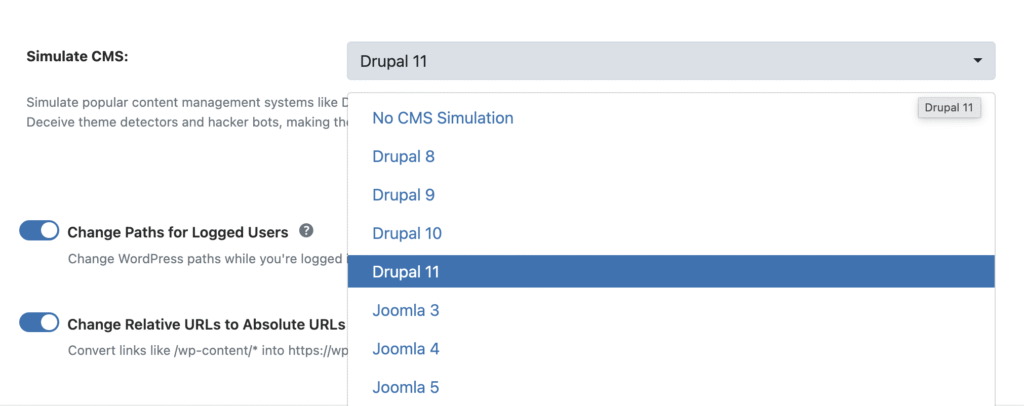
WP Ghost replaces the WordPress generator tag and adjusts other CMS indicators to match the selected CMS. CMS detection tools like BuiltWith and WhatCMS will now identify your site as the emulated CMS instead of WordPress.
CMS simulation works best with path security. Changing the generator tag alone provides a surface-level disguise. For stronger protection, combine it with Safe Mode or Ghost Mode path changes so both the meta tags and the URL structure point away from WordPress.
Add a Custom Generator Name
If you want a generator name that isn’t in the built-in presets (for example, a fictional CMS name or your own brand), use the hmwp_emulate_cms filter:
- Open your theme’s
functions.phpfile (located at/wp-content/themes/your-theme/functions.php). - Add the following code at the end of the file:
add_filter('hmwp_emulate_cms', function(){
    return 'MyCMS';
});- Replace
'MyCMS'with the generator name you want to display (for example,'Drupal','Craft CMS', or any custom name). - Save the file.
Use a child theme. Adding code to functions.php in the parent theme means your changes are lost when the theme updates. Use a child theme or a code snippets plugin to keep the filter persistent across theme updates.
Frequently Asked Questions
Do I need Safe Mode or Ghost Mode for CMS simulation?
Yes. The Emulate CMS dropdown is available when Safe Mode or Ghost Mode is active. CMS simulation is designed to work alongside path security for the most complete WordPress identity disguise.
Will this fool all CMS detection tools?
CMS simulation changes the generator meta tag and other CMS indicators. Most automated detection tools rely on these signals and will report the emulated CMS. However, a manual security researcher examining your site’s behavior in detail could still identify WordPress patterns. For the strongest disguise, combine CMS simulation with Ghost Mode path changes and Text Mapping.
Does CMS simulation affect SEO?
No. Search engines don’t use the generator meta tag for ranking. Changing it has no effect on search visibility or indexing.
Does WP Ghost modify WordPress core files?
No. CMS simulation works through WordPress output filters. No core files are modified. The custom filter code goes in functions.php (your theme file), not in WordPress core.
Related Tutorials
WordPress identity protection:
- Simulate Drupal or Joomla CMS – Detailed guide on the full CMS simulation feature.
- Text and URL Mapping – Replace WordPress-specific text in page source.
- Change WordPress Paths – Hide wp-content, plugins, and themes paths.
- Hide WordPress Version – Remove version numbers from source code.