
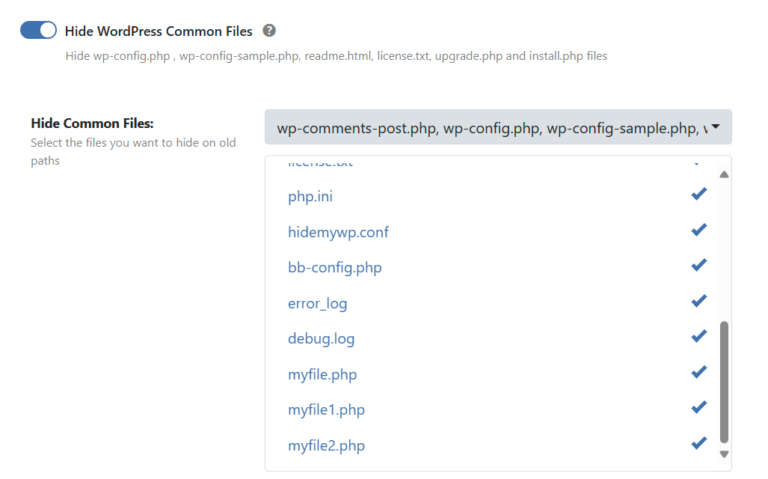
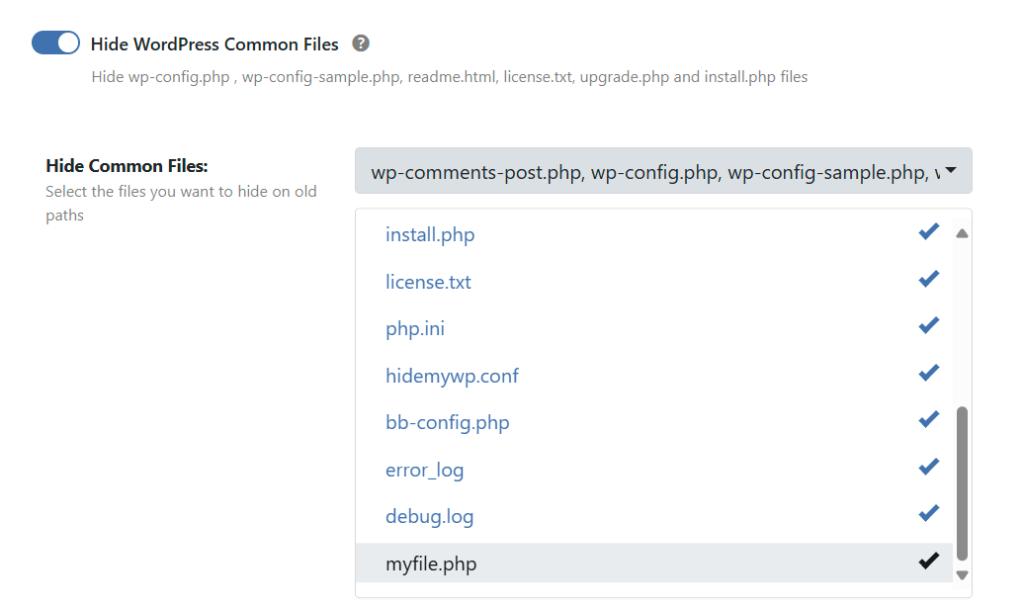
You can add custom files to WP Ghost’s “Hide WordPress Common Files” list using the hmwp_hide_commonfiles_files filter. WP Ghost includes a built-in list of common WordPress files that can be hidden (like readme.html, license.txt, wp-config-sample.php). If you have additional files you want to hide (like wp-cron.php or custom PHP files), the filter adds them to the list so you can enable hiding from the WP Ghost interface.
What This Does

Add Custom Files to the Hidden Files List
Add the hmwp_hide_commonfiles_files filter to your child theme’s functions.php file, a code snippets plugin, or wp-config.php.
To add a single file (for example, wp-cron.php):
add_filter('hmwp_hide_commonfiles_files', function($files) {
    $files[] = 'wp-cron.php';
    return $files;
});
To add multiple files:
add_filter('hmwp_hide_commonfiles_files', function($files) {
    $files[] = 'wp-cron.php';
    $files[] = 'wp-trackback.php';
    $files[] = 'custom-script.php';
    return $files;
});
Don’t hide files your site needs. Hiding files that WordPress or your plugins depend on will break functionality. For example, hiding xmlrpc.php prevents remote publishing and apps that use XML-RPC (like the WordPress mobile app or Jetpack). Hiding wp-cron.php prevents WordPress scheduled tasks unless you’ve set up a real system cron instead. Always test after hiding any file.
Enable the File in WP Ghost
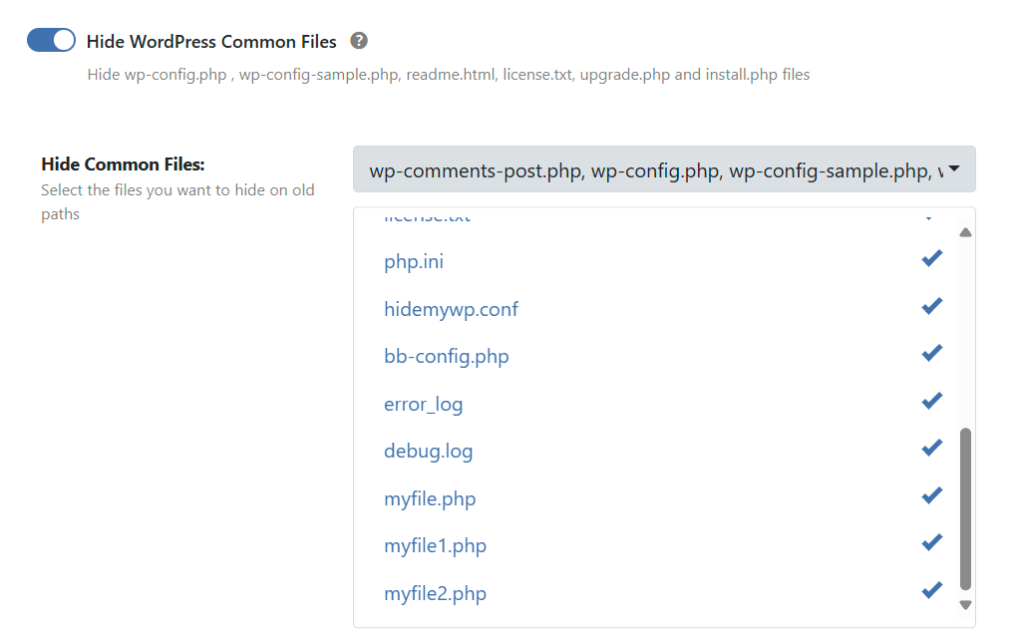
After adding the filter, the new files appear in the WP Ghost interface. You still need to select them to activate hiding:
- Go to WP Ghost > Change Paths > WP Core Security > Hide WordPress Common Files.
- Select your custom file from the dropdown list.
- Click Save.
Nginx users: restart Nginx after saving. On Nginx servers, WP Ghost writes file-hiding rules to the Nginx config. You need to restart Nginx after saving for the changes to take effect. On Apache and LiteSpeed, the changes apply immediately via .htaccess.
Frequently Asked Questions
Do I need both the filter AND the WP Ghost setting?
Yes. The filter adds files to the dropdown list. The WP Ghost setting activates hiding for the selected files. The filter alone doesn’t hide anything, and the WP Ghost setting can only hide files that appear in the list.
Should I add the filter to functions.php or wp-config.php?
Either works. Use a child theme’s functions.php (or a code snippets plugin) if you want the filter to be theme-dependent. Use wp-config.php if you want it to persist regardless of which theme is active. For wp-config.php, add the code before the /* That's all, stop editing! */ comment.
What happens when a hidden file is accessed?
WP Ghost returns a 404 error for hidden files. Anyone (or any bot) trying to access the file URL directly receives a “not found” response, as if the file doesn’t exist.
Does WP Ghost modify WordPress core files?
No. WP Ghost hides files using server-level rewrite rules (in .htaccess or Nginx config) that return 404 for direct access. The actual files remain on the server and continue to work when called internally by WordPress. No files are deleted or modified.
Related Tutorials
File hiding and path security:
- Change WordPress Paths – Main path security configuration.
- Hide wp-admin and wp-login.php from Source Code – Hide admin paths from HTML source.
- Customize wp-content Directory – Change the wp-content path.
- WP Ghost Constants Reference – All wp-config.php constants and filters.