
If clicking the logout link does nothing, redirects to the homepage, or shows an error after changing the logout path in WP Ghost, the custom path isn’t resolving or the session nonce is mismatched.
Flush permalink settings
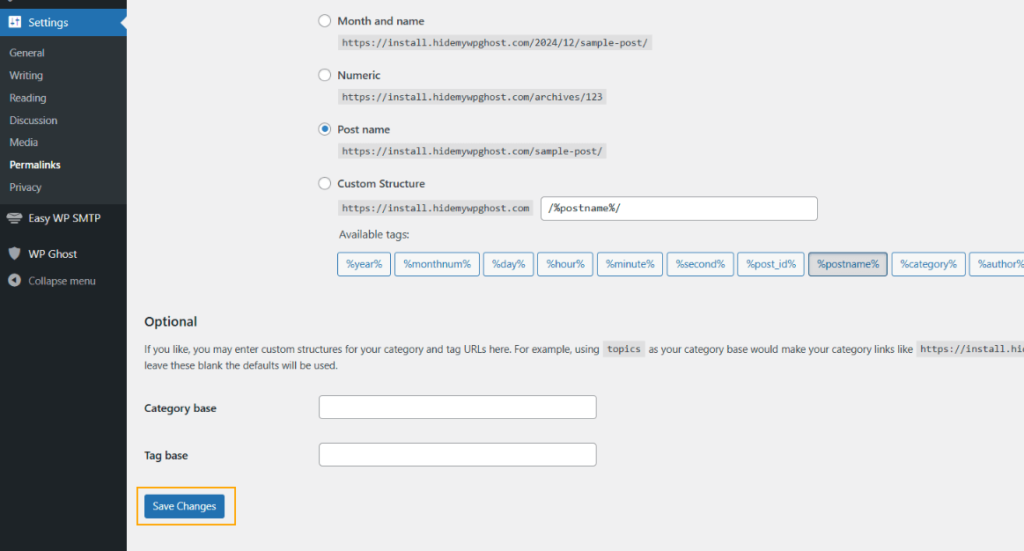
Go to Settings > Permalinks and click Save Changes without modifying anything. This regenerates WordPress’s rewrite rules, which often fixes logout path issues immediately.
Log out and log back in
If you changed multiple paths (admin, login, and logout) at the same time, your session cookies are tied to the old paths. Try logging out by visiting the default WordPress logout URL directly: yourdomain.com/wp-login.php?action=logout. If that works, log back in through your custom login path so WP Ghost creates fresh cookies on the new paths.
Check for typos in the custom path
Go to WP Ghost > Change Paths > Login Security and review the custom logout path for typos, spaces, or special characters. The path should be a simple alphanumeric slug.
Revert to the default logout path
If the issue persists, go to WP Ghost > Change Paths > Login Security, clear the Custom Logout Path field, and save. This restores the default WordPress logout behavior. If logout works with the default path, the issue is server rewrite rules not handling the custom path.

Check for plugin conflicts
Plugins that modify the logout process (custom login page plugins, session management plugins, security plugins with their own logout handling) can override WP Ghost’s custom logout URL. Temporarily deactivate login-related plugins and test the logout. If it works, the conflicting plugin is overriding the logout path.
If you’ve lost access to the admin dashboard, see the emergency disable guide.