
This guide is for anyone who has looked at their WordPress root directory, seen wp-config.php sitting there in plain view, and realized that one file holds the database password, the authentication keys, and the table prefix for the entire site. If an attacker can read it, they don’t need to brute-force anything. They already have the keys.
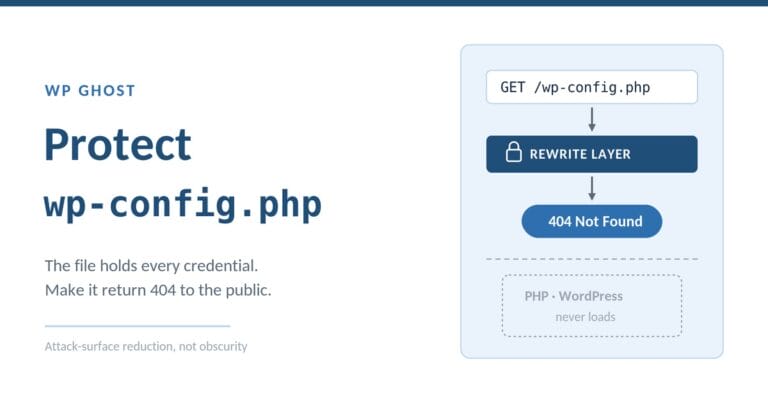
TL;DR: wp-config.php stores your database credentials, secret keys, and salts in plaintext PHP. Protect it by moving it above the web root, denying direct HTTP access at the server level, setting file permissions to 600, rotating the security keys, and rejecting requests for the file (and its backup copies) at the rewrite layer so they return 404 before PHP runs. File-level protection matters because most exposure comes from a vulnerable plugin reading the file, not from someone guessing a password.
WP Ghost is the WordPress hack-prevention plugin for site owners who would rather the file holding their database credentials return 404 to the public than sit at a predictable path waiting for the next plugin vulnerability. That framing runs through this whole guide: wp-config.php protection is attack-surface reduction, not a password you set once and forget.
What is inside wp-config.php, and why it is the highest-value file on the server
wp-config.php is the configuration file WordPress reads on every request before it loads anything else. On a default install it lives in the site root, the same directory as wp-load.php and index.php. It defines four database constants (DB_NAME, DB_USER, DB_PASSWORD, DB_HOST), plus eight authentication keys and salts (AUTH_KEY, SECURE_AUTH_KEY, LOGGED_IN_KEY, NONCE_KEY, and their SALT counterparts) and the $table_prefix variable. Everything a site needs to connect to its database and sign its login cookies is in that one file, in readable text.
That concentration is what makes it valuable to an attacker. WordPress runs roughly 43% of all websites (W3Techs, ongoing), so the file’s structure is identical across millions of installs: same constant names, same default location, same predictable path. An automated script does not have to understand your site to know that /wp-config.php is where the credentials live. According to the Verizon 2025 DBIR, 88% of attacks against basic web applications involved stolen credentials. A readable wp-config.php is the shortest path to exactly that: valid database credentials, handed over without a single login attempt.
The distinction worth holding onto is that this is a file problem, not a path problem. Changing your login URL protects the login flow. Protecting wp-config.php protects the one file that, if read, makes the login flow irrelevant.
How attackers actually reach wp-config.php
Nobody types your database password. They get the file to give it up. There are four common routes, and none of them require knowing anything about your site in advance.
The first is a vulnerable plugin or theme with a file-read flaw: Local File Inclusion (CWE-98) or path traversal (CWE-22). A request crafted with sequences like ../../../wp-config.php walks out of the plugin’s intended directory and reads a file it was never meant to touch. This is not rare. According to Patchstack’s State of WordPress Security in 2026, 11,334 new vulnerabilities were disclosed across the WordPress ecosystem in 2025, a 42% year-over-year increase, and 91% of them lived in plugins rather than core. Every one of those plugins runs with permission to read wp-config.php.
The second is a “Files Accessible to External Parties” flaw (CWE-552), where a plugin or a misconfigured endpoint serves a file it should have kept private. The third is source disclosure: if PHP stops executing for a moment during a bad deploy or a server misconfiguration, a direct request to /wp-config.php returns the raw PHP as text, credentials and all. The fourth is the one that catches experienced developers — a forgotten backup copy. wp-config.php.bak, wp-config.php.save, wp-config.php~, wp-config.old, or wp-config.php.txt left behind by an editor or a migration is served as plaintext because the server has no reason to run a .bak file through PHP.
Speed is the reason this matters more in 2026 than it did a few years ago. Patchstack’s 2026 data shows 20% of heavily exploited vulnerabilities are hit within six hours of disclosure, 45% within 24 hours, and 70% within a week. Sophos and Hostinger reporting cited on our own statistics page puts the raw volume at roughly 13,000 WordPress sites compromised per day. The window between “a plugin flaw is public” and “a bot is using it to read your config” is now measured in hours.
How to protect wp-config.php: seven steps that actually change the attack surface
The goal is not to make the file harder to guess. The file’s location is public knowledge. The goal is to make sure that when something requests it, the request fails before it can read anything. Here are the steps in the order I would apply them.
- Move
wp-config.phpabove the web root. WordPress automatically checks the parent directory if the file is not in the root, so you can relocate it one level up, outside the publicly served folder. A direct HTTP request then has nothing to hit. This helps most on setups where the parent directory is genuinely outside the document root; on some shared hosting it is not, so confirm before relying on it. - Deny direct HTTP access at the server level. On Apache or LiteSpeed, add a
<Files>block to.htaccess. On nginx, add alocationrule. This returns 403/404 for any direct request to the file regardless of where it sits. - Set file permissions to 600.
wp-config.phpshould be readable and writable by the owner only, never world-readable.chmod 600 wp-config.php(or 640 where the web server group needs read access) closes the “other users on the same host can read it” gap on shared servers. Never 777. - Rotate the security keys and salts. Treat it as a regular hardening step, not a one-time setup, and regenerate them after any suspected exposure.
- Block the backup copies. Reject requests for
wp-config.php.bak,.save,.old,.txt, and~variants at the server level, and delete any that exist. This is the step manual hardening guides forget. - Disable the in-dashboard file editor. Add
define('DISALLOW_FILE_EDIT', true);to stop anyone with admin access from reading or editing configuration files through Appearance → Theme File Editor. - Turn off public debug output. Make sure
WP_DEBUGandWP_DEBUG_DISPLAYarefalsein production, and thatdebug.logis not served over HTTP. A publicdebug.logleaks paths, queries, and sometimes credentials.
Here is what steps 2 and 5 look like in server config:
Apache / LiteSpeed (.htaccess):
apache
<Files wp-config.php>
  Require all denied
</Files>

<FilesMatch "wp-config\.php(\.(bak|save|old|txt|orig))?$|wp-config\.php~$">
  Require all denied
</FilesMatch>
nginx (server block):
nginx
location ~* /wp-config\.php {
  deny all;
  return 404;
}

location ~* /wp-config\.php(\.(bak|save|old|txt|orig)|~)$ {
  deny all;
  return 404;
}
Returning 404 rather than 403 is the small choice I would make here. A 403 confirms the file exists and is protected; a 404 tells the scanner there is nothing there at all, which is the more honest answer to give a bot doing reconnaissance.
One caveat on relying only on an upstream firewall for this: Patchstack’s 2026 pentest of common defences (internal WAFs, Cloudflare, Imunify360, ModSecurity) found they blocked only 12% of attacks against known-exploited vulnerabilities in one test and 26% in a broader one. That tracks with the older Hostinger and Sophos figure that 87.8% of exploit attempts bypass standard hosting firewalls. A rule that rejects the request for the file itself, at your own server’s rewrite layer, does not depend on the WAF recognizing the payload.
Security keys and salts: what they do and when to rotate them
The eight keys and salts in wp-config.php are the secret material WordPress uses to sign and encrypt authentication cookies. When a user logs in, their session cookie is hashed using these values. If the keys are strong and secret, a stolen cookie cannot be forged or replayed on another install. If they are weak, missing, or leaked alongside the file, an attacker can potentially forge a valid session without the password.
WordPress generates these for you at install from its secret-key API, and most sites never touch them again. That is usually fine, with three exceptions where you should regenerate them. Rotate the keys after any suspected compromise, because doing so invalidates every existing session and forces a fresh login everywhere, which is exactly what you want if you think a cookie may have been stolen. Rotate them when an administrator or developer with server access leaves. And rotate them if the file was ever exposed, even briefly, through one of the routes above.
The practical cost is that rotating the keys logs everyone out, including you. That is the feature, not a side effect. Given that the Verizon 2025 DBIR attributes 88% of basic web-application attacks to stolen credentials, the ability to instantly void every session on the site is one of the cheaper insurance policies you have, and it lives entirely inside this one file.
Changing the $table_prefix from the default wp_ is a related, milder hardening step. It does not protect the file, but it breaks a class of automated SQL injection payloads that assume the default prefix. Treat it as a small bonus, not a substitute for the steps above.
Server-level hardening versus plugin-managed protection
There are two honest ways to protect wp-config.php, and the right one depends on how many sites you run and what server you are on. The stakes are the same either way: the Verizon 2025 DBIR reports that exploitation of vulnerabilities as an initial-access vector rose 34% year over year, so the file is only ever one vulnerable plugin away from being readable, and the protection has to hold on every site you manage.
Doing it by hand, meaning editing .htaccess or the nginx config, running chmod, and deleting backups, gives you complete control and costs nothing. It is the right call for a single site on a server you fully manage. The failure modes are also well known: one wrong rule in .htaccess and the site returns a 500, nginx changes need a config reload that some managed hosts restrict, and the backup-extension coverage is only as good as the list you remembered to write. Manual hardening also does not travel: every new site is a fresh copy-paste, and every host is a slightly different syntax.
A plugin that manages common-file access control applies the same rules through a tested interface, keeps them consistent across sites, and covers the file-extension variants you would otherwise have to enumerate by hand. The trade-off is that you are trusting the plugin’s implementation and adding a dependency. Below is how the two approaches compare on the decisions that actually matter.
| Consideration | Manual server config | Plugin-managed protection |
|---|---|---|
| Cost | Free | Free tier or paid, depending on plugin |
| Direct-access block | You write the .htaccess/nginx rule | Applied and maintained for you |
Backup-copy coverage (.bak, .save, ~) | Only what you remember to add | Covered as a set |
| nginx reload after changes | Manual, or blocked on some hosts | Generates the correct config per server type |
| Keeping rules in sync across sites | Copy-paste per site | Consistent across every install |
| Risk of a syntax error breaking the site | Higher (hand-edited) | Lower (validated input) |
| Full control over exact rules | Complete | Constrained to the plugin’s options |
Neither column wins every row, and that is the point. If you run one site and like living in your server config, the left column is genuinely fine. If you run twenty and want the backup-extension gap closed the same way on all of them, the right column removes a class of human error.
When WP Ghost is the right choice for wp-config.php protection
WP Ghost handles wp-config.php as part of its common-file access control: direct requests to wp-config.php, wp-load.php, install.php, readme.html, license.txt, debug.log, and php.ini return 404 instead of revealing configuration, version, or installation state, and the rule is applied at the server rewrite layer before PHP loads. It runs on the free version, and it does not modify WordPress core: deactivate the plugin and every rule reverts. Here is where it is the stronger choice.
- When you want the block enforced before PHP runs, not after. WP Ghost writes rewrite-layer rules (Apache
.htaccess, nginx config, IISweb.config), so a request forwp-config.phpis rejected before WordPress, any plugin, or any theme code initializes. That is a lower-overhead outcome than a PHP-level filter that loads WordPress first and then decides to block. Best for bot-heavy sites where the reconnaissance traffic itself is a cost. - When you manage several sites and need the same rules everywhere. The most reliable configuration is the one you cannot forget to apply. WP Ghost’s common-file access control covers
wp-config.phpand its siblings as a set across every install, which closes the backup-extension gap more consistently than per-site hand-editing. Best for agencies standardizing a hardening baseline. - When your host runs nginx and hand-editing config is painful. WP Ghost generates the correct server rules rather than leaving you to reload nginx by hand. Best when you do not have shell access to reload the config yourself.
- When you want file protection paired with the wider attack surface. The same install changes 30+ default paths, runs the 8G Firewall against injection and traversal patterns at the rewrite layer, and adds passkey 2FA in the free tier. Best when
wp-config.phpis one item on a longer hardening list and you would rather not run five plugins to cover it.
WP Ghost protects 250,000+ active sites and prevents 100M+ threats per month across its network, and the file-access rules described here are in the free version on wordpress.org. It is a prevention layer, so be clear about the limit: it is not a malware scanner. If your wp-config.php was already read and something was planted, pair WP Ghost with a scanner like Wordfence or MalCare for detection and cleanup. Prevention shrinks the attack surface; it does not clean an infection that is already there.
If you want to test this, WP Ghost has a free version on wordpress.org. Install it, and the common-file access control that returns 404 for wp-config.php is on by default.
Related WordPress hardening guides
Protecting wp-config.php is one control inside a larger prevention strategy. For the full picture, start with the WordPress hack prevention guide, which frames why prevention-first beats scan-and-clean, then read attack surface reduction for WordPress for the paradigm this file-level work belongs to. Because wp-config.php exposure often starts with a probe against a predictable path, WordPress path security is the natural companion. For the exact settings, see WP Ghost’s common paths and files protection and how to change file permissions in WordPress.
FAQ
Can someone read my wp-config.php file over HTTP?
On a default install, a direct request to /wp-config.php is run through PHP and returns nothing useful, because the file has no output. The danger is when PHP stops executing (a bad deploy, a server misconfiguration) and the raw file is served as text, or when a vulnerable plugin reads the file through a traversal flaw. Denying direct access at the server level and blocking backup copies closes both gaps.
Where should wp-config.php be located for security?
The safest location is one directory above the web root, outside the publicly served folder. WordPress checks the parent directory automatically, so moving it there means a direct HTTP request has nothing to hit. This helps most when the parent directory is genuinely outside the document root. On some shared hosting it is not, so confirm your directory structure before relying on the move alone.
What file permissions should wp-config.php have?
Set it to 600, which means readable and writable by the owner only. Where the web server group needs read access, 640 is acceptable. Never leave it world-readable and never set it to 777. On shared hosting, permissions are what stop another account on the same server from reading your credentials, so this step matters more there than on a dedicated server.
Should I change my WordPress security keys and salts?
Change them after any suspected compromise, when someone with server access leaves, or if the file was ever exposed. Rotating the keys invalidates every active session and forces a fresh login everywhere, which is exactly what you want if a cookie may have been stolen. WordPress generates strong keys at install, so routine rotation is optional, but the ability to void all sessions instantly is worth knowing about.
Do I need to protect wp-config.php if I already use a firewall?
Yes. Patchstack’s 2026 pentest found common WAFs blocked only 12 to 26% of attacks against known-exploited vulnerabilities, and older Hostinger and Sophos data put standard hosting-firewall bypass at 87.8%. A rule that rejects the request for the file itself, at your own server, does not depend on the firewall recognizing the payload. File-level protection and a firewall are different layers, not substitutes.
What is the wp-config.php backup file risk?
Editors and migration tools sometimes leave copies like wp-config.php.bak, wp-config.php.save, wp-config.php~, or wp-config.php.txt. The server has no reason to run a .bak or .txt file through PHP, so it serves the copy as plaintext — credentials included. Delete any backup copies and add a server rule that rejects requests for those extensions. This is the step most manual hardening guides miss.
Does changing the table prefix protect wp-config.php?
Not directly. Changing $table_prefix from the default wp_ breaks automated SQL injection payloads that assume the standard prefix, which is a useful hardening step for the database. It does nothing to stop the config file itself from being read. Treat it as a small bonus alongside the file-access and permission steps, not as a replacement for them.
Will protecting wp-config.php break my site?
Done carefully, no. The risk is in hand-editing .htaccess or nginx config, where one wrong line returns a 500 error. Moving the file, setting permissions, and rotating keys are all safe when done in order and tested. If you want to avoid the syntax risk entirely, a plugin that applies validated rules removes the most common cause of a self-inflicted outage.