
Use WP Ghost on Nginx hosting without editing the nginx.conf file, while still getting custom login paths, brute force protection, firewall, 2FA, and version hiding. Many Nginx hosting environments (managed hosting, shared hosting, cloud panels) don’t give you access to the server configuration. WP Ghost works on these servers by using features that operate through WordPress hooks and PHP-level processing instead of server-level rewrite rules. This guide shows you how to set up WP Ghost with zero config file changes. This is a free feature.
What Works Without Config Rewrites

WP Ghost has two categories of features: those that work through WordPress hooks and PHP (no config changes needed), and those that require server-level rewrite rules (.htaccess on Apache, location blocks on Nginx). When you can’t edit nginx.conf, you still get a full set of security features that operate entirely within WordPress.
Features that work without any server configuration changes:
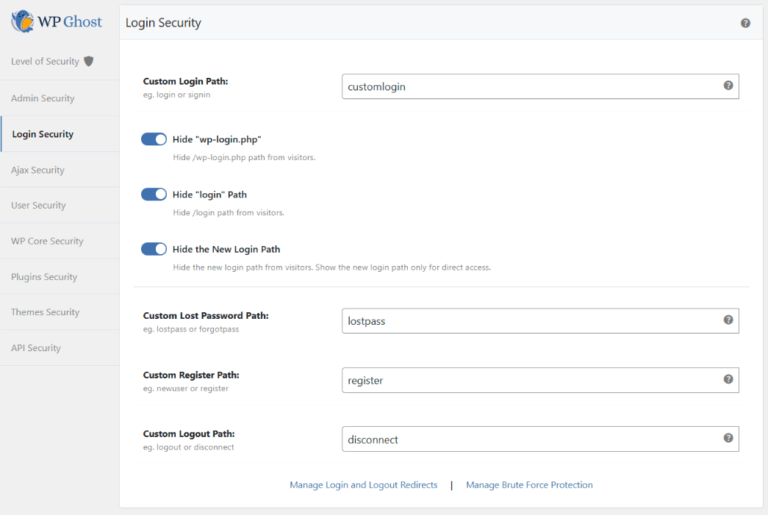
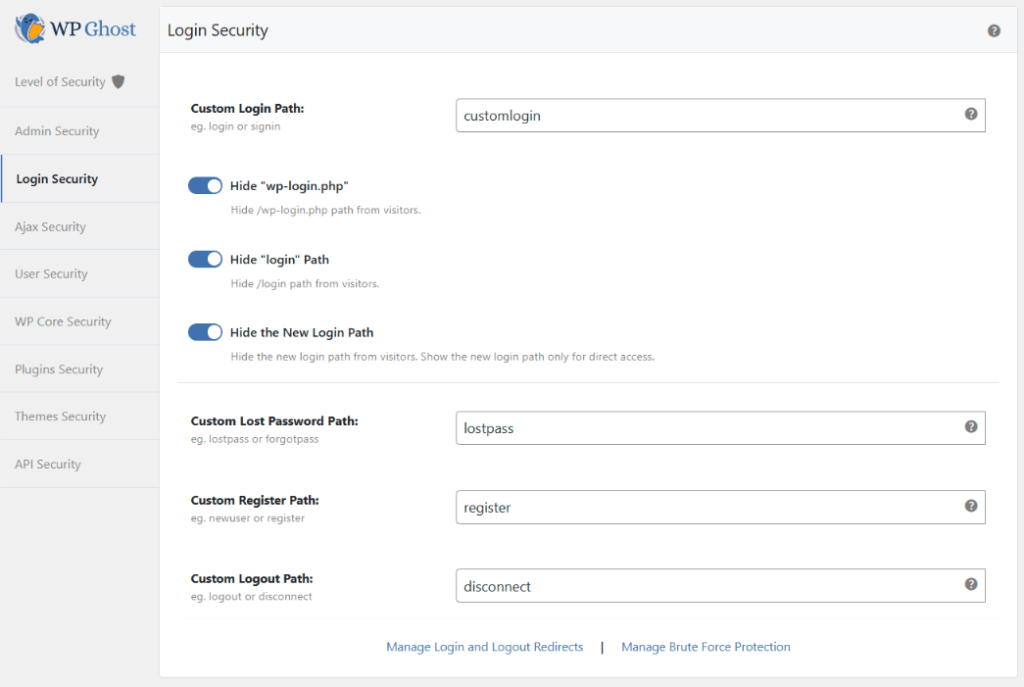
Custom login, lost password, and signup paths – set directly in WP Ghost. Bots targeting /wp-login.php get a 404 while your real login page lives at a custom URL. See Change and Hide the Login Path.
Brute Force Protection – Math reCAPTCHA, Google V2/V3, and Enterprise reCAPTCHA on login, registration, lost password, and comment forms. No server rules needed.
Firewall – the 7G and 8G firewalls run at the WordPress init level, blocking injection attacks before they reach plugins or themes.
Hide WordPress Version – strips version numbers from the HTML source, script tags, and style tags.
Two-Factor Authentication – Code (authenticator app), Email, and Passkey methods. All operate through WordPress hooks.
Security Headers – HSTS, CSP, X-Frame-Options, and other headers sent via PHP header() calls.
User Events Log and Security Threats Log – all logging is database-level, no server config required.
Why Some Features Need Config Rewrites
WP Ghost’s path-changing features (renaming wp-content, wp-includes, wp-admin, plugin paths, and theme paths) work by creating server-level rewrite rules. On Apache, these are written to .htaccess automatically. On Nginx, they need to be added to nginx.conf manually because Nginx doesn’t support .htaccess.
If you can’t edit nginx.conf, these advanced path-rewriting features won’t work. But the features listed above provide strong protection without them. For most sites, custom login paths + firewall + brute force + 2FA + version hiding covers the critical attack vectors.
If you do have Nginx config access: See the full Setup WP Ghost on Nginx Server guide for instructions on adding rewrite rules. This unlocks all path-changing features including Safe Mode and Ghost Mode.
How to Set Up WP Ghost on Nginx Without Config Changes
Two ways to configure WP Ghost for non-rewrite environments. Both achieve the same result.
Option 1: Load the Minimal Preset
The fastest approach. The Minimal preset activates only features that don’t require server configuration changes.
- Go to WP Ghost > Change Paths.
- Select the Minimal (No Config Rewrites) preset.
- Click Load Preset and confirm.

The default login path will be set to /newlogin. Change it to something unique in WP Ghost > Change Paths > Login Path. See Preset Security Options for details on all four presets.
Option 2: Restore a Pre-Built Backup
An alternative if you want a ready-made configuration file with non-rewrite features pre-configured.
- Download the no_custom_core_backup.txt file (a WP Ghost backup with non-rewrite settings only).
- Go to WP Ghost > Backup/Restore.
- Click Restore, select the downloaded file, and click Restore Backup.

After restoring, the login path defaults to /newlogin. Change it to a custom path in WP Ghost > Change Paths.
Verify Your Setup
After loading the preset or restoring the backup, verify that everything works:
- Verify brute force protection. The reCAPTCHA widget (Math or Google) should appear on the login form if you enabled it.
- Check the firewall. Go to WP Ghost > Firewall and confirm the firewall is active. If you enabled the Security Threats Log, check it after a few hours to confirm threats are being recorded.
- Run a Security Check. Go to WP Ghost > Security Check and click Start Scan to confirm your configuration is complete.

Troubleshooting
Custom login path returns 404
Your Nginx server may not have WordPress permalink rewrite rules configured. WP Ghost’s custom login path depends on WordPress permalinks working. Check with your hosting provider that permalink support is enabled. If permalinks work for posts and pages but not for the login path, use the emergency disable guide to regain access, then try a different login path.
Locked out after loading the preset
The default login path after loading the Minimal preset or restoring the backup is /newlogin. Try yourdomain.com/newlogin. If that doesn’t work, use the emergency disable guide, the rollback settings, or add a constant in wp-config.php to disable WP Ghost temporarily.
Want full path security on Nginx
If you later get access to nginx.conf (for example, by upgrading to a VPS or dedicated server), you can enable Safe Mode or Ghost Mode. See Setup WP Ghost on Nginx Server for full Nginx rewrite rules, or Setup WP Ghost on Nginx with VPS for VPS-specific instructions.
Frequently Asked Questions
Is WP Ghost still effective without path rewriting?
Yes. Custom login paths, brute force protection, firewall, 2FA, security headers, and version hiding cover the most critical attack vectors. Path rewriting (renaming wp-content, wp-includes, etc.) adds an additional layer by hiding your WordPress identity from theme detectors and bot scanners, but the features available without config changes provide strong protection on their own.
Which Nginx hosting environments can’t edit config files?
Managed WordPress hosting (Kinsta, WP Engine, Flywheel, Cloudways managed plans), some shared hosting providers, and containerized deployments where the Nginx config is managed by the platform. If your hosting panel doesn’t have an Nginx config editor and your provider says you can’t add custom location blocks, use this guide.
Does this work with WooCommerce?
Yes. All non-rewrite features are fully compatible with WooCommerce. Custom login paths, brute force, firewall, 2FA, and security headers all work with WooCommerce on Nginx without config changes.
Does WP Ghost modify WordPress core files?
No. All features in this guide work through WordPress hooks, PHP filters, and database-level configuration. No core files and no server configuration files are modified.
Related Tutorials
Nginx setup and security configuration:
- Setup WP Ghost on Nginx Server – Full Nginx setup with rewrite rules (when you have config access).
- Setup WP Ghost on Nginx with VPS – VPS-specific Nginx configuration.
- Preset Security Options – Details on all four security presets.
- Backup and Restore – How to import and export WP Ghost settings.
- WP Ghost Settings Best Practice – Comprehensive manual configuration guide.