

Use Face ID, Touch ID, Windows Hello, or a hardware security key as your second factor for WordPress login – no codes, no emails, no phishing risk. WP Ghost’s Passkey 2FA replaces traditional one-time codes with device-based authentication. After entering your password, your device prompts you to verify with biometrics or a PIN. One tap and you’re in. The authentication happens locally on your device and can’t be intercepted, replayed, or phished. It’s the fastest and most secure 2FA method available in WP Ghost.
What Are Passkeys?

Passkeys are already used by Google, Apple, Microsoft, GitHub, and other major platforms. WP Ghost brings this same standard to WordPress login security. The feature is free and available to all WP Ghost users.
Why Passkeys Are the Strongest 2FA Method
WP Ghost offers three 2FA methods: authenticator app codes, email codes, and passkeys. Here’s why passkeys offer the highest security for your hack prevention strategy:
Phishing-resistant by design. With code-based 2FA, an attacker running a fake login page can capture both your password and your one-time code in real time (a “man-in-the-middle” attack). Passkeys are immune to this. The cryptographic challenge is bound to the specific domain – your device won’t authenticate against a fake site even if it looks identical. The passkey never leaves your device, so there’s nothing to intercept.
No codes to type, no emails to wait for. Authentication happens in a single gesture: a fingerprint, a face scan, or a PIN. There’s no delay waiting for an email, no code to copy, and no risk of the code expiring before you type it. Login is as fast as unlocking your phone.
No email dependency. Email-based 2FA fails when your SMTP is misconfigured, emails land in spam, or your mail server is down. Passkeys work entirely between your device and the WordPress server – email delivery is irrelevant.
Each user manages their own passkey. Every user registers their own passkey from their WordPress profile. Administrators don’t need to manage shared secrets, distribute authenticator apps, or troubleshoot email delivery. Each passkey is independent and user-controlled.
How Passkeys Work in WP Ghost
The login flow with Passkey 2FA:
1. User enters their username and password on the WordPress login page (standard login form).
2. WordPress prompts for passkey verification. Instead of a code entry field, the browser triggers the device’s authentication prompt – Face ID, Touch ID, Windows Hello, fingerprint, or PIN.
3. User confirms on their device. One tap, one glance, one fingerprint scan. The device generates a cryptographic proof that’s verified by the server.
4. User is logged in. The entire second factor takes under 2 seconds.

Supported Devices and Platforms
Passkeys are supported across all major platforms and browsers:
Mobile: iPhone and iPad (Face ID, Touch ID), Android (fingerprint, face unlock, PIN).
Desktop: macOS (Touch ID on MacBooks), Windows (Windows Hello – fingerprint, face, or PIN).
Browsers: Chrome, Safari, Firefox, Edge – all support the WebAuthn standard that passkeys use.
Hardware keys: YubiKey and other FIDO2-compatible hardware security keys.
Password managers: 1Password, Bitwarden, Dashlane, and other managers that support passkey storage can sync passkeys across devices.
You can register multiple passkeys per account – for example, your laptop’s fingerprint reader and your phone’s Face ID. If one device is unavailable, the other still works.
How to Enable Passkey 2FA
- Enable the 2FA feature in WP Ghost > Overview > Features.
- Go to WP Ghost > 2FA Login > Settings. Select Passkey. Click Save.
- Click Add Two-Factor Authentication to go to the passkey setup in your User Profile.
- Click Add Passkey. Your browser prompts you to create a passkey – confirm with Face ID, Touch ID, Windows Hello, or your preferred method.
- Test by logging out and back in. After your password, you’ll be prompted to verify with your passkey.
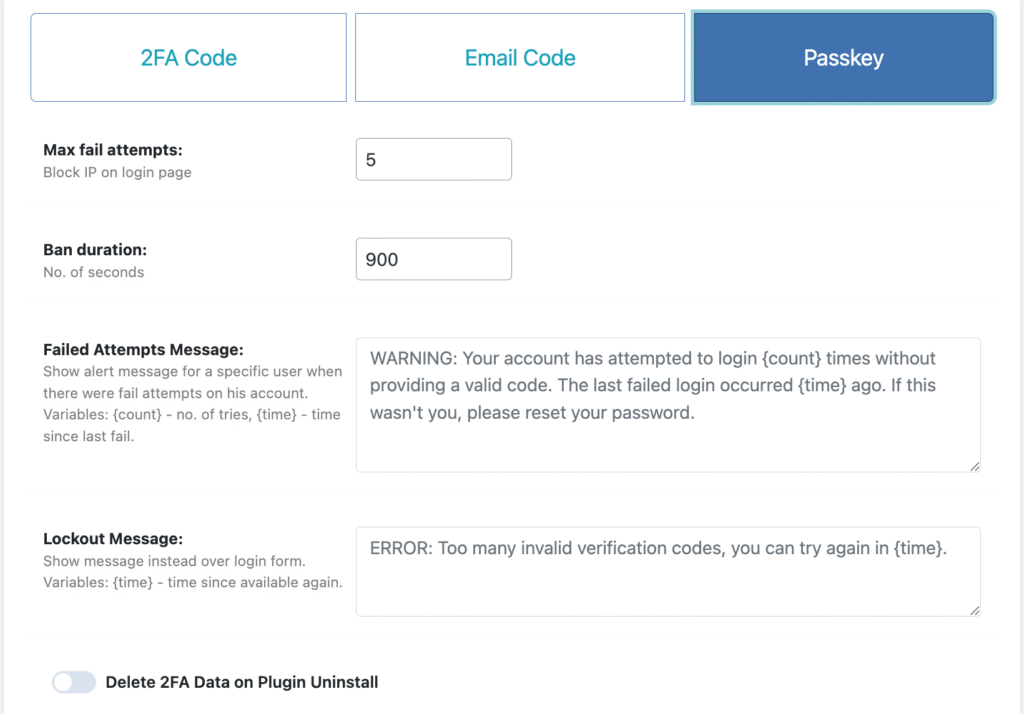

For the complete 2FA configuration including shared settings (max attempts, ban duration, lockout messages), see the Two-Factor Authentication tutorial.
Troubleshooting
Browser doesn’t show the passkey prompt
Your browser may not support WebAuthn, or it may be disabled. Ensure you’re using a current version of Chrome, Safari, Firefox, or Edge. Check that your device’s biometric authentication is enabled in system settings. Some privacy extensions can block WebAuthn – try disabling them temporarily.
Passkey works on one device but not another
Passkeys are device-specific by default. A passkey created on your laptop doesn’t automatically work on your phone unless you use a password manager that syncs passkeys (1Password, Bitwarden, iCloud Keychain). Register a separate passkey from each device, or use a syncing password manager.
Lost access to the device with the passkey
Use a backup code to log in. If you registered multiple passkeys (recommended), use the other device. If you have no backup codes and no other passkey, use the emergency disable guide, the rollback settings, or a wp-config.php constant to disable WP Ghost temporarily.
Frequently Asked Questions
How are passkeys different from authenticator app codes?
Authenticator app codes are time-based one-time passwords (TOTP) – you type a 6-digit code that changes every 30 seconds. Passkeys use public-key cryptography bound to your device and the specific domain. Codes can be phished by a fake login page that captures them in real time; passkeys can’t. Codes require typing; passkeys require a single biometric gesture.
Do passkeys replace my password?
Not in WP Ghost’s implementation. Passkeys serve as the second factor after your password. You still enter your username and password first, then verify with the passkey. This provides two layers: something you know (password) plus something you have (device with biometric).
Can I have multiple passkeys?
Yes. You can register passkeys from multiple devices – your laptop, phone, tablet, and hardware keys. This is recommended: if one device is unavailable, another still works. Use the Add Passkey button for each device.
Is passkey 2FA free?
Yes. Passkey 2FA is included in the free version of WP Ghost, alongside the authenticator app and email code methods.
Does WP Ghost modify WordPress core files?
No. Passkey authentication is handled through WordPress hooks and the WebAuthn JavaScript API. No core files are modified. Disabling the feature removes the passkey prompt instantly.
Related Tutorials
Build your complete login security system:
- Setting Up 2FA with Mobile Apps – Guides for Google Authenticator, Authy, Microsoft Authenticator, and LastPass.
- Magic Link Login – Passwordless login via email link.
- Brute Force Protection – Block login attacks with attempt limits and reCAPTCHA.
- Change and Hide the Login Path – Move your login page to a custom URL.