
You can control which WordPress users see the WP Ghost menu in the admin dashboard. By default, WP Ghost is visible to all administrators. Using the hmwp_manage_settings capability and a roles plugin like PublishPress Capabilities (formerly Roles & Capabilities), you can hide WP Ghost from all administrators and show it only to one specific user. This is useful for agencies managing client sites or multi-admin environments where only one person should control security settings.
Why Control WP Ghost Menu Visibility?

On sites with multiple administrators, any admin can view and change WP Ghost settings by default. This can be a problem: an inexperienced admin might disable security features, a client admin might change paths and break the site, or on white-labeled installs, you may not want clients to see the security plugin at all. By assigning the hmwp_manage_settings capability to only one user and removing it from the administrator role, you ensure only your designated security manager can access WP Ghost.
Step 1: Install the Roles and Capabilities Plugin
- Go to Plugins > Add New.
- Search for PublishPress Capabilities (or “Roles & Capabilities”).
- Click Install Now and then Activate.
Step 2: Grant Access to a Specific User
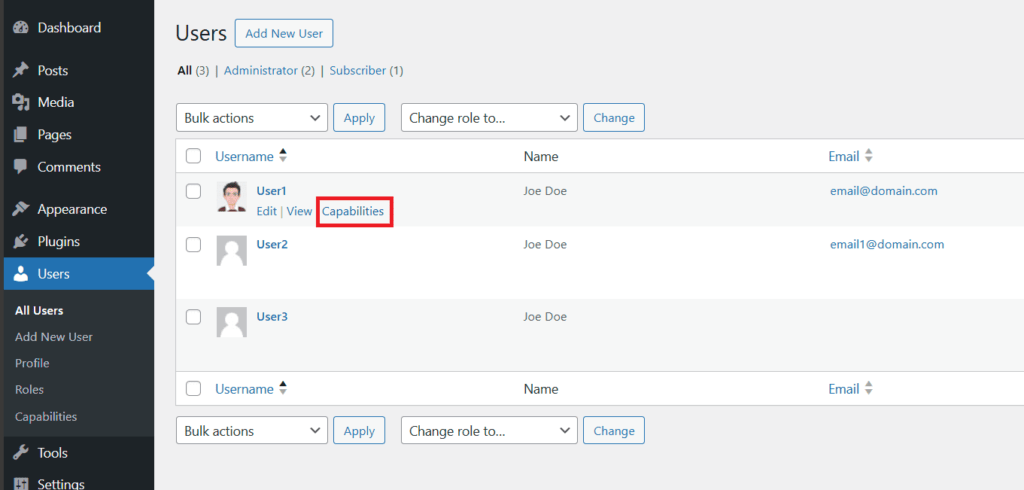
- Go to Users > All Users.
- Find the user who should manage WP Ghost. Hover over their name and click Capabilities.
- In the Capabilities Editor, find hmwp_manage_settings.
- Check the box to enable it for this user.
- Click Save.
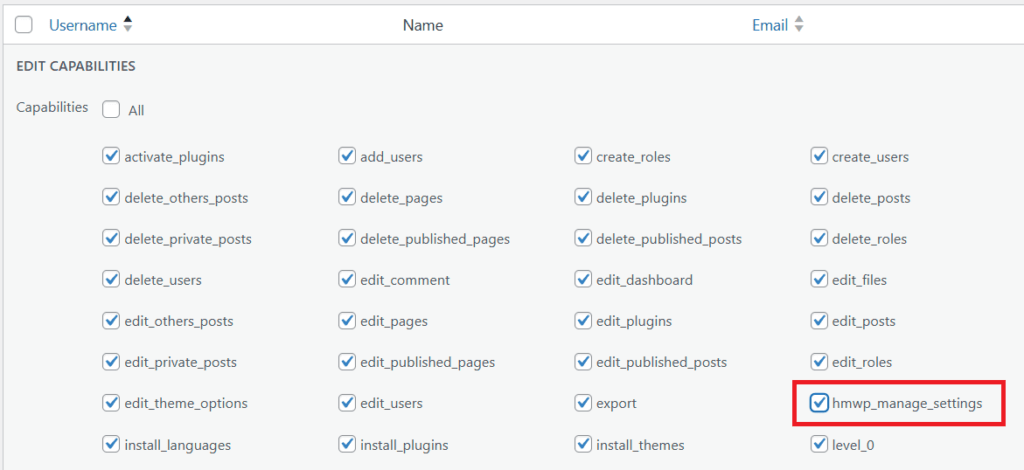
This user now has permission to see and manage WP Ghost, regardless of what happens to the administrator role in the next step.
Step 3: Remove Access from the Administrator Role
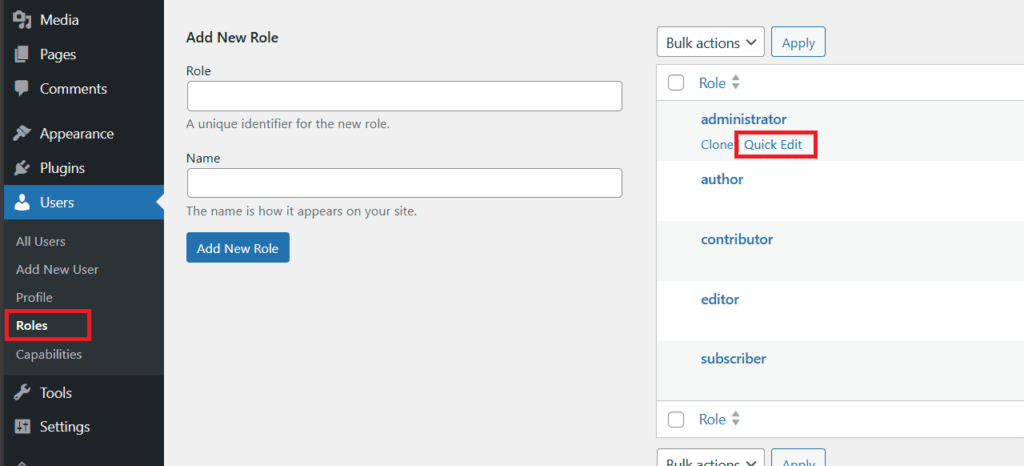
- Go to Users > Roles.
- Quick Edit the Administrator role.
- Find hmwp_manage_settings and uncheck it.
- Click Save.
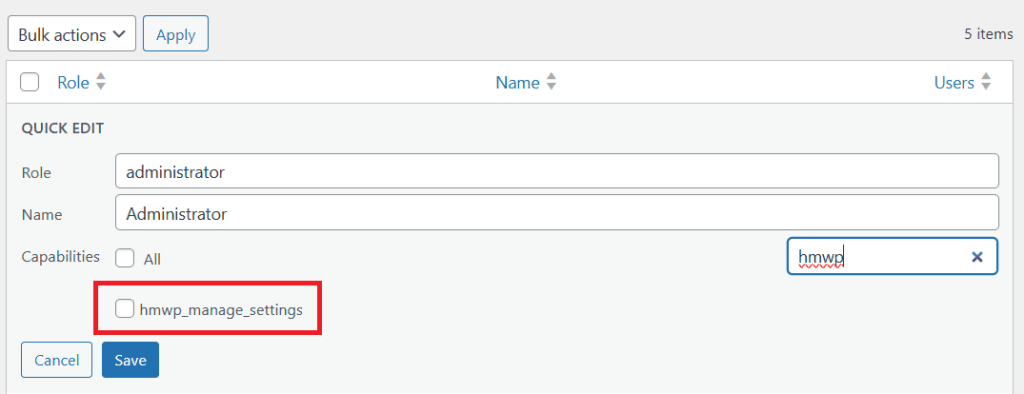
WP Ghost is now hidden from the WordPress menu for all administrators. Only the specific user you granted the capability to in Step 2 can see and manage WP Ghost settings.
Order matters: grant first, then remove. Always assign hmwp_manage_settings to your designated user (Step 2) before removing it from the administrator role (Step 3). If you remove it from administrators first without granting it to any user, no one can access WP Ghost settings.
Step 4: Test the Changes
- To revert, go back to Users > Roles, Quick Edit the Administrator role, and re-enable hmwp_manage_settings.
For white-labeled installs. If you’ve set up WP Ghost with White Label branding, hiding the menu from administrators adds another layer of invisibility. Clients won’t see the security plugin in their menu at all, and the white-labeled name won’t appear anywhere in the dashboard.
Frequently Asked Questions
What if I accidentally remove access from everyone?
If no user has the hmwp_manage_settings capability, WP Ghost is inaccessible from the dashboard. To recover, go to Users > Roles via the PublishPress Capabilities plugin, Quick Edit the Administrator role, and re-enable hmwp_manage_settings. If you’ve also lost access to the Roles plugin, you can reset capabilities by adding define('HMW_DISABLE', true); to wp-config.php temporarily (see emergency disable guide).
Can I assign this to a role instead of a specific user?
Yes. Instead of editing individual user capabilities (Step 2), you can create a custom role with the hmwp_manage_settings capability and assign that role to your designated security manager. This is useful if you want multiple people in a “Security Manager” role to have access.
Does hiding the menu disable WP Ghost’s security features?
No. Hiding the WP Ghost menu only controls dashboard visibility. All security features (path changes, firewall, brute force protection, 2FA, security headers) remain fully active regardless of who can see the menu. The settings continue working as configured.
Can I do this without a roles plugin?
Yes, with custom code. Add a filter in functions.php that removes the hmwp_manage_settings capability from the administrator role programmatically and grants it to a specific user ID. However, the PublishPress Capabilities plugin provides a visual interface that’s easier to manage and revert.
Does WP Ghost modify WordPress core files?
No. Menu visibility is controlled through WordPress capabilities. WP Ghost uses rewrite rules and hooks for all security features. No core files are modified.
Related Tutorials
Admin access control and white labeling:
- White Label – Rebrand WP Ghost with your own name and logo.
- Disable WP Ghost for User Roles – Disable path changes by user role.
- Change Paths in Admin Dashboard – Extend path changes to the admin area.
- Emergency Disable – Recover access if settings cause issues.