
You can grant non-administrator users access to WP Ghost settings by assigning the hmwp_manage_settings capability to their user role. By default, only administrators can see and configure WP Ghost. Using the User Role Editor plugin, you can extend access to editors, shop managers, or any custom role, allowing them to manage security settings without full administrator privileges.
When to Grant Role-Based Access

Granting WP Ghost access to non-admin roles is useful in several situations: a dedicated security team member who operates with an Editor role but needs to manage security settings, a WooCommerce shop manager who handles site security alongside store management, or a multisite setup where sub-site administrators need path security control without super-admin access. This approach follows the principle of least privilege: users get exactly the access they need, nothing more.
This guide grants access to additional roles. If you want the opposite (hiding WP Ghost from administrators and showing it to only one specific user), see Hide and Show WP Ghost in the WordPress Menu.
Step 1: Install User Role Editor
- Go to Plugins > Add New.
- Search for User Role Editor.
- Click Install Now and then Activate.
Step 2: Grant the Capability
- Go to Users > All Users.
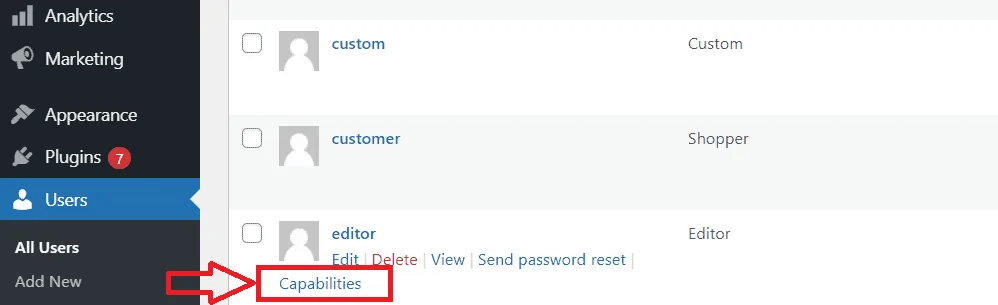
- Find the user you want to grant access to. Hover over their name and click Capabilities.
- In the User Role Editor page, find and select the hmwp_manage_settings capability.
- Click Update.
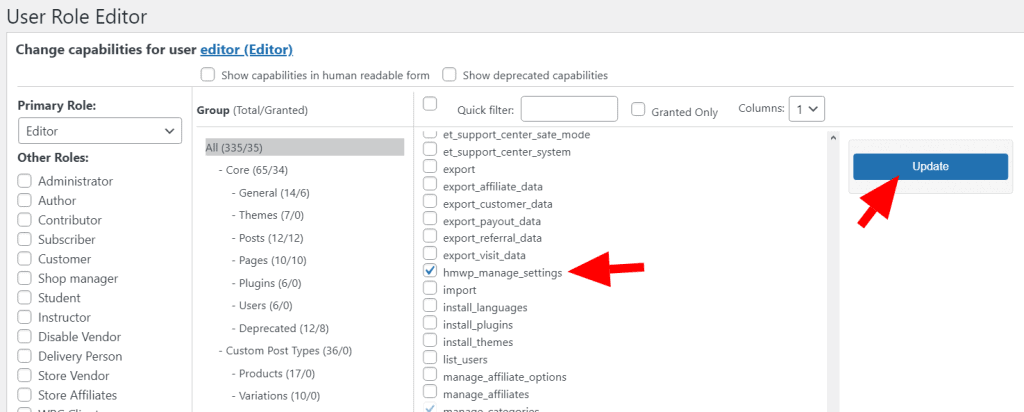
The user now has permission to see and manage WP Ghost settings when they log in.
Step 3: Test the Changes
- Log in as another user without the capability. Verify WP Ghost is not visible to them.
- To revert, go back to the user’s Capabilities in User Role Editor and uncheck hmwp_manage_settings.
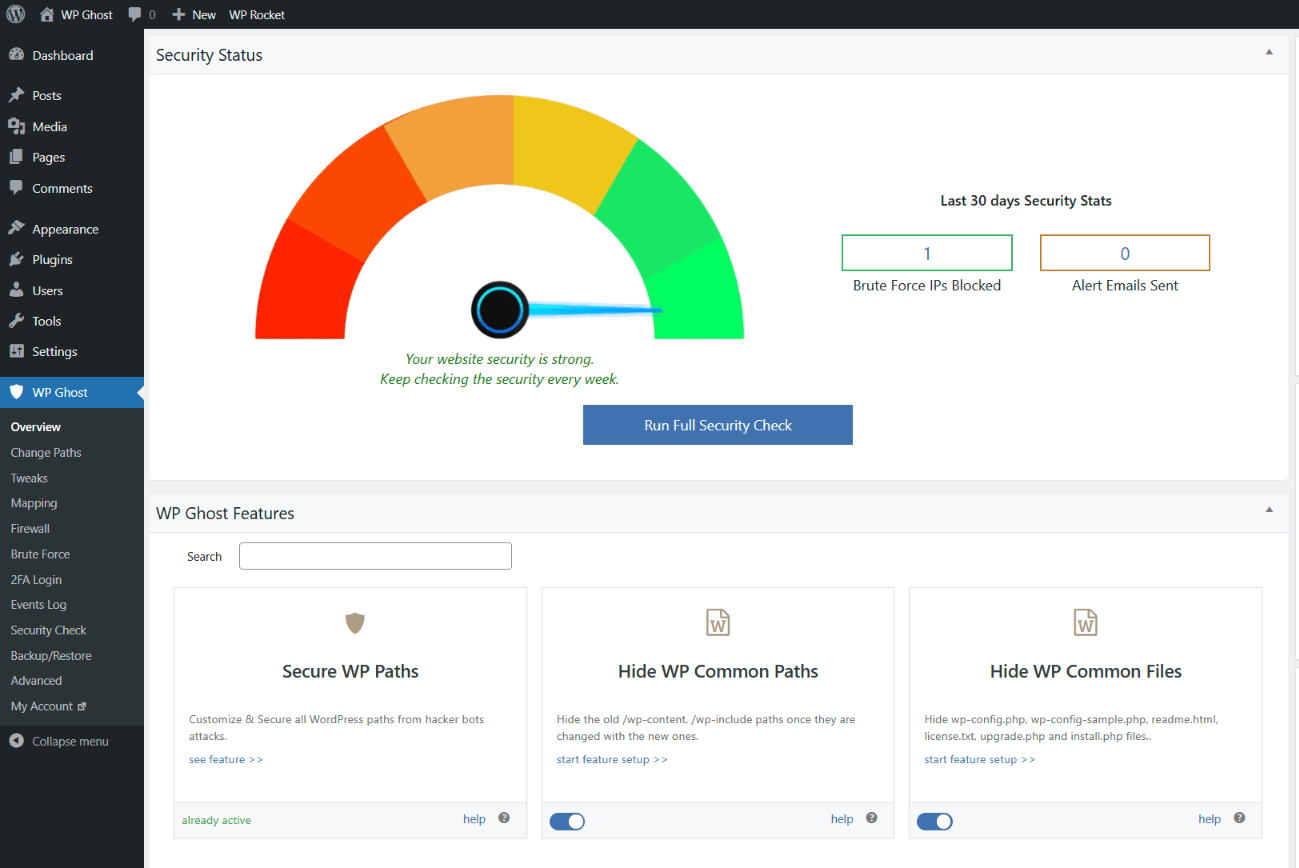
Only grant this capability to trusted users. The hmwp_manage_settings capability gives full control over WP Ghost’s security configuration, including path changes, firewall settings, and brute force rules. A user with this capability can disable security features or change settings that affect the entire site. Only assign it to users you trust with security decisions.
Frequently Asked Questions
Can I assign this to an entire role instead of individual users?
Yes. In User Role Editor, go to Users > User Role Editor, select the role from the dropdown (for example, Editor), find hmwp_manage_settings, check it, and click Update. All users in that role will then have access to WP Ghost settings.
What exactly can the user do with this capability?
Everything an administrator can do in WP Ghost: change paths, configure firewall rules, manage brute force settings, enable/disable 2FA, set security headers, and access security logs (Premium). The capability gives full WP Ghost management access. It does not grant any other WordPress admin capabilities.
How is this different from the “Hide and Show” tutorial?
This guide adds WP Ghost access to users who don’t have it (granting access to non-admin roles). The Hide and Show WP Ghost in the WordPress Menu guide does the opposite: it removes access from administrators and restricts it to one specific user. Both use the same hmwp_manage_settings capability.
Can I use a different roles plugin?
Yes. Any WordPress capabilities plugin that can manage user-level or role-level capabilities works. PublishPress Capabilities, Members, and User Role Editor all support editing the hmwp_manage_settings capability. The process is the same: find the capability, enable it, save.
Does WP Ghost modify WordPress core files?
No. WP Ghost menu visibility is controlled through WordPress capabilities. All security features use rewrite rules and hooks. No core files are modified.
Related Tutorials
User access and admin control:
- Disable WP Ghost for User Roles – Disable path changes by user role.
- White Label – Rebrand WP Ghost for client sites.
- Emergency Disable – Recover access if settings cause issues.