
Block access to your entire site – or specific paths like login and account pages – from selected countries using WP Ghost’s Geo Security. Country blocking restricts access based on the visitor’s geographic IP location. It’s a Premium feature that provides two levels of control: block entire countries from seeing your site at all, or block specific countries from accessing specific paths (like /login, /my-account, or /wp-admin). This is particularly useful for sites that serve a specific geographic market and receive malicious traffic from regions they don’t operate in.
What Is Geo Security?

Geo Security in WP Ghost uses IP geolocation to identify each visitor’s country and enforce access rules based on geographic location. WP Ghost uses a geolocation database with over 99% accuracy to map IP addresses to countries. Two blocking modes are available: entire website blocking (visitors from selected countries can’t access any page) and path-based blocking (visitors from selected countries can browse your site but can’t access specific paths).
Why Use Country Blocking
Country blocking is a targeted defense for sites that know where their audience is – and where their attackers come from. Here’s why it matters for your hack prevention strategy:
Most attacks come from a small number of countries. If your security logs show repeated brute force attempts, injection attacks, or scanner activity from countries where you have no customers, blocking those countries eliminates the traffic entirely. You’re not just blocking individual attacks – you’re removing entire sources of malicious traffic.
Path-based blocking protects critical endpoints. Not every site can block entire countries – you might have international visitors but only serve specific regions for e-commerce. Path-based blocking lets you restrict access to sensitive pages (/login, /my-account, /checkout) from high-risk countries while keeping the rest of your site accessible worldwide. This stops brute force login attempts and account fraud from specific regions without losing international visibility.
It reduces server load from unwanted traffic. Malicious requests consume server resources even when they’re blocked by the firewall. Country blocking rejects these requests before they reach the firewall or WordPress, reducing server load and freeing resources for legitimate visitors.
It complements other security layers. Country blocking works alongside WP Ghost’s firewall, brute force protection, and login path security. Each layer catches different threats. Country blocking handles the geographic source; the firewall handles the attack pattern; brute force protection handles repeated login attempts.
How to Configure Country Blocking
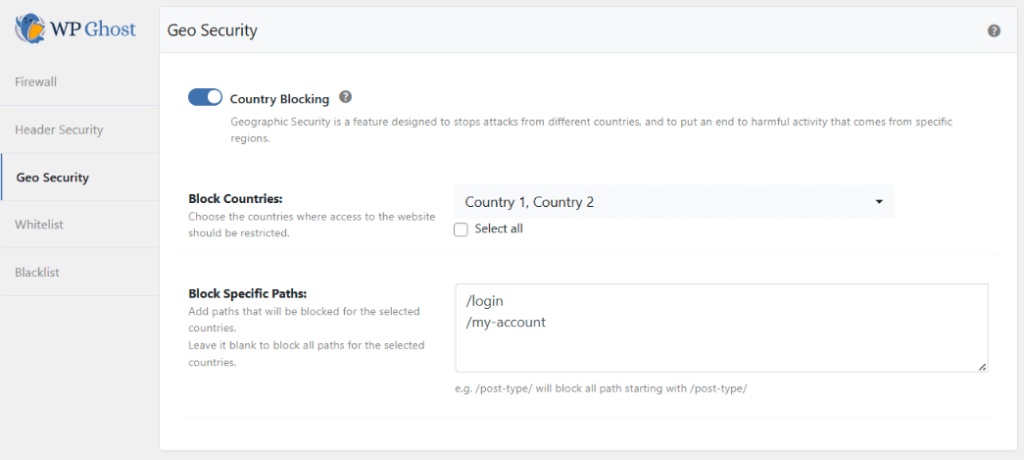
Activate Country Blocking
- Go to WP Ghost > Firewall > Geo Security.
- Switch on Country Blocking.
- Select the countries you want to block from the dropdown.
- Click Save to apply.

Block Entire Countries
Use the Blocked Countries section to search and select which countries to block.
- Go to the Blocked Countries section in WP Ghost > Firewall > Geo Security.
- Search and select the countries you want to block.
- Click Save to apply.

Best practice: Only block countries that actively generate malicious traffic – those producing repeated failed logins, 404 probes, or injection attempts in your security logs. Review your blocks periodically and remove countries that are no longer sources of attacks. Over-blocking limits legitimate international access.
Block Specific Paths by Country
Instead of blocking entire countries from your site, restrict specific paths. This is the recommended approach for sites with international visitors that need to protect specific endpoints.
Add the paths you want to restrict in the Blocked Paths field. Visitors from blocked countries can still browse your site but can’t access these paths. Common paths to restrict: /login, /my-account, /checkout, /register.

Note: Leaving the Blocked Paths field blank blocks all access from the selected countries (entire website blocking). Add specific paths to restrict only those paths instead of the entire site.
Troubleshooting
Country blocking isn’t working – visitors from blocked countries can still access the site
Server cache issue: Caching plugins and external page caches (like Varnish) serve cached pages directly to visitors, bypassing WP Ghost’s country check. If country blocking is critical, configure your caching plugin to exclude geo-targeted pages from caching, or use a CDN with built-in geo-blocking (like Cloudflare’s country-level firewall rules) as a complementary layer.
Legitimate visitors from a blocked country can’t access the site
IP geolocation is over 99% accurate but not perfect. Occasionally, an IP address may be mapped to the wrong country – this is more common with VPN users, corporate networks, and mobile carriers. If a legitimate user reports being blocked, they may be using a VPN that routes through a blocked country. Ask them to try without the VPN, or whitelist their specific IP in Firewall > Whitelist IPs.
If you’ve lost access or blocked your own country by mistake, check the emergency disable guide, use the rollback settings, or add a constant in wp-config.php to disable WP Ghost temporarily.
Frequently Asked Questions
Should I block entire countries or specific paths?
It depends on your audience. If you serve a single-country market and have no international customers, blocking entire countries is effective and simple. If you have international visitors but want to protect sensitive endpoints, use path-based blocking – restrict /login, /my-account, and /checkout from high-risk countries while keeping your content accessible worldwide.
Is this a Premium feature?
Yes. Geo Security with Country Blocking is available in WP Ghost Premium. The free version includes the firewall, brute force protection, and all path-security features.
Does country blocking affect SEO?
It can, if you block countries where search engine crawlers operate. However, search engine bots (Googlebot, Bingbot) typically crawl from US-based or globally distributed IPs. Blocking a specific country doesn’t usually affect crawling. If you’re concerned, verify that your blocked countries don’t include the US (where most major crawler infrastructure is located).
Does this work with WooCommerce?
Yes. Path-based blocking is particularly useful for WooCommerce – block /checkout and /my-account from countries where you don’t ship, preventing fraudulent orders and account creation from those regions. WP Ghost is fully compatible with WooCommerce.
Can visitors bypass this with a VPN?
Yes. A VPN routes traffic through a server in a different country, making the visitor appear to be from that country instead. Country blocking is effective against bots and automated attacks (which rarely use VPNs) but can be bypassed by motivated individuals using VPN services. For most sites, bot traffic is the primary threat and country blocking handles it effectively.
Does WP Ghost modify WordPress core files?
No. Country blocking operates through WordPress initialization hooks, checking each visitor’s IP against the geolocation database before serving the page. No files are modified. Disabling the feature restores full access from all countries instantly.
Related Tutorials
Build your geographic and access control defense:
- Firewall Security – Block injection attacks with 7G/8G firewall rules.
- Brute Force Protection – Block login attacks with attempt limits and reCAPTCHA.
- Change and Hide the Login Path – Move your login page to a custom URL.
- Security Logs – Monitor blocked requests and identify attack source countries (Premium).
- Header Security – Add HTTP security headers for browser-level protection.