
WP Ghost works on Ploi.io server management with Nginx configuration. Ploi.io is a server management panel (similar to RunCloud) that helps you deploy WordPress sites on cloud providers like DigitalOcean, Hetzner, and AWS. Because Ploi.io uses Nginx, you need to add WP Ghost’s config include through Ploi’s built-in Nginx configuration editor. Ploi.io provides direct Nginx config editing, which makes this a straightforward setup.
Why Ploi.io Needs WP Ghost Configuration

Ploi.io deploys WordPress on Nginx servers. Nginx doesn’t use .htaccess files, so WP Ghost generates a hidemywp.conf file containing rewrite rules. You need to add an include line to your site’s Nginx config through Ploi’s panel. Unlike managed hosting (Kinsta, WPMUDEV) where you need to contact support, Ploi.io gives you direct access to the Nginx configuration editor, so you can add the include yourself.
Step 1: Activate WP Ghost
- Install and activate the WP Ghost plugin on your WordPress site.
- Go to WP Ghost > Change Paths > Level of Security.
- Select Safe Mode or Ghost Mode and customize paths.
- Click Save.
- WP Ghost generates the
hidemywp.conffile and displays the include line you need to add.

Disable OPCache first. Before configuring WP Ghost on Ploi.io, turn off OPCache on your Ploi server to avoid cache errors during path changes. Go to your server settings in Ploi.io and disable OPCache until WP Ghost configuration is complete. You can re-enable it after verifying everything works.
Step 2: Add the Include in Ploi.io Nginx Config
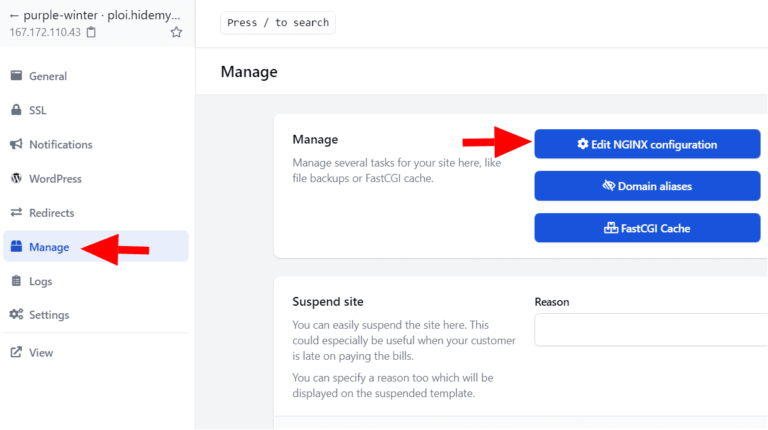
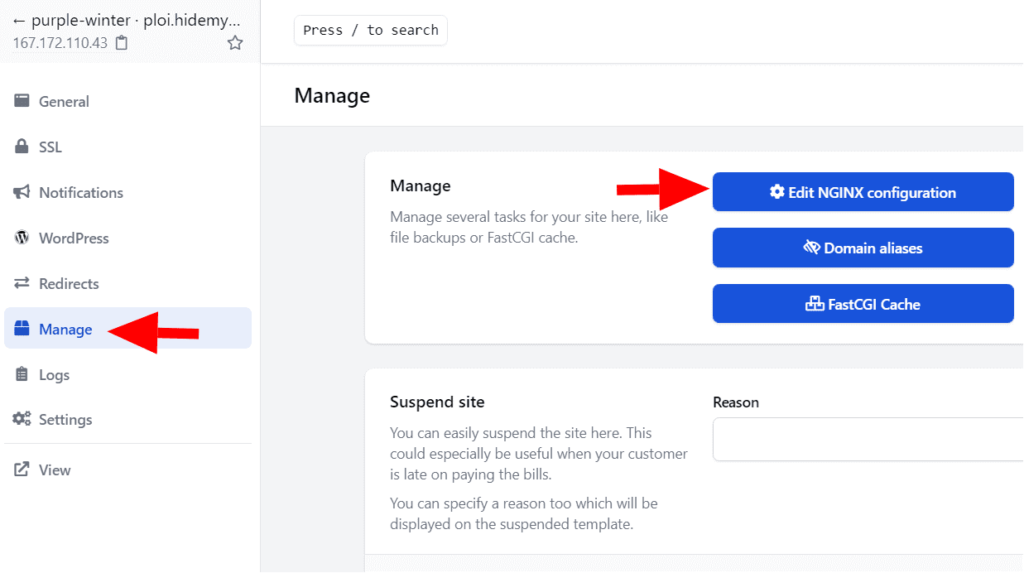
- In your Ploi.io panel, select your site and go to Manage.
- Click Edit NGINX configuration.
- Add the include line from the WP Ghost notification before the SSL protocol definition in the config file.
- Click Save.
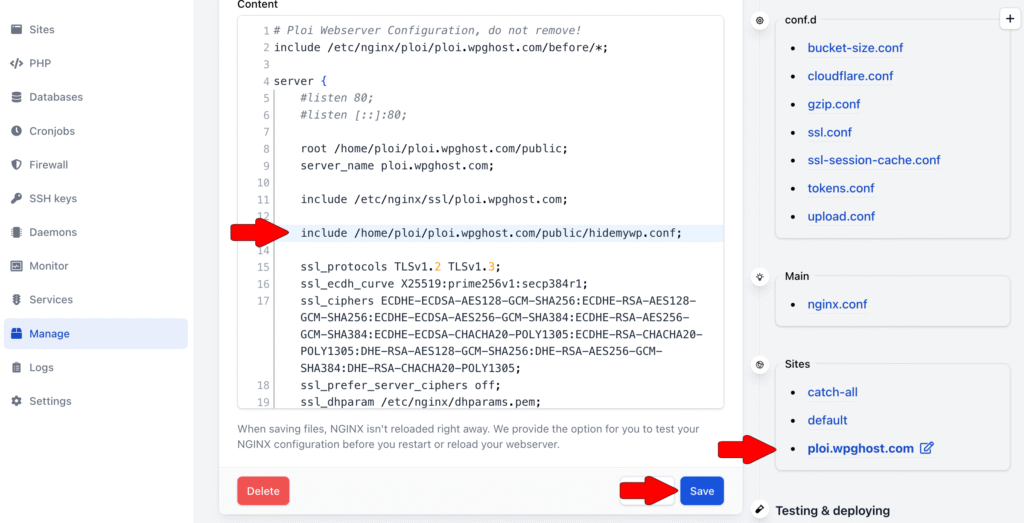
Placement matters. Add the include line before the SSL protocol definition in the Nginx config, not after. See the screenshot above for the correct position. If placed in the wrong location, the rewrite rules may not apply correctly.
Step 3: Deploy and Test
- In Ploi.io, test and deploy the new Nginx configuration. Ploi applies the changes automatically.
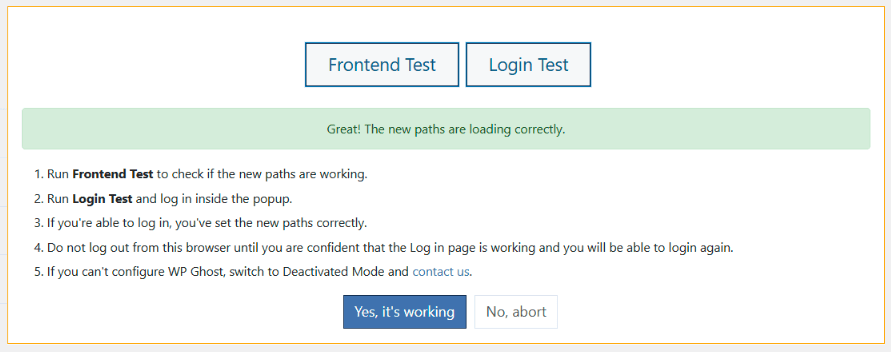
- Go back to your WordPress site and run the Frontend Login Test in WP Ghost.
- If everything loads correctly, click “Yes, it’s working”.
- If something is broken, click “No, abort” to roll back.
- Re-enable OPCache in your Ploi server settings after confirming everything works.
Troubleshooting
Error when changing the admin path
OPCache is causing stale PHP code to be served. Disable OPCache in your Ploi server settings before configuring WP Ghost paths. Re-enable it after the configuration is complete and verified.

Custom paths return 404 after deploying
The include line may be in the wrong position in the Nginx config. Verify it’s placed before the SSL protocol definition. Also check that the hidemywp.conf file exists in your WordPress root directory. If it doesn’t exist, re-save WP Ghost settings to regenerate it.
Nginx config test fails in Ploi.io
The hidemywp.conf file may not exist at the path specified in the include line, or the include is placed outside the server block. Remove the include line, save and deploy, then re-add it at the correct position.
Locked out after configuration
Remove the include line from the Nginx config in Ploi.io’s editor, save and deploy. This restores the default paths. Or use the Safe URL parameter to bypass WP Ghost temporarily. See the Emergency Disable guide for additional recovery methods.
Frequently Asked Questions
How is Ploi.io different from RunCloud for WP Ghost?
Both are server management panels for Nginx. The setup process is similar: add an include line to the Nginx config through the panel’s editor. The main difference is the panel interface and where you find the Nginx config editor. Ploi.io uses Manage > Edit NGINX configuration. For RunCloud, see the RunCloud Server Setup guide.
Why do I need to disable OPCache?
OPCache stores compiled PHP bytecode in memory. When WP Ghost changes paths, the old PHP code is served from OPCache instead of the updated version, causing errors. Disabling OPCache temporarily ensures WP Ghost’s path changes take effect immediately. Re-enable it after confirming everything works.
Do I need to redeploy the Nginx config every time I save WP Ghost?
Yes, whenever you change path settings. WP Ghost updates the hidemywp.conf file automatically, but Nginx needs to be reloaded to pick up the changes. In Ploi.io, go to the Nginx editor and click deploy to reload. Non-path settings (firewall, brute force, 2FA) don’t require a Nginx reload.
Does WP Ghost modify WordPress core files?
No. WP Ghost generates a separate hidemywp.conf file and uses WordPress hooks for application-level changes. No core files are modified. Deactivating WP Ghost restores all defaults instantly.
Related Tutorials
Server management panels and Nginx configuration:
- RunCloud Server Setup – Similar server management panel setup.
- Cloud Panel Server Setup – Another server panel setup guide.
- Custom Nginx Config File – Standard Nginx setup without a panel.
- Safe URL Parameter – Bypass WP Ghost temporarily if needed.
- Emergency Disable – Recovery via SSH if needed.