
WP Ghost is fully compatible with Autoptimize. Autoptimize is a popular optimization plugin that minifies and aggregates CSS, JS, and HTML files to improve load times. To use both plugins together while keeping WP Ghost’s path security intact, you need to change Autoptimize’s default cache directory, then enable WP Ghost’s Change Paths in Cache Files option so the optimized files reference your custom paths. This guide walks through the complete configuration in 3 steps.
Why Autoptimize Needs WP Ghost Configuration

Autoptimize generates aggregated and minified CSS/JS files and stores them in a cache directory. These optimized files contain references to your original WordPress paths (/wp-content/plugins/, /wp-content/themes/). Without WP Ghost coordination, the optimized files expose your WordPress structure even though WP Ghost is active on the live pages. Additionally, the default Autoptimize cache directory (/wp-content/cache/autoptimize/) is predictable and reveals that you’re using Autoptimize. The fix is two-sided: rename the cache directory and tell WP Ghost to update paths inside cached files.
Step 1: Enable Autoptimize CSS and JS Optimization
Configure Autoptimize to optimize and aggregate your CSS and JS files:
- Go to Settings > Autoptimize (or the Optimize section).
- Check Optimize CSS Code to enable CSS minification.
- Check Aggregate CSS Files to combine all CSS into a single cached file.
- Check Optimize JavaScript Code to enable JS minification.
- Check Aggregate JS Files to combine all JS into a single cached file.
- Click Save Changes and Empty Cache.
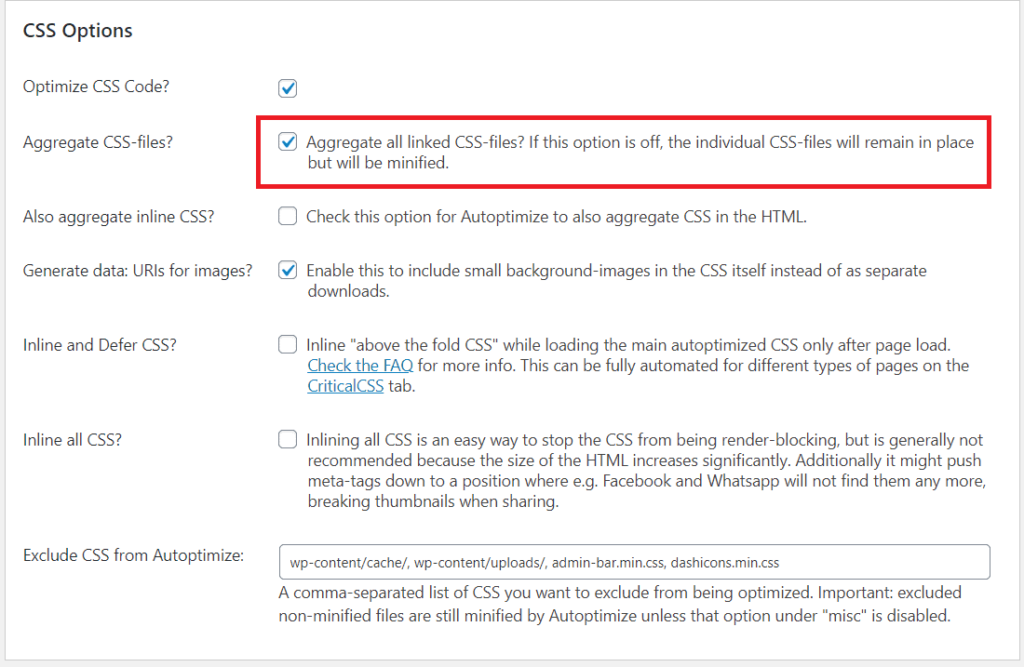
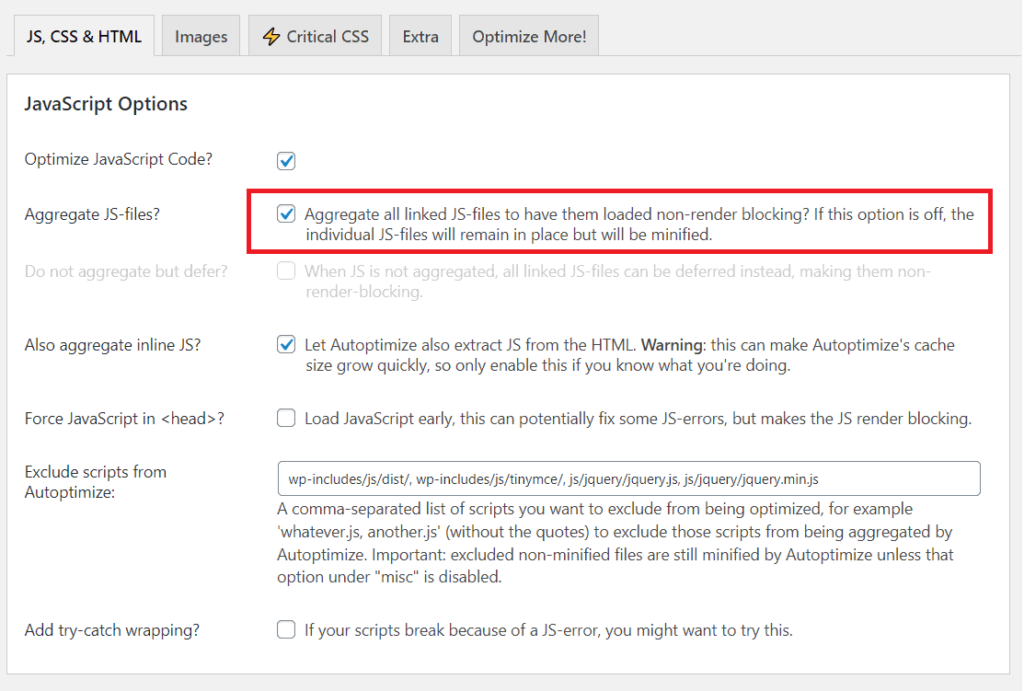
Tip: Aggregating files reduces HTTP requests but increases the size of each cached file. Test your site’s performance after enabling aggregation – if specific scripts break, exclude them from aggregation in Autoptimize’s settings rather than disabling the feature entirely.
Step 2: Change the Autoptimize Cache Directory
The default Autoptimize cache directory /wp-content/cache/autoptimize/ is predictable and reveals that you’re using the plugin. Change it to a non-obvious name.
- In Settings > Autoptimize, find the Cache Path option (under Advanced or Extra options).
- Change the directory from
/wp-content/cache/autoptimize/to something non-obvious like/wp-content/cache/static/or/wp-content/cache/build/. - Save the settings.
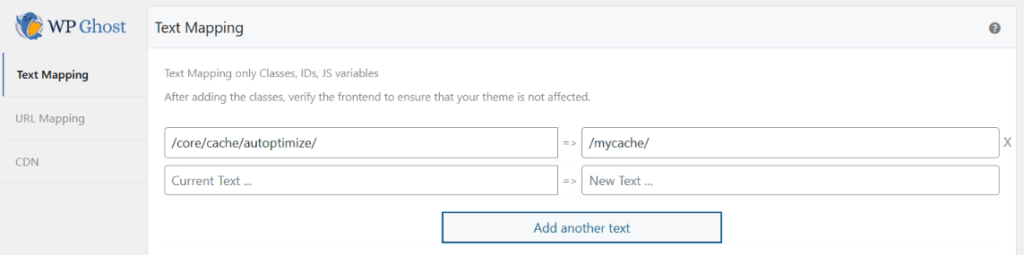
Tip: Pick a directory name that doesn’t reference Autoptimize or any cache-related terminology. /wp-content/cache/static/, /wp-content/cache/build/, or /wp-content/cache/dist/ all work well. The goal is to make the directory look like a generic asset folder.
Step 3: Enable Change Paths in Cache Files in WP Ghost
Now tell WP Ghost to rewrite the paths inside Autoptimize’s cached files. Without this step, your aggregated CSS/JS files still reference the original WordPress paths even though WP Ghost has changed them on the live site.
- Go to WP Ghost > Advanced > Tweaks.
- Find Change Paths in Cache Files.
- Toggle it ON.
- Click Save.
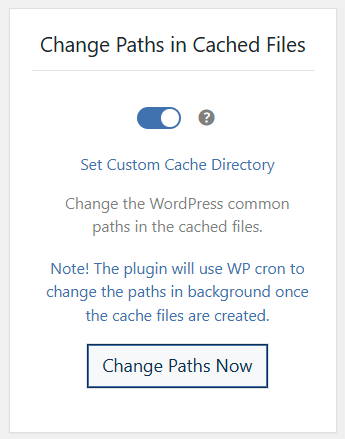
WP Ghost runs a background WP Cron job that processes cached files and updates the paths automatically. For complete configuration details, see Change Paths in Cached Files.
Important: After enabling this option, clear the Autoptimize cache so the next page load creates fresh optimized files with the updated paths. Go to Settings > Autoptimize and click Save Changes and Empty Cache. If WordPress Cron is disabled on your site, you can manually trigger the path update from WP Ghost’s settings.
Verify the Setup
- Visit your site in an incognito/private browser window so you get freshly optimized files.
- Right-click and select View Page Source.
- Search for
wp-content/pluginsandwp-content/themes. They should NOT appear – you should see your custom WP Ghost paths instead. - Search for
autoptimizein the source. It should NOT appear if you renamed the cache directory in Step 2. - Run a Security Check in WP Ghost to confirm all settings are applied.
Troubleshooting
Cached files still show wp-content/plugins paths
The Autoptimize cache hasn’t been cleared since enabling Change Paths in Cache Files in WP Ghost. Go to Settings > Autoptimize and click Save Changes and Empty Cache. Visit a few pages while logged out to regenerate the optimized files with the updated paths.
Site looks broken after enabling Aggregate CSS/JS
This isn’t a WP Ghost issue – it’s a common Autoptimize problem when JS/CSS files have dependencies that break when combined. In Autoptimize settings, exclude the problematic scripts from aggregation using the “Exclude scripts from Autoptimize” field. Test which files cause the issue by excluding them one at a time.
WP Cron is disabled and paths aren’t updating
WP Ghost uses WP Cron to process cached files in the background. If WP Cron is disabled on your site (common on sites using server-side cron), you can manually trigger the path update from WP Ghost’s settings. Alternatively, ensure your server-side cron is configured to run WordPress cron: */5 * * * * wget -q -O - https://yoursite.com/wp-cron.php >/dev/null 2>&1
Locked out after configuration
Use the Safe URL parameter to bypass WP Ghost temporarily. If that doesn’t work, see the Emergency Disable guide to recover access via FTP.
Frequently Asked Questions
Which plugin should I install first?
Either order works, but the recommended sequence is: install Autoptimize first, configure optimization and aggregation settings, then install WP Ghost and enable Change Paths in Cache Files. This ensures Autoptimize’s settings are stable before WP Ghost starts processing the cached files.
Do I need to clear Autoptimize cache every time I save WP Ghost settings?
Yes, whenever you change paths in WP Ghost. Cached files contain the old paths until regenerated. Clear the Autoptimize cache after any WP Ghost path change to ensure visitors see the updated paths immediately.
What if I use a CDN with Autoptimize?
If you use Autoptimize with a CDN (Cloudflare, BunnyCDN, KeyCDN), you also need to purge the CDN cache after enabling WP Ghost path changes. The CDN serves cached versions of your optimized files from edge servers, which won’t reflect the new paths until purged.
Does this work with WooCommerce?
Yes. WP Ghost is fully compatible with WooCommerce and Autoptimize works with WooCommerce too. Make sure Autoptimize doesn’t aggregate scripts that WooCommerce depends on for cart and checkout functionality – if those pages break, exclude the problematic scripts from aggregation.
Does WP Ghost modify WordPress core files?
No. WP Ghost writes rewrite rules to .htaccess (Apache) or hidemywp.conf (Nginx) and uses WordPress hooks for application-level changes. No core files are modified. Deactivating WP Ghost restores all defaults instantly.
Related Tutorials
WP Ghost with cache and performance plugins:
- Change Paths in Cached Files – Detailed configuration of the WP Ghost cache rewrite feature.
- WP Ghost and LiteSpeed Cache – Another cache plugin compatibility guide.
- WP Ghost and Hummingbird – Another cache plugin compatibility guide.
- WP Ghost and Breeze – Another cache plugin compatibility guide.
- Compatible Plugins List – All cache and performance plugins tested with WP Ghost.