
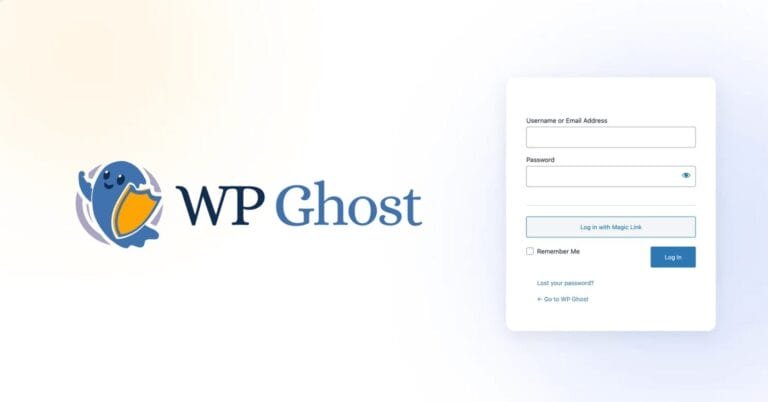
Replace the default WordPress login page with a branded, professional design using WP Ghost’s Login Page Design feature. The standard WordPress login screen is one of the most recognizable pages on the internet. The logo, the layout, the styling – it all screams “WordPress.” A custom login page removes that fingerprint, strengthens user trust, and gives your site a polished entrance that matches your brand. No separate plugin needed.
What Is Login Page Design in WP Ghost?

The Login Page Design feature lets you customize the visual appearance of your WordPress login page directly from WP Ghost. Replace the default WordPress logo, change colors, add background images, and choose from multiple layout presets – all without writing code or installing a separate login customization plugin.
The feature works by applying CSS styling layers over the standard WordPress login page. It doesn’t modify core files, doesn’t break theme compatibility, and doesn’t interfere with other WP Ghost security features. Your custom login path, brute force protection, and 2FA all work exactly the same underneath the new design.
WP Ghost also loads only essential login scripts when this feature is active, preventing WordPress from loading unnecessary admin-path files on the login page. Fewer scripts means fewer WordPress fingerprints in the page source – and faster load times for the login screen.
Why Customize the WordPress Login Page?
This isn’t just cosmetic. A custom login page contributes to both security and professionalism as part of your overall hack prevention strategy.
It removes a visible WordPress fingerprint. The default WordPress login page is instantly recognizable. The WordPress “W” logo, the “Powered by WordPress” link, the distinctive form styling – anyone seeing this page immediately knows your CMS. A custom design strips these signals entirely. Combined with a hidden login path, your login page becomes both invisible to bots and unrecognizable to humans.
It builds trust with clients and team members. If you run client sites, an agency, or a membership platform, a branded login page signals professionalism. Clients logging into a clean, branded interface trust the platform more than one showing the generic WordPress screen. First impressions matter – even on login pages.
It reduces attack surface through script minimization. WP Ghost’s login design loads only essential scripts, stripping out unnecessary admin-path JavaScript and CSS that WordPress normally includes on the login page. These extra files can reveal WordPress directory structures and version information. Fewer scripts mean fewer fingerprints and less data for theme detectors to analyze.
It replaces the need for a separate plugin. Standalone login customization plugins like LoginPress, Custom Login Page Customizer, or others add another codebase to maintain and another potential attack surface. WP Ghost includes login design as a built-in feature. One less plugin to install, update, and worry about.
How to Activate Login Page Design
- Go to WP Ghost > Tweaks > Login Page Design.
- Switch on Login Page Design to enable the feature.
- Customize the design options (logo, colors, background, layout).
- Click Save to apply.
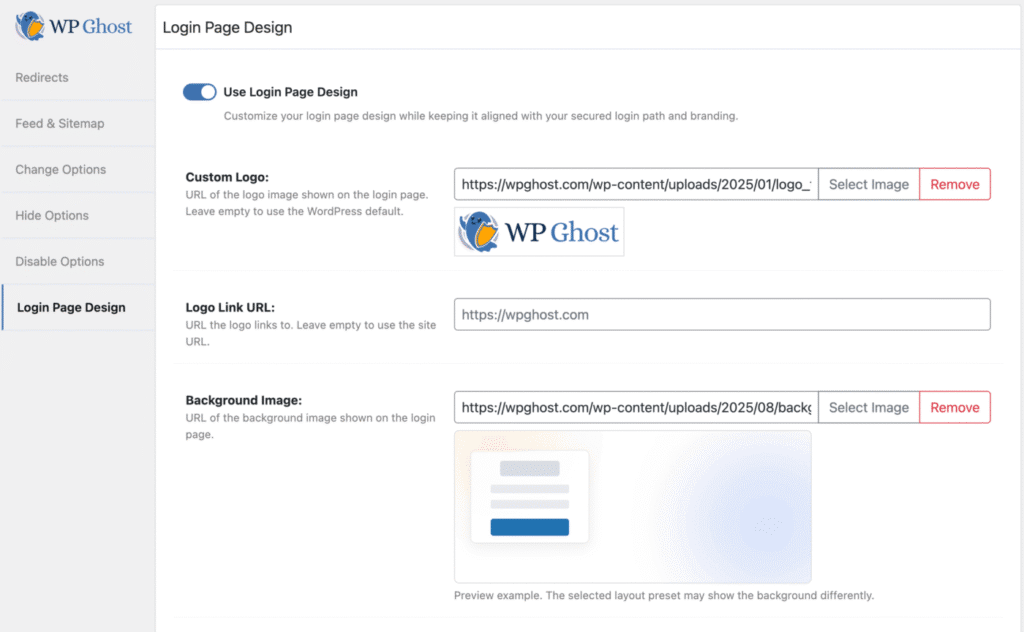
The changes take effect immediately. Open your login page in a private browser window to see the new design without cached styles interfering.
What You Can Customize
Custom Logo and Branding
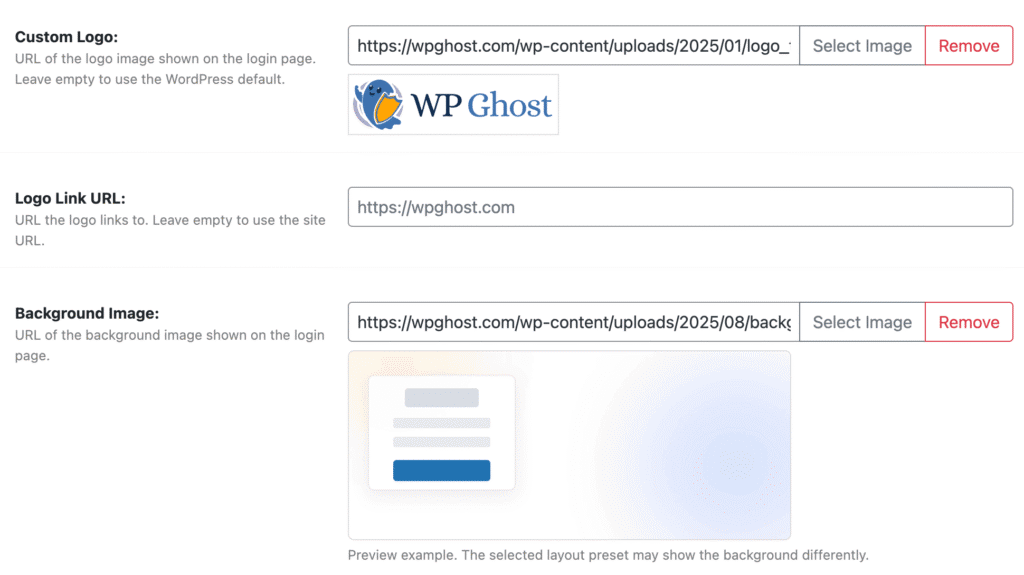
Replace the WordPress logo with your own brand mark. You can also set where the logo links to – your homepage, dashboard, or any URL you choose. This is the single most important change. The WordPress “W” on the login page is the clearest CMS identifier visible to anyone who reaches the page.
Background and Visual Style
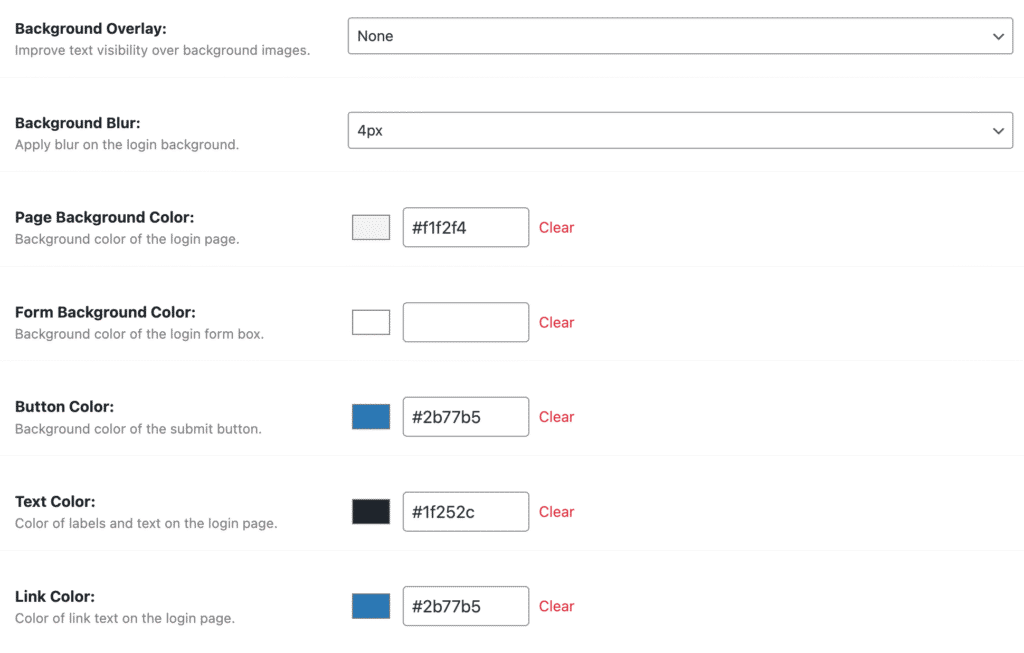
Control the visual environment behind the login form. Use a background image for a modern full-screen look, a background overlay for readability over images, background blur to keep focus on the form, or a page background color for clean minimalist styling.
Form and UI Colors
Fine-tune the login form itself: form background color (highlight the login box), button color (match your brand’s primary color), text color (ensure contrast and readability), and link color (for the “Lost your password?” and “Back to site” links).
Layout Presets
Choose from multiple pre-built layouts that define how the login page is structured: Classic, Framed, and Frosted Panel for clean centered designs; Split Layouts (Balanced, Feature, Media Left/Right) for modern SaaS-style two-column designs; and Minimal, Focus, and Overlay for distraction-free login experiences.
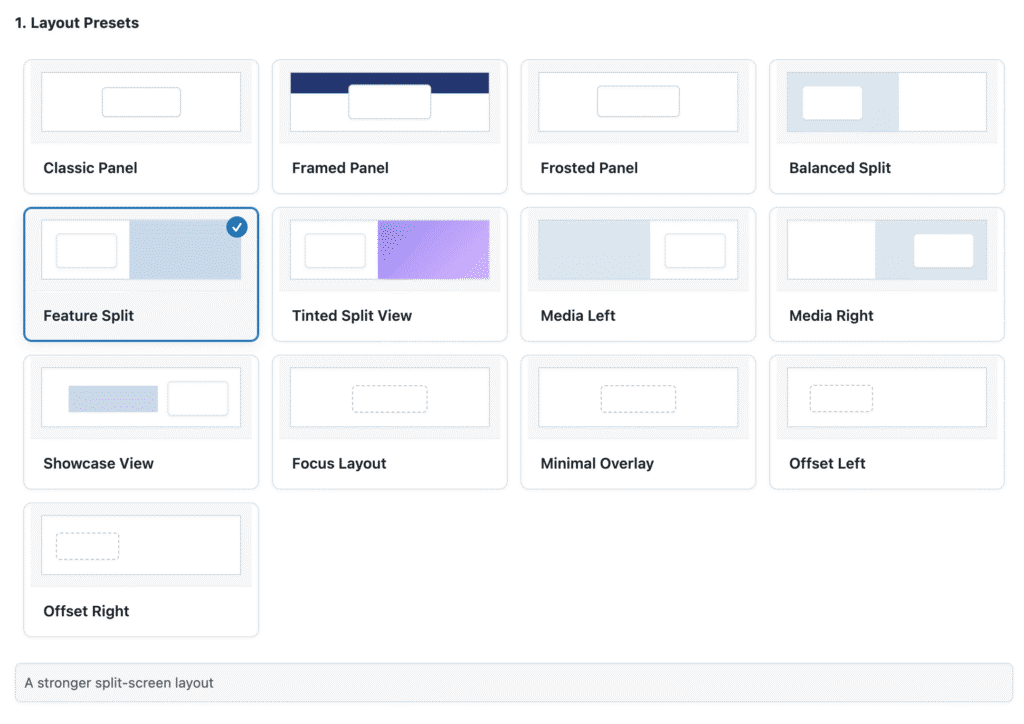
Select one, save, and your login page transforms in seconds. No design skills required.
Color Presets
For fast setup, choose a predefined color theme: Polar Mist, Deep Horizon, Soft Bloom, Night Frame, or Evergreen. Each preset applies a coordinated set of background, form, button, and text colors with one click. You can customize individual colors afterward to fine-tune the result.
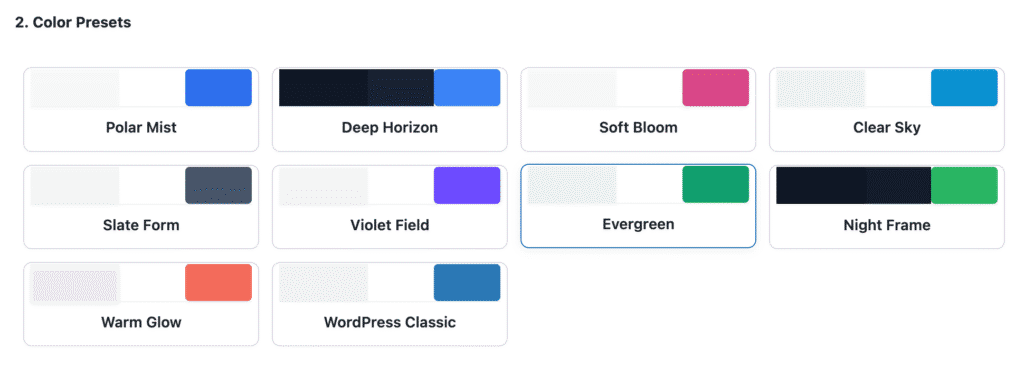
Best Practices for Login Page Design
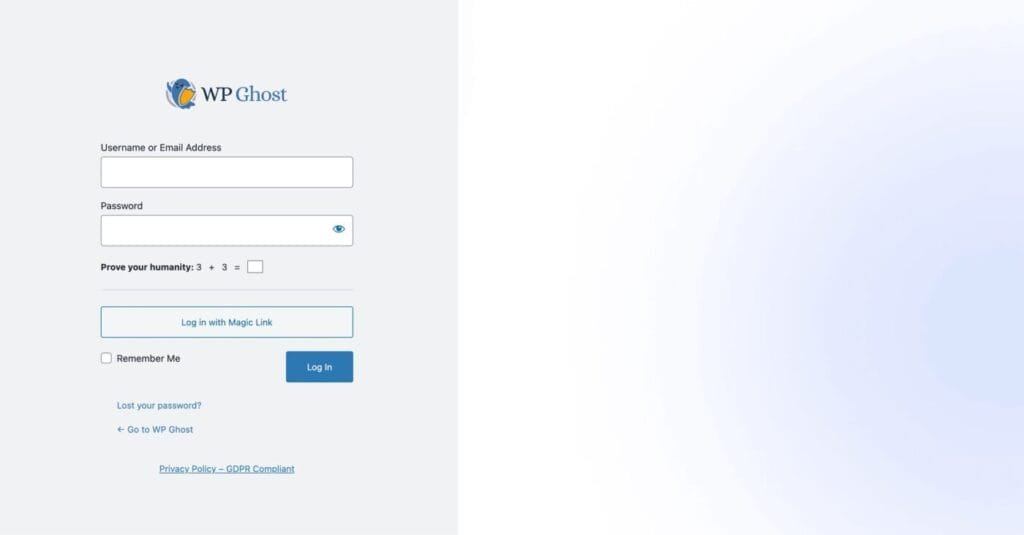
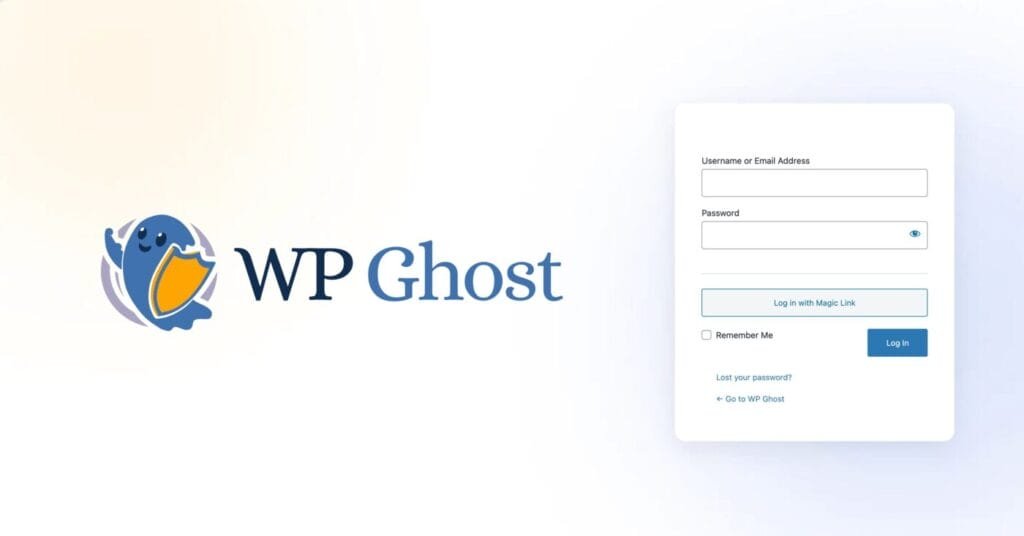
Keep it minimal. Avoid clutter. A simple login page reduces confusion, improves load speed, and looks more professional than one overloaded with elements.
Use neutral, professional colors. Dark overlays or soft gradients work best for readability. Avoid overly bright backgrounds that compete with the login form for attention.
Always replace the default logo. The WordPress logo on a login page is the clearest possible CMS indicator. Replace it with your brand logo – even a simple text logo is better than the WordPress “W”.
Combine with login security features. Login Page Design works best as part of a complete login protection setup. Pair it with a custom login URL, brute force protection, and 2FA or passkeys. The custom design removes the visual WordPress fingerprint. The hidden path removes the URL fingerprint. Together, your login page is both unrecognizable and unfindable.
Troubleshooting
The login page isn’t updating after changing the design
Almost always a caching issue. Clear your cache at every level: WordPress caching plugin, CDN (Cloudflare, BunnyCDN, etc.), and server cache. Then do a hard refresh in your browser (Ctrl+Shift+R on Windows, Cmd+Shift+R on Mac). If it still doesn’t update, temporarily disable your caching plugin and test again to confirm the cache was the problem. Also verify the settings are saved in WP Ghost > Tweaks > Login Page Design and the feature toggle is active.
Another common cause: your theme or another plugin is overriding the login page. Some themes include their own login customization which takes priority. Check your theme settings and disable any login design features if available.
A layout preset doesn’t look correct
Usually caused by CSS conflicts when multiple sources try to style the login page. If you’re using other login customization plugins, disable them – keep only one system active. If your theme injects its own login styles, disable those as well. For best results, apply a layout preset first, then customize individual colors afterward. Mixing presets with existing custom styles can create unexpected visual results.
If you’ve lost access or something broke, check the emergency disable guide, use the rollback settings, or add a constant in wp-config.php to disable WP Ghost temporarily.
Frequently Asked Questions
Does the login page design affect security?
It complements your security. The custom design removes the WordPress visual fingerprint from the login page. WP Ghost also loads only essential scripts, stripping unnecessary admin-path files that leak WordPress information. But the real security comes from hiding the login URL, enabling brute force protection, and adding 2FA. The design is the finishing touch that ensures even human visitors can’t identify WordPress visually.
Do I need a separate login page plugin?
No. WP Ghost’s Login Page Design replaces the need for standalone login customization plugins like LoginPress, Custom Login Page Customizer, or others. Having fewer plugins reduces your attack surface and avoids CSS conflicts. If you’re already using WP Ghost for security, the built-in design feature is the simpler and more secure choice.
Does this work with WooCommerce’s My Account login?
The Login Page Design customizes the standard WordPress login page (wp-login.php or your custom login URL). WooCommerce’s My Account page uses a separate login form embedded in a regular page template. The WP Ghost design applies to the WordPress login screen, not to WooCommerce’s embedded form. If you redirect WooCommerce login to your custom login page, the design applies there. WP Ghost is fully compatible with WooCommerce.
Does the design work with 2FA and brute force protection?
Yes. The login page design is a visual layer applied on top of the standard login functionality. Two-factor authentication, brute force reCAPTCHA, and all other WP Ghost security features work exactly the same underneath the custom design. The 2FA prompt and CAPTCHA challenges render correctly within all layout presets.
Does this affect SEO?
No. The login page is not indexed by search engines and has no impact on rankings. Your public content, sitemaps, and front-end URLs remain completely unchanged. The design only affects the login screen.
Does WP Ghost modify WordPress core files?
No. WP Ghost applies the design through CSS overrides and WordPress filters at runtime. No files are created, modified, or deleted. Disabling the Login Page Design toggle instantly reverts to the default WordPress login appearance.
Related Tutorials
Complete your login security and customization:
- Change and Hide the Login Path – Hide the login URL so bots can’t find your login page at all.
- Change and Hide the wp-admin Path – Protect the admin dashboard URL.
- Brute Force Attack Protection – Add reCAPTCHA and rate limiting to the login form.
- Two-Factor Authentication (2FA) – Require a second factor for login with codes, email, or passkeys.
- Hide from WordPress Theme Detectors – Remove all visual and technical CMS detection signals.
- Simulate Drupal or Joomla CMS – Add fake CMS fingerprints to further mislead scanners.