
If spam comments continue after changing the comments path in WP Ghost, the spam is likely coming from human spammers or bots that have adapted to the new path. WP Ghost blocks automated bots that target the default wp-comments-post.php path, but spam submitted through the actual comment form by filling in all fields correctly bypasses path-based protection.
Enable reCAPTCHA on comment forms
Go to WP Ghost > Brute Force > Settings and enable Comment Form Protection. This adds reCAPTCHA (Math, Google V2, V3, or Enterprise) to the comment form, which catches automated submissions that path changes alone miss. If you use a custom comment form from a theme or plugin, verify that the reCAPTCHA appears on that form too.
Change the comments path to something less predictable
If your custom comments path is short or common (like comments or post-comment), bots may find it through brute-force path guessing. Go to WP Ghost > Change Paths and set a longer, random name that’s harder to guess.
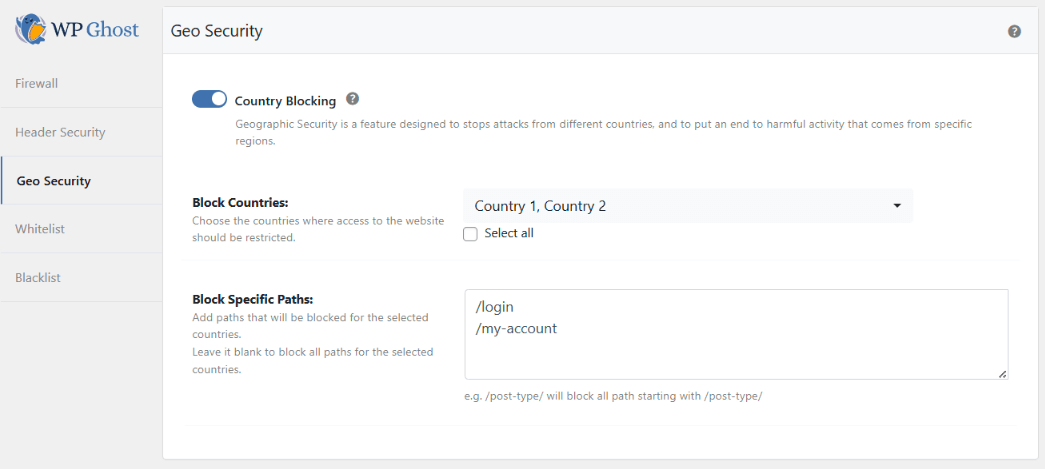
Block high-spam countries
If spam consistently comes from specific regions, use country blocking to prevent access from those areas. Go to WP Ghost > Firewall > Geo Security and block the countries generating the most spam. Check your spam comments for IP patterns to identify the regions. This is a Premium feature.
Add a dedicated anti-spam plugin
WP Ghost prevents bots from reaching the comment form. Human spammers who complete all fields correctly and pass reCAPTCHA require content-based filtering that WP Ghost doesn’t provide. Dedicated anti-spam plugins like Akismet, Antispam Bee, or CleanTalk maintain spam databases that analyze the comment content, email, and IP to catch spam that bypasses form-level protection. Use one alongside WP Ghost for complete comment spam defense.