
JetPack requires XML-RPC access to communicate with WordPress.com for analytics, stats, and connection features. If you’ve disabled XML-RPC in WP Ghost, JetPack loses this connection and shows errors like “Error connecting to WordPress.com” or “Stats not available.” The best fix is to whitelist JetPack’s IP addresses so it can use XML-RPC while keeping it blocked for everyone else.
Whitelist JetPack’s IP addresses (recommended)
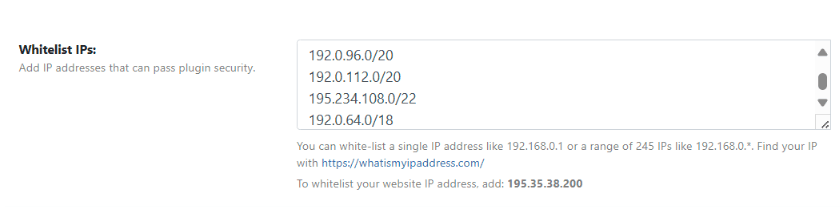
Instead of fully re-enabling XML-RPC, whitelist JetPack’s server IPs so only JetPack can access XML-RPC while all other requests remain blocked. Go to WP Ghost > Firewall > Whitelist and add JetPack’s IP ranges. For the current IP addresses, check JetPack’s developer documentation.
Alternative: Re-enable XML-RPC access
If whitelisting IPs doesn’t resolve the issue (or if JetPack’s IPs change frequently), you can re-enable XML-RPC access entirely. Go to WP Ghost > Change Paths > API Security and switch off Disable XML-RPC access. Save the settings. This allows all XML-RPC requests, so it provides less security than the IP whitelist approach. WP Ghost’s firewall and brute force protection still apply to XML-RPC requests.
Test the JetPack connection
After applying either fix, go to JetPack > Dashboard and check the connection status. If it shows disconnected, click Reconnect. Verify that analytics data starts updating (this may take a few minutes for the first data to appear).
If you’ve lost access to the admin dashboard, see the emergency disable guide.