
If author pages return 404 errors after changing the author path in WP Ghost, the server’s rewrite rules aren’t mapping the new path correctly or caches are serving the old URLs.
Clear all caches
Cached pages still serve the old author path. Clear your WordPress cache plugin, CDN cache, and browser cache. Then test an author page directly in an incognito window using the new path: yourdomain.com/your-custom-author/username.
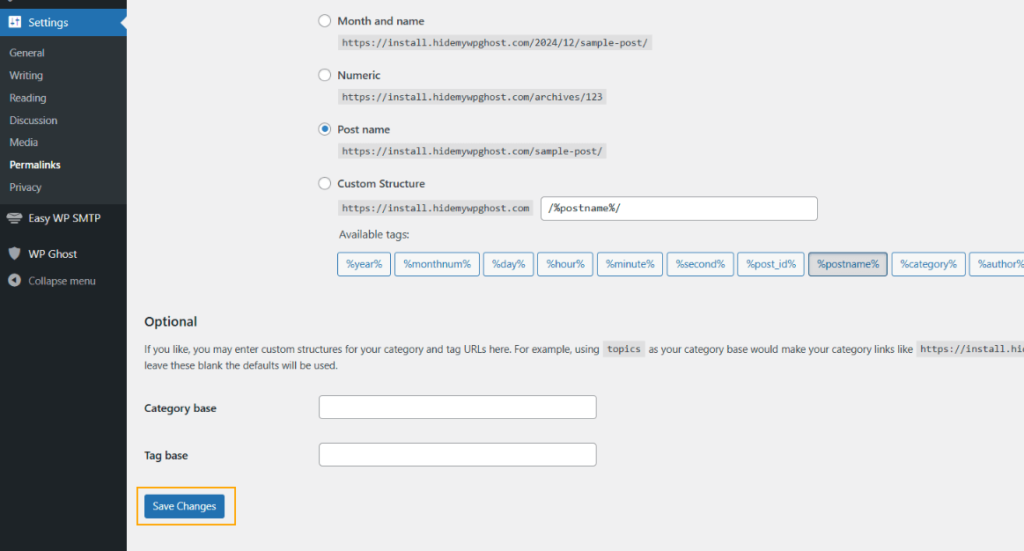
Flush permalink settings
Go to Settings > Permalinks and click Save Changes without modifying anything. Author archive URLs are part of WordPress’s rewrite rules, and flushing them forces WordPress to register the new author path.
Check for typos in the custom path
Go to WP Ghost > Change Paths and review the custom author path for typos, spaces, or special characters. The path should be a simple alphanumeric slug like writer or team.
Check server configuration
On Apache, verify that .htaccess is writable and contains the WP Ghost rewrite rules. On Nginx, verify that hidemywp.conf is included in your Nginx config and the service was restarted after the path change. Author path rewrites require working server-level rules. See Nginx Config Setup for Nginx-specific instructions.
Revert to the default author path
To confirm the custom path is the cause, go to WP Ghost > Change Paths and clear the custom author path to restore the default author. Save and test. If author pages work again with the default path, the issue is server rewrite rules not handling the custom path.

If you’ve lost access to the admin dashboard, see the emergency disable guide.