
If images or media files are broken, missing, or not loading after changing the wp-content path in WP Ghost, the image URLs in your HTML, CSS, or cached files still reference the old /wp-content/ path. Work through these checks.
Clear all caches
Cached pages and CSS files contain the old /wp-content/uploads/ image URLs. Clear your WordPress cache plugin, CDN cache, and browser cache. Also enable Change Paths in Cached Files at WP Ghost > Change Paths so cached CSS and JS files are rewritten with the new paths. Check the frontend in an incognito window after clearing.
Run the Frontend Test
Go to WP Ghost > Change Paths and click the Frontend Test button. If the test fails for the wp-content path, your server’s rewrite rules aren’t mapping the custom path to the original directory. Follow the configuration instructions shown for your server type.

Disable relative-to-absolute URL conversion
If images break specifically after enabling the relative-to-absolute URL option, this conversion may be conflicting with your theme’s image handling. Go to WP Ghost > Tweaks > Change Options and switch off Change Relative URLs to Absolute URLs.

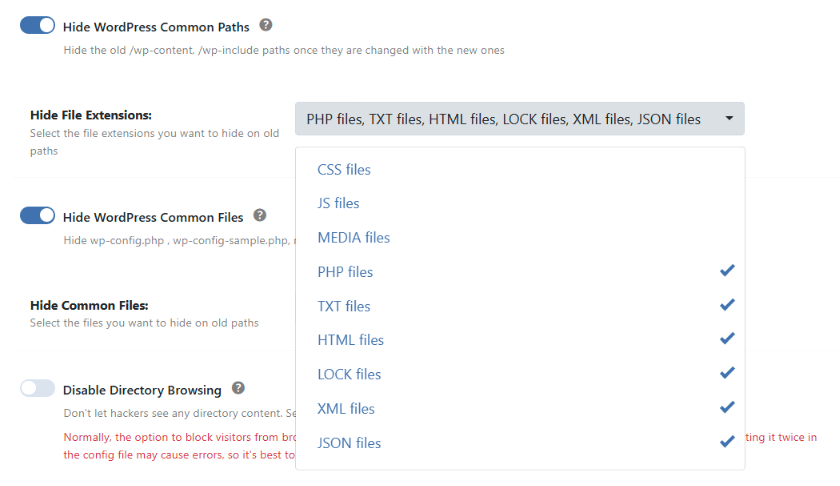
Remove MEDIA Files from hidden extensions
If you’ve selected MEDIA Files in the Hide File Extensions list, old image URLs are being redirected or blocked. This can break images referenced by external sites, RSS feeds, or email newsletters that still use the old path. Go to WP Ghost > Change Paths > WP Core Security > Hide WordPress Common Paths > Hide File Extensions and deselect MEDIA Files.
Verify image paths in page source
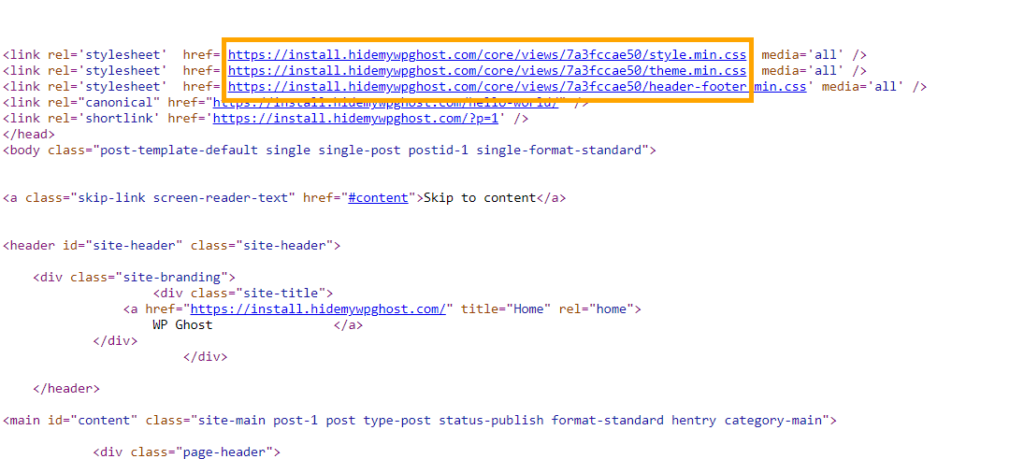
Right-click on a broken image and select “Open image in new tab” or “Inspect” to see the actual URL the browser is requesting. If the URL still shows /wp-content/uploads/ instead of your custom path, the HTML output isn’t being rewritten. Check that your security mode (Safe Mode or Ghost Mode) is active and that “Change Paths in Cached Files” is enabled.
Check for plugin conflicts
Image optimization plugins, lazy-loading plugins, and CDN plugins can hardcode /wp-content/uploads/ paths in their output. Deactivate these plugins one at a time and test. For a conflicting plugin, try adding its image paths to WP Ghost > Change Paths > Whitelist Paths.
If you’ve lost access to the admin dashboard, see the emergency disable guide.