
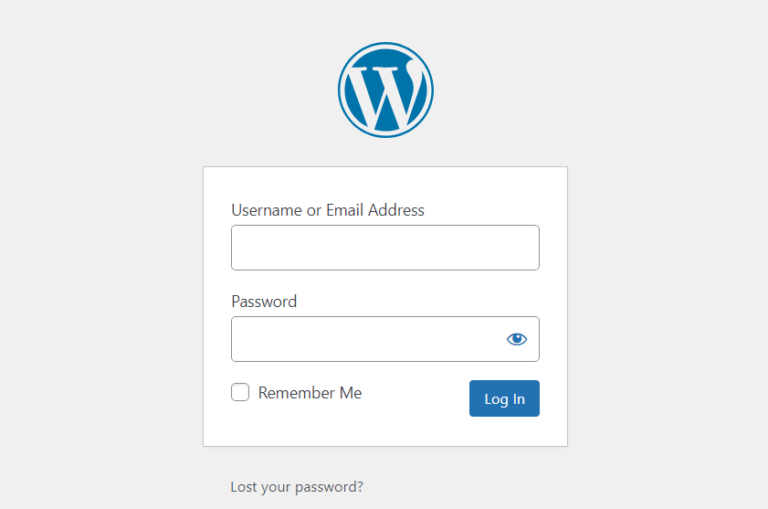
WordPress displays the WordPress logo on the login page with a link to wordpress.org. You can change this link to point to your own homepage (or remove it entirely) and change the alt text to display your site name instead of “WordPress.” The easiest way is to use WP Ghost’s built-in Login Page Design feature, which lets you replace the logo, set the logo link, and customize colors and layout without writing code. If you prefer manual control via code, this guide also covers the WordPress filter approach.
Recommended: Use Login Page Design instead. WP Ghost includes a built-in Login Page Design feature at WP Ghost > Tweaks > Login Page Design that lets you replace the logo, set the logo link URL, change background images, colors, and choose from layout presets – all without writing code or editing functions.php. It also strips unnecessary admin-path scripts from the login page, reducing WordPress fingerprints. The code approach below is only needed if you want more granular control than the visual customizer provides.
Why Change the Login Logo Link?

The default WordPress login page logo links to wordpress.org and has “Powered by WordPress” as the alt text. These are WordPress identifiers that bots and detection tools can use to confirm a site runs WordPress. Changing the logo link to your homepage and the alt text to your site name removes these identifiers from the login page. Combined with WP Ghost’s custom login path and CMS simulation, this makes the login page look like it belongs to a custom application rather than WordPress.
Change the Logo Link to Your Homepage
Add the following code to your theme’s functions.php file (use a child theme to keep changes across theme updates):
// Change the login logo link to your homepage
function mb_login_url() {
    return home_url();
}
add_filter('login_headerurl', 'mb_login_url');
This changes the logo link from wordpress.org to your site’s homepage URL. To remove the link entirely instead, use:
add_filter('login_headerurl', '__return_false');You can access functions.php via Appearance > Theme File Editor in the WordPress dashboard, or via FTP/File Manager at wp-content/themes/your-theme/functions.php.
Change the Logo Alt Text
Add the following code to the same functions.php file to change the logo alt text from “Powered by WordPress” to your site name:
// Change the login logo alt text to your site name
function mb_login_title() {
    return get_option('blogname');
}
add_filter('login_headertext', 'mb_login_title');
After saving the file, log out and visit your login page to verify the changes. The logo should now link to your homepage and display your site name as the alt text.
Both snippets together: You can add both the logo link and alt text changes in the same functions.php file. They use different WordPress filters (login_headerurl and login_headertext) and don’t conflict with each other.
Use a child theme. Adding code to functions.php in the parent theme means your changes are lost when the theme updates. Use a child theme or a code snippets plugin to keep the filters persistent.
Frequently Asked Questions
Does WP Ghost handle this automatically?
Yes, with the Login Page Design feature. Go to WP Ghost > Tweaks > Login Page Design to replace the logo, set the logo link URL, and customize the entire login page visually. The code approach in this guide is an alternative for users who want filter-level control or need to customize beyond what the visual editor offers.
Can I also change the logo image itself?
Yes. The easiest way is with WP Ghost’s Login Page Design feature, which includes a Custom Logo option where you upload your own logo image. If you prefer the code approach, you’d need custom CSS via the login_enqueue_scripts action to override the default background image on the logo element.
The original tutorial uses login_headertitle. Is that correct?
The login_headertitle filter was deprecated in WordPress 5.2. The current filter is login_headertext. Both still work, but login_headertext is the recommended filter to use going forward.
Does WP Ghost modify WordPress core files?
No. Both WP Ghost and these login page filters work through WordPress hooks. No core files are modified. The code in this guide goes into functions.php (your theme file), not into WordPress core.
Related Tutorials
Login page customization and security:
- Login Page Design – Full visual login page customizer (recommended over manual code).
- Change WordPress Paths – Hide the login path with WP Ghost.
- Simulate Drupal or Joomla CMS – Make the entire site appear as a different CMS.
- Custom CMS Simulator – Add a custom generator name.
- Admin Mapping Add-on – Customize admin dashboard URLs and text.