
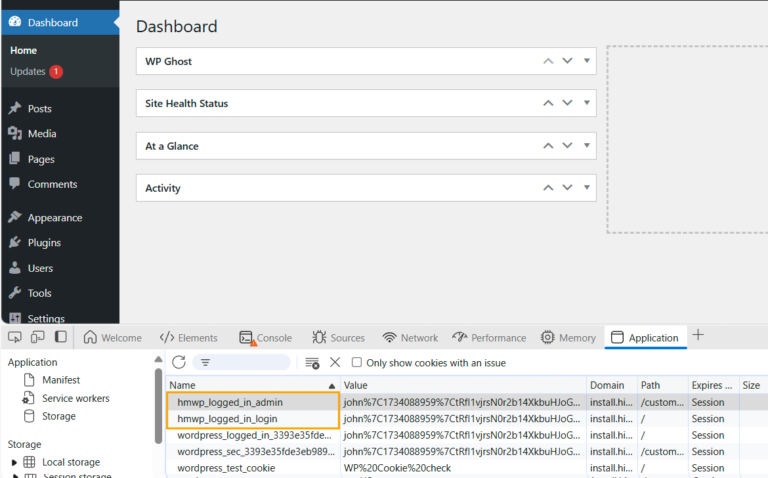
WP Ghost uses custom cookies for logged-in user sessions that work with custom admin paths. By default, these cookies use the hmwp_logged_in_ prefix. You can change this prefix to any custom value by adding the HMWP_LOGGED_IN_COOKIE constant to wp-config.php. This removes another WordPress-specific identifier from browser developer tools and cookie headers.
Why Customize Cookie Names?

WordPress sets cookies with recognizable names (like wordpress_logged_in_) that security scanners and browser developer tools can use to identify a WordPress site. WP Ghost replaces these with its own cookies, but the default hmwp_logged_in_ prefix can itself reveal that WP Ghost is installed. Changing the cookie prefix to a custom value (like my_session_ or app_auth_) removes this identifier, making it harder for anyone inspecting cookies to determine which CMS or security plugin you use.
Change the Cookie Name
- Open
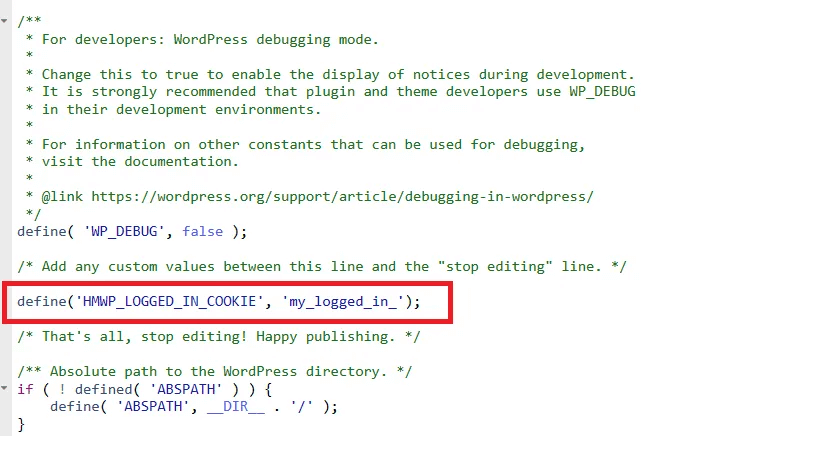
wp-config.phpvia FTP, cPanel File Manager, or SSH. - Add the following line before the
/* That's all, stop editing! Happy publishing. */comment:
define('HMWP_LOGGED_IN_COOKIE', 'my_logged_in_');- Replace
'my_logged_in_'with any prefix you prefer. - Save the file.
- Go to WP Ghost > Change Paths and click Save to refresh the settings.
You must clear cookies and log in again. Existing session cookies use the old prefix. The new cookie name only applies to new sessions. Clear your browser cookies or use an incognito window, then log in to create cookies with the new prefix.
Frequently Asked Questions
What should I name the cookie prefix?
Use any alphanumeric string with underscores. Avoid names that identify WordPress or WP Ghost (like wp_ or hmwp_). Generic names like app_session_, site_auth_, or your brand’s abbreviation work well. Keep it short.
What if I get locked out after changing the cookie name?
Clear your browser cookies and log in again. The new cookie name creates fresh session cookies on login. If you need to revert, remove the HMWP_LOGGED_IN_COOKIE line from wp-config.php and the default hmwp_logged_in_ prefix is restored. For emergency access, see the emergency disable guide.
Where can I find all WP Ghost constants?
See the WP Ghost Constants Reference for all available wp-config.php constants including priority loading, dynamic files, admin paths, permissions, and more.
Does WP Ghost modify WordPress core files?
No. The constant is added to wp-config.php, which is your site’s configuration file, not a WordPress core file. WP Ghost uses WordPress hooks for cookie management.
Related Tutorials
WordPress identity removal and configuration:
- Text and URL Mapping – Replace remaining WordPress identifiers in page source.