
Track every security-relevant action on your WordPress site – logins, plugin changes, post deletions, theme updates, and failed login attempts – with the User Events Log. WP Ghost monitors logged-in user activity 24/7 and records who did what, when, and from which IP address. You can filter by event type, search by keyword, and optionally sync logs to the WP Ghost Cloud Dashboard with email alerts for critical events. This is a Premium feature.
What Is the User Events Log?

Why Track User Activity
Monitoring user activity is essential for your hack prevention strategy, especially on sites with multiple users, freelancers, or client access:
Detect compromised accounts. If an admin account starts making unusual changes – deleting posts, deactivating security plugins, installing unknown themes – the events log shows exactly what happened and when. You can trace the activity to a specific user and IP address.
Track login attempts and patterns. The log records both successful and failed login attempts, including the IP address of each attempt. If someone is targeting your login page, you see it here. Combined with Brute Force Protection, this gives you full visibility into login security.
Audit freelancer and developer activity. When multiple people have dashboard access, the events log creates accountability. You know who activated a plugin, who updated a theme, who modified settings, and when each action occurred.
How to Activate the User Events Log
- Go to WP Ghost > Logs > Settings.
- Enable Log Users Events.
- Optional: enable Enable Cloud Storage for Events Log to sync a copy to your WP Ghost Dashboard (retained for 30 days).
- Optional: select specific user roles to monitor under Log User Roles. If you want to monitor all roles, leave this blank (“Nothing Selected”).
- Click Save.
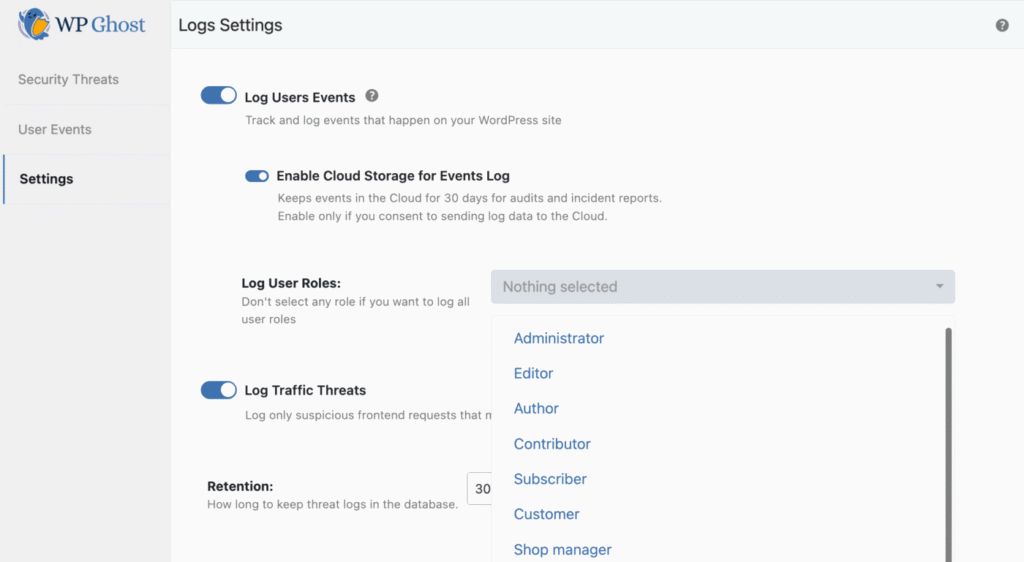
User role filtering: You can monitor specific roles only – for example, Subscribers and Contributors but not Administrators. Select the roles you want to track. Multiple roles can be selected. Leaving the dropdown blank monitors all roles.
What Gets Logged
The Events Log records security-relevant dashboard activity for the user roles you selected. Every entry captures what happened and who did it:
Login activity: Successful logins, failed login attempts, login IP addresses, and which IP is targeting your login page.
Content changes: Post and page deletions (who deleted what), attachment uploads and deletions.
Plugin and theme activity: Plugin activations, deactivations, and deletions. Theme and plugin updates. Core file updates.
Settings changes: Any dashboard settings modifications that could impact security.
For every recorded action, WP Ghost shows: the location (IP and country) where the action occurred, the details (path, username, role, plugin/theme name), the user who triggered the action, and the date and time.
Reading the Events Log Report
View events at WP Ghost > Logs > User Events.
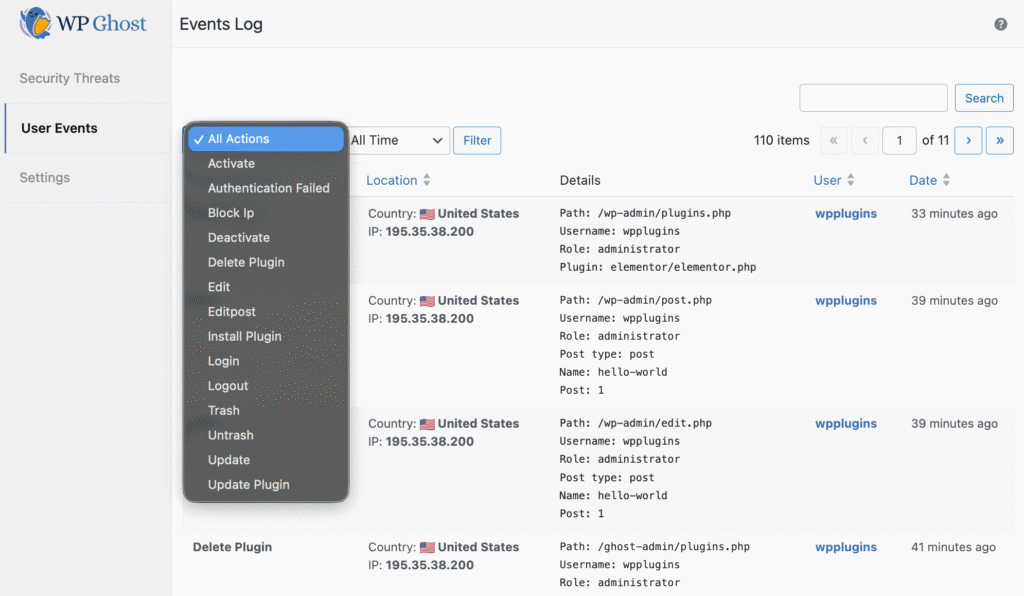
Use the Filter button to narrow results by event type: login, incorrect password, update plugin, delete plugin, delete post, and more. Use the Search form to find entries by keyword, username, path, or IP address.
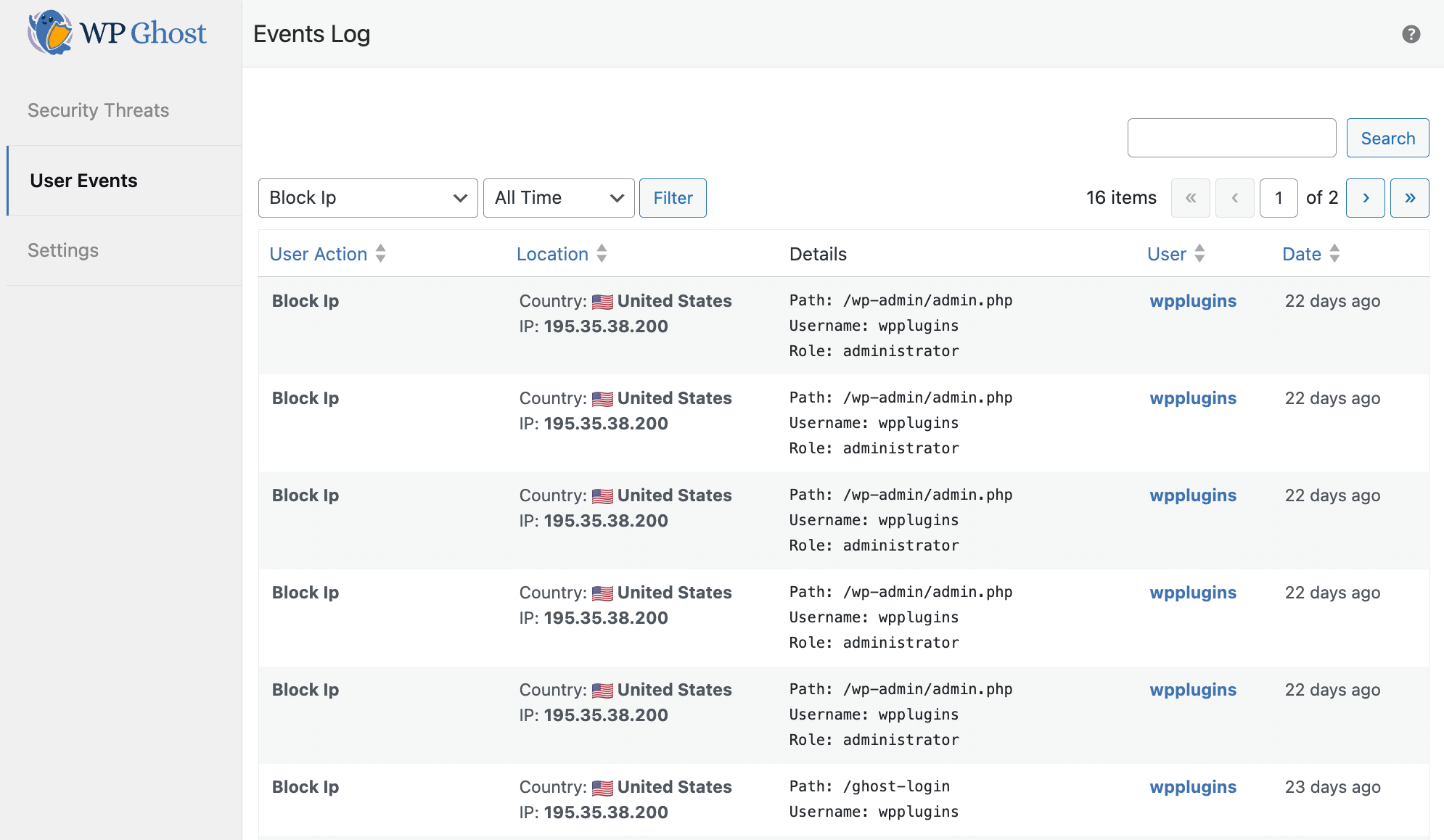
Search tip: For best results, make sure no filter is applied when using the Search function. Filters and search can conflict if used simultaneously.
Cloud Storage and WP Ghost Dashboard
When Enable Cloud Storage for Events Log is active, WP Ghost syncs events to the WP Ghost Dashboard. Cloud logs are retained for 30 days and then permanently deleted.
The advantage: if your site is compromised and local data is modified or deleted, the cloud copy preserves the activity log for investigation. The Dashboard shows the same details as the local report: website URL, location, action details, and date (UTC).

Export before deletion: Cloud logs are deleted after 30 days. Use the Export button on the WP Ghost Dashboard to download a copy before expiration.
Email Alerts
Create email alerts for critical events so you can respond within minutes. Alerts are configured in the WP Ghost Dashboard (requires Cloud Storage enabled).
Available alert types:
Login from different IPs – notifies you when the same user logs in from multiple IP addresses (possible account compromise).
Brute Force IP block – notifies you when WP Ghost’s Brute Force Protection blocks an IP. Requires Brute Force Protection to be active.
Too many failed logins – notifies you when a user exceeds 5 failed login attempts. Works independently of Brute Force Protection.
Plugin deleted – notifies you when any plugin is deleted from the site.
Post deleted – notifies you when any post is deleted from the site.
To create an alert: Go to your WP Ghost Dashboard → Email Alerts → click +New → select the website → select the alert type → Submit. Each alert is set up individually.

Notification email: By default, alerts go to your WP Ghost account notification email (set in Profile > Settings). You can set a different email for each connected site in Connected Sites → edit icon → custom email. Per-site settings override the default.
To delete an alert, click the delete icon next to it in the Email Alerts panel.
GDPR and Data Storage
When the Events Log is enabled, all events are stored locally in the WordPress database table _hmwp_logs for the retention period you set.
If Cloud Storage is enabled, data is sent to the WP Ghost Dashboard and stored for 30 days. After this period, data is permanently deleted. Collected information includes: action name, post ID, post type, username, post name, plugin name, and attachment name. Each piece of information is saved only when a user triggers an action. The data is not shared with third parties and not used for marketing.
A notification in the WP Ghost sidebar informs users when Cloud Storage is active, ensuring transparency about data transmission.
Frequently Asked Questions
Is this a Premium feature?
Yes. The User Events Log is available in WP Ghost Premium. The free version includes path security, firewall, and brute force protection but not event logging.
Is this the same as the Security Threats Log?
No. The User Events Log tracks internal activity – what your logged-in users do on the dashboard. The Security Threats Log tracks external threats – malicious requests from bots and attackers. They’re complementary: threats show what’s attacking you; events show what’s happening inside.
Does this log frontend user activity?
No. The Events Log only tracks security-relevant dashboard actions: logins, plugin changes, post deletions, settings modifications, and similar administrative events. It does not log everyday frontend browsing like clicking menus, viewing pages, or adding items to a WooCommerce cart.
Does this work with WooCommerce?
Yes. The Events Log tracks WooCommerce admin actions (product changes, order modifications, plugin updates) the same way it tracks regular WordPress dashboard activity. WP Ghost is fully compatible with WooCommerce.
Does WP Ghost modify WordPress core files?
No. Event logging uses WP Ghost’s own database table and WordPress hooks. No core files are modified. Disabling the feature stops logging instantly.
Related Tutorials
Use the Events Log alongside these security features:
- Security Threats Log – Monitor blocked external attacks (the companion to the Events Log).
- Brute Force Protection – Block login attacks that generate events log entries.
- Two-Factor Authentication – Add a second verification step to complement login monitoring.
- Temporary Logins – Give developers time-limited access that the Events Log can track.
- Firewall Security – Block malicious requests before they reach WordPress.