
If the WordPress post editor (Gutenberg or Classic) shows errors like “Updating failed” or “Publishing failed” after changing the admin-ajax.php path in WP Ghost, the editor’s AJAX requests can’t reach the new path. The block editor uses both the REST API and AJAX for saving, and a misconfigured AJAX path breaks the save process.
Log out and log back in
If you changed both the wp-admin and admin-ajax.php paths, your session cookies are tied to the old paths. Log out of WordPress completely and log back in through your custom login path. This creates fresh session cookies on the new paths and is often enough to fix the editor save error.
Clear all caches
Cached admin pages may still reference the old admin-ajax.php URL. Clear your WordPress cache plugin and browser cache. Some cache plugins also cache admin AJAX responses, which can cause mismatches after a path change.
Run the Frontend Test
Go to WP Ghost > Change Paths and click the Frontend Test button. If the test fails for the AJAX path, your server’s rewrite rules aren’t mapping it correctly. Follow the configuration instructions shown for your server type.

Flush permalink settings
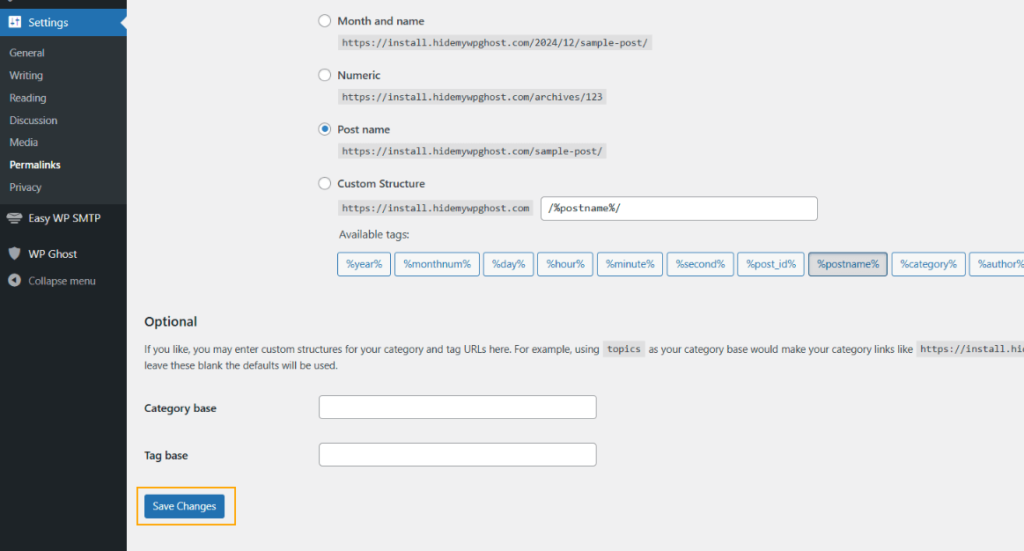
Go to Settings > Permalinks and click Save Changes without modifying anything. This regenerates rewrite rules that may have gone stale after the AJAX path change.
Revert to the default admin-ajax path
To confirm the custom path is the cause, go to WP Ghost > Change Paths > Ajax Security and set the AJAX path back to admin-ajax.php. If Hide wp-admin from Ajax path is enabled, switch it off too. Save, clear cache, and test saving a post. If the editor works with the default path, the issue is server rewrite rules not handling the custom AJAX path.

If you’ve lost access to the admin dashboard, see the emergency disable guide.