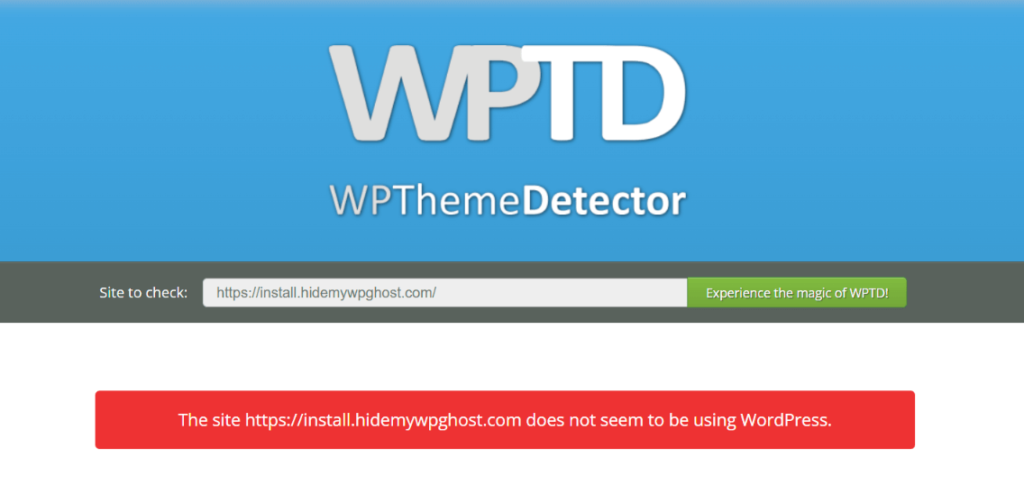
You cannot fully block a browser extension like Wappalyzer or WhatRuns because the extension runs inside the visitor’s browser, not on your site. What you can do is remove the WordPress fingerprints the extension looks for. WP Ghost hides the default paths, strips version tags and generator metas, renames wp- class names, and blocks known detector crawlers. With those layers active, extensions receive a page that has nothing identifying it as WordPress.
Why You Cannot “Block” a Browser Extension
A browser extension runs on the visitor’s machine, inside their browser. Your server sees only a normal HTTP request and returns the same HTML, CSS, and JavaScript it would return to any other visitor. Whatever the browser receives, the extension can inspect. That means detection tools like Wappalyzer, WhatRuns, and BuiltWith Profiler work on clues your site voluntarily puts in the page source: file paths, class names, meta tags, and network requests. You cannot reach into the visitor’s browser and switch the extension off, but you can change what your site sends, so there is nothing useful for the extension to read.
What Browser Extensions Actually Read
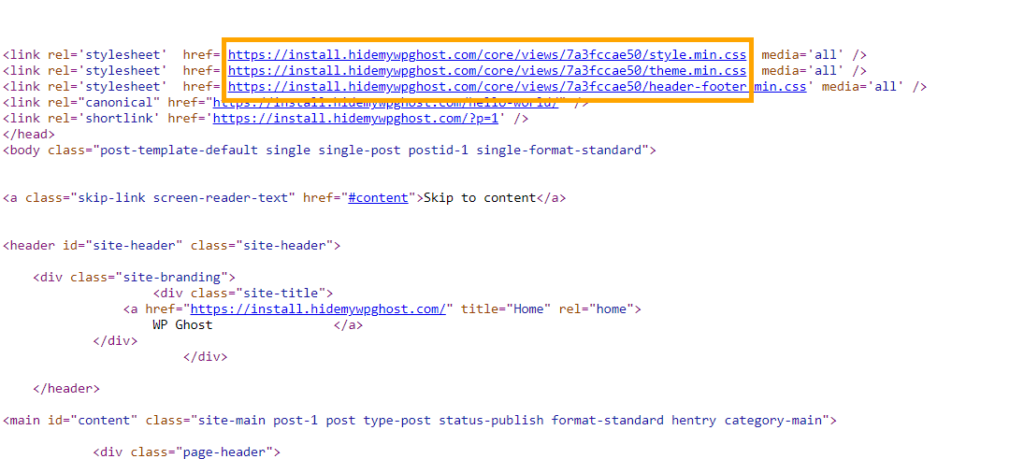
Technology detector extensions scan four things on every page they visit. The HTML source, looking for patterns like wp-content, wp-includes, or the WordPress generator meta tag. The URLs of loaded CSS and JavaScript files, looking for plugin names or theme paths. Network requests, looking for WordPress endpoints like wp-json or admin-ajax.php. And HTML class names, looking for the wp-block-, wp-image-, and similar prefixes WordPress adds automatically. Remove those signals and the extension has nothing to match against.
Default WordPress vs WP Ghost: What Extensions See
| Signal in Page Source | Default WordPress | With WP Ghost |
|---|---|---|
| /wp-content/ and /wp-includes/ paths | Exposed in every script URL | Renamed and hidden |
| Generator meta tag | WordPress X.X visible | Removed |
| ?ver= version strings | Revealed on CSS and JS | Stripped |
| wp- class names in HTML | Everywhere in output | Replaced via Text Mapping |
| readme.html and license.txt | Publicly readable | Return 404 |
| Detector extension result | WordPress identified instantly | Unknown or wrong CMS |
How to Hide Your Site from Browser Extension Detectors
Step 1. Activate Safe Mode or Ghost Mode
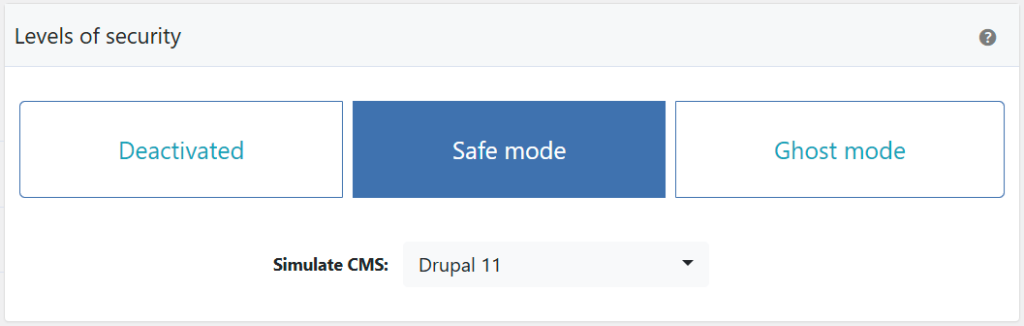
Go to WP Ghost > Change Paths > Level of Security and pick Safe Mode for a balanced setup or Ghost Mode for maximum hiding. This sets the baseline for everything else by changing the default WordPress paths in one click. For a walkthrough, see the 3-minute Safe Mode setup.
Step 2. Hide WordPress Common Paths and Files
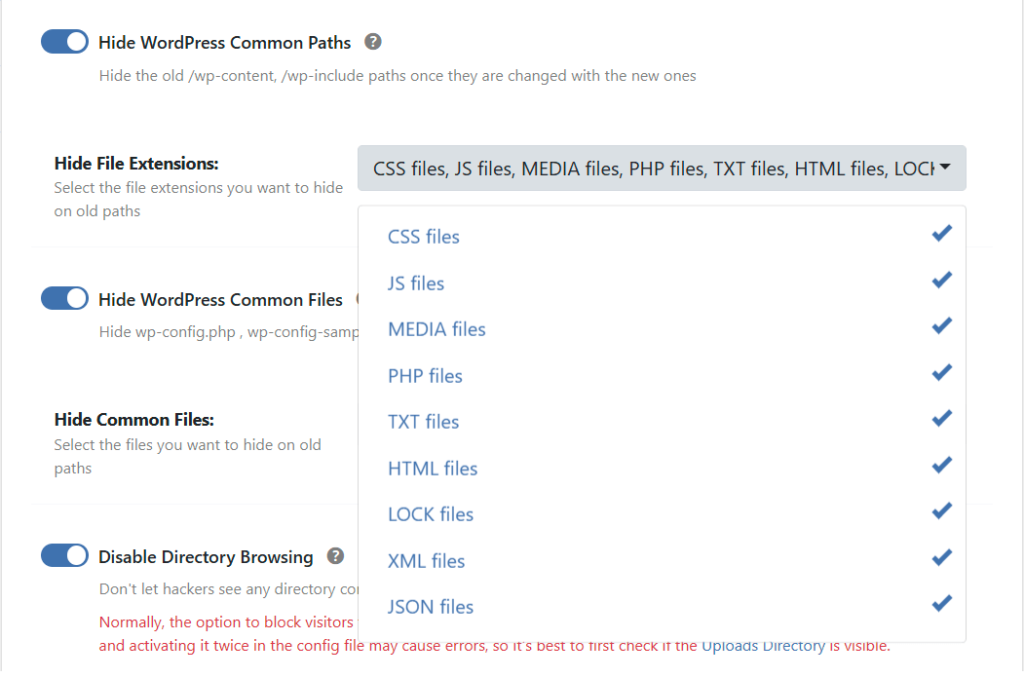
Inside WP Ghost > Change Paths > WP Core Security, enable Hide WordPress Common Paths so old URLs like /wp-content/ and /wp-includes/ return 404 to logged-out visitors. Then enable Hide WordPress Common Files so readme.html, license.txt, and wp-config.php stop responding. See the full Hide WordPress Common Paths and Files guide for details.
Step 3. Remove Source Code Clues in Tweaks
Open WP Ghost > Tweaks and switch on the hiding options that strip WordPress signals from the HTML: Hide WordPress Version, Hide Generator Meta, Hide HTML Comments, Hide DNS Prefetch, Hide IDs from Meta Tags, Hide Emoji Icons, and Disable Embed Scripts. Each option removes a different signal, and together they clear out almost every WordPress fingerprint from the source.
Step 4. Use Text Mapping to Rename wp- Classes
Many extensions look for HTML class names like wp-block-group or wp-image. Even if your paths are perfectly hidden, these class names give the CMS away. Go to WP Ghost > Mapping and use Text Mapping to replace the wp- prefix with something generic. For hiding Gutenberg-specific classes, see Hide Gutenberg Classes.
Step 5. Use URL Mapping for Plugin Asset Names
Some plugins include their name in asset URLs (for example /woocommerce.min.js or /elementor.css). These are gold for extensions. Use URL Mapping to rename them. Combined with plugin name hiding, this removes the last layer of plugin fingerprints.
Step 6. Block Theme Detector Crawlers at the Firewall
Browser extensions themselves are client-side, but many of them ping their own servers to cross-check results, and those servers also run crawlers that scan your site. Enable Block Theme Detectors Crawlers in WP Ghost > Firewall to block known detector bots before they reach WordPress. The full approach is covered in Hide from WordPress Theme Detectors.
Why You Still See Detection While Logged In
This is the single most common reason people think WP Ghost is not working. When you test your own site with Wappalyzer or WhatRuns while logged into wp-admin, WordPress adds clear logged-in signals the extension cannot miss: the admin bar at the top, admin AJAX scripts, admin cookies, and backend assets. On top of that, WP Ghost deliberately keeps full hiding off in the admin context, because masking admin scripts would break the editor and the dashboard. So the extension sees WordPress, caches that result, and may continue to show it for weeks even after you fix everything on the public side.
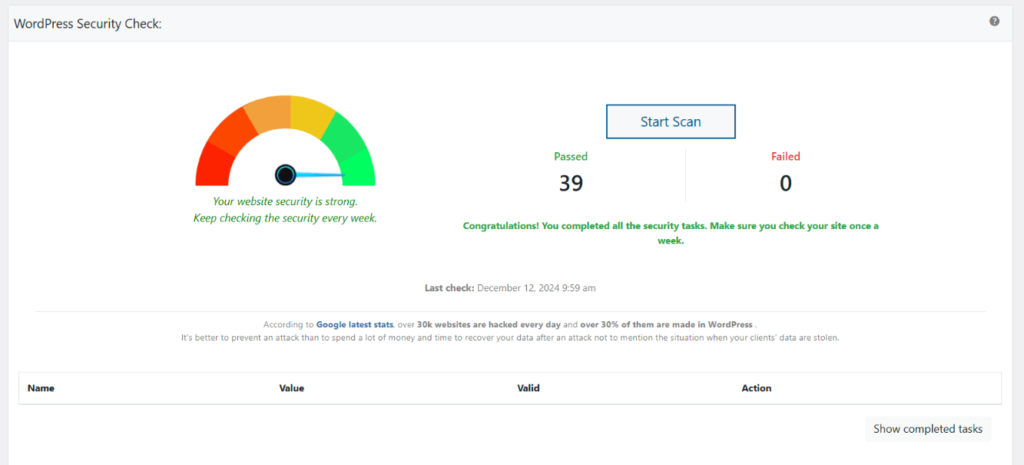
The fix is simple: do not install detection extensions in the same browser profile you use for wp-admin. Test in an incognito window while logged out, or use a completely separate browser profile with no WordPress session. Even better, test from a different device entirely, like a phone or tablet that has never logged into the site. For more verification methods, see the Website Security Check guide.
Why This Matters for Hack Prevention
Browser extensions are not the real threat, bots are. But extensions and automated bots look at the exact same signals. If your site passes a clean Wappalyzer test from an incognito window, it also passes the quick fingerprint scans that bots run before they decide whether to attack. That is why hiding from detectors and hack prevention are the same problem solved at the same time. WP Ghost includes 115+ free features and 150+ premium features designed to strip those fingerprints across paths, files, HTML, classes, and assets.
Frequently Asked Questions
Can any plugin fully block Wappalyzer or WhatRuns?
No plugin can disable a browser extension, and any plugin claiming otherwise is misleading you. What a plugin can do, and what WP Ghost does, is remove the WordPress signals extensions look for so the detection fails for lack of evidence.
Why does Wappalyzer still show WordPress after I configured WP Ghost?
Three common reasons. You are testing while logged into wp-admin, so admin signals give the CMS away. The extension has cached the old result, try incognito or a clean profile. Or your cache plugin is still serving old HTML with the original paths, clear the cache and enable Change Paths in Cached Files.
Should I test with BuiltWith or IsItWP?
No. BuiltWith and IsItWP cache CMS detection results for months. Even a completely hidden site can keep showing as WordPress in their database long after the fingerprints are gone. Use real-time detectors like wpthemedetector.com, whatwpthemeisthat.com, and whatcms.org instead.
What about the CMS Simulator feature?
For even stronger misdirection, WP Ghost can simulate Drupal or Joomla so detectors report a different CMS entirely. This is an advanced feature and not required for basic hiding, but it is useful if you want detectors to return a wrong answer instead of “unknown”.
Does WP Ghost modify WordPress core files?
No. WP Ghost never touches, moves, or renames any file or folder on your server. All fingerprint hiding is done through URL rewrite rules, WordPress filters, and output buffering. Deactivating the plugin restores every original path, class, and meta tag instantly, which means testing it on a production site carries zero risk of permanent changes.